1
AC1750 Smart WiFi Router
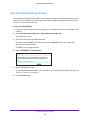
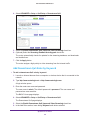
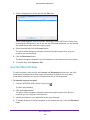
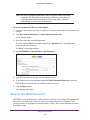
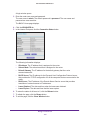
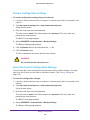
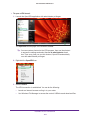
2. In the field provided, type ping followed by the IP address of the router, as in this example:
ping www.routerlogin.net
3. Click the OK button.
You see a message like this one:
Pinging <IP address > with 32 bytes of data
If the path is working, you see this message:
Reply from < IP address >: bytes=32 time=NN ms TTL=xxx
If the path is not working, you see this message:
Request timed out
If the path is not functioning correctly, one of the following problems might be present:
•
Wrong physical connections
For a wired connection, make sure that the numbered LAN port LED is lit for the port to
which you are connected.
Check that the appropriate LEDs are lit for your network devices. If your router and
computer are connected to a separate Ethernet switch, make sure that the link LEDs are
lit for the switch ports that are connected to your computer and router.
•
Wrong network configuration
Verify that the Ethernet card driver software and TCP/IP software are both installed and
configured on your computer.
Verify that the IP address for your router and your computer are correct and that the
addresses are on the same subnet.
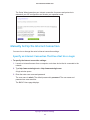
Test the Path from Your Computer to a Remote Device
After verifying that the LAN path works correctly, test the path from your computer to a
remote device.
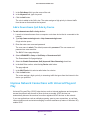
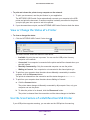
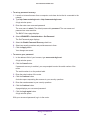
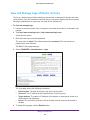
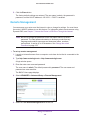
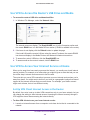
1. From the Windows toolbar, click the Start button and select Run.
2. In the Windows Run window, type
ping -n 10 <IP address>
where <IP address> is the IP address of a remote device such as your ISP DNS server.
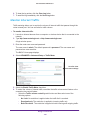
If the path is functioning correctly, messages display that are similar to those shown in the
Test the LAN Path to Your Router on page 174.
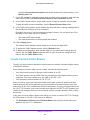
If you do not receive replies, check the following:
•
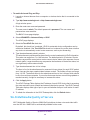
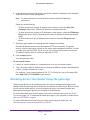
Check that the IP address of your router is listed in your computer as the default gateway.
If DHCP assigns the IP configuration of your computers, this information is not visible in
Troubleshooting
175