1
Maintenance
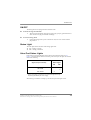
MSG.LOG
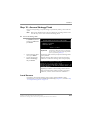
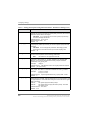
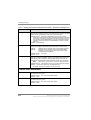
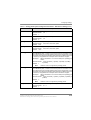
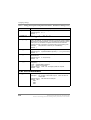
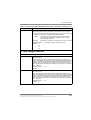
If you need to check actions related to specific types of messaging, you can enable
MSG.LOG in the System Configuration file. In this file, Stratagy logs every message
received and every mailbox that checks for messages along with the DTMF entered.
Important!
Since the MSG.LOG file continuously collects information, we recommend
that you do not enable the file unless you are looking for specific information.
Otherwise, the file takes up space in the flash memory that could be used for
message storage.
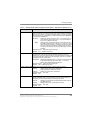
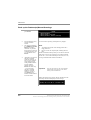
Enable MSG.LOG
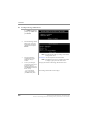
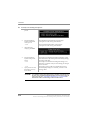
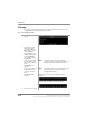
1.
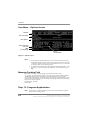
From the Tools menu,
press 6.
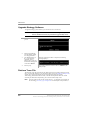
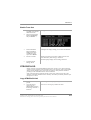
The system configuration file displays. The parameters are
listed in alphabetical order.
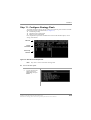
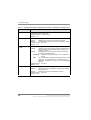
2.
Enable the msg_log
parameter by removing
the # sign in the string:
See Chapter 4 - Configuring Stratagy in the Stratagy I&M
Manual for instructions.
#set msg_log
‘MSG.LOG’
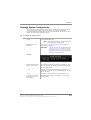
3.
Press ESC.
4.
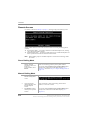
From the Stratagy System
Config screen, press 1 to
save your changes.
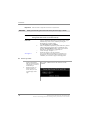
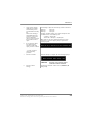
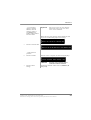
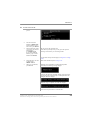
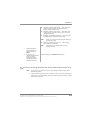
Stratagy Admin transmits the file to the Stratagy Flash. When
complete, the screen displays this message:
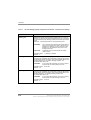
5.
Press any key to continue.
The system starts logging the information to the MSG.LOG
file. The DOS prompt displays.
6.
(Optional) Re-enter
Stratagy Admin.
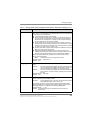
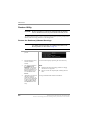
Copy MSG.LOG
4-18
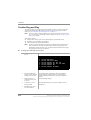
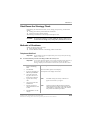
1.
From the Tools menu,
press 8.
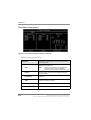
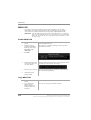
The Filecopy screen displays (see Page 4-12 for details).
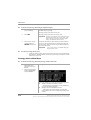
2.
Using the Filecopy
option, copy the
MSG.LOG file to the
Stratagy Admin PC’s
hard drive.
You can view it using any common text editor.
Stratagy Flash I&P Guide R3 November 2001
Refer to the Stratagy Voice Processing Library CD-Rom for more details.