1
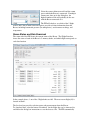
Select the correct altimeter model and the comm
port to which the Raven is connected. If multiple
comm ports show up in the dialog box, the
highest-numbered one will probably be the one
with the Raven connected to it.
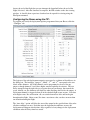
The FIP will check to see which of the 5 flight
indexes have data in them, and will begin to provide real-time information from the
Raven, including barometric pressure (in atmospheres), accelerometer readings, and
temperature.
Raven Status and Data Download
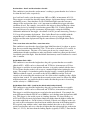
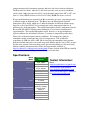
The status tab of the FIP shows the current status of the Raven. The Flight Data box
shows the status of each of the Raven’s 5 memory banks, and which flight corresponds to
each data location.
In the example above, 1 out of the 5 flight banks are full. The most recent flight (#1) is
located in bank 1.
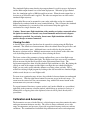
The live data box provides real-time status and measurements from the Raven.
To download data, select the button “Download” for the flight data you’re interested in,
and follow the dialog box instructions to save the data to a file. The FIP automatically