1
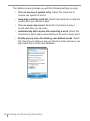
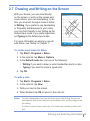
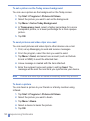
To access the Review screen
1. In Camera mode, tap Tools > Options > General tab.
2. Select the Review after capture check box. Please note that this
check box is selected by default to allow you to review the image
or video clip after it has been captured.
Use zooming
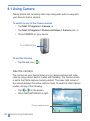
While capturing a still image or a video clip by using the main camera,
you can zoom in to make the object in focus move closer, and you can
zoom out to make the object move farther away. In all capture modes,
use NAVIGATION on your device, or tap the triangular Up arrow next
to the Zoom Ratio indicator, to zoom in a still image or an incoming
video stream. When the zooming limit is reached, you will hear a beep.
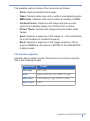
To zoom out, press NAVIGATION down, or tap the Down arrow. The
main camera zoom range for a picture or a video clip depends on the
capture mode and capture size. Following is a summary.
Capture mode
Photo
Video and MMS Video
Contacts Picture
Picture Theme
132
| Experiencing Multimedia
Capture size setting
Zoom range
Scaled (1600 x 1280)
No zooming available
1.3M (1280 x 1024)
1.0x to 2.0x
Large (640 x 480)
1.0x to 2.0x
Medium (320 x 240)
1.0x to 4.0x
Small (160 x 120)
1.0x to 8.0x
Medium (176 x 144)
1.0x to 2.0x
Small (128 x 96)
1.0x to 2.0x
Large (640 x 480)
1.0x to 2.0x
Medium (320 x 240)
1.0x to 4.0x
Small (160 x 120)
1.0x to 8.0x
Determined by the
current template
Depends on the size of
the template currently
loaded