1
4.5 Setting Up E-mail Security
Windows Mobile on your device protects your Outlook e-mails through
Secure/Multipurpose Internet Mail Extension (S/MIME), which allows
you to digitally sign your messages as well as encrypt them.
Using authorization keys and certificates, S/MIME allows you to
digitally sign your e-mail messages to prove your identity to the
recipients. Authorization keys are also used when encrypting
messages to improve privacy and prevent undue tampering or hacking
of your messages. You can encrypt a message with or without a
certificate. However, to read an encrypted message, you need a valid
certificate for decrypting e-mail messages.
Note
S/MIME encryption and digital signatures for Windows Mobile-based
devices are available only with Exchange Server 2003 Service Pack 2
or a later version that supports S/MIME. If you aren’t using one of these
products, or have not yet synchronized, these options are unavailable.
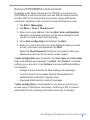
Digitally sign and encrypt all messages
ActiveSync allows you to set up S/MIME e-mail encryption and signing.
You will have to obtain a valid certificate for signing or encrypting
e-mail before you will be able to sign or encrypt mail successfully.
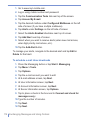
1. Tap Start > Programs > ActiveSync.
2. Tap Menu > Options.
3. Select the E-mail information type, and tap Settings. On the
E-mail Sync Options screen, tap Advanced.
66
| Synchronizing Your MDA