1
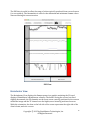
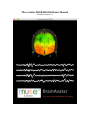
To the right of this button, the time is displayed when the app is collecting data or when the data is being played back. When the data is being collected live, the time stamp will be the same as the current time on your computer. When the data is being played back, the time stamp will correspond to the times recorded in the saved data file. Header Menu Footer Menu At the bottom of the screen, there are either one or two buttons. Receive Muse Data – to start receiving the data being sent by the Muse Stop Receiving Muse Data – to pause the display of Muse data If you currently saving the data to a file, then you see a second button: Mark Stimulus – to insert a timestamp into the data file being saved Footer Menu EEG View The EEG View displays the raw EEG and Gamma power data. The channels are ordered (from top to bottom): FP1, FP2, TP9, TP10. Within each channel, both the raw EEG data (top, black) and power within the Gamma band (bottom, blue) are displayed. To the right is a signal quality indicator: red indicates poor, yellow indicates intermediate, and green indicates good signal. While the raw EEG will be displayed at all signal qualities, the Gamma can only be displayed when the signal is of a sufficient quality. Copyright © 2015 by BrainMaster Technologies, Inc. All Rights Reserved 7