1
Appendix E: Internet Setup Wizard (PC only)
Configuration
You must have the following before you configure the
software:
1
Your router’s model number and version number
2
Your router’s user name and password
3
Your Lorex device’s local IP address
4
Your Lorex device’s port numbers that require port forwarding
Initial Startup: Check for Updates and Select Language
1
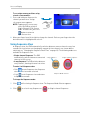
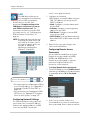
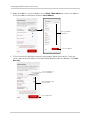
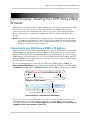
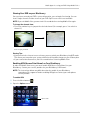
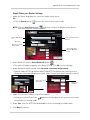
Check the top-right corner of the screen to see if software updates are available. If updates
are available click Download Now.
• Run the update file and install the latest version of the software.
2
Use the Language drop-down menu to select a language (English, French, Spanish). Click the
Start button to continue.
Software update section
Start button
Language drop-down
menu
Download Now button
A software update includes an updated list of
routers compatible with the Auto Port
forwarding Wizard.
Step 1: Populate the Router Database
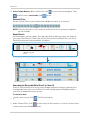
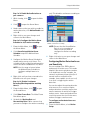
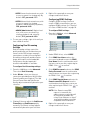
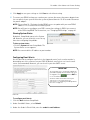
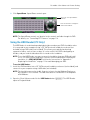
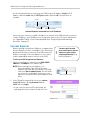
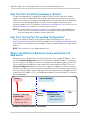
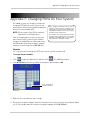
The Auto Port Forwarding Wizard automatically populates a list of current routers, and
detects the number of connected routers.
• Click the Next button after the software detects your router configuration.
Click to update router database
Click to check for multiple routers
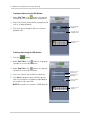
If more than one router is detected, you
may need to contact your ISP (Internet
Service Provider) to port forward.
For details on configuring multiple
routers, see “Configuring multiple
routers” on page 104.
102