Download KEEP IN TOUCH
Transcript
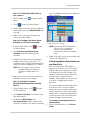
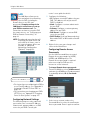
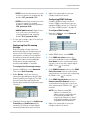
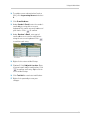
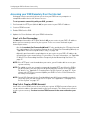
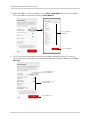
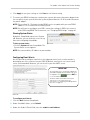
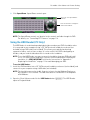
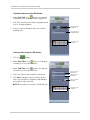
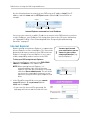
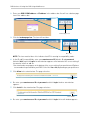
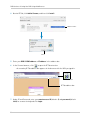
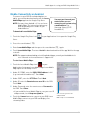
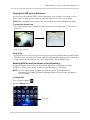
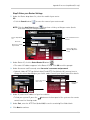
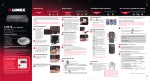
Using the Main Menu 2 Configure the following: • Vloss Response Time: Select the time (in seconds) for the buzzer and on-screen message will go off after a Video loss event. • Response Duration: Select the time (in seconds) for the DVR to record after a motion event. This also controls the duration of the buzzer and on-screen message. 2 Click Motion Alarm Schedule. The Motion Alarm Schedule opens. NOTE: When the buzzer is activated, press any button or right-click to stop it. This does not disable the buzzer for future events. • Alarm Full Screen: Select O if you want the DVR to display events (for example, when motion is detected or video loss occurs) in full screen; select X to have the DVR remain in its current view when events occur. 3 Motion Alarm Schedule 3 Click the boxes to switch each half-hour between Working and Non-working hours. Use the Range Selectors to switch multiple boxes at once. • Enabled (yellow): Motion events will be enabled during these hours. • Disabled (green): Motion events will be disabled during these hours. 4 Right-click until you have existed all menus to save your changes. Right-click to save your settings and return to the Alarm Menu. Configuring the Motion Alarm Schedule The Motion Alarm Schedule allows you to enable or disable motion events at certain times. This can be useful if you want to set up your DVR to record continuously during business hours and record motion events only outside of business hours. To configure the Motion Schedule: 1 From the Alarm Menu, click Alarm Setup. The Alarm Setup Menu opens. Range Selectors Configuring the DVR for Motion Recording Only Use the steps below to configure the DVR to disable continuous recording and only record footage that has motion. This allows you to record for a much longer time before the hard drive is full. You can do this on one, some, or all of your cameras. NOTE: By default, the DVR will overwrite the oldest recordings when the hard drive is full. It can also be configured to stop recording when the hard drive is full. For details, see “Changing the Record Mode” on page 34. 37