1
ZCP 7.1 (build 48315)
Zarafa Collaboration
Platform
The User Manual
Zarafa Collaboration Platform
ZCP 7.1 (build 48315) Zarafa Collaboration Platform
The User Manual
Edition 2.0
Copyright © 2015 Zarafa BV.
The text of and illustrations in this document are licensed by Zarafa BV under a Creative Commons
Attribution–Share Alike 3.0 Unported license ("CC-BY-SA"). An explanation of CC-BY-SA is available
4
at the creativecommons.org website . In accordance with CC-BY-SA, if you distribute this document or
an adaptation of it, you must provide the URL for the original version.
Linux® is a registered trademark of Linus Torvalds in the United States and other countries.
MySQL® is a registered trademark of MySQL AB in the United States, the European Union and other
countries.
Red Hat®, Red Hat Enterprise Linux®, Fedora® and RHCE® are trademarks of Red Hat, Inc.,
registered in the United States and other countries.
Ubuntu® and Canonical® are registered trademarks of Canonical Ltd.
Debian® is a registered trademark of Software in the Public Interest, Inc.
SUSE® and eDirectory® are registered trademarks of Novell, Inc.
Microsoft® Windows®, Microsoft Office Outlook®, Microsoft Exchange® and Microsoft Active
Directory® are registered trademarks of Microsoft Corporation in the United States and/or other
countries.
The Trademark BlackBerry® is owned by BlackBerry and is registered in the United States and may
be pending or registered in other countries. Zarafa BV is not endorsed, sponsored, affiliated with or
otherwise authorized by BlackBerry.
All trademarks are the property of their respective owners.
Disclaimer: Although all documentation is written and compiled with care, Zarafa is not responsible for
direct actions or consequences derived from using this documentation, including unclear instructions
or missing information not contained in these documents.
The Zarafa Collaboration Platform (ZCP) combines the usability of Outlook with the stability and
flexibility of a Linux server. It features a rich web-interface, the Zarafa WebAccess, and provides
brilliant integration options with all sorts of clients including all most popular mobile platforms.
1
Most components of ZCP are open source, licensed under the AGPLv3 , can therefore be
2
downloaded freely as ZCP's Community Edition .
Several closed source components exist, most notably:
4
http://creativecommons.org/licenses/by-sa/3.0/
http://www.gnu.org/licenses/agpl-3.0.html
2
http://www.zarafa.com/content/community
1
• the Zarafa Windows Client providing Outlook integration,
• the Zarafa BES Integration providing Blackberry Enterprise Server connectivity,
• the Zarafa ADS Plugin providing Active Directory integration, and
• the Zarafa Backup Tools.
These components, together with several advanced features for large setups and hosters, are only
3
available in combination with a support contract as part of ZCP's Commercial Editions .
Alternatively there is a wide selection of hosted ZCP offerings available.
This document, the User Manual, describes how to use ZCP from a user's view point. It discusses:
• Outlook integration by using the Zarafa Windows Client,
• using the web-interface of the Zarafa WebAccess,
• connectivity with CalDAV and iCal enabled clients, and
• syncing with mobile platforms like: BlackBerry, Google Android, Windows Mobile and Apple iPhone.
3
http://www.zarafa.com/content/editions
1. Introduction
1
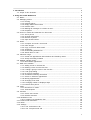
1.1. Scope of this document ................................................................................................ 1
2. Using the Zarafa WebAccess
3
2.1. Basics ......................................................................................................................... 3
2.2. Managing folders .......................................................................................................... 3
2.2.1. Printing ............................................................................................................. 3
2.2.2. Resizing panes .................................................................................................. 4
2.2.3. Empty deleted items folder ................................................................................. 4
2.2.4. Restore items .................................................................................................... 4
2.2.5. Marking all messages in a folder as read ............................................................ 4
2.2.6. Properties ......................................................................................................... 4
2.3. Access to folders and calendars for other users ............................................................. 4
2.3.1. Add a person .................................................................................................... 4
2.3.2. Change permissions .......................................................................................... 5
2.3.3. Remove a person .............................................................................................. 5
2.3.4. Open shared folders .......................................................................................... 5
2.4. Email ........................................................................................................................... 5
2.4.1. Compose and send a new email ........................................................................ 5
2.4.2. Inline images ..................................................................................................... 8
2.4.3. Copy, move and delete email ............................................................................. 8
2.4.4. Searching ........................................................................................................ 10
2.4.5. Downloading Attachments ................................................................................ 10
2.4.6. Attach items to mail ......................................................................................... 10
2.5. Calendar usage .......................................................................................................... 11
2.5.1. Create new appointment with invitations and free/busy status ............................. 11
2.5.2. Accept a meeting invitation .............................................................................. 12
2.6. Multiple calendar views ............................................................................................... 12
2.6.1. Move/delete appointment ................................................................................. 13
2.7. Multi User Calendar .................................................................................................... 13
2.7.1. Adding a user to the time line .......................................................................... 13
2.7.2. Deleting a user from the time line ..................................................................... 14
2.7.3. Loading a group of users to the time line .......................................................... 14
2.7.4. Load group dialog ............................................................................................ 14
2.7.5. No Access message ........................................................................................ 14
2.7.6. Cumulative free/busy information ...................................................................... 14
2.7.7. Create or delete an appointment ...................................................................... 14
2.7.8. Moving appointments ....................................................................................... 15
2.7.9. Changing zoom level ....................................................................................... 15
2.7.10. Changing number of displayed days ............................................................... 15
2.7.11. Browse time period ........................................................................................ 15
2.8. Tasks ......................................................................................................................... 15
2.8.1. Recurrence in Tasks ........................................................................................ 16
2.8.2. Task Requests ................................................................................................. 16
2.9. Contacts .................................................................................................................... 17
2.9.1. Create new contact .......................................................................................... 17
2.9.2. Detailed Contacts ............................................................................................ 17
2.10. Distribution Lists ....................................................................................................... 18
2.10.1. Creating new distribution lists ......................................................................... 18
2.11. Public Folder Favourites ............................................................................................ 19
2.12. Rules ....................................................................................................................... 19
2.13. Settings .................................................................................................................... 20
2.13.1. The “Preferences” tab .................................................................................... 20
2.13.2. The “Compose mail” tab ................................................................................. 21
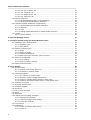
v
Zarafa Collaboration Platform
2.13.3. The “Out of Office” tab ...................................................................................
2.13.4. The “Calendar” tab ........................................................................................
2.13.5. The “Addressbook” tab ...................................................................................
2.13.6. The “Shortcuts” tab ........................................................................................
2.14. Firefox Extensions ....................................................................................................
2.14.1. Zarafa Attachment Drag ‘n’ Drop Extension .....................................................
2.14.2. Zarafa New Mail Notification Extension ...........................................................
2.15. Advanced Zarafa WebAccess configurations ..............................................................
2.15.1. Zarafa WebAccess as default mail client .........................................................
2.15.2. Windows .......................................................................................................
2.15.3. Linux .............................................................................................................
2.15.4. Adding Zarafa WebAccess as mailto handler in Firefox ....................................
2.16. Quirks ......................................................................................................................
2.16.1. Firefox specific ..............................................................................................
21
21
22
22
22
22
22
23
23
23
25
25
26
26
3. Separate WebApp manual
27
4. Configure Outlook (using the Zarafa Windows Client)
4.1. Installation of the Outlook client ..................................................................................
4.1.1. Install the client ...............................................................................................
4.1.2. Start Outlook ...................................................................................................
4.2. Outlook connection type .............................................................................................
4.2.1. Online .............................................................................................................
4.2.2. Detect at startup ..............................................................................................
4.2.3. Cached Zarafa Mode .......................................................................................
4.2.4. What is the best connection type to choose? .....................................................
4.3. Advanced configuration ...............................................................................................
4.3.1. Proxy settings ..................................................................................................
4.3.2. Other connection settings .................................................................................
4.4. Public Folder Favourites .............................................................................................
29
29
29
30
31
31
31
31
32
32
32
32
32
5. Using Outlook
5.1. Working offline ...........................................................................................................
5.1.1. Sending email during offline use .......................................................................
5.1.2. Limitations of working offline ............................................................................
5.2. Folder Management ...................................................................................................
5.2.1. The creation of a public folder ..........................................................................
5.2.2. Sharing of folders (setting permissions) .............................................................
5.2.3. Adding or opening folders shared by other users ...............................................
5.2.4. Adding or removing complete stores of other Zarafa users .................................
5.3. Searching in Outlook ..................................................................................................
5.4. Restoring deleted items ..............................................................................................
5.5. Free/Busy updates .....................................................................................................
5.6. Resources ..................................................................................................................
5.7. Out of Office Assistant ................................................................................................
5.8. Rules .........................................................................................................................
5.9. Signatures ..................................................................................................................
5.10. Signing and encrypting messages .............................................................................
5.10.1. Retrieving a certificate ....................................................................................
5.10.2. Check encrypted email settings ......................................................................
5.10.3. Using the certificate .......................................................................................
5.11. Fax Feature ..............................................................................................................
5.12. Delegation ................................................................................................................
5.12.1. Send on behalf of permissions .......................................................................
5.12.2. Send as ........................................................................................................
35
35
35
35
36
36
36
37
37
38
38
38
38
39
39
40
40
40
41
41
41
42
42
42
vi
5.13. Categorisation ..........................................................................................................
5.13.1. Create a custom category in Outlook 2007 ......................................................
5.13.2. Create a custom category in Outlook 2002/2003 ..............................................
5.13.3. Categorise items and sort by category ............................................................
5.14. Mail expiration date ..................................................................................................
43
43
43
44
44
6. Configure Mail Clients (with IMAP and POP3)
6.1. Client configuration .....................................................................................................
6.1.1. Mozilla Thunderbird .........................................................................................
6.1.2. Windows Mail ..................................................................................................
45
45
45
46
7. Configure Calendar Clients (using CalDAV and iCal)
7.1. Mac OS X iCal Client .................................................................................................
7.2. Sunbird Client Guide ..................................................................................................
7.3. Evolution Client Configuration .....................................................................................
47
48
48
48
8. Configure Mobile Platforms
8.1. Z-Push introduction ....................................................................................................
8.2. Setting up a mobile device .........................................................................................
8.2.1. Android based configuration .............................................................................
8.2.2. Windows Mobile based configuration ................................................................
8.2.3. iPhone based configuration ..............................................................................
49
49
49
49
50
51
vii
viii
Chapter 1.
Introduction
The Zarafa Collaboration Platform (ZCP) combines the usability of Microsoft Outlook and Exchange
with the stability and flexibility of a Linux server. It features a rich web-interface, the Zarafa
WebAccess, and provides brilliant integration options with all sorts of clients including all most popular
mobile platforms. Most components of ZCP are open source, licensed under the AGPLv3, can
therefore be downloaded freely with ZCP’s Community Edition.
Several closed source components exist, most notably:
• the Zarafa Windows Client providing Outlook integration,
• the Zarafa BES Integration providing Blackberry Enterprise Server connectivity,
• the Zarafa ADS Plugin providing Active Directory integration, and
• the Zarafa Backup Tools.
These components, together with several advanced features for large setups and hosters, are only
available in combination with a support agreement as part of ZCP’s Commercial Editions.
Alternatively there is a wide selection of hosted ZCP offerings available.
This document, the User Manual, describes how to use ZCP from a user’s view point.
1.1. Scope of this document
This manual is intended for users of the Zarafa Collaboration platform. Users interact with this platform
by several means:
• Microsoft Outlook and the Zarafa Windows Client,
• the Zarafa WebAccess, our open source web-based groupware solution, and
• various mobile platforms like: BlackBerry, Google Android, Windows Mobile and Apple iPhone.
1
2
Chapter 2.
Using the Zarafa WebAccess
In this section we describe how to use the Zarafa WebAccess, the web-based interface of the Zarafa
Collaboration Platform (ZCP).
In order to use the Zarafa WebAccess a fairly recent version of Mozilla Firefox (preferred) or Microsoft
Internet Explorer is needed.
Currently the Zarafa WebAccess supports the most used features of Microsoft Outlook in a fairly
comprehensive way. Yet a web-based interface can never match the functionality and usability of a
native client (like Microsoft Outlook).
2.1. Basics
To login to the Zarafa WebAccess, point the browser to the URL supplied by the systems
administrator. By default this URL will look like:
http://YOUR_DOMAIN_NAME/webaccess/
The WebAccess is available in several languages which can be selected from the dialog shown on
Figure 2.1, “The Zarafa login screen”.
Figure 2.1. The Zarafa login screen
After logging in, all Outlook folders and the Public folders the account has access to can be accessed.
The most basic functions are available from the WebAccess' toolbar found across the top of the page.
See Figure 2.2, “The “New” Menu”.
Note
With regards to the folders, some functionality is only available in the context menu that appears
when right clicking on the folder items.
Figure 2.2. The “New” Menu
2.2. Managing folders
Creating, moving, renaming, copying or deleting (sub) folders is accomplished with the right mouse
button in the folder list. This pops-up a context menu as shown in Figure 2.3, “The context menu of a
folder”.
Figure 2.3. The context menu of a folder
It is not possible to delete, move, or rename default Outlook folders (like Inbox, Calendar and
Contacts).
2.2.1. Printing
It is possible to print email, appointments, and contacts from the WebAccess. Simply use the Print
button from the toolbar.
3
Chapter 2. Using the Zarafa WebAccess
Following these steps it is also possible to print calendar overviews of a day, a week or a month.
2.2.2. Resizing panes
Just like in Outlook it is possible to resize the panes in the WebAccess, allowing full control of the
width and height of the workspace in each pane. To do so place the mouse between two panes en
drag the pane border to the prefered location.
2.2.3. Empty deleted items folder
The Deleted Items folder can be emptied by using the right mouse button, and selecting option Empty
folder from the contect menu. This option is only available from the context menu (accessed with the
right mouse button) of the Deleted Items folder and the Junk Email folder (if it exists).
2.2.4. Restore items
When deleting an item in the Deleted Items folder or the Junk Email folder, the item is still temporarily
recoverable. Select the Deleted Items folder or Junk Email folder, and use the button Restore Item in
the bar at the top. As shown in Figure 2.4, “The soft delete restore window” it is possible to restore all
or a selection of the deleted messages or folders. The restored items will be moved to the old location.
Deleting items from Figure 2.4, “The soft delete restore window” removes them permanently — in that
case only backups can recover an item. When restoring a folder, only that folder will be restored. If the
restored folder contained subfolders, these can be restored by selecting the just restored folder and
clicking on the Restore Item button again.
Figure 2.4. The soft delete restore window
2.2.5. Marking all messages in a folder as read
Marking all messages in a folder as “read” is accomplished by the right mouse button menu option
Mark All Messages Read. Please note that when this option is selected, no read receipts will be sent
when requested by a sender, even if that option is selected in the settings.
2.2.6. Properties
The right mouse button menu option Properties shows additional information about a folder (like the
storage size and the number of items in this folder). For more details about the storage size, use the
button Folder size…. Here a list containing all subfolders in the folder including their individual storage
sizes can be seen.
2.3. Access to folders and calendars for other users
Just like in Outlook, the WebAccess allows sharing permissions to be set on folders. To do so use the
right mouse button to click on a folder and choose the Properties option, then select the Permissions
tab as shown in Figure 2.5, “Folder Permissions”.
Figure 2.5. Folder Permissions
2.3.1. Add a person
Click on the Add button under the Permissions tab.
4
Change permissions
When the Address Book pops up, select the person to give permissions to and click Ok. This contact
will then be added to the permissions list.
Note
Please note that this persons' permissions must be changed. As by default the dialog grants no
additional permissions.
Click Ok to save and close the permissions window.
2.3.2. Change permissions
Click on the person whose permission needs to be changed.
Now the permissions can be manually set in the bottom part of the permissions window, or one of the
preset profiles can be selected from the Profile drop-down menu.
Click Ok to save and close the permissions window.
2.3.3. Remove a person
• Click on the person who needs to be removed from the list.
• Click on the Remove button.
• Click Ok to save and close the permissions window.
2.3.4. Open shared folders
To open shared folders from the Zarafa WebAccess click the Open shared folder link at the bottom of
the folder list. A window as shown in Figure 2.6, “Open Shared Folder” will be presented.
Figure 2.6. Open Shared Folder
From the dialog shown in Figure 2.6, “Open Shared Folder” it is possible to either open a single folder
(for example the calendar folder), or open a complete folder list of a specific user.
The opened folders are stored in the users' WebAccess profile, so the next time the user tries to login
to the WebAccess the opened folders are readily available.
To close an opened folder, use the Close store option in the right mouse button menu.
2.4. Email
2.4.1. Compose and send a new email
1. Select the button New in the left corner. This will show a dialog like Figure 2.7, “Create Mail”.
Figure 2.7. Create Mail
5
Chapter 2. Using the Zarafa WebAccess
2. Attachments can be added to the email by selecting the Attachment button or the Paperclip icon.
3. Email can be saved by selecting the Floppy disk icon. After a email is saved, it is stored in the
Drafts folder.
4. To set a flag that marks the email as important or high priority, click on the exclamation mark (!)
icon.
5. To add a recipient, either add their email address in the TO, CC, or BCC field manually, or select a
person from the Address Book. To access the Address Book, click on the TO, CC or BCC button.
Note
When more than one recipient is added, email addresses need to be seperated by a
semicolon (;).
6. The internal users are shown by default (unless otherwise selected in Settings) in the Address
Book (see: Figure 2.8, “Address Book”). By using the Show names from the: drop-down menu,
it is possible to view contacts from either a personal contacts folders, or a Public contact folder.
Alternatively, it is possible to search a folder using the search field positioned in the top left of the
window.
Figure 2.8. Address Book
Note
Since 6.30.0 it is possible to add company-wide defined address lists in the Address Book. Read
the ZCP Administrator Manual for more details regarding address lists.
2.4.1.1. Automatic email address suggestion
When typing an email address or contact information in the TO, CC or BCC fields the WebAccess
automatically suggests names (a feature often known as auto complete). The suggestions are listed
below the input field (see: Figure 2.9, “Automatic Suggestions”) and a suggestion can be selected by
both mouse or keyboard. The suggestions are based on email addresses and contact information that
have been used recently.
It is possible to delete an address from this list by moving the selection to the address in question (by
either using the keyboard arrows or by placing the mouse over it without clicking) and then pressing
the Delete key. The address is removed, but when it is used again it will show up in the list once more.
Figure 2.9. Automatic Suggestions
2.4.1.2. Attachments
You can attach files to your message by clicking the Attachments button in the Create E-Mail screen. A
window will open, which allows files to be uploaded.
From ZCP 6.50 up it is possible to upload multiple attachments at once. Prior versions of ZCP only
allow the upload of one file at a time.
6
Compose and send a new email
Note
To upload multiple files at once, Adobe Flash has to be installed in the browser.
2.4.1.3. Set the sender address (from field)
It is possible to set the FROM address of emails before they are sent. This field can be found above
the TO field, as shown in Figure 2.10, “Selecting a from address”. When no address has been
selected the default address is used.
Figure 2.10. Selecting a from address
Note
Please note that the FROM field is only displayed when FROM addresses have been set in the
settings dialog.
Figure 2.11. Adding From Addresses
Important
Please contact the systems administrator, if the following (bounce) message is returned when
sending from a different sender adress: You are not allowed to send as the given user.
Since ZCP version 6.20.0 two kinds of delegation are available:
1. Send on Behalf permissions: if a user grants the appropriate permission to another user, the latter
can send items on behalf of the other user. In this case an email or meeting request will be sent
with the following From field: “<delegate> on behalf of <user>”.
2. Send As permissions: if the system administrator gives the rights to user B to ‘send as’ user A, the
receiver of an email will not see that user B sent an email. The receiver will only see user A in the
From: field.
Before ZCP version 6.20.0, user themselves where allowed to “send on behalf of” by entering the
other users inbox. By this method it was always explicitly visible who sent the email. For example:
Pete enters the inbox of ‘info’ and sends an email as the non-active user ‘info’, would result in:
[email protected] on behalf of [email protected].
Since ZCP version 6.20.0 it is possible to send emails as other users without the “on behalf of”
part. Due to security reasons the new “send as” permission is only configurable server-side by
the administrator. This setting can always be overruled by the user itself and the old “on behalf of”
permission can still be set by the user.
Keep in mind that delegation always overrules impersonation. A user can always choose not to let
another user impersonate as himself.
7
Chapter 2. Using the Zarafa WebAccess
2.4.1.4. Saving an email to drafts
Saving an email is possible by clicking the Save (a floppy disk) icon. After saving the email, it is stored
in the Drafts folder. Another option is to automatically save an unsent email. This option is available
under the Compose Mail tab in the settings window. To do this, check the option Autosave unsent
every: X minutes and set the number of minutes that mails will automatically be saved. This is only
applicable when the email isn’t sent yet.
2.4.2. Inline images
From ZCP version 6.30.0 the WebAccess has the ability to add inline images in mail messages. To
add an inline image, click on Attachments and select an image. If the ‘HTML’ format is being used (see
Compose mail in this format in Settings, Compose mail tab), the inline image functionality is enabled.
A light blue cross icon will appear beside the attachment as seen in Figure 2.12, “Light blue cross icon
to insert the image as a inline image”. Click on the blue cross icon to insert the image in the mail body
as shown in Figure 2.13, “Example of an Inline Image”. The inline image will inserted at the last cursor
position.
Figure 2.12. Light blue cross icon to insert the image as a inline image
Figure 2.13. Example of an Inline Image
To change the image size, right click on the image and select Image properties. A popup like
Figure 2.14, “Image properties editor” will appear which enables the user to customize width and
height of the image and options such as border and alignment.
Figure 2.14. Image properties editor
It is possible to delete the inline image directly from the main body, as if it were text.
In some browsers it is possible to paste an image from your clipboard directly into the editor. This
will embed the image into the source of the body and it means that it will not become an attachment.
The image will be shown properly in Firefox and Internet Explorer 9, with limited support in Internet
Explorer 8. In Outlook the image will not be visible properly.
2.4.3. Copy, move and delete email
The following screenshot (Figure 2.15, “Context menu from a mail message”) shows the context menu
that shows up when clicking with the right mouse button on an email. Through this menu most copy,
move and delete operations are performed. It also is possible to download a message as a file.
Figure 2.15. Context menu from a mail message
2.4.3.1. Delete email
There are several ways to delete email. They are:
• Via the delete button on the keyboard
• Via the delete button in the right mouse button menu (as shown in Figure 2.15, “Context menu from
a mail message”)
• Via the red cross button in the top bar of the webaccess
8
Copy, move and delete email
2.4.3.2. Move email
To move a single items it is most convenient to simply drag the item to its new location. Place the
mouse cursor over the item to be moved, click and hold the left mouse button. Continue to hold the
button down while moving the mouse cursor until it is over the folder the message needs to be placed.
Figure 2.16. Moving Email
Notice that the folder names under the mouse cursor are highlighted while moving. This highlighting
marks the folder where the message will be placed when releasing the button.
To move multiple items, first select all the items (only items that are currently visible can be moved). To
select a range of items click on the first item and then press and hold the shift button on the keyboard.
Before releasing the shift button, use the mouse to click on the last item in the range that needs to be
moved. All items between the two items clicked on will become highlighted.
With items that are not consecutive, hold down the control (Ctrl) button on the keyboard while clicking
on each item. To drag and drop these items, release the control button, place the mouse cursor on one
of the selected messages, drag them into the designated folder.
Items can also be moved by clicking on the copy/move button as displayed in Figure 2.17, “Copy/
Move Button”.
It is also possible to drag and drop messages to the desktop. For more information about this feature,
see Section 2.14.1, “Zarafa Attachment Drag ‘n’ Drop Extension”.
2.4.3.3. Copy email
To copy an item, the drag-and-drop feature can not be used as it does not duplicate items. Instead
use the copy/move button as shown in Figure 2.17, “Copy/Move Button”. See the section above about
moving multiple items for an explanation concerning how to select multiple items.
Figure 2.17. Copy/Move Button
2.4.3.4. Save Email as a File
From ZCP 6.50 up, it is possible to download messages directly from the Zarafa WebAccess to
the computer. The Save Email as a File button located in the message context menu, as seen in
Figure 2.18, “Save Email as a File button”, should be used to do so.
Figure 2.18. Save Email as a File button
2.4.3.5. Change email view
Figure 2.19. Context menu form a mail view column
In the Zarafa WebAccess, the email view has a default layout: a list of messages with a From and a
Received colomn. However, like in Outlook, it is possible to change the view by adding or removing
columns. To do so, use the right mouse button to click on the header of the list (for example on the
From header field) and select the Field Chooser option from the context menu. A dialog that looks like
Figure 2.20, “Field Chooser” will pop up.
Figure 2.20. Field Chooser
9
Chapter 2. Using the Zarafa WebAccess
Additionally, it is possible to sort the email list by selecting a specific column. By default email is sorted
by the Received date column.
2.4.4. Searching
To search click the Search button in the tool bar. A seach bar (see: Figure 2.21, “Searching Options”)
will then be added to the WebAccess view (to remove the search bar, click the Search button again).
Figure 2.21. Searching Options
The seach bar allow a user to enter a search query and choose where to search. For example if a user
remembers just a part of a message’s subject he can select Subject from the pull down menu. After
the query is keyed in the user should click the Search button (binoculars icon) on the seach bar, or
press the enter on the keyboard. As shown in Figure 2.22, “Search Result”, the email list is updated
with the results of the search query.
Figure 2.22. Search Result
When finished searching press the Clear button (red circle icon) to return to the normal list view. To
remove the search bar click the Search button in the tool bar again.
Note
Archiving functionality is provided by the Zarafa Archiver, a product that is be offered separately
from ZCP.
2.4.5. Downloading Attachments
Attachments can be downloaded one by one, by right-clicking the attachment and selecting Save
target as. From ZCP 6.50 up, it’s possible to download all attachments from a message at once,
in a compressed ZIP file, by clicking the Download all Attachments button, as seen in Figure 2.23,
“Message Attachments”.
Figure 2.23. Message Attachments
2.4.6. Attach items to mail
To add items as attachments or forward them as text message in body of composing mail.
1. Click on Attach Items button or envelope with paper clip icon (see: Figure 2.24, “Attach Item
Dialog”).
Figure 2.24. Attach Item Dialog
Note
It’s possible to quickly forward e-mail messages as attachments. Right-click the Forward
Items column in the message list.
10
Calendar usage
2. Browse through the message list and select the items need which to be attached.
Figure 2.25. New Mail with message items added as attachment
Note
Items can be attached as Text or as Attachment, By selecting the check box as required, by
default, items are added as Attachments.
Note
Items can be quickly attached by doing a double click on selected items.
Important
Attachments in the original e-mail are not forwarded with the new text message.
2.5. Calendar usage
2.5.1. Create new appointment with invitations and free/busy status
1. Select the folder Calendar.
2. Select the button New to create a new appointment. A dialog as shown in Figure 2.26, “New
Appointment” pops up.
Figure 2.26. New Appointment
3. Insert a subject for the appointment, and optinally a location.
4. Select a start and end time for the appointment.
5. Optional: Enable the reminder option, this will trigger a reminder pop-up (see: Figure 2.27,
“Reminder dialog”) before the appointment starts. The time interval between the reminder and the
appointment is adjustable in the field next to the reminder option. When it is time for the reminder
to pop-up, the Zarafa WebAccess shows a list of these reminders with buttons to Open the item,
Dismiss the item, Dismiss All items or to Snooze the reminders by a given time.
Note
Pop-ups need to be allowed by the browser to see reminder pop-ups. Often this needs the
domain name of the Zarafa WebAccess to be whitelisted for pop-ups in the browser.
Figure 2.27. Reminder dialog
11
Chapter 2. Using the Zarafa WebAccess
6. Using the button Invite Attendees one can send a meeting request as shown in Figure 2.28,
“Meeting request”. To add attendees, simply add their email addresses. The email addresses
need to be separated by a semicolon. By clicking the To: button contacts can be selected from the
Address Book. The attendee will receive a meeting request which the attendee can Accept, accept
as Tentative or Decline, alternatively the attendee can also Propose New Time for that request.
Figure 2.28. Meeting request
7. By opening the tab Scheduling, the free/busy times for multiple people are shown (see:
Figure 2.29, “Scheduling/FreeBusy”). On this tab colleagues can be invited (Add a name); an
overview is showing exactly when a specific person is busy, out of the office, or available. If
an attendee has proposed a new date or time for a meeting, the proposals are shown on the
Scheduling tab as well.
Figure 2.29. Scheduling/FreeBusy
Figure 2.30. Meeting request
8. Colleagues can be added via the Add a name field.
9. Attendees can be marked either as “required” or as “optional”. It is also possible to schedule a
resource — like a room or a piece of equipment — needed for that meeting.
Note
Resources have to be created by the administrator.
10. In the Tracking tab a list with all attendees for this appointment, with their responses, can be
found.
Figure 2.31. Tracking tab
2.5.2. Accept a meeting invitation
If someone invites you for a meeting, you will receive meeting invitation. At the top of the invitation a
bar containing the buttons Accept, Tentative, Decline and Propose New Time is shown for sending a
response to the owner of the appointment. See Figure 2.32, “Meeting invitation buttons”.
Figure 2.32. Meeting invitation buttons
By clicking Propose New Time a user can propose a new date or time to the owner. The owner, upon
receiving the proposal, can either accept it or decline it.
2.6. Multiple calendar views
The Zarafa WebAccess calendar has five different views:
• Day view
12
Move/delete appointment
• Workweek view
• Week view
• 7 day view (like the workweek view, but with 7 days)
• Month view
Views can be switched via the four buttons in the tool bar.
The date picker is used to move the view to another day/week/month, which is at the top right of the
screen when the calendar is opened.
2.6.1. Move/delete appointment
2.6.1.1. Move appointment
An appointment can be moved to another time/date by selecting the item and dragging it to the new
date and time. Alternatively, (for instance if the new date is not in the current view) an appointment
can be opened (either by double clicking on it or by right clicking on it and choosing the Open option),
which presents a dialog where the new date and time can be set.
2.6.1.2. Delete appointment
Appointments are deleted by the delete button in the context menu that shows when clicking on an
appointment with the right mouse button. Alternatively, one can use the Delete button in the tool bar, or
the Del/Delete key on the keyboard.
2.7. Multi User Calendar
Opening other users calendars side-by-side is possible with the Multi User Calendar (see Figure 2.33,
“Multi User Calendar”): click on the Open Multi User Calendar link in the bottom of the folder pane.
Note
This feature is not available in the community version of Zarafa.
Figure 2.33. Multi User Calendar
2.7.1. Adding a user to the time line
1. Click on the Add User button in tool bar at the top (see: Figure 2.34, “Timeline”). The Address
Book window will open.
Figure 2.34. Timeline
2. Click on a user to select that person and click on the button Ok.
3. The user is added to the time line and his/her appointments are loaded.
13
Chapter 2. Using the Zarafa WebAccess
2.7.2. Deleting a user from the time line
Select the user by clicking on the check box in front of their name. Click on the button Remove User in
the tool bar at the top.
2.7.3. Loading a group of users to the time line
1. Click on the button Load Group… in the bar at the top. The “Group Window”, as shown in
Figure 2.35, “User groups”, will open.
Figure 2.35. User groups
2. Select a group in the left list and click on the button Ok.
3. The group of users is added to the time line and their appointments are loaded per user.
2.7.4. Load group dialog
The Load Group dialog can be opened by clicking on the button Load Group in the bar at at the top.
The dialog consists of two lists. The list to the left shows the different groups that have been created.
The list to the right displays all the users that are members of a particular group when that group has
been selected from the left list.
To add or delete a group or user use respectively the plus or minus buttons on the right side of the list.
Remember that a group must be selected prior to adding or removing a user.
2.7.5. No Access message
When using the Multi User Calendar with several calendars of collegues open, one might not have
permission to create appointments for a colleague, or not have permission to view the content a
colleague’s calendar at all. In case one does not have permission to create an appointment for a
colleage, an icon is placed after the colleague’s name as an indicator. In case one has no access to
the calendar at all, the entire time line for that user is marked red and a warning message appears as
shown in Figure 2.36, “No Access message”.
Figure 2.36. No Access message
2.7.6. Cumulative free/busy information
The row directly above the time lines (see: Figure 2.37, “Free busy information for all attendees”)
contains the cumulative free/busy information of all users loaded in the Multi User Calendar. The bar
also shows whether the appointments are set as Tentative, Busy or Out of Office.
Figure 2.37. Free busy information for all attendees
2.7.7. Create or delete an appointment
To create an appointment simply double click on the time line of the user an appointment has to be
created for. This will open a new appointment window where the appointment can be created.
To delete an appointment: double click on the appointment to open it, then use the red cross in the
toolbar of the appointment dialog to delete it.
14
Moving appointments
2.7.8. Moving appointments
Moving an appointment can be achieved by opening the appointment and changing the start time. In
practise most users will prefer moving appointments by using drag-and-drop. To drag an appointment
the user clicks and hold down the left mouse button on an appointment and moves (drags) the mouse
over the time line to the desired location, to release the mouse button at that point. To help place the
appointment a red overlay (see: Figure 2.38, “Dragging appointments”) follows the mouse to indicate
new place of the appointment when the mouse is released at that point.
Figure 2.38. Dragging appointments
It is also possible to drag an appointment to the store of another user (provided enough permissions
are granted). Simply move the mouse to another user’s row and the red overlay will follow.
2.7.9. Changing zoom level
It is possible to quickly zoom in on the time line by changing the zoom level using the drop down menu
(see: Figure 2.39, “Zoomlevel”) in the top left corner of the Multi User Calendar. This setting is not
saved and will be reset to the default setting (as set in the settings dialog) next time the Multi User
Calendar is opened.
Figure 2.39. Zoomlevel
2.7.10. Changing number of displayed days
The number of days that are loaded in the time line and the number of days that are visible at the
same time (zoom level) can be set from the settings dialog: on the Calendar tab in the Multi User
Calendar View section. These settings will be used whenever the Multi User Calendar is opened.
2.7.11. Browse time period
The Previous Period and Next Period buttons on the tool bar at the top of the page (see: Figure 2.40,
“Buttons for changing time period”) are used to view the next of the previous time line period. The
Previous Day and Next Day buttons merely move the time line by a single day.
Figure 2.40. Buttons for changing time period
2.8. Tasks
In the task folder a to-do list can be created and managed. A task is created with the following steps:
1. Select the folder Tasks
2. Use the button New to create a new task. A New Task dialog will be opened as shown in
Figure 2.41, “New task window”.
Figure 2.41. New task window
3. Fill in the preferred fields. The fields in this window are comparable with those in the New
Appointment dialog.
4. Use the Save button to confirm. The task can now be found in the task overview.
15
Chapter 2. Using the Zarafa WebAccess
Alternatively, new tasks can be created directly from the Tasks overview (see: Figure 2.42, “Task
overview”). Right below the tool bar the fields for creating a new task as shown. Simply enter the field
for a new task directly into these empty field and save it with the ENTER key.
Figure 2.42. Task overview
2.8.1. Recurrence in Tasks
Figure 2.43. Task Recurrence
2.8.1.1. Add/Change Recurrence in a Task
Only the owner of a task can change the task in a recurring task.
1. Select Recurrence from menu in task dialog shown in Figure 2.41, “New task window”. This popsup a recurrence dialog as shown in Figure 2.43, “Task Recurrence”.
2. Select the frequency (Daily, Weekly, Monthly, Yearly) of recurrence.
3. To specify when the task repeats, do one of the following:
• Repeat the task at regular intervals: Click on options given on the right-side of Recurrence
pattern to recur the task on specific intervals
• Repeat task at interval after the date it is completed: Click Regenerate new task and fill the
interval in the box.
Note
Recurring tasks appear one at a time in the task list. When user marks one occurrence of the
task complete, the next occurrence appears in the list.
2.8.1.2. Remove Recurrence from a Task
1. Open the recurring task
2. Click Recurrence from menu in task dialog.
3. Click Remove Recurrence as shown in Figure 2.43, “Task Recurrence”
2.8.2. Task Requests
In addition to creating tasks for oneself, a user can assign tasks to others by sending them a task
requests.
Figure 2.44. Task Request
2.8.2.1. Assign a task to someone
1. Click Assign Task from menu in task dialog as shown in Figure 2.41, “New task window”. This will
show Task request fields as shown in Figure 2.44, “Task Request”.
16
Contacts
2. Enter user address in the TO field. The user’s address can also be resolved either by clicking
Check Names button in menu or from Suggestion List which pops-up while typing user’s name.
3. Select or clear the Keep an updated copy of this task on my task list check box and the Send me a
status report when this task is complete check box.
4. Type instructions or information about the task in the body.
5. Click Send
Note
If a recurring task is assigned, a copy of task is created in task list but it won’t be updated. If
Send me a status report when this task is complete check box is selected, a status report will be
received for each completed occurrence of the task.
2.8.2.2. Accept or decline a task request
1. Open the task or task request.
2. Click Accept or Decline.
2.8.2.3. Reclaim ownership of a declined task
1. Open the task that contains the decline task request
2. Click Return to Task List
2.9. Contacts
The Contacts folder has multiple views: card view and list view. Switching between views is done with
the buttons on the tool bar.
Emails can be send directly to contacts by the right mouse button context menu option Email
Message.
The letters at right side of the contact view allow users to quicky move through the contact list.
Figure 2.45. Contacts
2.9.1. Create new contact
A new contact is created with the New button in the tool bar, when the viewing the Contacts folder.
The New Contact dialog is then shown allowing a user to fill in all the information about a contact
before it is saved with the Save button.
With the option Private, in lower right corner of the New Contact dialog, the contact can be hidden
from colleagues that have access to that Contacts folder.
2.9.2. Detailed Contacts
Since ZCP version 6.30 the WebAccess provides a detailed dialog for contacts as shown in
Figure 2.46, “Details of a contact”.
17
Chapter 2. Using the Zarafa WebAccess
Figure 2.46. Details of a contact
In the Contact window, buttons are available instead of labels; click a button to show the details for
that particular field. Screenshots of the detailed dialog boxes for Full Name (Figure 2.47, “Name
details dialog”), Phone Number (Figure 2.48, “Phone details dialog”) and Address (Figure 2.49,
“Address details dialog”) are shown below.
Figure 2.47. Name details dialog
Figure 2.48. Phone details dialog
Figure 2.49. Address details dialog
There are three types of address fields (Home, Business and Other). The drop down menu shown in
Figure 2.50, “Cascade menu to choose the address type” is used to change between these addresses.
In this menu, ticks are shown besides the address types indicating which addresses have been
entered already.
Figure 2.50. Cascade menu to choose the address type
Different types of Phone Number fields are available in the Zarafa WebAccess. To change the Phone
Number type use menu shown in Figure 2.51, “Cascade menu to choose the phone type”. In this
menu, ticks are shown besides the address types indicating which phone number types have been
entered already.
Figure 2.51. Cascade menu to choose the phone type
2.10. Distribution Lists
Sending a mail to a distribution list is done in the same way as sending a mail to a single contact.
Simply select the distribution list from the address list when adding entries to a TO, CC or BCC field.
After selecting the distribution list, all mailaddresses will be placed in the chosen header field.
2.10.1. Creating new distribution lists
Select the Contacts folder the new distribution list has to be created in. Select the option Distribution
List from the New button on the tool bar. A dialog as shown in Figure 2.52, “New Distribution list
window” will open.
Figure 2.52. New Distribution list window
With the button Select Members contacts can be selected from the Address Book to add to the
distribution list. Alternatively, the Add new button can be used to create a new contact that is added to
the distribution list immediately.
18
Public Folder Favourites
Figure 2.53. Add new address dialog
With the button Remove selected contacts are removed from the distribution list. Contacts are
selected by single clicks in the lower part of the dialog.
Notes can also be added to the distribution list from the Notes tab.
2.11. Public Folder Favourites
The Favourite folder, located under the Public Folders, is a place where shortcuts to often used public
folders can be stored. To add a public folder to the favourites, right click on that public folder and select
Add to favourite folder. A dialog as shown in Figure 2.54, “Add to favorite folder window” will appear.
It asks: “Fill in a name for the favourite folder (by default the same name will be given to the folder)”.
By default only the selected folder will be inserted in the favourite folder without subfolders (unless
specified otherwise).
Figure 2.54. Add to favorite folder window
2.12. Rules
Rules automatically perform actions on incoming messages based on certain criteria, they can move,
copy, delete or forward the message. When a message is deliverd the rules are applied directly on the
Zarafa Server, so a user does not have to be logged in to execute the rules.
To create or edit rules, first open the Rules dialog by clicking on the Rules button in the tool bar (see:
Figure 2.55, “Rules button”). This button only shows when a mail folder is opened.
Figure 2.55. Rules button
A dialog as shown in Figure 2.56, “Rules overview dialog” is presented. In this dialog a user’s rules
can be created, modified or deleted. It is also possible to change the order in which the rules are
applied. To change the order of a rule select it and click the Up or Down button.
To disable a rule without deleting it, click the checkbox in front of that rule. Only checked rules will be
executed upon the arrival of new mail. After checking or unchecking rules, click the Ok button to save
the changes to the server.
Figure 2.56. Rules overview dialog
To create a new rule, click the New button in the Rules dialog. The dialog as shown in Figure 2.57,
“Add/edit rules dialog” is presented. This is the same dialog as the dialog for editing rules which is
opened by selecting a rule from the Rules dialog and clicking the Edit button.
Figure 2.57. Add/edit rules dialog
In the Rule name field a short description of the rule — to identify it in the rules overview dialog — can
be provided. Below the Rule name field the criteria of the rule are specified. The incoming message
19
Chapter 2. Using the Zarafa WebAccess
can be matched by sender address, by subject, by the priority it has, by the recipient address, or
based on if the message has “only been sent to me”. These criteria can be combined to match
messages more specifically. The buttons behind the input fields to open the Address Book to select an
email address.
Important
All the criteria filled in must be fulfilled in order for an email to be seen as matching the rule.
While it is possible to combine the *Sent to* Contact or distributionlist and the Sent only to me
criteria, they can potentially contradict each other thereby rendering the rule useless.
Finally the action must be picked. This speaks for itself. When setting the move or copy action, the
destination folder must be specified by clicking on the underlined text.
When finished close the dialog by clicking the Ok button. To save the rule, the Rules overview dialog
must also be closed by clicking Ok.
2.13. Settings
In the bottom-right corner of the Zarafa WebAccess, to the left of the log out link, resides a settings link
by which the Settings dialog can be opened. The Settings dialog contains 6 tabs, the follwing sections
cover each of the tabs.
2.13.1. The “Preferences” tab
Figure 2.58. Settings: Preferences
• Language, sets the default language for the WebAccess.
• Color theme, pick one of silver, white and the default (blue).
• Automatic logout, use this option to increase security and set the WebAccess to logout automatically
if it goes unused for the specified amount of time.
• Startup folder, the folder that is displayed when logging in to the WebAccess.
• Number of items displayed per page.
• Reading pane visible, if and where the preview pane for emails should be located. Pick one of Right,
Bottom or Off.
• New mail check timeout, by default the WebAccess will check every 5 minutes for new email.
• How to respond to requests for read receipts, pick on the the options.
• Edit Delegates…, opens a dialog for choosing which users are allowed to be the current user’s
delegates. Delegates are allowed open the current user’s store, and send messages --emails or
(responses on) meeting requests-- on his behalf.
• Results refresh every (X) seconds, how often (if at all) the results of advanced searches should be
refreshed.
20
The “Compose mail” tab
2.13.2. The “Compose mail” tab
Figure 2.59. Settings: Compose mail
• Reply-to address, the address that recipient of a users emails will “reply to” when replying.
• Compose mail in this format, composing new mails as Plain text or HTML (rich formatting).
• Close original message on reply or forward, when double clicking a mail in the list view a dialog
pops up showing the message. With this option enabled that dialog will close when either its reply or
its forward is clicked.
• Always request a read receipt, turn this on to automatically request read receipts.
• AutoSave unsent every: … minutes, set when to auto-save unsent messages.
• Cursor position when replying, where to start entering text when replying a mail.
• Set FROM email addresses, here the addresses that can be used to send mail FROM are specified.
Use the ‘+’ button on the right to add an address; to remove an address select it and click the ‘-’
button. While composing an email the FROM address can be selected from a drop down menu on
top of the TO field — this drop down menu contains the addresses picked with this setting.
Figure 2.60. Example: Set from address
• Edit signatures…, opens the signature dialog from where signatures --for new mails or replies and
forwards-- are managed. See Figure 2.61, “HTML signature”.
Figure 2.61. HTML signature
2.13.3. The “Out of Office” tab
Here a user can mark himself “in” or “out” of the office. The AutoReply message that is sent
automatically in reply to all incoming messages can be specified on this tab as well.
To prevent flooding, AutoReplies are only sent once per day to a specific email address.
2.13.4. The “Calendar” tab
• Start and End of workday, specifies the part of the day that is marked as “workday”.
• Vertical size, the vertical size of the calendar. People with very large displays want to consider
setting it to Large.
• Calendar resolution, the smallest time block that appointments allign with.
• Default Reminder, wheather or not reminders are added to appointments by default, and if so,
how long before the appointment start the default reminder should occur. These setting can be
overwritten per appointment.
The following options relate to the Multi User Calendar (MUC):
• Number of days displayed, the number of days that are visible at default zoom level in the MUC.
• Number of days loaded, the number of days that are loaded. When this number is larger then the
Number of days displayed, the remaining days need scrolling to be visible.
21
Chapter 2. Using the Zarafa WebAccess
2.13.5. The “Addressbook” tab
• Default selected folder/addressbook, sets which folder of addressbook should be used by default
throughout the Zarafa WebAccess.
2.13.6. The “Shortcuts” tab
Here keyboard shortcuts can be switched “on” or “off”. All the available keyboard shortcuts are listed
here as well.
2.14. Firefox Extensions
Since the Zarafa WebAccess is web application, it cannot deliver all functionality a native application
can. Especially integration with the desktop is hard for web applications. To overcome this Zarafa
1
has released two extensions for Mozilla Firefox , since most of our clients use this fully open source
browser.
Currently Zarafa offers two Firefox extensions from its website:
2.14.1. Zarafa Attachment Drag ‘n’ Drop Extension
By installing this plug-in it is possible to use drag-and-drop for files in order to attach them to
messages. It is possible to drag and drop a single file or a selection of multiple files.
From 6.40.4 up, this plug-in also allows messages to be dragged and dropped to the desktop. This
function is used by selecting one or more messages and then dragging and dropping the envelopeicon to your desktop, as seen in Figure 2.62, “Drag messages to desktop icon”.
Note
From 6.40.5 up, the add-on is no longer included in the ZCP packages, and can only be installed
from the Mozilla FireFox add-ons site located at https://addons.mozilla.org/en-US/firefox/addon/
zarafa-dragndrop/
Figure 2.62. Drag messages to desktop icon
2.14.2. Zarafa New Mail Notification Extension
The Zarafa New Mail Notification Extension allows users to check their Zarafa Inbox without opening
the Zarafa WebAccess or Outlook. A Zarafa icon is put in the bottom right corner of the Firefox
browser and will inform the users about incoming mail. A double click on the icon will redirect users
directly to their WebAccess.
2.14.2.1. Settings
With a right-click on the Zarafa icon the extension’s settings are accessible, as shown in Figure 2.63,
“Zarafa Mail-checker extension settings”.
Figure 2.63. Zarafa Mail-checker extension settings
1
http://mozilla.org
22
Advanced Zarafa WebAccess configurations
It is possible to activate or deactivate the plug-in.
It is necessary to fill in the url of the Zarafa WebAccess and the user’s username.
The advanced settings allow the user to personalise the plug-in by changing the time interval for mail
check and enabling/disabling the notification for new mail. It is also possible to specify how the Zarafa
WebAccess should be opened when double clicking on the Zarafa icon, and to enable or disable
automatic login to the WebAccess.
2.15. Advanced Zarafa WebAccess configurations
2.15.1. Zarafa WebAccess as default mail client
Since ZCP version 6.20 it is possible to set the Zarafa WebAccess as the default email client. Below
we show three examples on associating the WebAccess with the default action for when a user clicks
on an email addresses link.
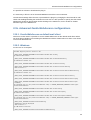
2.15.2. Windows
For all users on a computer:
Windows Registry Editor Version 5.00
[HKEY_LOCAL_MACHINE\SOFTWARE\Clients\Mail\Zarafa Web Client]
@="Zarafa Web Client"
[HKEY_LOCAL_MACHINE\SOFTWARE\Clients\Mail\Zarafa Web Client\DefaultIcon]
@="%windir%\\zarafa.ico"
[HKEY_LOCAL_MACHINE\SOFTWARE\Clients\Mail\Zarafa Web Client\Protocols]
[HKEY_LOCAL_MACHINE\SOFTWARE\Clients\Mail\Zarafa Web Client\Protocols\mailto]
"URL Protocol"=""
[HKEY_LOCAL_MACHINE\SOFTWARE\Clients\Mail\Zarafa Web Client\Protocols\mailto\DefaultIcon]
@="%windir%\\zarafa.ico"
[HKEY_LOCAL_MACHINE\SOFTWARE\Clients\Mail\Zarafa Web Client\Protocols\mailto\shell]
[HKEY_LOCAL_MACHINE\SOFTWARE\Clients\Mail\Zarafa Web Client\Protocols\mailto\shell\open]
[HKEY_LOCAL_MACHINE\SOFTWARE\Clients\Mail\Zarafa Web Client\Protocols\mailto\shell\open
\command]
@="rundll32.exe url.dll,FileProtocolHandler http://<ZARAFA_WEBACCESS_ADDRESS>/index.php?
action=mailto&to=%l"
[HKEY_LOCAL_MACHINE\SOFTWARE\Clients\Mail\Zarafa Web Client\shell]
[HKEY_LOCAL_MACHINE\SOFTWARE\Clients\Mail\Zarafa Web Client\shell\open]
@="Zarafa Web Client"
[HKEY_LOCAL_MACHINE\SOFTWARE\Clients\Mail\Zarafa Web Client\shell\open\command]
@="rundll32.exe url.dll,FileProtocolHandler http://<ZARAFA_WEBACCESS_ADDRESS>/index.php?
action=mailto&to=%l"
[HKEY_LOCAL_MACHINE\Software\Classes\mailto]
"EditFlags"=hex:02,00,00,00
"URL Protocol"=""
@="URL:MailTo Protocol"
[HKEY_LOCAL_MACHINE\Software\Classes\mailto\DefaultIcon]
23
Chapter 2. Using the Zarafa WebAccess
@="%windir%\\zarafa.ico"
[HKEY_LOCAL_MACHINE\Software\Classes\mailto\shell]
[HKEY_LOCAL_MACHINE\Software\Classes\mailto\shell\open]
[HKEY_LOCAL_MACHINE\Software\Classes\mailto\shell\open\command]
@="rundll32.exe url.dll,FileProtocolHandler http://<ZARAFA_WEBACCESS_ADDRESS>/index.php?
action=mailto&to=%l"
For current user only:
Windows Registry Editor Version 5.00
[HKEY_CURRENT_USER\SOFTWARE\Clients\Mail\Zarafa Web Client]
@="Zarafa Web Client"
[HKEY_CURRENT_USER\SOFTWARE\Clients\Mail\Zarafa Web Client\DefaultIcon]
@="%windir%\\zarafa.ico"
[HKEY_CURRENT_USER\SOFTWARE\Clients\Mail\Zarafa Web Client\Protocols]
[HKEY_CURRENT_USER\SOFTWARE\Clients\Mail\Zarafa Web Client\Protocols\mailto]
"URL Protocol"=""
[HKEY_CURRENT_USER\SOFTWARE\Clients\Mail\Zarafa Web Client\Protocols\mailto\DefaultIcon]
@="%windir%\\zarafa.ico"
[HKEY_CURRENT_USER\SOFTWARE\Clients\Mail\Zarafa Web Client\Protocols\mailto\shell]
[HKEY_CURRENT_USER\SOFTWARE\Clients\Mail\Zarafa Web Client\Protocols\mailto\shell\open]
[HKEY_CURRENT_USER\SOFTWARE\Clients\Mail\Zarafa Web Client\Protocols\mailto\shell\open
\command]
@="rundll32.exe url.dll,FileProtocolHandler http://<ZARAFA_WEBACCESS_ADDRESS>/index.php?
action=mailto&to=%l"
[HKEY_CURRENT_USER\SOFTWARE\Clients\Mail\Zarafa Web Client\shell]
[HKEY_CURRENT_USER\SOFTWARE\Clients\Mail\Zarafa Web Client\shell\open]
@="Zarafa Web Client"
[HKEY_CURRENT_USER\SOFTWARE\Clients\Mail\Zarafa Web Client\shell\open\command]
@="rundll32.exe url.dll,FileProtocolHandler http://<ZARAFA_WEBACCESS_ADDRESS>/index.php?
action=mailto&to=%l"
[HKEY_CURRENT_USER\Software\Classes\mailto]
"EditFlags"=hex:02,00,00,00
"URL Protocol"=""
@="URL:MailTo Protocol"
[HKEY_CURRENT_USER\Software\Classes\mailto\DefaultIcon]
@="%windir%\\zarafa.ico"
[HKEY_CURRENT_USER\Software\Classes\mailto\shell]
[HKEY_CURRENT_USER\Software\Classes\mailto\shell\open]
[HKEY_CURRENT_USER\Software\Classes\mailto\shell\open\command]
@="rundll32.exe url.dll,FileProtocolHandler http://<ZARAFA_WEBACCESS_ADDRESS>/index.php?
action=mailto&to=%l"
2.15.2.1. Installing the “.reg” file
1. Open a text editor like Notepad.
24
Linux
2. Insert the desired registry key, where <ZARAFA_WEBACCESS_ADDRESS> should be replaced by
the url of your Zarafa WebAccess.
3. In the Start Menu, hit Run, enter regedit, and hit Ok.
4. Import the just created registry key.
5. In Outlook 2003/2007 go to Tools > Options > Other > uncheck Make Outlook the default program
for Email, Contacts & Calendar.
6. In the Start Menu, hit Run, enter %windir%, and hit Ok. The default Windows folder will be
opened.
7. Copy and paste zarafa.ico into the folder. The icon can be found on the server in the following
folder: /webaccess/client/layout/img/favicon.ico.
2.15.3. Linux
1. Make a new script file mailto.sh.
2. Put the following lines in the file:
#!/bin/bash
ADDRESS=`echo $1|cut -f 2 -d : -`
# Logs this to syslog... just helps to make sure it is working properly
logger "Opening Zarafa mail client, addressed to $ADDRESS"
firefox "http://<SERVER>/<USER>/webaccess/index.php?action=mailto&to=$ADDRESS"
3. Replace http://<SERVER>/<USER>/webaccess/ with base URL of the WebAccess.
4. Save the file (preferably in the home directory), then run chmod uog+rwx mailto.sh from the
same directory.
5. Now type gnome-default-applications-properties on a console or go to System >
Preferences > More Preferences > Preferred Applications.
6. Open “Mail reader” and set it to a custom action that looks like: /home/<USERNAME>/
mailto.sh %s
2.15.4. Adding Zarafa WebAccess as mailto handler in Firefox
When clicking an URL of an email address (a mailto address) in Firefox it will try to open a mail client.
Firefox has a list of possible mail clients to use, with the possibility to pick a default. To use the Zarafa
WebAccess to handle mailto URLs in Firefox follow the these steps:
1. Type about:config in the address bar and press Enter. Ignore the warranty warning.
2. Put gecko.handlerservice in the filter box.
3. Double-click gecko.handlerService.allowRegisterFromDifferentHost. This will
change its value from false to true.
4. Paste this code in the address bar while replacing https://<ZARAFA_WEBACCESS_ADDRESS>
with the URL used to access the installation of the Zarafa WebAccess (usually the url used to get
to the login screen of the WebAccess), then press Enter:
25
Chapter 2. Using the Zarafa WebAccess
javascript:window.navigator.registerProtocolHandler("mailto","https://
<ZARAFA_WEBACCESS_ADDRESS>?action=mailto&url=%s","Zarafa WebAccess")
5. Below the address bar a message asking if the Zarafa WebAccess should be added as an
application to handle mailto links. Click the Add Application button.
6. Next time mailto: link is clicked, a screen will appear allowing the preferred mail client to be picked.
Select the Zarafa WebAccess, and possibly check the box next to Remember my choice for
mailto: links, then click OK.
From now on the Zarafa WebAccess will directly be used when clicking “mailto” links in Firefox. Please
note that a user needs to be logged in (or make use of Single Sign On) for it to work smoothly.
2.16. Quirks
2.16.1. Firefox specific
Since Firefox 4.0, some alert messages may popup from the main window instead of in the message
dialog. Although the alert message can handled in the other window, it may be confusing why
the browser isn’t responding. To revert the alert message behaviour to separate windows, the
Firefox configuration needs to be altered. To do this, open a new tab or window in Firefox and type
about:config in the url bar. Filter on prompts to find the correct option. Change the value of
prompts.tab_model_enabled from true to false. Alert popups will now be separate windows
again.
26
Chapter 3.
Separate WebApp manual
Note
1
Zarafa WebApp has moved to its own WebApp User Manual and is no longer part of the general
User Manual.
1
http://doc.zarafa.com/trunk/User_Manual_WebApp/en-US/html-single/
27
28
Chapter 4.
Configure Outlook (using the Zarafa
Windows Client)
4.1. Installation of the Outlook client
There are two requirements that must be fulfilled prior to installing a Zarafa workspace. First, Outlook
2003 or higher is needed, and second, the user must be created on the Zarafa Server.
The following steps are necessary to install a Zarafa workspace:
Note
It is recommended to have the latest Service Packs and Security patches installed.
4.1.1. Install the client
To install the Zarafa Windows Client first assure Outlook is set as default email application from:
Control panel > Internet > Applications. Then put the Zarafa CD in the drive, wait for the automatic
start of the CD and choose the uppermost option: Windows Client. Alternatively, if the client was
downloaded from another source, double click the file named: zarafaclient.msi
Note
With version 5.10, Zarafa is introducing an MSI installer for the Zarafa client instead of an .exe
installer. When upgrading from a Zarafa version prior to 5.10, it is advised to remove the older
Zarafa client before running the new MSI installer. If the old client is not removed two Zarafa
clients will be visible in the Windows software list.
Note
Version 5.xx of the Zarafa client is not compatible with a version 6.xx Zarafa server. With version
6.00, Zarafa will ask during the installation if it needs to update the existing files. Select this option
if it’s not necessary to connect to a Zarafa 5.2x server anymore.
4.1.1.1. Instructions for Outlook 2003.
Create a new mail profile in Outlook 2003:
1. Go to Control Panel > Mail > Show Profiles….
2. Click Add… and fill in a title, for example Zarafa. Click OK.
Add a Zarafa Server to this profile:
1. Choose Create a new mail account and click Next in the dialog window that appears after adding
the profile (or after choosing Email Accounts… in Outlook or the Mail setup).
2. Choose the last option (Extra server types) and click Next > choose Zarafa 6 Server > click Next.29
Chapter 4. Configure Outlook (using the Zarafa Windows Client)
3. The window shown on the right will appear.
4. Fill in the address or host name of the server in the Server field.
5. Optionally: choose HTTPS connections where available.
6. Fill in the login data of the user in the Username and Password fields.
7. Choose the connection type, there are 3 different possibilities:
• Online
• Cached Zarafa mode
• Detect at Startup
Note
More information on the three connection types can be found in Section 4.2, “Outlook
connection type”.
8. Choose OK a couple of times to close the windows.
4.1.1.2. Instructions for Outlook 2007 and higher
1. Go to Control Panel > Mail > Show Profiles…
2. Click on Add… and fill in a title, for example Zarafa. Click OK.
3. Select the option Manually configure server settings or additional server types and click on Next.
4. Select Other, and choose Zarafa Server and click Next.
5. Fill in the address or host name of the server in the Server field.
6. Optionally: choose HTTPS connections where available.
7. Fill in the logon data of the user in the Username and Password fields.
8. Click Ok. The personal folders of this user and the public folders will appear as store in Outlook
after adding the server in this way.
9. Click Finish to finalise the profile.
Important
The Zarafa account has to be the default account in the Outlook profile. It’s not possible to have
the Zarafa account as secondary account and use as primary account for example an IMAP
account.
4.1.2. Start Outlook
1. Start Outlook and make sure the added profile is being used.
30
Outlook connection type
2. This can be set in Control panel > Mail > Profiles… on the bottom of the dialog window.
3. The private mailbox of the entered user and the public folder will appear as a store in Outlook.
4.2. Outlook connection type
By default, Outlook has an ongoing connection to the Zarafa server and does not store the folders
and items on the local hard drive. With the introduction of Zarafa 6.00, it is possible to synchronise all
private Outlook data to the local hard drive. Email, agenda and contacts can easily be accessed even
if no connection to the server is available. This functionality is only available if the offline storage is
enabled (see the connection types below).
The following three options are available for the connection to the server: Online, Detect at startup and
Cached Zarafa mode. These will be described in the sections below.
4.2.1. Online
The Online type works the same as in the previous versions of Zarafa. When a network connection to
the server is available, Outlook can be started. Whenever the connection to the server is not available
email, agenda and contacts can not be accessed.
4.2.2. Detect at startup
With the Autodetect Offline / Online type Outlook checks at startup if the server can be reached. When
Outlook has a connection to the Zarafa server all items will be synchronised to the offline storage.
When the connection is lost, Outlook will not automatically switch to its offline storage. In order to
switch to offline storage, Outlook needs to be restarted.
When Outlook is started and there is not a network connection available, Outlook will show a pop-up
message which asks if it is wanted to work offline.
Note
Whenever the “_Detect at startup_” mode decides to work offline, the behaviour for that session
will be as described below in Section 4.2.3, “Cached Zarafa Mode”, effectively. In case it decides
to work online, the behaviour of that session will be as described above in Section 4.2.1, “Online”.
4.2.3. Cached Zarafa Mode
The third type of connection is Cached Zarafa Mode. This type is similar to the caching mode of MS
Exchange. If this type is selected, the offline storage will always be used. When there is a network
connection available all items of the user`s own store will be synchronised to the offline storage. The
first time the Outlook profile is being configured it is required to have a connection to the Zarafa server.
After the profile is created and Outlook can be started, all folders and items will be synchronised.
Important
Please consider the limitations of the use of offline storage as described in Section 5.1.2,
“Limitations of working offline”.
31
Chapter 4. Configure Outlook (using the Zarafa Windows Client)
4.2.4. What is the best connection type to choose?
Table 4.1. Connection type options
Type of user
Zarafa profile type
User that always works on the same fixed PC in the office
Online
User that uses roaming profiles and logs in on different fixed PC’s in
the office
Online
User that works with a fixed PC remote from a sub department over a
small bandwidth internet connection
Cached Zarafa Mode
User with a laptop that is inside the office most of the time
Detect at startup
User with a laptop that is always out of the office
Cached Zarafa Mode
User that works on a Terminal Server
Online
Important
The Zarafa client is not designed to allow switching between the different connection types. If a
user should be able to work with an online and cached connection it is recommended to create
two separate profiles.
4.3. Advanced configuration
Since version 6.20 two new settings are introduced in order to improve connection to the Zarafa
server.
Figure 4.1. Connection settings
4.3.1. Proxy settings
If the zarafa server is only reachable via a proxy server it is possible to enter the information of the
proxy server into the client settings.
4.3.2. Other connection settings
Two other connection settings are configurable:
Compression: Uncheck this option if compression is not wanted. This option is on by default.
Server connection timeout: Depending on the connection quality it is possible to change the timeout
to the zarafa server. Default is 30 seconds.
4.4. Public Folder Favourites
To have a useful shortcut to the most used public folders use the Favourite folder that can be found
under the public folders tree. In order to add a folder to the Favourite folder, right click on a public
folder and select Add to Zarafa favourite folder. In Outlook 2007 the Add to Favourites window will
appear. In Outlook 2003 the shortcut will be added directly in the favourites folder.
By default only the selected folder will be inserted in the favourite folder — without its subfolders. It is
necessary to specify otherwise.
32
Public Folder Favourites
Figure 4.2. Add to favorites window (Office 2007)
33
34
Chapter 5.
Using Outlook
The Zarafa Windows Client does not change the way one works with Outlook significantly. However
there are some extra features available to those using Outlook to connect with a Zarafa Server.
5.1. Working offline
After starting Outlook in Cached Zarafa mode or Detect at startup mode additional synchronisation
features will be available in Outlook. For instance: the Synchronise button on the toolbar, which shows
a progressbar during the synchronisation.
Figure 5.1. Synchronisation plugin buttons
The synchronisation time can be scheduled by using the configure button.
When synchronisation is started for the first time, the Global Address Book will be synchronysed first.
After the Global Address Book has been synchronised, the Inbox will be synchronised. The most
recent emails will be synchronised first.
During the initial synchronisation new email will not be received. New email will be retrieved after the
first synchronisation is finished or after Outlook is restarted during the sync. Sending new email during
synchronisation, however, will be done immediately.
5.1.1. Sending email during offline use
When email is sent during offline use, the email will be kept in the Outbox. To send the email when the
connection to the server has been reinstated, the Send & Receive button has to be selected.
This action can be scheduled by configuring the Send & Receive settings:
Figure 5.2. Send and receive settings
5.1.2. Limitations of working offline
Things to consider when using “Offline” functionality:
• Currently it is not possible to synchronise the favourite folders of the Public Folder or delegate
mailboxes.
• Public Folders and delegate mailboxes will be directly opened from the server, like the Online Zarafa
modus, and are thus not available while working offline.
• The synchronisation of a mailbox of 1000MB will take around 1 hour whith a 100Mb/s network
connection to the Zarafa server.
• In Offline mode it is not possible to open shared mailboxes or set security permissions on folders.
• In a Cached Mode profile the button Open other user’s folder is disabled.
• Currently, shared mailboxes and calendars can only be opened via the button Open shared folders
or via the button Open a shared calendar in the calendar section of Outlook.
• If it’s not possible to open the Public Folder after being offline, the session is not available on the
server. To open the Public Folder again, it is necessary to restart Outlook to set up a new session.
35
Chapter 5. Using Outlook
5.2. Folder Management
5.2.1. The creation of a public folder
By default, every user is able to create folders and items in the Public folders. However, the
permissions on these new items are set so that a new folder can only be read by other users.
To enable others to write to the folder, the correct permissions must be set; for example allow writing
and deleting by the group Everyone. (See Sharing of folders).
5.2.2. Sharing of folders (setting permissions)
The permission structure has been built with flexibility in mind. It is possible to set permissions
per folder. Every folder inherits the permissions of the folder it is located in. Every item inherits the
permissions of the folder it is contained in.
Before a folder can be added and viewed by other users, the permissions have to be set correctly.
To accomplish this, right click on a folder and choose Properties.
Figure 5.3. Folder properties button
Figure 5.4. Set folder permissions
In the appearing dialog window different settings can be chosen, regarding the properties of the folder.
The last tab window contains the permissions settings.
At the top is a list with users and the permissions which have been set. After selecting a user the
rights can be selected at the bottom. Choosing a profile from the drop down list makes this easier by
automatically selecting often used settings.
Users can be added and deleted with the two buttons below the user list.
For example, to give user Pete the rights to read and write to items in a folder, first click Add…. After
selecting Pete and clicking OK, Pete will show up in the list. After this the right checkboxes can be set;
to enable reading and writing only set Read items and Edit items on All.
Table 5.1. Explanation of permissions
Permissions
Description
Create items
The user can create items
Read items
The user can read items
Edit all items
The user can edit all items
Edit own items
The user can only edit their own items
Delete all items
The user can delete all items
Delete own items
The user can only delete their own items
Create subfolders
The user can create subfolders
Folder visible
The user can view the folder
Folder permissions
The user can change permissions on the folder
If there are no check boxes selected for a user, then denying permissions are in effect and the user
can not access the folder. When no permissions are set on the folder, the folder one level higher is
checked for the set ACLs.
36
Adding or opening folders shared by other users
Note
Permissions that apply to the user are cumulative, meaning that the user will receive the sum of
the permissions that apply to his or her user account and groups of which the user is a member.
By default a user only has read/write permissions on their own folders and is able to create folders in
the Public Folders.
The owner is saved with every item. This way, depending on the set permissions, a user is only
allowed to delete their own items and not items belonging to other users. The owner of the mail box
can always edit or delete all items in his/her mail box, regardless of the owner of the items.
It is possible to give administrative rights to users, after which they have access to the entire Zarafa
system. These administrators have the ability to change the permissions on public folders and the
folders of each user on the system. Also, every folder or item can be opened by an administrator.
5.2.3. Adding or opening folders shared by other users
To add shared folders of other users and to be able to write to or read from it, the following steps
should be executed:
1. Click in Outlook on File and Open Shared Folders….
Figure 5.5. File menu
2. Choose in the dialog window the user and the type of folder to be opened, then click OK.
Figure 5.6. User and folder selection
If Inbox is chosen (permanent), then not only a folder will be opened but an extra mail box will be
added in the folder list of Outlook. This folder will appear in a separate Outlook window with the folders
described as (temporary).
It is only possible to read or write to this folder after the owner has given the rights to do so. See the
previous paragraph about setting permissions.
5.2.4. Adding or removing complete stores of other Zarafa users
In order to delete mail boxes (also called stores) which were added to the list of mail boxes in the
folder list of Outlook, the user must do the following:
1. Click with the right mouse button on a mail box:
Figure 5.7. Folder Properties selection
2. Select Properties > click Advanced… > select the tab Advanced in the Zarafa server dialog
window.
Figure 5.8. Zarafa server dialog
3. Click Remove to remove or Add to add a mail box.
37
Chapter 5. Using Outlook
After clicking Add, select a user to add his/her store and let the store appear in the folder list of
Outlook.
5.3. Searching in Outlook
A search executed in Outlook will query the database of zarafa-search (zarafa-indexer in Zarafa
6.40.x - 7.0.x). To enhance the search results Outlook will divide certain words in individual tokens,
depending on the language set in the language bar of Windows.
For example: searching for the word Sauermann or Dauermann in a German system. These words will
be split into mann and Sauer/Dauer. In a Dutch system the name Timmermans will be split to mans
and Timmer.
To only search for the whole word the search-term has to be endorsed in angle brackets ( < and >).
Note
The same accounts for hyphenated words like part-time. Searching for this will give all results
matching either part or time. Only searching for <part-time> will give only results matching both
words.
5.4. Restoring deleted items
Because Zarafa uses a so-called Soft Delete system, items removed from view in Outlook can still be
restored. This can be done by selecting Tools > Recover Deleted Items.
Figure 5.9. Recovering deleted items
Select the items which need to be recovered and click on the Restore button to restore the items to the
folder they were deleted from. Most items will be restored to the Deleted Items folder.
If Delete is selected, the items will be truly removed from the server, and these items can no longer
be recovered. The server has a lifetime on these items, so after a set period of time, the items will be
removed.
5.5. Free/Busy updates
When new appointments are created in the calendar, the Zarafa client will update the Free/Busy
information. This update will occur some time after the appointment was saved or when Outlook is
closed. Other users will not directly see this change in their Free/Busy overview.
When an appointment is created, it is possible to invite other people. If other users are added, the
overview will be updated to show the Free/Busy times of the user, making it easy for the organizer to
plan the new appointment.
To use the Free/Busy times, the Public Store on the Zarafa server must be available. All the Free/Busy
times will be stored in an invisible folder in the Public Store. If a user did not yet login with Outlook or
Webaccess and did not create an item in the calendar, the Free/Busy times will not be available.
5.6. Resources
With the resource feature the availibility or scheduling of meeting rooms, beamers, cars or other
objects with limited availability in the company is made easy. Resources are allocated through meeting
requests.
38
Out of Office Assistant
The following steps show how to allocate a resource:
1. Create a new appointment in Outlook.
2. Open the Scheduling tab.
Figure 5.10. Free/Busy information
3. Add the name of the resource or select the resource from the Global Address book.
4. Change the icon Required attendee to Resource or Equipment.
Figure 5.11. Select the option Resource
5. Add the other attendees, that will attend the meeting.
6. Select a free timeslot via the freebusy times and send the meeting to the attendees.
7. If the resource is available in this timeslot, a pop-up will show that the resource is successfully
booked.
Figure 5.12. Pop-up after the resource is successfully booked
8. If the resource is unavailable, a different (free) timeslot needs to be selected.
Note
When an all day event is planned, please make sure the appointment is booked as Busy or Out
of Office. By default, all day events are set as free and because of that not visible in the freebusy
information.
5.7. Out of Office Assistant
1. Make sure the currently opened folder belongs to the store for which an auto-respond message
needs to be set.
2. Click in the menu of Outlook on Tools, click Out of Office Assistant.
3. In this dialog window an auto-respond message can be set and the auto-responder can be
activated or deactivated.
The first time Outlook is restarted, it will produce a pop-up asking if the auto-respond message should
be disabled again.
This message is the same as the one that can be set with the Webaccess.
5.8. Rules
Select the Inbox folder for which a rule needs to be created, and click in the menu of Outlook on Tools
and select Rules and Alerts. Here it is possible to create rules which are processed on the server
when a new email arrives.
39
Chapter 5. Using Outlook
Figure 5.13. Rules wizard
There are certain limits to the types of rules that can be made. The condition of the rule can be in any
form.
Note
When using Outlook 2003 or 2007, any rule created will automatically have an option called on
this machine only. This option needs to be removed so the server can execute this rule.
It is only possible to copy/move or to delete a message. These rules can be created, but they will not
be executed on the server. An example of such a rule is to send the mail to the printer, or forward it
directly to another email account.
Local rules can still be performed manually by clicking on the Run rules now button in the Rules and
Alerts dialog.
5.9. Signatures
Signatures can be set in the Options menu of Outlook. It is important to note that signatures set in
Outlook are separate from those set in the WebAccess. It is neccesary to set the signature in both
clients separately.
5.10. Signing and encrypting messages
Since Zarafa 6.10 it is possible to use S/Mime certificates. Certificates enables the use of digitally
signing emails and/or encrypting emails.
The description in this manual is the manual procedure. An automatic way to receive a certificate is to
use Active Directory Services (ADS). The automatic method is not described in the client manual, but
will be described in the server manual.
5.10.1. Retrieving a certificate
In order to get a certificate a registration at a Certificate Authority (CA) is needed. Multiple possibilities
are available; one is to have the Active Directory (AD) act as a CA, the other is to subscribe to an
independent CA, like CaCert (http://www.cacert.org/).
5.10.1.1. Certificates via AD
The company’s AD is configured to act as a CA:
1. Open Internet Explorer
2. Go to the following URL: http://<domainserver>/servcrt. If the URL is different, ask the
systems administrator for the correct URL.
3. Click on Request a certificate and on the next page on User Certificate to generate a certificate.
4. The certificate will be placed into Outlook automatically.
5.10.1.2. Certificates via an independent CA
1. Go to the site of the CA.
40
Check encrypted email settings
2. Register the email address and create a certificate.
3. Use Firefox to retrieve the certificate.
4. In Firefox, go to Tools > Options > Tab Advanced > tab Encryption > button View Certificates.
Figure 5.14. Certificate Manager
5. Select the correct Certificate and Click Backup.
6. Enter a password.
7. Save the certificate as a PKCS12 file.
8. Open Outlook.
9. Go to Tools (if Outlook 2003: Options) > Security Tab > Click Import/Export… > Click Browse…
10. Select the correct .P12 file.
11. Enter the previous password.
12. Enter in the field Digital ID Name: the email address for which the certificate is meant.
13. Click button OK twice.
5.10.2. Check encrypted email settings
1. Go to Tools > Options > Security tab > click Settings….
2. Check if the field Security settings Name: contains the S/MIME settings for the email address.
Figure 5.15. Security Settings
5.10.3. Using the certificate
After entering the certificate into Outlook it can be used to digitally sign outgoing emails or receive
encrypted incoming emails.
When a new email or reply is opened two new icons will be present: (the option to digitally sign
messages) and (the option to encrypt the message contents and attachments).
5.11. Fax Feature
Since version 6.20 it is possible to send fax through Outlook 2003/2007 and a third-party software
such as Hylafax.
In order to send a fax:
1. Open the new e-mail window by clicking the File menu, selecting New and Mail Message.
2. Go to Options, Format and choose Plain Text.
3. Fill in the To: field with the following syntax [fax: <fax number>], where <fax number> is
replaced with the actual phone number of the fax machine.
4. Fill in the From: and Subject fields as they will appear in the fax cover.
41
Chapter 5. Using Outlook
5. Enter the mail body as for a normal mail message
6. Click Send
Figure 5.16. New fax item
Note
To be able to send fax messages, an administrator needs to install software or adjust settings on
the server. Additional information for administrators can be found on the wiki article Fax server
1
integration .
5.12. Delegation
Since Zarafa 6.20 two kinds of delegation are available: Send on behalf and Send as. In earlier
versions, only Send on behalf is available.
5.12.1. Send on behalf of permissions
Send on Behalf permissions: if a user grants the appropriate permission to another user, the latter
can send items on behalf of the other user. In this case an email or meeting request will be sent
showing it was on behalf of the other user. The recipient will see in the From: field something similar to
‘_<delegate> on behalf of <user>_’. For example Pete enters the inbox of info and sends an email on
behalf of the non-active user info, the following would be seen:
[email protected] on behalf of [email protected].
The option to add delegates is available in the Options menu of Outlook, as seen in Figure 5.17,
“Zarafa delegates”.
Figure 5.17. Zarafa delegates
5.12.2. Send as
Send As permissions: the system administrator can grant permission to user B to send as user A. The
recipient(s) will not see that user B actually sent it; only user A appears in the From: field. See the
Administrator manual on how to grant Send As permissions to users.
Figure 5.18. Show From: field in new email
Note
Due to security reasons the send as permission is only configurable by the administrator on
the Zarfa server. However, this setting can always be overruled by the user itself and the old on
behalf of permission can still be set by the user.
1
http://zarafa.com/wiki/index.php/Fax_server_integration
42
Categorisation
Note
If the (bounce) message below is returned when sending an email on behalf of, please contact
the systems administrator.
You are not allowed to send as the given user.
Important
Due to the introduction of the Send As permissions in Zarafa 6.20 the previous abilities to send
on behalf of are reset when upgrading to version 6.20 or higher; an administrator or the user who
wants to delegate has to give the rights or permissions again.
Keep in mind that Send on Behalf permissions always overrules Send As permissions so a user
can always choose not to let another user (mis)use send as permissions.
5.13. Categorisation
Since version 6.20 it is possible to categorise the items in Outlook by default categories and by
customized categories.
5.13.1. Create a custom category in Outlook 2007
1. To create a custom category, click on the Categorise button in the Outlook toolbar and choose All
Categories.
2. The Color Categories window will appear; choose New to add a new category.
3. The New Category window will appear; fill in the name of the category, choose a color to represent
it and optionally a shortcut key.
4. Click on OK and the new category will be automatically added to the available categories in the
Color category window.
Figure 5.19. Categorys in Outlook 2007
Figure 5.20. Add category in Outlook 2007
5.13.2. Create a custom category in Outlook 2002/2003
1. Open a new mail and choose in the taskbar for options.
2. Choose in this window (message options) for categories, and then for Master category list.
3. Type the name for the new category and add this with the Add button.
4. After creating the category, confirm with the OK buttons in the open windows.
Figure 5.21. Add category in Oulook 2002/2003
43
Chapter 5. Using Outlook
5.13.3. Categorise items and sort by category
In order to categorise an item (it is possible to categorise Mail, Contacts and Appointments) right click
on it, choose Categorise and then click on the desired category.
To order the items by category open the View menu, choose Arrange by or Current View and then
Categories.
5.14. Mail expiration date
Since ZCP version 6.20.0 it is possible to set an expiration date for the outgoing mail.
When writing a new mail, this setting can be found under Options > More Options: the Message
Options window will appear.
Tick the Expires after option and set the expiration date.
Figure 5.22. Message options
44
Chapter 6.
Configure Mail Clients (with IMAP and
POP3)
6.1. Client configuration
Every client supporting IMAP4 or POP3 should be able to connect to Zarafa via the Zarafa IMAP &
POP3 gateway.
For sending mail clients will use SMTP. The SMTP server can be the same as the Zarafa server or the
SMTP server of the internet provider. Some servers need SMTP authentication. The client can store
sent messages in a Sent Items folder.
Note
SMTP credentials are not necessarily the same as the Zarafa credentials.
Important
Please have in mind that "/" and "." are illegal characters in foldernames in IMAP, but are
generally possible im MAPI and therefore valid in Outlook und WebAccess/WebApp. Using these
characters will lead to folders displayed with different names (for example RequestSupport
instead of Request/Support) when accessed via IMAP. Please don’t use these characters when
planing to use IMAP.
6.1.1. Mozilla Thunderbird
This manual is based on Mozilla Thunderbird version 2. Other versions can be set up in a similar way.
The first two steps can be skipped when opening Thunderbird for the first time. The following example
is for the IMAP protocol. The POP3 protocol is practically the same without steps 10 to 12.
1. Go to Tools > Account settings….
Figure 6.1. Tools dropdown menu
2. Click Add Account.
3. Select Email account and click Next.
4. Fill in your name and Zarafa email address and click Next.
5. Select IMAP and fill in the Zarafa server’s hostname or IP address. Click Next.
6. Fill in the Zarafa username for the Incoming username and the outgoing username. Click Next.
7. The account name can be chosen by the user itself. Click Next.
8. Check the data and click Finish. Now close the Account Settings window.
9. Open the Inbox and type in your password to receive the folder structure from the Zarafa server.
45
Chapter 6. Configure Mail Clients (with IMAP and POP3)
10. Re-open the Account Settings window and select the Server Settings in the previously created
account.
11. Set the security to the desired level (default is Never).
12. Select Copies & Folders in the account tree and set the correct foldernames for the IMAP server.
13. Finally, click OK and start using Zarafa with the IMAP protocol.
6.1.2. Windows Mail
This example is based on Windows Mail. Outlook Express can be configured in a similar way.
The following example is for the IMAP protocol. Setting up the POP3 protocol is practically the same;
skip steps 10 to 12.
1. Go to Tools > Accounts.
Figure 6.2. Tools dropdown menu
2. Click Add….
3. Select Email Account and click Next.
4. Enter the Display Name and click Next.
5. Enter the Email Address and click Next.
6. Select IMAP from the dropdown menu, fill in the Zarafa server’s hostname or IP address and the
hostname or IP address of the outgoing mailserver.
7. Optional: check whether the outgoing server needs authentication and click Next.
8. Fill in the Zarafa username in Email Username and the Zarafa password. Click Next.
9. (Un)tick whether the user wants to download the data from the server right away and click Finish.
10. Highlight the new account in the folder list and click Properties in the context menu (open by a
right-click on it).
11. Select the IMAP tab.
12. Check whether the Special Folders is ticked and the folders are set the same as the Zarafa
folders.
13. Finally, click OK and start using Zarafa with the IMAP protocol.
46
Chapter 7.
Configure Calendar Clients (using
CalDAV and iCal)
This chapter describes how to configure the CalDAV or iCal client for using with the Zarafa server.
The zarafa-ical gateway enables users to view their Zarafa calendars using clients like Sunbird,
Evolution or Mac iCal. Since ZCP 6.40 tasks can be synchronised and created from the different
clients.
To access calendar folders on Zarafa the following options are available.
For all clients but the Mac OS X iCal client use:
URL
Calendar
http://server:8080/ical
User’s own default calendar via ical (not
recommended)
http://server:8080/caldav/<user>/
<calendar-name>
User’s calendar in user’s store. Make sure the
calendar name is in the store.
http://server:8080/caldav/<user>/
<subcal>
User’s self created subcalendar in the user’s
own store. Location through actual subfolders in
Zarafa is irrelevant.
http://server:8080/caldav/<otheruser>/<calendar-name>
Other-user’s shared calendar
http://server:8080/caldav/public/
<calendar>
Calendar folder in the public folder
http://server:8080/caldav/<user>/
User’s default calendar. Although this works for
most clients, this URL is not recommended.
For the Mac OS X iCal client use:
URL For Mac OS X iCal client
Calendar
http://server:8080/caldav
User’s calendar list
http://server:8080/caldav/<otheruser>
Other-users calendar list
http://server:8080/caldav/public
Public folders list
The format and capabilities of iCalendar and MAPI recurrence types are very different. The conversion
of this information is not always the same, or not even possible at all at times. Following is a list of
known recurring appointment types that cause problems:
Recurrence type
Description
Monthly every day of a week
Convert to weekly every day of the week
Yearly every day of a week in month x
Not supported
Note
The <other user> or <user>/<calendar> is only reachable if the correct permissions are
available. Please make sure the user has not only the appropriate calendar permissions, but also
"Folder visible" permissions on the mailbox of the other user.
47
Chapter 7. Configure Calendar Clients (using CalDAV and iCal)
Note
The Mac iCal client is fully tested and supported up to 10.5.6.
7.1. Mac OS X iCal Client
1. Start iCal in Finder: click Go > Applications > iCal.
2. Click iCal from menu and select Preferences.
Figure 7.1. iCal dropdown menu
3. Click on ‘+’ to create new account.
Figure 7.2. Account details
4. Fill in the details. Add server address as: http://server:8080/caldav/
5. Click on Add to retrieve the calendars of the user.
Figure 7.3. Account created
7.2. Sunbird Client Guide
1. Start Sunbird client.
2. Click on File in the menu bar and select New Calendar.
3. Select option on the Network. Click Next.
Figure 7.4. New calendar location
4. For iCalendar, select the iCalendar Option. Enter as location: http://server:8080/ical.
Figure 7.5. iCal details
5. For caldav, select CalDav option. Enter as location: http://server:8080/caldav.
Figure 7.6. CalDav details
7.3. Evolution Client Configuration
1. Start Evolution client.
2. Click on menu New. Select Calendar.
3. Fill in the details & remove the Use SSL option. The URL options are similar to Sunbird.
Figure 7.7. CalDav details
48
Chapter 8.
Configure Mobile Platforms
This chapter describes how to configure the Z-Push software to synchronise PDA’s and Smartphones
with a server based solution.
Z-Push is available as an opensource project on Sourceforge - http://z-push.sourceforge.net
8.1. Z-Push introduction
The Z-Push software allows users with PDA’s and Smartphones to synchronise their email, contacts,
calendar items and tasks directly from a compatible server over UMTS, GPRS, WiFi or GSM data
connections. The following devices are natively supported by Z-Push:
• Apple iPhone and iPad
• Windows Mobile 5, 6, 6.1 and 6.5
• Windows Phone 7 and 7.5
• Nokia E/N-series with Mail for Exchange (M4E)
• Nokia E-series with built in ActiveSync (Nokia Mail 2)
• Android Cupcake or Donut with third party tools like Nitrodesk Touchdown
• Android Eclair with Contacts and Calendar synchronization or third party tools
• Android Froyo, Gingerbread, Honeycomb, Ice Cream Sandwich and Jelly Bean using the default
ActiveSync client (Microsoft Exchange ActiveSync type account) or third party tools
• Blackberry PlayBook
• other ActiveSync compatible devices
The devices can be synchronised because the Z-Push module emulates a MS Exchange server on
the server side, allowing users to synchronise without installing specialised synchronisation software
on their devices.
8.2. Setting up a mobile device
Configuring a device for Z-Push is simply a case of adding a Microsoft Exchange or Corporate account
to your connected accounts. The connection will be configured by specifiying the IP address or
hostname of the server running Z-Push. Please disable SSL, unless SSL has already been setup on
the Apache server. Apart from username and password some clients also ask for your domainname.
This is ignored inside of Z-Push, so you can either leave it empty or give a random string for it.
Once the mobile device has been setup, it should be possible to synchronise the device simply by
clicking the Sync button in your client application.
8.2.1. Android based configuration
The following steps are applicable for most Android devices:
1. Go into your settings screen and scroll down to the accounts part. There you have to select Add
account.
49
Chapter 8. Configure Mobile Platforms
Figure 8.1. Android Settings
2. Select the ActiveSync account type (in most cases Corporate or Microsoft Exchange).
Figure 8.2. Account Type Selection
3. Android wants to autodiscover your ActiveSync server and needs your eMail and password for
this.
Figure 8.3. Account Details
4. Afterwards you have the possibility to specify your exact username and server address if needed
(would otherwise have been m.scotfield as username and zarafa.com as server address).
Figure 8.4. Server Address
5. As soon as you have clicked next your device will give you a popup notifying about needed
policies for the server connection. You will be prompted to accept these policies later in the setup.
Figure 8.5. Remote Administration
6. Before accepting the sync policies you have to choose the frequency for checking the server
(Push by default) as well as what to sync (for example contacts and calendar).
Figure 8.6. Sync Frequence and other settings
7. If you have multiple accounts connected to your device you can also specify an identifying name
for your connection.
Figure 8.7. Optional Profile Name for the Connection
8. Finally accept the server policies.
Figure 8.8. Accept Server Policies
9. After accepting the policies for device will perform an initial sync.
Figure 8.9. Your device has been configured
8.2.2. Windows Mobile based configuration
The following steps are made for the Pocket PC, though still applicable for WM 5/6 or Nokia’s ‘Mail for
Exchange’:
1. Open ActiveSync and select set up your device to sync with it.
Figure 8.10. ActiveSync introduction
50
iPhone based configuration
2. Type the server address (without http or other URL parts).
Figure 8.11. Server address
3. Specify a username and password, a domain must be specified but it is not used within Z-Push,
so simply domain or some other random text can be specified. Select save password if automatic
sync is preferred.
Figure 8.12. Account details
4. Select which items must be synchronised.
Figure 8.13. Synchronise options
5. Press Finish and start synchronising by pressing Sync.
8.2.3. iPhone based configuration
The following steps are applicable for the iPhone:
1. Open Settings and touch Mail, Contacts, Calendars.
2. Touch Add Account… and touch Microsoft Exchange.
Figure 8.14. Mail, Contacts, Calendars settings
Figure 8.15. Choice Protocol/Provider
3. Enter the user credentials, and touch Next.
Figure 8.16. User settings
4. The device will try to contact the server. If the server is not equal to zustomer.com in this case, the
connection will fail. If the server is not configured for SSL connections, the connection will fail too.
The iPhone has SSL enabled by default.
5. A new option field Server will pop up. Enter the correct server address or IP if necessary.
Figure 8.17. Extra server field
6. If SSL is not available the connection will fail to be established. Touch Save in order to keep the
current account settings. Go to the just created account and touch Account info and disable Use
SSL.
Figure 8.18. Save settings
Figure 8.19. Account settings
51
52