1
Chapter 5. Using Outlook
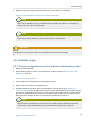
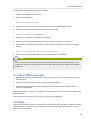
5. Enter the mail body as for a normal mail message
6. Click Send
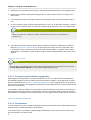
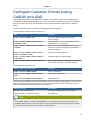
Figure 5.16. New fax item
Note
To be able to send fax messages, an administrator needs to install software or adjust settings on
the server. Additional information for administrators can be found on the wiki article Fax server
1
integration .
5.12. Delegation
Since Zarafa 6.20 two kinds of delegation are available: Send on behalf and Send as. In earlier
versions, only Send on behalf is available.
5.12.1. Send on behalf of permissions
Send on Behalf permissions: if a user grants the appropriate permission to another user, the latter
can send items on behalf of the other user. In this case an email or meeting request will be sent
showing it was on behalf of the other user. The recipient will see in the From: field something similar to
‘_<delegate> on behalf of <user>_’. For example Pete enters the inbox of info and sends an email on
behalf of the non-active user info, the following would be seen:
[email protected] on behalf of [email protected].
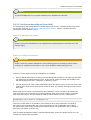
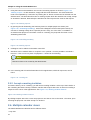
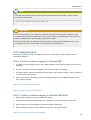
The option to add delegates is available in the Options menu of Outlook, as seen in Figure 5.17,
“Zarafa delegates”.
Figure 5.17. Zarafa delegates
5.12.2. Send as
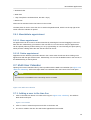
Send As permissions: the system administrator can grant permission to user B to send as user A. The
recipient(s) will not see that user B actually sent it; only user A appears in the From: field. See the
Administrator manual on how to grant Send As permissions to users.
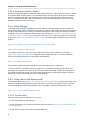
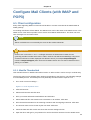
Figure 5.18. Show From: field in new email
Note
Due to security reasons the send as permission is only configurable by the administrator on
the Zarfa server. However, this setting can always be overruled by the user itself and the old on
behalf of permission can still be set by the user.
1
http://zarafa.com/wiki/index.php/Fax_server_integration
42