1
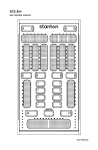
SC SYSTEM 3
Portable Touch Surface DJ Controller
A
B
GAIN
PITCH
A
B
EQ
LOOP
TRIG
LOOP
TRIG
VINYL
DECK
VINYL
DECK
PITCH
FX
FX
EQ
EQ
EQ
FX
FX
GAIN
MASTER
PLAY
CUE
SYNC
SCS.3d
PLAY
TAP
SCS.3m
CUE
SYNC
TAP
SCS.3d
User Manual
Important Safety Instructions
• Read and follow the provided instructions before operating the SC System 3.
• Adhere to all warnings and security advices, and retain this document for future reference.
Installation: Install the SC System 3 in accordance with the provided instructions
Power Supply:
• The SCS.3m should be connected to a power supply outlet only of the voltage and frequency marked on its rear
panel and/or its AC adapter.
• The power supply cord should be routed so that it is not likely to be walked on or pinched.
• The power supply cord of the SCS.3m should be unplugged from the wall outlet when it is to be unused for a
long period of time, or during electrical storms.
Placement and Environment:
• Locate the SCS.3 controllers away from direct sunlight and any equipment that produces heat such as power
supplies, amplifiers, and heaters.
• Place your SCS.3 controllers on stable surfaces, away from sources that generate hum or noise, such as
transformers, or electric motors.
• The location and position of the SCS.3 controllers should not interfere with their proper ventilation.
• Do not use the SCS.3 controllers near water. For example, near a bathtub, washbowl, kitchen sink, laundry tub,
in a wet basement, or near a swimming pool.
• To reduce the risk of fire or electric shock do not expose the equipment to rain or moisture or use it in damp or
wet conditions.
• Protect the SCS.3 controllers from excessive dirt and dust.
• Avoid drinks spillage, tobacco ash, and other contaminants that may affect the performance of the touch surface.
• Do not place heavy objects on the SCS.3 controllers surface.
Cleaning: Unplug the SCS.3m from the wall outlet before cleaning. Never use benzine, thinner, or other solvents
for cleaning. Use only a soft damp cloth.
Service:
• The SCS.3m contains no user-serviceable parts.
• The manufacturer is not responsible for any damage or personal injury resulting from unauthorized user
servicing or modifications. Please read the warranty.
• The warranty will be void if any unauthorized service by the user is detected.
• If service is required, please contact Stanton Tech at +1 954.316.1500 (Option 3)
WARNINg
To reduce the risk of electric shock, do not expose this apparatus to rain or moisture. Ensure that the apparatus
is not exposed to splashing and that no objects filled with liquids, such as vases, are placed on the apparatus.
CAUTION
DO NOT OPEN
RISK OF ELECTRIC SHOCK
CAUTION: To reduce the risk of electric shock, do not remove any cover.
No user serviceable parts inside. Refer servicing to qualified personnel only.
The lighting flash with arrowhead symbol within the equilateral triangle is intended to alert the user to
the presence of un-insulated “dangerous voltage” within the product enclosure that may be significant
enough to constitute a risk of electric shock.
The exclamation point within the equilateral triangle is intended to alert the user to the presence of
important operation and maintenance (servicing) instructions in the literature accompanying this
appliance.
CAUTION
To prevent electric shock, do not use this polarized plug with an extension cord, receptacle or other outlet
unless the blades can be fully inserted to prevent blade exposure.
ii
Contents
Contents
1.
2.
3.
4.
Introduction ................................................................................................................. 1
1.1. Welcome to the SC System 3 ....................................................................................... 1
1.2. Overview ..................................................................................................................... 1
1.3. Unpacking ................................................................................................................... 2
Connecting the SCS.3/Installing Virtual DJ .................................................................... 3
2.1. Remove the Rear Panels ............................................................................................. 3
2.2. Connect the SC System 3 ............................................................................................. 4
2.3. Installing Virtual DJ LE....................................................................................................5
2.4. Configuring for Audio Output.... ................................................................................... 5
SCS.3m Description ...................................................................................................... 6
3.1. SCS.3m –Traditional Mixer Comparisons ................................................................... 6
3.1.1. Channel Pan ................................................................................................... 6
3.1.2. EQ Section ....................................................................................................... 6
3.1.3. Channel Fader ................................................................................................. 7
3.1.4. Crossfader ....................................................................................................... 7
3.2. SCS.3m Top Panel Functional Groups .......................................................................... 8
3.2.1. Deck Switch ..................................................................................................... 9
3.2.2. Slider Section .................................................................................................. 10
3.2.3. EQ/FX Mode Switches ................................................................................... 11
3.2.4. Channel Fader ................................................................................................ 11
3.2.5. Button Section ............................................................................................... 12
3.2.6. Monitor Button .............................................................................................. 12
3.2.7. Master Mode Button ..................................................................................... 13
3.2.8. Crossfader ...................................................................................................... 13
3.2.9. Channel Level Meter ..................................................................................... 14
3.2.10. Channel Strip ................................................................................................. 14
SCS.3d Description ...................................................................................................... 15
4.1. SCS.3d – Traditional Deck Comparisons .................................................................... 15
4.1.1. “Platter” Area ................................................................................................ 15
4.1.2. Pitch Fader ..................................................................................................... 15
4.1.3. Transport Buttons .......................................................................................... 16
4.2. SCS.3d Top Panel Functional Groups ......................................................................... 16
4.2.1. Gain/Pitch Sliders .......................................................................................... 17
4.2.2. Mode Switcher .............................................................................................. 17
4.2.2.1. FX Mode ......................................................................................... 18
4.2.2.2. EQ Mode ........................................................................................ 18
4.2.2.3. Loop Mode ..................................................................................... 19
4.2.2.4. Trigger Mode .................................................................................. 19
4.2.2.5. Vinyl Mode ..................................................................................... 19
4.2.2.6. Deck Switcher ................................................................................ 20
4.2.3. Trigger Buttons .............................................................................................. 20
4.2.4. StanTouch Control Area ................................................................................. 21
4.2.5. Transport Controls ......................................................................................... 21
4.3. SCS.3d Rear Panel ...................................................................................................... 22
iii
5.
6.
7.
8.
Contents
Installing DaRouter®.................................................................................................... 23
Installing and Configuring DaRouter®.......................................................................... 23
5.3. Installing on Windows® ............................................................................................. 23
5.2.1. Installing DaRouter ........................................................................................ 23
5.4. Installing on OSX® ..................................................................................................... 28
5.5.1. Installing DaRouter ........................................................................................ 28
5.5. Configuring DaRouter ................................................................................................ 31
Using the SC System 3 for generic MIDI Control .......................................................... 32
6.1. SCS.3m Standalone Configuration ............................................................................. 32
6.1.1. Selecting MIDI Channel ................................................................................ 32
6.1.2. Selecting Built-in Presets............................................................................... 33
6.1.3. Advanced Control of Built-in Presets ............................................................ 34
6.2. SCS.3d Standalone Configuration .............................................................................. 34
6.2.1. Selecting Presets ........................................................................................... 35
6.3. SC System Configuration ........................................................................................... 35
6.4. MIDI Learn ................................................................................................................. 35
Troubleshooting .......................................................................................................... 36
Specifications .............................................................................................................. 37
Warranty .................................................................................................................... 38
iv
1.
1.1
Introduction
Introduction
Welcome to the SC System 3!
Thank you for purchasing the SC System 3, one of the most advanced touch sensitive DJ control
systems ever created. The SC System 3 integrates touch sensitive technology with Atomix Production’s
award winning Virtual DJ LE software to allow you to interact with your music in ways previously not
possible with traditional DJ gear.
With the SC System 3, we hope that you find yourself mixing your favorite songs in a matter of minutes
with the guidance of this manual. Before we begin, please register your SCS.3 controllers. Just go to
http://www.enterthesystem.com and click on the Product Update Registration link. We look forward
to keeping you informed about the latest presets, firmware updates, new releases, and more…
1.2
Overview
The SC System 3 consists of two decks (SCS.3ds) and a mixer (SCS.3m) that have much of the same
controls of a traditional two turntable and mixer setup, however they are way more powerful and
advanced. At a fraction of the size and weight of a traditional setup and with minimal moving parts,
the SC System 3 is a great solution no matter if you are a seasoned veteran or a beginner DJ.
Atomix Virtual DJ LE software (included in the box) perfectly integrates with the SC System 3. The
SCS.3 controllers not only allow you to mix between four songs, but also allow you to manage your
music collection, loop, add effects, and engage Virtual DJ LE's synchronization engine to help
automatically line up two songs without the years of practice required on a traditional vinyl setup.
Because of the tight interaction between the SCS.3 controllers and Virtual DJ LE, everything that
happens on screen stays in perfect harmony with the light feedback on the controllers, allowing you
to mix in low light environments and focus on your performance with confidence.
Main SCS.3 controller features:
• StanTouch controller - it offers a simple tactile way to control sliders and change data or control
effects automation
• Multi-touch sliders - they allow you to make fast transitions and develop new performance
techniques
• Inspired by a traditional turntable and mixer layout, enabling scratching / cueing, 3-band EQ, cross
fading, level setting, FX control and master/cue functions
• 4-deck support - controls up to 4 unique decks or tracks in DJ software
• Video mixing support (Full screen output requires upgrade to Virtual DJ Pro)
• USB class-compliant - no driver required for Mac® or PC computers
• Integrated powered USB hub - up to 4 USB devices can be plugged in
• Ability to be bus powered (without USB hub functionality)
• Small footprint - the SCS.3 controllers are compact, and fit anywhere a typical 15” laptop will fit
• Minimal moving parts ensure that the SC System 3 will not break down or wear over time unlike
traditional controllers
• Portability - the SCS.3 controllers are easy to carry and can be used hand-held, if desired
Before you start hooking up your new units, let’s check what is in the box!
1
1.3
Unpacking
Unpacking
Please check that you have received the following items:
(1)
(2)
(1)
(3)
(1)
(1)
(1)
SCS.3m unit
SCS.3d units
Power supply (12 VDC)
USB cables
Headphone Adaptor Cable
SC System Quick Start Guide
SC System 3 DaRouter/Support CD (With Virtual DJ LE Install)
In addition to the above items, remember that to take advantage of the full potential of the SC System
3 you will need a Mac or PC computer (with Internet connection) to check for any potential updates
to Virtual DJ that may provide enhanced functionality, and preferably an audio interface (if you do
not own one, you can use the included headphone adaptor cable).
Let’s get started by hooking up the SC System 3.
2
2.
Connecting the SCS.3 Controllers
2.1
Remove the Rear Panels
Connect the SC System 3/Installing Virtual DJ
In this section we will briefly describe how to connect the SC System 3.
Open the rear panel of the SCS.3m and two SCS.3d controllers.
On the SCS.3m (Figure 2.1), you will find:
(2) USB type “A” sockets
(1) USB type “B” socket
(1) 8 mm 12 VDC power supply
USB TYPE A
USB TYPE B
8mm 12 VDC
Figure 2.1
On the SCS.3d, you will find a USB type “B”
socket. (Figure 2.2)
USB TYPE B
Figure 2.2
3
2.2
A.
B.
C.
Connect the SC System 3
Connect the SC System 3/Installing Virtual DJ
Connect the USB type “B” connector to the SCS.3m USB “B” socket and the other end of the USB
cable to your computer’s USB port.
Before connecting other devices, connect the SCS.3m to power.
Thanks to the SCS.3m integrated USB hub and the wire management options, you can now
connect the two SCS.3d’s either by routing the USB cables through the sides of the SCS.3d’s and
SCS.3m, or out the back of the SCS.3d and using the two rear panel USB connectors.
The additional two USB sockets can be used to add peripheral devices such as flash storage, other
controllers, or any other USB peripheral. (Figure 2.3)
Figure 2.3
4
2.3
Installing Virtual DJ LE
Installing Virtual DJ LE/Configuring for Audio Output
Windows
Before you can begin using your SCS.3PAK with your computer, you must install the included VirtualDJ
LE software:
1. Please insert the included Stanton Support disc into your computer's DVD/CD drive.
2. Open the CD to view its contents, Open the folder titled "VIRTUAL DJ", then the folder titled
“WINDOWS” and double-click the ".Msi file".
4. Follow the on-screen instructions to finish installing.
3. Open VirtualDJ LE by double-clicking the icon on your computer's Desktop (if you created a Desktop
shortcut) or by going to Start : All Programs : VirtualDJ.
For more information on how to use VirtualDJ LE, please see the included Quick Start Guide and videos
on your support CD.
OSX
Before you can begin using your SCS.3PAK with your computer, you must install the included VirtualDJ
LE software:
1. Please insert the included Stanton Support disc into your computer's DVD/CD drive.
2. Open the CD to view its contents, Open the folder titled "VIRTUAL DJ", then the folder titled “OSX”
and double-click the ".PKG file".
4. Follow the on-screen instructions to finish installing.
5. Open VirtualDJ LE by going to Applications : VirtualDJ.
For more information on how to use VirtualDJ LE, please see the included Quick Start Guide and videos
on your support CD.
2.4
Configuring Virtual DJ wth the included Audio Cable for headphone/speaker output
The SC System 3 comes with a special audio cable, which can be used in place of a seperate audio
interface.
While we recommend purchasing an external audio interface for professional use, this cable will allow
you to DJ with just the 1/8” mini-plug output from your computer. For serious DJs that already have
one or more audio interfaces, it still comes in handy as something you can carry around with you as
a backup solution, and as an easy to use alternative if you’re just sitting around building playlists and
don’t want to have a bunch of stuff spread out everywhere.
To use the cable and your onboard soundcard, you’ll need to take a minute to configure Virtual DJ LE.
1.
2.
3.
First, plug the cable into the Headphone output on your computer.
Then, plug the leads to your stereo, mixer, or powered speakers to the RCA outputs on the
cable. This will be your main output.
Next, plug your headphones into the headphone jack on the cable.
Finally, within Virtual DJ LE, under CONFIG->SOUND SETUP, go to OUTPUT and select ‘Headphones’
This will send the appropriate signal (Master/Cue) to your speakers and headphones.
5
3.
3.1
SCS.3m Description
SCS.3m Description
SCS.3m – Traditional Mixer Comparisons
The SCS.3m was created to give you control of most common mixer functionality. You can see that
the layout on the SCS.3m is symmetrical and that we are emulating a 2-channel mixer, similar to a
typical DJ mixer. Keeping this comparison in mind will help you to understand the different features
of the SCS.3m.
Let’s begin by comparing the different control groups on the SCS.3m to their counterparts on a
traditional mixer.
3.1.1
Channel Pan
The Channel Pan control allows you to move the audio on
that channel left or right in the stereo field. This can be
used as an effect, or to compensate for problems either in
the loaded track or the main speakers.
****NOTE: In Virtual DJ, these faders are used to control
the FILTER or first FX parameter, depending on mode.
(Figure 3.1)
Figure 3.1
3.1.2
EQ Section
LOW
1O
Figure 3.2
MID
HIGH
An EQ allows you to manipulate different frequencies.
On the SCS.3m, the EQ section is separated into 3 sliders.
LOW
MID
HIGH
1O
Each slider corresponds to a frequency range (Low, Mid,
and High). You can use the EQ to make subtle adjustments
to a track to “match” it to your other track (for instance, if
the bass is too boomy). Many DJs will mix tracks together
not just with the volume, but will also lower the bass of
the incoming track so it blends smoothly with the playing
track. You can also use the EQs as effects, radically
changing the sound of a playing track. (Figure 3.2)
6
3.1.3
Channel Fader
Channel Fader
1O
1O
O
O
The Channel Faders (also called line faders, upfaders, etc.)
control the volume of their associated channel before the
signal gets to the Crossfader. The touch sensitive strips on
the SCS.3m act just like the Channel Faders on a traditional
mixer, allowing you to adjust the volume of the channel.
Like the Crossfader, the Channel Fader on the SCS.3m has
a row of LEDs next to it that will indicate its position.
(Figure 3.3)
Figure 3.3
3.1.4
Crossfader
1O
1O
O
O
At the bottom of the SCS.3m or a traditional mixer, you
will usually find a Crossfader.
The Crossfader is used to mix between sources of your
mixer. Typically, moving the crossfader to the left
transitions the audio to channel 1, and full right to channel
2. Anywhere in the middle is a mix of both channels.
As you can see, on the SCS.3m there is not a traditional
fader there to let you know the position of your crossfader.
Instead, the SCS.3m has a row of LEDs above the
crossfader that will indicate its position. (Figure 3.4)
MASTER
Figure 3.4
7
3.2
SCS.3m Top Panel Functional groups
SCS.3m Top Panel Functional groups
FX
EQ
EQ
FX
The SCS.3m has 10 functional groups. (Figure 3.5)
MASTER
6
Figure 3.5
Let’s read a brief description of each of them.
8
3.2.1
Deck Switch
Deck Switch
MASTER
Figure 3.6
FX
EQ
FX
EQ
The Deck Switch button allows for each side of the SCS.3m to be
switched between 2 virtual decks. Each side can be toggled
independently, thus allowing 4 channels to be controlled in a
conventional 2-channel design. (Figure 3.6)
In each Deck Switcher, there is a backlit letter (either A and C, or B
and D) to indicate which virtual channel that side of the SCS.3m is
controlling. The SCS.3m will keep current the controls for both decks
and update to the latest values when returning to a deck.
This is done by providing a different set of MIDI controls that can be
used to map to a different channel in a program such as Virtual DJ,
or provide an additional set of controls in other applications. All of
the controls for all "decks" and modes such as EQ, FX and Master
are transmitted on one channel number so the SCS.3m only takes
up one MIDI channel number in your MIDI setup. (Figure 3.7)
Figure 3.7
In some cases, you might also see the Deck Switching buttons used for things like alternative layouts.
It really depends on the mapping and the application. In any situation, the Deck Switch buttons allow
the SCS.3m to effectively double its number of controls while maintaining the same small form factor.
9
3.2.2
Slider Section
Slider Section
FX
EQ
EQ
FX
The slider section features 4 virtual sliders per deck, which can be
toggled to control EQ or FX (or any other MIDI assignable control).
(Figure 3.8)
The value of each slider is shown on the LEDs next to it. If you switch
the Slider Section to a different mode (for instance, from EQ to FX
mode), the SCS.3m will remember your settings and restore them
when you switch back.
MASTER
Figure 3.8
The sliders on the SCS.3m are touch sensitive “virtual faders.” Moving your finger across one is like
moving a fader, or turning a knob. Sounds pretty simple, and it is. However, there is another aspect
to the sliders that is not obvious, and that is their “multi-touch” capability.
Note: Throughout the manual we will use the HOLD
icon understand the multi-touch feature.
and the TAP icon
to help you
FX
To do a multi-touch, press and hold one point on a slider, and then tap a different location.
(Figure 3.9).
TAP
HOLD
MASTER
Figure 3.9
Using multi-touch on different sliders can produce some very interesting results. The faders can also
be used as relative controls, allowing for very fine control of parameters with a total range greater
than the length of the slider.
10
3.2.3
EQ/FX Mode Switches
EQ/FX Mode Switches
FX
EQ
EQ
FX
These buttons will toggle the Slider Section and Button Section
between EQ controls and FX controls. Allows for 4 buttons and 4
sliders per deck. When switching modes the latest values for that
mode will be displayed. (Figure 3.10)
MASTER
Figure 3.10
3.2.4
Channel Fader
FX
EQ
EQ
FX
The Channel Fader is always assigned to control each channel’s
volume (even when you are in EQ/FX mode). With StanTouch
technology, it is easy to do quick kills or gradual fades using this
touch strip.
Like the other SCS.3m sliders, the Channel Fader lets you know its
value with the LED strip next to it, and it will remember and recall
its value when you switch channels. It is also multi-touch capable.
Do you want to do a transform but don’t have a LINE/PHONO
switch? Try holding one finger at the bottom of the fader while
tapping the top of the fader with another. This is easy to pull off with
one hand, and accomplishes the same kind of effect. (Figure 3.11)
MASTER
Figure 3.11
11
3.2.5
Button Section
Button Section
FX
EQ
EQ
FX
The Button Section consists of four buttons with multicolor feedback
for control of on screen buttons or triggers. These can be assigned
to EQ kills, FX engage, or other MIDI assignable features.
(Figure 3.12)
The buttons next to each Channel Fader can be assigned to anything
you want. You might see them controlling the effects in Virtual DJ,
or samples and loops in Serato Scratch Live™.
MASTER
Figure 3.12
3.2.6
Monitor Button
FX
EQ
EQ
FX
The Monitor Button allows for quick and easy toggling of the current
channel for previewing a song before dropping it into a mix.
(Figure 3.13)
MASTER
Figure 3.13
12
3.2.7
Master Mode Button
Master Mode Button
FX
EQ
EQ
FX
When the Master Mode Button is engaged, the Channel Faders and
Crossfader temporarily become controls for monitor volume,
master volume, and monitor mix. The VU meters also display the
master levels for checking a clean output signal from your computer.
To enter “Master” mode, press and hold the Master button.
The SCS.3m will remain in Master mode as long as you hold your
finger on the Master button. (Figure 3.14)
MASTER
Figure 3.14
3.2.8
Crossfader
MASTER
FX
EQ
EQ
FX
The extended length Crossfader gives extra fine control of blending
between channels and more surface to perform multi-touch effects
with two fingers for quickly cutting in and out of channels.
(Figure 3.15)
Let’s say you wanted to emulate the sound of a crab scratch or flares
using the SCS.3m crossfader. While there is not a back stop to
bounce against, we can take advantage of multi-touch here and get
something very similar. Try holding your index finger at the furthest
end of the crossfader, and then drumming your other fingers
(middle to pinky) on the surface next to it. (Figure 3.16)
Figure 3.15
MASTER
HOLD
Figure 3.16
13
TAP
TAP
TAP
3.2.9
Channel Level Meter
Channel Level Meter
FX
EQ
EQ
FX
The Channel Level Meter indicates the volume of each channel like
a traditional DJ mixer. (Figure 3.17)
MASTER
Figure 3.17
3.2.10
Channel Strip
FX
EQ
EQ
FX
The Slider, Button, Mode Switchers, Channel Fader, Level Meter, and
Monitor Button all constitute a traditional channel strip. The Channel
Strip can be switched between decks A/C on the left side and B/D
on the right side of the SCS.3m to control up to 4 software channels.
(Figure 3.18)
MASTER
Figure 3.18
14
4.
4.1
SCS.3d Description
SCS.3d Description
SCS.3d – Traditional Deck Comparisons
The SCS.3d was developed to give you the kind of control normally associated with CD decks, but in
a small, portable layout. Just like its more traditional counterparts, the SCS.3d is broken up into 3 main
areas; Platter Area, Pitch Fader, and Transport Buttons. Let’s begin by describing each area.
4.1.1
“Platter” Area
The Platter Area is where the user manipulates a song.
(Figure 4.1) This is where you put your hand to cue,
or manually adjust a track. On a traditional CD player, the
song would be playing off a CD contained in the unit itself.
On the SCS.3d, the song would be playing from a software
deck on a computer.
Figure 4.1
4.1.2
Pitch Fader
The Pitch Fader is where you control the playback speed
of the deck. (Figure 4.2) It is the single most important
control for beatmixing.
Some DJs constantly “ride” the pitch fader when
beatmixing songs together, while others set it and
manipulate the platter to make any fine adjustments.
Choose the approach that feels right for you.
Figure 4.2
15
4.1.3
Transport Buttons
Transport Buttons & Top Panel Functional groups
Your Transport Buttons are where you play, pause, and
stop a track. (Figure 4.3) On the SCS.3d, we have also
included the SYNC and TAP buttons in this area. In fact,
the PLAY, CUE, SYNC, and TAP buttons are “tactile”
buttons, not touch sensitive like the rest of the SCS.3d.
These buttons are global and have the same function in
all modes on the SCS.3d.
Figure 4.3
4.2
SCS.3d Top Panel Functional groups
The SCS.3d has 5 functional groups. (Figure 4.4)
Let’s read a brief description of each of them.
16
4.2.1
gain/Pitch Sliders
gain/Pitch Sliders (Figure 4.5)
The Gain Slider is located in the top left corner of the SCS.3d.
It controls the gain for whatever deck that SCS.3d is controlling.
However, Gain is different than volume. Think of gain as the output
of the deck before it is affected by the volume fader. For example,
if a deck is excessively loud (even when you bring your mixer volume
down) you would need to adjust the gain to fix this problem.
The Pitch Fader is located in the top right corner of the SCS.3d.
In the DJ world, adjusting pitch actually means adjusting the
playback speed of the track. This is the main tool DJs use for
beatmixing songs together.
To increase the overall accuracy of the SCS.3d pitch faders, we have
changed the type of data the Pitch fader sends out to a relative
message (instead of absolute) so you have very fine control over the
pitch fader in a compact space.
Figure 4.5
4.2.2
Mode Switcher
The “Mode Switcher” section is a group of 6 buttons that change
the way the SCS.3d behaves. (Figure 4.6) Each of these buttons
makes changes to one or more control areas on the SCS.3d.
Because the function of each mode is programmable, the specific
change each mode makes is highly dependent on what DaRouter
preset is being used.
Usually, the Mode Buttons change the way the StanTouch Control
Area and the Trigger Buttons work, but in some cases, other control
areas can be affected as well.
In this section of the manual, we will look at these modes in general
terms. Later on, we will describe how some of these modes work
with the included Virtual DJ LE software, to get you started mixing
right away.
Figure 4.6
17
4.2.2.1
FX Mode
FX Mode
FX Mode usually turns the StanTouch Control Area into 3 vertically
aligned “sliders” (or virtual faders). (Figure 4.7) These 3 sliders would
then be mapped to the effects functionality in whatever software
you are using.
Figure 4.7
4.2.2.2
EQ Mode
Like FX Mode, EQ Mode usually turns the StanTouch Control Area
into 3 vertical sliders. (Figure 4.8) These 3 sliders would then be
mapped to a 3 band EQ in your software.
Figure 4.8
4.2.2.3
Loop Mode
Loop Mode changes the StanTouch Control Area into buttons.
(Figure 4.9) There are actually 9 distinct button areas in the control
area, but some presets will combine button areas to make bigger,
easier to press buttons. For example, many presets break the Control
Area up into 5 buttons (2 on each side, and one big button in the
middle). These buttons would then be mapped to looping functions
(start/stop loop, loop length, etc).
Figure 4.9
18
4.2.2.4
Trigger Mode
Trigger Mode
The Trigger Mode lays out the control area into a number of buttons
and it would typically be used to set and recall cue points.
(Figure 4.10)
Figure 4.10
4.2.2.5
Vinyl Mode
Vinyl Mode makes another major change to the StanTouch Control
Area, this time creating 2 different zones – one around the outer
edge of the circle, and the other vertically aligned in the middle.
(Figure 4.11) This mode would usually be used to directly manipulate
a song. Running your finger around the outer edge might allow you
to scroll quickly through a song, while the center section might be
better suited for scratching.
Figure 4.11
19
4.2.2.6
Deck Switcher
Deck Switcher
Just like on the SCS.3m, the Deck Switch button allows us to double
the amount of control possible with the SCS.3d. (Figure 4.12)
Pressing the DECK button toggles the SCS.3d between 2 virtual
decks. This makes it possible to easily control all 4 decks in Virtual
DJ LE with the 2 SCS.3ds in this package (the SCS.3d on the left would
toggle between Virtual DJ decks A and C, and the SCS.3d on the right
would toggle between decks B and D).
Figure 4.12
4.2.3
Trigger Buttons
The Trigger buttons are the 4 small round buttons surrounding the
StanTouch Control Area. (Figure 4.13) They normally change their
function depending on what mode is currently active. So if EQ Mode
is selected, they might be used to kill different frequency ranges.
If Vinyl Mode is selected, they may instead be used to activate beat
jumps. The most important thing to remember is that these
4 buttons usually change what they do according to what mode is
selected.
Figure 4.13
20
4.2.4
StanTouch Control Area
StanTouch Control Area
The StanTouch Control Area is really the “star” of the show on the
SCS.3d, and it is where your hand will be spending most of its time.
(Figure 4.14) From cueing tracks to adjusting EQs, this is where you
will be working.
Figure 4.14
4.2.5
Transport Controls
The Transport controls are the 4 buttons at the bottom of the SCS.3d.
(Figure 4.15) Because these controls are so often used; we have
chunky buttons that give a good click when you press them.
In general, these buttons would be mapped to the PLAY, CUE, SYNC,
and BPM TAP features in your software of choice. But remember
that like all the other controls on the SCS.3d, these can be assigned
to any function.
The beauty of MIDI is that assignments are flexible, and features can
be re-mapped according to your preferences.
Figure 4.15
21
4.3
SCS.3d Rear Panel
SCS.3d Rear Panel
The SCS.3d has a single USB type B connector. (Figure 4.16)
USB TYPE B
Figure 4.16
Use the included USB cable to connect this to one of the type A connectors on the SCS.3m. You can
either choose to use the wire management guides to bring the cable out of the side of the SCS.3d
and into one of the internal ports on the SCS.3m, or you can come out of the top of the SCS.3d and
connect to one of the exterior ports on the SCS.3m. Going through the side of the controllers results
in a cleaner look, but it’s harder to separate the units. Going through the top does not look as neat,
but allows you to quickly pull all the controllers apart.
22
Installing and Configuring DaRouter
Installing and Configuring DaRouter
Installing DaRouter
On your SCS.3 Support CD, you will find an install folder for an application called DaRouter. While
Virtual DJ provides plug and play functionality (no need to run DaRouter), SCS.3’s reconfigurable nature
means that it requires a MIDI translation application and preset manager to work with other
applications. DaRouter serves both functions, letting you use SCS.3 with applications other than Virtual
DJ LE and Virtual DJ Pro.
5.1
Installing on Windows® (For OSX, please turn to page 27)
5.1.1
Installing DaRouter
In this section, we will cover how to install DaRouter in your Windows machine.
1.
Double click the SCS.3 DaRouter installer. (Figure 5.1)
Figure 5.1
2.
If the following Security Warning message appears, click Run. (Figure 5.2)
Figure 5.2
23
3.
To install SCS.3 DaRouter click Next. (Figure 5.3)
Installing DaRouter on Windows
Figure 5.3
4.
Choose the Installation Type (Figure 5.4)
Figure 5.4
5.
Select I accept the agreement and click Next. (Figure 5.5)
Figure 5.5
24
6.
Installing DaRouter on Windows
The following messages will appear. Read the SCS.3 DaRouter Warning and click OK.
(Figure 5.6)
Figure 5.6
7.
Select No, not this time and click Next. (Figure 5.7)
Figure 5.7
8.
Select Install the software automatically and click Next. (Figure 5.8)
Figure 5.8
25
9.
Installing DaRouter on Windows
Click Continue Anyway. (Figure 5.9)
Figure 5.9
10. Click Finish to close Bome’s Virtual MIDI Port installer. (Figure 5.10)
Figure 5.10
26
Installing DaRouter on Windows
11. Click Next. (Figure 5.11)
Figure 5.11
12. Click Finish to exit DaRouter Setup Wizard. (Figure 5.12)
Figure 5.12
27
5.2
Installing on OSX
5.2.1
Installing DaRouter
Installing DaRouter on Mac
Now we will briefly describe how to install DaRouter on your Macintosh® computer.
1.
Double click the DaRouter compressed file. (Figure 5.13)
Figure 5.13
2.
Double click DaRouter installer. (Figure 5.14)
Figure 5.14
3.
To begin the SCS.3 DaRouter installation process, click Continue. (Figure 5.15)
Figure 5.15
28
4.
Installing DaRouter on Mac
Read the License Agreement and click Continue. (Figure 5.16)
Figure 5.16
If the following message appears click Agree. (Figure 5.17)
Figure 5.17
5.
Click Install. (Figure 5.18)
Figure 5.18
29
6.
Installing DaRouter on Mac
The software was successfully installed. Click Close. (Figure 5.19)
Figure 5.19
To launch Stanton the SCS.3 DaRouter, double click the icon located in your desktop or go to your
Applications folder and double click the Stanton SCS.3 DaRouter icon.
30
Configuring DaRouter
5.3
Configuring DaRouter
The Preset Section (Figure 5.20)
• Active Preset – tells you the currently selected preset.
This is a drop-down box that can be used to select any presets
that are either loaded by default, or have been manually
loaded by the user.
• Reload button – This button reloads the currently selected
preset.
• “?” button – Loads the help file associated with the
currently selected preset. It is always important to click this
button to learn about functionality with the currently loaded
preset.
Figure 5.20
The Device Section (Figure 5.21)
This section tells you what devices are connected and active.
When an SCS.3 controller is connected, you will see it “light
up” with a blue outline to let you know it is active. Also, you
will see the box underneath each connected device will tell
you its serial number. If you want to change the device order,
you can click the serial number drop-down box and swap
positions with any of the other devices.
Figure 5.21
The Activity Monitor (Figure 5.22)
Figure 5.22
The Activity Monitor lets you know what is happening with
DaRouter. There are 3 symbols here, an arrow, a square, and
another arrow. The first arrow lights up blue to let you know
when DaRouter is receiving MIDI data from your controllers.
The square lights up to let you know that DaRouter is
processing rules. The last arrow lets you know when DaRouter
is sending MIDI out to your application.
You are also able to manually load presets into DaRouter. Just
take the preset file you have downloaded and drag & dropping
it on top of the DaRouter application so it is loaded as the
active preset.
Important: if you want to know how the preset you have
selected works, press the “?” button.
31
Using the SC System 3 for generic MIDI Control
6.
Using the SC System 3 for generic MIDI Control
In addition to the Virtual DJ LE specific operation, the SC System 3 can be used as a powerful MIDI
controller solution for any MIDI compatible application by selecting a different preset. If you are not
using Virtual DJ LE, please check the Stanton website and forums to see if there is a specific DaRouter
preset available for your favorite application.
The SCS.3d and SCS.3m work slightly different in respect to how they can be used generically.
The SCS.3m has standalone-preset functionality built into the hardware, whereas the SCS.3d always
requires DaRouter to be running. Likewise, when all 3 components are going to be used together
DaRouter must be running.
Now, let’s go over how to configure the SCS.3m and SCS.3d as standalone, and the SC System 3 as a
whole for Generic MIDI Control.
6.1.
SCS.3m Standalone Configuration
The SCS.3m works in three modes, Automatic mode for standard MIDI use cases, Application Feedback
mode for applications with MIDI output, and Flat mode for running DaRouter presets.
In Automatic and Application Feedback modes, all the deck/mode switching is handled by the SCS.3m
for easy MIDI learning. In Automatic mode, the SCS.3m controls all of its own LEDs. In Application
Feedback mode, the SCS.3m processes MIDI output from your application to keep LEDs in sync
between the application and one or more controllers. For more information, please visit
www.stantondj.com/SCS3m/MIDI/
When using the SCS.3m by itself, DaRouter does not need to be running. In the MIDI configuration
dialog of the application that you are using, please select the SCS.3m instead of DaRouter.
Important: If you plan to use MIDI directly from the SCS.3m, do not run DaRouter.
6.1.1
Selecting MIDI Channel
The SCS.3m can be reconfigured to broadcast and receive on different MIDI channels to allow multiple
SCS.3m units to be connected to the same computer without channel conflicts, or for use with other
controllers with fixed MIDI channels. To change the MIDI channel on the SCS.3m follow the instructions
below:
1) Cover the entire top right slider with your fingers and press the lower right headphone button.
2) The center section of the SCS.3m will light red to indicate that the unit is now ready to change
its MIDI channel.
3) You can change the MIDI channel by pressing any of the center buttons to select the channel.
The top left button is MIDI channel 1 and the channels cascade from left to right so the top right
button would be MIDI channel 2. Select any button to change the MIDI channel from 1-8 and
the unit will update to broadcast and receive on that channel.
32
6.1.2
Selecting Built-in Presets
Selecting Built-in Presets
The SCS.3m comes with built-in intelligent firmware presets for different mapping configurations of
the sliders and buttons. For instance, the default functionality of the SCS.3m shows sliders as boost
/kill for “EQ mode”, but both the LED feedback and slider message output can be changed depending
on what your MIDI application accepts as an incoming message. To access the built-in firmware presets
follow the instructions below:
1) Cover the entire top left slider and press the lower right headphone button.
2) The center section of the SCS.3m will light red to indicate that built-in preset select mode is
activated. The preset numbers start with the top left button and go from left to right, so for
instance “Preset 2” is the top right button.
3) You can select a built-in preset at this time to change the configuration of the SCS.3m sliders
and buttons.
4) Make sure that the unit is not in Application feedback mode if you are using it with an application
that does not support MIDI output (most applications do not). If you are not seeing feedback
on the sliders and buttons, toggle between Automatic and Application feedback by covering the
top left slider and pressing the lower left headphone button.
Depending on your application, different presets will be desired. For example, if you are using Ableton
Live all sliders with sweep feedback might be desired such as the configuration for preset 3. Below is
a table of all the built-in presets and their functionality:
Button
Preset #
2
1
Preset 1
Button State Absolute Sliders
Relative Sliders
Slider Pattern
S1 – S8
n/a
S1, S2 and S9, S10
default
(Master only)
S9, S10
default
(Master only)
S9, S10
All bottom-top
(Master only)
Trigger
S3 – S11
Preset 2
Trigger
All
3
Preset 3
Toggle
All
4
Preset 4
Toggle
S9 – S11
5
Preset 5
Trigger
All
None
All bottom-top
6
Preset 6
Trigger
S9 – S11
S1 – S8
n/a
7
Preset 7
Toggle
None
All
n/a
8
Preset 8
Trigger
None
All
n/a
To choose the “right” preset, first review the table above to determine which type of interaction you
need. Below are definitions of the terms used in the table:
Button States
Trigger – Trigger means the LED for the button will only illuminate when a finger is placed on the
button. Good for triggering samples.
Toggle – Toggle means the LED will change from blue to red when a finger is pressed and then will
change back to blue when pressed again. This is good for functions that turn On and Off.
33
Advance Control of Built-in Presets
Absolute Sliders
Absolute Sliders exactly follow your finger’s position on the surface and feature multiple touches.
These are good for controls like volume or effect settings. For instance, the preset with all Absolute
Sliders could be mapped towards controlling a digital audio workstation.
Relative Sliders
Relative Sliders follow the gestures of your finger but do not send absolute position. These are good
for controls that might want to be fine-tuned as opposed to quickly moved from top to bottom.
For instance, a pitch control would be good for relative control.
Note: Not all MIDI applications support relative mode. Please consult the owner’s manual of your
software. Sometimes relative is referred to “Relative Bin Offset.”
Slider Pattern
This controls the feedback of the slider’s LEDs on the control surface. The default pattern is “boost/kill”
feedback for EQ and “bottom to top” (or sweep) feedback for FX and volume sliders. When sliders are
relative, no feedback is given other than “finger trace” which follows your hand movement while
touching the sliders.
6.1.3
Advanced Control of Built-in Presets
The built-in presets can be re-configured and saved through MIDI messages.
To learn more about the SCS.3m’s advance MIDI modes please visit www.stantondj.com/SCS3m/MIDI/
for complete MIDI specifications and guides on reprogramming the built-in presets and using
application feedback mode to create your own controls and mappings.
6.2
SCS.3d Standalone Configuration
The SCS.3d requires the DaRouter application to be running to support generic MIDI control.
In DaRouter it is necessary to select the appropriate preset according to the physical configuration.
The generic presets available are listed in section 6.2.1 below.
A single SCS.3d can be used to control two decks, or two SCS.3d’s can be used for dual deck control.
The LED feedback for these generic presets is performed by the DaRouter software based on the user
inputs on the StanTouch surface.
34
6.2.1
Selecting Presets
Selecting Presets
To use the generic preset for MIDI mapping with the SCS.3d, you need to select the proper preset in
DaRouter. Depending on how you intend to use the SCS.3d with your application, you will need to
select one of the following presets.
Preset Name
GENERIC Single SCS.3d
GENERIC Single SCS.3d Dual Virtual
GENERIC Dual SCS.3d
6.3
SC System 3 Configuration
6.4
MIDI Learn
Functionality
This preset is used when only one SCS.3d is required for
performance. Only one deck is enabled so this preset will
not switch between deck A/B. This preset would be used
for non-standard deck mapping such as for video
applications.
The DECK button provides another “vinyl” mode layout
instead of doing deck switching. In this preset, MIDI
messages are sent on channel 8 only.
This preset is used when using one SCS.3d is being used
to control 2 virtual decks. This preset would be used for
most DJ applications.
When using this preset, pressing the DECK button will
switch between decks A and B. When switching decks the
notes and control messages are the same, only the MIDI
channel changes from 8 for deck A and 9 for deck B.
This preset is used when two SCS.3d’s are connected, and
each unit needs to be directly mapped to deck A and B
respectively. Because both decks are directly mapped,
there is no need for deck switching, so the DECK button is
disabled. In this preset MIDI messages are sent on channel
8 for deck A and channel 9 for deck B.
To use all 3 controllers together as a system for generic MIDI mapping, you will need to run DaRouter
and select the “GEN SC System 3” preset. This will place the SCS.3d’s into the GEN Dual SCS.3d preset
and the mixer into Automatic mode as described above.
Now that you have configured the SCS.3m, SCS.3d, or the entire SC System 3 for Generic MIDI Control,
you can use MIDI Learn to assign any of the controls into your software application. Almost all audio
applications support MIDI Learn, but each application implements MIDI Learn in a different way.
To obtain more information about how MIDI Learn works in your favorite application, please read its
User Manual.
35
7.
1)
2)
Troubleshooting
Troubleshooting
When I connect the SCS.3m to my computer, it seems to work normally, but nothing connected
to its USB ports (like the SCS.3d controllers and/or other external devices) works properly.
This usually happens when the SCS.3m is not getting power. Verify that your SCS.3m is plugged
into mains power via the included adapter. If it is, verify that the outlet you are plugged into is
working properly.
I have my SCS.3m attached to my computer via a USB hub and cannot get it to work.
It’s never a good idea to connect one USB hub into another hub. Please make sure you plug the
SCS.3m (which contains its own powered USB hub) directly into a port on your computer.
3)
It is very difficult to turn the knobs on the back of the units (when removing the rear cover).
4)
The SCS.3 controllers work, but sometimes they are sluggish and do not respond quickly to my
touch.
Especially when SCS.3 controllers are new, those knobs can be hard to turn with just your fingers.
On the top of each knob is a slot in which the edge of a coin can be placed to make turning them
easier.
This can happen when your hand or the controllers get moist. If this is the case (like if you’re
working in a hot club and sweating), dry off your hands and/or the SCS.3 controllers as much as
possible.
5)
The SCS.3 controllers do not work with Virtual DJ LE as described or at all?
6)
When I try to connect SCS.3d to the SCS.3m, it is not recognized and/or the LEDs on the unit light
in an irregular pattern.
7)
8)
Please confirm the connection between SCS.3 and Virtual DJ by opening the CONFIG menu within
Virtual DJ. and check the MAPPERS section. This will tell you if your devices are connected. As
well, some computers put out very low USB bus power. If this is the case, it may be necessary to
purchase a powered USB hub to connect your SCS.3 system to your computer.
Check that the USB cable is securely connected to both the computer and SCS.3m, and verify
that the SCS.3m is plugged into mains power. This can sometimes also be caused by an
underpowered USB port, so try plugging the SCS.3m into a different port on your computer.
Finally, it’s not a good idea to plug the SCS.3 pack into any hub (since the SCS.3m is a hub on its
own).
I do not have an Internet connection and I am unable to download any software associated with
the SC System 3 (new presets, etc).
If you are unable to connect to the Internet, Stanton will provide you with the needed software
and documentation free of charge. Call Stanton Support at XXXXXXXXXXXXXXXX and it
will be shipped out to you.
My problem is not covered here.
Please go to www.stantondj.com/scsystem3 for more in depth troubleshooting information.
36
8.
Specifications
Specifications
SCS.3m Control Specifications (physical):
17 Buttons
11 Sliders
2 Level Meters
SCS.3m Control Specifications (banked in firmware):
39 Sliders
36 Buttons
6 Level Meters
SCS.3d Control Specifications (physical):
8 Buttons
2 Sliders
3 Sliders (StanTouch area)
5 Button (StanTouch area)
1 Circular Control w/ 1 slider (StanTouch area)
SCS.3d Control Specifications (dual generic preset):
18 Sliders
64 Buttons
2 Circular Controls
MIDI Specifications:
Standard note messages for each control
Relative control change movement message for each slider
Absolute position control change messages for each slider
Multiple feedback modes for LED chains (single LED, sweep, boost/cut, spread)
Multicolor (blue, red, purple) control
USB Specifications:
USB 1.1 and 2.0 class compliant MIDI controller
USB bus-powered*
SCS.3m Power Specifications
12 VDC/1500mA
Minimum System Requirements:
Mac:
Power PC G5 or multicore Intel® processor
Mac OS X (v10.4 or later), Intel Core Duo 1.66 GHz, 1 GB RAM
Windows:
Windows XP (SP2, 32 Bit) or Vista (SP1, 32 Bit, 64 Bit)
Pentium IV or Athlon 1.4 GHz (SSE1), 1 GB RAM
Internet connection for Virtual DJ LE activation
Form Factor:
Dimensions for each SCS.3 component (H x W x D): 8.52 in. x 4.72 in. x 1.38 in.
216.5 mm x 120 mm x 35.25 mm
Dimensions for the entire SC System 3: 8.52 in. x 14.16 in. x 1.38 in. / 216.5 mm x 360 mm x 35.25 mm
Weight:
SCS.3d – 1.10 lbs / 0.499 kg
SCS.3m – 1.16 lbs / 0.526 kg
*USB hub/port must meet USB power specifications, when internal USB hub is used additional power must be
supplied to unit.
37
Warranty
WARRANTY
Thank you for choosing one of Gibson Pro Audio’s brands (Stanton, KRK, or Cerwin Vega!).
Your satisfaction is extremely important to us. We proudly stand behind the quality of our work and
appreciate that you put your trust in us. Registering your merchandise will help us guarantee that you
are kept up to date on our latest advances.
To Register Merchandise Purchased from an Authorized Gibson Pro Audio Dealer in the U.S.:
Please go to: http://www.gibson.com and register online.
Or you may send your warranty card to:
Gibson Customer Service
309 Plus Park Blvd.
Nashville, TN 37217
If you have any questions you may contact customer service at:
1-800-4GIBSON (1-800-444-2766)
e-mail: [email protected]
FOR MERCHANDISE PURCHASED FROM AN AUTHORIZED GIBSON PRO AUDIO DISTRIBUTOR OUTSIDE
OF THE US, PLEASE CONTACT THE DISTRIBUTOR FROM WHOM YOU PURCHASED YOUR MERCHANDISE
FOR TO REGISTER YOUR WARRANTY AND FOR HANDLING AND RESOLUTION OF ALL WARRANTYRELATED ISSUES.
Gibson Pro Audio Warranty
If at any time your Gibson Pro Audio product (which includes Stanton, KRK, or Cerwin Vega! brands)
malfunctions as a result of faulty materials or workmanship, Gibson Pro Audio or one of Gibson Pro
Audio’s Authorized Service Centers in the US will repair the defect(s) or replace the merchandise, as
it deems appropriate at its sole discretion.
Warranty Period (from date of Purchase as listed on the Bill of Sale):
Stanton
One (1) year for all Stanton products.
KRK
Three (3) years from all studio monitors.
One (1) year all headphones, computer audio devices, including room correction devices.
Cerwin Vega!
Five (5) years for all passive speaker systems.
Three (3) years for all active speaker systems.
One (1) year for mixers.
38
Gibson will warrant all replacement parts and repairs for ninety (90) days from the date of original shipment.
Warranty
In the unlikely event that your merchandise is destroyed, lost or damaged beyond repair while in the possession of Gibson or one
of Gibson Pro Audio’s Authorized Service Centers for repair, Gibson will replace that merchandise with one of the same or most
similar style of a value not in excess of the original purchase price of your merchandise. Any insurance covering the merchandise,
including but not limited to collector's value insurance, must be carried by owner at owner's expense.
For the fastest and safest merchandise return, please use the original shipping carton and packaging materials. Gibson cannot be
responsible for any damages incurred during the shipping process due to poor or inadequate packing.
THIS WARRANTY IS EXTENDED TO THE ORIGINAL RETAIL PURCHASER ONLY AND MAY NOT BE TRANSFERRED OR ASSIGNED TO
SUBSEQUENT OWNERS. IN ORDER TO VALIDATE YOUR WARRANTY, AND AS A CONDITION PRECEDENT TO WARRANTY COVERAGE
HEREUNDER, YOU MUST REGISTER YOUR WARRANTY WITHIN FIFTEEN (15) DAYS FOLLOWING THE ORIGINAL DATE OF
PURCHASE.YOUR PROOF OF PURCHASE OR SALES RECEIPT MUST ACCOMPANY ALL REQUESTS FOR WARRANTY COVERAGE.
This warranty is subject to the following limitations:
THIS WARRANTY DOES NOT COVER
1. Any merchandise that has been altered or modified in any way or upon which the serial number has been tampered with or
altered.
2. Any merchandise whose warranty card has been altered or upon which false information has been given.
3. Any merchandise that has been damaged due to misuse, negligence, or improper operation.
4. Any merchandise that has been damaged by accident, flood, fire, lightening, or other acts of God.
5. Shipping damage of any kind.
6. Any merchandise that has been subjected to extremes of humidity or temperature.
7. Any merchandise that has been purchased from an unauthorized dealer, or upon which unauthorized repair or service has been
performed.
GIBSON MAKES NO OTHER EXPRESS WARRANTY OF ANY KIND WHATSOEVER. ALL IMPLIED WARRANTIES, INCLUDING WARRANTIES
OF MERCHANTABILITY AND FITNESS FOR A PARTICULAR PURPOSE, EXCEEDING THE SPECIFIC PROVISIONS OF THIS WARRANTY ARE
HEREBY DISCLAIMED AND EXCLUDED FROM THIS WARRANTY. SOME STATES AND/OR COUNTRIES DO NOT ALLOW THE EXCLUSION
OR LIMITATION OF IMPLIED WARRANTIES SO THAT THE ABOVE MAY NOT APPLY TO YOU.
GIBSON SHALL NOT BE LIABLE FOR ANY SPECIAL, INDIRECT CONSEQUENTIAL, INCIDENTAL OR OTHER SIMILAR DAMAGES SUFFERED
BY THE PURCHASER OR ANY THIRD PARTY, INCLUDING WITHOUT LIMITATION, DAMAGES FOR LOSS OF PROFITS OR BUSINESS OR
DAMAGES RESULTING FROM USE OR PERFORMANCE OF THE MERCHANDISE, WHETHER IN CONTRACT OR IN TORT, EVEN IF GIBSON
OR ITS AUTHORIZED REPRESENTATIVE HAS BEEN ADVISED OF THE POSSIBILITY OF SUCH DAMAGES, AND GIBSON SHALL NOT BE
LIABLE FOR ANY EXPENSES, CLAIMS, OR SUITS ARISING OUT OF OR RELATING TO ANY OF THE FOREGOING.
FOR MERCHANDISE PURCHASED FROM AN AUTHORIZED GIBSON PRO AUDIO DISTRIBUTOR OUTSIDE OF THE US, PLEASE CONTACT
THE DISTRIBUTOR FROM WHOM YOU PURCHASED YOUR MERCHANDISE FOR THE HANDLING AND RESOLUTION OF ALL WARRANTY
ISSUES. FOR THESE PURCHASES, THE ABOVE-DESCRIBED WARRANTY IS NOT APPLICABLE.
How to Obtain Warranty Service
Warranty Service outside the United States:
To initiate a warranty repair, please contact the Authorized Gibson Pro Audio distributor from whom you purchased your
merchandise, and follow the distributor’s return/warranty policy.
Warranty Service for Merchandise Purchased from an Authorized Gibson Pro Audio Dealer in the U.S:
In the event of malfunction of your Gibson Pro Audio merchandise, the Dealer or Owner must call Customer Service @ 1-8004GIBSON (1-800-444-2766) and obtain a Return Authorization number from the customer service agent. No merchandise may be
returned to Gibson without such prior Return Authorization, and the Return Authorization number must be written on the outside
of the shipping package. The Customer Service agent will provide the address and additional shipping instructions. Owner must
ship the merchandise, freight, and insurance pre-paid to the address provided by the customer service representative. Only
Authorized Gibson Pro Audio Service Centers may perform warranty service and any service performed by unauthorized persons
will void this warranty. Gibson disclaims liability for defects or damage caused by services performed by unauthorized persons or
non-warranty service not performed by Gibson or an Authorized Gibson Pro Audio Service Center.
39
Notes
.............................................................................................................
.............................................................................................................
.............................................................................................................
.............................................................................................................
.............................................................................................................
.............................................................................................................
.............................................................................................................
.............................................................................................................
.............................................................................................................
.............................................................................................................
.............................................................................................................
.............................................................................................................
.............................................................................................................
.............................................................................................................
.............................................................................................................
.............................................................................................................
.............................................................................................................
.............................................................................................................
.............................................................................................................
.............................................................................................................
.............................................................................................................
.............................................................................................................
.............................................................................................................
.............................................................................................................
.............................................................................................................
40
Copyright © 2012 Stanton Magnetics, Inc.
SCS, SC System, DaScratch, DaRouter, and StanTouch are registered trademarks of the Stanton Group.
Virtual DJ is a registered trademark of Atomix.
All other trademarks are property of their respective owners, who are in no way affiliated with Stanton DJ or
SC System products. All information included in the User Manual is subject to change without notice.
(+1.877.578. 6866)
L****************