1
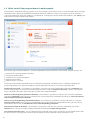
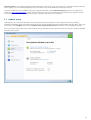
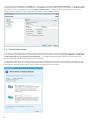
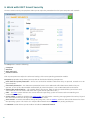
ESET SMART SECURITY 5
User Guide
(intended for product version 5.2 and higher)
Microsoft® Windows® 8 / 7 / Vista / XP / 2000 / Home Server
Click here to download the most recent version of this document
ESET SMART SECURITY
Copyright ©2012 by ESET, spol. s r. o.
ESET Smart Security was developed by ESET, spol. s r. o.
For more information visit www.eset.com.
All rights reserved. No part of this documentation may be reproduced, stored in a retrieval
system or transmitted in any form or by any means, electronic, mechanical, photocopying,
recording, scanning, or otherwise without permission in writing from the author.
ESET, spol. s r. o. reserves the right to change any of the described application software
without prior notice.
Worldwide Customer Support: www.eset.com/support
REV. 12/10/2012
Contents
1. ESET
Smart Security
..................................................5
1.1
What's
........................................................................5
new
1.2 System
........................................................................6
requirements
1.3 Prevention
........................................................................6
2. Installation
..................................................8
2.1 Typical
........................................................................9
installation
2.2 Custom
........................................................................11
installation
2.3 Product
........................................................................14
activation
4.2.1
4.2.2
4.2.3
4.2.3.1
4.2.3.2
4.2.4
4.2.4.1
4.2.4.1.1
4.2.4.1.2
4.2.5
4.2.6
4.2.7
Filtering
.................................................................................43
modes
Firewall
.................................................................................44
profiles
Configuring
.................................................................................45
and using rules
Rules.............................................................................46
setup
Editing
.............................................................................46
rules
Configuring
.................................................................................48
zones
Network
.............................................................................48
authentication
Zone
...............................................................................48
authentication - Client configuration
Zone
...............................................................................50
authentication - Server configuration
Establishing
.................................................................................51
connection - detection
Logging
.................................................................................51
System
.................................................................................52
integration
4.3 Web........................................................................52
and email
2.4 Entering
........................................................................15
username and password
4.3.1
Web
.................................................................................53
access and antiphishing protection
2.5 Upgrading
........................................................................15
to a more recent version
4.3.1.1
HTTP,
.............................................................................54
HTTPs
2.6 Computer
........................................................................16
scan
4.3.1.1.1
Active
...............................................................................54
mode for web browsers
4.3.1.2
URL address
.............................................................................55
management
3. Beginner's
guide
..................................................17
4.3.2
Email
.................................................................................56
client protection
4.3.2.1
POP3,
.............................................................................56
POP3S filter
3.1 Introducing
........................................................................17
user interface design
4.3.2.2
IMAP,
.............................................................................57
IMAPS
protocol control
3.2 What
........................................................................18
to do if the program doesn't work properly
4.3.2.3
Integration
.............................................................................58
with email clients
3.3 Update
........................................................................19
setup
4.3.2.3.1 Email
...............................................................................59
client protection configuration
3.4 Trusted
........................................................................20
zone setup
4.3.2.4
Removing
.............................................................................59
infiltrations
4.3.3
Antispam
.................................................................................60
protection
3.5 Parental
........................................................................21
control tools
4.3.3.1
Adding
.............................................................................61
addresses to whitelist and blacklist
4. Work
with ESET Smart Security
..................................................22
4.3.3.2
Marking
.............................................................................61
messages as spam
4.3.4
Protocol
.................................................................................61
filtering
4.1 Computer
........................................................................24
4.3.4.1
Web and
.............................................................................61
email clients
4.1.1
Antivirus
.................................................................................24
and antispyware protection
4.3.4.2
Excluded
.............................................................................62
applications
4.1.1.1
Real-time
.............................................................................24
file system protection
4.3.4.3
Excluded
.............................................................................63
IP addresses
4.1.1.1.1
Media
...............................................................................25
to scan
4.3.4.3.1 Add...............................................................................63
IPv4 address
4.1.1.1.2
Scan...............................................................................25
on (Event-triggered scanning)
4.3.4.3.2 Add...............................................................................63
IPv6 address
4.1.1.1.3
Advanced
...............................................................................26
scan options
4.3.4.4
SSL protocol
.............................................................................64
checking
4.1.1.1.4
Cleaning
...............................................................................26
levels
4.3.4.4.1 Certificates
...............................................................................64
4.1.1.1.5
When to modify real-time protection
4.3.4.4.1.1 Trusted
............................................................................64
certificates
configuration
...............................................................................27
4.3.4.4.1.2 Excluded
............................................................................65
certificates
4.1.1.1.6
Checking
...............................................................................27
real-time protection
4.3.4.4.1.3 Encrypted
............................................................................65
SSL communication
4.1.1.1.7
What
...............................................................................27
to do if real-time protection does not work
4.4 Parental
........................................................................66
control
4.1.1.2
Document
.............................................................................27
protection
4.4.1
List
.................................................................................68
of allowed categories of web pages
4.1.1.3
Computer
.............................................................................28
scan
4.4.2
Blocked
.................................................................................68
and allowed web pages
4.1.1.3.1
Type
...............................................................................28
of scan
4.1.1.3.1.1
4.1.1.3.1.2
4.1.1.3.2
4.1.1.3.3
4.1.1.3.4
4.1.1.4
4.1.1.4.1
4.1.1.5
4.1.1.6
4.1.1.6.1
4.1.1.6.2
4.1.1.6.3
4.1.1.6.4
4.1.1.6.5
4.1.1.6.6
4.1.1.7
4.1.2
4.1.2.1
4.1.2.2
4.1.3
Smart............................................................................28
scan
Custom
............................................................................29
scan
Scan...............................................................................29
targets
Scan...............................................................................29
profiles
Scan
...............................................................................30
progress
Startup
.............................................................................31
scan
Automatic
...............................................................................31
startup file check
Exclusions
.............................................................................32
by path
ThreatSense
.............................................................................33
engine parameters setup
Objects
...............................................................................33
Options
...............................................................................34
Cleaning
...............................................................................34
Extension
...............................................................................35
Limits
...............................................................................35
Other
...............................................................................36
An infiltration
.............................................................................36
is detected
Removable
.................................................................................38
media
Filter.............................................................................38
device access
New/Change
.............................................................................39
filter
Host-based
.................................................................................40
Intrusion Prevention System (HIPS)
4.5 Updating
........................................................................69
the program
4.5.1
Update
.................................................................................72
setup
4.5.1.1
Update
.............................................................................73
profiles
4.5.1.2
Advanced
.............................................................................73
update setup
4.5.1.2.1
Update
...............................................................................73
mode
4.5.1.2.2 Proxy
...............................................................................74
server
4.5.1.2.3 Connecting
...............................................................................74
to the LAN
4.5.2
How
.................................................................................75
to create update tasks
4.6 Tools
........................................................................75
4.6.1
Log.................................................................................76
files
4.6.1.1
Log maintenance
.............................................................................77
4.6.2
Scheduler
.................................................................................77
4.6.2.1
Creating
.............................................................................80
new tasks
4.6.3
Protection
.................................................................................81
statistics
4.6.4
Watch
.................................................................................82
activity
4.6.5
ESET
.................................................................................82
SysInspector
4.6.6
ESET
.................................................................................83
Live Grid
4.6.6.1
Suspicious
.............................................................................83
files
4.6.7
Running
.................................................................................84
processes
4.6.8
Network
.................................................................................85
connections
4.2 Network
........................................................................42
4.6.9
Quarantine
.................................................................................87
4.6.10
4.6.11
4.6.12
Submission
.................................................................................88
of files for analysis
System
.................................................................................88
updates
Diagnostics
.................................................................................88
6.2.2
6.2.3
6.2.4
6.2.5
6.2.6
6.2.7
DNS
.................................................................................114
Poisoning
Worm
.................................................................................114
attacks
Port
.................................................................................114
scanning
TCP
.................................................................................115
desynchronization
SMB
.................................................................................115
Relay
ICMP
.................................................................................115
attacks
4.7 User........................................................................89
interface
4.7.1
Graphics
.................................................................................89
4.7.2
Alerts
.................................................................................90
and notifications
4.7.2.1
Advanced
.............................................................................91
setup
6.3 Email
........................................................................116
4.7.3
Hidden
.................................................................................91
notification windows
6.3.1
Advertisements
.................................................................................116
4.7.4
Access
.................................................................................92
setup
6.3.2
Hoaxes
.................................................................................116
4.7.5
Program
.................................................................................93
menu
6.3.3
Phishing
.................................................................................116
4.7.6
Context
.................................................................................94
menu
6.3.4
Recognizing
.................................................................................117
spam scams
4.7.7
Gamer
.................................................................................94
mode
6.3.4.1
Rules
.............................................................................117
6.3.4.2
Whitelist
.............................................................................117
5. Advanced
user
..................................................95
6.3.4.3
Blacklist
.............................................................................117
6.3.4.4
Server-side
.............................................................................118
control
5.1 Proxy
........................................................................95
server setup
5.2 Import
........................................................................95
and export settings
5.3 Keyboard
........................................................................96
shortcuts
5.4 Command
........................................................................96
Line
5.5 ESET........................................................................97
SysInspector
5.5.1
Introduction
.................................................................................97
to ESET SysInspector
5.5.1.1
Starting
.............................................................................98
ESET SysInspector
5.5.2
User
.................................................................................98
Interface and application usage
5.5.2.1
Program
.............................................................................98
Controls
5.5.2.2
Navigating
.............................................................................99
in ESET SysInspector
5.5.2.2.1 Keyboard
...............................................................................100
shortcuts
5.5.2.3
Compare
.............................................................................102
5.5.3
Command
.................................................................................103
line parameters
5.5.4
Service
.................................................................................103
Script
5.5.4.1
Generating
.............................................................................103
Service script
5.5.4.2
Structure
.............................................................................104
of the Service script
5.5.4.3
Executing
.............................................................................106
Service scripts
5.5.5
FAQ
.................................................................................106
5.5.6
ESET
.................................................................................108
SysInspector as part of ESET Smart Security
5.6 ESET
........................................................................108
SysRescue
5.6.1
Minimum
.................................................................................108
requirements
5.6.2
How
.................................................................................109
to create rescue CD
5.6.3
Target
.................................................................................109
selection
5.6.4
Settings
.................................................................................109
5.6.4.1
Folders
.............................................................................109
5.6.4.2
ESET.............................................................................110
Antivirus
5.6.4.3
Advanced
.............................................................................110
settings
5.6.4.4
Internet
.............................................................................110
protocol
5.6.4.5
Bootable
.............................................................................110
USB device
5.6.4.6
Burn.............................................................................111
5.6.5
Working
.................................................................................111
with ESET SysRescue
5.6.5.1
Using.............................................................................111
ESET SysRescue
6. Glossary
..................................................112
6.1 Types
........................................................................112
of infiltration
6.1.1
Viruses
.................................................................................112
6.1.2
Worms
.................................................................................112
6.1.3
Trojans
.................................................................................112
6.1.4
Rootkits
.................................................................................113
6.1.5
Adware
.................................................................................113
6.1.6
Spyware
.................................................................................113
6.1.7
Potentially
.................................................................................113
unsafe applications
6.1.8
Potentially
.................................................................................114
unwanted applications
6.2 Types
........................................................................114
of remote attacks
6.2.1
DoS
.................................................................................114
attacks
1. ESET Smart Security
ESET Smart Security 5 represents a new approach to truly integrated computer security. The most recent version of the
ThreatSense® scanning engine, combined with our custom Personal firewall and Antispam module, utilizes speed and
precision to keep your computer safe. The result is an intelligent system that is constantly on alert for attacks and
malicious software endangering your computer.
ESET Smart Security 5 is a complete security solution produced from our long-term effort to combine maximum
protection and a minimal system footprint. The advanced technologies, based on artificial intelligence, are capable of
proactively eliminating infiltration by viruses, spyware, trojan horses, worms, adware, rootkits, and other Internetborne attacks without hindering system performance or disrupting your computer.
1.1 What's new
Parental control
Parental control lets you block sites that may contain potentially offensive material. In addition, parents can prohibit
access to up to 20 pre-defined website categories. This tool will help prevent children and young adults from accessing
pages with inappropriate or harmful content.
HIPS
Host-based Intrusion Prevention System (HIPS) protects your system from malware and unwanted activity attempting
to negatively affect your computer. HIPS utilizes advanced behavioral analysis coupled with the detection capabilities of
network filtering to monitor running processes, files and registry keys, actively blocking and preventing any such
attempts.
Improved Antispam
Antispam module integrated in ESET Smart Security has undergone a thorough optimization process for even higher
level of detection precision.
Join ESET Live Grid network
Built on ThreatSense.Net advanced early warning system, ESET Live Grid is designed to provide additional levels of
security to your computer. It constantly monitors your system’s running programs and processes against the latest
intelligence collected from millions of ESET users worldwide. Additionally, your system scans are processed faster and
more precisely as the ESET Live Grid database grows over time. This allows us to offer greater proactive protection and
speed of scanning to all our users. We recommend that you activate this feature and we thank you for your support.
Removable media control
ESET Smart Security provides removable media (CD/DVD/USB/...) control. This module allows you to scan, block or
adjust extended filters/permissions and control how the user can access and work with a given device. This may be
useful if the computer administrator wishes to prevent removable media insertion with unsolicited content by users.
Gamer mode
Gamer mode is a feature for users that demand uninterrupted usage of their software, do not wish to be disturbed by
pop-up windows and want to minimize CPU usage. Gamer mode can also be used as a presentation mode, when a
presentation cannot be interrupted by antivirus activity. By enabling this feature, all pop-up windows are disabled and
the activity of the scheduler will be completely stopped. System protection still runs in the background but does not
demand any user interaction.
Check for product updates
ESET Smart Security can be configured, in addition to virus signature database updates and program modules updates,
to check regularly for the latest product version. During the installation process, using an older installation package,
you can decide if you want to automatically download and install the latest version of ESET Smart Security.
New design
The main window of ESET Smart Security has been completely redesigned and Advanced setup is more intuitive for
easier navigation.
5
1.2 System requirements
For seamless operation of ESET Smart Security, the system should meet the following hardware and software
requirements:
Microsoft® Windows® 2000, XP
400 MHz 32-bit (x86) / 64-bit (x64)
128MB RAM of system memory
320 MB available space
Super VGA (800 x 600)
Microsoft® Windows® 8, 7, Vista, Home Server
1 GHz 32-bit (x86) / 64-bit (x64)
512MB RAM of system memory
320 MB available space
Super VGA (800 x 600)
1.3 Prevention
When you work with your computer, and especially when you browse the Internet, please keep in my mind that no
antivirus system in the world can completely eliminate the risk caused by infiltrations and attacks. To provide maximum
protection and convenience, it is essential to use the antivirus system correctly and adhere to several useful rules.
Update regularly
According to statistics from ESET Live Grid, thousands of new, unique infiltrations are created each day in order to
bypass existing security measures and bring profit to their authors – all at the expense of other users. The specialists at
ESET’s Virus Lab analyze those threats on a daily basis and prepare and release updates in order to continually improve
the level of protection for users of the antivirus program. An incorrectly configured update decreases the effectiveness
of the program. For more information on how to configure updates, see the Update setup chapter.
Download security patches
The authors of malicious software prefer exploiting various system vulnerabilities in order to increase the effectiveness
of spreading malicious code. That’s why software companies watch closely for new vulnerabilities in their applications
to appear and release security updates eliminating potential threats on a regular basis. It's important to download
these security updates as they are released. Examples of such applications include the windows operating system or
widely-used internet browser Internet Explorer.
Backup important data
Malware writers usually do not care about users’ needs, and the activity of malicious programs often leads to total
malfunction of an operating system and the deliberate damage of important data. It is important to regularly backup
your important and sensitive data to an external source such as a DVD or external hard drive. Precautions such as these
make it far easier and faster to recover your data in the event of system failure.
Regularly scan your computer for viruses
A regular automatic scan of your computer with the proper settings can remove infiltrations that may have been
missed due to old virus signature updates.
6
Follow basic security rules
This is the most useful and most effective rule of all – always be cautious. Today, many infiltrations require user
intervention in order to be executed and distributed. If you are cautious when opening new files, you will save
considerable time and effort that would otherwise be spent cleaning infiltrations from your computer. Some useful
rules are:
Do not visit suspicious websites with multiple pop-ups and flashing advertisements.
Be careful when installing freeware programs, codec packs, etc. Only use safe programs and only visit safe Internet
websites.
Be cautious when opening email attachments, particularly those from mass-mailed messages and messages from
unknown senders.
Don't use an Administrator account for everyday work with your computer.
7
2. Installation
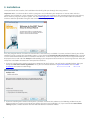
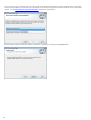
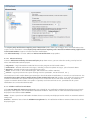
Once you launch the installer, the installation wizard will guide you through the setup process.
Important: Make sure that no other antivirus programs are installed on your computer. If two or more antivirus
solutions are installed on a single computer, they may conflict with each other. We recommend that you uninstall any
other antivirus programs on your system. See our knowledgebase article for a list of uninstaller tools for common
antivirus software (available in English and several other languages).
First, the program checks if a newer version of ESET Smart Security is available. If a newer version is found, you will be
notified in the first step of the installation process. If you select the Download and install new version option, the new
version will be downloaded and the installation will continue. In the next step the End-User License Agreement will be
displayed. Please read and click Accept to acknowledge your acceptance of the End-User License Agreement. After you
accept the installation will continue in two possible scenarios:
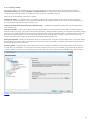
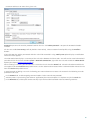
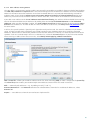
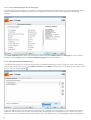
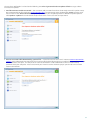
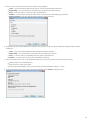
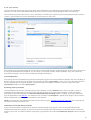
1. If you are installing ESET Smart Security on a computer for the first time, you will see the window below, after you
accept the End-User License Agreement. Here, you can choose between a Typical installation and a Custom
installation and continue accordingly.
2. If you are installing ESET Smart Security over a previous version of this software, the following window lets you
choose to either use your current program settings for your new installation; or, if you uncheck the Use current
settings option, choose between the two aforementioned installation modes.
8
2.1 Typical installation
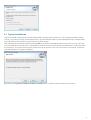
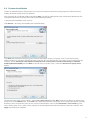
Typical installation mode provides configuration options appropriate for most users. These settings provide excellent
security, easy setup and high system performance. Typical installation mode is the default option and is recommended
if you do not have the particular requirements for specific settings.
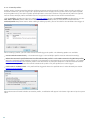
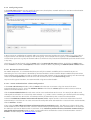
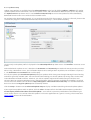
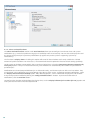
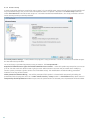
After selecting the installation mode and clicking Next, you will be prompted to configure the ESET Live Grid. The ESET
Live Grid helps to ensure that ESET is immediately and continuously informed about new infiltrations in order to protect
our customers. The system allows you to submit new threats to ESET‘s Virus Lab, where they are analyzed, processed
and added to the virus signature database.
By default, the I agree to participate in ESET Live Grid option is selected, which will activate this feature.
9
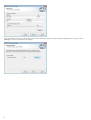
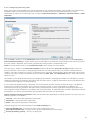
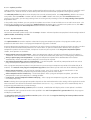
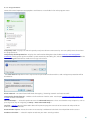
The next step in the installation process is to configure detection of potentially unwanted applications. Potentially
unwanted applications are not necessarily malicious, but can often negatively affect the behavior of your operating
system. See the Potentially unwanted applications chapter for more details.
The final step in Typical installation mode is to confirm installation by clicking the Install button.
10
2.2 Custom installation
Custom installation mode is designed for users who have experience with fine-tuning programs and who wish to
modify advanced settings during installation.
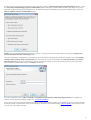
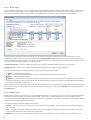
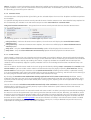
After selecting this installation mode and clicking Next, you will be prompted to select a destination location for the
installation. By default, the program installs to the following directory:
C:\Program Files\ESET\ESET Smart Security\
Click Browse… to change this location (not recommended).
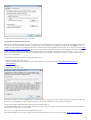
Click Next and proceed to configuring your Internet connection. If you use a proxy server, it must be correctly
configured for virus signature updates to work. If you are not sure whether you use a proxy server to connect to the
Internet, select I am unsure if my Internet connection uses a proxy server. Use the same settings as Internet
Explorer (Recommended) and click Next. If you do not use a proxy server, select the I do not use a proxy server
option.
To configure your proxy server settings, select I use a proxy server and click Next. Enter the IP address or URL of your
proxy server in the Address field. In the Port field, specify the port where the proxy server accepts connections (3128 by
default). In the event that the proxy server requires authentication, enter a valid Username and Password to grant
access to the proxy server. Proxy server settings can also be copied from Internet Explorer if desired. To do this, click
Apply and confirm the selection.
11
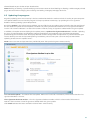
This installation step allows you to designate how automatic program updates will be handled on your system. Click
Change... to access the advanced settings.
12
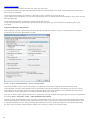
If you do not want program components to be updated, select the Never update program components option. Select
the Ask before downloading program components option to display a confirmation window each time the system
attempts to download program components. To download program component upgrades automatically, select the
Always update program components option.
NOTE: After a program component update, a restart is usually required. We recommend selecting the If necessary,
restart computer without notifying option.
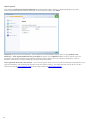
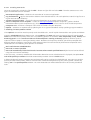
The next installation window offers the option to set a password to protect your program settings. Select the Protect
configuration settings with a password option and enter your password into the the New password and Confirm
new password fields. This password which will be required to change or access the settings of ESET Smart Security.
When both password fields match, click Next to continue.
The next installation steps, ESET Live Grid and Detection of potentially unwanted applications are handled the
same as in the Typical installation mode (see “Typical installation”).
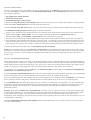
Next, select a filtering mode for the ESET Personal firewall. Five filtering modes are available for the ESET Smart Security
Personal firewall. The behavior of the firewall changes based on the selected mode. Filtering modes also influences the
level of user interaction required.
13
Click Install in the Ready to install window to complete installation. After the installation is complete, you will be
prompted to activate your product. See Typical installation for more information about product activation.
2.3 Product activation
After the installation is complete, you will be prompted to activate your product.
There are several options how to activate the product. Availability of a particular activation scenario in the activation
window may vary depending on the country as well as the means of distribution of the installation file (CD/DVD, ESET
web page, etc.).
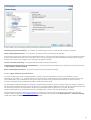
If you purchased a retail boxed version of the product, select the Activate using an Activation Key option. The
Activation Key is usually located inside or on the back side of the product package. For a successful activation, the
Activation Key must be entered as supplied.
If you received a Username and Password, select the Activate using a Username and Password option and enter your
credentials into the appropriate fields.
If you would like to evaluate ESET Smart Security before making a purchase, select the Activate Trial License option.
Fill in your email address and country to activate ESET Smart Security for a limited time. Your test license will be emailed
to you. Trial licenses can only be activated once per customer.
If you do not have a license and would like to buy one, click the Purchase License option. This will redirect you to the
website of your local ESET distributor.
Select the Activate Later option if you would like to quickly evaluate our product and do not wish to activate it
immediately, or if you'd like to activate your product at a later time.
You can also activate your copy of ESET Smart Security directly from the program. Click the Program menu icon located
in the top right corner or right-click on the ESET Smart Security icon in the system tray
activation... from the menu.
14
and select Product
2.4 Entering username and password
For optimal functionality, it is important that the program is automatically updated. This is only possible if the correct
username and password are entered in the Update setup.
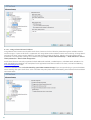
If you did not enter your username and password during installation, you can do so now. In the main program
window, click Update, then Product activation... and enter the license data you received with your ESET security
product into the Product activation window.
When entering your Username and Password, it is important to type them exactly as they are written:
The username and password are case sensitive and the hyphen in the username is necessary.
The password is ten characters long and all lowercase.
We do not use the letter L in passwords (use the number one (1) instead).
A big '0' is the number zero (0), a little 'o' is the lowercase letter o.
We recommend copying and pasting the data from the registration email to ensure accuracy.
2.5 Upgrading to a more recent version
More recent of ESET Smart Security are issued to bring improvements or fix issues that cannot be resolved by
automatically updating of the program modules. Upgrading to a more recent version can be accomplished in several
ways:
1. Automatically, by means of a program update.
Since the program upgrade is distributed to all users and may have impact on certain system configurations, it is
issued after a long testing period to function with all possible system configurations. If you need to upgrade to a
newer version immediately after its release, use one of the methods below.
2. Manually, by downloading and installing a more recent version over the previous one.
At the beginning of installation, you can choose to preserve current program settings by selecting the Use current
settings checkbox.
3. Manually, in the main program window by clicking Install/Check in Update > Available version of ESET Smart
Security.
15
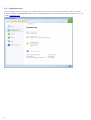
2.6 Computer scan
After installing ESET Smart Security, you should perform a computer scan to check for malicious code. In the main
program window, click Computer scan and then click Smart scan. For more information about computer scans, see
section Computer scan.
16
3. Beginner's guide
This chapter provides an initial overview of ESET Smart Security and its basic settings.
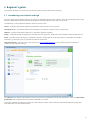
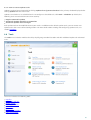
3.1 Introducing user interface design
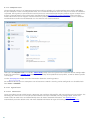
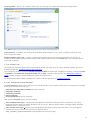
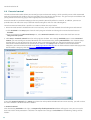
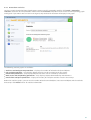
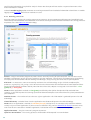
The main program window of ESET Smart Security is divided into two main sections. The primary window on the right
displays information that corresponds to the option selected from the main menu on the left.
The following is a description of options within the main menu:
Home – Provides information about the protection status of ESET Smart Security.
Computer scan – This option allows you to configure and launch a Smart scan or Custom scan.
Update – Displays information about virus signature database updates.
Setup – Select this option to adjust your security level for Computer, Web and Email, Network and Parental control .
Tools – Provides access to Log files, Protection statistics, Watch activity, Running processes, Network connections,
Scheduler, Quarantine, ESET SysInspector and ESET SysRescue.
Help and support – Provides access to help files, the ESET Knowledgebase, ESET’s website and links to open a
Customer Care support request.
The Home screen informs you about the security and current protection level of your computer. The green Maximum
protection status indicates that maximum protection is ensured.
The status window also displays frequently used features in ESET Smart Security. Information about the program’s
expiration date can also be found here.
17
3.2 What to do if the program doesn't work properly
If the modules enabled are working properly, they are assigned a green check. If not, a red exclamation point or orange
notification icon is displayed. Additional information about the module is shown in the upper part of the window. A
suggested solution for fixing the module is also displayed. To change the status of individual modules, click Setup in the
main menu and click on the desired module.
The red icon signals critical problems – maximum protection of your computer is not ensured. Possible reasons are:
Real-time file system protection disabled
Personal firewall disabled
Outdated virus signature database
Product not activated
Product license is expired
The orange icon indicates that Web access or Email client protection is disabled, there is a problem updating the
program (outdated virus signature database, cannot update) or the license is nearing its expiration date.
Product not activated – This problem is signaled by a red icon and security notification next to the Computer item.
You can activate ESET Smart Security from the program menu using the Product activation... option. The program
menu is located in the upper right-hand corner of the main program window.
Antivirus and antispyware protection disabled – This problem is signaled by a red icon and a security notification
next to the Computer item. You can re-enable antivirus and antispyware protection by clicking on Start all antivirus
and antispyware protection modules.
Web access and antiphishing protection disabled – This problem is signaled by a orange icon with an "i" and the
Security notification status. You can re-enable Web access and antiphishing protection by clicking on the security
notification and then click on Enable Web access and antiphishing protection.
ESET Personal firewall disabled – This problem is signaled by a red icon and a security notification next to the
Network item. You can re-enable network protection by clicking on Enable filtering mode.
Your license will expire soon – This is indicated by the protection status icon is displaying an exclamation point. After
the license expires, the program will not be able to update and the Protection status icon will turn red.
18
License expired – This is indicated by the Protection status icon turning red. The program is not able to update after the
license expires. We recommend following the instructions in the alert window to renew your license.
If you are unable to solve a problem using the suggested solutions, click Help and support to access the help files or
search the ESET Knowledgebase. If you still need assistance, you can submit an ESET Customer Care support request.
ESET Customer Care will respond quickly to your questions and help find a resolution.
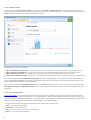
3.3 Update setup
Updating the virus signature database and updating program components are an important part of providing
complete protection against malicious code. Please pay careful attention to their configuration and operation. From the
main menu, select Update and then click Update virus signature database to check for a newer database update.
If the username and password were not entered during activation process of ESET Smart Security you will be prompted
for them at this point.
19
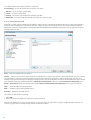
The Advanced setup window (click Setup in the main menu and then click Enter advanced setup..., or press F5 on your
keyboard) contains additional update options. Click Update in the Advanced setup tree on the left. The Update server
drop-down menu is greyed out and set to Choose automatically. To configure advanced update options such as
update mode, proxy server access and LAN connections, click the Setup... button.
3.4 Trusted zone setup
It is necessary to configure the Trusted zone to protect your computer in a network environment. You can allow other
users to access your computer by configuring the Trusted zone to allow sharing. Click Setup > Network > Change the
protection mode of your computer in the network.... A window will display options allowing you to choose the
desired protection mode of your computer in the network.
Trusted zone detection occurs after ESET Smart Security installation and whenever your computer connects to a new
network.Therefore, there is usually no need to define the Trusted zone. By default, a dialog window is displayed upon
detection of a new zone which allows you to set the protection level for that zone.
20
Warning: An incorrect trusted zone configuration may pose a security risk to your computer.
NOTE: By default, workstations from a Trusted zone are granted access to shared files and printers, have incoming RPC
communication enabled and have remote desktop sharing available.
3.5 Parental control tools
If you have already enabled Parental control in ESET Smart Security, you must also configure Parental control for
desired user accounts in order for Parental control to function properly. Please refer to the Parental control chapter for
instructions on how to create specific restrictions for your children to protect them from potentially offensive material.
21
4. Work with ESET Smart Security
The ESET Smart Security setup options allow you to adjust the protection levels of your computer and network.
The Setup menu contains following:
Computer
Network
Web and Email
Parental control
Click any component to adjust the advanced settings of the corresponding protection module.
Computer protection setup allows you to enable or disable the following components:
Real-time file system protection – All files are scanned for malicious code when they are opened, created or run on
your computer.
Document protection – The document protection feature scans Microsoft Office documents before they are
opened, as well as files downloaded automatically by Internet Explorer, such as Microsoft ActiveX elements.
Removable media blocking – This module allows you to scan, block or adjust extended filters/permissions and
select how the user can access and work with a given device (CD/DVD/USB...).
HIPS – The HIPS system monitors the events within the operating system and reacts to them according to a
customized set of rules.
Gamer mode – Enables or disables the Gamer mode. You will receive a warning message (potential security risk) and
the main window will turn orange after enabling Gamer mode.
Anti-Stealth – Provides detection of dangerous programs, such as rootkits, which are able to hide themselves from
the operating system. This means it is not possible to detect them using ordinary testing techniques.
The Network section allows you to enable or disable the Personal firewall.
22
The Web and Email protection setup allows you to enable or disable the following components:
Web access and antiphishing protection – If enabled, all traffic through HTTP or HTTPS is scanned for malicious
software.
Email client protection – Monitors communication received through the POP3 and IMAP protocol.
Antispam protection – Scans unsolicited email, i.e., spam.
Parental control lets you block webpages that may contain potentially offensive material. In addition, parents can
prohibit access to up to 20 pre-defined website categories.
NOTE: Document protection will display after enabling the option (Enter advanced setup... (F5) > Computer >
Antivirus and antispyware > Document protection > Integrate into system). The same applies for Parental control
using the appropriate path in Advanced setup.
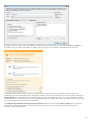
After clicking Enabled, the Temporary disable protection dialog box will display. Click OK to disable the selected
security component. The Time interval drop-down menu represents the period of time that the selected component
will be disabled.
To re-enable the protection of the disabled security component, click Disabled.
NOTE: When disabling protection using this method, all disabled parts of protection will be enabled after a computer
restart.
There are additional options at the bottom of the setup window. Use the Product activation... link to open a
registration form that will activate your ESET security product and send you an email with your authentication data
(username and password). To load setup parameters using an .xml configuration file, or to save the current setup
parameters to a configuration file, use the Import and export settings... option.
23
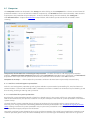
4.1 Computer
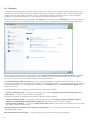
The Computer module can be found in the Setup pane after clicking on the Computer title. It shows an overview of all
protection modules. To turn off individual modules temporarily, click Disable below the desired module. Note that this
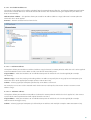
may decrease the protection of your computer. To access detailed settings for each module, click Configure....
Click Edit exclusions... to open the Exclusion setup window, which allows you to exclude files and folders from
scanning.
Temporarily disable Antivirus and antispyware protection – Disables all antivirus and antispyware protection
modules. Temporary disable protection dialog box with Time interval drop-down menu will display. A Time interval
drop-down menu represents the period of time that the protection will be disabled. Click OK to confirm.
Computer scan setup... – Click to adjust the parameters of the on-demand scanner (manually executed scan).
4.1.1 Antivirus and antispyware protection
Antivirus and antispyware protection guards against malicious system attacks by controlling file, email and Internet
communication. If a threat with malicious code is detected, the Antivirus module can eliminate it by first blocking it, and
then cleaning, deleting or moving it to quarantine.
4.1.1.1 Real-time file system protection
Real-time file system protection controls all antivirus-related events in the system. All files are scanned for malicious
code at the moment they are opened, created or run on your computer. Real-time file system protection is launched at
system startup.
The Real-time file system protection checks all types of media and is triggered by various system events such as
accessing a file. Using ThreatSense technology detection methods (as described in the ThreatSense engine parameter
setup section), Real-time file system protection may vary for newly created files and existing files. For newly created
files, it is possible to apply a deeper level of control.
To provide a minimal system footprint when using real-time protection, files which have already been scanned are not
scanned repeatedly (unless they have been modified). Files are scanned again immediately after each virus signature
24
database update. This behavior is configured using Smart optimization. If this is disabled, all files are scanned each
time they are accessed. To modify this option, press F5 to open the Advanced setup window and click Computer >
Antivirus and antispyware > Real-time file system protection in the Advanced setup tree. Then click the Setup...
button next to ThreatSense engine parameter setup, click Other and select or deselect the Enable Smart
optimization option.
By default, Real-time file system protection launches at system startup and provides uninterrupted scanning. In special
cases (e.g., if there is a conflict with another real-time scanner), the real-time protection can be terminated by
deselecting the Start Real-time file system protection automatically option.
4.1.1.1.1 Media to scan
By default, all types of media are scanned for potential threats.
Local drives – Controls all system hard drives.
Removable media – Diskettes, CD/DVDs, USB storage devices, etc.
Network drives – Scans all mapped drives.
We recommend that you keep the default settings and only modify them in specific cases, such as when scanning
certain media significantly slows data transfers.
4.1.1.1.2 Scan on (Event-triggered scanning)
By default, all files are scanned upon opening, creation or execution. We recommend that you keep the default
settings, as these provide the maximum level of real-time protection for your computer.
File open – Enables or disables scanning of opened files.
File creation – Enables or disables scanning of newly created or modified files.
File execution – Enables or disables scanning of executed files.
Diskette access – Enables or disables scanning triggered by accessing the floppy drive.
Computer shutdown – Enables or disables control of the hard disk boot sectors during computer shutdown. Although
boot viruses are rare today, we recommend that you leave this option selected, as there is still the possibility of
infection by a boot virus from alternate sources.
25
4.1.1.1.3 Advanced scan options
More detailed setup options can be found under Computer > Antivirus and antispyware > Real-time system
protection > Advanced setup.
Additional ThreatSense parameters for newly created and modified files – The probability of infection in newlycreated or modified files is comparatively higher than in existing files. For this reason, the program checks these files
with additional scanning parameters. Along with common signature-based scanning methods, advanced heuristics are
used, which greatly improves detection rates because heuristics can detect new threats before the virus signature
database update is released. In addition to newly-created files, scanning is also performed on self-extracting files (.sfx)
and runtime packers (internally compressed executable files). By default, archives are scanned up to the 10th nesting
level and are checked regardless of their actual size. To modify archive scan settings, deselect the Default archive scan
settings option.
Additional ThreatSense parameters for executed files – By default, advanced heuristics are not used when files are
executed. However, in some cases you may want to enable this option (by checking the Advanced heuristics on file
execution option). Note that advanced heuristics may slow the execution of some programs due to increased system
requirements. While the Advanced heuristics on executing files from removable media option is enabled, if you wish
to exclude some removable media (USB) ports from being scanned by advanced heuristics on file execution, click
Exceptions... to open the removable media drive exclusions window. From here, you can customize the settings by
selecting or deselecting the checkboxes that represent each port.
4.1.1.1.4 Cleaning levels
The real-time protection has three cleaning levels (to access, click the Setup... button in the Real-time file system
protection section and then click the Cleaning branch).
No cleaning – Infected files will not be cleaned automatically. The program will display a warning window and allow the
user to choose an action. This level is designed for more advanced users who know which steps to take in the event of
an infiltration.
Standard cleaning – The program will attempt to automatically clean or delete an infected file based on a predefined
action (depending on the type of infiltration). Detection and deletion of an infected file is signaled by an information
message located in the bottom-right corner of the screen. If it is not possible to select the correct action automatically,
the program offers a selection of follow-up actions. The same happens when a predefined action cannot be completed.
Strict cleaning – The program will clean or delete all infected files. The only exceptions are the system files. If it is not
possible to clean them, the user is prompted to select an action by a warning window.
Warning: If an archive contains a file or files which are infected, there are two options for dealing with the archive. In
standard mode (Standard cleaning), the whole archive would be deleted if all the files it contains are infected files. In
Strict cleaning mode, the archive would be deleted if it contains at least one infected file, regardless of the status of the
other files in the archive.
26
4.1.1.1.5 When to modify real-time protection configuration
Real-time protection is the most essential component of maintaining a secure system. Always be careful when
modifying its parameters. We recommend that you only modify its parameters in specific cases. For example, if there is
a conflict with a certain application or real-time scanner of another antivirus program.
After installating ESET Smart Security, all settings are optimized to provide the maximum level of system security for
users. To restore the default settings, click the Default button located at the bottom-right of the Real-time file
system protection window (Advanced setup > Computer > Antivirus and antispyware > Real-time file system
protection).
4.1.1.1.6 Checking real-time protection
To verify that real-time protection is working and detecting viruses, use a test file from eicar.com. This test file is a
special harmless file detectable by all antivirus programs. The file was created by the EICAR company (European
Institute for Computer Antivirus Research) to test the functionality of antivirus programs. The file eicar.com is available
for download at http://www.eicar.org/download/eicar.com
NOTE: Before performing a real-time protection check, it is necessary to disable the firewall. If the firewall is enabled, it
will detect the file and prevent test files from downloading.
4.1.1.1.7 What to do if real-time protection does not work
In this chapter, we describe problem situations that may arise when using real-time protection, and how to
troubleshoot them.
Real-time protection is disabled
If real-time protection was inadvertently disabled by a user, it needs to be reactivated. To reactivate real-time
protection, navigate to Setup in the main program window and click Real-time file system protection.
If real-time protection is not initiated at system startup, it is usually because the Start Real-time file system
protection automatically option is deselected. To enable this option, navigate to Advanced setup (F5) and click
Computer > Antivirus and antispyware > Real-time file system protection in the Advanced setup tree. In the
Advanced setup section at the bottom of the window, make sure that the Start Real-time file system protection
automatically checkbox is selected.
If Real-time protection does not detect and clean infiltrations
Make sure that no other antivirus programs are installed on your computer. If two real-time protection shields are
enabled at the same time, they may conflict with each other. We recommend that you uninstall any other antivirus
programs on your system.
Real-time protection does not start
If real-time protection is not initiated at system startup (and the Start Real-time file system protection
automatically option is enabled), it may be due to conflicts with other programs. If this is the case, please contact
ESET Customer Care.
4.1.1.2 Document protection
The Document protection feature scans Microsoft Office documents before they are opened, as well as files
downloaded automatically by Internet Explorer such as Microsoft ActiveX elements. Integrate into system activates
the protection system. To modify this option, press F5 to open the Advanced setup window and click Computer >
Antivirus and antispyware > Document protection in the Advanced setup tree. When activated, Document
protection can be viewed in the main program window of ESET Smart Security in Setup > Computer.
This feature is activated by applications that use Microsoft Antivirus API (e.g., Microsoft Office 2000 and higher, or
Microsoft Internet Explorer 5.0 and higher).
27
4.1.1.3 Computer scan
The on-demand scanner is an important part of your antivirus solution. It is used to perform scans of files and folders
on your computer. From a security point of view, it is essential that computer scans are not just run when an infection is
suspected, but regularly as part of routine security measures. We recommend that you perform regular in-depth scans
of your system to detect viruses which were not captured by the Real-time file system protection when they were
written to the disk.This can happen if the Real-time file system protection was disabled at the time, the virus database
was obsolete or the file was not detected as a virus when it was saved to the disk.
Two types of Computer scan are available. Smart scan quickly scans the system with no need for further configuration
of the scan parameters. Custom scan allows you to select any of the predefined scan profiles, as well as choose specific
scan targets.
See the Scan progress chapter for more information about the scanning process.
We recommend that you run a computer scan at least once a month. Scanning can be configured as a scheduled task
from Tools > Scheduler.
4.1.1.3.1 Type of scan
4.1.1.3.1.1 Smart scan
Smart scan allows you to quickly launch a computer scan and clean infected files with no need for user intervention. The
advantage of Smart scan is it is easy to operate and does not require detailed scanning configuration. Smart scan
checks all files on local drives and automatically cleans or deletes detected infiltrations. The cleaning level is
automatically set to the default value. For more detailed information on types of cleaning, see section Cleaning.
28
4.1.1.3.1.2 Custom scan
Custom scan is an optimal solution if you wish to specify scanning parameters such as scan targets and scanning
methods. The advantage of Custom scan is the ability to configure the parameters in detail. Configurations can be
saved to user-defined scan profiles, which can be useful if scanning is repeatedly performed with the same parameters.
To select scan targets, select Computer scan > Custom scan and select an option from the Scan targets drop-down
menu or select specific targets from the tree structure. A scan target can also be specified by entering the path of the
folder or file(s) you wish to include. If you are only interested in scanning the system without additional cleaning
actions, select the Scan without cleaning option. Furthermore, you can choose from three cleaning levels by clicking
Setup... > Cleaning.
Performing computer scans with Custom scan is suitable for advanced users with previous experience using antivirus
programs.
4.1.1.3.2 Scan targets
Scan targets window allows you to define which objects (memory, drives, sectors, files and folders) are scanned for
infiltrations. The Scan targets drop-down menu allows you to select predefined scan targets.
By profile settings – Selects targets set in the selected scan profile.
Removable media – Selects diskettes, USB storage devices, CD/DVD.
Local drives – Selects all system hard drives.
Network drives – Selects all mapped network drives.
No selection – Cancels all selections.
A scan target can also be specified by entering the path to the folder or file(s) you wish to include in scanning. Select
targets from the tree structure, which lists all devices available on the computer.
To quickly navigate to a scan target or to directly add a desired target, enter it in the blank field below the folder list.
This is only possible if no targets were selected in the tree structure and the Scan targets menu is set to No selection.
4.1.1.3.3 Scan profiles
Your preferred scan parameters can be saved for future scanning. We recommend that you create a different profile
(with various scan targets, scan methods and other parameters) for each regularly used scan.
To create a new profile, open the Advanced setup window (F5) and click Computer > Antivirus and antispyware >
Computer scan > Profiles.... The Configuration profiles window includes the Selected profile drop-down menu that
lists existing scan profiles and the option to create a new one. To help you create a scan profile to fit your needs, see
the ThreatSense engine parameters setup section for a description of each parameter of the scan setup.
Example: Suppose that you want to create your own scan profile and the Smart scan configuration is partially suitable,
but you don’t want to scan runtime packers or potentially unsafe applications and you also want to apply Strict
cleaning. In the Configuration profiles window, click the Add... button. Enter the name of your new profile in the
Profile name field and select Smart scan from the Copy settings from profile drop-down menu. Then, adjust the
remaining parameters to meet your requirements.
29
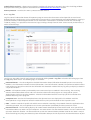
4.1.1.3.4 Scan progress
The scan progress window shows the current status of the scan and information about the number of files found that
contain malicious code.
NOTE: It is normal that some files, such as password protected files or files exclusively being used by the system
(typically pagefile.sys and certain log files), cannot be scanned.
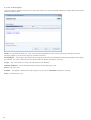
Scan progress – The progress bar shows the percentage of already-scanned objects compared to objects still waiting
be scanned. The value is derived from the total number of objects included in scanning.
Target – The name of the currently scanned object and its location.
Number of threats – Shows the total number of threats found during a scan.
Pause – Pauses a scan.
Resume – This option is visible when scan progress is paused. Click Resume to continue scanning.
Stop – Terminates the scan.
30
To background – You can run another parallel scan. The running scan will be minimized to the background.
Click Show to bring a scan to the foreground and return to the scanning process.
Scroll scan log – If enabled, the scan log will scroll down automatically as new entries are added so that the most
recent entries are visible.
Enable shutdown after scan – Enables a scheduled shutdown when the on-demand computer scan finishes. A
shutdown confirmation dialog window will open with a 60 second timeout. Click Cancel if you wish to deactivate the
requested shutdown.
4.1.1.4 Startup scan
The automatic startup file check will be performed on system startup or virus signature database update. This scan is
dependent upon the Scheduler configuration and tasks.
The startup scan options is part of a System startup file check scheduler task. To modify its settings, navigate to Tools
> Scheduler, click Automatic startup file check and the Edit... button. In the last step, the Automatic startup file
check window will appear (see the following chapter for more details).
For detailed instructions about Scheduler task creation and management, see Creating new tasks.
4.1.1.4.1 Automatic startup file check
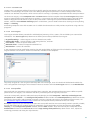
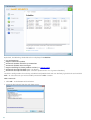
The Scan level drop-down menu specifies the scan depth for files run at system startup. Files are arranged in ascending
order by the number of files to scan:
Only the most frequently used files (least files scanned)
Frequently used files
Commonly used files
Rarely used files
All registered files (most files scanned)
Two specific Scan level groups are also included:
Files run before user logon – Contains files from locations that allow running these files without the user being
logged in (includes almost all startup locations such as services, browser helper objects, winlogon notify, Windows
scheduler entries, known dlls, etc.).
Files run after user logon Contains files from locations, that allow running them only after a user has logged in
(includes files that are only run for specific user, typically files in
HKEY_CURRENT_USER\SOFTWARE\Microsoft\Windows\CurrentVersion\Run)
31
Lists of files to be scanned are fixed for each group.
Scan priority – A level of priority to use for the scan start:
Normal – at an average system load,
Lower – at a low system load,
Lowest – when the system load is the lowest possible,
When idle – the task will be performed only when the system is idle.
4.1.1.5 Exclusions by path
Exclusions enable you to exclude files and folders from scanning. We do not recommend that you alter these options,
to ensure that all objects are scanned for threats. However, there are situations where you may need to exclude an
object. For example, large database entries that would slow down the computer during the scan or software that has
conflicts with the scan.
Path – Path to excluded files and folders.
Threat – If there is a name of a threat next to an excluded file, it means that the file is only excluded for the given threat,
not completely. Therefore if that file becomes infected later with other malware, it will be detected by the antivirus
module. This type of exclusion can only be used for certain types of infiltrations and it can be created either in the threat
alert window reporting the infiltration (click Show advanced options and then select Exclude from detection), or in
Setup > Quarantine using the context menu option Restore and exclude from detection on the quarantined file.
Add... – Excludes objects from detection.
Edit... – Enables you to edit selected entries.
Remove – Removes selected entries.
To exclude an object from scanning:
1. Click Add...,
2. Enter the path to an object or select it in the tree structure.
You can use wildcards to cover a group of files. A question mark (?) represents a single variable character whereas an
asterisk (*) represents a variable string of zero or more characters.
32
Examples
If you wish to exclude all files in a folder, type the path to the folder and use the mask “*.*”.
To exclude an entire drive including all files and subfolders, use the mask "D:\*".
If you want to exclude doc files only, use the mask “*.doc“.
If the name of an executable file has a certain number of characters (and characters vary) and you only know the first
one for sure (say “D”), use the following format: “D????.exe”. Question marks replace the missing (unknown)
characters.
4.1.1.6 ThreatSense engine parameters setup
ThreatSense is technology consists of many complex threat detection methods. This technology is proactive, which
means it also provides protection during the early hours of the spread of a new threat. It uses a combination of several
methods (code analysis, code emulation, generic signatures, virus signatures) which work in concert to significantly
enhance system security. The scanning engine is capable of controlling several data streams simultaneously,
maximizing the efficiency and detection rate. ThreatSense technology also successfully eliminates rootkits.
The ThreatSense technology setup options allow you to specify several scan parameters:
File types and extensions that are to be scanned,
The combination of various detection methods,
Levels of cleaning, etc.
To enter the setup window, click the Setup... button located in any module‘s setup window which uses ThreatSense
technology (see below). Different security scenarios could require different configurations. With this in mind,
ThreatSense is individually configurable for the following protection modules:
Real-time file system protection,
Document protection,
Email client protection,
Web access and antiphishing protection,
and Computer scan.
ThreatSense parameters are highly optimized for each module, and their modification can significantly influence system
operation. For example, changing parameters to always scan runtime packers, or enabling advanced heuristics in the
Real-time file system protection module could result in a system slow-down (normally, only newly-created files are
scanned using these methods). We recommend that you leave the default ThreatSense parameters unchanged for all
modules except Computer scan.
4.1.1.6.1 Objects
The Objects section allows you to define which computer components and files will be scanned for infiltrations.
Operating memory – Scans for threats that attack the operating memory of the system.
Boot sectors – Scans boot sectors for the presence of viruses in the master boot record.
Email files – The program supports the following extensions: DBX (Outlook Express) and EML.
Archives – The program supports the following extensions: ARJ, BZ2, CAB, CHM, DBX, GZIP, ISO/BIN/NRG, LHA,
MIME, NSIS, RAR, SIS, TAR, TNEF, UUE, WISE, ZIP, ACE, and many others.
Self-extracting archives – Self-extracting archives (SFX) are archives needing no specialized programs – archives – to
decompress themselves.
Runtime packers – After executing, runtime packers (unlike standard archive types) decompress in memory. In
addition to standard static packers (UPX, yoda, ASPack, FSG, etc.), the scanner supports (thanks to code emulation)
many more types of packers.
33
4.1.1.6.2 Options
Use the Options section to select the methods used when scanning the system for infiltrations. The following options
are available:
Heuristics – A heuristic is an algorithm analyzing the (malicious) activity of programs. The main advantage is the ability
to identify malicious software which did not exist, or was not known by the previous virus signatures database. The
disadvantage is a (very small) probability of false alarms.
Advanced heuristics/DNA/Smart signatures – Advanced heuristics consist of a unique heuristic algorithm developed
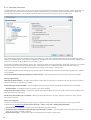
by ESET, optimized for detecting computer worms and trojan horses and written in high level programming languages.
Thanks to advanced heuristics, the detecting capabilities of the program are significantly higher. Signatures can reliably
detect and identify viruses. Utilizing the automatic update system, new signatures are available within a few hours of a
threat discovery. The disadvantage of signatures is that they only detect viruses they know (or their slightly modified
versions).
Potentially unwanted applications (PUAs) are not necessarily intended to be malicious, but may affect the
performance of your computer in a negative way. Such applications usually require consent for installation. If they are
present on your computer, your system behaves differently (compared to the state before their installation). The most
significant changes are:
New windows you haven’t seen previously (pop-ups, ads),
Activating and running of hidden processes,
Increased usage of system resources,
Changes in search results,
Application communicates with remote servers.
Potentially unsafe applications – Potentially unsafe applications is the classification used for commercial, legitimate
software. It includes programs such as remote access tools, password-cracking applications, and keyloggers (programs
recording each keystroke typed by a user). This option is disabled by default.
ESET Live Grid – Thanks to ESET's reputation technology, information about scanned files is verified against data from
the cloud-based ESET Live Grid to improve detection and scanning speed.
4.1.1.6.3 Cleaning
The cleaning settings determine the behavior of the scanner while cleaning infected files. There are 3 levels of cleaning:
No cleaning – Infected files will not be cleaned automatically. The program will display a warning window and allow the
user to choose an action. This level is designed for more advanced users who know which steps to take in the event of
an infiltration.
Standard cleaning – The program will attempt to automatically clean or delete an infected file based on a predefined
action (depending on the type of infiltration). Detection and deletion of an infected file is signaled by an information
message located in the bottom-right corner of the screen. If it is not possible to select the correct action automatically,
the program offers a selection of follow-up actions. The same happens when a predefined action cannot be completed.
Strict cleaning – The program will clean or delete all infected files. The only exceptions are the system files. If it is not
possible to clean them, the user is prompted to select an action by a warning window.
Warning: If an archive contains a file or files which are infected, there are two options for dealing with the archive. In
standard mode (Standard cleaning), the whole archive would be deleted if all the files it contains are infected files. In
Strict cleaning mode, the archive would be deleted if it contains at least one infected file, regardless of the status of the
other files in the archive.
34
4.1.1.6.4 Extension
An extension is a part of a file name delimited by a period. An extension defines the type and content of a file. This
section of the ThreatSense parameter setup lets you define the types of files to scan.
By default, all files are scanned regardless of their extension. Any extension can be added to the list of files excluded
from scanning. If the Scan all files option is deselected, the list changes to show all currently scanned file extensions.
To enable scanning files without an extension, select the Scan extensionless files option. The Do not scan
extensionless files option becomes available when the Scan all files option is enabled.
Excluding files is sometimes necessary if scanning certain file types prevents the program which is using the extensions
from running properly. For example, it may be advisable to exclude the .edb, .eml and .tmp extensions when using
Microsoft Exchange servers.
Using the Add and Remove buttons, you can allow or prohibit scanning of specific file extensions. Typing an Extension
activates the Add button, which adds the new extension to the list. Select an extension in the list and then click the
Remove button to delete that extension from the list.
The special symbols * (asterisk) and ? (question mark) can be used. The asterisk substitutes any character string, and the
question mark substitutes any symbol. Particular care should be taken when specifying excluded addresses, because
the list should only contain trusted and safe addresses. Similarly, it is necessary to ensure that the symbols * and ? are
used correctly in this list.
To scan the default set of extensions only, click on the Default button and click Yes when prompted to confirm.
4.1.1.6.5 Limits
The Limits section allows you to specify the maximum size of objects and levels of nested archives to be scanned:
Maximum object size – Defines the maximum size of objects to be scanned. The given antivirus module will then scan
only objects smaller than the size specified. This option should only be changed by advanced users who may have
specific reasons for excluding larger objects from scanning. Default value: unlimited.
Maximum scan time for object (sec.) – Defines the maximum time value for scanning of an object. If a user-defined
value has been entered here, the antivirus module will stop scanning an object when that time has elapsed, regardless
of whether the scan has finished. Default value: unlimited.
Archive nesting level – Specifies the maximum depth of archive scanning. Default value: 10.
Maximum size of file in archive – This option allows you to specify the maximum file size for files contained in archives
(when they are extracted) that are to be scanned. Default value: unlimited.
If scanning of an archive is prematurely terminated for these reasons, the archive checkbox will remain unchecked.
Note: We do not recommend changing the default values; under normal circumstances, there should be no reason to
modify them.
35
4.1.1.6.6 Other
You can configure the following options in the Other section:
Log all objects – If this option is selected, the log file will show all the scanned files, even those not infected. For
example, if an infiltration is found within an archive, the log will list also clean files contained within the archive.
Enable Smart optimization – With Smart Optimization enabled, the most optimal settings are used to ensure the
most efficient scanning level, while simultaneously maintaining the highest scanning speeds. The various protection
modules scan intelligently, making use of different scanning methods and applying them to specific file types. If the
Smart Optimization is disabled, only the user-defined settings in the ThreatSense core of the particular modules are
applied when performing a scan.
When configuring ThreatSense engine parameters setup for a Computer scan, the following options are also available:
Scan alternate data streams (ADS) – Alternate data streams used by the NTFS file system are file and folder
associations which are invisible by ordinary scanning techniques. Many infiltrations try to avoid detection by disguising
themselves as alternate data streams.
Run background scans with low priority – Each scanning sequence consumes a certain amount of system resources.
If you work with programs that place a high load on system resources, you can activate low priority background
scanning and save resources for your applications.
Preserve last access timestamp – Select this option to keep the original access time of scanned files instead of
updating them (e.g., for use with data backup systems).
Scroll scan log – This option allows you to enable/disable log scrolling. If selected, information scrolls upwards within
the display window.
4.1.1.7 An infiltration is detected
Infiltrations can reach the system from various entry points such as webpages, shared folders, via email or from
removable devices (USB, external disks, CDs, DVDs, diskettes, etc.).
Standard behavior
As a general example of how infiltrations are handled by ESET Smart Security, infiltrations can be detected using
Real-time file system protection,
Web access and antiphishing protection,
Email client protection, or
On-demand computer scan,
Each uses the standard cleaning level and will attempt to clean the file and move it to Quarantine or terminate the
connection. A notification window is displayed in the notification area at the bottom right corner of the screen. For
more information about cleaning levels and behavior, see Cleaning.
36
Cleaning and deleting
If there is no predefined action to take for Real-time file system protection, you will be asked to select an option in an
alert window. Usually the options Clean, Delete and No action are available. Selecting No action is not recommended,
as this will leave infected files uncleaned. The exception to this is when you are sure that a file is harmless and has been
detected by mistake.
Apply cleaning if a file has been attacked by a virus that has attached malicious code to the file. If this is the case, first
attempt to clean the infected file in order to restore it to its original state. If the file consists exclusively of malicious
code, it will be deleted.
If an infected file is “locked“ or in use by a system process, it will usually only be deleted after it is released (normally after
a system restart).
Deleting files in archives
In Default cleaning mode, the entire archive will be deleted only if it contains infected files and no clean files. In other
words, archives are not deleted if they also contain harmless clean files. Use caution when performing a Strict cleaning
scan, with Strict cleaning the archive will be deleted if it contains at least one infected file regardless of the status of
other files in the archive.
If your computer is showing signs of a malware infection, e.g., it is slower, often freezes, etc., we recommend that you
do the following:
Open ESET Smart Security and click Computer scan,
Click Smart scan (for more information, see Smart scan),
After the scan has finished, review the log for the number of scanned, infected and cleaned files.
If you only wish to scan a certain part of your disk, click Custom scan and select targets to be scanned for viruses.
37
4.1.2 Removable media
ESET Smart Security provides automatic removable media (CD/DVD/USB/...) control. This module allows you to scan,
block or adjust extended filters/permissions and select how the user can access and work with a given device. This may
be useful if the computer administrator wishes to prevent the users from using removable media with unsolicited
content.
Supported removable media
CD/DVD/Blu-ray
USB key
USB drive
FireWire
Action to take after inserting removable media – Select the default action that will be performed when a removable
media device is inserted into the computer (CD/DVD/USB). If the Show scan options option is selected, a notification
will display which allows you to choose a desired action:
Scan now – An on-demand computer scan of the inserted removable media device will be performed.
Scan later – No action will be performed and the New device detected window will be closed.
Setup... – Opens the Removable media setup section.
Removable media blocking rules – Select this option to block all removable media connected to the computer. If you
wish some media to be available, then exclude it from blocking.
Click Rules... to allow or block access to selected removable media. You can manage extended rules for removable
media in this window. Rules can be filtered for example by media size, serial number and device type. Each rule has its
own permissions, so you can allow, limit or block access to the selected removable media. More details on removable
media scanning and blocking can be found in the Filter device access chapter.
4.1.2.1 Filter device access
The Filter device access window displays existing extended rules for removable media.
38
Category – Removable media type (CD/DVD/USB).
Description – Filter device rules description.
Rights – Associated permissions of given devices, that match the criteria set by filter.
New – Create a new filtering removable media rule.
Edit – Select one row and click this button to change the existing rule.
Delete (Del) – Removes the selected rule.
4.1.2.2 New/Change filter
This window allows you to create or modify the existing filtering rule.
Device
Device type – Choose the removable media type from the list (CD/DVD/USB).
Serial number – A removable media has usually its own serial number. In case of CD/DVD, there is a serial number of
given media, not CD drive.
Vendor – Filtering by vendor name or ID.
Model – The given name of the device.
Model version – Optional, the version of the given device, if it's available.
Media size – By enabling this option you can define conditional filter devices (greater than, equal, lower than) by
media size (bytes, megabytes, etc.).
Rights
Deny access – Access to the device will not be granted.
Read – User can read files from a given removable media.
Read and write – Full control over the removable media.
User
Add – Opens the Object type: Users or Groups dialog window, that allows you to select desired users.
Remove – Removes the selected user from the filter.
Populate with connected device parameters... – Click this option to choose/fill with connected removable media
device parameters on your computer.
39
4.1.3 Host-based Intrusion Prevention System (HIPS)
Host-based Intrusion Prevention System (HIPS) protects your system from malware and unwanted activity
attempting to negatively affect your computer. HIPS utilizes advanced behavioral analysis coupled with the detection
capabilities of network filtering to monitor running processes, files and registry keys. HIPS is separate from Real-time
file system protection and is not a firewall; it monitors only processes running within the operating system.
HIPS can be found in Advanced setup (F5) by clicking on Computer > HIPS. The HIPS state (enabled/disabled) is shown
in the ESET Smart Security main window, in the Setup pane, on the right side of the Computer section.
HIPS settings are located in Advanced setup (F5). To access HIPS in the Advanced Setup tree, click Computer > HIPS.
The HIPS state (enabled/disabled) is displayed in the ESET Smart Security main window, in the Setup pane on the right
side of the Computer section.
Warning: Changes to the HIPS settings should only be made by an experienced user.
ESET Smart Security has a built-in Self-defense technology that prevents malicious software from corrupting or disabling
your antivirus and antispyware protection, so you can be sure your system is protected all the times. Changes to the
Enable HIPS and Enable Self-defense settings take effect after the Windows operating system is restarted. Disabling
the entire HIPS system will also require a computer restart.
Filtering can be performed in one of four modes:
Automatic mode with rules – Operations are enabled, except pre-defined rules that protect your system.
Interactive mode – User will be prompted to confirm operations.
Policy-based mode – Operations are blocked.
Learning mode – Operations are enabled and a rule is created after each operation. Rules created in this mode can
be viewed in the Rule editor, but their priority is lower than the priority of rules created manually or rules created in
the automatic mode. After selecting Learning mode, the Notify about learning mode expiration in X days option
becomes active. After that time period is over, learning mode is disabled again. The maximum time period is 14 days.
After this time period is over, a pop-up window will open in which you can edit the rules and select a different filtering
mode.
The HIPS system monitors events inside the operating system and reacts accordingly based on rules similar to the rules
used by the personal firewall. Click Configure rules... to open the HIPS rule management window. Here you can select,
create, edit or delete rules.
In the following example, we will demonstrate how to restrict unwanted behavior of applications:
1. Name the rule and select Block from the Action drop-down menu.
2. Open the Target applications tab. Leave the Source applications tab blank to apply your new rule to all
applications attempting to perform any of the checked operations in the Operations list on applications in the Over
these applications list.
3. Select Modify state of another application (all operations are described in the product help, press F1 key in the
window which is identical to the image below).
4. Add one or several applications you wish to protect.
5. Enable the Notify user option to display a user notification whenever the rule is applied.
6. Click OK to save the new rule.
40
A dialog window is shown every time if Ask is the default action. It allows the user to choose to Deny or Allow the
operation. If the user does not choose an action in the given time, a new action is selected based on the rules.
The dialog window allows you to create a rule based on any new action that HIPS detects and then define the
conditions under which to allow or deny that action. Settings for the exact parameters can be accessed by clicking on
Show Options. Rules created like this are considered equal to rules created manually, so a rule created from a dialog
window can be less specific than the rule that triggered that dialog window. This means that after creating such a rule,
the same operation can trigger the same window.
The Temporarily remember this action for this process option causes the action (Allow / Deny) to be used until a
change of rules or filtering mode, a HIPS module update or a system restart. After any of these three actions,
temporary rules will be deleted.
41
4.2 Network
The Personal firewall controls all network traffic to and from the system. This is accomplished by allowing or denying
individual network connections based on specified filtering rules. It provides protection against attacks from remote
computers and enables blocking of some services. It also provides antivirus protection for HTTP, POP3 and IMAP
protocols. This functionality represents a very important element of computer security.
Personal firewall configuration can be found in the Setup pane after clicking on the Network title. Here, you can adjust
the filtering mode, rules and detailed settings. You can also access more detailed settings of the program from here.
The only option for blocking all network traffic is to click Block all network traffic: disconnect network. All inbound
and outbound communication will be blocked by the Personal firewall. Use this option only if you suspect critical
security risks requiring the system to be disconnected from the network.
The Disable filtering: allow all traffic option is the opposite of blocking all network traffic. If selected, all Personal
firewall filtering options are turned off and all incoming and outgoing connections are permitted. It has the same effect
as no firewall being present. While Network traffic filtering is in Blocking state, the Switch to filtering mode option
enables the firewall.
The following options are available when Automatic filtering mode is enabled:
Automatic filtering mode – To change the filtering mode, click the Switch to interactive filtering mode option.
Zone setup... – Displays the trusted zone setup options.
The following options are available when Interactive filtering mode is enabled:
Interactive filtering mode – To change the filtering mode, click either Switch to automatic filtering mode or
Switch to automatic filtering mode with exceptions depending on the current filtering mode.
Configure rules and zones... – Opens the Zone and rule setup window, which allows you to define how the firewall
will handle network communication.
Change the protection mode of your computer in the network... – This allows you to choose between strict or
allowed protection mode.
Advanced Personal firewall setup... – Allows you to access the advanced firewall setup options.
42
4.2.1 Filtering modes
Five filtering modes are available for the ESET Smart Security Personal firewall. Filtering modes can be found in
Advanced setup (F5) by clicking Network > Personal firewall. The behavior of the firewall changes based on the
selected mode. Filtering modes also influence the level of user interaction required.
Filtering can be performed in one of five modes:
Automatic mode – The default mode. This mode is suitable for users who prefer easy and convenient use of the
firewall with no need to define rules. Automatic mode allows all outbound traffic for the given system and blocks all
new connections initiated from the network side.
Automatic mode with exceptions (user-defined rules) – In addition to automatic mode, you can also add custom,
user-defined rules.
Interactive mode – Allows you to build a custom configuration for your Personal firewall. When a communication is
detected and no existing rules apply to that communication, a dialog window reporting an unknown connection will be
displayed. The dialog window gives the option of allowing or denying the communication, and the decision to allow or
deny can be remembered as a new rule for the Personal firewall. If you choose to create a new rule at this time, all
future connections of this type will be allowed or blocked according to the rule.
Policy-based mode – Blocks all connections which are not defined by a specific rule that allows them. This mode allows
advanced users to define rules that permit only desired and secure connections. All other unspecified connections will
be blocked by the Personal firewall.
Learning mode – Automatically creates and saves rules; this mode is suitable for initial configuration of the Personal
firewall. No user interaction is required, because ESET Smart Security saves rules according to predefined parameters.
Learning mode is not secure, and should only be used until all rules for required communications have been created.
Profiles are a tool to control the behavior of the ESET Smart Security Personal firewall.
43
4.2.2 Firewall profiles
Profiles can be used to control the behavior of the ESET Smart Security Personal firewall.. When creating or editing a
Personal firewall rule, you can assign it to a specific profile or have it apply to every profile. When you select a profile,
only the global rules (rules with no profile specified) and the rules that have been assigned to that profile are applied.
You can create multiple profiles with different rules assigned to easily alter the Personal firewall behavior.
Click the Profiles... button (see figure in section Filtering modes) to open the Firewall profiles window where you can
Add, Edit or Remove profiles. Note that in order to Edit or Remove a profile, it must not be selected from the
Selected profile drop-down menu. When adding or editing a profile, you can also define the conditions that trigger it.
When creating a profile, you can select events that will trigger the profile. The following options are available:
Do not switch automatically – The automatic trigger is turned off (the profile must be activated manually).
When the automatic profile becomes invalid and no other profile is activated automatically (default profile)
When the automatic profile becomes invalid (ie. if the computer is connected to an untrusted network – see section
Network authentication) and another profile is not activated in its place (the computer is not connected to another
trusted network), the Personal firewall will switch to this profile. Only one profile can use this trigger.
If this zone is authenticated – This profile will be triggered when the specified zone is authenticated (see section
Network authentication).
When the Personal firewall switches to another profile, a notification will appear in the lower right corner by the system
clock.
44
4.2.3 Configuring and using rules
Rules represent a set of conditions used to meaningfully test all network connections and all actions assigned to these
conditions. With the Personal firewall, you can define what action to take if a connection defined by a rule is
established. To access the rule filtering setup, navigate to Advanced setup (F5) > Network > Personal firewall > Rules
and zones.
Click the Setup... button in the Trusted zone section to display the Trusted zone setup window. The Do not display
with Trusted zone settings... option allows the user to disable the trusted zone setup window each time the presence
of a new subnet is detected. The currently specified zone configuration is automatically used.
NOTE: If the Personal firewall is set to Automatic mode, some settings are not available.
Click the Setup... button in the Zone and rule editor section to display the Zone and rule setup window, where an
overview of either rules or zones is displayed (based on the currently selected tab). The window is divided into two
sections. The upper section lists all rules in a shortened view. The lower section displays details about the rule currently
selected in the upper section. The bottom of the window has New, Edit, and Delete (Del) buttons, which allow you to
configure rules.
Connections can be divided into incoming and outgoing connections. Incoming connections are initiated by a remote
computer attempting to establish a connection with the local system. Outgoing connections work in the opposite way
– the local system contacts a remote computer.
If a new unknown communication is detected, you must carefully consider whether to allow or deny it. Unsolicited,
unsecured or unknown connections pose a security risk to the system. If such a connection is established, we
recommend that you pay particular attention to the remote computer and the application attempting to connect to
your computer. Many infiltrations try to obtain and send private data, or download other malicious applications to host
workstations. The Personal firewall allows you to detect and terminate such connections.
Display information about application allows you to define how applications will be displayed in the list of rules. The
following options are available:
Full path – Full path to the application’s executable.
Description – Description of the application.
Name – Name of the application's executable.
Select what type of rules will be displayed in the Rules to display list:
Only user defined rules – Displays only those rules created by the user.
User and pre-defined rules – Displays all user-defined and default pre-defined rules.
All rules (including system) – All rules are displayed.
45
4.2.3.1 Rules setup
Rules setup allows you to view all rules applied on the traffic generated by individual applications within trusted zones
and the Internet. By default, rules are added automatically according to user reactions to a new communication. To
view more information about an application at the bottom of this window, click the name of the application.
At the beginning of each line corresponding to a rule, there is a button allowing you to expand/collapse (+/-) the
information. Click on the name of the application in the Application / Rule column to display information about the
rule at the bottom of this window. You can use the contextual menu to change the display mode. The contextual menu
can be also used for adding, editing and deleting rules.
Trusted zone in/out – Actions related to incoming or outgoing communication within the Trusted zone.
Internet in/out – Internet connection related actions to incoming or outgoing communication.
For each type (direction) of communication, you can select the following actions:
Allow – To allow communication.
Ask – You will be prompted to allow or deny each time communication is established.
Deny – To deny communication.
Specific – Cannot be classified with respect to the other actions. For example, if an IP address or port are allowed
through the Personal firewall, it cannot be classified with certainty, whether incoming or outgoing communications
of a related application are allowed.
When installing a new application which accesses the network or when modifying an existing connection (remote side,
port number, etc.), a new rule must be created. To edit an existing rule, verify that the Rules tab is selected and click
the Edit button.
4.2.3.2 Editing rules
Modification is required each time any of the monitored parameters are changed. In this case, the rule cannot fulfill the
conditions and the specified action cannot be applied. If parameters have changed, the given connection may be
refused, which can result in problems with operation of the application in question. An example is a change of network
address or port number for the remote side.
The upper part of the window contains three tabs:
General – Specify a rule name, the direction of the connection, the action, the protocol and the profile to which the
rule will apply.
Local – Displays information about the local side of the connection, including the number of the local port or port
range and the name of the communicating application.
Remote – This tab contains information about the remote port (port range). It also allows you to define a list of
46
remote IP addresses or zones for a given rule.
Protocol represents the transfer protocol used for the rule. Click Select protocol... to open the Protocol selection
window.
All rules are enabled For every profile by default. Alternatively, select a custom firewall profile using the Profiles...
button.
If you click Log, the activity connected with the rule will be recorded in a log. Notify user option displays a notification
when the rule is applied.
The Information box displays a summary of the rule at the bottom of all three tabs. You will see the same information if
you click the rule in the main window (Tools > Network connections; right-click the rule and enable the Show details
option (see chapter Network connections)).
When creating a new rule, you have to enter a name for the rule into the Name field. Select the direction to which the
rule applies from the Direction drop-down menu. Set the action to be executed when a communication meets the rule
from the Action drop-down menu.
A good example of adding a new rule is allowing your Internet browser to access the network. The following must be
provided in this case:
In the General tab, enable outgoing communication via the TCP and UDP protocol.
Add the process representing your browser application (for Internet Explorer it is iexplore.exe) in the Local tab.
In the Remote tab, enable port number 80 only if you wish to allow standard Internet browsing activities.
47
4.2.4 Configuring zones
In the Zone setup window you can specify the zone name, description, network address list and zone authentication
(see Zone authentication – Client configuration).
A zone represents a collection of network addresses which create one logical group. Each address in a given group is
assigned similar rules defined centrally for the whole group. One example of such a group is the Trusted zone. The
Trusted zone represents a group of network addresses which are fully trusted and not blocked by the Personal firewall
in any way.
These zones can be configured using the Zones tab in the Zone and rule setup window, by clicking the Edit button.
Enter a Name for the zone, a Description, and add a remote IP address by clicking the Add IPv4/IPv6 address button.
4.2.4.1 Network authentication
For mobile computers, it is recommended that you verify the network credibility of the network that you are
connecting to. The Trusted zone is identified by the local IP address of the network adapter. Mobile computers often
enter networks with IP addresses that are similar to the trusted network. If the Trusted zone settings are not manually
switched to Strict protection, the Personal firewall will continue to use the Allow sharing mode.
To prevent this type of situation, we recommended using zone authentication.
4.2.4.1.1 Zone authentication - Client configuration
In the Zone and rule setup window, click the Zones tab and create a new zone using the name of the zone
authenticated by the server. Then click Add IPv4 address and select the Subnet option to add a subnet mask that
contains the authentication server.
Click the Zone authentication tab. Each zone can be set to authenticate to the server. The zone (its IP address and
subnet) will be valid after it is successfully authenticated – e.g. actions such as switching to a firewall profile and adding
an address/subnet of the zone to the Trusted Zone will be performed only after successful authentication.
Select the IP addresses/subnets in the zone will become valid... option to make a zone that will become invalid if
authentication is unsuccessful. To select a Personal firewall profile to be activated after a successful zone authentication,
click the Profiles... button.
If you select the Add addresses/subnets of the zone to the Trusted Zone option, the addresses/subnets of the zone
will be added to the Trusted zone after successful authentication (recommended). If the authentication is unsuccessful,
the addresses will not be added to the Trusted zone. If the Switch to profile with the same name automatically (a
new profile will be created) option is active, a new profile will be created after successful authentication. Click the
Profiles... button to open the Firewall profiles window.
48
There are two authentication types available:
1) Using ESET authentication server
Zone authentication searches for a specific server in the network and uses asymmetric encryption (RSA) to authenticate
the server. The authentication process is repeated for each network your computer connects to. Click Setup... and
specify a server name, server listening port and a public key that corresponds to the private server key (see section Zone
authentication – Server configuration). The server name can be entered in the form of an IP address, DNS or NetBios
name. The server name can be followed by a path specifying the location of the key on the server (e.g., server_name_/
directory1/directory2/authentication). Enter multiple servers, separated by semicolons, to serve as alternate servers if the
first one is unavailable.
The public key can be a file of one of the following types:
PEM encrypted public key (.pem)
This key can be generated using the ESET Authentication Server (see section Zone authentication – Server
configuration).
Encrypted public key
Public key certificate (.crt)
To test your settings, click the Test button. If authentication is successful, a Server authentication successful message will
appear. If authentication is not configured properly, one of the following error messages will appear:
Server authentication failed. Maximum time for authentication elapsed.
The authentication server is inaccessible. Check the server name/IP address and/or verify the Personal firewall settings
of the client as well as the server section.
An error has occurred while communicating with the server.
The authentication server is not running. Start the authentication server service (see section Zone authentication –
49
Server configuration).
The name of the authentication zone does not match the server zone.
The configured zone name does not correspond with the authentication server zone. Review both zones and ensure
their names are identical.
Server authentication failed. Server address not found in the list of addresses for the given zone.
The IP address of the computer running the authentication server is outside the defined IP address range of the current
zone configuration.
Server authentication failed. Probably an invalid public key was entered.
Verify that the public key specified corresponds to the private server key. Also verify that the public key file is not
corrupted.
2) By local network configuration
Authentication is performed based on the local network adapter parameters. A zone is authenticated if all selected
parameters for the active connection are valid.
4.2.4.1.2 Zone authentication - Server configuration
The authentication process can be executed by any computer/server connected to the network that is to be
authenticated. The ESET Authentication Server application needs to be installed on a computer/server that is always
accessible for authentication whenever a client attempts to connect to the network. The installation file for the ESET
Authentication Server application is available for download on ESET’s website.
After you install the ESET Authentication Server application, a dialog window will appear (you can access the application
by clicking Start > Programs > ESET > ESET Authentication Server).
To configure the authentication server, enter the authentication zone name, the server listening port (default is 80) as
well as the location to store the public and private key pair. Next, generate the public and private key that will be used
in the authentication process. The private key will remain on the server while the public key needs to be imported on
the client side in the Zone authentication section when setting up a zone in the firewall setup.
50
4.2.5 Establishing connection - detection
The Personal firewall detects each newly-created network connection. The active firewall mode determines which
actions are performed for the new rule. If Automatic mode or Policy-based mode is activated, the Personal firewall
will perform predefined actions with no user interaction. Interactive mode displays an informational window which
reports detection of a new network connection, supplemented with detailed information about the connection. You
can opt to allow the connection or refuse (block) it. If you repeatedly allow the same connection in the dialog window,
we recommend that you create a new rule for the connection. To do this, select the Remember action (create rule)
option and save the action as a new rule for the Personal firewall. If the firewall recognizes the same connection in the
future, it will apply the existing rule without requiring user interaction.
Please be careful when creating new rules and only allow connections which are secure. If all connections are allowed,
then the Personal firewall fails to accomplish its purpose. These are the important parameters for connections:
Remote side – Only allow connections to trusted and known addresses.
Local application – It is not advisable to allow connections for unknown applications and processes.
Port number – Communication on common ports (e.g., web traffic – port number 80) should be allowed under
normal circumstances.
In order to proliferate, computer infiltrations often use the Internet and hidden connections to help them infect remote
systems. If rules are correctly configured, a Personal firewall becomes a useful tool for protection against a variety of
malicious code attacks.
4.2.6 Logging
The ESET Smart Security Personal firewall saves all important events in a log file, which can be viewed directly from the
main menu. Click Tools > Log files and then select ESET Personal firewall log from the Log drop-down menu.
The log files are a valuable tool for detecting errors and revealing intrusions into your system. ESET Personal firewall
logs contain the following data:
Date and time of event
Name of event
Source
Target network address
Network communication protocol
Rule applied, or name of worm, if identified
Application involved
User
51
A thorough analysis of this data can help detect attempts to compromise system security. Many other factors indicate
potential security risks and allow you to minimize their impact: too frequent connections from unknown locations,
multiple attempts to establish connections, unknown applications communicating or unusual port numbers used.
4.2.7 System integration
The ESET Smart Security Personal firewall can operate at several levels:
All features active – The Personal firewall is fully integrated and its components are active (default option). In case
the computer is connected to a larger network or the internet, it is advisable to leave this option activated. This is the
most secure option and fully protects your system.
Personal firewall is inactive – The Personal firewall is integrated in the system and mediates network
communication but does not check for threats.
Only scan application protocols – Only components of the Personal firewall that provide scanning of application
protocols (HTTP, POP3, IMAP and their secured versions) are active. If the application protocols are not scanned,
protection is carried out at the level of real-time file system protection and on-demand computer scan.
Personal firewall is completely disabled – Select this option to completely unregister the Personal firewall from the
system. No scanning is performed. This can be useful when testing – if an application is blocked, you can check if it is
blocked by the firewall. This is the least secure option, so we recommend being cautious when disabling the firewall
completely.
Postpone Personal firewall module update until a computer restart – The update will only be downloaded,
installation will be performed during a computer restart.
4.3 Web and email
Web and email configuration can be found in the Setup pane after clicking on the Web and email title. From here you
can access more detailed settings of the program.
Internet connectivity is a standard feature for personal computers. Unfortunately, it has also become the main medium
for transferring malicious code. Because of this, it is essential that you carefully consider your Web access and
antiphishing protection.
Email client protection provides control of email communication received through the POP3 and IMAP protocol.
52
Using the plug-in program for your email client, ESET Smart Security provides control of all communications from the
email client (POP3, MAPI, IMAP, HTTP).
The Antispam protection filters unsolicited email messages.
Disable – Deactivates web/email/antispam protection for email clients.
Configure ... – Opens web/email/antispam protection advanced settings.
User's Whitelist – Opens a dialog window where you can add, edit or delete email addresses that are considered safe.
Email messages with the sender address listed in the Whitelist will not be scanned for spam.
User's Blacklist – Opens a dialog window where you can add, edit or delete email addresses that are considered
unsafe. Email messages with the sender address listed in the Blacklist will be assessed as spam.
User's Exceptions list – Opens a dialog window where you can add, edit or delete email addresses that may be
spoofed and used for sending spam. Email messages with the sender address listed in the Exception list will always be
scanned for spam. By default, the Exception list contains your email addresses from existing email client accounts.
4.3.1 Web access and antiphishing protection
Internet connectivity is a standard feature in a personal computer. Unfortunately, it has also become the main medium
for transferring malicious code. Web access and antiphishing protection works by monitoring communication between
web browsers and remote servers, and complies with HTTP (Hypertext Transfer Protocol) and HTTPS (encrypted
communication) rules.
The term phishing defines a criminal activity which uses techniques of social engineering (manipulating users in order to
obtain confidential information). Read more about this activity in the glossary. ESET Smart Security supports antiphishing protection – known web pages with such content are always blocked.
We strongly recommend that Web access and antiphishing protection is enabled. This option can be accessed from the
main window of ESET Smart Security by navigating to Setup > Web and email > Web access and antiphishing
protection.
53
4.3.1.1 HTTP, HTTPs
By default, ESET Smart Security is configured to use the standards of most Internet browsers. However, the HTTP
scanner setup options can be modified in Advanced setup (F5) > Web and email > Web access and antiphishing
protection > HTTP, HTTPS. In the main HTTP/HTTPS scanner window, you can select or deselect the Enable HTTP
checking option. You can also define the port numbers used for HTTP communication. By default, the port numbers 80
(HTTP), 8080 and 3128 (for Proxy server) are predefined.
ESET Smart Security supports HTTPS protocol checking. HTTPS communication uses an encrypted channel to transfer
information between server and client. ESET Smart Security checks communications utilizing the SSL (Secure Socket
Layer), and TLS (Transport Layer Security) encryption methods. HTTPS checking can be performed in the following
modes:
Do not use HTTPS protocol checking – Encrypted communication will not be checked.
Use HTTPS protocol checking for selected ports – HTTPS checking only for ports defined in Ports used by HTTPS
protocol.
Use HTTPS protocol checking for selected ports – The program will only check those applications that are specified in
the browsers section and that use ports defined in Ports used by HTTPS protocol. Port 443 is set by default.
Encrypted communication will be not scanned. To enable the scanning of encrypted communication and view the
scanner setup, navigate to SSL protocol checking in Advanced setup section, click Web and email > Protocol filtering
> SSL and enable the Always scan SSL protocol option.
4.3.1.1.1 Active mode for web browsers
ESET Smart Security also contains the Active mode submenu, which defines the checking mode for web browsers.
Active mode is useful because it examines transferred data from applications accessing the Internet as a whole,
regardless of whether they are marked as web browsers or not (for more information, see Web and email clients). If
Active mode is disabled, communication from applications is monitored gradually in batches. This decreases the
effectiveness of the data verification process, but also provides higher compatibility for listed applications. If no
problems occur while using it, we recommend that you enable active checking mode by selecting the checkbox next to
the desired application.This is how Active mode works: When a controlled application downloads data, it is first saved
to a temporary file created by ESET Smart Security. Data is not available for the given application at that time. Once
downloading is complete, it is checked for malicious code. If no infiltration is found, data is sent to the original
application. This process provides complete control of the communications made by a controlled application. If passive
mode is activated, data is trickle-fed to the original application to avoid timeouts.
54
4.3.1.2 URL address management
The URL address management section enables you to specify HTTP addresses to block, allow or exclude from checking.
The Add, Edit, Remove and Export buttons are used to manage the lists of addresses. Websites in the list of blocked
addresses will not be accessible. Websites in the list of excluded addresses are accessed without being scanned for
malicious code. If you select the Allow access only to URL addresses in the list of allowed addresses option, only
addresses present in the list of allowed addresses will be accessible, while all other HTTP addresses will be blocked.
If you add a URL address to the List of addresses excluded from filtering, the address will be excluded from scanning.
You can also allow or block certain addresses by adding them to the List of allowed addresses or List of blocked
addresses. After you click the Lists... button, the HTTP address/mask lists window will pop-up where you can Add or
Remove lists of addresses. In order to add an HTTPS URL addresses to the list, the Always scan SSL protocol option
has to be active.
In all lists, the special symbols * (asterisk) and ? (question mark) can be used. The asterisk substitutes any character
string, and the question mark substitutes any symbol. Particular care should be taken when specifying excluded
addresses, because the list should only contain trusted and safe addresses. Similarly, it is necessary to ensure that the
symbols * and ? are used correctly in this list. To activate a list, select the List active option. If you wish to be notified
when entering an address from the current list, select Notify when applying address from the list.
Add.../From file – Allows you to add an address to the list, either manually (Add), or from a simple text file (From file).
The From file option enables you to add multiple URL addresses/masks which are saved in a text file.
Edit... – Manually edit addresses – e.g. by adding a mask ("*" and "?").
Remove/Remove all – Click Remove to delete the selected address from the list. To delete all addresses, select
Remove all.
Export... – Save addresses from the current list to a simple text file.
55
4.3.2 Email client protection
Email protection provides control of email communication received through the POP3 and IMAP protocols. Using the
plug-in for Microsoft Outlook and other e-mail clients, ESET Smart Security provides control of all communications from
the email client (POP3, MAPI, IMAP, HTTP). When examining incoming messages, the program uses all the advanced
scanning methods provided by the ThreatSense scanning engine. This means that detection of malicious programs
takes place even before being matched against the virus signature database. Scanning of POP3 and IMAP protocol
communications is independent of the email client used.
The options for this functionality are available through Advanced setup > Web and email > Email client protection.
ThreatSense engine parameter setup – The advanced virus scanner setup enables you to configure scan targets,
detection methods, etc. Click Setup... to display the detailed virus scanner setup window.
After an email has been checked, a notification with the scan result can be appended to the message. You can select to
Append tag messages to received and read mail, as well as Append tag messages to sent mail. The tag messages
cannot be relied on without question, since they may be omitted in problematic HTML messages or can be forged by
some viruses. The tag messages can be added to received and read email, to sent email, or both. The available options
are:
Never – No tag messages will be added at all.
To infected email only – Only messages containing malicious software will be marked as checked (default).
To all scanned email – The program will append messages to all scanned email.
Append note to the subject of received and read/sent infected email – Enable this checkbox if you want email
protection to include a virus warning in the subject of an infected email. This feature allows for simple, subject-based
filtering of infected emails (if supported by your email program). It also increases the level of credibility for the recipient
and, if an infiltration is detected, provides valuable information about the threat level of a given email or sender.
Template added to the subject of infected email – Edit this template if you wish to modify the subject prefix format
of an infected email. This function will replace the message subject "Hello" with a given prefix value "[virus]" to the
following format: "[virus] Hello". The variable %VIRUSNAME% represents the detected threat.
4.3.2.1 POP3, POP3S filter
The POP3 protocol is the most widespread protocol used to receive email communication in an email client application.
ESET Smart Security provides protection for this protocol regardless of the email client used.
The protection module providing this control is automatically initiated at system startup and is then active in memory.
For the module to work correctly, please make sure it is enabled – POP3 protocol checking is performed automatically
with no need for reconfigure the email client. By default, all communication on port 110 is scanned, but other
communication ports can be added if necessary. Multiple port numbers must be delimited by a comma.
Encrypted communication will be not scanned. To enable the scanning of encrypted communication and view the
scanner setup, navigate to SSL protocol checking in Advanced setup section, click Web and email > Protocol filtering
> SSL and enable the Always scan SSL protocol option.
56
In this section, you can configure POP3 and POP3S protocol checking.
Enable POP3 protocol checking – If enabled, all traffic through POP3 is monitored for malicious software.
Ports used by POP3 protocol – A list of ports used by the POP3 protocol (110 by default).
ESET Smart Security also supports POP3S protocol checking. This type of communication uses an encrypted channel to
transfer information between server and client. ESET Smart Security checks communications utilizing the SSL (Secure
Socket Layer), and TLS (Transport Layer Security) encryption methods.
Do not use POP3S checking – Encrypted communication will not be checked.
Use POP3S protocol checking for selected ports – Check this option to enable POP3S checking only for ports defined
in Ports used by POP3S protocol.
Ports used by POP3S protocol – A list of POP3S ports to check (995 by default).
4.3.2.2 IMAP, IMAPS protocol control
The Internet Message Access Protocol (IMAP) is another Internet protocol for email retrieval. IMAP has some
advantages over POP3, e.g., multiple clients can simultaneously connect to the same mailbox and maintain message
state information such as whether or not the message has been read, replied to or deleted. ESET Smart Security
provides protection for this protocol regardless of the email client used.
The protection module providing this control is automatically initiated at system startup and is then active in memory.
For the module to work correctly, please make sure it is enabled; IMAP protocol control is performed automatically with
no need for reconfigure the email client. By default, all communication on port 143 is scanned, but other
communication ports can be added if necessary. Multiple port numbers must be delimited by a comma.
Encrypted communication will be not scanned. To enable the scanning of encrypted communication and view the
scanner setup, navigate to SSL protocol checking in Advanced setup section, click Web and email > Protocol filtering
> SSL and enable the Always scan SSL protocol option.
57
4.3.2.3 Integration with email clients
Integration of ESET Smart Security with email clients increases the level of active protection against malicious code in
email messages. If your email client is supported, this integration can be enabled in ESET Smart Security. If integration is
activated, the ESET Smart Security toolbar is inserted directly into the email client, allowing for more efficient email
protection. The integration settings are available through Setup > Enter advanced setup... > Web and email > Email
client protection > Email client integration.
Email clients that are currently supported include Microsoft Outlook, Outlook Express, Windows Mail, Windows Live
Mail and Mozilla Thunderbird. For a complete list of supported email clients and their versions, refer to the following
ESET Knowledgebase article.
Select the checkbox next to Disable checking upon inbox content change if you are experiencing a system slowdown
when working with your email client. Such a situation may take place when downloading email from the Kerio Outlook
Connector Store.
58
Even if integration is not enabled, email communication is still protected by the email client protection module (POP3,
IMAP).
4.3.2.3.1 Email client protection configuration
The Email client protection module supports the following email clients: Microsoft Outlook, Outlook Express, Windows
Mail, Windows Live Mail and Mozilla Thunderbird. Email protection works as a plug-in for these programs. The main
advantage of the plug-in control is that it is independent of the protocol used. When the email client receives an
encrypted message, it is decrypted and sent to the virus scanner.
Email to scan
Received email – Toggles checking of received messages.
Sent email – Toggles checking of sent messages.
Read email – Toggles checking of read messages.
Action to be performed on infected email
No action – If enabled, the program will identify infected attachments, but will leave emails without taking any action.
Delete email – The program will notify the user about infiltration(s) and delete the message.
Move email to the Deleted items folder – Infected emails will be moved automatically to the Deleted items folder.
Move email to folder – Specify the custom folder you wish to move the infected email to when detected.
Other
Repeat scan after update – Toggles rescanning after a virus signature database update.
Accept scan results from other modules – If this option is selected, the email protection module accepts scan results
of other protection modules.
4.3.2.4 Removing infiltrations
If an infected email message is received, an alert window will display. The alert window shows the sender name, email
and the name of the infiltration. In the lower part of the window the options Clean, Delete or Leave are available for
the detected object. In almost all cases, we recommend that you select either Clean or Delete. In certain situations, if
you wish to receive the infected file, select Leave. If Strict cleaning is enabled, an information window with no options
available for infected objects will displayed.
59
4.3.3 Antispam protection
Unsolicited email, called spam, ranks among the greatest problems of electronic communication. Spam represents up
to 80 percent of all email communication. Antispam protection serves to protect against this problem. Combining
several efficient principles, the Antispam module provides superior filtering to keep your inbox clean.
One important principle for spam detection is the ability to recognize unsolicited email based on predefined trusted
addresses (whitelist) and spam addresses (blacklist). All addresses from your contact list are automatically added to the
whitelist, as well as all other addresses you mark as safe.
The primary method used to detect spam is the scanning of email message properties. Received messages are scanned
for basic Antispam criteria (message definitions, statistical heuristics, recognizing algorithms and other unique
methods) and the resulting index value determines whether a message is spam or not.
Antispam protection in ESET Smart Security allows you to set different parameters to work with mailing lists. Options
are as follows:
Start email client antispam protection automatically – Activates/deactivates email client antispam protection.
Message processing
Add text to email subject – Enables you to add a custom prefix string to the subject line of messages that have been
classified as spam. The default is "[SPAM]".
Move messages to spam folder – When enabled, spam messages will be moved to the default junk email folder.
Use the folder – This option moves spam to a user-defined folder.
Mark spam messages as read – Choose this option to automatically mark spam as read. It will help you to focus your
attention on "clean" messages.
Mark reclassified messages as unread – Messages originally classified as spam, but later marked as “clean" will be
displayed as unread.
Spam score logging
The ESET Smart Security Antispam engine assigns a spam score to every scanned message. The message will be
recorded in the antispam log (ESET Smart Security > Tools > Log files > Antispam protection).
Do not write – The Score cell in the Antispam protection log will be empty.
Write only reclassified messages and messages marked as SPAM – Use this option if you wish to record a spam
score for messages marked as SPAM.
Write all messages – All messages will be recorded to the log with a spam score.
60
Start email client antispam protection automatically – When enabled, antispam protection will be automatically
activated at system startup.
Enable advanced antispam control – Additional antispam databases will be downloaded, increasing antispam
capabilities and producing better results.
ESET Smart Security supports Antispam protection for Microsoft Outlook, Outlook Express, Windows Mail, Windows
Live Mail and Mozilla Thunderbird.
4.3.3.1 Adding addresses to whitelist and blacklist
Email addresses belonging to people you communicate with frequently can be added to the whitelist to ensure that no
message originating from a whitelist address is ever classified as spam. Known spam addresses can be added to the
blacklist and always be classified as spam. To add a new address to the whitelist or blacklist, right-click the email and
select ESET Smart Security > Add to Whitelist or Add to Blacklist, or click the Trusted address or Spam address
button in the ESET Smart Security Antispam toolbar in your email client.
Similarly, this process applies to spam addresses. If an email address is listed on the blacklist, each email message which
arrives from that address is classified as spam.
4.3.3.2 Marking messages as spam
Any message viewed in your email client can be marked as spam. To do so, right-click the message and click ESET
Smart Security > Reclassify selected messages as spam, or click Spam address in the ESET Smart Security Antispam
toolbar located in the upper section of your email client.
Reclassified messages are automatically moved to the SPAM folder, but the sender's email address is not added to the
Blacklist. Similarly, messages can be classified as “not spam”. If messages from the Junk E-mail folder are classified as
not spam, they are moved to their original folder. Marking a message as not spam does not automatically add the
sender's address to the Whitelist.
4.3.4 Protocol filtering
Antivirus protection for the application protocols is provided by the ThreatSense scanning engine, which seamlessly
integrates all advanced malware scanning techniques. The control works automatically, regardless of the Internet
browser or email client used. For encrypted (SSL) communication see Protocol filtering > SSL.
Enable application protocol content filtering – If enabled, all HTTP(S), POP3(S) and IMAP(S) traffic will be checked by
the antivirus scanner.
NOTE: Starting with Windows Vista Service Pack 1 and Windows 7, the new Windows Filtering Platform (WFP)
architecture is used to check network communication. Since the WFP technology uses special monitoring techniques,
the following options are not available:
HTTP and POP3 ports – Limits routing the traffic to the internal proxy server only for HTTP and POP3 ports.
Applications marked as web browsers and email clients – Limits routing the traffic to the internal proxy server
only for the applications marked as browsers and email clients (Web and email > Protocol filtering > Web and
email clients).
Ports and applications marked as web browsers or email clients – Enables routing of all traffic on HTTP and POP3
ports as well as all the communication of the applications marked as browsers and email clients on the internal proxy
server.
4.3.4.1 Web and email clients
NOTE: Starting with Windows Vista Service Pack 1 and Windows 7, the new Windows Filtering Platform (WFP)
architecture is used to check network communication. Since the WFP technology uses special monitoring techniques,
the Web and email clients section is not available.
Because of the enormous amount of malicious code circulating the Internet, safe Internet browsing is a very important
aspect of computer protection. Web browser vulnerabilities and fraudulent links help malicious code enter the system
unnoticed which is why ESET Smart Security focuses on web browser security. Each application accessing the network
can be marked as an Internet browser. The checkbox is two-state:
Unticked – Communication of applications is filtered only for specified ports.
Ticked – Communication is always filtered (even if a different port is set).
61
4.3.4.2 Excluded applications
To exclude communication of specific network-aware applications from content filtering, select them in the list. HTTP/
POP3/IMAP communication of the selected applications will not be checked for threats. We recommend using this
option only for applications that do not work properly with their communication being checked.
Running applications and services will be available here automatically. Click the Add... button to manually select an
application not shown on the protocol filtering list.
62
4.3.4.3 Excluded IP addresses
The entries in the addresses list will be excluded from the protocol content filtering. HTTP/POP3/IMAP communication
from/to the selected addresses will not be checked for threats. We recommend using this option only for addresses
that are trustworthy.
Add IPv4/IPv6 address – This options allows you to add an IP address/address range/subnet of a remote point for
which the rule is to be applied.
Remove – Remove selected entries from the list.
4.3.4.3.1 Add IPv4 address
This options allows you to add an IP address/address range/subnet of a remote point for which the rule is to be applied.
Internet Protocol version 4 is the older version, but still the most widely used.
Single address – Adds the IP address of an individual computer for which the rule is to be applied (for example
192.168.0.10).
Address range – Enter the starting and ending address IP address to specify the IP range (of several computers) for
which the rule is to be applied (for example 192.168.0.1 to 192.168.0.99).
Subnet – Subnet (a group of computers) defined by an IP address and mask.
For example, 255.255.255.0 is the network mask for the 192.168.1.0/24 prefix, that means 192.168.1.1 to 192.168.1.254
address range.
4.3.4.3.2 Add IPv6 address
This options allows you to add an IPv6 address/subnet of a remote point for which the rule is applied. It is the newest
version of the Internet protocol and will replace the older version 4.
Single address – Adds the IP address of an individual computer for which the rule is to be applied (for example
2001:718:1c01:16:214:22ff:fec9:ca5).
Subnet – Subnet (a group of computers) is defined by an IP address and mask (for example: 2002:c0a8:6301:1::1/64).
63
4.3.4.4 SSL protocol checking
ESET Smart Security enables you to check protocols encapsulated in SSL protocol. You can use various scanning modes
for SSL protected communications using trusted certificates, unknown certificates, or certificates that are excluded from
SSL-protected communication checking.
Always scan SSL protocol – Select this option to scan all SSL protected communications except communications
protected by certificates excluded from checking. If a new communication using an unknown, signed certificate is
established, you will not be notified and the communication will automatically be filtered. When you access a server
with an untrusted certificate that is marked by you as trusted (it is added to the trusted certificates list), communication
to the server is allowed and the content of the communication channel is filtered.
Ask about non-visited sites (exclusions can be set) – If you enter a new SSL protected site (with an unknown
certificate), an action selection dialog is displayed. This mode enables you to create a list of SSL certificates that will be
excluded from scanning.
Do not scan SSL protocol – If selected, the program will not scan communications over SSL.
Apply created exceptions based on certificates – Activates using exclusions specified in excluded and trusted
certificates for scanning SSL communication. This option is available if you select Always scan SSL protocol.
Block encrypted communication utilizing the obsolete protocol SSL v2 – Communication using the earlier version
of the SSL protocol will be automatically blocked.
4.3.4.4.1 Certificates
For SSL communication to work properly in your browsers/email clients, it is essential that the root certificate for ESET,
spol. s r.o. be added to the list of known root certificates (publishers). Therefore, the Add the root certificate to
known browsers option should be enabled. Select this option to automatically add the ESET root certificate to the
known browsers (e.g. Opera, Firefox). For browsers using the system certification store, the certificate is added
automatically (e.g. Internet Explorer). To apply the certificate to unsupported browsers, click View Certificate >
Details > Copy to File... and then manually import it into the browser.
In some cases, the certificate cannot be verified using the Trusted Root Certification Authorities store (e.g. VeriSign).
This means that the certificate is self-signed by someone (e.g. administrator of a web server or a small business
company) and considering this certificate as trusted is not always a risk. Most large business companies (e.g. banks) use
a certificate signed by TRCA. If the Ask about certificate validity option (default) is selected, the user will be prompted
to select an action to take when encrypted communication is established. An action selection dialog will be displayed,
where you can decide to mark the certificate as trusted or excluded. If the certificate is not present in the TRCA list, the
window is red. If the certificate is on the TRCA list, the window will be green.
You can select the Block communication that uses the certificate option to always terminate an encrypted
connection to the site that uses the unverified certificate.
If the certificate is invalid or corrupt, it means that the certificate expired or was incorrectly self-signed. In this case, we
recommend that you block the communication that uses the certificate.
4.3.4.4.1.1 Trusted certificates
In addition to the integrated Trusted Root Certification Authorities store where ESET Smart Security stores trusted
certificates, you can create a custom list of trusted certificates that can be viewed in Advanced setup (F5) > Web and
email > Protocol filtering > SSL > Certificates > Trusted certificates. ESET Smart Security will check the content of
encrypted communications utilizing certificates in this list.
To delete the selected items from the list, click the Remove button. Click the Show option (or double-click the
certificate) to display information about the selected certificate.
64
4.3.4.4.1.2 Excluded certificates
The Excluded certificates section contains certificates that are considered safe. The content of encrypted
communications utilizing the certificates in the list will not be checked for threats. We recommend only excluding web
certificates that are guaranteed to be safe and the communication utilizing the certificates does not need to be checked.
To delete selected items from the list, click the Remove button. Click the Show option (or double-click the certificate) to
display information about the selected certificate.
4.3.4.4.1.3 Encrypted SSL communication
If the computer is configured for SSL protocol scanning, a dialog window prompting you to choose an action may be
opened when there is an attempt to establish an encrypted communication (using an unknown certificate). The dialog
window contains the following information: name of the application that initiated the communication and name of the
certificate used.
If the certificate is not located in the Trusted Root Certification Authorities store, it is considered to be untrusted.
The following actions are available for certificates:
Yes – The certificate will be temporarily marked as trusted for the current session – the alert window will not be
displayed on the next attempt to use the certificate.
Yes, always – Marks the certificate as trusted and adds it to the list of trusted certificates – no alert windows are
displayed for trusted certificates.
No – Marks the certificate as untrusted for the current session – the alert window will be displayed on the next attempt
to use the certificate.
Exclude – Adds the certificate to the list of excluded certificates – data transferred over the given encrypted channel will
65
not be checked at all.
4.4 Parental control
The Parental control module allows you to configure parental control settings, which provide parents with automated
tools to help protect their children and set restrictions for using devices and services. The goal is to prevent children and
young adults from accessing pages with inappropriate or harmful content.
Parental control lets you block webpages that may contain potentially offensive material. In addition, parents can
prohibit access to more than 20 pre-defined website categories and over 140 subcategories.
To activate Parental control for a specific user account, follow the steps below:
1. When Parental control is disabled in ESET Smart Security, there are two methods for activating Parental control:
o Click Disabled in the Setup pane from the main program window and change the Parental control state to
Enabled.
o Press F5 to access the Advanced Setup tree, select Parental Control and then select the check box next to
Integrate into system.
2. Click Setup > Parental control from the main program window. Even though Enabled appears next to Parental
control, you must configure Parental control for the desired account by clicking Not defined. In the Account setup
window enter an age to determine the level of access and recommended age-appropriate web pages. Parental
control will now be enabled for the specified user account. Click Setup under an account name to customize
categories you want to allow or block in the Web page content filtering tab. To allow or block custom web pages that
do not match a category, click the Blocked and allowed web pages tab.
If you click Parental control in the Setup pane from the main product window of ESET Smart Security, you will see that
the main window is divided into three sections.
1. Parental control
After deselecting Enabled on the right, a Temporarily disable protection window will appear. Here you can set the
time interval for which protection is disabled. The option then changes to Disabled and all following settings will be
hidden.
66
It is important to protect the settings in ESET Smart Security with a password. This password can be set in the Access
setup section. If no password is set, a warning will appear under the Parental control option – Parental control is not
protected by a password! – and Set password... will be visible. The restrictions set in Parental control only affect the
standard user accounts. Because an Administrator can override any restriction, they will not have any effect.
HTTPS (SSL) communication is not filtered by default. Therefore the Web control cannot block web pages that begin
with https://. To enable this feature, select Enable next to the SSL-encrypted webpages scan (HTTPS) disabled!
warning message, or select Always scan SSL protocol in the Advanced setup > Web and email > Protocol filtering >
SSL configuration section.
Note: Parental control requires Application protocol content filtering, HTTP protocol checking and Personal firewall
system integration to be enabled in order to function properly. All of these functionalities are enabled by default.
2. Windows user accounts
If you have created a role for an existing account, it will be shown here with the Enabled attribute. Clicking Enabled will
toggle Parental control for the account. Under an active account, click Setup... to see the list of allowed categories of
web pages for this account and blocked and allowed web pages.
Important: To create a new account (for example, for a child), use the following step-by-step instructions for Windows 7
or Windows Vista:
1. Open User Accounts by clicking the Start button (located at the bottom left side of your desktop), clicking Control
Panel and then clicking User Accounts.
2. Click Manage another account. If you are prompted for an administrator password or confirmation, type the
password or provide confirmation.
3. Click Create a new account.
4. Type the name you want to give the user account, click an account type, and then click Create Account.
5. Reopen the Parental control pane by clicking again from the main program window of ESET Smart Security to Setup
> Parental control.
3. The last section contains two options
Set exception for web page... – This is a quick way to set an exception for a web page for the selected account. Enter
the URL address of the web page into the URL field and select the account from the list below. If you select the Block
checkbox – the web page will be blocked for this account. If you leave this checkbox blank, the web page will be
allowed. Exceptions defined here are superior to the categories defined for the selected account(s). For example, if the
account has the News category blocked, but you have defined an allowed news webpage as an exception – the
account can access the allowed webpage. You can check the changes made here in the Blocked and allowed web pages
section.
Show log – This shows a detailed log of the Parental control activity (blocked pages, the account the page was blocked
for, reason, etc.). You can also filter this log based on the criteria you choose by clicking Filter....
67
4.4.1 List of allowed categories of web pages
If the checkbox next to a category is selected, it is allowed. Deselect the checkbox next to a specific category to block it
for the selected account. Moving the mouse over a category will show you a list of web pages that fall into that
category.
The Quick selection option allows you to select a predefined profile (Child, Parent and Teenager) or a user-created
account and click Copy to copy the List of allowed categories from these accounts.
4.4.2 Blocked and allowed web pages
The allowed web page list is on the left side and the list of blocked web pages is on the right side. Enter a URL address
into the blank field under the list, select Allow or Block and click Add to add it to the list. To delete an URL address from
the list, click the remove button .
In the URL address list, the special symbols * (asterisk) and ? (question mark) cannot be used. For example, web page
addresses with multiple TLDs must be entered manually (examplepage.com, examplepage.sk, etc.). When you enter a
domain to the list, all content located on this domain and all subdomains (e.g. sub.examplepage.com) will be blocked or
68
allowed based on your choice of URL-based action.
Note: Blocking or allowing a specific web page can be more accurate than blocking or allowing a whole category of web
pages. Be careful when changing these settings and adding a category/web page to the list.
4.5 Updating the program
Regularly updating ESET Smart Security is the best method to obtain the maximum level of security on your computer.
The Update module ensures that the program is always up to date in two ways, by updating the virus signature
database and by updating system components.
By clicking Update in the main program window, you can find the current update status including the date and time of
the last successful update and if an update is needed. The primary window also contains the virus signature database
version. This numeric indicator is an active link to ESET’s website, listing all signatures added within the given update.
In addition, the option to manually begin the update process, Update virus signature database is available. Updating
the virus signature database and updating program components are important parts of maintaining complete
protection against malicious code. Please pay attention to their configuration and operation. If you did not enter your
License details (username and password) during installation, you can enter your username and password when
updating to access ESET’s update servers.
NOTE: Your username and password are provided by ESET after purchasing ESET Smart Security.
Last successful update – The date of the last update. Make sure it refers to a recent date, which means that the virus
signature database is current.
Virus signature database version – The virus signature database number, which is also an active link to ESET’s
website. Click it to view a list of all signatures added within the given update.
Click Check to detect the latest available version of ESET Smart Security.
69
Update process
After clicking Update virus signature database, the download process begins. A download progress bar and
remaining time to download will be displayed. To interrupt the update, click Abort.
Important: Under normal circumstances, when updates are downloaded properly the message Update is not
necessary – Virus signature database is up to date will appear in the Update window. If this is not the case, the
program is out of date and more vulnerable to infection. Please update the virus signature database as soon as
possible. Otherwise, one of the following messages will be displayed:
Virus signature database is out of date – This error will appear after several unsuccessful attempts to update the virus
signature database. We recommend that you check the update settings. The most common reason for this error is
incorrectly entered authentication data or incorrectly configured connection settings.
70
The previous notification is related to the following two Virus signature database update failed messages about
unsuccessful updates:
1. Invalid Username and/or Password – The username and password have been incorrectly entered in update setup.
We recommend that you check your authentication data. The Advanced setup window (click Setup from the main
menu and then click Enter advanced setup..., or press F5 on your keyboard) contains additional update options.
Click Update > Update in the Advanced setup tree to enter a new username and password.
2. An error occurred while downloading update files – A possible cause of the error is incorrect Internet connection
settings. We recommend that you check your Internet connectivity (by opening any website in your web browser). If
the website does not open, it is likely that an Internet connection is not established or there are connectivity
problems with your computer. Please check with your Internet Service Provider (ISP) if you do not have an active
Internet connection.
71
4.5.1 Update setup
Update setup options are available from the Advanced setup tree (F5 key) by clicking Update > Update. This section
specifies update source information, such as the update servers and authentication data for these servers. By default,
the Update server drop-down menu is set to Choose automatically to ensure that update files will automatically
download from the ESET server with the least network traffic.
For updates to be downloaded properly, it is essential to correctly fill in all parameters. If you use a firewall, please make
sure that the program is allowed to communicate with the Internet (i.e., HTTP communication).
The currently used update profile is displayed in the Selected profile drop-down menu. Click Profiles... to create a new
profile.
Authentication for update servers is based on the Username and Password generated and sent to you after purchase.
When using a local Mirror server, the verification depends on its configuration. By default, no verification is required, i.
e., the Username and Password fields are left empty.
Pre-release updates (the Pre-release update option) are updates which have gone through thorough internal testing
and will be generally available soon. You can benefit from enabling pre-release updates by having access to the most
recent detection methods and fixes. However, pre-release updates might not be stable enough at all times and
SHOULD NOT be used on production servers and workstations where maximum availability and stability is required.
The list of current modules can be found in Help and support > About ESET Smart Security. It is recommended that
basic users leave the Regular update option selected by default.
Click the Setup... button next to Advanced update setup to display a window containing advanced update options.
If you experience problems with an update, click the Clear... button to flush the folder with temporary update files.
Do not display notification about successful update – Turns off the system tray notification at the bottom right
corner of the screen. It is useful to select this option if a full screen application or a game is running. Please note that
Gamer mode will turn off all notifications.
72
4.5.1.1 Update profiles
Update profiles can be created for various update configurations and tasks. Creating update profiles is especially useful
for mobile users, who can create an alternative profile for Internet connection properties that regularly change.
The Selected profile drop-down menu displays the currently selected profile, set to My profile by default. To create a
new profile, click the Profiles... button and then click the Add... button and enter your own Profile name. When
creating a new profile, you can copy settings from an existing one by selecting it from the Copy settings from profile
drop-down menu.
In the profile setup window, you can specify the update server from a list of available servers or add a new server. The
list of existing update servers is listed in the Update server drop-down menu. To add a new update server, click Edit…
in the Update settings for selected profile section and then click the Add button.
4.5.1.2 Advanced update setup
To view the Advanced update setup, click the Setup... button. Advanced update setup options include configuration of
Update mode, HTTP Proxy and LAN.
4.5.1.2.1 Update mode
The Update mode tab contains options related to the program component update. The program enables you to
predefine its behavior when a new program component upgrade is available.
Program component updates brings new features or makes changes to those that already exist from previous versions.
It can be performed automatically without user intervention, or you can choose to be notified. After a program
component update has been installed, a computer restart may be required. In the Program component update
section, three options are available:
Never update program components – Program component updates will not be performed at all. This option is
suitable for server installations, since servers can usually be restarted only when they are undergoing maintenance.
Always update program components – A program component update will be downloaded and installed
automatically. Please remember that a computer restart may be required.
Ask before downloading program components – The default option. You will be prompted to confirm or refuse
program component updates when they are available.
After a program component update, it may be necessary to restart your computer to provide full functionality of all
modules. The Restart after program component upgrade section allows you to select one of the following options:
Never restart computer – You will not be asked to restart, even if it is required. Please note that this is not
recommended, since your computer might not work properly until the next restart.
Offer computer restart if necessary – The default option. After a program component update, you will be
prompted to restart your computer in a dialog window.
If necessary, restart computer without notifying – After a program component upgrade, your computer will be
restarted (if required).
NOTE: Selecting the most appropriate option depends on the workstation where the settings will be applied. Please be
aware that there are differences between workstations and servers – e.g., restarting the server automatically after a
program upgrade could cause serious damage.
If the Ask before downloading update option is checked, a notification will display when a new update is available.
If the update file size is greater than the value specified in the Ask if an update file is greater than field, the program
will display a notification.
The Regularly check for latest product version option will enable the Regular checking for latest product version
scheduled task (see Scheduler).
73
4.5.1.2.2 Proxy server
To access the proxy server setup options for a given update profile, click Update in the Advanced setup tree (F5) and
then click the Setup... button to the right of Advanced update setup. Click the HTTP Proxy tab and select one of the
three following options:
Use global proxy server settings
Do not use proxy server
Connection through a proxy server
Selecting the Use global proxy server settings option will use the proxy server configuration options already specified
within the Tools > Proxy server branch of the Advanced setup tree.
Select the Do not use proxy server option to specify that no proxy server will be used to update ESET Smart Security.
The Connection through a proxy server option should be selected if:
A proxy server should be used to update ESET Smart Security that is different from the proxy server specified in the
global settings (Tools > Proxy server). If so, the settings should be specified here: Proxy server address,
communication Port, plus Username and Password for the proxy server if required.
The proxy server settings were not set globally, but ESET Smart Security will connect to a proxy server for updates.
Your computer is connected to the Internet via a proxy server. The settings are taken from Internet Explorer during
program installation, but if they are subsequently changed (e.g. if you change your ISP), please check that the HTTP
proxy settings are correct in this window. Otherwise the program will not be able to connect to the update servers.
The default setting for the proxy server is Use global proxy server settings.
NOTE: Authentication data such as Username and Password are intended for accessing the proxy server. Fill in these
fields only if a username and password are required. Please note that these fields are not for your username/password
for ESET Smart Security, and should only be supplied if you know you need a password to access the internet via a
proxy server.
4.5.1.2.3 Connecting to the LAN
When updating from a local server with an NT-based operating system, authentication for each network connection is
required by default. In most cases, a local system account does not have sufficient rights to access the Mirror folder (the
Mirror folder contains copies of update files). If this is the case, enter the username and password in the update setup
section or specify an existing account under which the program will access the update server (Mirror).
To configure such an account, click the LAN tab. The Connect to LAN as section offers the System account (default),
Current user, and Specified user options.
Select the System account (default) option to use the system account for authentication. Normally, no authentication
process takes place if there is no authentication data supplied in the main update setup section.
To ensure that the program authenticates using a currently logged-in user account, select Current user. The drawback
of this solution is that the program is not able to connect to the update server if no user is currently logged in.
Select Specified user if you want the program to use a specific user account for authentication. Use this method when
the default system account connection fails. Please be aware that the specified user account must have access to the
update files directory on the local server. Otherwise the program will not be able to establish a connection and
download updates.
Warning: When either Current user or Specified user is selected, an error may occur when changing the identity of the
program to the desired user. We recommend entering the LAN authentication data in the main update setup section.
In this update setup section, the authentication data should be entered as follows: domain_name\user (if it is a
workgroup, enter workgroup_name\name) and password. When updating from the HTTP version of the local server, no
authentication is required.
Select the Disconnect from server after update option if connection to the server remains active even after updates
have been downloaded.
74
4.5.2 How to create update tasks
Updates can be triggered manually by clicking Update virus signature database in the primary window displayed after
clicking Update from the main menu.
Updates can also be run as scheduled tasks. To configure a scheduled task, click Tools > Scheduler. By default, the
following tasks are activated in ESET Smart Security:
Regular automatic update
Automatic update after dial-up connection
Automatic update after user logon
Each update task can be modified to meet your needs. In addition to the default update tasks, you can create new
update tasks with a user-defined configuration. For more details about creating and configuring update tasks, see
section Scheduler.
4.6 Tools
The Tools menu includes modules that help simplify program administration and offer additional options for advanced
users.
This menu includes the following tools:
Log files
Protection statistics
Watch activity
Running processes
Scheduler
Quarantine
Network connections
ESET SysInspector
75
Submit file for analysis – Allows you to submit a suspicious file for analysis to ESET's Virus Lab. The dialog window
displayed after clicking this option is described in the Submission of files for analysis section.
ESET SysRescue – Launches the ESET SysRescue creation wizard.
4.6.1 Log files
Log files contain information about all important program events that have occurred and provide an overview of
detected threats. Logging acts as an essential tool in system analysis, threat detection and troubleshooting. Logging is
performed actively in the background with no user interaction. Information is recorded based on the current log
verbosity settings. It is possible to view text messages and logs directly from the ESET Smart Security environment, as
well as to archive logs.
Log files are accessible from the main program window by clicking Tools > Log files. Select the desired log type from
the Log drop-down menu. The following logs are available:
Detected threats – The threat log offers detailed information about infiltrations detected by ESET Smart Security
modules. The information includes the time of detection, name of infiltration, location, the performed action and the
name of the user logged in at the time the infiltration was detected. Double-click any log entry to display its details in
a separate window.
Events – All important actions performed by ESET Smart Security are recorded in the event log. The event log
contains information about events and errors that have occurred in the program. It is designed for system
administrators and users to solve problems. Often the information found here can help you find a solution for a
problem occurring in the program.
Computer scan – Results of all completed manual or planned scans are displayed in this window. Each line
corresponds to a single computer control. Double-click any entry to view details of the respective scan.
HIPS – Contains records of specific rules which were marked for recording. The protocol shows the application that
called the operation, the result (whether the rule was permitted or prohibited) and the created rule name.
Personal firewall – The firewall log displays all remote attacks detected by the Personal firewall. Here you will find
information about any attacks on your computer. The Event column lists the detected attacks. The Source column tells
you more about the attacker. The Protocol column reveals the communication protocol used for the attack. Analysis
of the firewall log may help you to detect system infiltration attempts in time to prevent unauthorized access to your
76
system.
Antispam protection – Contains records related to email messages that were marked as spam.
Parental control – Shows web pages blocked or allowed by Parental control. The Match type and Match values
columns tell you how the filtering rules were applied.
In each section, the displayed information can be directly copied to the clipboard (keyboard shortcut Ctrl + C) by
selecting the entry and clicking Copy. To select multiple entries, the CTRL and SHIFT keys can be used.
You can show the context menu by right-clicking on a specific record. The following options are available in the context
menu:
Filter records of the same type – After activating this filter, you will only see records of the same type (diagnostics,
warnings, ...).
Filter.../Find... – After clicking this option, a Log filtering window will pop up where you can define the filtering
criteria.
Disable filter – Clears all filter settings (as described above).
Copy all – Copies information about all the records in the window.
Delete/Delete all – Deletes the selected record(s) or all the records displayed – this action requires administrator
privileges.
Export – Exports information about the record(s) in XML format.
Scroll log – Leave this option enabled to auto scroll old logs and watch active logs in the Log files window.
4.6.1.1 Log maintenance
Log files configuration of ESET Smart Security is accessible from the main program window. Click Setup > Enter
advanced setup... > Tools > Log files. The Log files section is used to define how the logs will be managed. The
program automatically deletes older logs in order to save hard disk space. You can specify the following options for log
files:
Delete records automatically – Log entries older than the specified number of days in the Delete records older than
X days field will be automatically deleted.
Optimize log files automatically – If checked, log files will be automatically be defragmented if the percentage is
higher than value specified in the If the number of unused records exceeds (%) field.
Click Optimize now to start the defragmenting the log files. All empty log entries are removed during this process,
which improves performance and speed when processing the logs. This improvement can be observed especially if the
logs contain a large number of entries.
Minimum logging verbosity – Specifies the minimum verbosity level of events to be logged.
Diagnostic – Logs information needed to fine-tune the program and all records above.
Informative – Records informative messages, including successful update messages, plus all records above.
Warnings – Records critical errors and warning messages.
Errors – Errors such as "Error downloading file" and critical errors will be recorded.
Critical – Logs only critical errors (error starting Antivirus protection, Personal firewall, etc...).
Click the Default filter... button to open the Log filtering window. Check record types to be displayed in logs and click
OK.
4.6.2 Scheduler
Scheduler manages and launches scheduled tasks with predefined configuration and properties.
The Scheduler can be accessed from the ESET Smart Security main program window by clicking Tools > Scheduler. The
Scheduler contains a list of all scheduled tasks and configuration properties such as the predefined date, time and
scanning profile used.
The Scheduler serves to schedule the following tasks: virus signature database update, scanning task, system startup
file check and log maintenance. You can add or delete tasks directly from the main Scheduler window (click Add... or
Delete at the bottom). Right click anywhere in the Scheduler window to perform the following actions: display detailed
information, perform the task immediately, add a new task, and delete an existing task. Use the checkboxes at the
beginning of each entry to activate/deactivate the tasks.
77
By default, the following scheduled tasks are displayed in Scheduler:
Log maintenance
Regular automatic update
Automatic update after dial-up connection
Automatic update after user logon
Regular checking for latest product version (see Update mode)
Automatic startup file check (after user logon)
Automatic startup file check (after successful update of the virus signature database)
To edit the configuration of an existing scheduled task (both default and user-defined), right-click the task and click
Edit... or select the task you wish to modify and click the Edit... button.
Add a new task
1. Click Add… at the bottom of the window.
2. Select the desired task from the pull-down menu.
78
3. Enter a name of the task and select one of the timing options:
Once – The task will be performed only once, at the predefined date and time.
Repeatedly – The task will be performed at the specified interval (in hours).
Daily – The task will run each day at the specified time.
Weekly – The task will run once or more times a week, on the selected day(s) and time.
Event triggered – The task will be performed on a specified event.
4. Depending on the timing option you choose in the previous step, one of the following dialog windows will be
displayed:
Once – The task will be performed at the predefined date and time.
Repeatedly – The task will be performed at the specified time interval.
Daily – The task will run repeatedly each day at the specified time.
Weekly – The task will be run on the selected day and time.
5. If the task could not be run at the predefined time, you can specify when it will be performed again:
Wait until the next scheduled time
Run the task as soon as possible
Run the task immediately if the time since the last task execution exceeds -- hours
6. In the last step you can review the task to be scheduled. Click Finish to apply the task.
79
4.6.2.1 Creating new tasks
To create a new task in Scheduler, click the Add... button or right-click and select Add... from the context menu. Five
types of scheduled tasks are available:
Run external application – Schedules the execution of an external application.
Log maintenance Log files also contains leftovers from deleted records. This task optimizes records in log files on a
regular basis to work effectively.
System startup file check – Checks files that are allowed to run at system startup or logon.
Create a computer status snapshot – Creates an ESET SysInspector computer snapshot – gathers detailed
information about system components (e.g. drivers, applications) and assesses the risk level of each component.
Computer scan – Performs a computer scan of files and folders on your computer.
Update – Schedules an Update task by updating the virus signature database and by updating program modules.
Checking for latest product version
Since Update is one of the most frequently used scheduled tasks, we will explain how to add a new update task below.
From the Scheduled task drop-down menu, select Update. Click Next and enter the name of the task into the Task
name field. Select the frequency of the task. The following options are available: Once, Repeatedly, Daily, Weekly and
Event triggered. Use the Do not run the task if the computer is running on battery option to minimize system
resources while a laptop is running on battery power. Based on the frequency selected, you will be prompted with
different update parameters. Next, define what action to take if the task cannot be performed or completed at the
scheduled time. The following three options are available:
Wait until the next scheduled time
Run task as soon as possible
Run task immediately if the time since its last execution exceeds specified interval (the interval can be defined
using the Task interval scroll box)
In the next step, a summary window with information about the current scheduled task is displayed; the option Run
task with specific parameters should be automatically enabled. Click the Finish button.
A dialog window will appear, allowing you to select profiles to be used for the scheduled task. Here you can specify a
primary and alternative profile, which is used if the task cannot be completed using the primary profile. Confirm by
clicking OK in the Update profiles window. The new scheduled task will be added to the list of currently scheduled
tasks.
80
4.6.3 Protection statistics
To view a graph of statistical data related to ESET Smart Security's protection modules, click Tools > Protection
statistics. Select the desired protection module from the Statistics drop-down menu to see the corresponding graph
and legend. If you mouse over an item in the legend, only the data for that item will display in the graph.
The following statistic graphs are available:
Antivirus and Antispyware protection – Displays the number of infected and cleaned objects.
File system protection – Only displays objects that were read or written to the file system.
Email client protection – Only displays objects that were sent or received by email clients.
Web access and antiphishing protection – Only displays objects downloaded by web browsers.
Email client antispam protection – Displays the history of antispam statistics since the last startup.
Below the statistics graphs, you can see the number of total scanned objects, latest scanned object and the statistics
timestamp. Click Reset to clear all statistics information.
81
4.6.4 Watch activity
To see the current File system activity in graph form, click Tools > Watch activity. At the bottom of the graph is a
timeline which records File system activity real-time based on the selected time span. To change the time span, click the
Step 1... option located at the bottom-right of the window.
The following options are available:
Step: 1 second (last 10 minutes) – The graph refreshes every second and the timeline covers the last 10 minutes
Step: 1 minute (last 24 hours) – The graph is refreshed every minute and the timeline covers the last 24 hours
Step: 1 hour (last month) – The graph is refreshed every hour and the timeline covers the last month
Step: 1 hour (selected month) – The graph is refreshed every hour and the timeline covers the last X selected months
The vertical axis of the File system activity graph represents read data (blue) and written data (red). Both values are
given in KB (kilobytes)/MB/GB. If you mouse over either read data or written data in the legend below the graph, the
graph will only display data for that activity type.
You can also select to view Network activity from the Activity drop-down menu. The graph display and options for
File system activity and Network activity are the same except that the latter displays received data (blue) and sent
data (red).
4.6.5 ESET SysInspector
ESET SysInspector is an application that thoroughly inspects your computer and gathers detailed information about
system components such as installed drivers and applications, network connections or important registry entries and
assesses the risk level of each component. This information can help determine the cause of suspicious system behavior
that may be due to software or hardware incompatibility or malware infection.
The SysInspector window displays the following information about created logs:
Time – The time of log creation.
Comment – A short comment.
User – The name of the user who created the log.
Status – The status of log creation.
82
The following actions are available:
Compare – Compares two existing logs.
Create... – Creates a new log. Please wait until the ESET SysInspector log is complete (Status shown as Created).
Delete – Removes selected logs from the list.
After right-clicking one or more selected logs, the following options are available from the context menu:
Show – Opens the selected log in ESET SysInspector (same function as double-clicking a log).
Delete all – Deletes all logs.
Export... – Exports the log to an .xml file or zipped .xml.
4.6.6 ESET Live Grid
ESET Live Grid (the next generation of ESET ThreatSense.Net) is an advanced warning system against emerging threats
based on reputation. Utilizing real-time streaming of threat-related information from the cloud, ESET virus lab keeps
the defenses up-to-date for a constant level of protection. User can check the reputation of running processes and files
directly from the program's interface or contextual menu with additional information available from ESET Live Grid.
There are two options:
1. You can decide to not enable the ESET Live Grid. You will not lose any functionality in the software, and you will still
receive the best protection that we offer.
2. You can configure the ESET Live Grid to submit anonymous information about new threats and where the new
threatening code is contained. This file can be sent to ESET for detailed analysis. Studying these threats will help ESET
update its threat detection capabilities.
ESET Live Grid will collect information about your computer related to newly-detected threats. This information may
include a sample or copy of the file in which the threat appeared, the path to that file, the filename, the date and time,
the process by which the threat appeared on your computer and information about your computer‘s operating system.
By default, ESET Smart Security is configured to submit suspicious files for detailed analysis to ESET‘s Virus Lab. Files
with certain extensions such as .doc or .xls are always excluded. You can also add other extensions if there are particular
files that you or your organization wants to avoid sending.
The ESET Live Grid's setup menu provides several options for enabling / disabling the ESET Live Grid that serves to
submit suspicious files and anonymous statistical information to ESET's labs. It is accessible from the Advanced setup
tree by clicking Tools > ESET Live Grid.
Participate in ESET Live Grid (recommended) – Enables / disables the ESET Live Grid that serves to submit suspicious
files and anonymous statistical information to ESET's labs.
Do not submit statistics – Select this option if you do not wish to submit anonymous information from the ESET Live
Grid about your computer. This information is related to newly detected threats, which may include the name of the
infiltration, information about the date and time it was detected, the version of ESET Smart Security, information about
your computer's operating system version and Location settings. The statistics are normally delivered to ESET's server
once or twice a day.
Do not submit files – Suspicious files, resembling infiltrations in their content or behavior, are not submitted to ESET
for analysis by means of ESET Live Grid technology.
Advanced setup... – Opens a window with further ESET Live Grid settings.
If you have used ESET Live Grid before and have disabled it, there may still be data packages to send. Even after
deactivating, such packages will be sent to ESET on the next occasion. Afterwards, no further packages will be created.
4.6.6.1 Suspicious files
The Files tab in ESET Live Grid advanced setup allows you to configure how threats are submitted to ESET‘s Virus Lab
for analysis.
If you find a suspicious file, you can submit it for analysis to our ThreatLabs. If it is a malicious application, its detection
will be added to the next virus signature update.
Exclusion filter – The Exclusion filter allows you to exclude certain files/folders from submission. The files listed will
never be sent to ESET's labs for analysis, even if they contain a suspicious code. For example, it may be useful to exclude
files which may carry confidential information, such as documents or spreadsheets. The most common file types are
excluded by default (.doc, etc.). You can add to the list of excluded files if desired.
Contact email (optional) – Your contact email can be included with any suspicious files and may be used to contact
83
you if further information is required for analysis. Please note that you will not receive a response from ESET unless
more information is needed.
Select the Enable logging option to create an event log to record file and statistical information submissions. It enables
logging to the Event log when files or statistics are sent.
4.6.7 Running processes
Running processes displays the running programs or processes on your computer and keeps ESET immediately and
continuously informed about new infiltrations. ESET Smart Security provides detailed information on running processes
to protect users with ESET Live Grid technology.
Process – Image name of the program or process that is currently running on your computer. You can also use the
Windows Task Manager to see all running processes on your computer. You can open Task Manager by right-clicking
an empty area on the taskbar and then clicking Task Manager, or by pressing Ctrl+Shift+Esc on your keyboard.
Risk level – In most cases, ESET Smart Security and ESET Live Grid technology assign risk levels to objects (files,
processes, registry keys, etc.) using a series of heuristic rules that examine the characteristics of each object and then
weigh their potential for malicious activity. Based on these heuristics, objects are assigned a risk level from 1 – Fine
(green) to 9 – Risky (red).
NOTE: Known applications marked as Fine (green) are definitely clean (white-listed) and will be excluded from
scanning, as this will improve the scanning speed of on-demand computer scan or Real-time file system protection on
your computer.
Number of users – The number of users that use a given application. This information is gathered by ESET Live Grid
technology.
Time of discovery – Period of time since the application was discovered by ESET Live Grid technology.
NOTE: When an application is marked as Unknown (orange) security level, it is not necessarily malicious software.
Usually it is just a newer application. If you are not sure about the file, you can submit file for analysis to ESET's Virus
Lab. If the file turns out to be a malicious application, its detection will be added to one of the upcoming updates.
Application name – The given name of a program or process.
Open in a new window – The running processes information will be opened in a new window.
84
By clicking a given application at the bottom, the following information will appear at the bottom of the window:
File – Location of an application on your computer.
File size – File size in B (bytes).
File description – File characteristics based on the description from the operating system.
Company name – Name of the vendor or application process.
File version – Information from the application publisher.
Product name – Application name and/or business name.
NOTE: Reputation can also be checked on files that do not act as running programs/processes mark files you want to
check, right-click on them and from the context menu select Advanced options > Check File Reputation using ESET
Live Grid.
4.6.8 Network connections
In the Network connections section, you can see a list of active and pending connections. This helps you control all
applications establishing outgoing connections.
The first line displays the name of the application and its data transfer speed. To see the list of connections made by the
application (and also more detailed information), click +.
Application/Local IP – Name of application, local IP addresses and communication ports.
Remote IP – IP address and port number of the particular remote computer.
Protocol – Transfer protocol used.
Up-Speed/Down-Speed – The current speed of outgoing and incoming data.
Sent/Received – Amount of data exchanged within the connection.
85
Open in a new window – Displays information in a separate window.
The Configure connection view... option in the Network connections screen enters the advanced setup structure for
this section, enabling you to modify connection view options:
Resolve host names – If possible, all network addresses are displayed in DNS format, not in the numeral IP address
format.
Only show TCP protocol connections – The list only displays connections which belong to the TCP protocol suite.
Show connections with open ports on which the computer is listening – Select this option to only display
connections, where no communication is currently established, but the system has opened a port and is waiting for a
connection.
Also show connection within the computer – Select this option to only show connections, where the remote side is a
local system – so-called localhost connections.
Right-click on a connection to see additional options that include:
Deny communication for the connection – Terminates the established communication. This option is available only
after clicking on an active connection.
Show details – Choose this option to display detailed information about the selected connection.
Refresh speed – Choose the frequency to refresh the active connections.
Refresh now – Reloads the Network connections window.
The following options are available only after clicking on an application or process, not an active connection:
Temporarily deny communication for the process – Rejects current connections of the given application. If a new
connection is established, the firewall uses a predefined rule. A description of the settings can be found in the Rules and
zones section.
Temporarily allow communication for the process – Permits current connections of the given application. If a new
connection is established, the firewall uses a predefined rule. A description of the settings can be found in the Rules and
zones section.
86
4.6.9 Quarantine
The main function of the quarantine is to safely store infected files. Files should be quarantined if they cannot be
cleaned, if it is not safe or advisable to delete them or if they are being falsely detected by ESET Smart Security.
You can choose to quarantine any file. This is advisable if a file behaves suspiciously but is not detected by the antivirus
scanner. Quarantined files can be submitted for analysis to ESET’s Virus Lab.
Files stored in the quarantine folder can be viewed in a table which displays the date and time of quarantine, the path to
the original location of the infected file, its size in bytes, reason (for example, object added by user), and number of
threats (for example, if it is an archive containing multiple infiltrations).
Quarantining files
ESET Smart Security automatically quarantines deleted files (if you have not canceled this option in the alert window). If
desired, you can quarantine any suspicious file manually by clicking Quarantine... If this is the case, the original file will
not be removed from its original location. The context menu can also be used for this purpose; right-click in the
Quarantine window and select Quarantine....
Restoring from Quarantine
Quarantined files can also be restored to their original location. Use the Restore feature for this purpose, which is
available from the context menu by right-clicking on the given file in the Quarantine window. If a file is marked as
Potentially unwanted application, the Restore and exclude from scanning option is enabled. Read more about this
type of application in the glossary. The context menu also offers the Restore to... option which allows you to restore a
file to a location other than the one from which it was deleted.
NOTE: If the program quarantined a harmless file by mistake, please exclude the file from scanning after restoring and
send the file to ESET Customer Care.
Submitting a file from the Quarantine
If you have quarantined a suspicious file that was not detected by the program, or if a file was determined to be
infected incorrectly (for example, by heuristic analysis of the code) and subsequently quarantined, please send the file
to ESET‘s Virus Lab. To submit a file from quarantine, right-click the file and select Submit for analysis from the context
menu.
87
4.6.10 Submission of files for analysis
The file submission dialog enables you to send a file to ESET for analysis and can be found in Tools > Submit file for
analysis. If you find a suspiciously behaving file on your computer, you can submit it to ESET's Virus Lab for analysis. If
the file turns out to be a malicious application, its detection will be added to one of the upcoming updates.
Alternatively, you can submit the file by email. If you prefer this option, pack the file(s) using WinRAR/ZIP, protect the
archive with the password "infected" and send it to [email protected]. Please remember to use a descriptive subject
and enclose as much information about the file as possible (e.g., the website you downloaded it from).
NOTE: Before submitting a file to ESET, make sure it meets one or more of the following criteria:
the file is not detected at all,
the file is incorrectly detected as a threat.
You will not receive a response unless further information is required for analysis.
Select the description from the Reason for submitting the file drop-down menu that best fits your message:
Suspicious file,
False positive (file that is detected as an infection but are not infected),
and Other.
File – The path to the file you intend to submit.
Contact email – This contact email is sent along with suspicious files to ESET and may be used to contact you if further
information is required for analysis. Entering a contact email is optional. You will not get a response from ESET unless
more information is required, since each day our servers receive tens of thousands of files, which makes it impossible to
reply to all submissions.
4.6.11 System updates
The Windows update feature is an important component of protecting users from malicious software. For this reason,
it is vital to install Microsoft Windows updates as soon as they become available. ESET Smart Security notifies you about
missing updates according to the level you specify. The following levels are available:
No updates – No system updates will be offered for download.
Optional updates – Updates marked as low priority and higher will be offered for download.
Recommended updates – Updates marked as common and higher will be offered for download.
Important updates – Updates marked as important and higher will be offered for download.
Critical updates – Only critical updates will be offered for download.
Click OK to save changes. The System updates window will be displayed after status verification with the update server.
Accordingly, the system update information may not be immediately available after saving changes.
4.6.12 Diagnostics
Diagnostics provides application crash dumps of ESET's processes (e.g. ekrn). If an application crashes, a dump will be
generated. This can help developers to debug and fix various ESET Smart Security problems. Two dump types are
available:
Complete memory dump – Records all the contents of system memory when application stops unexpectedly. A
complete memory dump may contain data from processes that were running when the memory dump was
collected.
Minidump – Records the smallest set of useful information that may help identify why the application crashed
unexpectedly. This kind of dump file can be useful when space is limited. However, because of the limited information
included, errors that were not directly caused by the thread that was running at the time of the problem may not be
discovered by an analysis of this file.
Select Do not generate memory dump (default) to disable this feature.
Target directory – Directory where the dump during the crash will be generated. Click Open folder... to open this
directory within a new Windows explorer window.
88
4.7 User interface
The User interface section allows you to configure the behavior of the program's Graphical user interface (GUI).
Using the Graphics tool, you can adjust the program's visual appearance and effects used.
By configuring Alerts and notifications, you can change the behavior of detected threat alerts and system notifications.
These can be customized to fit your needs.
If you choose not to display some notifications, they will be displayed in the Hidden notification windows area. Here
you can check their status, show more details or remove them from this window.
To provide maximum security of your security software, you can prevent any unauthorized changes by protecting the
settings by a password using the Access setup tool.
The Context menu is displayed after right-clicking on the selected object. Use this tool to integrate the ESET Smart
Security control elements into the context menu.
Gamer mode is useful for users, who want to work with an application, and not be interrupted by pop-up windows,
scheduled tasks and any components that could load the processor and RAM.
4.7.1 Graphics
User interface configuration options in ESET Smart Security allow you to adjust the working environment to fit your
needs. These configuration options are accessible in the User interface > Graphics branch of the ESET Smart Security
Advanced setup tree.
In the User interface elements section, the Graphical user interface option should be disabled if the graphical
elements slow the performance of your computer or cause other problems. The graphical interface may also need to be
turned off for visually impaired users, as it may conflict with special applications that are used for reading text displayed
on the screen.
If you wish to deactivate the ESET Smart Security splash-screen, deselect the Show splash-screen at startup option.
If the Show tooltips option is enabled, a short description of any option will be displayed when the cursor is placed
over an option. The Select active control element option will cause the system to highlight any element which is
currently under the active area of the mouse cursor. The highlighted element will be activated after a mouse click.
To decrease or increase the speed of animated effects, select the Use animated controls option and move the Speed
slider bar to the left or right.
To enable the use of animated icons to display the progress of various operations, select the Use animated icons for
progress indication option.
If you want to have ESET Smart Security play a sound when important events occur during a scan, for example when a
threat is discovered or when the scan has finished, select Use sound signal.
89
4.7.2 Alerts and notifications
The Alerts and notifications section under User interface allows you to configure how threat alerts and system
notifications (e.g. successful update messages) are handled by ESET Smart Security. You can also set display time and
the level of transparency of system tray notifications (it applies only to the systems supporting system tray
notifications).
The first item is Display alerts. Disabling this option will cancel all alert windows and is only suitable for a limited
amount of specific situations. For most users, we recommend that this option be left to its default setting (enabled).
To close pop-up windows automatically after a certain period of time, select the Close messageboxes automatically
after (sec.) option. If they are not closed manually, alert windows are automatically closed after the specified time
period elapses.
Notifications on the Desktop and balloon tips are informative only, and do not require or offer user interaction. They
are displayed in the notification area at the bottom right corner of the screen. To activate Desktop notifications, select
the Display notifications on desktop option. More detailed options, such as notification display time and window
transparency can be modified by clicking the Configure notifications... button. To preview the behavior of
notifications, click the Preview button.
To configure the duration of the balloon tips display time, see the Display balloon tips in taskbar (for sec.) option and
enter your desired interval into the adjacent field.
90
The Display only notifications requiring user’s interaction option allows you to toggle alerts and notifications that
require no user interaction. Select Display only notifications requiring user’s interaction when running applications
in full screen mode to suppress all non-interactive notifications.
Click Advanced setup... to enter additional Alerts and notification setup options.
4.7.2.1 Advanced setup
From the Minimum verbosity of events to display drop-down menu, you can select the starting severity level of
alerts and notification to be displayed.
Diagnostic – Logs information needed to fine-tune the program and all records above.
Informative – Records informative messages, including successful update messages, plus all records above.
Warnings – Records critical errors and warning messages.
Errors – Errors such as "Error downloading file" and critical errors will be recorded.
Critical – Logs only critical errors (error starting Antivirus protection, Personal firewall, etc...).
The last feature in this section allows you to configure the destination of notifications in a multi-user environment. The
On multi-user systems, display notifications on the screen of this user field specifies a user who will receive system
and other notifications on systems allowing multiple users to connect at the same time. Normally, this would be a
system or network administrator. This option is especially useful for terminal servers, provided that all system
notifications are sent to the administrator.
4.7.3 Hidden notification windows
If the Do not show this message again option was selected for any notification window (alert) which was previously
displayed, it will appear in the list of hidden notification windows. Actions that are now executed automatically are
displayed in the column titled Confirm.
Show – Shows a preview of notification windows that are currently not displayed and for which an automatic action is
configured.
Remove – Removes items from the Hidden messageboxes list. All notification windows removed from the list will be
displayed again.
91
4.7.4 Access setup
In order to provide maximum security for your system, it is essential for ESET Smart Security to be correctly configured.
Any unqualified change may result in a loss of important data. This option is located in the Access setup submenu
under User interface in the Advanced setup tree. To avoid unauthorized modifications, the setup parameters of ESET
Smart Security can be password protected.
Password protect settings – Locks/unlocks the program's setup parameters. Check or uncheck the checkbox to open
the Password setup window.
To set or change a password to protect setup parameters, click Set password....
Require full administrator rights for limited administrator accounts – Select this option to prompt the current user
(if he or she does not have administrator rights) to enter administrator username and password when modifying
certain system parameters (similar to the UAC in Windows Vista). The modifications include disabling protection
modules or turning off the firewall.
Show protection timeout dialog – You will be prompted if this option is selected while temporarily disabling the
protection from the program menu or via ESET Smart Security > Setup section. A Time interval drop-down menu in
Temporarily disable protection window represents the period of time all selected parts of protection will be disabled.
92
4.7.5 Program menu
Some of the most important setup options and features are available in the main program menu.
Frequently used – Displays the most frequently used parts of ESET Smart Security. You can quickly access these from
the program menu.
Temporarily disable protection – Displays the confirmation dialog box that disables Antivirus and antispyware
protection, which guards against malicious system attacks by controlling file, web and email communication. Select the
Do not ask again checkbox to avoid this message in the future.
The Time interval drop-down menu represents the period of time that Antivirus and antispyware protection will be
disabled for.
Block network – Personal firewall will block all outgoing / incoming network and internet traffic.
Temporarily disable firewall – Switches the firewall to an inactive state. See chapter System integration of Personal
firewall for more information.
Advanced setup... – Select this option to enter the Advanced setup tree. There are also other ways to open it, such as
pressing the F5 key or navigating to Setup > Enter advanced setup....
Log files – Log files contain information about all important program events that have occurred and provide an
overview of detected threats.
Reset window layout – Resets the ESET Smart Security's window to its default size and position on the screen.
Product activation... – Select this option to activate your ESET security product.
93
About – Provides system information, details about the installed version of ESET Smart Security and the installed
program modules. Here, you can also find the license expiration date. At the bottom, you can find information about
the operating system and system resources.
4.7.6 Context menu
The context menu is displayed after right-clicking on the selected object. The menu lists all options available to perform
on the object.
It is possible to integrate ESET Smart Security control elements into the context menu. More detailed setup options for
this functionality are available in the Advanced setup tree under User Interface > Context menu.
Integrate into the context menu – Integrate the ESET Smart Security control elements into the context menu.
The following options are available in the Menu type drop-down menu:
Full (scan first) – Activates all context menu options; the main menu will display the Scan with ESET Smart
Security option.
Full (clean first) – Activates all context menu options; the main menu will display the Clean with ESET Smart
Security option.
Only scan – Only the Scan with ESET Smart Security option will be displayed in the context menu.
Only clean – Only the Clean with ESET Smart Security option will be displayed in the context menu.
4.7.7 Gamer mode
Gamer mode is a feature for users that demand uninterrupted usage of their software, do not wish to be disturbed by
pop-up windows and want to minimize CPU usage. Gamer mode can also be used during presentations that cannot be
interrupted by antivirus activity. By enabling this feature, all pop-up windows are disabled and the activity of the
scheduler will be completely stopped. System protection still runs in the background but does not demand any user
interaction.
You can enable or disable Gamer mode in the main program window by clicking Setup > Computer then Enable under
Gamer mode; or you can enable Gamer mode in the Advanced setup tree (F5) by expanding User interface, clicking
Gamer mode and selecting the checkbox next to Enable Gamer mode. Enabling Gamer mode is a potential security
risk, so the protection status icon in the taskbar will turn orange and display a warning. You will also see this warning in
the main program window where you will see Gamer mode enabled in orange.
By selecting the Enable Gamer mode when running applications in full screen automatically checkbox, Gamer
mode will start after you start a full-screen application and will automatically stop after you exit the application. This is
especially useful for starting Gamer mode directly after starting a game, opening a full screen application or starting a
presentation.
You can also select the Disable Gamer mode automatically after X minutes checkbox to define the amount of time
(default value is 1 minute). This is used if you only require Gamer mode for a specific amount of time and want to
automatically disable it afterwards.
NOTE: If the Personal firewall is in Interactive mode and Gamer mode is enabled, you might have trouble connecting to
the Internet. This can be problematic if you start a game that connects to the Internet. Normally, you would be asked
to confirm such an action (if no communication rules or exceptions have been defined), but user interaction is disabled
in Gamer mode. The solution is to define a communication rule for every application that might be in conflict with this
behavior or to use a different Filtering mode in the Personal firewall. Also keep in mind that if Gamer mode is enabled
and you go to a webpage or an application that might be a security risk, it may be blocked but you will not see any
explanation or warning because user interaction is disabled.
94
5. Advanced user
5.1 Proxy server setup
In large LAN networks, the connection of your computer to the Internet can be mediated by a proxy server. If this is the
case, the following settings need to be defined. Otherwise the program will not be able to update itself automatically.
In ESET Smart Security, proxy server setup is available in two different sections within the Advanced setup tree.
First, proxy server settings can be configured in Advanced setup under Tools > Proxy server. Specifying the proxy
server at this level defines global proxy server settings for all of ESET Smart Security. Parameters here will be used by all
modules requiring connection to the Internet.
To specify proxy server settings for this level, select the Use proxy server checkbox and then enter the address of the
proxy server into the Proxy server field, along with the Port number of the proxy server.
If communication with the proxy server requires authentication, select the Proxy server requires authentication
checkbox and enter a valid Username and Password into the respective fields. Click the Detect proxy server button to
automatically detect and populate proxy server settings. The parameters specified in Internet Explorer will be copied.
NOTE: This feature does not retrieve authentication data (username and password); it must be supplied by you.
Proxy server settings can also be established within Advanced update setup (Update branch of the Advanced setup
tree). This setting applies for the given update profile and is recommended for laptops that often receive virus signature
updates from different locations. For more information about this setting, see section Advanced update setup.
5.2 Import and export settings
Importing and exporting configurations of ESET Smart Security is available under Setup.
Both import and export use the .xml file type. Import and export are useful if you need to backup the current
configuration of ESET Smart Security to be able to use it later. The export settings option is also convenient for users
who wish to use their preferred configuration of ESET Smart Security on multiple systems – they can easily import an .
xml file to transfer the desired settings.
Importing a configuration is very easy. In the main program window, click Setup > Import and export settings..., and
then select the Import settings option. Enter the path to the configuration file or click the ... button to browse for the
configuration file you wish to import.
The steps to export a configuration are very similar. In the main program window, click Setup > Import and export
settings.... Select the Export settings option and enter the File name of the configuration file (i.e. export.xml). Use the
browser to select a location on your computer to save the configuration file.
95
5.3 Keyboard shortcuts
Key shortcuts that can be used when working with the ESET Smart Security include:
Ctrl+G
Ctrl+I
Ctrl+L
Ctrl+S
Ctrl+Q
Ctrl+U
Ctrl+R
disables GUI in the product
opens the ESET SysInspector page
opens the Log files page
opens the Scheduler page
opens the Quarantine page
opens a dialog window where Username and Password can be set
resets window to its default size and position on the screen
For better navigation in the ESET security product, the following keyboard shortcuts can be used:
F1
F5
Up/Down
*
TAB
Esc
opens help pages
opens the Advanced setup
navigation in product through items
expands the Advanced setup tree node
collapses the Advanced setup tree node
moves the cursor in a window
closes the active dialog window
5.4 Command Line
ESET Smart Security's antivirus module can be launched via the command line – manually (with the “ecls” command) or
with a batch (“bat”) file. ESET Command-line scanner usage:
ecls [OPTIONS..] FILES..
The following parameters and switches can be used while running the on-demand scanner from the command line:
Options
/base-dir=FOLDER
/quar-dir=FOLDER
/exclude=MASK
/subdir
/no-subdir
/max-subdir-level=LEVEL
/symlink
/no-symlink
/ads
/no-ads
/log-file=FILE
/log-rewrite
/log-console
/no-log-console
/log-all
/no-log-all
/aind
/auto
load modules from FOLDER
quarantine FOLDER
exclude files matching MASK from scanning
scan subfolders (default)
do not scan subfolders
maximum sub-level of folders within folders to scan
follow symbolic links (default)
skip symbolic links
scan ADS (default)
do not scan ADS
log output to FILE
overwrite output file (default – append)
log output to console (default)
do not log output to console
also log clean files
do not log clean files (default)
show activity indicator
scan and automatically clean all local disks
Scanner options
/files
/no-files
/memory
/boots
/no-boots
/arch
/no-arch
/max-obj-size=SIZE
/max-arch-level=LEVEL
/scan-timeout=LIMIT
/max-arch-size=SIZE
96
scan files (default)
do not scan files
scan memory
scan boot sectors
do not scan boot sectors (default)
scan archives (default)
do not scan archives
only scan files smaller than SIZE megabytes (default 0 = unlimited)
maximum sub-level of archives within archives (nested archives) to scan
scan archives for LIMIT seconds at maximum
only scan the files in an archive if they are smaller than SIZE (default 0 = unlimited)
/max-sfx-size=SIZE
/mail
/no-mail
/mailbox
/no-mailbox
/sfx
/no-sfx
/rtp
/no-rtp
/adware
/no-adware
/unsafe
/no-unsafe
/unwanted
/no-unwanted
/pattern
/no-pattern
/heur
/no-heur
/adv-heur
/no-adv-heur
/ext=EXTENSIONS
/ext-exclude=EXTENSIONS
/clean-mode=MODE
/quarantine
/no-quarantine
only scan the files in a self-extracting archive if they are smaller than SIZE megabytes
(default 0 = unlimited)
scan email files (default)
do not scan email files
scan mailboxes (default)
do not scan mailboxes
scan self-extracting archives (default)
do not scan self-extracting archives
scan runtime packers (default)
do not scan runtime packers
scan for Adware/Spyware/Riskware (default)
do not scan for Adware/Spyware/Riskware
scan for potentially unsafe applications
do not scan for potentially unsafe applications (default)
scan for potentially unwanted applications
do not scan for potentially unwanted applications (default)
use signatures (default)
do not use signatures
enable heuristics (default)
disable heuristics
enable Advanced heuristics (default)
disable Advanced heuristics
scan only EXTENSIONS delimited by colon
exclude EXTENSIONS delimited by colon from scanning
use cleaning MODE for infected objects.
Available options: none, standard (default), strict, rigorous, delete
copy infected files (if cleaned) to Quarantine
(supplements the action carried out while cleaning)
do not copy infected files to Quarantine
General options
/help
/version
/preserve-time
show help and quit
show version information and quit
preserve last access timestamp
Exit codes
0
1
10
50
100
no threat found
threat found and cleaned
some files could not be scanned (may be threats)
threat found
error
NOTE: Exit codes greater than 100 mean that the file was not scanned and thus can be infected.
5.5 ESET SysInspector
5.5.1 Introduction to ESET SysInspector
ESET SysInspector is an application that thoroughly inspects your computer and displays gathered data in a
comprehensive way. Information like installed drivers and applications, network connections or important registry
entries can help you to investigate suspicious system behavior be it due to software or hardware incompatibility or
malware infection.
You can access ESET SysInspector two ways: From the integrated version in ESET Security solutions or by downloading
the standalone version (SysInspector.exe) for free from ESET’s website. Both versions are identical in function and have
the same program controls. The only difference is how outputs are managed. The standalone and integrated versions
each allow you to export system snapshots to an .xml file and save them to disk. However, the integrated version also
allows you to store your system snapshots directly in Tools > ESET SysInspector (except ESET Remote Administrator).
For more information see section ESET SysInspector as part of ESET Smart Security.
Please allow some time while ESET SysInspector scans your computer. It may take anywhere from 10 seconds up to a
few minutes depending on your hardware configuration, operating system and the number of applications installed on
your computer.
97
5.5.1.1 Starting ESET SysInspector
To start ESET SysInspector, simply run the SysInspector.exe executable you downloaded from ESET's website. If you
already have one of the ESET Security solutions installed, you can run ESET SysInspector directly from the Start Menu (
Programs > ESET > ESET Smart Security).
Please wait while the application inspects your system, which could take up to several minutes depending on your
hardware and data to be gathered.
5.5.2 User Interface and application usage
For clarity the Main window is divided into four major sections – Program Controls located on the top of the Main
window, the Navigation window on the left, the Description window on the right in the middle and the Details window
on the right at the bottom of the Main window. The Log Status section lists the basic parameters of a log (filter used,
filter type, is the log a result of a comparison etc.).
5.5.2.1 Program Controls
This section contains the description of all program controls available in ESET SysInspector.
File
By clicking File you can store your current system status for later investigation or open a previously stored log. For
publishing purposes we recommend that you generate a log Suitable for sending. In this form, the log omits sensitive
information (current user name, computer name, domain name, current user privileges, environment variables, etc.).
NOTE: You may open previously stored ESET SysInspector reports by simply dragging and dropping them into the
Main window.
Tree
Enables you to expand or close all nodes and export selected sections to Service script.
98
List
Contains functions for easier navigation within the program and various other functions like finding information online.
Help
Contains information about the application and its functions.
Detail
This setting influences the information displayed in the Main window to make the information easier to work with. In
"Basic" mode, you have access to information used to find solutions for common problems in your system. In the
"Medium" mode, the program displays less used details. In "Full" mode, ESET SysInspector displays all the information
needed to solve very specific problems.
Item filtering
Item filtering is best used to find suspicious files or registry entries in your system. By adjusting the slider, you can filter
items by their Risk Level. If the slider is set all the way to the left (Risk Level 1), then all items are displayed. By moving
the slider to the right, the program filters out all items less risky than current Risk Level and only display items which are
more suspicious than the displayed level. With the slider all the way to the right, the program displays only known
harmful items.
All items labeled as risk 6 to 9 can pose security risk. If you are not using a security solution from ESET, we recommend
that you scan your system with ESET Online Scanner if ESET SysInspector has found any such item. ESET Online
Scanner is a free service.
NOTE: The Risk level of an item can be quickly determined by comparing the color of the item with the color on the Risk
Level slider.
Search
Search can be used to quickly find a specific item by its name or part of its name. The results of the search request are
displayed in the Description window.
Return
By clicking the back or forward arrow, you may return to previously displayed information in the Description window.
You may use the backspace and space keys instead of clicking back and forward.
Status section
Displays the current node in Navigation window.
Important: Items highlighted in red are unknown, which is why the program marks them as potentially dangerous. If an
item is in red, it does not automatically mean that you can delete the file. Before deleting, please make sure that files are
really dangerous or unnecessary.
5.5.2.2 Navigating in ESET SysInspector
ESET SysInspector divides various types of information into several basic sections called nodes. If available, you may
find additional details by expanding each node into its subnodes. To open or collapse a node, double-click the name of
the node or alternatively click or next to the name of the node. As you browse through the tree structure of nodes
and subnodes in the Navigation window you may find various details for each node shown in the Description window.
If you browse through items in the Description window, additional details for each item may be displayed in the Details
window.
The following are the descriptions of the main nodes in the Navigation window and related information in the
Description and Details windows.
Running processes
This node contains information about applications and processes running at the time of generating the log. In the
Description window you may find additional details for each process such as dynamic libraries used by the process and
their location in the system, the name of the application's vendor and the risk level of the file.
The Detail window contains additional information for items selected in the Description window such as the file size or
its hash.
NOTE: An operating system comprises of several important kernel components running 24/7 that provide basic and
99
vital functions for other user applications. In certain cases, such processes are displayed in the tool ESET SysInspector
with file path beginning with \??\. Those symbols provide pre-launch optimization for those processes; they are safe for
the system.
Network connections
The Description window contains a list of processes and applications communicating over the network using the
protocol selected in the Navigation window (TCP or UDP) along with the remote address where to which the
application is connected to. You can also check the IP addresses of DNS servers.
The Detail window contains additional information for items selected in the Description window such as the file size or
its hash.
Important Registry Entries
Contains a list of selected registry entries which are often related to various problems with your system like those
specifying startup programs, browser helper objects (BHO), etc.
In the Description window you may find which files are related to specific registry entries. You may see additional details
in the Details window.
Services
The Description window Contains a list of files registered as windows Services. You may check the way the service is set
to start along with specific details of the file in the Details window.
Drivers
A list of drivers installed in the system.
Critical files
The Description window displays content of critical files related to the Microsoft windows operating system.
System Scheduler Tasks
Contains a list of tasks triggered by Windows Task Scheduler at a specified time/interval.
System information
Contains detailed information about hardware and software along with information about set environmental variables,
user rights and system event logs.
File details
A list of important system files and files in the Program Files folder. Additional information specific for the files can be
found in the Description and Details windows.
About
Information about version of ESET SysInspector and the list of program modules.
5.5.2.2.1 Keyboard shortcuts
Key shortcuts that can be used when working with the ESET SysInspector include:
File
Ctrl+O
Ctrl+S
opens existing log
saves created logs
Generate
Ctrl+G
Ctrl+H
generates a standard computer status snapshot
generates a computer status snapshot that may also log sensitive information
Item Filtering
1, O
2
3
100
fine, risk level 1-9 items are displayed
fine, risk level 2-9 items are displayed
fine, risk level 3-9 items are displayed
4, U
5
6
7, B
8
9
+
Ctrl+9
Ctrl+0
unknown, risk level 4-9 items are displayed
unknown, risk level 5-9 items are displayed
unknown, risk level 6-9 items are displayed
risky, risk level 7-9 items are displayed
risky, risk level 8-9 items are displayed
risky, risk level 9 items are displayed
decreases risk level
increases risk level
filtering mode, equal level or higher
filtering mode, equal level only
View
Ctrl+5
Ctrl+6
Ctrl+7
Ctrl+3
Ctrl+2
Ctrl+1
BackSpace
Space
Ctrl+W
Ctrl+Q
view by vendor, all vendors
view by vendor, only Microsoft
view by vendor, all other vendors
displays full detail
displays medium detail
basic display
moves one step back
moves one step forward
expands tree
collapses tree
Other controls
Ctrl+T
Ctrl+P
Ctrl+A
Ctrl+C
Ctrl+X
Ctrl+B
Ctrl+L
Ctrl+R
Ctrl+Z
Ctrl+F
Ctrl+D
Ctrl+E
goes to the original location of item after selecting in search results
displays basic information about an item
displays full information about an item
copies the current item's tree
copies items
finds information about selected files on the Internet
opens the folder where the selected file is located
opens the corresponding entry in the registry editor
copies a path to a file (if the item is related to a file)
switches to the search field
closes search results
run service script
Comparing
Ctrl+Alt+O
Ctrl+Alt+R
Ctrl+Alt+1
Ctrl+Alt+2
Ctrl+Alt+3
Ctrl+Alt+4
Ctrl+Alt+5
Ctrl+Alt+C
Ctrl+Alt+N
Ctrl+Alt+P
opens original / comparative log
cancels comparison
displays all items
displays only added items, log will show items present in current log
displays only removed items, log will show items present in previous log
displays only replaced items (files inclusive)
displays only differences between logs
displays comparison
displays current log
opens previous log
Miscellaneous
F1
Alt+F4
Alt+Shift+F4
Ctrl+I
view help
close program
close program without asking
log statistics
101
5.5.2.3 Compare
The Compare feature allows the user to compare two existing logs. The outcome of this feature is a set of items not
common to both logs. It is suitable if you want to keep track of changes in the system, a helpful tool for detecting
activity of malicious code.
After it is launched, the application creates a new log which is displayed in a new window. Navigate to File > Save log
to save a log to a file. Log files can be opened and viewed at a later time. To open an existing log, use File > Open log.
In the main program window, ESET SysInspector always displays one log at a time.
The benefit of comparing two logs is that you can view a currently active log and a log saved in a file. To compare logs,
use the option File > Compare log and choose Select file. The selected log will be compared to the active one in the
main program windows. The comparative log will display only the differences between those two logs.
NOTE: If you compare two log files, select File > Save log to save it as a ZIP file; both files are saved. If you open this file
later, the contained logs are automatically compared.
Next to the displayed items, ESET SysInspector shows symbols identifying differences between the compared logs.
Items marked by a can only be found in the active log and were not present in the opened comparative log. Items
marked by a were present only in the opened log and are missing in the active one.
Description of all symbols that can be displayed next to items:
new value, not present in the previous log
tree structure section contains new values
removed value, present in the previous log only
tree structure section contains removed values
value / file has been changed
tree structure section contains modified values / files
the risk level has decreased / it was higher in the previous log
the risk level has increased / it was lower in the previous log
The explanation section displayed in the left bottom corner describes all symbols and also displays the names of logs
which are being compared.
Any comparative log can be saved to a file and opened at a later time.
Example
Generate and save a log, recording original information about the system, to a file named previous.xml. After changes
to the system have been made, open ESET SysInspector and allow it to generate a new log. Save it to a file named
current.xml.
In order to track changes between those two logs, navigate to File > Compare logs. The program will create a
comparative log showing differences between the logs.
The same result can be achieved if you use the following command line option:
SysIsnpector.exe current.xml previous.xml
102
5.5.3 Command line parameters
ESET SysInspector supports generating reports from the command line using these parameters:
/gen
/privacy
/zip
/silent
/help, /?
generate a log directly from the command line without running the GUI
generate a log excluding sensitive information
store the resulting log directly on the disk in a compressed file
suppress the display of the log generation progress bar
display information about the command line parameters
Examples
To load a specific log directly in the browser, use: SysInspector.exe "c:\clientlog.xml"
To generate a log to a current location, use: SysInspector.exe /gen
To generate a log to a specific folder, use: SysInspector.exe /gen="c:\folder\"
To generate a log to a specific file/location, use: SysInspector.exe /gen="c:\folder\mynewlog.xml"
To generate a log excluding sensitive information directly in a compressed file, use: SysInspector.exe /gen="c:\mynewlog.
zip" /privacy /zip
To compare two logs, use: SysInspector.exe "current.xml" "original.xml"
NOTE: If the name of the file/folder contains a gap, then should be taken into inverted commas.
5.5.4 Service Script
Service script is a tool that provides help to customers that use ESET SysInspector by easily removing unwanted objects
from the system.
Service script enables the user to export the entire ESET SysInspector log, or its selected parts. After exporting, you can
mark unwanted objects for deletion. You can then run the modified log to delete marked objects.
Service Script is suited for advanced users with previous experience in diagnosing system issues. Unqualified
modifications may lead to operating system damage.
Example
If you have a suspicion that your computer is infected by a virus which is not detected by your antivirus program, follow
the step-by-step instructions below:
Run ESET SysInspector to generate a new system snapshot.
Select the first item in the section on the left (in the tree structure), press Shift and select the last item to mark all
items.
Right click the selected objects and select the Export Selected Sections To Service Script context menu option.
The selected objects will be exported to a new log.
This is the most crucial step of the entire procedure: open the new log and change the – attribute to + for all objects
you want to remove. Please make sure you do not mark any important operating system files/objects.
Open ESET SysInspector, click File > Run Service Script and enter the path to your script.
Click OK to run the script.
5.5.4.1 Generating Service script
To generate a script, right-click any item from the menu tree (in the left pane) in the ESET SysInspector main window.
From the context menu, select either the Export All Sections To Service Script option or the Export Selected
Sections To Service Script option.
NOTE: It is not possible to export the service script when two logs are being compared.
103
5.5.4.2 Structure of the Service script
In the first line of the script’s header, you can find information about the Engine version (ev), GUI version (gv) and the
Log version (lv). You can use this data to track possible changes in the .xml file that generates the script and prevent
any inconsistencies during execution. This part of the script should not be altered.
The remainder of the file is divided into sections in which items can be edited (denote those that will be processed by
the script). You mark items for processing by replacing the “-” character in front of an item with a “+” character. Sections
in the script are separated from each other by an empty line. Each section has a number and title.
01) Running processes
This section contains a list of all processes running in the system. Each process is identified by its UNC path and,
subsequently, its CRC16 hash code in asterisks (*).
Example:
01) Running processes:
- \SystemRoot\System32\smss.exe *4725*
- C:\Windows\system32\svchost.exe *FD08*
+ C:\Windows\system32\module32.exe *CF8A*
[...]
In this example a process, module32.exe, was selected (marked by a “+” character); the process will end upon execution
of the script.
02) Loaded modules
This section lists currently used system modules.
Example:
02) Loaded modules:
- c:\windows\system32\svchost.exe
- c:\windows\system32\kernel32.dll
+ c:\windows\system32\khbekhb.dll
- c:\windows\system32\advapi32.dll
[...]
In this example the module khbekhb.dll was marked by a “+”. When the script runs, it will recognize the processes using
that specific module and end them.
03) TCP connections
This section contains information about existing TCP connections.
Example:
03) TCP connections:
- Active connection: 127.0.0.1:30606 -> 127.0.0.1:55320, owner: ekrn.exe
- Active connection: 127.0.0.1:50007 -> 127.0.0.1:50006,
- Active connection: 127.0.0.1:55320 -> 127.0.0.1:30606, owner: OUTLOOK.EXE
- Listening on *, port 135 (epmap), owner: svchost.exe
+ Listening on *, port 2401, owner: fservice.exe Listening on *, port 445 (microsoft-ds), owner:
System
[...]
When the script runs, it will locate the owner of the socket in the marked TCP connections and stop the socket, freeing
system resources.
04) UDP endpoints
This section contains information about existing UDP endpoints.
104
Example:
04) UDP endpoints:
- 0.0.0.0, port 123 (ntp)
+ 0.0.0.0, port 3702
- 0.0.0.0, port 4500 (ipsec-msft)
- 0.0.0.0, port 500 (isakmp)
[...]
When the script runs, it will isolate the owner of the socket at the marked UDP endpoints and stop the socket.
05) DNS server entries
This section contains information about the current DNS server configuration.
Example:
05) DNS server entries:
+ 204.74.105.85
- 172.16.152.2
[...]
Marked DNS server entries will be removed when you run the script.
06) Important registry entries
This section contains information about important registry entries.
Example:
06) Important registry entries:
* Category: Standard Autostart (3 items)
HKLM\SOFTWARE\Microsoft\Windows\CurrentVersion\Run
- HotKeysCmds = C:\Windows\system32\hkcmd.exe
- IgfxTray = C:\Windows\system32\igfxtray.exe
HKCU\SOFTWARE\Microsoft\Windows\CurrentVersion\Run
- Google Update = “C:\Users\antoniak\AppData\Local\Google\Update\GoogleUpdate.exe” /c
* Category: Internet Explorer (7 items)
HKLM\Software\Microsoft\Internet Explorer\Main
+ Default_Page_URL = http://thatcrack.com/
[...]
The marked entries will be deleted, reduced to 0-byte values or reset to their default values upon script execution. The
action to be applied to a particular entry depends on the entry category and key value in the specific registry.
07) Services
This section lists services registered within the system.
Example:
07) Services:
- Name: Andrea ADI Filters Service, exe path: c:\windows\system32\aeadisrv.exe, state: Running,
startup: Automatic
- Name: Application Experience Service, exe path: c:\windows\system32\aelupsvc.dll, state: Running,
startup: Automatic
- Name: Application Layer Gateway Service, exe path: c:\windows\system32\alg.exe, state: Stopped,
startup: Manual
[...]
The services marked and their dependant services will be stopped and uninstalled when the script is executed.
08) Drivers
This section lists installed drivers.
105
Example:
08) Drivers:
- Name: Microsoft ACPI Driver, exe path: c:\windows\system32\drivers\acpi.sys, state: Running,
startup: Boot
- Name: ADI UAA Function Driver for High Definition Audio Service, exe path: c:\windows\system32
\drivers\adihdaud.sys, state: Running, startup: Manual
[...]
When you execute the script, the drivers selected will be stopped. Note that some drivers won't allow themselves to be
stopped.
09) Critical files
This section contains information about files that are critical to proper function of the operating system.
Example:
09) Critical files:
* File: win.ini
- [fonts]
- [extensions]
- [files]
- MAPI=1
[...]
* File: system.ini
- [386Enh]
- woafont=dosapp.fon
- EGA80WOA.FON=EGA80WOA.FON
[...]
* File: hosts
- 127.0.0.1 localhost
- ::1 localhost
[...]
The selected items will either be deleted or reset to their original values.
5.5.4.3 Executing Service scripts
Mark all desired items, then save and close the script. Run the edited script directly from the ESET SysInspector main
window by selecting the Run Service Script option from the File menu. When you open a script, the program will
prompt you with the following message: Are you sure you want to run the service script “%Scriptname%”? After you
confirm your selection, another warning may appear, informing you that the service script you are trying to run has not
been signed. Click Run to start the script.
A dialog window will confirm that the script was successfully executed.
If the script could only be partially processed, a dialog window with the following message will appear: The service
script was run partially. Do you want to view the error report? Select Yes to view a complex error report listing the
operations that were not executed.
If the script was not recognized, a dialog window with the following message will appear: The selected service script is
not signed. Running unsigned and unknown scripts may seriously harm your computer data. Are you sure you
want to run the script and carry out the actions? This may be caused by inconsistencies within the script (damaged
heading, corrupted section title, empty line missing between sections etc.). You can either reopen the script file and
correct the errors within the script or create a new service script.
5.5.5 FAQ
Does ESET SysInspector require Administrator privileges to run ?
While ESET SysInspector does not require Administrator privileges to run, some of the information it collects can only
be accessed from an Administrator account. Running it as a Standard User or a Restricted User will result in it collecting
less information about your operating environment.
Does ESET SysInspector create a log file ?
ESET SysInspector can create a log file of your computer's configuration. To save one, select File > Save Log from the
main menu. Logs are saved in XML format. By default, files are saved to the %USERPROFILE%\My Documents\ directory,
with a file naming convention of "SysInpsector-%COMPUTERNAME%-YYMMDD-HHMM.XML". You may change the
location and name of the log file to something else before saving if you prefer.
106
How do I view the ESET SysInspector log file ?
To view a log file created by ESET SysInspector, run the program and select File > Open Log from the main menu. You
can also drag and drop log files onto the ESET SysInspector application. If you need to frequently view ESET
SysInspector log files, we recommend creating a shortcut to the SYSINSPECTOR.EXE file on your Desktop; you can then
drag and drop log files onto it for viewing. For security reasons Windows Vista/7 may not allow drag and drop between
windows that have different security permissions.
Is a specification available for the log file format? What about an SDK ?
At the current time, neither a specification for the log file or an SDK are available since the program is still in
development. After the program has been released, we may provide these based on customer feedback and demand.
How does ESET SysInspector evaluate the risk posed by a particular object ?
In most cases, ESET SysInspector assigns risk levels to objects (files, processes, registry keys and so forth) using a series
of heuristic rules that examine the characteristics of each object and then weight the potential for malicious activity.
Based on these heuristics, objects are assigned a risk level from 1 - Fine (green) to 9 - Risky (red). In the left navigation
pane, sections are colored based on the highest risk level of an object inside them.
Does a risk level of "6 - Unknown (red)" mean an object is dangerous ?
ESET SysInspector's assessments do not guarantee that an object is malicious – that determination should be made by
a security expert. What ESET SysInspector is designed for is to provide a quick assessment for security experts so that
they know what objects on a system they may want to further examine for unusual behavior.
Why does ESET SysInspector connect to the Internet when run ?
Like many applications, ESET SysInspector is signed with a digital signature "certificate" to help ensure the software was
published by ESET and has not been altered. In order to verify the certificate, the operating system contacts a certificate
authority to verify the identity of the software publisher. This is normal behavior for all digitally-signed programs under
Microsoft Windows.
What is Anti-Stealth technology ?
Anti-Stealth technology provides effective rootkit detection.
If the system is attacked by malicious code that behaves as a rootkit, the user may be exposed to data loss or theft.
Without a special anti-rootkit tool, it is almost impossible to detect rootkits.
Why are there sometimes files marked as "Signed by MS", having a different "Company Name" entry at the same
time ?
When trying to identify the digital signature of an executable, ESET SysInspector first checks for a digital signature
embedded in the file. If a digital signature is found, the file will be validated using that information. If a digital signature
is not found, the ESI starts looking for the corresponding CAT file (Security Catalog - %systemroot%\system32\catroot)
that contains information about the executable file processed. If the relevant CAT file is found, the digital signature of
that CAT file will be applied in the validation process of the executable.
This is why there are sometimes files marked as "Signed by MS", but having a different "CompanyName" entry.
Example:
Windows 2000 includes the HyperTerminal application located in C:\Program Files\Windows NT. The main application
executable file is not digitally signed, but ESET SysInspector marks it as a file signed by Microsoft. The reason for this is a
reference in C:\WINNT\system32\CatRoot\{F750E6C3-38EE-11D1-85E5-00C04FC295EE}\sp4.cat pointing to C:\Program
Files\Windows NT\hypertrm.exe (the main executable of the HyperTerminal application) and sp4.cat is digitally signed by
Microsoft.
107
5.5.6 ESET SysInspector as part of ESET Smart Security
To open the ESET SysInspector section in ESET Smart Security, click Tools > ESET SysInspector. The management
system in the ESET SysInspector window is similar to that of computer scan logs, or scheduled tasks. All operations
with system snapshots – create, view, compare, remove and export – are accessible within one or two clicks.
The ESET SysInspector window contains basic information about the created snapshots such as create time, a short
comment, name of the user that created the snapshot and snapshot status.
To compare, create, or delete snapshots, use the corresponding buttons located below the list of snapshots in the ESET
SysInspector window. Those options are also available from the context menu. To view the selected system snapshot,
use the Show context menu option. To export the selected snapshot to a file, right-click it and select Export....
Below is a detailed description of the available options:
Compare – Allows you to compare two existing logs. It is suitable if you want to track changes between the current
log and an older log. For this option to take effect, you must select two snapshots to be compared.
Create... – Creates a new record. Before that, you must enter a short comment about the record. To find out the
snapshot creation progress (of the currently generated snapshot), see the Status column. All completed snapshots
are marked by the Created status.
Delete/Delete all – Removes entries from the list.
Export... – Saves the selected entry in an XML file (also in a zipped version).
5.6 ESET SysRescue
ESET SysRescue is a utility which enables you to create a bootable disk containing one of the ESET Security solutions - it
can be ESET NOD32 Antivirus, ESET Smart Security or even some of the server-oriented products. The main advantage
of ESET SysRescue is the fact that ESET Security solution runs independent of the host operating system, while it has a
direct access to the disk and the entire file system. This makes it possible to remove infiltrations which normally could
not be deleted, e.g., when the operating system is running, etc.
5.6.1 Minimum requirements
ESET SysRescue works in the Microsoft Windows Preinstallation Environment (Windows PE) version 2.x, which is based
on Windows Vista.
Windows PE is a part of the free package Windows Automated Installation Kit (Windows AIK), and therefore Windows
AIK must be installed before creating ESET SysRescue (http://go.eset.eu/AIK). Due to the support of the 32-bit version
of Windows PE, it is necessary to use a 32-bit installation package of ESET Security solution when creating ESET
SysRescue on 64-bit systems. ESET SysRescue supports Windows AIK 1.1 and higher.
NOTE: Since Windows AIK is over 1 GB in size, a high-speed internet connection is required for smooth download.
ESET SysRescue is available in ESET Security solutions version 4.0 and higher.
Supported operating systems
Windows 7
Windows Vista
Windows Vista Service Pack 1
Windows Vista Service Pack 2
Windows Server 2008
Windows Server 2003 Service Pack 1 with KB926044
Windows Server 2003 Service Pack 2
Windows XP Service Pack 2 with KB926044
Windows XP Service Pack 3
108
5.6.2 How to create rescue CD
To launch the ESET SysRescue wizard, click Start > Programs > ESET > ESET Smart Security > ESET SysRescue.
First, the wizard checks for the presence of Windows AIK and a suitable device for the boot media creation. If Windows
AIK is not installed on the computer (or it is either corrupt or installed incorrectly), the wizard will offer you the option to
install it, or to enter the path to your Windows AIK folder (http://go.eset.eu/AIK).
NOTE: Since Windows AIK is over 1 GB in size, a high-speed internet connection is required for smooth download.
In the next step, select the target media where ESET SysRescue will be located.
5.6.3 Target selection
In addition to CD/DVD/USB, you can choose to save ESET SysRescue in an ISO file. Later on, you can burn the ISO
image on CD/DVD, or use it some other way (e.g. in the virtual environment such as VMware or VirtualBox).
If you select USB as the target medium, booting may not work on certain computers. Some BIOS versions may report
problems with the BIOS - boot manager communication (e.g. on Windows Vista) and booting exits with the following
error message:
file : \boot\bcd
status : 0xc000000e
info : an error occurred while attemping to read the boot configuration data
If you encounter this message, we recommend selecting CD instead of USB medium.
5.6.4 Settings
Before initiating ESET SysRescue creation, the install wizard displays compilation parameters in the last step of the ESET
SysRescue wizard. These can be modified by clicking the Change... button. The available options include:
Folders
ESET Antivirus
Advanced
Internet protocol
Bootable USB device (when the target USB device is selected)
Burning (when the target CD/DVD drive is selected)
The Create button is inactive if no MSI installation package is specified, or if no ESET Security solution is installed on the
computer. To select an installation package, click the Change button and go to the ESET Antivirus tab. Also, if you do
not fill in username and password (Change > ESET Antivirus), the Create button is greyed out.
5.6.4.1 Folders
Temporary folder is a working directory for files required during ESET SysRescue compilation.
ISO folder is a folder, where the resulting ISO file is saved after the compilation is completed.
The list on this tab shows all local and mapped network drives together with the available free space. If some of the
folders here are located on a drive with insufficient free space, we recommend that you select another drive with more
free space available. Otherwise compilation may end prematurely due to insufficient free disk space.
External applications – Allows you to specify additional programs that will be run or installed after booting from a
ESET SysRescue medium.
Include external applications – Allows you to add external programs to the ESET SysRescue compilation.
Selected folder – Folder in which programs to be added to the ESET SysRescue disk are located.
109
5.6.4.2 ESET Antivirus
For creating the ESET SysRescue CD, you can select two sources of ESET files to be used by the compiler.
ESS/EAV folder – Files already contained in the folder to which the ESET Security solution is installed on the computer.
MSI file – Files contained in the MSI installer are used.
Next, you can choose to update the location of (.nup) files. Normally, the default option ESS/EAV folder/MSI file
should be set. In some cases, a custom Update folder can be chosen, e.g., to use an older or newer virus signature
database version.
You can use one of the following two sources of username and password:
Installed ESS/EAV – Username and password will be copied from the currently installed ESET Security solution.
From user – Username and password entered in the corresponding text boxes will be used.
NOTE: ESET Security solution on the ESET SysRescue CD is updated either from the Internet or from the ESET Security
solution installed on the computer on which the ESET SysRescue CD is run.
5.6.4.3 Advanced settings
The Advanced tab lets you optimize the ESET SysRescue CD according to the amount of memory on your computer.
Select 576 MB and more to write the content of the CD to the operating memory (RAM). If you select less than 576 MB
, the recovery CD will be permanently accessed when WinPE will be running.
In the External drivers section, you can insert drivers for your specific hardware (usually network adapter). Although
WinPE is based on Windows Vista SP1, which supports a large range of hardware, occasionally hardware is not
recognized. This will required that you add a driver manually. There are two ways of introducing a driver into an ESET
SysRescue compilation - manually (the Add button) and automatically (the Aut. Search button). In the case of manual
inclusion, you need to select the path to the corresponding .inf file (applicable *.sys file must also be present in this
folder). In the case of automatic introduction, the driver is found automatically in the operating system of the given
computer. We recommend using automatic inclusion only if ESET SysRescue is used on a computer that has the same
network adapter as the computer on which the ESET SysRescue CD was created. During creation, the ESET SysRescue
driver is introduced into the compilation so you do not need to look for it later.
5.6.4.4 Internet protocol
This section allows you to configure basic network information and set up predefined connections after ESET
SysRescue.
Select Automatic private IP address to obtain the IP address automatically from DHCP (Dynamic Host Configuration
Protocol) server.
Alternatively, this network connection can use a manually specified IP address (also known as a static IP address).
Select Custom to configure the appropriate IP settings. If you select this option, you must specify an IP address and,
for LAN and high-speed Internet connections, a Subnet mask. In Preferred DNS server and Alternate DNS server,
type the primary and secondary DNS server addresses.
5.6.4.5 Bootable USB device
If you have selected a USB device as your target medium, you can select one of the available USB devices on the
Bootable USB device tab (in case there are more USB devices).
Select the appropriate target Device where ESET SysRescue will be installed.
Warning: The selected USB device will be formatted during the creation of ESET SysRescue. All data on the device will be
deleted.
If you choose the Quick format option, formatting removes all the files from the partition, but does not scan the disk
for bad sectors. Use this option if your USB device has been formatted previously and you are sure that it is not
damaged.
110
5.6.4.6 Burn
If you have selected CD/DVD as your target medium, you can specify additional burning parameters on the Burn tab.
Delete ISO file – Check this option to delete the temporary ISO file after the ESET SysRescue CD is created.
Deletion enabled – Enables you to select fast erasing and complete erasing.
Burning device – Select the drive to be used for burning.
Warning: This is the default option. If a rewritable CD/DVD is used, all the data on the CD/DVD will be erased.
The Medium section contains information about the medium in your CD/DVD device.
Burning speed – Select the desired speed from the drop-down menu. The capabilities of your burning device and the
type of CD/DVD used should be considered when selecting the burning speed.
5.6.5 Working with ESET SysRescue
For the rescue CD/DVD/USB to work effectively, you must start your computer from the ESET SysRescue boot media.
Boot priority can be modified in the BIOS. Alternatively, you can use the boot menu during computer startup – usually
using one of the F9 - F12 keys depending on the version of your motherboard/BIOS.
After booting up from the boot media, ESET Security solution will start. Since ESET SysRescue is used only in specific
situations, some protection modules and program features present in the standard version of ESET Security solution
are not needed; their list is narrowed down to Computer scan, Update, and some sections in Setup. The ability to
update the virus signature database is the most important feature of ESET SysRescue, we recommend that you update
the program prior starting a Computer scan.
5.6.5.1 Using ESET SysRescue
Suppose that computers in the network have been infected by a virus which modifies executable (.exe) files. ESET
Security solution is capable of cleaning all infected files except for explorer.exe, which cannot be cleaned, even in Safe
mode. This is because explorer.exe, as one of the essential Windows processes, is launched in Safe mode as well. ESET
Security solution would not be able to perform any action with the file and it would remain infected.
In this type of scenario, you could use ESET SysRescue to solve the problem. ESET SysRescue does not require any
component of the host operating system, and is therefore capable of processing (cleaning, deleting) any file on the disk.
111
6. Glossary
6.1 Types of infiltration
An Infiltration is a piece of malicious software trying to enter and/or damage a user’s computer.
6.1.1 Viruses
A computer virus is a piece of malicious code that is pre-pended or appended to existing files on your computer. Viruses
are named after biological viruses because they use similar techniques to spread from one computer to another. As for
the term “virus”, it is often used incorrectly to mean any type of a threat. This usage is gradually being overcome and
replaced with a more accurate term “malware” (malicious software).
Computer viruses mainly attack executable files and documents. In short, this is how a computer virus works: after
execution of an infected file, the malicious code is called and executed prior to the execution of the original application.
A virus can infect any files that the current user has write permissions for.
Computer viruses can range in purpose and severity. Some of them are extremely dangerous because of their ability to
purposely delete files from a hard drive. On the other hand, some viruses do not cause any damage – they only serve to
annoy the user and demonstrate the technical skills of their authors.
If your computer is infected with a virus and cleaning is not possible, submit it to the ESET lab for perusal. In certain
cases infected files can be modified to such an extent that cleaning is not possible and the files must be replaced with a
clean copy.
6.1.2 Worms
A computer worm is a program containing malicious code that attacks host computers and spreads via network. The
basic difference between a virus and a worm is that worms have the ability to propagate by themselves; they are not
dependant on host files (or boot sectors). Worms spread to email addresses in your contact list or exploit security
vulnerabilities in network applications.
Worms are therefore much more viable than computer viruses. Due to the wide availability of the Internet, they can
spread across the globe within hours or even minutes after their release. This ability to replicate independently and
rapidly makes them more dangerous than other types of malware.
A worm activated in a system can cause a number of inconveniences: It can delete files, degrade system performance,
or even deactivate programs. The nature of a computer worm qualifies it as a “means of transport“ for other types of
infiltrations.
If your computer is infected with a worm, we recommend you delete the infected files because they likely contain
malicious code.
6.1.3 Trojans
Historically, computer Trojans (Trojan horses) have been defined as a class of threats which attempt to present
themselves as useful programs and thus trick users into running them.
Since Trojans are a very broad category, it is often divided into several subcategories:
Downloader – Malicious programs with the ability to download other threats from the Internet.
Dropper – Malicious programs with the ability to drop other types of malware onto compromised computers.
Backdoor – Malicious programs which communicate with remote attackers, allowing them to gain access to the
computer and take control over it.
Keylogger – (keystroke logger) – A program which records each keystroke that a user types and sends the
information to remote attackers.
Dialer – Malicious programs designed to connect via premium-rate numbers instead of the user's Internet service
provider. It is almost impossible for a user to notice that a new connection was created. Dialers can only cause
damage to users with dial-up modems, which are no longer regularly used.
If a file on your computer is detected as a Trojan, it is advisable to delete it, since it most likely contains nothing but
malicious code.
112
6.1.4 Rootkits
Rootkits are malicious programs that grant Internet attackers unlimited access to a system, while concealing their
presence. Rootkits, after accessing a system (usually exploiting a system vulnerability), use functions in the operating
system to avoid detection by antivirus software: they conceal processes, files and Windows registry data. For this
reason, it is almost impossible to detect them using ordinary testing techniques.
There are two levels of detection to prevent rootkits:
1. When they try to access a system. They are still not present, and are therefore inactive. Most antivirus systems are
able to eliminate rootkits at this level (assuming that they actually detect such files as being infected).
2. When they are hidden from the usual testing. ESET Smart Security users have the advantage of Anti-Stealth
technology, which is also able to detect and eliminate active rootkits.
6.1.5 Adware
Adware is a short for advertising-supported software. Programs displaying advertising material fall under this category.
Adware applications often automatically open a new pop-up window containing advertisements in an Internet
browser, or change the browser’s home page. Adware is frequently bundled with freeware programs, allowing their
creators to cover development costs of their (usually useful) applications.
Adware itself is not dangerous – users will only be bothered with advertisements. Its danger lies in the fact that adware
may also perform tracking functions (as spyware does).
If you decide to use a freeware product, please pay particular attention to the installation program. The installer will
most likely notify you of the installation of an extra adware program. Often you will be allowed to cancel it and install
the program without adware.
Some programs will not install without adware, or their functionality will be limited. This means that adware may often
access the system in a “legal” way, because users have agreed to it. In this case, it is better to be safe than sorry.If there
is a file detected as adware on your computer, it is advisable to delete it, since there is a high probability that it contains
malicious code.
6.1.6 Spyware
This category covers all applications which send private information without user consent/awareness. Spyware uses
tracking functions to send various statistical data such as a list of visited websites, email addresses from the user‘s
contact list, or a list of recorded keystrokes.
The authors of spyware claim that these techniques aim to find out more about users’ needs and interests and allow
better-targeted advertisement. The problem is that there is no clear distinction between useful and malicious
applications and no one can be sure that the retrieved information will not be misused. The data obtained by spyware
applications may contain security codes, PINs, bank account numbers, etc. Spyware is often bundled with free versions
of a program by its author in order to generate revenue or to offer an incentive for purchasing the software. Often,
users are informed of the presence of spyware during a program‘s installation to give them an incentive to upgrade to a
paid version without it.
Examples of well-known freeware products which come bundled with spyware are client applications of P2P (peer-topeer) networks. Spyfalcon or Spy Sheriff (and many more) belong to a specific spyware subcategory – they appear to be
antispyware programs, but in fact they are spyware programs themselves.
If a file is detected as spyware on your computer, it is advisable to delete it, since there is a high probability that it
contains malicious code.
6.1.7 Potentially unsafe applications
There are many legitimate programs whose function is to simplify the administration of networked computers.
However, in the wrong hands, they may be misused for malicious purposes. ESET Smart Security provides the option
to detect such threats.
Potentially unsafe applications is the classification used for commercial, legitimate software. This classification
includes programs such as remote access tools, password-cracking applications, and keyloggers (a program that
records each keystroke a user types).
If you find that there is a potentially unsafe application present and running on your computer (and you did not install
it), please consult your network administrator or remove the application.
113
6.1.8 Potentially unwanted applications
Potentially unwanted applications (PUAs) are not necessarily intended to be malicious, but may affect the
performance of your computer in a negative way. Such applications usually require consent for installation. If they are
present on your computer, your system behaves differently (compared to the state before their installation). The most
significant changes are:
New windows you haven’t seen previously (pop-ups, ads),
Activating and running of hidden processes,
Increased usage of system resources,
Changes in search results,
Application communicates with remote servers.
6.2 Types of remote attacks
There are many special techniques which allow attackers to compromise remote systems. These are divided into several
categories.
6.2.1 DoS attacks
DoS, or Denial of Service, is an attempt to make a computer or network unavailable for its intended users. The
communication between afflicted users is obstructed and can no longer continue in a functional way. Computers
exposed to DoS attacks usually need to be restarted in order to work properly.
In most cases, the targets are web servers and the aim is to make them unavailable to users for a certain period of time.
6.2.2 DNS Poisoning
Using DNS (Domain Name Server) poisoning, hackers can trick the DNS server of any computer into believing that the
fake data they supplied is legitimate and authentic. The fake information is cached for a certain period of time, allowing
attackers to rewrite DNS replies of IP addresses. As a result, users trying to access Internet websites will download
computer viruses or worms instead of their original content.
6.2.3 Worm attacks
A computer worm is a program containing malicious code that attacks host computers and spreads via a network. The
network worms exploit security vulnerabilities in various applications. Due to the availability of the Internet, they can
spread all over the world within a few hours of their release. In some cases, even in minutes.
Most worm attacks (Sasser, SqlSlammer) can be avoided by using default security settings in the firewall, or by blocking
unprotected and unused ports. Also, it is essential that your operating system is updated with the most recent security
patches.
6.2.4 Port scanning
Port scanning is used to determine which computer ports are open on a network host. A port scanner is software
designed to find such ports.
A computer port is a virtual point which handles incoming and outgoing data – this is crucial from a security point of
view. In a large network, the information gathered by port scanners may help to identify potential vulnerabilities. Such
use is legitimate.
Still, port scanning is often used by hackers attempting to compromise security. Their first step is to send packets to
each port. Depending on the response type, it is possible to determine which ports are in use. The scanning itself
causes no damage, but be aware that this activity can reveal potential vulnerabilities and allow attackers to take control
of remote computers.
Network administrators are advised to block all unused ports and protect those that are in use from unauthorized
access.
114
6.2.5 TCP desynchronization
TCP desynchronization is a technique used in TCP Hijacking attacks. It is triggered by a process in which the sequential
number in incoming packets differs from the expected sequential number. Packets with an unexpected sequential
number are dismissed (or saved in the buffer storage, if they are present in the current communication window).
In desynchronization, both communication endpoints dismiss received packets, at which point remote attackers are
able to infiltrate and supply packets with a correct sequential number. The attackers can even manipulate or modify
communication.
TCP Hijacking attacks aim to interrupt server-client, or peer-to-peer communications. Many attacks can be avoided by
using authentication for each TCP segment. It is also advised to use the recommended configurations for your network
devices.
6.2.6 SMB Relay
SMBRelay and SMBRelay2 are special programs that are capable of carrying out attacks against remote computers. The
programs take advantage of the Server Message Block file sharing protocol, which is layered onto NetBIOS. A user
sharing any folder or directory within the LAN most likely uses this file sharing protocol.
Within local network communication, password hashes are exchanged.
SMBRelay receives a connection on UDP port 139 and 445, relays the packets exchanged by the client and server, and
modifies them. After connecting and authenticating, the client is disconnected. SMBRelay creates a new virtual IP
address. The new address can be accessed using the command “net use \\192.168.1.1“. The address can then be used by
any of the Windows networking functions. SMBRelay relays SMB protocol communication except for negotiation and
authentication. Remote attackers can use the IP address, as long as the client computer is connected.
SMBRelay2 works on the same principle as SMBRelay, except it uses NetBIOS names rather than IP addresses. Both can
carry out “man-in-the-middle” attacks. These attacks allow remote attackers to read, insert and modify messages
exchanged between two communication endpoints without being noticed. Computers exposed to such attacks often
stop responding or unexpectedly restart.
To avoid attacks, we recommend that you use authentication passwords or keys.
6.2.7 ICMP attacks
The ICMP (Internet Control Message Protocol) is a popular and widely-used Internet protocol. It is used primarily by
networked computers to send various error messages.
Remote attackers attempt to exploit the weaknesses of the ICMP protocol. The ICMP protocol is designed for one-way
communication requiring no authentication. This enables remote attackers to trigger so-called DoS (Denial of Service)
attacks, or attacks which give unauthorized individuals access to incoming and outgoing packets.
Typical examples of an ICMP attack are ping flood, ICMP_ECHO flood and smurf attacks. Computers exposed to the
ICMP attack are significantly slower (this applies to all applications using the Internet) and have problems connecting to
the Internet.
115
6.3 Email
Email, or electronic mail, is a modern form of communication with many advantages. It is flexible, fast and direct, and
played a crucial role in the proliferation of the Internet in the early 1990‘s.
Unfortunately, with a high level of anonymity, email and the Internet leave room for illegal activities such as spamming.
Spam includes unsolicited advertisements, hoaxes and proliferation of malicious software – malware. The
inconvenience and danger to you is increased by the fact that the cost of sending spam is minimal, and authors of spam
have many tools to acquire new email addresses. In addition, the volume and variety of spam makes it very difficult to
regulate. The longer you use your email address, the more likely it will end up in a spam engine database. Some hints
for prevention:
If possible, don’t publish your email address on the Internet
Only give your email address to trusted individuals
If possible, don’t use common aliases – with more complicated aliases, the probability of tracking is lower
Don’t reply to spam that has already arrived in your inbox
Be careful when filling out Internet forms – be especially cautious of options such as “Yes, I want to receive
information”.
Use “specialized” email addresses – e.g., one for business, one for communication with your friends, etc.
From time to time, change your email address
Use an Antispam solution
6.3.1 Advertisements
Internet advertising is one of the most rapidly growing forms of advertising. Its main marketing advantages are
minimal costs and a high level of directness; what’s more, messages are delivered almost immediately. Many companies
use email marketing tools to effectively communicate with their current and prospective customers.
This type of advertising is legitimate, since you may be interested in receiving commercial information about some
products. But many companies send unsolicited bulk commercial messages. In such cases, email advertising crosses the
line and becomes spam.
The amount of unsolicited email has become a problem and it shows no signs of slowing. Authors of unsolicited email
often attempt to disguise spam as legitimate messages.
6.3.2 Hoaxes
A hoax is misinformation which is spread across the Internet. Hoaxes are usually sent via email or communication tools
like ICQ and Skype. The message itself is often a joke or Urban Legend.
Computer Virus hoaxes try to generate fear, uncertainty and doubt (FUD) in the recipients, bringing them to believe
that there is an “undetectable virus“ deleting files and retrieving passwords, or performing some other harmful activity
on their system.
Some hoaxes work by asking recipients to forward messages to their contacts, perpetuating the hoax. There are mobile
phone hoaxes, pleas for help, people offering to send you money from abroad, etc. It is often impossible to determine
the intent of the creator.
If you see a message prompting you to forward it to everyone you know, it may very well be a hoax. There are many
websites on the Internet that can verify if an email is legitimate. Before forwarding, perform an Internet search on any
message you suspect is a hoax.
6.3.3 Phishing
The term phishing defines a criminal activity which uses techniques of social engineering (manipulating users in order to
obtain confidential information). Its aim is to gain access to sensitive data such as bank account numbers, PIN codes,
etc.
Access is usually achieved by sending email masquerading as a trustworthy person or business (e.g., financial
institution, insurance company). The email can look very genuine, and will contain graphics and content which may
have originally come from the source it is impersonating. You will be asked to enter, under various pretenses (data
verification, financial operations), some of your personal data – bank account numbers or usernames and passwords.
All such data, if submitted, can easily be stolen and misused.
Banks, insurance companies, and other legitimate companies will never request usernames and passwords in an
unsolicited email.
116
6.3.4 Recognizing spam scams
Generally, there are a few indicators which can help you identify spam (unsolicited emails) in your mailbox. If a message
fulfills at least some of the following criteria, it is most likely a spam message.
Sender address does not belong to someone on your contact list.
You are offered a large sum of money, but you have to provide a small sum first.
You are asked to enter, under various pretenses (data verification, Financial operations), some of your personal data
– bank account numbers, usernames and passwords, etc.
It is written in a foreign language.
You are asked to buy a product you are not interested in. If you decide to purchase anyway, please verify that the
message sender is a reliable vendor (consult the original product manufacturer).
Some of the words are misspelled in an attempt to trick your spam filter. For example “vaigra” instead of “viagra”, etc.
6.3.4.1 Rules
In the context of Antispam solutions and email clients, rules are tools for manipulating email functions. They consist of
two logical parts:
1. Condition (e.g., an incoming message from a certain address)
2. Action (e.g., deletion of the message, moving it to a specified folder)
The number and combination of rules varies with the Antispam solution. These rules serve as measures against spam
(unsolicited email). Typical examples:
1. Condition: An incoming email message contains some of the words typically seen in spam messages
2. Action: Delete the message
1. Condition: An incoming email message contains an attachment with an .exe extension
2. Action: Delete the attachment and deliver the message to the mailbox
1. Condition: An incoming email message arrives from your employer
2. Action: Move the message to the “Work” folder
We recommend that you use a combination of rules in Antispam programs in order to facilitate administration and to
more effectively filter spam.
6.3.4.2 Whitelist
In general, a whitelist is a list of items or persons who are accepted, or have been granted permission. The term “email
whitelist“ defines a list of contacts from whom the user wishes to receive messages. Such whitelists are based on
keywords searched for in email addresses, domain names, or IP addresses.
If a whitelist works in “exclusivity mode“, then messages from any other address, domain, or IP address will not be
received. If a whitelist is not exclusive, such messages will not be deleted, but filtered in some other way.
A whitelist is based on the opposite principle to that of a blacklist. Whitelists are relatively easy to maintain, more so
than blacklists. We recommend that you use both the Whitelist and Blacklist to filter spam more effectively.
6.3.4.3 Blacklist
Generally, a blacklist is a list of unaccepted or forbidden items or persons. In the virtual world, it is a technique enabling
acceptance of messages from all users not present on such a list.
There are two types of blacklist: Those created by users within their Antispam application, and professional, regularly
updated blacklists which are created by specialized institutions and can be found on the Internet.
It is essential to use blacklists to successfully block spam, but they are difficult to maintain, since new items to be
blocked appear every day. We recommended you use both a whitelist and a blacklist to most effectively filter spam.
117
6.3.4.4 Server-side control
Server-side control is a technique for identifying mass spam based on the number of received messages and the
reactions of users. Each message leaves a unique digital “footprint” based on the content of the message. The unique ID
number tells nothing about the content of the email. Two identical messages will have identical footprints, while
different messages will have different footprints.
If a message is marked as spam, its footprint is sent to the server. If the server receives more identical footprints
(corresponding to a certain spam message), the footprint is stored in the spam footprints database. When scanning
incoming messages, the program sends the footprints of the messages to the server. The server returns information on
which footprints correspond to messages already marked by users as spam.
118