1
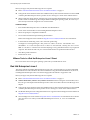
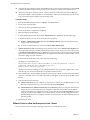
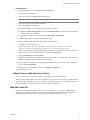
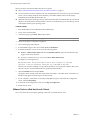
Guest Operating System Installation Guide 3 Follow the prompts to complete the installation. 4 Use the text mode installer. a At the opening screen, press F1 for options. b Enter text for text mode. 5 When you are prompted to partition, unless you have special requirements, select Use free space. 6 At the Summary screen, select Graphical Interface, and then click Do to configure the graphical interface. Make the following selections: 7 The resolution and refresh rate you want your guest to use VMware virtual video card No when asked if you want to install updates to the packages No when asked if you want to start X when you reboot Install VMware Tools. Mandrake Linux 10 The easiest method of installing Mandrake Linux 10 in a virtual machine is to use the standard Mandrake Linux distribution CD. The notes below describe an installation using the standard distribution CD; however, installing Mandrake Linux 10 via the boot floppy/network method is supported as well. Before you begin, verify that the following tasks are complete: Read “General Installation Instructions for All VMware Products” on page 11. Create and configure a new virtual machine. Consider these support and configuration issues for Mandrake Linux 10: During the Mandrake Linux 10 installation, you are offered a choice of XFree86 X servers. You can choose either one, but do not run the X server. Instead, to get an accelerated SVGA X server running inside the virtual machine, you should install the VMware Tools package immediately after installing Mandrake Linux 10. With many Linux guest operating systems, various problems have been observed when the BusLogic virtual SCSI adapter is used with VMware virtual machines. VMware recommends that you use the LSI Logic virtual SCSI adapter with this guest operating system. Installation Steps 1 Insert the Mandrake Linux 10 CD in the CD‐ROM drive. 2 Power on the virtual machine. 3 Follow the prompts to complete the installation. 4 Use the text mode installer. 5 34 a At the opening screen, press F1 for options. b Enter text for text mode. When you are prompted to partition, unless you have special requirements, select Use free space. VMware, Inc.