1
NEXO WINDOWS LOADER
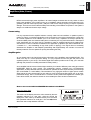
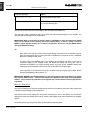
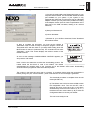
Execute the following procedure to load the new software into the NX242 Flash EPROM.
1) Connect the serial cable to the RS232 serial ports on your
computer and the NX242. The downloader detects the COM
port available on your system. If your system is only
equipped with USB ports you will have to use an USB-COM
adapter. However you may meet some problems according
to the adapter chosen. (there is a lack of specification on the
baud rate of the USB converters, leading to an unusual
tolerance)
2) Start your Windows OS.
3) Launch the loader.
4) Browse for your .dld file to download, Press "Download
file to NX242" button.
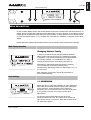
5) Now to complete the procedure, you must set the NX242 to
"Download" mode to make it ready to accept the program. Power the
TDcontroller OFF and then back on (or reset) whilst holding down the
MUTE button of channel 1 (leftmost mute). The controller will now enter
"Download " mode. First screen displays the revision number of the
RS232 Firmware.
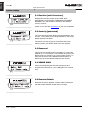
As soon as the message “DOWNLOADING: WAITING” appears, you
can press the "OK" button
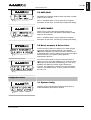
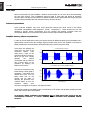
Have a look to the status bar to follow the downloading process. The
Loader sends the first block of code to the NX242. The NX242
acknowledges the reception both on the computer and in the NX242’s LED screen. Downloading
continues until the progress bar reaches its leftmost position.
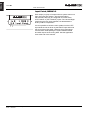
The number in the lower left corner (60) is a timeout. A countdown begins when the transmission is
broken (wrong com port, or disconnected…) when it reaches zero an error message is generated.
The download procedure is complete when the unit
resets (all LED's on).
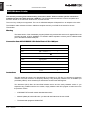
6) The NX242 now HAS to be reset AGAIN to enter
the configuration menu. Turn the unit OFF, wait 5
seconds and then power back ON or hold down
simultaneously the three menu buttons (A, B, ).
Hold down the two menu buttons (A, B) to enter the
Configuration Menu to choose your cabinet.
The unit is now ready for use.
USER MANUAL LOAD2_22
DATE: 03/12/2004
ENGLISH
PAGE 33