1
Genymotion 2.5.0 User Guide
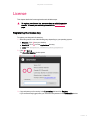
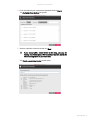
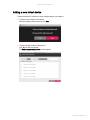
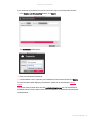
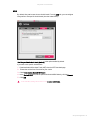
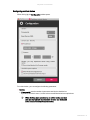
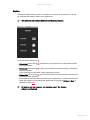
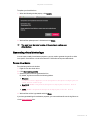
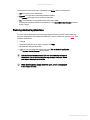
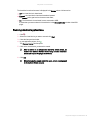
To update your virtual devices:
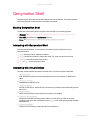
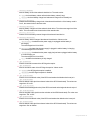
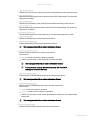
1. When the following window pops up, click Update.
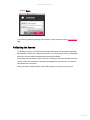
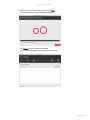
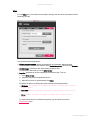
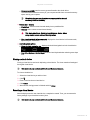
2. Wait until the update process is finished and click Finish.
You must have the latest version of Genymotion to update your
virtual devices.
Generating virtual device logs
In some cases, notably for assistance purposes, you may need to generate a log archive, either
for a specific virtual device or for all virtual devices. Follow either of the procedures below.:
For one virtual device
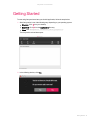
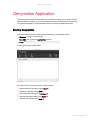
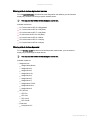
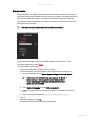
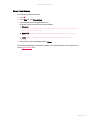
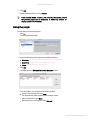
From the Genymotion main window:
1. Right-click on the virtual device.
2. Click Generate log archive.
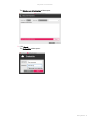
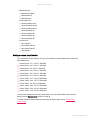
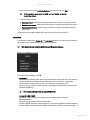
3. Select the path to save the generated archive.
By default, log files are stored in the following folders:
Windows:
C:\Users\<user>\AppData\Local\Genymobile\Genymotion\deployed\<vi
rtual device name>\Logs
Mac OS X: $HOME/.Genymobile/Genymotion/deployed/<virtual device
name>/
Linux: $HOME/.Genymobile/Genymotion/deployed/<virtual device
name>/
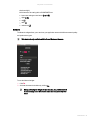
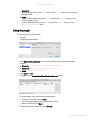
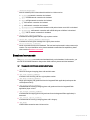
4. Wait until the archive is generated and click Close.
If you have generated logs for assistance purposes, you can send the archive or the log files to us
via the SupportSupport form.
Virtual Devices - 48