1
Adjusting the Receiver Settings
Using PC Application Software
Features of the ES Utility
application software
You can check the settings of the receiver, and
adjust those settings using your computer, as
well as using the receiver, after installing the
ES Utility application software provided on
the CD-ROM supplied with the receiver.
System Requirement
login as an administrator.
2
Insert the supplied CD-ROM
into the CD-ROM drive of your
computer.
The installation launcher starts
automatically, then a Software Setup
screen appears on the screen.
If the installation launcher does not start
automatically, double-click
“SetupLauncher.exe” on the disc.
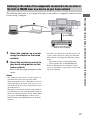
CD-ROM (ES Utility
application software)
(supplied)
3
Install the ES Utility software
application following the
instructions given in the
message on the screen.
Operating System
Windows XP Home Edition/Professional/
Media Center Edition 2005 (SP3, 32 bit)
Windows Vista Home Basic/Home Premium/
Business/Ultimate (SP1, 32 bit/64 bit)
To check the HELP
When you want to check the HELP of the ES
Utility application software,
click [Start] – [All Programs] – [ES Utility] –
[Help for ES Utility], in that order.
Computer
CPU: Celeron, Pentium III or higher
Clock Speed: 1 GHz or higher
RAM: 512 MB or more
HDD: 20 MB or more free disk space
(280 MB free disk space is required when
.NET Framework 2.0 is not installed)
Monitor: 1024 × 768, High Color
(65536 colors)
Network: 100Base-TX or higher
21GB
Adjusting the Receiver Settings Using PC Application Software
The following settings cannot be set using the
computer with the ES Utility application
software.
• Auto Calibration
– Quick Setup
– Enhanced Setup
• Speaker
– Test Tone
• Multi Zone
– Zone Power ON/OFF
– Zone Input Change
– Zone Volume Adjust
Installing the ES Utility
application software on a
computer
1 Turn on your computer and