1
Using Image Manager
Using Image Manager
With one click, Image Manager lets you choose the best image settings for your
presentation type.
Important:The Image Manager settings work best if you select Reset from the
Adjust tab each time before selecting an Image Manager setting.
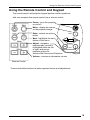
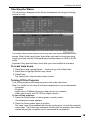
1. Press Menu and use the Adjust + - buttons to move to the tab.
2. Press Next to move to the appropriate Image Manager feature.
3. Press Enter to select that feature.
4. Press Menu to dismiss the menu or wait for the menu to close
(about 15 seconds).
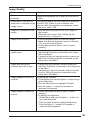
Photos (PC) matches the higher contrast found on a standard PC monitor. This
feature is best for:
• images created on a PC
• images from a digital camera
• a starting point for video input.
Photos (MAC) matches the lower contrast found on a standard MACINTOSH
monitor. It is generally used for images created on or for a MACINTOSH. This
setting also works well with a PC if you are using higher than normal contrast
PC images.
Rich Colors results in an image with deep contrast and saturated vibrant colors.
It is generally used under bright lighting conditions. This setting works well to
enhance colors of certain graphics and it may be useful when images created
for a MACINTOSH are displayed from a PC.
Spreadsheets results in an image with contrast between a PC and
MACINTOSH monitor. It is generally used for text-rich tables, such as financial
displays. This setting factors in ambient light, subject matter, and personal
preferences to deliver the right balance of contrast and brightness.
Graphics delivers the high contrast needed to project graphics and text against
solid colored backgrounds.
11