1
2 Add IP Cameras
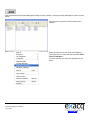
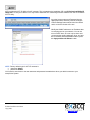
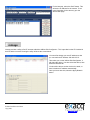
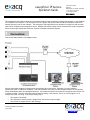
First, ensure that your IP cameras are powered and connected to same LAN as the exacqVision Server. Next, you’ll need
to find the IP address of the cameras on your network, which can be done with the Exacq IP Camera Finder on the IP
Cameras
screen in the exacqVision Client. This will find cameras from any of the supported manufacturers which are
on the same network subnet as the exacqVision Server.
If an IP Camera is not found, it likely needs it’s IP address changed to match an available address on the same LAN
subnet as the exacqVision server.
If a camera’s IP address must be changed, this may be done with the camera manufacturer’s software. See the
exacqVision IP Manufacturer Specific Addendum to this QuickStart guide for more information.
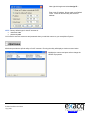
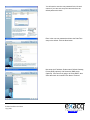
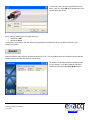
Next, on the IP Cameras
screen of the exacqVision Client, you will add the cameras to the list of IP Cameras that your
exacqVision Server will connect to. Once IP cameras have been added to the IP Camera List, your exacqVision Client
application will be able to configure the camera settings (see section 3) and view live and recorded video.
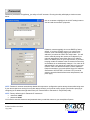
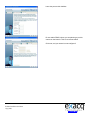
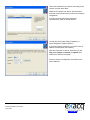
To add an IP camera to your IP Camera List now that you have found the IP address of the camera, click the Camera in
the finder panel. Enter the Username, Password, and Password Confirm, then click the Apply button. The new camera
will appear in the IP Camera List. The camera type and IP address will be automatically populated.
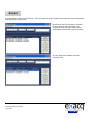
All cameras that have been added to the IP Camera List with the Connect box checked will now appear in the
Configuration, Live and Search trees. You will only be able to simultaneously check “Connect” on as many IP devices as
your license permits. Contact Exacq Technologies to increase the allowed number of IP devices.
IP Video Surveillance Solutions
1/23/2009
www.exacq.com