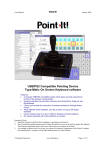
1
Quick Guide
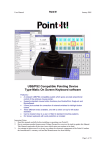
Joystick Knob
and Left Button
Hold down any left
button for 5 seconds to
enable left drag lock.
The joystick will beep.
After dragging the
object press left button
again to disable drag.
Left button switch
input (also
disables switch
on knob).
Left Button
Double Click
Left
Button
Mouse Speed
(remembered
when off)
Right
Button
Four plastic “bumpons” are included with
the joystick that can
be stuck to the
buttons to extend
their height and aid
location.
Right
button
switch
input.
The Point-It! manual is supplied in electronic format as PDF or Word format
on the enclosed CDROM. Please read and understand this manual before
operating your device.
CD Contents
Point-It User Manual January 2004. Word document
and PDF formats.
On Screen keyboard software. Choose setup.exe to
install.
Installing the Software
1. Insert the CDROM into your CD-ROM drive
2. The installation program should Auto-Run.
3. If the installation program does not auto-run then choose ‘Run’ from the
Windows Start menu and type d:\setup.exe. (if your CD-ROM drive is not
drive D, type the appropriate letter instead.) Then click OK.
4. Follow the instructions on the screen.
Running the Program
Run TypeMatic by choosing Programs from the Start menu and clicking on
the
TypeMatic icon.
Page 1 of 4
October 2004
New options and improvements to the Point-It! joystick
Light Action Version
A light action version of the joystick is now
available requiring only 250grams of pressure
for a full scale deflection of the joystick
compared to the 550grams of pressure for the
standard joystick.
Knob Options
A range of new knob alternatives are now
available for the Point-It! joystick including
Chin, Sponge, Carrot, DX, Wrist plate, T-Bar
and more.
These knobs are only inter-changeable with
the Ball Knob version of the Point-It! joystick.
TypeMatic On-Screen keyboard
The on-screen keyboard software supplied with the Point-It! has been
improved and is now Microsoft XP compatible.
ORDER CODES
#301-USB
#301-BALL-USB
#301-USB-L
#301-BALL-USB-L
K-Ca
K-Q
K-Ch
K-Sp
K-Tbar
K-Wr
Point-It! USB Joystick
Point-It! USB Joystick with interchangeable ball knob
Point-It! USB Light Action Joystick
Point-It! USB Light Action Joystick with interchangeable ball knob
Carrot Knob
Dynamic Knob
Chin Knob
Sponge Knob
T bar
Wrist Plate
PS2 versions are still available by replacing “USB” with “PS2” in the order code.
Page 2 of 4
October 2004
Point-It! USB Hardware Installation – Windows XP
Windows will automatically detect when you plug the Point-It joystick into the
USB port of your computer. If the Human Interface Device driver necessary to
run USB pointing devices is not installed then Windows will run the “Found
New Hardware Wizard”
Click on “Install the software automatically” and then click “Next”. Windows
will automatically install the Human Interface Device (HID) driver.
Click “Finish” to finish installing the driver. The Point-It! Joystick is now ready
for use.
Page 3 of 4
October 2004
Point-It! USB Mouse Properties – Windows XP
In Windows XP Microsoft have introduced the “Enhance pointer precision”
option in Mouse Properties. However, to get the smoothest response from
your Point-It! joystick this option should be disabled.
To disable the “Enhance pointer precision” option
1. From the “Start” menu choose “Control Panel” and then click on
“Printers and Other Hardware”.
3. Click on the “Pointer Options” tab.
2. Click on “Mouse”.
4. Click on the “Enhance pointer
precision” checkbox to disable this option
and then click “OK”.
Page 4 of 4
October 2004