1
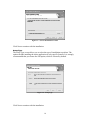
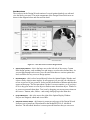
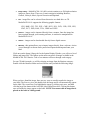
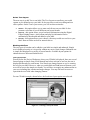
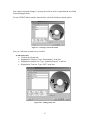
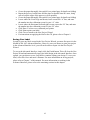
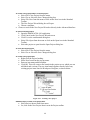
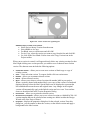
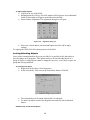
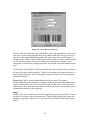
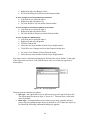
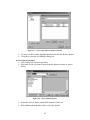
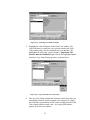
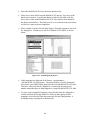
Select View>Palettes>General from the menu.
Click on the lock/unlock button.
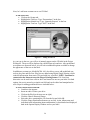
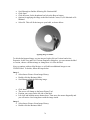
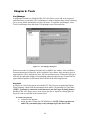
Grid and Guideline Setup
Two additional options used for manipulating images on a label are grid lines and
guidelines. Both of these features can make it easier to move an object to a specific
location on the label and to accurately align multiple objects.
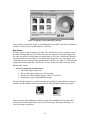
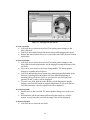
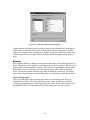
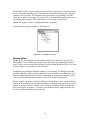
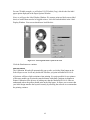
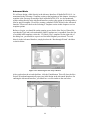
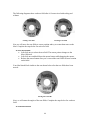
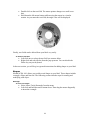
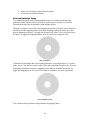
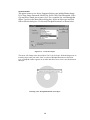
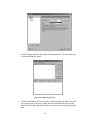
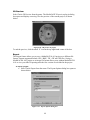
The grid is a regular series of lines and snapping increments. Grid lines can be turned on
and off, as can the snapping feature of the grid. Snapping to the grid allows for a more
precise alignment of objects. To toggle the grid on or off, select View>Grid Lines from
the menu. To toggle the snapping feature on or off, select View>Snap to Grid.
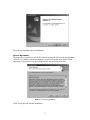
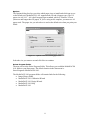
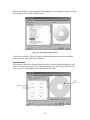
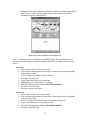
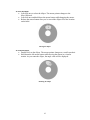
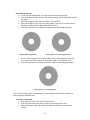
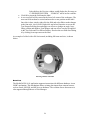
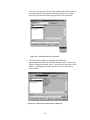
Show grid option
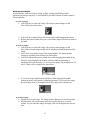
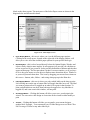
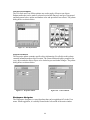
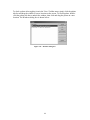
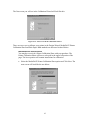
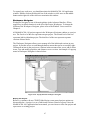
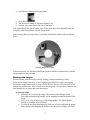
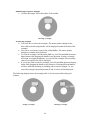
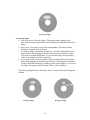
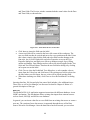
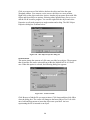
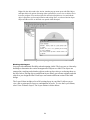
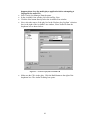
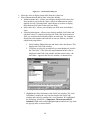
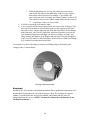
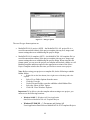
Guidelines are horizontal and vertical guides that allow you to align objects. To create a
guide, select View>Rulers to show rulers. Then, drag a guideline from the ruler. Like the
grid option, guidelines also have a snapping feature that can be turned on and off. To
toggle the snapping on or off, select View>Snap to Guidelines. To create a guideline,
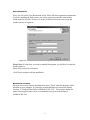
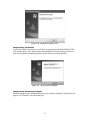
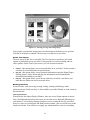
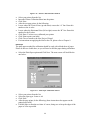
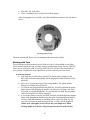
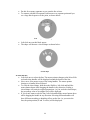
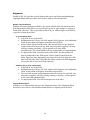
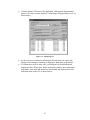
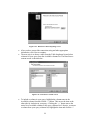
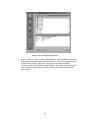
Show guidelines option
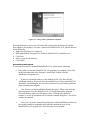
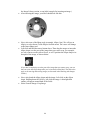
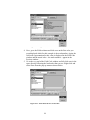
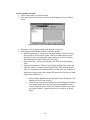
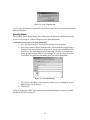
You can then set the positions of the guidelines by dragging them
101