1
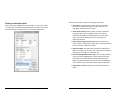
Using the HOBOware Setup Assistant (HOBOware Pro Only) Steps for Windows You must be an administrator to install HOBOware. 1. Insert the CD into the appropriate drive. The installation program should start automatically. If it does not, navigate to the CD drive in My Computer or Windows Explorer and double‐click HOBOware_Setup.exe to launch the HOBOware installer. When you open HOBOware Pro for the first time, the HOBOware Setup Assistant opens to guide you in selecting key preferences. To run the Setup Assistant, click Start and follow the prompts. Note: The Setup Assistant is optional. If you click Cancel, you will be able to use HOBOware with its default settings listed below. Note: HOBOware for Windows requires the Java™ Runtime Environment. If the correct Java Runtime Environment version is not already installed on your computer, the HOBOware Setup program will ask if you want to install it now. Click Yes and follow the prompts. After the Java Runtime Environment is installed, the HOBOware installation will continue. 2. 2. Double‐click the CD icon in Finder and then double‐click the HOBOware.pkg to launch the HOBOware installer. 3. Follow the instructions on the screen. When you reach the final screen of the installation program, click Restart so that the operating system is prepared to work with Onset devices. HOBOware will not recognize your loggers until you have restarted. 4. After restarting, open HOBOware by double‐clicking the HOBOware icon in your computer’s Applications folder. Getting Started: Using HOBOware with HOBO Data Loggers Data Assistants: Default is to enable all installed data assistants. Windows: File > Preferences Macintosh: HOBOware > Preferences Steps for Macintosh Insert the CD into the appropriate drive. Unit System: Default is US units. Other Preferences To see all the preferences you can configure in HOBOware, including those configured with the Setup Assistant, go to: Follow the prompts to install HOBOware. To start HOBOware, double‐click the HOBOware icon on your desktop or select Programs > Onset Applications > HOBOware from the Start menu. 1. Device Types: Default is USB. If you enable serial devices (HOBOware Pro only), you can select the port to use. 7 8 Getting Started: Using HOBOware with HOBO Data Loggers