1
Alcatel Advanced Reflexes™
Reception terminal
Alcatel
OmniPCX Office
ARCHITECTS OF AN INTERNET WORLD
How to use this guide ?
how
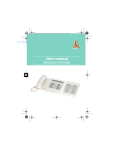
You have an Alcatel Advanced Reflexes digital telephone (reception terminal). The
large display, the navigator and the alphabetic keypad will help you use your
telephone easily and make optimum use of the many functions offered.
• Actions
• Keypad
Lift receiver.
Numeric keypad.
Hang up.
Alphabetic keypad.
Description of an action
or context.
Specific key on numeric
keypad.
• Navigator
• Audio keys
Move the navigation key
up, down, to the left or
to the right.
Loudspeaker.
Hands free.
2
• Display and display keys
Adjustment “reduce”.
Adjustment “increase”.
Smith John
Partial view of display.
• Other fixed keys
Display key.
Fixed key.
• Programmable keys and icons
Line key.
Icon corresponding to
key.
Key programmed by
technician to access
service.
MENU key
• Other symbols used
OR
Alternative to action
sequence.
Important informations
These symbols can be supplemented by small icons or text. All default or
customized function codes are given in the table of codes in the appended sheet.
2
Contents
Toc
Getting to know your telephone . . . . . . . . . . . p.6
1.
Client check-in . . . . . . . . . . . . . . . . . . . . . . . . . . p.8
1.1
2.
2.1
2.2
2.3
2.4
2.5
2.6
2.7
2.8
2.9
2.10
2.11
3
3.
Registering a client when he checks-in. . . . . . . . . . . . . . p.8
Client consultation . . . . . . . . . . . . . . . . . . . . . . p.10
Printing a client information ticket . . . . . . . . . . . . . . . . .
Wake-up alarm time . . . . . . . . . . . . . . . . . . . . . . . . . . . .
Do not disturb . . . . . . . . . . . . . . . . . . . . . . . . . . . . . . . .
Metering credit . . . . . . . . . . . . . . . . . . . . . . . . . . . . . . . .
Check-out:. . . . . . . . . . . . . . . . . . . . . . . . . . . . . . . . . . . .
Client name . . . . . . . . . . . . . . . . . . . . . . . . . . . . . . . . . . .
Language . . . . . . . . . . . . . . . . . . . . . . . . . . . . . . . . . . . . .
Message service. . . . . . . . . . . . . . . . . . . . . . . . . . . . . . . .
Public number (DDI). . . . . . . . . . . . . . . . . . . . . . . . . . . .
Barring . . . . . . . . . . . . . . . . . . . . . . . . . . . . . . . . . . . . . . .
Password . . . . . . . . . . . . . . . . . . . . . . . . . . . . . . . . . . . . .
p.10
p.11
p.12
p.13
p.13
p.14
p.14
p.15
p.16
p.16
p.17
Client check-out . . . . . . . . . . . . . . . . . . . . . . . . p.18
3.1
3.2
3.3
Printing a telephone bill . . . . . . . . . . . . . . . . . . . . . . . . . p.18
Pre check-out . . . . . . . . . . . . . . . . . . . . . . . . . . . . . . . . . p.19
Check-out . . . . . . . . . . . . . . . . . . . . . . . . . . . . . . . . . . . . p.20
3
Contents
4.
Customising your application. . . . . . . . . . . . . . p.22
4.1
4.2
4.3
4.4
4.5
4.6
4.7
4.8
4.9
4.10
4.11
5.
p.22
p.22
p.23
p.23
p.24
p.24
p.25
p.26
p.27
p.27
p.28
Room status . . . . . . . . . . . . . . . . . . . . . . . . . . . . p.30
5.1
5.2
5.3
5.4
4
Wake-up time . . . . . . . . . . . . . . . . . . . . . . . . . . . . . . . . .
Public no. (DDI) . . . . . . . . . . . . . . . . . . . . . . . . . . . . . . .
Language . . . . . . . . . . . . . . . . . . . . . . . . . . . . . . . . . . . . .
Metering credit . . . . . . . . . . . . . . . . . . . . . . . . . . . . . . . .
Barring . . . . . . . . . . . . . . . . . . . . . . . . . . . . . . . . . . . . . . .
Currency . . . . . . . . . . . . . . . . . . . . . . . . . . . . . . . . . . . . .
Do not disturb . . . . . . . . . . . . . . . . . . . . . . . . . . . . . . . .
Taxation parameter. . . . . . . . . . . . . . . . . . . . . . . . . . . . .
Exit time . . . . . . . . . . . . . . . . . . . . . . . . . . . . . . . . . . . . .
VAT rate . . . . . . . . . . . . . . . . . . . . . . . . . . . . . . . . . . . . .
Client record screens . . . . . . . . . . . . . . . . . . . . . . . . . . .
Room status indication . . . . . . . . . . . . . . . . . . . . . . . . . .
Room status consultation . . . . . . . . . . . . . . . . . . . . . . . .
Producing a room status ticket. . . . . . . . . . . . . . . . . . . .
Room status configuration . . . . . . . . . . . . . . . . . . . . . . .
p.30
p.31
p.32
p.33
Guarantee and clauses . . . . . . . . . . . . . . . . . . . p.35
4
Contents
5
5
Getting to know your telephone
Telephone
Programmable keys and icons
Navigator
Lets you browse through several pages of the
display and select a line (the bottom line is
implicitly active).
Top line
Previous
page
Next page
Bottom line
To make a call, activate a service or manage your calls.
Icons are associated with each of these keys:
Guide key
This key lets you:
• obtain information about the
telephone
• program the keys
Line icons :
Incoming call (flashing).
Room termin
1st se
Call in progress.
Room
Call on hold.
Lit
Call on common hold.
Room
Function icons :
Function active.
Light indicating
messages received.
Function requiring action.
Terminal or line busy.
Not lit
Wak
ala
Flashing pro
Preprogrammed function keys:
Divert your calls to another terminal.
Mute key so that your
correspondent can no
longer hear you.
Access the various mail services.
Access your personal directory.
Transfer call to another terminal.
Hang-up key
To terminate a call or
programming.
Make an ISDN call.
Some other keys have been programmed by your te
ience:
Key must be programmed by your technician to acc
Installing the programmable key label
Audio keys
Loudspeaker:
to share a conversation
to reduce
to increase
loudspeaker
loudspeaker
or receiver
or receiver
volume
volume
Hands free:
to make or answer a call without
lifting the receiver
6
Alphabetic keypad
Protected by a flap, used for call by
name, message service and programming. You have a self-adhesive
'Memo' label to stick inside the
flap.
A printed label is supplied with the terminal. This should be
programmable keys.
1. Insert a flat “ blade ” into the slot (1 slot
per key block).
2. Raise the cover.
3. Slide the printed label into position.
4. Replace the cover.
Telephone
Programmable keys and icons
s of the
ine is
ge
To make a call, activate a service or manage your calls.
Icons are associated with each of these keys:
Guide key
This key lets you:
• obtain information about the
telephone
• program the keys
on
to increase
loudspeaker
or receiver
volume
without
Line icons :
Incoming call (flashing).
Room terminal icons :
1st segment 2nd segment 3rd segment
Call in progress.
Room taken Terminal
busy
Call on hold.
Call on common hold.
Function icons :
Function active.
Function requiring action.
Terminal or line busy.
Lit
Room free
Terminal
free
Not lit
Wake-up
alarm
Flashing problem
Terminal
ringing*
Room not
cleaned
Room
cleaned
Room
problem
*internal or outside call
Preprogrammed function keys:
Divert your calls to another terminal.
Access the various mail services.
Access your personal directory.
Transfer call to another terminal.
Make an ISDN call.
Some other keys have been programmed by your technician for your own convenience:
Key must be programmed by your technician to access a service.
Installing the programmable key label
Alphabetic keypad
Protected by a flap, used for call by
name, message service and programming. You have a self-adhesive
'Memo' label to stick inside the
flap.
A printed label is supplied with the terminal. This should be installed beneath the
programmable keys.
1. Insert a flat “ blade ” into the slot (1 slot
per key block).
2. Raise the cover.
3. Slide the printed label into position.
4. Replace the cover.
7
1
Client check-in
Other
1.1
Registering a client when he checks-in.
• When a client arrives, select a free and cleaned room :
OR
“Hotel”
programmed key
key corresponding to a
free room
directory no. of room
According to the sequence of screens, you must:
1) Enter the “empty” fields (client name, for example).
2) Modify the fields which do not correspond to the default values (language, for
example).
3) Validate all the check-in screens as you go along.
The validation (OK key) of the last screen quits the CHECK-IN; the room is then
considered occupied, a “Client Information Ticket” is printed automatically.
8
8
1
Client check-in
• The following screens correspond to the check-in (a
maximum of six from eight):
Deposit:
A prepayment (metering credit) is proposed by default.
You can modify the amount or select “NoPrep” (no prepayment).
The client prepayment amount is converted into a number
of metering impulses (metering credit). When his credit runs
out, an audio signal warns the customer that:
- his call is about to be cut off,
- he cannot make any more outside calls,
- he is requested to make a further prepayment.
Guest’s name:
Enter the client’s name (8 characters max.).
Wake-up time:
9
A wake-up alarm time is proposed by default.
You can modify the time or select “Clear” (no wake-up alarm).
DND:
Activate (DND) or deactivate (dnd) the “do not disturb” feature.
Language:
Select the client’s language from the possibilities offered.
Note: the language is automatically assigned to the client voice mail box and
terminal (if it has a display).
DDI number:
The client is automatically assigned a DDI no.
Select “Choice” to assign another and then pass it on to the client.
Outside calls (Barring):
The client’s line is barred by default for international calls.
Select “Choice” to modify the terminal’s barring.
Room password:
The client is automatically assigned a password.
Select “Choice” to assign another and then pass it on to the client.
9
Clie
2
Client consultation
Other
• You can consult and modify client data (room taken):
After selecting the room (see below), the first line of each screen shows the data
for the client occupying this room:
- the client’s name
- the client’s language
- the client’s wake-up alarm time (if programmed) and the indication of a possible
problem with the wake-up alarm
- the status of the DND (do not disturb) feature
- the status of his prepayment the signs + for “credit” and - for “debit”) and the
currency used
- the segment
lit or unlit representing the status of the client’s message
service (text mail, voice mail, and call-back request from reception)
- the directory number of the room
2.1
Printing a client information ticket
Print
10
OR
“Hotel”
programmed
key
key
corresponding to
room
directory no. of
room
• The information ticket indicates:
- the client’s name
- the room no.
- the language
- the password
- the DDI no.
- the terminal barring
- the global total of the client’s deposit (metering credit)
- the total remaining to be paid by the client (debit) or to be reimbursed by the
hotel (credit); total deposit made minus the cost of communications
- the rate of VAT and the total amount of VAT corresponding to the cost of
communications
- the number of communications made
- the status of the DND feature (active or inactive)
- the status of the client’s message service (messages present or not: text, voice
and call-back requests from reception)
10
2.2
Wake-up alarm time
• This feature is used to modify the time of the client’s wakeup alarm:
Wakeup
OR
“Hotel”
programmed
key
key
corresponding to
room
directory no. of
room
Clear
OK
Client consultation
2
OR
Wake-up
alarm time
11
to cancel the wake-up
alarm
• Consultation of the alarm status:
Several choices are possible:
Left segment of the room key:
The flashing status of a room key informs you that there is a problem with the
wake-up alarm.
segment
flashing
Room consultation screen:
The room consultation screen shows if there is a wake-up alarm time
programmed and if there is a problem with the wake-up alarm.
Example:
07:30 wake-up alarm time programmed, wake-up alarm active if the
“:” (colon) flashes
07:30 wake-up alarm time programmed, wake-up alarm deactivated if
no characters flash
- - : - - No wake-up alarm time programmed, and a problem with the
wake-up alarm if all of the segments flash
07:30 No wake-up alarm time programmed, and a problem with the
wake-up alarm if all of the characters flash
11
Clie
2
Wake-up alarm status:
Press WAKE-UP; the status of the wake-up alarm will be one of the following:
active: the wake-up alarm is activated
inactive: the wake-up alarm is deactivated
busy: problem, the terminal was busy during the three attempts
unanswered: problem, the terminal was not answered during the three
attempts
inaccessible: problem, the terminal was inaccessible during the three
attempts
In the case of a wake-up problem, the system alerts
reception by sending a message and a ringing tone to the
terminal which is repeated approximately every 30 seconds
2.3
12
Do not disturb
• This feature is used to modify the status of the client’s DND
(do not disturb) feature (active or inactive):
OR
“Hotel”
programmed key
DND
key corresponding to
room
Choice
directory no. of room
OK
consecutive presses
In the consultation screen, “DND” = feature activated, “dnd” = feature
deactivated
12
2.4
Metering credit
• This feature is used to modify the amount of a client’s
metering credit
OR
“Hotel”
programmed
key
key corresponding to
room
directory no. of room
OK
Deposi
Client consultation
2
new amount of money
deposited
13
The system recalculates the global total of the client’s deposit and the balance.
2.5
Check-out:
OR
“Hotel”
programmed
key
key corresponding to
room
directory no. of room
CheOut
Refer to the chapter about this feature (client check-out).
13
Clie
2
2.6
Client name
• This feature is used to modify the client’s name:
OR
“Hotel”
programmed
key
key corresponding to
room
directory no. of room
OK
Name
client name
(8 characters max.)
14
2.7
Language
• This feature is used to modify the language of the client.
OR
“Hotel”
programmed
key
Lang
key corresponding to
room
Choice
consecutive presses
14
directory no. of room
OK
2.8
Message service
• Call-back request:
This feature is used to leave the client a call-back request (terminal
message LED activated):
OR
“Hotel”
programmed
key
Messag
key corresponding to
room
directory no. of room
Client consultation
2
OK
Choice
consecutive presses
15
• Reading the type of message left:
This feature is used to find out what type of message (voice or text
message) has been left for the client:
Messag
OR
“Hotel”
programmed
key
key
corresponding to
room
directory no. of
room
• The screen displays one of the following labels:
Oper.
: call-back request
or not
Voice
: voice mail waiting
or not
Text.
: text mail waiting
or not
15
Clie
2
2.9
Public number (DDI)
• This feature is used to assign another DDI no. to the client:
OR
“Hotel”
programmed key
PubNum
key corresponding to
room
Choice
directory no. of room
OK
consecutive presses
2.10
16
Barring
• This feature is used to modify call barring (international,
national, local or prohibited calls) on the client’s terminal:
OR
“Hotel”
programmed key
Barrng
key corresponding to
room
Choice
consecutive presses
16
directory no. of room
OK
2.11
Password
• This feature is used to modify the password assigned to a
client:
OR
“Hotel”
programmed key
Passwd
key corresponding to
room
Choice
directory no. of room
OK
Client consultation
2
consecutive presses
17
system assigns another password
• The client can use his password to:
- lock his terminal (prohibit external calls)
- establish communications with protected account codes (using substitution or
not)
- access his voice mail box remotely
17
Clie
3
Client check-out
Other
3.1
Printing a telephone bill
OR
“Hotel”
programmed key
key corresponding to
room
CheOut
directory no. of room
Print
• The bill indicates:
18
- the client’s name
- the room no.
- the global total of the client’s deposit (metering credit)
- the number of communications made
- the total cost of communications
- the rate of VAT and the total amount of Vat corresponding to the cost of
communications
- the amount remaining to be paid by the client (debit) or to be reimbursed by the
hotel (credit); total deposit made minus the cost of communications
18
3.2
Pre check-out
• This enables the client, before an early morning departure
for example, to settle his telephone bill the day before (no
more external calls possible) whilst still keeping all the
features programmed on his terminal (wake-up alarm,
messages, DDI no., DND, etc.):
OR
“Hotel”
programmed key
CheOut
key corresponding to
room
Client check-out
3
directory no. of room
PreOut
19
The pre check-out erases the client’s “remainder to pay”
19
Clie
3
3.3
Check-out
• This enables reception to free the room:
OR
“Hotel”
programmed key
CheOut
key corresponding to
room
directory no. of room
CheOut
The room parameters are rebooted.
The telephone bill is printed automatically.
20
• The result of a pre check-out/check-out on room
parameters are:
Wake-up
Message
DND
Call-back
DDI allocation
Barring
Room status
Password
Name
Remainder to pay
20
PRE CHECK-OUT
/
/
/
/
/
No external call
/
/
/
Deleted
CHECK-OUT
Cancelled
Kept for 1 hour
Cancelled
Cancelled
Number assigned to operator
No external call
Free/ Not cleaned
Cancelled
Room number
Deleted
Table analysis:
/: this symbol indicates that the status remains unchanged.
No external call: new barring on the room’s terminal
Remainder to pay: the total remaining to be paid by the client (debit) or to be
reimbursed by the hotel (credit), total deposit made minus the cost of
communications, is deleted.
Kept for 1 hour: unheard messages are kept for 1 hour.
Check-in resets the voice mail box.
Client check-out
3
Free/not cleaned: the room assumes the “free” and “not cleaned” status.
Room no.: the name of the client is replaced by the room number (the
directory is updated).
21
Note: the wake-up alarm, DND and Barring features return to their default
configuration at the time of the next check-in.
21
Clie
4
Customising your application
Other
The customisation functions are used to define the default values of the
different application screens.
4.1
Wake-up time
• This feature is used to define (or not) a wake-up alarm time
by default:
Wakeup
DefVal
“Hotel”
programmed key
default wake-up time
OK
Clear
OR
to delete default time
22
4.2
Public no. (DDI)
• This feature is used to assign (or not) a DDI no. by default:
DefVal
“Hotel”
programmed key
OK
22
PubNum
Choice
consecutive presses
4.3
Language
• This feature is used to select a language by default:
DefVal
Lang
“Hotel”
programmed key
Choice
consecutive presses
OK
The language is automatically assigned to the client’s voice
mail box and terminal
23
4.4
Metering credit
• This feature is used to activate (or deactivate) the
“prepayment request” menu (metering credit) and to enter
an amount corresponding to a prepayment by default:
DefVal
“Hotel”
programmed key
Clear
Customising your application
4
Deposi
amount
OK
to delete menu
23
Cus
4
4.5
Barring
• This feature is used to define a room’s terminal barring by
default (international, national, local or prohibited calls):
DefVal
Barrng
“Hotel”
programmed key
Choice
consecutive presses
OK
4.6
24
Currency
• This feature is used to enter the currency of the country:
DefVal
“Hotel”
programmed key
24
Money
OK
4.7
Do not disturb
• This is used to activate (or deactivate) the DND feature by
default:
DefVal
“Hotel”
programmed key
OK
25
DND
Choice
consecutive presses
Customising your application
4
25
Cus
4
4.8
Taxation parameter
DefVal
Meter
Cost
“Hotel”
programmed key
UnitTh
OR
Cost
cost 1, cost 2, cost 3: enter the 3 basic tax values.
OvLoad: enter the additional cost assigned to the
communications made by reception and transferred to
room terminals and “public phones”.
26
UnitTh
threshold 1, threshold 2: enter the 2 thresholds for
the 2nd and 3rd basic tax value.
Beep: metering credit threshold which causes a beep
for each credit received.
26
4.9
Exit time
• The reception terminal automatically exits the Hotel
application and switches to standby if no operation is carried
out for a programmed length of time:
DefVal
ExTime
“Hotel”
programmed key
OK
time (in minutes)
27
4.10
VAT rate
• This feature is used to enter the country’s VAT rate:
DefVal
Customising your application
4
VAT
“Hotel”
programmed key
OK
VAT rate
27
Cus
4
4.11
Client record screens
• This feature is used to programme the order in which the
six consultation screens most frequently used during checkin appear (maximum of six from eight)
Note: the consultation screens not selected remain available until the end of
check-in.
Next
ChecIn
DefVal
“Hotel”
programmed key
Prev
OR
28
to move to field to be
modified
28
Choice
OK
• Your different default customisations appear in the table
below.
FUNCTION
Name :
Passwd :
Wake-up:
DDI no.:
Language:
Credit:
Barring:
Currency:
DND:
Exit:
VAT:
Taxation:
29
Cost 1
Cost 2
Cost 3
Additional cost
Threshold 1
Threshold 2
Beep
YOUR CUSTOMISATION
Customising your application
4
Check-in:
29
Cus
5
Room status
Other
• The room status feature makes it possible:
For housekeeping to:
- inform reception about the status of rooms.
For reception:
- to change the status of a room,
- to display room status on the reception’s terminal.
To produce a Room Status ticket or voucher.
5.1
Room status indication
• Housekeeping informs reception about room status
(cleaned, not cleaned, with or without problem):
OR
room cleaned
30
if necessary, problem no. (maximum 3
digits: 000 to cancel previous problem)
30
room not cleaned
5.2
Room status consultation
• The receptionist can consult room status:
Status
“Hotel”
programmed key
key corresponding to
room
Room status
5
screen displays: its “cleaned” or “not cleaned”
status or else its problem no., and its “free” or
“taken” status
OR
directory no. of room
on the basis of this status,
you can:
31
Cleans
consecutive presses
(cleaned/not cleaned)
Problm
NoProb
OR
OR
to delete the problem
indicated
to enter a problem no.
OK
31
Ro
5
5.3
Producing a room status ticket
• A ticket or voucher can be printed automatically when the
room status changes (if the feature is programmed):
• The ROOM STATUS DEVELOPMENT field is specific and
includes the following data:
- the first digit gives the room status:
0 = room cleaned
1 = room not cleaned
- the other digits (maximum 3) represent the number of the problem if there is
one.
32
32
5.4
Room status configuration
• This feature is used to specify whether all rooms or only
those taken can be switched manually or automatically (at a
programmed time) to “not cleaned” status:
Rooms:
Status
Room status
5
Global
“Hotel”
programmed key
Rooms
33
OK
consecutive presses
This feature is used to specify which are the rooms concerned by the switch to
the 'to clean' status (all rooms or only rooms taken).
33
Ro
5
Manual or automatic switch:
This feature is used to specify if the rooms concerned (on the “rooms” menu)
switch automatically or manually into “not cleaned” status.
Now
Global
Status
“Hotel”
programmed
key
manual switch
Clear
Time
OK
OR
OR
automatic switch
34
In the table below, you can see the codes you have assigned to different problems
indicated in room status:
ROOM STATUS
ROOM STATUS prefix:
Room cleaned:
Room not cleaned:
Problem of:
Problem of:
Problem of:
Problem of:
Problem of:
Problem of:
Problem of:
Problem of:
Cancelling the problem
34
YOUR CODE
77
0
1
000
Guarantee and clauses
howtoc
Independently of the legal warranty that covers this appliance, it is guaranteed for
1 year, parts and labour, counting from the date indicated on your invoice.
Nevertheless, if the legal warranty in effect in your country exceeds 1 year, then
the legal warranty is the sole warranty applicable.
The invoice will be demanded if making a claim under the warranty. The warranty
does not however apply in the following cases: in the event of use that does not
comply with the instructions given in this user's manual, faults or damage caused
by natural wear, damage resulting from a cause external to the appliance (e.g.
impact, fall, exposure to dampness, etc.), noncompliant installation or
modifications or repairs carried out by people who are not approved by the
manufacturer or retailer.
35
Declaration of compliance
We, Alcatel Business Systems, hereby declare that we assume the Alcatel
Advanced Reflexes product (reception terminal) to be compliant with the
essential requirements of Directive 1999/5/CE of the European Parliament and
Council.
Any unauthorised modification to the product shall render this declaration of
compliance null and void. A copy of the original of this declaration of compliance
can be obtained by post from :
Alcatel Business Systems - Technical Services - Customer Care
1, route du Dr. Albert Schweitzer - F 67408 Illkirch Cedex - France
The CE marking indicates that this product complies with the following EC
directives:
-
89/336/CEE (electromagnetic compatibility)
73/23/CEE (low voltage)
1999/5/CE (R&TTE)
Some of your telephone's functions require a software key or are only
accessible once programmed by your installation technician.
Copyright © ALCATEL. 2001. All rights reserved.
Alcatel Business Systems, in keeping with its policy of constant product
improvement for the customer, reserves the right to modify product
specifications without prior notice.
ALCATEL - 32, avenue Kléber, F-92707 Colombes Cedex
R.C. Paris 602 033 185
3EH 21016 BSAA Ed.01
35