1
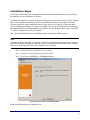
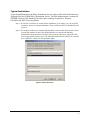
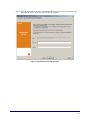
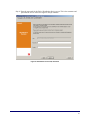
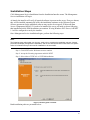
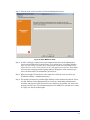
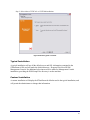
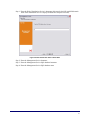
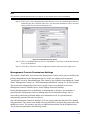
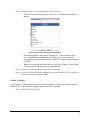
Step 6: Enter the network location where the MSI image will be created, or browse to that location
by clicking the Change button.
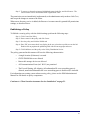
Figure 38: Select Network Location for MSI Image
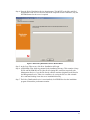
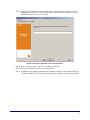
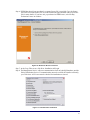
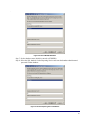
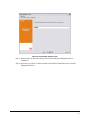
Step 7: Click Install to create the MSI image.
Step 8: Browse to the created MSI image and open the "\program files\Novell\ZENworks Security
Client\" folder
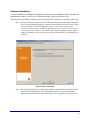
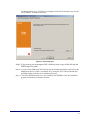
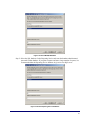
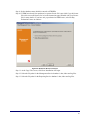
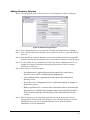
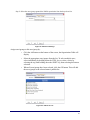
Step 9: Copy the Management Service SSL certificate (ESM-MS.cer, or the enterprise certificate)
and the Novell License Key into this folder, replacing the default 0 KB files currently in
the folder. The ESM-MS SSL certificate is available in the ESM Setup Files folder. The
license key is emailed separately (if using the 30-day evaluation, no license key is
necessary at this time).
Figure 39: Replace the Default Files in the MSI Package
56