1
Cochlear™ Wireless Phone Clip
Quick guide for Baha® users
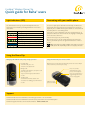
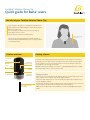
Light indicators (LED)
Connecting with your mobile phone
The LED indicator at the top of your Phone Clip functions as a
multi-purpose user interface, providing information on the status
of the device.
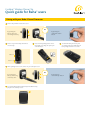
To receive or place phone calls with the Phone Clip, the Bluetooth®
functionality must be activated in your mobile phone. Your phone
might ask you to confirm whether you would like to connect with the
Phone Clip after it is successfully paired.
Blinks
Meaning
Battery low (yellow)
If you have to connect manually, locate a list of “Paired Devices” in
your phone’s Bluetooth® menu. From this list, highlight “Hearing Aid
Phone” and select “Connect.”
Charging (red)
You are now ready to use your Phone Clip.
Fully charged – still connected to charger (red/green)
On some phones you can also enable “Automatic Reconnection.”
Refer to your mobile phone’s user guide for instructions on how to
do this.
Normal operation (green)
Ready for pairing with sound processor (yellow)
Ready for pairing with Bluetooth device (blue)
Tip! In most instances, a headset symbol on the main screen of your
mobile phone will confirm that you have successfully connected.
Bluetooth call active (blue)
Using the Phone Clip
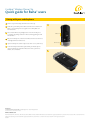
Managing calls with the call pick-up / hang-up button
Incoming calls:
To answer a call, press once.
Using the Phone Clip as a remote control
When you’re not on the phone, the Phone Clip can also be used as a simple
remote control for your sound processor(s).
To decline a call, double-click.
During a call:
Press once to mute
and unmute the sound
processor’s microphones.
To transfer a call started on your phone to the
phone clip, press once.
Press one or more times to
toggle through the sound
processor’s programs
To put a call on hold, press and hold for 2
seconds.
To make a call:
To redial the last number, double-click.
To activate voice dialling, press and hold for 2
seconds.
Adjust the sound
processor’s volume
Support
For full details about the Cochlear Wireless Phone Clip, please refer to the User Manual.
For full details about the Cochlear Baha 4 Sound Processor, please refer to the User Manual part A.
For further support and videos, visit the Cochlear website: www.cochlear.com