1
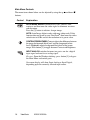
Main Menu Controls
The menu items shown below can be adjusted by using the up ▲ and down ▼
buttons.
Control
Explanation
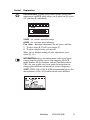
AUTO IMAGE ADJUST automatically sizes, centers, auto-
contrasts and fine tunes the video signal to eliminate waviness
and distortion.
Press the [2] button to obtain a sharper image.
NOTE: Auto Image Adjust works with most video cards. If this
function does not work on your ViewPanel®, then lower the video
refresh rate to 60 Hz and set the resolution to its preset value.
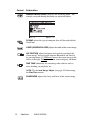
CONTRAST/BRIGHTNESS Contrast adjusts the difference between
the image background (black level) and the foreground (white
level). Brightness adjusts background black level of the screen
image. Press button [2] to toggle between Contrast and Brightness.
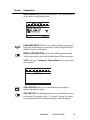
INPUT ANALOG switches between two ports: one for a digital
input signal and one for an analog signal.
Shortcut: From the Windows desktop, press button [2] to bypass
the Main Menu and switch ports.
On-screen display will show Input Analog or Input Digital,
depending upon the currently selected input source.
10
ViewSonic
VG191/VG191b