1
User Manual
January 2005
5 Type-Matic Software
Installing the Software
1. Insert the CDROM into your CD-ROM drive
2. If the installation program does not “autorun” then choose ‘Run’ from the
Windows Start menu and continue with step 3, otherwise jump to step 5.
3. Type d:\setup.exe. (if your CD-ROM drive is not drive D, type the appropriate
letter instead.)
4. Choose OK.
5. Follow the instructions on the screen.
Running the Program
Run TypeMatic by choosing Programs from the Start menu and clicking on the
TypeMatic icon.
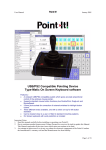
When you run TypeMatic for the first time the following default Grid is presented:Standard keyboard
keys.
5 Special keys. Spacebar,
Backspace, Enter, Shift and
SentenceBar. To view help text
on a character position the
mouse over the cell and pop-up
help text will appear.
Links to other grids for numbers,
punctuation and function keys.
Now launch a word processing program such as WordPad and open a new
document. To type, position the mouse pointer over the desired character and
click. The character should appear in your new document.
©Unique Perspectives
www.click2go.ie
Page 8 of 23