1
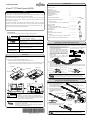
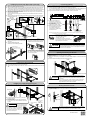
Installing the RC25 Rack Mount Kits to the Rack Connecting Cables (1) Attach one cage nut on each of the right and left front-side rack braces, and attach another cage nut on the left rear-side rack brace. (2) Insert the two protrusions on the rear side of the RC25 Rack Mount Kits into the rear-side rack braces, so that the inserted RC25 Rack Mount Kits are at the same height unit (U). One RC25 Rack Mount Kit is for the left rear-side rack brace and the other is for the right. Find the letters LEFT or RIGHT on the side of each RC25 Rack Mount Kit and attach each RC25 Rack Mount Kit to the suitable side of the rack. (1) Turn off all devices that are connected to the RC25, except for hot-plug connections. (2) Connect the PS/2 (or USB) cable and monitor cable to this device. The Virtual Media Port (USB) is used to connect a Virtual Media KVM switch (sold separately) to this device. For more information, see the User's Manual for the KVM switch you are using. (3) Plug the AC power cable connector into the power socket on this device. (3) Keep the RC25 Rack Mount Kits horizontal at the same height unit (U) and attach them to the front-side rack braces. Check that the Easy mounting-clips and centering screws are inserted firmly into the front-side rack braces. (4) Insert the Security locks into the left and right Easy mounting-clips on the front side of the RC25 Rack Mount Kits. Easy mounting-clip Cage nut Security Rear-side lock rack braces Protrusions Front-side rack brace Cage nut Centering screw RIGHT Cage nut RC25 Rack Mount Kits Security locks Cage nut Front-side rack braces Rear-side rack brace VisualMedia MediaPort Port (U Virtual (USB)* AC power ACコード cable Monitor モニタ cable ケーブル PS/2 PS/2 cable ケーブル (KB) (KB) USB cable USB ケーブル PS/2 PS/2 cable ケーブル (MS) (MS) port Power outlet Monitor モニタポート 電源コンセント Keyboard and mouse ports キーボード・マウスポート (either USB or PS/2) (USB、PS/2どちらか一方を接続) * Remark: virtual media cable has to be ordered optionally. Connector color is gray, to distinguish from USB keyboard/touch-pad cable (black connector) Cage nut LEFT (4) Connect the cables to the monitor port, keyboard port, and mouse port on the server or a KVM switch. (5) Plug the Rack Console's power cable into the power outlet. (6) Make sure that all connections are completed before turning on the power of the Rack Console, server, KVM switch, and other devices. To remove the RC25 Rack Mount Kit: To install in an asymmetrical PRIMERGY rack: (1) Use two centering screws (M5 Torx T20) to (1) Insert the unlocking tool between the Easy mounting-clip and the Security lock as shown in install the support bracket on the left rear-side the figure, and then remove the Security lock. rack brace. (2) Install the RC25 Rack Mount Kit. See above for the installation procedure. Connect the following cables to this device as shown in this figure, so there is no slack. AC power cable on bottom Monitor cable on top If the cables are pulled too tightly after connecting the monitor cable to this device, adjust the lengths of the cables. CAUTION Left rear-side rack brace (asymmetrical PRIMERGY rack) Select either the PS/2 cable or USB cable as the cable to connect the keyboard and mouse. If both cables are connected and any operational problem occurs on the keyboard or mouse, the server must be rebooted. Centering screws M5 Torx T20 Front-side rack brace (2) Insert the unlocking tool into the opening in the Easy mounting-clip, disengage the lock, and then remove the RC25 Rack Mount Kit from the front-side rack brace. Support bracket Opening and Closing the Monitor To open the monitor (1) Grip the monitor handle and open the monitor upward. To close the monitor (1) Make sure that nothing is connected to the Virtual Media USB port on the front side of the device. (2) Hold the handle and slowly close the monitor downward. Handle Inserting the Rack Console (1) Pull out the intermediate members of the slide rails until the members are locked. (2) Pull out the retainers to the front ends of the rails. (3) Insert the Rack Console into the slide rails. Push the Rack Console until it locks on the slide rails. Retainer Virtual Media Port (USB) CAUTION When you open the monitor upward, if you cannot open it with one hand or you feel it is too heavy to open with one hand, open it with both hands. When closing the monitor, make sure there is nothing connected to the front Virtual Media USB port, and be careful to not pinch your fingers between the monitor and the keyboard. Installing the Cable Management Part (1) Secure the rear bracket of the cable management part with the finger screw on the rear protrusions of the RC25 Rack Mount Kit on the left rear-side rack brace. Storing the Rack Console (1) Push the fixing springs on the ends of the right and left slide rails, and slide the device back into the rack slowly. (2) Tighten the finger screws on the right and left front ends of the device. Rear bracket (2) Fix the front bracket to the fitting on the rear of the Rack Console. (3) Insert the pin for fixing the cable management part into the hole. Firmly push the pin until the ball lock is securely in place. If the ring for removing the pin rests on the Rack Console or RC25 Rack Mount Kit after the pin has been inserted, it might not be possible to store the Rack Console. Therefore, be sure that the ring rests on the center of the unit as shown in this figure. CAUTION Ring for removing the pin Pin for fixing the cable management part Bracket Finger screw Finger screws CAUTION Be careful not to pinch your hands or fingers in the slide rails or Rack Console itself when you stow the Rack Console. NC14010-L593-02
![SERVIS Drawer 17inch [FD-1100AT] User`s Manual](http://vs1.manualzilla.com/store/data/005815433_1-e0ce1fd89f0d0c8bc9b31edbdc395367-150x150.png)