1
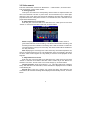
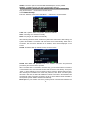
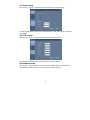
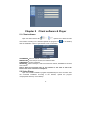
Name: Move the cursor to the input box of this option, and press “Enter” to enter the
input screen of this option. Numerical, English and Chinese pinyin input methods are
supported;
Position: Move the cursor to this option, and press “Enter” to change over between
name positions; there are 5 setup options: top left, bottom left, top right, bottom right
and off;
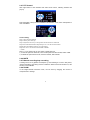
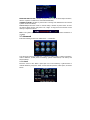
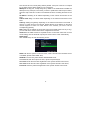
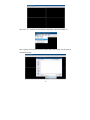
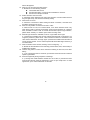
Color: Move the cursor to “Setup” of the corresponding channel, and press “Enter” to
enter the color setup screen, as shown below:
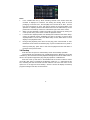
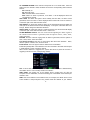
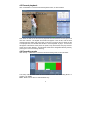
Press “Enter” or drag the cursor directly to set the picture color, including the 4 options
of chromaticity, brightness, contrast and saturation. Press “Enter” to exit and save the
set parameters.
Preview:
On: The picture of this channel can be seen in the Video Preview screen;
Off: The Video Preview screen of this channel has been shielded, but there is no effect
on the recording of this channel;
Preview time: On: The system date and time are displayed right above the Video
Preview screen;
Record Time : On: A clock can be displayed in the playback of the current record file.
Channel SEQ: Setup channel sequence time .
3.6.5 VIDEO/AUDIO
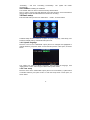
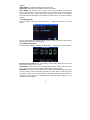
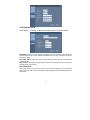
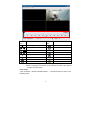
Move the cursor to the “VIDEO/AUDIO” option (the icon is surrounded by a yellow
frame to indicate selection), and press “Enter” to enter the setup screen of this option,
as shown below:
16