1
Polycom RSS 4000 System User Guide
Virtual Recording Room (VRR)
VRRs
You can pre-define a variety of record types for each recording by defining the
VRR, to avoid over and over configuring the same recording parameters.
While creating a new user in the system, a VRR owned by the user is
automatically generated. A VRR is identified by digits, and you can directly
dial your own VRR to start recording by adding your VRR number to the
dial-in number.
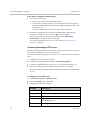
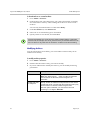
To define a VRR:
1
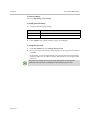
Go to VRR > VRRs.
2
In the ACTIONS list, click Add.
3
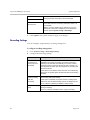
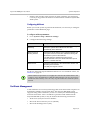
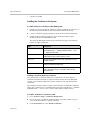
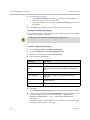
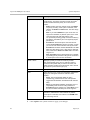
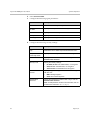
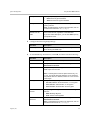
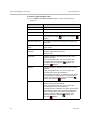
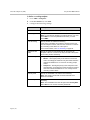
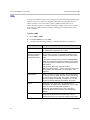
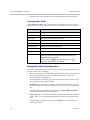
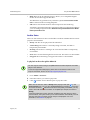
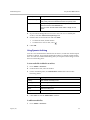
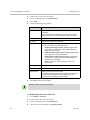
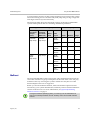
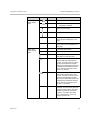
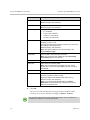
Configure the following settings (* indicates mandatory parameters).
Parameter
Description
VRR Name
Specify a unique name to identify the VRR. You can also use
the default name generated by the system.
Use a Custom Name
Prefix for the archive
file names (Name
Prefix+Date+Time)
Specify whether to assign a name prefix for the file recorded
with this VRR. The user can organize and identify a large
number of recorded files conveniently with a custom name
prefix.
If this option is selected, enter the name in Custom Name
Prefix. The system automatically generates the file name in
the following format according to the custom name and the
date and time:
Custom Name_Date_Time_Random Number.
Note: Only letters, figures, _, space or multi-byte characters
can be used for the name prefix, and the length is 4-20
characters.
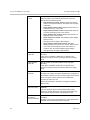
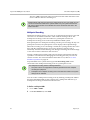
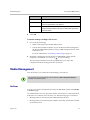
VRR Number
Specify a number to identify the VRR. You can directly dial
the VRR to record by adding the VRR number when dialing
the Polycom RSS 4000 system. The number you entered
must be unique and comprised of 4-8 digits. You can also
use the number automatically generated by the system.
Owner
Specify the owner of this VRR. The default owner is
administrator. In addition to the administrator, only the VRR
owner can view and modify VRR parameters.
Note: Each VRR must belong to a user. If the user is
deleted, all VRRs owned by that user are automatically
deleted.
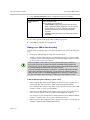
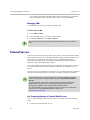
Domain
62
Specify the domain that the owner belongs to. LOCAL
indicates that the user is a local user created in the system.
Polycom, Inc.