1
Chapter 4
SystemBuild
3.
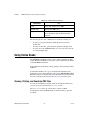
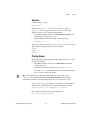
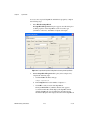
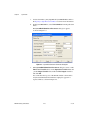
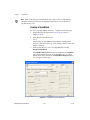
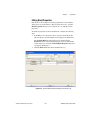
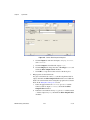
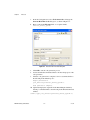
Verify that the Parameters tab of the Block Properties dialog box is
selected, as shown in Figure 4-15.
a.
Locate the field in the Parameter table, in the Value column, and
the ConstantName row. Click that field and replace H with the
name mass.
b.
Locate the field in the Parameter table, in the % variable
column, and the ConstantValue row. Click that field and type m.
Note The % variable property allows you to set parameters of your model by assigning
values to corresponding variables in the Xmath workspace. Before simulating this model,
you set the mass parameter in the Xmath command window by typing an assignment to the
Xmath variable m (refer to step 3 of the Simulating a SuperBlock section). In this way you
can simulate the model with different parameter settings without editing the block diagram.
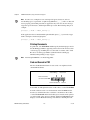
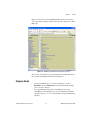
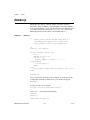
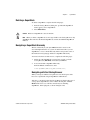
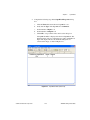
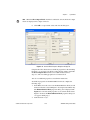
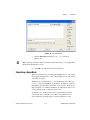
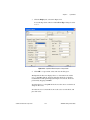
Figure 4-16. Constant Block Properties Dialog Box: Outputs Tab
4.
Click the Outputs tab. (refer to Figure 4-16).
Locate the field in the Outputs table, in the Output Label column,
and row 1. Click that field and type mass.
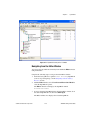
5.
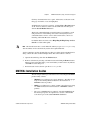
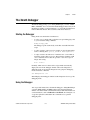
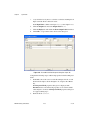
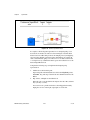
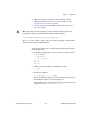
Click the Display tab (refer to Figure 4-17).
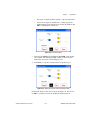
Enable the Show Output Labels checkbox.
MATRIXx Getting Started Guide
4-28
ni.com