1
VQT0W26ENG.book
1 ページ 2005年10月7日 金曜日 午前10時31分
Operating Instructions
For PC Connection
Before use, please read these instructions completely.
VQT0W26
VQT0W26ENG.book
2 ページ 2005年10月7日 金曜日 午前10時31分
Before opening the CD-ROM package, please read the following.
End User License Agreement (for USB Driver, Video Stream Driver
and MotionDV STUDIO)
You (“Licensee”) are granted a license for the Software defined in this End User Soft Agreement
(“Agreement”) on condition that you agree to the terms and conditions of this Agreement. If Licensee does
not agree to the terms and conditions of this Agreement, promptly return the Software to Matsushita
Electric Industrial Co., Ltd. (“Matsushita”), its distributors or dealers from which you made the purchase.
Article 1
License
Licensee is granted the right to use the software, including the information recorded or described on the
CD-ROM, instruction manuals, and any other media provided to Licensee (collectively “Software”), but all
applicable rights to patents, copyrights, trademarks and trade secrets in the Software are not transferred to
Licensee.
Article 2
Use by a Third Party
Licensee may not use, copy, modify, transfer or allow any third party, whether free of charge or not, to use,
copy or modify the Software, except as expressly provided for in this Agreement.
Article 3
Restrictions on Copying the Software
Licensee may make a single copy of the Software in whole or a part solely for back-up purpose.
Article 4
Computer
Licensee may use the Software only on one computer, and may not use it on more than one computer.
Article 5
Reverse Engineering, Decompiling or Disassembly
Licensee may not reverse engineer, decompile, or disassemble the Software, except to the extent either of
them is permitted under law or regulation of the country where Licensee resides. Matsushita, or its
distributors will not be responsible for any defects in the Software or damage to Licensee caused by
Licensee’s reverse engineering, decompiling, or disassembly of the Software.
Article 6
Indemnification
The Software is provided “AS-IS” without warranty of any kind, either expressed or implied, including, but
not limited to, warranties of non-infringement, merchantability and/or fitness for a particular purpose.
Further, Matsushita does not warrant that the operation of the Software will be uninterrupted or error free.
Matsushita or any of its distributors will not be liable for any damage suffered by Licensee arising from or in
connection with Licensee’s use of the Software.
Article 7
Export Control
Licensee agrees not to export or re-export to any country the Software in any form without the appropriate
export licenses under regulations of the country where Licensee resides, if necessary.
Article 8
Termination of License
The right granted to Licensee hereunder will be automatically terminated if Licensee contravenes of any of
the terms and conditions of this Agreement. In the event, Licensee must destroy the Software and related
documentation together with all the copies thereof at Licensee’s own expense.
2
VQT0W26
VQT0W26ENG.book
3 ページ 2005年10月7日 金曜日 午前10時31分
Contents
ª WARNING:
Before Use
Introduction .............................................................4
Notes on these instructions.....................................4
Names and functions of packaged items ................4
Check before Use....................................................5
Operating environment............................................6
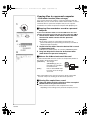
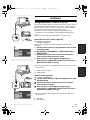
Copying files to a personal computer
- Card reader function (Mass storage)..................8
To reduce the risk of fire or shock hazard, do not
expose this equipment to rain or moisture.
ª CAUTION:
To reduce the risk of fire or shock hazard and
annoying interference, use the recommended
accessories only.
Install/Connection
Installing MotionDV STUDIO 5.3E LE .....................9
Installing Video Stream Driver...............................10
Installing USB Driver (Windows 98SE only)..........11
Connecting the movie camera
to personal computer..........................................12
Software
Using MotionDV STUDIO 5.3E LE ........................13
Using the movie camera as a Web Camera
(Windows XP SP1/SP2) .....................................14
Others
To disconnect USB cable safely ............................15
If you no longer need software or driver
(Uninstall) ...........................................................15
Notes.....................................................................16
3
VQT0W26
EB-ENGText.fm
4 ページ
2005年10月11日 火曜日 午後9時27分
Before Use
Introduction
You can connect your personal computer to a
movie camera that has a USB terminal. You can
transfer images recorded with your movie
camera to your personal computer.
By controlling the movie camera from the personal
computer, the desired images from tape or camera
can be acquired into the personal computer.
Notes on these instructions
≥Microsoft®, Windows®, Windows Messenger® and
DirectX® are either registered trademarks or
trademarks of Microsoft Corporation in the United
States and/or other countries.
≥Intel®, Pentium® and Celeron® are the registered
trademarks or trademarks of the Intel Corporation
in the United States and/or other countries.
≥All other names, company names, product names,
etc. in these instructions are the trademarks or
registered trademarks of their respective
corporations.
≥Microsoft product screen shot(s) reprinted with
permission from Microsoft Corporation.
≥The names of the products you are using may
differ from the names given in the text. Depending
on the operating environment and other factors,
the contents of the screens used in these
instructions may not necessarily match what you
will see on your screen.
≥Although the screens in these operating
instructions are shown in English for the sake of
example, other languages are supported as well.
≥In this manual, the Panasonic make digital video
camera with USB terminal is referred to as movie
camera.
≥These instructions do not cover the basic
operations of the personal computer or define any
terms. For this information, refer to the operating
instructions which accompany your personal
computer.
4
VQT0W26
Names and functions of
packaged items
1) USB connection cable:
≥This cable is used to connect a personal
computer with your movie camera.
2) CD-ROM:
MotionDV STUDIO 5.3E LE (l 9)
Video Stream Driver (l 10)
USB Driver (l 11)
Acrobat Reader
DirectX
≥When your OS is Windows 98SE, USB Driver
enables you to use the USB connection cable.
Make sure USB Driver is installed before
connecting cable.
≥If the movie camera is connected to your
personal computer, you can send video from
the movie camera to the other parties via the
network. (Windows XP SP1/SP2.)
≥To activate MotionDV STUDIO, Microsoft
DirectX 9.0b/9.0c should be installed. If it is
not installed in your personal computer, you
can install it from the supplied CD-ROM. Click
[DirectX] on the CD launcher and then follow
the instruction message on the screen to
install it. (If you install Video Stream Driver,
Microsoft DirectX 9.0b is automatically
installed.)
≥Using the MotionDV STUDIO 5.3E LE software
allows you to capture the video recorded on a
tape or images viewed through the lens of a
camera. Connecting the movie camera with
the DV cable also allows you to output images
edited on the personal computer to the tape in
the movie camera.
≥If the movie camera is connected to the
personal computer with a USB cable or does
not have the DV input function, you cannot
output the video from the personal computer to
the movie camera.
EB-ENGText.fm
5 ページ
2005年10月7日 金曜日 午後8時13分
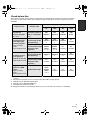
Check before Use
The software available and the drivers required will vary depending on the OS of the personal computer.
Check the software used and the drivers required using the table below and then install them from the
CD-ROM.
Installation of drivers
Purpose of use
Copying files in the
card onto the
personal computer
≥PC mode
Capturing pictures
on the tape to the
personal computer
≥Tape recording
mode
≥Tape playback mode
Software used
Windows
XP
Windows
2000
Windows
Me
Windows
98SE
No software
(The movie camera is
used as a removable
disc.)
Not
required
Not
required
Not
required
USB
driver
MotionDV STUDIO
(Connect with the DV
cable (optional).)
Not
required
°1
Not
required
°1
Not
required
°1
Not
available
MotionDV STUDIO
(Connect with the USB
connection cable
(supplied).)
Video
Stream
Driver
°1, 2, 3, 5
Video
Stream
Driver
°1, 2, 4
Not
available
Not
available
MotionDV STUDIO
(Connect with the DV
cable (optional).)
Not
required
°1
Not
required
°1
Not
required
°1
Not
available
Not
available
Not
available
Not
available
Not
available
Video
Stream
Driver
°1, 3, 5
Not
available
Not
available
Not
available
Recording pictures
on the personal
computer to the tape MotionDV STUDIO
≥Tape playback mode (Connect with the USB
connection cable
(supplied).)
Using the movie
camera as a WEB
camera
Windows Messenger
≥Tape recording
mode
≥Tape playback mode
°1 If DirectX 9.0b/9.0c is not installed in the personal computer you use, the installation of [DirectX] is
required.
°2 The personal computer you use should comply with USB 2.0 (High Speed).
°3 Available only on Windows XP SP1/SP2
°4 Available only on Windows 2000 SP4
°5 Not required for Windows XP SP2
≥If using other brands of video editing software, please consult with your retailer for compatibility.
5
VQT0W26
VQT0W26ENG.book
6 ページ 2005年10月7日 金曜日 午前10時31分
Operating environment
≥Despite having the operating environment
indicated, it may not be possible to use the
program with some types of personal computer.
≥A CD-ROM drive is required to install this program.
MotionDV STUDIO 5.3E LE for DV
OS:
IBM® PC/AT compatible personal computer with
pre-installed;
Microsoft Windows XP Home Edition/Professional
SP1/SP2
Microsoft Windows 2000 Professional SP4
Microsoft Windows Me (Millennium Edition) (Only in
DV connection)
CPU:
Intel Pentium III 700 MHz/AMD Athlon 1 GHz or
higher (including compatible CPU)
Graphic display:
High Colour (16 bit) or more (32 bit recommended)
Desktop resolution of 1024k768 pixels or more
(Supporting the overlay of DirectDraw)
4 MB or more video memory
Sound:
PCM sound source (compatible DirectSound)
RAM:
256 MB or more (Adding more memories enables
you to operate the personal computer more
comfortably.)
Hard disk:
Ultra DMA - 33 or more
Free hard disk space:
640 MB or more
(When you capture video, 1 GB is needed for the
data of approx. 4 minutes.)
Interface:
DV (IEEE1394) terminal (IEEE1394.a)
USB 2.0 (compatible Hi-Speed mode)
Other requirements:
Mouse
Software:
DirectX 9.0b/9.0c
Windows Media Player 6.4 to 10
6
VQT0W26
≥When 2 or more USB devices are connected to a
personal computer, or when devices are
connected through USB hubs or by using
extension cables, proper operation is not
guaranteed.
≥When connected to the keyboard USB terminal,
normal function may not be possible.
≥This instruction manual describes only the
procedures for installation, connection and
start-up. Please read the PDF-based instructions
for how to use the MotionDV STUDIO 5.3E LE.
≥To view the installed operating instructions, Adobe
Acrobat Reader 5.0 or later is required. Please
install Adobe Acrobat Reader from the supplied
CD-ROM.
≥Before using for the first time, select [Readme
First] from [start] >> [All Programs (Programs)] >>
[Panasonic] >> [MotionDV STUDIO 5.3E LE for
DV], and read any supplementary details or
updates.
≥The software is available in English, German and
French.
VQT0W26ENG.book
7 ページ 2005年10月7日 金曜日 午前10時31分
Video Stream Driver
USB Driver
OS:
IBM PC/AT compatible personal computer with
pre-installed;
Microsoft Windows XP Home Edition/Professional
SP1/SP2
CPU:
Intel Pentium III 450/Celeron 400 MHz or higher
(including compatible CPU)
Graphic display:
High Colour (16 bit) or more
Desktop resolution of 800k600 pixels or more
RAM:
128 MB or more (256 MB or more recommended)
Free hard disk space:
250 MB or more
Communication Speed:
56 kbps or faster is recommended
Interface:
USB 1.1 or later
Other requirements (to send/receive audio):
Sound card
Speaker or headphones
Software:
Windows Messenger 5.0/5.1
DirectX 9.0b/9.0c
OS:
IBM PC/AT compatible personal computer with
pre-installed;
Microsoft Windows 98 Second Edition
CPU:
Intel Pentium II/Celeron 300 MHz or higher
(including compatible CPU)
RAM:
32 MB or more (64 MB or more recommended)
Interface:
USB 1.1 or later
To use the movie camera as a Web Camera, the
following conditions must be met.
≥In the case of Windows XP SP1/SP2 is needed, to
upgrade Windows XP to SP1/SP2, click [start] >>
[All Programs] >> [Windows Update]. (Requires
internet connection.)
≥You have direct dial-up connection capability to the
internet. Also, you and the other person(s) are in
the same network (LAN).
≥Install the Windows Messenger 5.0/5.1.
≥If the installed version is not latest, update it by
performing the Windows update.
≥If you are connected to the Internet through a
firewall or a router, proper communication will not
be possible.
≥The installer is available only in English but can be
used on operating systems using other languages.
≥The other parties also need to use
Windows Messenger on Windows XP during the
communication.
7
VQT0W26
VQT0W26ENG.book
8 ページ 2005年10月7日 金曜日 午前10時31分
Copying files to a personal computer
- Card reader function (Mass storage)
If you connect the movie camera to a personal computer with the
USB cable, you can use the movie camera which includes a card as
a external drive of a personal computer and you can copy files
recorded on the card to the personal computer with [Explorer] etc.
1
PC
ª Copying files recorded on a card to a personal
computer
If your OS is Windows 98SE, install the USB Driver first and
connect the movie camera with the personal computer. (l 11)
1 Select the PC Mode on the movie camera and then
connect the movie camera with the personal
computer.
2
≥If the movie camera is connected in the PC mode, the
[Removable Disk] icon representing the memory card drive is
displayed in [My Computer].
2 Double-click the folder where the desired file is saved
in [Removable Disk].
≥Still pictures (JPEG format) are saved in [100CDPFP] folder.
3
3 Drag and drop the file onto the destination folder
(hard disk of the personal computer).
ª Note on the folder structure of the card
A card formatted with the movie camera is composed by folders as
described in the illustration below.
[100CDPFP]: The images
(IMGA0001.jpg, etc.) in
DCIM
this folder are recorded in
256
100CDPFP
the JPEG format.
MISC
[MISC]:
Files in which DPOF data
has been set to the image
are in this.
≥The other folders in the card are necessary items in the folder
structure. They have nothing to do with actual operations.
ª Viewing files copied from a card
1 Open the folder to which still picture files are copied.
2 Double-click a file you want to view.
≥The software activated to view still picture files varies
depending on the settings of the personal computer you use.
8
VQT0W26
VQT0W26ENG.book
9 ページ 2005年10月7日 金曜日 午前10時31分
Install/Connection
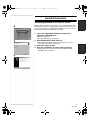
Installing MotionDV STUDIO 5.3E LE
2
DirectX 9.0b is installed in your PC if it is not installed beforehand.
Applications which are compatible with older version of DirectX may
not operate properly by installing DirectX 9.0b. In this case, consult
the manufacturers of the applications disabled.
1 Insert the supplied CD-ROM into the personal
computer’s CD-ROM drive.
≥Quit all applications.
≥The [Setup Menu] screen appears.
3
2 Click [MotionDV STUDIO 5.3E LE].
≥After reading the displayed contents, please carry out the
installation according to instructions.
3 Select the video system.
4 After the completion of setup, click on [Finish].
≥Sample data is installed concurrently with the MotionDV
STUDIO 5.3E LE software.
4
9
VQT0W26
VQT0W26ENG.book
10 ページ 2005年10月7日 金曜日 午前10時31分
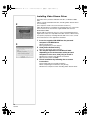
Installing Video Stream Driver
2
Install this when your OS is Windows XP SP1, or Windows 2000
SP4.
(When your OS is Windows XP SP2, installing Video Stream Driver
is not needed.)
(The computer needs to be connected to the Internet.)
Video Stream Driver is needed to be installed when you connect the
movie camera to the PC with the supplied USB cable and use
MotionDV STUDIO.
DirectX 9.0b is installed in your PC if it is not installed beforehand.
Applications which are compatible with older version of DirectX may
not operate properly by installing DirectX 9.0b. In this case, consult
the manufacturers of the applications disabled.
1 Insert the supplied CD-ROM into the personal
3
computer’s CD-ROM drive.
≥Quit all applications.
≥The [Setup Menu] screen appears.
2 Click [Video Stream Driver].
≥The set up program starts running.
3 You may be required to install DirectX 9.0b
depending on the environment of the personal
computer. In this case, click [Yes] to install it.
≥Reboot the computer after DirectX is installed.
≥Do not take out the CD-ROM.
4 Finish installation by following the on-screen
instructions.
≥Click [Next] and proceed with installation.
≥After completing the installation, click [Finish].
≥Reboot the computer to finish installing Video Stream Driver.
10
VQT0W26
VQT0W26ENG.book
11 ページ 2005年10月7日 金曜日 午前10時31分
Installing USB Driver (Windows 98SE only)
3
The USB Driver to be installed is the dedicated Mass Storage Driver
for Windows 98SE. When your OS is any of Windows XP, Windows
2000 and Windows Me, you do not have to install the USB Driver
because the standard driver is activated for the operation.
Please install USB device driver first before connecting the movie
camera to your personal computer with the USB connection cable.
1 Turn on the personal computer and start up
Windows.
2 Insert the supplied CD-ROM into the personal
computer’s CD-ROM drive.
≥Quit all applications.
≥The [Setup Menu] screen appears.
5
3 Click [USB Driver].
≥The set up program starts running.
4 Finish installation by following the on-screen
instructions.
≥Click [Next] and proceed with installation.
≥After completing the installation, click [Finish].
5 Click [Finish] when the [Restarting Windows]
dialogue appears.
≥Reboot the computer to finish installing USB Driver.
≥Installation continues after the computer reboots if you
selected additional software.
≥A message indicating a conflict between versions may be
displayed during the installation. This will not cause a problem.
Simply click [Yes] to proceed with the installation.
11
VQT0W26
VQT0W26ENG.book
3
12 ページ 2005年10月7日 金曜日 午前10時31分
Connecting the movie camera to personal
computer
≥When you use a personal computer, use of the AC adaptor is
recommended for the power supply of the movie camera.
4
1
ª Confirmation before connection
(for Windows XP/2000)
When you connect the personal computer and the movie camera
with the USB connection cable and then use MotionDV STUDIO on
Windows XP (SP1/SP2) or Windows 2000 (SP4), check the driver of
the USB host controller.
≥It is required to use the driver for which [Microsoft] is
displayed on [Driver Provider] in [Driver] tab.
1 Select [start] >> [Settings] >> [Control Panel] to start
[System].
≥[System Properties] is displayed.
2 Click [Hardware] tab and then click [Device Manager].
3 Right-click [Enhanced Host Controller] etc. in [Device
Manager] and then select [Properties].
≥The indication [Enhanced Host Controller] is changed as
[EHCI] depending on the host controller you use.
4 Click [Driver] tab to check the description on [Driver
2
Provider].
≥If [Microsoft] is displayed on [Driver Provider], the confirmation
procedure is completed.
If a description other than [Microsoft] is displayed
≥Update the driver with the following procedure.
1 Click [Update Driver...].
2 Check [Install from a list or specific location
(Advanced)] and then click [Next].
3
≥When your OS is Windows 2000, click [Next] after [Update
Device Driver Wizard] appears.
3 (When your OS is Windows XP)
Check [Don’t search. I will choose the driver to
install] and then click [Next].
4
(When your OS is Windows 2000)
Check [Display a list of the known drivers for this
device so that I can choose a specific driver] and
then click [Next].
4 Click [Standard Universal PCI to USB Host
Controller] and then click [Next].
5 Click [Finish].
≥The update of the driver is completed. Connect the movie
camera.
12
VQT0W26
VQT0W26ENG.book
13 ページ 2005年10月7日 金曜日 午前10時31分
Software
Using MotionDV STUDIO 5.3E LE
If you wish to capture data from a tape, set the movie camera to tape
playback mode and insert the tape. If you wish to capture images
from the lens of the movie camera, set the movie camera to the tape
recording mode and remove the tape and the card.
≥If a short-cut icon has been created on the desktop during
installation, it is also possible to start by double-clicking on the
icon.
≥Please read the PDF-based instructions for how to use it.
1)
2)
With USB connection cable (supplied)
OS: Windows XP SP1/SP2
Windows 2000 SP4
The personal computer should be compatible with USB 2.0
Hi-Speed.
4
1 Set the movie camera to tape playback mode or tape
recording mode.
2 Set [BASIC] or [ADVANCE] >> [USB FUNCTION] >>
[MOTION DV].
3 Connect the movie camera to personal computer
with auxiliary USB connection cable.
4 Select [start] >> [All Programs (Programs)] >>
[Panasonic] >> [MotionDV STUDIO 5.3E LE for DV] >>
[MotionDV STUDIO LE for DV].
≥You cannot record the video edited by the PC onto the tape in the
movie camera.
1) USB connection cable
2) USB terminal
With DV cable (optional)
1)
OS: Windows Me/2000/XP
1 Set the movie camera to tape recording mode or tape
playback mode.
2 Connect the movie camera to personal computer
2)
DV
3
with auxiliary DV cable.
3 Select [start] >> [All Programs (Programs)] >>
[Panasonic] >> [MotionDV STUDIO 5.3E LE for DV] >>
[MotionDV STUDIO LE for DV].
≥You can record the video edited by the PC onto the tape in the
movie camera.
1) DV cable
2) DV terminal
13
VQT0W26
VQT0W26ENG.book
14 ページ 2005年10月7日 金曜日 午前10時31分
Using the movie camera as a Web Camera
(Windows XP SP1/SP2)
To upgrade Windows XP to SP1/SP2, select [start] >>
[Windows Update].
If the movie camera is connected to your personal computer, you
can send video and sound from the movie camera to the other
parties via the network. Audio may also be exchanged if the
personal computer is configured accordingly. (You can use the
microphone equipped with the personal computer instead of the one
on the movie camera.)
≥Refer to page 6 for the minimum requirements.
1)
2)
ª Connecting the movie camera to personal
computer (For using as a Web Camera)
1 Install Video Stream Driver and then make the movie
camera recognized by a personal computer. (l 10)
3)
2 Set [ADVANCE] >> [USB FUNCTION] >> [WEBCAM].
3 Connect the movie camera to personal computer
with auxiliary USB connection cable.
4 Start the Windows Messenger.
≥Click [start] >> [Programs] >> [Windows Messenger].
1) USB connection cable
2) USB terminal
3) The WEB CAMERA mode screen
≥To send pictures recorded on a tape to other personal computer
using the Windows Messenger, set [BASIC] >> [USB FUNCTION]
>> [WEBCAM] on tape playback mode before connecting the
movie camera to your personal computer.
When you use the movie camera as a Web camera
When you use the movie camera as a Web camera in the tape
playback mode, the indication of the operation icon is different from
the one in usual operation.
1
2
1 In usual operation
2 In the WEB CAMERA mode (Tape playback mode)
≥Even if you move the joystick up/down/right/left (
, ∫, 5,
6), the selected direction on the operation icon is not lit in yellow.
≥The operation icon blinks on instead of appearing from the side of
the screen when you press the center of the joy stick.
14
VQT0W26
VQT0W26ENG.book
15 ページ 2005年10月7日 金曜日 午前10時31分
1
Others
To disconnect USB cable safely
2
If USB cable is disconnected while computer is on, error dialogue
may appear. In such case click [OK] and close the dialogue box. By
following the steps below you can disconnect the cable safely.
1 Double click the
icon in task tray.
≥Hardware disconnect dialogue appears.
2 Select [USB Mass Storage Device] and click [Stop].
3 Verify [Matshita DVC USB Device] is selected and
click [OK].
≥Click [OK], and you can safely disconnect the cable.
3
Note on the driver name displayed
The driver name displayed will differ depending on your OS,
operating environment and the mode of the movie camera.
≥Windows XP/2000:
The name is displayed as [USB Mass
Storage Device] or [Matshita DVC USB
Device] in PC mode.
≥Windows Me:
The name is displayed as [USB Disk] or
[Matshita DVC] in PC mode.
≥If you use Windows 98SE, the icon is not displayed on the task
tray.
≥Make sure movie camera’s function light is off and disconnect the
cable. Please also read the movie camera’s operating instructions.
1
~~~~~~~~~~~~~~~~~~~~~~~~~~~~~~~~~~
If you no longer need software or driver
(Uninstall)
The screens may vary with the type of the OS. (In this manual,
explanation is offered with Windows XP screen.)
1 Select [start] (>> [Settings]) >> [Control Panel], select
the software or the driver from [Add/Remove
Programs] to uninstall.
≥Uninstalling steps may vary depending on the OS. Please refer to
the user manual of your OS.
15
VQT0W26
VQT0W26ENG.book
16 ページ 2005年10月7日 金曜日 午前10時31分
Notes
≥Do not disconnect USB connection cable while the
access light of the movie camera is on. It may
freeze the software or destroy the data in transfer.
Please refer to the operating instructions of movie
camera.
≥When the movie camera is switched to the
PC mode while it is connected to the personal
computer, the operation mode of the movie
camera cannot be switched. In this case,
disconnect the USB connection cable. Switch the
operation mode of the movie camera and
reconnect the cable.
≥If the movie camera is used as a Web Camera, the
quality of the video to be exchanged will depend
on the Internet connection status.
≥In the WEB CAMERA mode, video (picture)
cannot be recorded onto a tape or a card.
≥In the WEB CAMERA mode, the audio may be
interrupted in the midway of communication
depending on the communication environment or
the performance of the personal computer.
≥If you connect the USB connection cable while you
operate a tape in the tape playback mode, the tape
will be stopped.
≥If you connect the USB connection cable in the
WEB CAMERA mode (tape recording mode), the
time code indication, the SP/LP indication, or icons
disappear.
≥In the WEB CAMERA mode (tape playback mode),
the operation icon is changed.
≥When the tape recording mode of the movie
camera is switched to the PC mode, a warning
message may be displayed. You may simply
ignore it.
≥When you are using Windows XP or Windows
2000, you may install or uninstall this software
after logging on by setting the user name to
Administrator or to a user name having equivalent
authority.
≥If the movie camera is used as a Web Camera
while virus checking software is running, the movie
camera’s operation may stop midway through. In
this case, exit the Windows Messenger, reconnect
the movie camera and restart the Windows
Messenger.
≥We recommend using AC adaptor as the power
source for the movie camera when connecting to
the personal computer. Data may be lost if the
battery power is lost while transferring.
≥Do not delete the folders in a card. The card may
not be recognized if deleted.
16
VQT0W26
≥If you install the USB Driver or Video Stream
Driver while the USB connecting cable is being
connected, or if you don’t follow these operating
instructions, the movie camera will not be
recognized correctly. In this case, delete the driver
from [Device Manager] as described below,
uninstall the driver, and re-install it.
1 Set the movie camera to tape recording mode
or tape playback mode, connect it to the
personal computer, and delete [USB Video
Device] (or [Panasonic DVC DV Stream
Device]) from [Device Manager].
2 If you use Windows 98SE, set the movie
camera to PC mode and delete [Panasonic
DVC USB Storage].
EB-ENGText.fm
17 ページ
2005年10月7日 金曜日 午後8時13分
17
VQT0W26
VQT0W26ENG.book
18
VQT0W26
18 ページ 2005年10月7日 金曜日 午前10時31分
VQT0W26ENG.book
19 ページ 2005年10月7日 金曜日 午前10時31分
19
VQT0W26
VQT0W26ENG.book
20 ページ 2005年10月7日 金曜日 午前10時31分
B
VQT0W26
F1005Nm0 ( 5000 A)
C
Matsushita Electric Industrial Co., Ltd.
Web site: http://www.panasonic.co.jp/global/