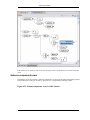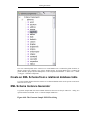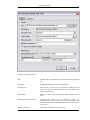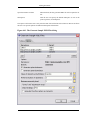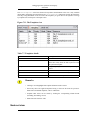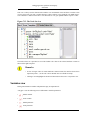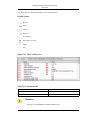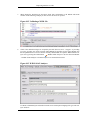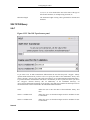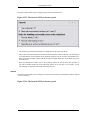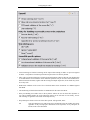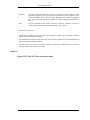
1
oXygen User Manual for Eclipse SyncRO Soft Ltd. Contributor: Sean Wheller oXygen User Manual for Eclipse SyncRO Soft Ltd. Contributor: Sean Wheller Copyright © 2002-2006 SyncRO Soft Ltd. All Rights Reserved. Many of the designations used by manufacturers and sellers to distinguish their products are claimed as trademarks. Where those designations appear in this book, and SyncRO Soft Ltd., was aware of a trademark claim, the designations have been printed in caps or initial caps. While every precaution has been taken in the preparation of this book, the publisher assumes no responsibility for errors or omissions, or for damages resulting from the use of the information contained herein. Third party software components are distributed in the <oXygen/> installation packages, including the Java Runtime Environment (JRE), Docbook DTD and stylesheets. This product includes software developed by the Apache Software Foundation (http://www.apache.org): the Apache FOP, Xerces XML Parser and Xalan XSLT. These products are not the property of SyncRO Soft Ltd.. To the best knowledge of SyncRO Soft Ltd. owners of the aforesaid products granted permission to copy, distribute and/ or modify the software and its documents under the terms of the Apache Software License, Version 1.1. Other packages are used under the GNU Lesser General Public License. Users are advised that the JRE is provided as a free software, but in accordance with the licensing requirements of Sun Microsystems. Users are advised that SyncRO Soft Ltd. assumes no responsibility for errors or omissions, or for damages resulting from the use of <oXygen/> and the aforesaid third party software. Nor does SyncRO Soft Ltd. assume any responsibility for licensing of the aforesaid software, should the relevant vendors change their terms. By using <oXygen/> the user accepts responsibility to maintain any licenses required by SyncRO Soft Ltd. or third party vendors. Unless SyncRO Soft Ltd. declares in writing that the <oXygen/> license is inclusive of third party licensing. Table of Contents 1. Introduction ............................................................................................................ 1 Key Features and Benefits .................................................................................... 1 About the <oXygen/> User Manual ........................................................................ 2 2. Installation ............................................................................................................. 4 Installation Requirements ..................................................................................... 4 Platform Requirements ................................................................................. 4 Operating System, Tools and Environment Requirements ................................... 4 Operating System ................................................................................ 4 Tools ................................................................................................ 4 Environment Prerequisites .................................................................... 4 Installation Instructions ........................................................................................ 5 Starting <oXygen/> plugin .................................................................................... 5 Obtaining and installing an <oXygen/> license ......................................................... 6 Named User license installation ..................................................................... 6 How floating (concurrent) licenses work .......................................................... 8 How to install the <oXygen/> license server as a Windows service ............... 9 How to release a floating license .......................................................... 10 Upgrading <oXygen/> ....................................................................................... 10 Uninstalling the <oXygen/> plugin ....................................................................... 11 Performance problems ....................................................................................... 11 Large documents ....................................................................................... 11 3. Getting started ....................................................................................................... 13 Supported types of documents ............................................................................. 13 Getting help ..................................................................................................... 13 Perspectives ..................................................................................................... 13 <oXygen/> XML perspective ...................................................................... 13 Supported editor types ....................................................................... 16 <oXygen/> XSLT Debugger Perspective ....................................................... 17 <oXygen/> XQuery Debugger Perspective ..................................................... 18 4. Editing documents ................................................................................................. 20 Working with Unicode ....................................................................................... 20 Opening and saving Unicode documents ........................................................ 20 Opening and closing documents ........................................................................... 20 Creating new documents ............................................................................. 21 <oXygen/> plugin wizards .................................................................. 21 Creating Documents based on Templates ............................................... 26 Saving documents ..................................................................................... 31 Closing documents .................................................................................... 31 Creating and sharing new document templates ................................................ 31 Creating a new document template ....................................................... 31 Sharing document templates ................................................................ 32 Viewing file properties ............................................................................... 32 Editing XML documents .................................................................................... 32 Associate a schema to a document ................................................................ 32 Setting a schema for the Content Completion ......................................... 32 Setting a default schema ............................................................. 33 Adding a Processing Instruction ................................................... 33 Learning document structure ............................................................... 34 Streamline with Content Completion ............................................................ 35 Code templates ................................................................................. 38 Content Completion helper panels ........................................................ 38 The Model panel ....................................................................... 38 The Element Structure panel ............................................... 39 iv oXygen User Manual for Eclipse The Annotation panel ......................................................... 40 The Attributes panel .................................................................. 40 Debugging XML documents ....................................................................... 41 Checking XML Form ......................................................................... 41 Validating Documents ........................................................................ 42 Validate as you type .................................................................. 44 Custom validation of XML documents .......................................... 45 Document navigation ................................................................................. 46 Folding of the XML elements .............................................................. 47 Outliner view ................................................................................... 48 XML Document Overview .......................................................... 48 Modification Follow-up .............................................................. 49 Document Structure Change ........................................................ 49 The popup menu of the Outline tree ...................................... 49 Document Tag Selection ............................................................. 50 Grouping documents in XML projects ........................................................... 51 Large Documents .............................................................................. 51 Creating an included part ............................................................ 51 Creating a new project ....................................................................... 52 Including document parts with XInclude ........................................................ 55 Working with XML Catalogs ...................................................................... 57 Converting between schema languages .......................................................... 58 Formatting and indenting documents (pretty print) ........................................... 60 Viewing status information ......................................................................... 62 XML editor specific actions ........................................................................ 63 Edit actions ...................................................................................... 63 Select actions ................................................................................... 63 Source actions .................................................................................. 63 XML document actions ...................................................................... 65 XML Refactoring actions ................................................................... 65 XML Schema actions ......................................................................... 66 Smart editing .................................................................................... 67 Syntax highlight depending on namespace prefix .................................... 67 Editing XML Schema schemas ............................................................................ 67 Special content completion features .............................................................. 68 XML Schema diagram ............................................................................... 68 Introduction ..................................................................................... 68 Full model view ................................................................................ 68 Logical model view ........................................................................... 71 Schema components view ................................................................... 72 Create an XML Schema from a relational database table ................................... 73 XML Schema Instance Generator ................................................................. 73 Flatten an XML Schema ............................................................................. 77 XML Schema regular expressions builder ...................................................... 82 Generating HTML documentation for an XML Schema .................................... 84 XML Schema editor specific actions ............................................................. 88 Search References and Declarations .............................................................. 88 Editing Relax NG schemas ................................................................................. 89 Relax NG schema diagram .......................................................................... 89 Introduction ..................................................................................... 89 Full model view ................................................................................ 89 Logical model view ........................................................................... 91 Schema components view ................................................................... 92 Relax NG editor specific actions .................................................................. 93 Search References and Declarations .............................................................. 93 Editing XSLT stylesheets ................................................................................... 94 Validating XSLT stylesheets ....................................................................... 94 Custom validation of XSLT stylesheets ................................................. 94 v oXygen User Manual for Eclipse Content Completion in XSLT stylesheets ....................................................... 95 Content Completion in XPath expressions .............................................. 96 Code templates ................................................................................. 99 The XSLT Input View ............................................................................... 99 The Stylesheet Templates view .................................................................. 101 Finding XSLT references and declarations ................................................... 103 XSLT refactoring actions .......................................................................... 104 Editing XQuery documents ............................................................................... 106 Generating HTML Documentation for an XQuery Document .......................... 107 Editing CSS stylesheets .................................................................................... 108 Validating CSS stylesheets ........................................................................ 108 Content Completion in CSS stylesheets ....................................................... 108 Folding in CSS stylesheets ........................................................................ 108 Formatting and indenting CSS stylesheets (pretty print) .................................. 109 Other CSS editing actions ......................................................................... 109 Scratch Buffer ................................................................................................ 109 5. Transforming documents ....................................................................................... 110 Output formats ............................................................................................... 110 Transformation scenario ................................................................................... 111 Built-in transformation scenarios ................................................................ 112 Defining a new transformation scenario ....................................................... 112 XSLT Stylesheet Parameters ............................................................. 116 Additional XSLT Stylesheets ............................................................ 117 Scenario Macros ............................................................................. 118 XSLT/XQuery Extensions ................................................................ 119 Exporting and importing the transformation scenarios .................................... 120 XSL-FO processors ......................................................................................... 120 Common transformations .................................................................................. 121 PDF Output ........................................................................................... 121 PS Output .............................................................................................. 122 TXT Output ........................................................................................... 122 HTML Output ........................................................................................ 123 HTML Help Output ................................................................................. 124 JavaHelp Output ..................................................................................... 124 XHTML Output ...................................................................................... 124 Supported XSLT processors .............................................................................. 125 Configuring custom XSLT processors ................................................................. 128 Configuring the XSLT processor extensions paths ................................................. 128 6. Querying documents ............................................................................................ 129 Running XPath expressions ............................................................................... 129 What is XPath ........................................................................................ 129 <oXygen/>'s XPath toolbar ....................................................................... 129 Working with XQuery ..................................................................................... 131 What is XQuery ...................................................................................... 132 Syntax Highlight and Content Completion ................................................... 132 XQuery Validation .................................................................................. 132 Other XQuery editing actions .................................................................... 133 Transforming XML Documents Using XQuery ............................................. 133 How to configure eXist support in <oXygen/> .............................................. 133 How to configure Berkeley DB XML support in <oXygen/> ........................... 135 How to configure TigerLogic support in <oXygen/> ...................................... 136 How to configure X-Hive/DB support in <oXygen/> ..................................... 137 How to configure MarkLogic support in <oXygen/> ...................................... 138 7. Debugging XSLT stylesheets and XQuery documents ................................................. 140 Overview ....................................................................................................... 140 Layout .......................................................................................................... 140 Control Toolbar ...................................................................................... 142 Information views ................................................................................... 143 vi oXygen User Manual for Eclipse Multiple output documents in XSLT 2.0 ...................................................... Working with the XSLT/XQuery Debugger ......................................................... Steps in a typical debug process ................................................................. Using breakpoints ................................................................................... Inserting breakpoints ....................................................................... Removing breakpoints ..................................................................... Viewing processing information ................................................................. Context node view .......................................................................... XPath watch view ........................................................................... Breakpoints view ............................................................................ Break conditions view ...................................................................... Messages view ............................................................................... Stack view ..................................................................................... Trace history view ........................................................................... Templates view .............................................................................. Node set view ................................................................................. Variables view ................................................................................ Determining what XSL/XQuery expression generated particular output ............. 8. Profiling XSLT stylesheets and XQuery documents .................................................... Overview ....................................................................................................... Viewing profiling information ........................................................................... Invocation tree view ................................................................................ Hotspots view ......................................................................................... Working with XSLT/XQuery profiler ................................................................. 9. Importing data ..................................................................................................... Introduction ................................................................................................... Import from database ....................................................................................... Import table content as XML document ....................................................... Convert table structure to XML Schema ...................................................... Import from MS Excel files ............................................................................... Import from HTML files .................................................................................. Import from text files ....................................................................................... 10. Composing Web Service calls .............................................................................. Overview ....................................................................................................... Composing a SOAP request .............................................................................. Testing remote WSDL files ....................................................................... The UDDI Registry browser ...................................................................... Generate WSDL documentation ......................................................................... 11. Digital signature ................................................................................................ Overview ....................................................................................................... Canonicalizing files ......................................................................................... Certificates .................................................................................................... Signing files ................................................................................................... Verifying the signature ..................................................................................... 12. Configuring the editor ......................................................................................... Reset options .................................................................................................. Preferences .................................................................................................... Global ................................................................................................... Editor ................................................................................................... Format .......................................................................................... XML Format .......................................................................... CSS Format ........................................................................... Save ............................................................................................. Code Templates .............................................................................. Default Schema Association .............................................................. Content Completion ......................................................................... XSL/XPath ............................................................................ Diagram ........................................................................................ vii 143 144 144 145 145 146 146 146 146 147 148 149 150 151 152 153 154 156 158 158 158 158 159 160 162 162 163 163 167 169 170 172 176 176 176 178 179 181 182 182 183 185 185 187 188 188 188 189 191 193 194 196 197 197 199 200 202 203 oXygen User Manual for Eclipse Spell Check ................................................................................... Document Checking ........................................................................ Custom Validation .......................................................................... CSS Validator ........................................................................................ XML .................................................................................................... XML Catalog ................................................................................. XML Parser ................................................................................... XML Instances Generator ................................................................. XSLT/FO/XQuery .......................................................................... XSLT ................................................................................... Saxon6 .......................................................................... Saxon8 .......................................................................... XSLTProc ..................................................................... MSXML ....................................................................... MSXML.NET ................................................................ XQuery ................................................................................. Saxon ........................................................................... eXist ............................................................................. Berkeley DB XML .......................................................... X-Hive/DB .................................................................... MarkLogic ..................................................................... TigerLogic ..................................................................... Debugger ............................................................................... Profiler ................................................................................. FO Processors ........................................................................ XPath ................................................................................... Custom engines ...................................................................... Database ............................................................................................... Import ........................................................................................... HTTP / Proxy Configuration ..................................................................... Certificates ............................................................................................ Scenarios Management ............................................................................ View .................................................................................................... Syntax Highlight ..................................................................................... Syntax highlight elements by Prefix ............................................................ Automatically importing the preferences from the other distribution ......................... Importing/Exporting <oXygen/> preferences ........................................................ 13. Common problems ............................................................................................. viii 204 206 207 209 210 210 210 212 214 214 214 215 217 219 220 223 223 225 225 226 226 227 228 228 230 232 233 235 237 237 239 240 240 241 242 243 243 244 Chapter 1. Introduction Welcome to the User Manual of the <oXygen/> plugin for Eclipse ! This book explains how to use the 7.2.0 version of <oXygen/> effectively to develop complex XML applications quickly and easily. Please note that this manual assumes that you are familiar with the basic concepts of XML and its related technologies. The <oXygen/> plugin for Eclipse is a cross-platform application for document development using structured mark-up languages such as XML , XSD, Relax NG, XSL, DTD. <oXygen/> offers developers and authors a powerful Integrated Development Environment. Based on proven Java technology the intuitive Graphical User Interface of the <oXygen/> plugin for Eclipse is easy-to-use and provides robust functionality for editing, project management and validation of structured mark-up sources. Coupled with XSLT and FOP transformation technologies, <oXygen/> supports output to multiple target formats, including: PDF, PS, TXT, HTML and XML. Key Features and Benefits The <oXygen/> XML Editor offers the following key features and benefits. Multiplatform availability: Windows, Mac OS X, Non blocking operations, you can perform validation Linux, Solaris and transformation operations in background Support for XML, XML Schema, Relax NG , Schemat- Outliner view in sync with a non well-formed document ron, DTD, NRL schemas, XSLT, XSL:FO, WSDL, XQuery, CSS Validate XML Schema schemas, Relax NG schemas, Manual and automatic validation of XML documents DTDs, Schematron schemas, NRL schemas, WSDL, against XML Schema schemas, Relax NG schemas, XQuery and CSS DTDs, Schematron schemas and NRL schemas Multiple built-in validation engines (Xerces, libxml, Multiple built-in XSLT transformers (Saxon 6.5, Saxon MSXML 4.0, MSXML.NET) and support for custom 8 B, Saxon 8 SA, Saxon.NET, Xalan, libxslt, MSXML validation engines (Saxon SA, XSV, SQC). 3.0 / 4.0, Microsoft .NET 1.0, Microsoft .NET 2.0) and support for custom JAXP transformers. Visual schema editor with full and logical model views Easy error tracking - locate the error source by clicking on it Ready to use FOP support to generate PDF or PS docu- XInclude support ments Generate HTML documentation from XML Schemas Support for latest versions of document frameworks: Docbook and TEI. Conversions from DTD, Relax NG schema or a set of Context sensitive content assistant driven by XML documents to XML Schema, DTD or Relax NG schema Schema, Relax NG, DTD or by the edited document structure enhanced with schema annotation presenter XML Catalog support Unicode support New XML document wizards to easily create docu- Syntax coloring for XML, DTD, Relax NG compact ments specifying a schema or a DTD syntax, Java, C++, C, PHP, Perl, etc Pretty-printing of XML files Easy configuration for external FO Processors Apply XSLT and FOP transformations XPath search and evaluation support Preview transformation results as XHTML or XML or Support for document templates to easily create and in your browser share documents Import data from a database, Excel, HTML or text file Convert database structure to XML Schema Batch validate selected files in project Canonicalize and sign documents 1 Introduction Configurable actions key bindings Associate extensions with editors provided by the oXygen plugin. XSLT Debugger with Backmapping support XSLT Profiler XQuery Debugger with Backmapping support XQuery Profiler Model View Attributes View XQuery 1.0 support WSDL Support XSLT 2.0 full support XPath 2.0 support XSLT refactoring actions Document folding Generate large sets of sample XML instances from Spell checking supporting English, German and French XML Schema including locals Drag&drop support About the <oXygen/> User Manual This User Manual gives a complete overview of the <oXygen/> XML Editor and describes the basic process of authoring, management, validation of structured mark-up documents and their transformation to multiple target outputs. In this manual it is assumed that you are familiar with the use of your operating system and the concepts related to structured mark-up. The <oXygen/> XML Editor User Manual is comprised of the following parts: • Chapter 1, Introduction: Introduction - you are reading it. • Chapter 2, Installation: Installation - defines the platform and environment requirements of <oXygen/> and instructions for application installation, license installation, starting <oXygen/>, upgrade and uninstalling. • Chapter 3, Getting started: Getting started - provides general orientation and an overview of the <oXygen/>'s editing perspectives. • Chapter 4, Editing documents: Editing documents - explains how to obtain maximum benefit from the editor, project and validation features. • Chapter 5, Transforming documents: Transforming documents - explains the considerations for transformation of structured sources to multiple target format and how to obtain maximum benefit. • Chapter 6, Querying documents: Querying documents - This chapter explains the support offered by <oXygen/> for querying XML documents. • Chapter 7, Debugging XSLT stylesheets and XQuery documents: Debugging XSLT stylesheets and XQuery documents - This chapter explains how to debug XSLT stylesheets or XQuery documents. • Chapter 8, Profiling XSLT stylesheets and XQuery documents: Profiling XSLT stylesheets and XQuery documents - This chapter explains how to profile the execution of XSLT stylesheets or XQuery documents. • Chapter 9, Importing data: Importing data - This chapter explains how to import data from a database, an Excel sheet or text file. • Chapter 10, Composing Web Service calls: Composing Web Service calls - This chapter explains the facilities offered by <oXygen/> for composing and testing WSDL SOAP messages. 2 Introduction • Chapter 11, Digital signature: Digital signature - This chapter explains how to canonicalize, sign and verify the signature of documents. • Chapter 12, Configuring the editor: Configuring the editor - explains how to configure preferences of <oXygen/>. Feedback and input to the <oXygen/> User Manual is welcomed. 3 Chapter 2. Installation This section explains platform requirements and installation procedures. It also provides instructions on how to obtain and apply an <oXygen/> license, how to perform upgrades and uninstall <oXygen/> if required. If you need help at any <[email protected]>. point during these procedures please send email to Installation Requirements Platform Requirements Minimum run-time requirements are listed below. • Pentium Class Platform • 256 MB of RAM • 200 MB free disk space Operating System, Tools and Environment Requirements Operating System Windows Windows 98 or later. Mac OS minimum Mac OS X 10.0 UNIX/Linux All versions/flavors Tools Installation packages are supplied in compressed archives. Ensure you have installed a suitable archive extraction utility with which to extract the archive. The MD5 sum is available on the Download page [http://www.oxygenxml.com/download.html] for every archive. You should check the MD5 sum of the downloaded archive with a MD5 checking tool available on your platform. Environment Prerequisites Prior to installation ensure that your installed Eclipse platform is the following: • the latest stable Eclipse version available at the release date. The current version works with Eclipse 3.1.2. • Sun Microsystems Java VM version 1.4 or later (available at http://java.sun.com) in case you use an installation kit without Java VM. For Mac OS X, Java VM updates are available at ht4 Installation tp://www.apple.com/macosx/features/java/. Installation Instructions Prior to proceeding with the following instructions, please ensure that your system complies with the prerequisites detailed in the installation requirements. There are two ways of installing the <oXygen/> Eclipse plugin: the Update Site method and the zip archive method. Procedure 2.1. Plugin installation - the Update Site method 1. Start Eclipse. Choose the menu option: Help / Software Update / Find and Install. Select the checkbox: "Search for new features to install" and press the "Next" button.. 2. From the dialog "Update sites to visit" press the button "Add update site" or "New Remote Site". 3. Enter "oXygen XML Editor" in the "Name" field and the value http://www.oxygenxml.com/InstData/Eclipse/site.xml into the "URL" field of the "New Update Site" dialog. Press the "OK" button. 4. Select the checkbox "oXygen XML Editor" and press the "Next" button. 5. Select the new feature to install "oXygen XML Editor and XSLT debugger" and press the "Next" button in the following install pages. You must accept the Eclipse restart. 6. Paste the <oXygen/> license information received in the registration email when prompted. This will happen when you use one of the <oXygen/> wizards to create an XML project or document, when you open or create a document associated with <oXygen/> or when accessing the <oXygen/> Preferences. 7. The <oXygen/> plugin is installed correctly if you can create an XML project with an <oXygen/> wizard. Procedure 2.2. Plugin installation - the zip archive method 1. Download [http://www.oxygenxml.com/InstData/Eclipse/com.oxygenxml.editor_7.2.0.zip] the zip archive with the plugin. 2. Unarchive the downloaded zip archive in the plugins subdirectory of the Eclipse install directory. 3. Restart Eclipse. Eclipse should display an entry com.oxygenxml.editor (7.2.0) in the list available from Window - Preferences - Plug-in Development - Target Platform. Starting <oXygen/> plugin The <oXygen/> plugin will be activated automatically by the Eclipse platform when you use one of the 5 Installation <oXygen/> wizards to create an XML project or document, when you open or create a document associated with <oXygen/> or when accessing the <oXygen/> Preferences. Obtaining and installing an <oXygen/> license <oXygen/> is not free software and requires a license in order to enable the application. For demonstration and evaluation purposes a time limited license is available upon request from the <oXygen/> Web Site [http://www.oxygenxml.com/register.html]. This license is supplied at no cost for a period of 30 days from date of issue. During this period <oXygen/> is fully functional enabling you to test all aspects of the application. Thereafter, the application is disabled and a permanent license must be purchased in order to use the application. For special circumstances, if a trial period of greater than 30 days is required, please contact <[email protected]>. All licenses are obtained from <oXygen/> Web Site [http://www.oxygenxml.com]. For definitions and legal details of the license types available for <oXygen/> you should consult the End User License Agreement received with the license key and available also on the <oXygen/> website at http://www.oxygenxml.com/eula.html Note Starting with version 7.1 <oXygen/> accepts a license key for a newer version in the license registration dialog, e.g. version 7.1 accepts a license key for version 8.0. Once you have obtained a license the installation procedure is described below. Named User license installation 1. Save a backup copy of the message containing the new license key. 2. Start the <oXygen/> application. 3. Copy to the clipboard the license text as explained in the message. 4. If there is a new install of the editor then it will display automatically the registration dialog when it is started. In the case you already used the editor and obtained a new license, go to Window - Preferences - oXygen and press the Register button to make the registration dialog appear. Figure 2.1. Registration Dialog 6 Installation 5. Paste the license text in the registration dialog, and press Register. You have the following alternative for the procedure of license install: Procedure 2.3. Save the license in a text file 1. Save the license key in a file named licensekey.txt. 2. Copy the file in the 'lib' folder of the installed plugin. In that way the license will not be asked when <oXygen/> will start. 3. Start Eclipse. 7 Installation How floating (concurrent) licenses work If all the floating licenses are used in the same local network the installation procedure of floating licenses is the same as for the Named User licenses. Within the same network the license management is done by communication between the instances of <oXygen/> that are connected to the same local network and that run at the same time. Any new instance of <oXygen/> that is started after the number of running instances is equal with the number of purchased licenses will display a warning message and will disable the open file action. If the floating licenses are used on machines connected to different local networks a separate license server must be started and the licenses deployed on it. Contact the <oXygen/> Support Team at <[email protected]> to request the license server kit. Procedure 2.4. Floating license server setup 1. Contact the <oXygen/> Support Team at <[email protected]> to request the license server kit. 2. Unzip the zip archive containing the license server in a folder on your server machine. After that if you want to install the license server as a Windows service go to the special section which describes that. 3. You have to configure the server to look into a license directory (by default is [Server License Install Directory]/licenses) and use a certain TCP/IP port for communication (by default port 12346 is used). The license directory will contain the license files to be managed. A license file must begin with "license" and it has to have the extension "txt". It is the job of the license server to sum up the total number of licenses contained in the license files from the licenses directory. To change the default configuration of the license server the following parameters have to be used: • -licenseDir followed by the path of the directory where the license files will be placed; • -port followed by the port number used to communicate with <oXygen/> instances. After the floating license server is set up the <oXygen/> application can be started and configured to request a license from it: Procedure 2.5. Request a floating license from the license server 1. Start <oXygen/>. 2. Click Help -> Register.... The license dialog is displayed. 3. Check the Use a license server checkbox. 4. Fill-in the Host text field with the host name or IP address of the license server. 5. Fill-in the Port text field with the port number used for communicating with the license server. Default is 12346. 8 Installation 6. Click the Register button. If the maximum number of available licenses was not exceeded a license key is received from the floating license server and registered in <oXygen/>. If the maximum number of licenses was exceeded a warning dialog will pop up letting the user know about the problem. Figure 2.2. Floating license number exceeded The error message contains information about the users who requested and successfully received the floating licenses. How to install the <oXygen/> license server as a Windows service In order to install the <oXygen/> license server as a Windows service run the following command from the command line in the install folder of the license server: installWindowsService.bat After installing the server as a Windows service, use the following two commands to start and stop the license server: startWindowsService.bat stopWindowsService.bat Uninstallation of the Windows service requires the following command: uninstallWindowsService.bat The installService.bat script installs the <oXygen/> license server as a Windows service with the name "oXygenLicenseServer" and accepts two parameters: the path of the folder containing the floating license key files and the local port number on which the server accepts connections from instances of the <oXygen/> XML Editor. The parameters are optional. The default values are: licenses for the license file folder 12555 for the local port number 9 Installation The JAVA_HOME variable must point to the home folder of a Java runtime environment installed on your Windows system. The startService.bat script starts the Windows service so that the license server can accept connections from <oXygen/> clients. The stopService.bat script stops the Windows service. The license server is shut down and it cannot accept connections from <oXygen/> clients. The uninstallService.bat script uninstalls the Windows service created by the installService.bat script. The license server creates two log files in the directory where the license server is installed: outLicenseServer.log the standard output stream of the server errLicenseServer.log the standard error stream of the server The license server should be installed in a folder which does not contain blank spaces in the path name. Otherwise the install script fails. How to release a floating license To release a floating license key so that it can be registered for other user or for the cases when you do not have Internet access (and you own also an individual license to which you want to switch from the floating license), you do not have to disable or to uninstall the <oXygen/> plugin. All you have to do is to go to the main <oXygen/> preferences panel, press the Register button, uncheck the Use a license server checkbox in the license registration dialog, paste the individual license key and press OK in the dialog. If you only want to stop using the <oXygen/> plugin just uncheck the checkbox and press the OK dialog. This will release the floating license and leave the plugin in the unregistered state. Upgrading <oXygen/> From time to time, upgrade and patch versions of <oXygen/> are released to provide enhancements that rectify problems, improve functionality and the general efficiency of the application. This section explains the procedure for upgrading <oXygen/> while preserving any personal configuration settings and customizations. Procedure 2.6. Upgrade Procedure 1. Uninstall the <oXygen/> plugin (see Uninstall procedure). 2. Follow the Installation instructions. 3. Restart the Eclipse platform. 4. Start the <oXygen/> plugin to ensure that the application can start and that your license is recognized by the upgrade installation. 5. If you are upgrading to a major version, for example from 5.1 to 6.0, then you will need to enter the new license text into the registration dialog that is shown when the application starts. 6. Select Window → Preferences -> Plug-In Development -> Target Platform and next to the 10 Installation com.oxygenxml.editor list entry you should see the version number of the newest installed plugin. If the previous version was 6.2.7, the list entry should now contain 7.0.0. Uninstalling the <oXygen/> plugin Warning The following procedure will remove the <oXygen/> plugin from your system. It will not remove the Eclipse platform. If you wish to uninstall Eclipse please see its uninstall instructions. Procedure 2.7. Uninstall Procedure 1. Choose the menu option: Help / Software Update / Manage Configuration and from the list of products select <oXygen/> XML Editor and XSLT Debugger. 2. Select Disable 3. Accept the restart of the Eclipse IDE. 4. Again choose the menu option: Help / Software Update / Manage Configuration and from the list of products select <oXygen/> XML Editor and XSLT Debugger. 5. Enable Show Disabled Features from the dialog toolbar. 6. From the right section of the displayed window choose Uninstall. 7. After the uninstall procedure is complete accept the Eclipse restart. 8. If you wish to completely remove the application directory and any work saved in it, you will have to delete this directory manually. To remove the application configuration and any personal customizations delete the Application Data\com.oxygenxml directory on Windows / .com.oxygenxml on Linux from the user home directory. Performance problems Large documents If <oXygen/> is used on large documents (more than 10 MB) and you see that performance slows down considerably after some time then a possible cause is that it needs more memory in order to run properly. You can increase the maximum amount of memory available to <oXygen/> plugin by specifying the parameters -vmargs -Xmx in the command used to launch the Eclipse platform. Warning The maximum amount of memory should not be equal to the physical amount of memory available on the machine because in that case the operating system and other applications will have no memory available. 11 Installation Note The amount of memory allocated for the FOP operations is controlled by a different setting available in <oXygen/> Preferences: Memory available to the built-in FOP. Example 2.1. Example of Eclipse start command C:\eclipse\eclipse.exe -vmargs -Xmx256m Modifying the value from 256 to 512 changes the memory available from 256 to 512. 12 Chapter 3. Getting started Supported types of documents The <oXygen/> XML Editor provides a rich set of features for working with: • XML documents and applications • XSL stylesheets - transformations and debugging • Schema languages: XML Schema, Relax NG (full and compact syntax), NRL, Schematron, DTD • Querying documents using XPath and XQuery • Analyzing, composing and testing WSDL SOAP messages Getting help Online help is available at any time while working in <oXygen/> by going to Help → Help Contents → oXygen User Manual for Eclipse Perspectives The <oXygen/> interface uses standard interface conventions and components to provide a familiar and intuitive editing environment across all operating systems. In <oXygen/> you can work with documents in one of the perspectives: Editor perspective Editing of documents is supported by specialized and synchronized editors and views. XSLT Debugger perspective XSLT stylesheets can be debugged by tracing their execution step by step. XQuery Debugger perspective XQuery transforms can be debugged by tracing their execution step by step. <oXygen/> XML perspective The <oXygen/> XML perspective is used for editing the content of your documents. The space is organized in: As majority of the work process centers around the Editor panel, other panels can be hidden from view using the expand and collapse controls located on the divider bars. This perspective organizes the workspace in the following panels: Figure 3.1. <oXygen/> XML perspective 13 Getting started The <oXygen/> custom menu When the current editor window contains a document associated with <oXygen/> a custom menu is added to the Eclipse menu bar named after the document type: XML, XSL, XSD, RNG, RNC, Schematron, DTD, FO, WSDL, XQuery, CSS. The <oXygen/> toolbar buttons The toolbar buttons added by the <oXygen/> plugin provide easy access to common and frequently used functions. Each icon is a button that acts as a shortcut to a related function. The editor pane The editor pane is where you edit your documents opened or created by the <oXygen/> Eclipse plugin. You know the document is associated with <oXygen/> from the special icon displayed in the editor's title bar which has the same graphic pattern painted with different colors for different types of documents. The Outline view The outline view has the following functions: XML document overview, modification follow-up, document structure change, document tag selection. Figure 3.2. The Outline view 14 Getting started The <oXygen/> Text view The <oXygen/> Text view is automatically showed in the views pane of the Eclipse window to display text output from XSLT transformations, FO processor's info, warning and error messages. It contains a tab for each file with text results displayed in the view. Figure 3.3. The Text view The <oXygen/> Browser view The <oXygen/> Browser view is automatically showed in the views pane of the Eclipse window to display HTML output from XSLT transformations. It contains a tab for each file with HTML results displayed in the view. Figure 3.4. The Browser view 15 Getting started The <oXygen/> XPath view The <oXygen/> XPath view is automatically showed in the views pane of the Eclipse window to display XPath results. Figure 3.5. The XPath view Supported editor types The <oXygen/> Eclipse plugin provides special Eclipse editors identified by the following icons: • - The icon for XML documents • - The icon for XSL stylesheets • - The icon for XML Schema • - The icon for Document Type Definition schemas • - The icon for RELAX NG full syntax schemas • - The icon for RELAX NG compact syntax schemas • - The icon for Namespace Routing Language schemas • - The icon for XSL:FO documents • - The icon for XQuery documents 16 Getting started • - The icon for WSDL documents • - The icon for Schematron documents • - The icon for JS documents • - The icon for Python documents • - The icon for CSS documents <oXygen/> XSLT Debugger Perspective The XSLT Debugger perspective is used for detecting problems in an XSLT transformation process by executing the process step by step in a controlled environment and inspecting the information provided in different special views. The workspace is organized in: Figure 3.6. <oXygen/> XSLT Debugger perspective • Source document view - Displays and allows editing of data or document oriented XML files 17 Getting started (documents). • Stylesheet document view - Displays and allows editing of XSL files(stylesheets). • Output document view - Displays the transformed output that results from the input of a selected document (XML) and selected stylesheet (XSL) to the transformer. The result of transformation is dynamically written as the transformation is processed. There are three types of views for the output: a text view (with XML syntax highlight), an XHTML view and one text view for each xsl:result-document element used in the stylesheet (if it is a XSLT 2.0 stylesheet). • Control toolbar - Contains all actions needed in order to configure and control the debug process. • Information views - Distributed in two panes that are used to display various types of information that can be used to understand the transformation process. For each information type there is a corresponding tab. While running a transformation, relevant events are displayed in the various information views. This enables the developer to obtain a clear view of the transformation progress. <oXygen/> XQuery Debugger Perspective The XQuery Debugger perspective is similar to the XSLT Debugger perspective. It is used for detecting problems in an XQuery transformation process by executing the process step by step in a controlled environment and inspecting the information provided in different special views. The workspace is organized in: Figure 3.7. <oXygen/> XQuery Debugger perspective 18 Getting started • Source document view - Displays and allows editing of data or document oriented XML files (documents). • XQuery document view - Displays and allows editing of XQuery files. • Output document view - Displays the transformed output that results from the input of a selected document (XML) and selected XQuery document to the XQuery transformer. The result of transformation is dynamically written as the transformation is processed. There are two types of views for the output: a text view (with XML syntax highlight) and an XHTML view. • Control toolbar - Contains all actions needed in order to configure and control the debug process. • Information views - Distributed in two panes that are used to display various types of information that can be used to understand the transformation process. For each information type there is a corresponding tab. While running a transformation, relevant events are displayed in the various information views. This enables the developer to obtain a clear view of the transformation progress. 19 Chapter 4. Editing documents Working with Unicode Unicode provides a unique number for every character, no matter what the platform, no matter what the program, no matter what the language. Unicode is an internationally recognized standard, adopted by industry leaders. The Unicode is required by modern standards such as XML, Java, ECMAScript (JavaScript), LDAP, CORBA 3.0, WML, etc., and is the official way to implement ISO/IEC 10646. It is supported in many operating systems, all modern browsers, and many other products. The emergence of the Unicode Standard, and the availability of tools supporting it, are among the most significant recent global software technology trends. Incorporating Unicode into client-server or multi-tiered applications and websites offers significant cost savings over the use of legacy character sets. As a modern XML Editor, <oXygen/> provides support for the Unicode standard enabling your XML application to be targeted across multiple platforms, languages and countries without re-engineering. Internally, the <oXygen/> XML Editor uses 16bit characters covering the Unicode Character set. Opening and saving Unicode documents On loading documents of the type XML, XSL, XSD and DTD, <oXygen/> receives the encoding of the document from the Eclipse platform. This is then used to instruct the Java Encoder to load support for and save using the code chart specified. While in most cases you will use UTF-8, simply changing the encoding name will cause the file to be saved using the new encoding. The appendix Unicode Character Encoding provides a matrix that matches common names with Java Names. It also explains what you should type in the XML prolog to cause the document to be saved as the required encoding. To edit document written in Japanese or Chinese, you will need to change the font to one that supports the specific characters (a Unicode font). For the Windows platform, use of Arial Unicode MS or MS Gothic is recommended. Do not expect Wordpad or Notepad to handle these encodings. Use Explorer or Word to eventually examine XML documents. If an XML document which specifies the UTF-16 encoding in the prolog using the attribute encoding="UTF-16" is edited in <oXygen/> and saved on disk the byte order mark (BOM) which always begins such an XML document is created by the save operation according with the byte order accepted by the CPU of that computer. That means that a UTF-16 document created on a Windows + Intel computer, where the byte order mark is UnicodeLittle and loaded and saved in <oXygen/> running on a Mac OS computer, where the byte order mark is UnicodeBig, is saved with the UnicodeBig encoding. Note The naming convention used under Java does not always correspond to the common names used by the Unicode standard. For instance, while in XML you will use encoding="UTF-8", in Java the same encoding has the name "UTF8". Opening and closing documents As with most editing applications, <oXygen/> lets you open existing documents, save your changes and close them as required. 20 Editing documents Creating new documents <oXygen/> plugin wizards The <oXygen/> plugin installs a series of Eclipse wizards for easy creation of new documents. Using these wizards you let <oXygen/> fill in details like the system ID or schema location of a new XML document, the minimal markup of a Docbook article or the namespace declarations of a Relax NG schema. Procedure 4.1. Creating new documents 1. Select File → New → -> Other (Ctrl+N) or press the New toolbar button. The New wizard is displayed which contains the supported Document Types: XML, XSL, XML Schema, Document Type Definition, Relax NG Schema, XQuery, Web Services Definition Language, Schematron Schema, CSS File . Figure 4.1. The New wizard 21 Editing documents 2. Select a document type, then click Next. For example if XML was selected the "Create an XML Document" wizard is started. 3. Type a name for the new document and press Next. 4. The Create an XML Document dialog enables definition of a XML Document Prolog using the system identifier of a XML Schema, DTD, Relax NG (full or compact syntax) schema or NRL (Namespace Routing Language) schema. As not all XML documents are required to have a Prolog, you may choose to skip this step by clicking OK . If the prolog is required complete the fields as the following. Figure 4.2. The Create an XML Document - XML Schema Tab 22 Editing documents Complete the dialog as follows: Use a DTD, XML Schema, Relax NG or NRL schema When checked enables selection between DTD, XML Schema, Relax NG schema or NRL schema. URL Specifies the location of an XML Schema Document (XSD). Document Root Populated from the elements defined in the specified XSD, enables selection of the element to be used as document root. Namespace Specifies the document namespace. Prefix Specifies the prefix for the namespace of the document root. Figure 4.3. The Create an XML Document - DTD Tab 23 Editing documents Complete the dialog as follows: Use a DTD, XML Schema, Relax NG or NRL schema When checked enables selection between DTD, XML Schema, Relax NG schema or NRL schema. System ID Specifies the location of a Document Type Definition (DTD). Document Root Populated from the elements defined in the specified DTD, enables selection of the element to be used as document root. Public ID Specifies the PUBLIC identifier declared in the Prolog. Figure 4.4. The Create an XML Document - Relax NG Tab 24 Editing documents Complete the dialog as follows: Use a DTD, XML Schema, Relax NG or NRL schema When checked enables selection between DTD, XML Schema, Relax NG schema or NRL schema. URL Specifies the location of a Relax NG schema in XML or compact syntax (RNG/RNC). XML syntax When checked the specified URL refers to a Relax NG schema in XML syntax. It will be checked automatically if the user selects a document with the .rng extension. Compact syntax When checked the specified URL refers to a Relax NG schema in compact syntax. It will be checked automatically if the user selects a document with the .rnc extension. Document Root Populated from the elements defined in the specified RNG or RNC document, enables selection of the element to be used as document root. 25 Editing documents Figure 4.5. The Create an XML Document - NRL Tab Complete the dialog as follows: Use a DTD, XML Schema, Relax NG or NRL schema When checked enables selection between DTD, XML Schema, Relax NG schema or NRL schema. URL Specifies the location of a NRL schema (NRL). Creating Documents based on Templates Templates are documents containing a predefined structure. They provide starting points on which one can rapidly build new documents that repeat the same basic characteristics. <oXygen/> installs a rich set of templates for a number of XML applications. You may also create your own templates and share them with other users. The New from Templates wizard enables you to select predefined templates or templates that have already been created in previous sessions or by other users. Open a template using the following options: Figure 4.6. The New from Templates wizard 26 Editing documents Open a template using the following options: Standard Populates the Templates list to show templates supplied with the <oXygen/> installation package. User defined Populates the Templates list to show previous saved personal templates. From URL Enables definition of a URL location containing Templates. Templates List Displays the available templates for Standard, From File and From URL options. Procedure 4.2. Creating Documents based on Standard Templates 27 Editing documents 1. Select File → New → New from Templates The New from templates wizard is displayed. Figure 4.7. The Templates dialog 2. Type a name for the new document and press Next. 3. Select the Standard option from the Load Templates Group. The Templates list displays standard <oXygen/> templates. 4. Scroll the Templates list and select the required Template Type. 28 Editing documents 5. Click Finish. A new document is opened that already contains structure and content provided in the template starting point. Procedure 4.3. Creating Documents based on Personal Template Files 1. Select File → New → New from Templates The New from templates wizard is displayed. Figure 4.8. The Templates dialog 2. Type a name for the new document and press Next. 3. Select the User defined option from the Load Templates Group. The Templates list displays person templates. 4. Scroll the Templates list and select the required Template Type. 5. Click Finish. A new document is opened that already contains structure and content provided in the template starting point. Procedure 4.4. Creating Documents based on URL Template Files 1. Select File → New → New from Templates The New from templates wizard is displayed. 29 Editing documents Figure 4.9. The Templates dialog 2. Type a name for the new document and press Next. 3. Select the From URL option from the Load Templates Group. The From URL field is enabled. 4. Enter the URL location of the templates, then click Load. The list of templates is retrieved from the URL and displayed in the Templates list. 5. Scroll the Templates list and select the required Template Type. 6. Click Finish. A new document is opened that already contains structure and content provided in the template starting point. 30 Editing documents Saving documents The edited document can be saved with one of the actions: • File → Save (Ctrl+S) to save the current document. • File → Save As: Displays the Save As dialog, used to name and save an open document to a file; or save an existing file with a new name. • File → Save All: Saves all open documents. If any document does not have a file, displays the Save As dialog. Closing documents To close documents use one of the following methods: • File → Close (Ctrl+F4) : Closes only the selected tab. All other tab instances remain. • File → Close All (Ctrl+Shift+F4): Closes all opened documents. If a document is modified or has no file, a prompt to save, not to save, or cancel the save operation is displayed. • Close - accessed by right-clicking on an editor tab: Closes the selected editor. • Close other files - accessed by right-clicking on an editor tab: Closes the other files except the selected tab. • Close all - accessed by right-clicking on an editor tab: Closes all open editors within the panel. Creating and sharing new document templates Creating a new document template <oXygen/> enables user defined templates to be created. Templates are created by adding an existing document to the Template library. Procedure 4.5. Creating New Templates 1. Open the document that will be used to create the Template. 2. Modify the structure and content as required. 3. XML → Add to templates (Ctrl+Shift+A) or press the toolbar button Add to templates to display the Add templates dialog used to define the name by which the current document content will be recognized in the New from templates option. 4. Enter the name by which the template will be known. Click OK the document is added to the list of Personal Templates. 5. Test the template using the From File option. 31 Editing documents Sharing document templates <oXygen/> stores Personal Templates in an XML file called Application Data\com.oxygenxml\templates.xml on Windows / .com.oxygenxml\templates.xml on Linux, located in the Home folder of the <oXygen/> user. By copying this file to a Web Server folder and making it accessible via HTTP, other <oXygen/> users can use the From URL option to access the templates. Procedure 4.6. Sharing Templates 1. Create one or more Personal Templates. 2. Copy [user home dir]\com.oxygenxml\templates.xml into an accessible directory on your web server. 3. Test the template using the From URL option. Viewing file properties In the Properties view you can quickly access information about the current edited document like the character encoding, full path on the file system, schema used for content completion and document validation, associated transformation scenario, document's total number of characters, line width, if indent with tabs is enabled and the indent size. The view can be accessed by going to Window+Show View → Other ...+oXygen+Editor properties Figure 4.10. The Properties view Editing XML documents Associate a schema to a document Setting a schema for the Content Completion In case you are editing document fragments, for instance the chapters from a book each one in a separate file, you can activate the Content Completion for these fragments in two ways: 32 Editing documents Setting a default schema The table available at Options → Preferences -> Content Completion/Default contains a set of rules for associating a schema with the current document when no schema is specified within the document. The schema is one of the types: XML Schema, XML Schema with embedded Schematron rules, Relax NG, Relax NG with embedded Schematron rules, Schematron, DTD, NRL. The rules are applied in the order they appear in the table and take into account the local name of the root element, the default namespace and the file name of the document. Important The editor is creating the Content Completion lists by analysing the specified schema and the current context (the position in the editor). If you change the schema you can observe that the list of tags to be inserted is changing. Figure 4.11. Content completion driven by a Docbook DTD Adding a Processing Instruction The same effect is obtained by configuring a processing instruction that specifies the schema to be used. The advantage of this method is that you can configure the Content Completion for each file. The processing instruction must be added at the beginning of the document, just after the XML prologue: <?oxygen RNGSchema="file:/C:/work/relaxng/personal.rng" type="xml"?> Select menu Document+XML Document → Associate schema... or click the toolbar button Asso- ciate schema to open a dialog for selecting a schema used for Content Completion and document validation. The schema is one of the types: XML Schema, DTD, Relax NG, NRL, Schematron. This is a dialog helping the user to easily associate a schema file with the edited document . Enables definition of a XML Document Prolog using the system identifier of a XML Schema, DTD, Relax NG (full or compact syntax) schema, NRL (Namespace Routing Language) schema or Schematron schema. Figure 4.12. Associate schema dialog 33 Editing documents When associating a XML Schema to the edited document if the root element of the document defines a default namespace URI with a "xmlns" attribute the "Associate schema" action adds a xsi:schemaLocation attribute. Otherwise it adds a xsi:noNamespaceSchemaLocation attribute. The URL combo box contains a predefined set of schemas that are used more often and it also keeps a history of the last used schemas. <oXygen/> logs the URL of the detected schema in the Status view. The oxygen processing instruction has the following attributes: RNGSchema specifies the path to the Relax NG schema associated with the current document type specifies the type of Relax NG schema, is used together with the RNGSchema attribute and can have the value "xml" or "compact". NRLSchema specifies the path to the NRL schema associated with the current document SCHSchema specifies the path to the SCH schema associated with the current document Learning document structure When working with documents that do not specify a schema, or for which the schema is not known or does not exist, <oXygen/> is able to learn and translate it to a DTD, which in turn can be saved to a file in order to provide a DTD for Content Completion and document validation. In addition to being useful for quick creation of a DTD that will be capable of providing an initialization source for the Content Completion assistant. This feature can also be used to produce DTDs for documents containing personal or custom element types. When it is opened a document that does not specify a schema <oXygen/> automatically learns the document structure and uses it for Content Completion. To disable this feature uncheck the checkbox Learn on open document from Preferences. Procedure 4.7. To create a DTD: 1. Open the structured document from which a DTD will be created. 2. Select menu XML → Learn Structure (Ctrl+Shift+L) or click the toolbar button 34 Learn struc- Editing documents ture to read the mark-up structure of the current document so that it can be saved as a DTD using the Save Structure option. <oXygen/> will learn the document structure, when finished displaying words Learn Complete in the Message Pane of the Editor Status bar. 3. Select menu Document+XML Document → Save Structure (Ctrl+Shift+S) or click the toolbar button Save structure to display the Save Structure dialog, used to name and create DTD documents learnt by the Learn Structure function. Note The resulting DTD is only valid for documents containing the elements and structures defined by the document used as the input for creating the DTD. If new element types or structures are defined in a document, they must be added to the DTD in order for successful validation. Streamline with Content Completion <oXygen/>'s intelligent Content Completion feature is a content assistant that enables rapid, in-line identification and insertion of structured language elements, attributes and in some cases their parameter options. Figure 4.13. Content Completion Assistant If the Content Completion assistant is enabled in user preferences (the option Use Content Completion) it is automatically displayed whenever the < character is entered into a document or by pressing CTRL+Space on a partial element or attribute name. Moving the focus to highlight an element and pressing the Enter key or the Tab key, inserts both the start and end tags of the highlighted element into the document. The DTD, XML Schema, Relax NG schema or NRL schema used to populate the Content Completion assistant is specified in the following methods, in order of precedence: • The schema specified explicitly in the document. In this case <oXygen/> reads the beginning of the document and resolves the location of the DTD, XML Schema, Relax NG schema or NRL schema. • The default schema rule declared in the Default Schema Associations options which matches the edited document. 35 Editing documents • For XSLT stylesheets the schema specified in the <oXygen/> Content Completion options. <oXygen/> will read the Content Completion settings when the prolog fails to provide or resolve the location of a DTD, XML Schema or Relax NG schema. After inserting, the cursor is positioned directly before the > character of the start tag, if the element has attributes, in order to enable rapid insertion of any attributed supported by the element, or after the > char of the start tag if the element has no attributes. Pressing the space bar, directly after element insertion will again display the assistant. In this instance the attributes supported by that element will be displayed. If an attribute supports a fix set of parameters, the assistant will display the list of valid parameter. If the parameter setting is user defined and therefore variable, the assistant will be closed to enable manual insertion. The values of the attributes can be learned from the same elements in the current document. If you press CTRL + Enter instead of Enter or Tab after inserting the start and end tags in the document <oXygen/> will insert an empty line between the start and end tag and the cursor will be positioned between on the empty line on an indented position with regard to the start tag. If the feature Add Element Content of Content Completion is enabled all the elements that the new element must contain, as specified in the DTD or XML Schema, are inserted automatically in the document. The Content Completion assistant can also add optional content and first choice particle, as specified in the DTD or XML Schema, for the element if the two options are enabled. The content assistant can be started at any time by pressing CTRL+Space The effect is that the contextsensitive list of proposals will be shown in the current position of the caret in the edited document if element, attribute or attribute value insertion makes sense. Such positions are: anywhere within a tag name or at the beginning of a tag name in an XML document, XML Schema, DTD or Relax NG (full or compact syntax) schema, anywhere within an attribute name or at the beginning of an attribute name in any XML document with an associated schema, and within attribute values or at the beginning of attribute values in XML documents where lists of possible values have been defined for that element in the schema associated with the document. The content of the Content Completion assistant is dependent on the element structure specified in the DTD, XML Schema, Relax NG (full or compact syntax) schema or NRL schema associated to the edited document. The number and type of elements displayed by the assistant is dependent on the current position of the cursor in the structured document . The child elements displayed within a given element are defined by the structure of the specified DTD, XML Schema, Relax NG (full or compact syntax) schema or NRL schema. All elements that can't be child elements of the current element according to the specified schema are not displayed. Inside Relax NG documents the Content Completion assistant is able to present element values if such values are specified in the Relax NG schema. Also pattern names defined in the Relax NG schema are presented as possible values for pattern references. For example if the schema defines an enumValuesElem element <element name="enumValuesElem"> <choice> <value>value1</value> <value>value2</value> <value>value3</value> </choice> </element> in documents based on the schema the Content Completion assistant offers the list of values: 36 Editing documents Figure 4.14. Content Completion assistant - element values in Relax NG documents If only one element name must be displayed by the content assistant then the assistant is not displayed any more but this only option is automatically inserted in the document at the current cursor position. If the schema for the edited document defines attributes of type ID and IDREF the content assistant will display for IDREF attributes a list of all the ID values already present in the document for an easy insertion of a valid ID value at the cursor position in the document. This is available for documents that use DTD, XML Schema and Relax NG schema. Also values of all the xml:id attributes are treated as ID attributes and collected and displayed by the content completion assistant as possible values for anyURI attributes defined in the schema of the edited document. This works only for XML Schema and Relax NG schemas. For documents that use an XML Schema or Relax NG schema the content assistant offers proposals for attributes and elements values that have as type an enumeration of tokens. Also if a default value is defined in the schema for an attribute or element that value is offered in the content completion window. If the edited document is not associated with a schema explicitly using the usual mechanisms for associating a DTD or XML Schema with a document or using a processing instruction introduced by the Associate schema action the content assistant will extract the elements presented in the pop-up window from the default schema. If the schema for the document is of type XML Schema, Relax NG (full syntax) or DTD and it contains element, attributes or attributes values annotations, these will be presented when the content completion window is displayed, if the option Show annotations is enabled. Also the annotation is presented in a small tooltip window displayed automatically when the mouse hovers over an element or attribute annotated in the associated schema of the edited document. In an XML Schema annotations are put in an <xs:annotation> element: <xs:annotation> <xs:documentation> Description of the element. </xs:documentation> </xs:annotation> If the current element / attribute in the edited document does not have an annotation in the schema and that schema is of the type XML Schema <oXygen/> seeks an annotation in the type definition of the element / attribute or, if no annotation is found there, in the parent type definition of that definition, etc. In a Relax NG schema any element outside the Relax NG namespace (http://relaxng.org/ns/structure/1.0) is handled as annotation and the text content is displayed in the annotation window together with the content completion window: 37 Editing documents Figure 4.15. Schema annotations displayed at Content Completion For DTD <oXygen/> defines a custom mechanism for annotation using comments enabled from the option Use DTD comments as annotations . The text of a comment with the following format will be presented on content completion: <!--doc:Description of the element. --> The operation of the Content Completion assistant is configured by the options available in the group called Content Completion Features. Code templates You can define short names for predefined blocks of code called code templates. The short names are displayed in the content completion window if the word at cursor position is a prefix of such a short name. <oXygen/> comes with a lot of predefined code templates but you can define your own code templates for any type of editor. For more details see the example for XSLT editor code templates. Content Completion helper panels Information about the current element being edited are also available in the Model panel and Attributes panel, located on the left-hand side of the main window. The Model panel and the Attributes panel combined with the powerful Outliner provide spacial and insight information on the edited document. The Model panel The Model panel presents the structure of the current edited tag and tag documentation defined as annotation in the schema of the current document. Open the Model panel from Window → Show View → Other+oXygen+Model view Figure 4.16. The Model View 38 Editing documents The Element Structure panel The element structure panel shows the structure of the current edited or selected tag in a Tree format. The information includes the name, model and attributes the currently edited tag may have. The allowed attributes are shown along with any restrictions they might possess. Figure 4.17. The Element Structure panel 39 Editing documents The Annotation panel The Annotation panel shows the annotations that are present in the used schema for the currently edited or selected tag. This information can be very useful to persons learning XML because it has small available definitions for each used tag. Figure 4.18. The Annotation panel The Attributes panel The Attributes panel presents all the possible attributes of the current element and allows to insert attributes in the current element or change the value of the attributes already used in the element. The attributes already present in the document are painted with a bold font. Clicking on the Value column of a table row will start editing the value of the attribute from the selected row. If the possible values of the attribute are specified as list in the schema associated with the edited document the Value column works 40 Editing documents as a combo box where you can select one of the possible values to be inserted in the document. The attributes table is sortable, 3 sorting orders being available by clicking on the columns' names. Thus the table's contents can be sorted in ascending order, in descending order or in a custom order, where the used attributes are placed at the beginning of the table as they appear in the element followed by the rest of the allowed elements as they are declared in the associated schema. Figure 4.19. The Attributes panel Debugging XML documents The W3C XML specification states that a program should not continue to process an XML document if it finds a validation error. The reason is that XML software should be easy to write, and that all XML documents should be compatible. With HTML it was possible to create documents with lots of errors (like when you forget an end tag). One of the main reasons that HTML browsers are so big and incompatible, is that they have their own ways to figure out what a document should look like when they encounter an HTML error. With XML this should not be possible. However, when creating an XML document, errors are very easily introduced. When working with large projects or many files, the probability that errors will occur is even greater. Determining that your project is error free can be time consuming and even frustrating. For this reason <oXygen/> provides functions that enable easy error identification and rapid error location. Checking XML Form XML with correct syntax is Well Formed XML. A Well Formed XML document is a document that conforms to the XML syntax rules. • All XML elements must have a closing tag. • XML tags are case sensitive. • All XML elements must be properly nested. 41 Editing documents • All XML documents must have a root element. • Attribute values must always be quoted. • With XML, white space is preserved. If you select menu Document+XML Document → Check document form (Ctrl+Shift+W) or click the toolbar button Check document form <oXygen/> checks your current document for any deviation from these rules. If any error is found the result is returned to the Message Panel. Each error is one record in the Result List and is accompanied by an error message. Clicking the record will open the document containing the error and highlight the approximate location. Example 4.1. Check XML Form Error Message In our example we will use the case where an end tag is missing from a Docbook listitem element. In this case running Check XML Form will return the following error. F The element type "listitem" must be terminated by the matching end-tag "</listitem>". To resolve the error, click in the result list record which will locate and highlight the errors approximate position. Review the "listitem" elements, identify which is missing an end tag and insert </listitem>. Also the files contained in the current project and selected with the mouse in the Project view can be checked for well-formedness with one action available on the popup menu of the Project view in the Batch validation submenu: Check well form Validating Documents A Valid XML document is a Well Formed XML document, which also conforms to the rules of a schema which defines the legal elements of an XML document. The schema type can be: XML Schema, Relax NG (full or compact syntax), Schematron, Document Type Definition (DTD) or Namespace Routing Language (NRL). The purpose of the schema is to define the legal building blocks of an XML document. It defines the document structure with a list of legal elements. The <oXygen/> Validate document function ensures that your document is compliant with the rules defined by an associated DTD, XML Schema, Relax NG or Schematron schema. XML Schema or Relax NG Schema can embed Schematron rules. For Schematron it is possible to select the validation phase. A line with a validation error or warning will be marked in the editor panel by underlining it with a red color. Also a red sign will mark the position in the document of that line on the right side ruler of the editor panel. The same will happen for a validation warning, only the color will be yellow instead of red. The ruler on the right of the document is designed to display the errors found during the validation process and also to help the user to locate them more easily. The ruler contains the following areas: 42 Editing documents • top area containing a success validation indicator that will turn green in case the validation succeeded or red otherwise. • middle area where the errors markers are depicted in red. The number of markers shown can be limited by modifying the setting Window → Preferences+oXygen/Editor / Document checking+Maximum number of errors reported per document Clicking on a marker will highlight the corresponding text area in the editor. The error message is displayed both in the tool tip and in the error area on the bottom of the editor panel. If you don't change the active editor and you don't switch to other application the schema associated to the current document is parsed and cached at the first validate action and is reused by the next Validate document actions without reparsing it. This increases the speed of the validate action starting with the second execution if the schema is large or is located on a remote server on the Web. To reset the cache and reparse the schema you have to use the Reset cache and validate action. Use one of the actions for validating the current document: • Select menu XML → Validate document (Ctrl+Shift+V) or click the button Validate document available in the Validate toolbar to return an error result-list in the Message panel. Mark-up of current document is checked to conform with the specified DTD, XML Schema or Relax NG schema rules. It caches the schema and the next execution of the action uses the cached schema. • Select menu XML → Reset cache and validate (Ctrl+Shift+V) or click the button Reset cache and validate available in the Validate toolbar to reset the cache with the schema and validate the document. It returns an error result-list in the Message panel. Mark-up of current document is checked to conform with the specified DTD, XML Schema or Relax NG schema rules. • Select menu XML → External Validation (Ctrl+Shift+H) or click the button External valida- tion available in the Validate toolbar to display the External Validation dialog, used to select the external schemas (XML Schema, DTD, Relax NG, NRL,Schematron schema) and to execute the Validation operation on the current document using the selected schemas. Returns an error result-list in the Message panel. Mark-up of current document is checked to conform with the specified schemas rules. Figure 4.20. The External validation dialog • Select contextual menu of Navigator or Package Explorer view,Batch Validation → Validate to valid43 Editing documents ate all selected files with their declared schemas. • Select contextual menu of Navigator or Package Explorer view,Batch Validation → Validate With ... to select a schema and validate all selected files with that schema. • XML → Clear validation markers (Ctrl+Shift+K) or click the toolbar button Clear validation markers to clear the error markers added to the Problems view at the last validation of the current edited document. Also you can select several files in the views like Package Explorer, Navigator and validate them with one click by selecting the action Validate selection or the action Validate selection with ... available from the contextual menu of that view, the submenu Batch Validate. If there are too many validation errors and the validation process is long you can limit the maximum number of reported errors. Validation of an XML document against an XML Schema containing a type definition with a minOccurs or maxOccurs attribute having a value larger than 256 limits the value to 256 and issues a warning about this restriction in the Message panel at the bottom of the <oXygen/> window. Otherwise for large values of the minOccurs and maxOccurs attributes the validator fails with an OutOfMemory error which practically makes <oXygen/> unusable without a restart of the entire application. Status messages from every validation action are logged into the Console view. Validate as you type <oXygen/> can be configured to mark validation errors in the edited document as you modify it using the keyboard. If you enable the Validate as you type option any validation errors and warnings will be highlighted automatically in the editor panel after the configured delay from the last key typed, with underline markers in the editor panel and small rectangles on the right side ruler of the editor panel, in the same way as for manual validation invoked by the user. Figure 4.21. Automatic validation of the edited document <oXygen/> logs status messages of the validation action into the Console view. 44 Editing documents Example 4.2. Validate document error message In our example we will use the case where a Docbook listitem element does not match the rules of the docbookx.dtd. In this case running Validate document will return the following error. E The content of element type "listitem" must match"(calloutlist|glosslist|itemizedlist|orderedlist|segmentedlist| simplelist|variablelist| caution|important|note|tip|warning| literallayout|programlisting|programlistingco|screen| screenco|screenshot|synopsis|cmdsynopsis| funcsynopsis|classsynopsis|fieldsynopsis| constructorsynopsis| destructorsynopsis|methodsynopsis|formalpara|para|simpara| address|blockquote|graphic|graphicco|mediaobject| mediaobjectco|informalequation| informalexample| informalfigure|informaltable|equation|example| figure|table|msgset|procedure|sidebar|qandaset|anchor| bridgehead|remark|highlights|abstract|authorblurb|epigraph| indexterm|beginpage)+". As you can see, this error message is a little more difficult to understand, so understanding of the syntax or processing rules for the Docbook XML DTD's "listitem" element is required. However, the error message does give us a clue as to the source of the problem, but indicating that "The content of element type "listitem" must match". Luckily most standards based DTD's, XML Schema's and Relax NG schemas are supplied with reference documentation. This enables us to lookup the element and read about it. In this case we would want to learn about the child elements of "listitem" and their nesting rules. Once we have correctly inserted the required child element and nested it in accordance with the XML rules, the document will become valid on the next validation test. Custom validation of XML documents If you need to validate the edited document with other validation engine than the built-in one you have the possibility to configure external validators as custom validation engines in <oXygen/>. After such a custom validator is properly configured in Preferences it can be applied on the current document with just one click on the External Validation toolbar. The document is validated against the schema declared in the document. Figure 4.22. External validation toolbar 45 Editing documents Some validators are configured by default: LIBXML included in <oXygen/> (Windows edition), associated to XML Editor, able to validate the edited document against XML Schema, Relax NG schema full syntax, DTD or a custom schema type. Saxon SA not included in <oXygen/>, the jar file and license key file of Saxon 8 SA must be placed in the lib subdirectory of the installation directory and the entry <library name="lib/saxon8sa.jar"/> must be copied to the <runtime> section of the [Eclipse-install-folder]/plugins/com.oxygenxml.editor_7.2.0/plugi n.xml file. After that Eclipse must be restarted with the -clean parameter. It is associated to XML Editor and XSD Editor. MSXML 4.0 included in <oXygen/> (Windows edition). It is associated to XML Editor, XSD Editor and XSL Editor. It is able to validate the edited document against XML Schema, DTD or a custom schema type. MSXML.NET included in <oXygen/> (Windows edition). It is associated to XML Editor, XSD Editor and XSL Editor. It is able to validate the edited document against XML Schema, DTD or a custom schema type. XSV not included in <oXygen/>. A Windows distribution of XSV can be downloaded from: ftp://ftp.cogsci.ed.ac.uk/pub/XSV/XSV210.EXE [ftp://ftp.cogsci.ed.ac.uk/pub/XSV/XSV210.EXE] A Linux distribution can be downloaded from ftp://ftp.cogsci.ed.ac.uk/pub/XSV/XSV-2.10-1.noarch.rpm. [ftp://ftp.cogsci.ed.ac.uk/pub/XSV/XSV-2.10-1.noarch.rpm] The executable path is configured already in <oXygen/> for the installation directory [oXygen-install-dir]/xsv. If it is installed in a different directory the predefined executable path must be corrected in Preferences. It is associated to XML Editor and XSD Editor. It is able to validate the edited document against XML Schema or a custom schema type. SQC (Schema Quality Checker from IBM) not included in <oXygen/>. It can be downloaded from here [http://www.alphaworks.ibm.com/tech/xmlsqc?open&l=xml-dev,t=g rx,p=shecheck] (it comes as a .zip file, at the time of this writing SQC2.2.1.zip is about 3 megabytes). The executable path and working directory are configured already for the SQC installation directory [oXygen-install-dir]/sqc. If it is installed in a different directory the predefined executable path and working directory must be corrected in Preferences. It is associated to XSD Editor. It must be used with a Java 1.4 virtual machine because it does not work with Java 1.5. Document navigation Navigating between XML elements located in various parts of the currently edited document is easy due 46 Editing documents to several powerful features. Folding of the XML elements XML documents are organized as a tree of elements. When working on a large document you can collapse some elements leaving in the focus only the ones you need to edit. Expanding and collapsing works on individual elements: expanding an element leaves the child elements unchanged. Figure 4.23. Folding of the XML Elements To toggle the folded state of an element click on the special mark displayed in the left part of the document editor next to the start tag of that element or click on the action Toggle fold (Ctrl+Alt+Y) available from the context menu Other menu actions related to folding of XML elements are available from the context menu of the current editor: • Document+Folding+ → Close other folds (Ctrl+NumPad+/) Fold all the sections except the current element. • Document+Folding+ → Collapse child folds (Ctrl+NumPad+-): Fold the sections indented 47 Editing documents with one level inside the current element. • Document+Folding+ → Expand child folds (Ctrl+NumPad++): Unfold the sections indented with one level inside the current element. • Document+Folding+ → Expand all (Ctrl+NumPad+*): Unfold all the sections inside the cur- rent element. • Document+Folding+ → Toggle fold (Ctrl+Alt+Y): Toggles the state of the current fold. You can use folding by clicking on the special marks displayed in the left part of the document editor. Outliner view The Outliner view has the following available functions: • the section called “XML Document Overview” • the section called “Modification Follow-up” • the section called “Document Structure Change” • the section called “Document Tag Selection” Figure 4.24. The Outliner view XML Document Overview 48 Editing documents The Outliner displays a general tag overview of the current edited XML Document. It also shows the correct hierarchical dependencies between the tag elements, making it easier for the user to be aware of the document's structure and the way tags are nested. The Expand all and Collapse all items of the popup menu available on the outliner tree enlarge or reduce the set of nodes of the edited document currently visible in the view. The tree expansion action is a faster alternative to mouse clicks on the plus signs of the tree when one wants to access quickly a node deeply nested in the hierarchy of document nodes. When a large number of nodes become expanded and the document structure is not clear any more the collapsing action clears the view quickly by reducing the depth of the expanded nodes to only one child of the currently selected node. Modification Follow-up When editing, the Outliner dynamically follows the modifications introduced by the user, showing in the middle of the panel the node which is currently being modified .This gives the user better insight on location where in the document one is positioned and how the structure of the document is affected by one's modifications. Document Structure Change Entire XML elements can be moved or copied in the edited document using only the mouse in the Outliner view in drag-and-drop operations. If you drag an XML element in the Outliner view and drop it on another one in the same panel then the dragged element will be moved after the drop target element. If you hold the mouse pointer over the drop target for a short time before the drop then the drop element will be expanded first and the dragged element will be moved inside the drop one after its opening tag. If you hold down the CTRL key it will be performed a copy operation instead a move one. The drag and drop action in the Outliner view can be disabled and reenabled from the Preferences dialog. The popup menu of the Outline tree Figure 4.25. Popup menu of the Outline tree 49 Editing documents The Add Child, Insert - Before and Insert - After submenus of the outline tree popup menu allow to quickly insert new tags in the document at the place of the element currectly selected in the Outline tree. The Add Child submenu lists the names of all the elements which are allowed by the schema associated with the current document as child of the current element. The effect is the same as typing the '<' character and selecting an element name from the popup menu offered by the content completion assistant. The Insert - Before and Insert - After submenus of the Outline tree popup menu list the elements which are allowed by the schema associated with the current document as siblings of the current element inserted immediately before respectively after the current element. The Toggle comment item of the outline tree popup menu is the same item as in the editor popup menu with the same name. It encloses the currently selected element of the outline tree in an XML comment, if the element is not commented, or uncomments it if it is commented. The Cut, Copy and Delete items of the popup menu execute the same actions as the Edit menu items with the same name on the elements currently selected in the outline tree (Cut, Copy, Paste). Document Tag Selection The Outliner can also be used to search for a specific tag's location and contents in the edited document. Intuitively, by selecting with the left mouse button the desired tag in the Outliner view, the document is scrolled to the position of the selected tag. Moreover, the tag's contents are selected in the document, making it easy to notice the part of the document contained by that specific tag and furthermore to easily copy and paste the tag's contents in other parts of the document or in other documents. 50 Editing documents Grouping documents in XML projects Large Documents Let's consider the case of documenting a large project. It is likely to be several people involved. The resulting document can be few megabytes in size. How to deal with this amount of data in such a way the work parallelism would not be affected ? Fortunately, XML provides a solution for this. It can be created a master document, with references to the other document parts, containing the document sections. The users can edit individually the sections, then apply FOP or XSLT over the master and obtain the result files, let say PDF or HTML. Two conditions must be fulfilled: • The master should declare the DTD to be used and the external entities - the sections. A sample document is: <?xml version="1.0" encoding="UTF-8"?> <!DOCTYPE book SYSTEM "../xml/docbookx.dtd" [ <!ENTITY testing SYSTEM "testing.xml" > ] > <book> <chapter> ... At a certain point in the master document there can be inserted the section "testing.xml" entity: ... &testing; ... • The document containing the section must not define again the DTD. <section> ... here comes the section content ... </section> Note The indicated DTD and the element names ( "section", "chapter" ) are used here only for illustrating the inclusion mechanism. You can use any DTD and element names you need. When splitting a large document and including the separate parts in the master file using external entities, only the master file will contain the Document Type Definition (the DTD) or other type of schema. The included sections can't define again the schema because the main document will not be valid. If you want to validate the parts separately you have to use XInclude for assembling the parts together with the master file. Creating an included part Open a new document of type XML, with no associated schema. Make sure that in the Content Completion / Default preferences you have chosen the correct schema. Now you can type in the edited document the root element of your section. For example, if you are using docbook it can be "<chapter></chapter>" or "<section></section>". Now if you are moving the cursor between the tags and press "<", you will see the list of element names that can be inserted. 51 Editing documents Figure 4.26. Content Completion list over a document with no schema Note The validation will not work on a included file, as no DTD is set. The validation can be done only from the master file. At this point you can only check the document to be wellformed. Creating a new project Procedure 4.8. Create an <oXygen/> XML project 1. Select File → New → -> Other (Ctrl+N) or press the New toolbar button. The New wizard is displayed which contains the list entry XML Project. Figure 4.27. The New wizard 52 Editing documents 2. Select XML Project in the list of document types and click the Next button. Figure 4.28. The XML Project wizard - step 1 53 Editing documents 3. Type a name for the new project and click the Next button. Figure 4.29. The XML Project wizard - step 2 54 Editing documents 4. Select other Eclipse projects that you want to reference in the new project and click the Finish button. The files are organized in a XML project usually as a collection of folders. They are created and deleted with the usual Eclipse actions. The currently selected files associated to the <oXygen/> pluginin the Package Explorer view can be validated against a schema of type Schematron, XML Schema, Relax NG, NRL, or a combination of the later with Schematron with one of the actions Validate and Validate With ... available on the Batch Validation submenu of the right-click menu of the Package Explorer view. This together with the logical folder support of the project allows you to group your files and validate them very easily. If the resources from a linked folder in the project have been changed outside the view you can refresh the content of the folder by using the Refresh action from the contextual menu. The action is also performed when selecting the linked resource and pressing F5 key Including document parts with XInclude XInclude is a standard for assembling XML instances into another XML document through inclusion. It enables larger documents to be dynamically created from smaller XML documents without having to physically duplicate the content of the smaller files in the main file. XInclude is targeted as the replacement for External Entities. The advantage of using XInclude is that, unlike the entities method, each of the assembled documents is permitted to contain a Document Type Declaration (DocType Decl.). This means that each file is a valid XML instance and can be independently validated. It also means that the main document to which smaller instances are included can be validated without having to remove or comment the DocType Decl. as is the case with External Entities. This is makes XInclude a more convenient and effective method for managing XML instances that need to be stand-alone documents and part of a much larger work. 55 Editing documents The main application for XInclude is in the document orientated content frameworks such as manuals and Web pages. Employing XInclude enables authors and content managers to manage content in a modular fashion that is akin to Object Orientated methods used in languages such as Java, C++ or C#. The advantages of modular documentation include: reusable content units, smaller file units that are easier to edited, better version control and distributed authoring. An example: create a chapter file and an article file in the samples folder of the <oXygen/> install folder and include the chapter file in the article file using XInclude. Chapter file introduction.xml: <?xml version="1.0"?> <!DOCTYPE chapter PUBLIC "-//OASIS//DTD DocBook XML V4.3//EN" "http://www.oasis-open.org/docbook/xml/4.3/docbookx.dtd"> <chapter> <title>Getting started</title> <section> <title>Section title</title> <para>Para text</para> </section> </chapter> Main article file: <?xml version="1.0"?> <!DOCTYPE article PUBLIC "-//OASIS//DTD DocBook XML V4.3//EN" "http://www.docbook.org/xml/4.3/docbookx.dtd" [ <!ENTITY % xinclude SYSTEM "../frameworks/docbook/dtd/xinclude.mod"> %xinclude; ]> <article> <title>Install guide</title> <para>This is the install guide.</para> <xi:include xmlns:xi="http://www.w3.org/2001/XInclude" href="introduction.xml"> <xi:fallback> <para> <emphasis>FIXME: MISSING XINCLUDE CONTENT</emphasis> </para> </xi:fallback> </xi:include> </article> In this example the following is of note: • The DocType Decl. defines an entity that references a file containing the information to add the xi namespace to certain elements defined by the Docbook DTD. • The href attribute of the xi:include element specifies that the introduction.xml file will replace the xi:include element when the document is parsed. • If the introduction.xml file cannot be found the parse will use the value of the xi:fallback element - a message to FIXME. If you want to include only a fragment of other file in the master file the fragment must be contained in a 56 Editing documents tag having an xml:id attribute and you must use an XPointer expression pointing to the xml:id value. For example if the master file is: <?xml version="1.0" encoding="UTF-8"?> <?oxygen RNGSchema="test.rng" type="xml"?> <test> <xi:include href="a.xml" xpointer="a1" xmlns:xi="http://www.w3.org/2001/XInclude"/> </test> and the a.xml file is: <?xml version="1.0" encoding="UTF-8"?> <test> <a xml:id="a1">test</a> </test> after resolving the XPointer reference the document is: <?xml version="1.0" encoding="UTF-8"?> <?oxygen RNGSchema="test.rng" type="xml"?> <test> <a xml:id="a1" xml:base="a.xml">test</a> </test> The XInclude support in <oXygen/> is turned off by default. You can turn it on by going to the entry Enable XInclude processing in the menu Window → Preferences+oXygen / XML / XML Parser When enabled <oXygen/> will be able to validate and transform documents comprised of parts added using XInclude. Working with XML Catalogs When Internet access is not available or the Internet connection is slow the OASIS XML catalogs [http://www.oasis-open.org/committees/entity/spec.html] present in the list maintained in the XML Catalog Preferences panel will be scanned trying to map a remote system ID (at document validation) or a URI reference (at document transformation) pointing to a resource on a remote Web server to a local copy of the same resource. If a match is found then <oXygen/> will use the local copy of the resource instead of the remote one. This enables the XML author to work on his XML project without Internet access or when the connection is slow and waiting until the remote resource is accessed and fetched becomes unacceptable. Also XML catalogs make documents machine independent so that they can be shared by many developers by modifying only the XML catalog mappings related to the shared documents. <oXygen/> supports any XML catalog file that conforms to one of: • the OASIS XML Catalogs Committee Specification tp://www.oasis-open.org/committees/entity/specs/cs-entity-xml-catalogs-1.0.html] [ht- • the OASIS Technical Resolution 9401:1997 [http://www.oasis-open.org/specs/a401.htm] including the plain-text flavor described in that resolution 57 Editing documents User preferences related to XML Catalogs can be configured from Window → Preferences +oXygen / XML / XML Catalog Converting between schema languages The Trang converter allows you to convert a DTD or Relax NG (full or compact syntax) schema or a set of XML files to an equivalent XML Schema, DTD or Relax NG (full or compact syntax) schema. Where perfect equivalence is not possible due to limitations of the target language <oXygen/> will generate an approximation of the source schema. The conversion functionality is available from XML → Convert to ... (Ctrl+Shift+\) and from the toolbar button Trang Converter A schema being edited can be converted with just one click on a toolbar button if that schema can be the subject of a supported conversion. Figure 4.30. Convert a schema to other schema language The language of the target schema is specified with one of the four radio buttons of the Output panel. The encoding, the maximum line width and the number of spaces for one level of indentation can be also specified in this panel. The conversion can be further fine-tuned by specifying more advanced options available from the Advanced options button. For example if the input is a DTD and the output is an XML Schema the advanced options are: Figure 4.31. Convert a schema to other schema language - advanced options 58 Editing documents For the Input panel: xmlns field specifies the default namespace, that is the namespace used for unqualified element names. xmlns table Each row specifies in the prefix used for a namespace in the input schema. colon-replacement Replaces colons in element names by the specified chars when constructing the names of definitions used to represent the element declarations and attribute list declarations in the DTD. element-define Specifies how to construct the name of the definition representing an element declaration from the name of the element. The specified value must contain exactly one percent character. This percent character is replaced by the name of element (after colon replacement) and the result is used as the name of the definition. inline-attlist Specifies not to generate definitions for attribute list declarations and instead move attributes declared in attribute list declarations into the definitions generated for element declarations. This is the default behavior when the output language is XSD. attlist-define This specifies how to construct the name of the definition representing an attribute list declaration from the name of the element. The specified value 59 Editing documents must contain exactly one percent character. This percent character is replaced by the name of element (after colon replacement) and the result is used as the name of the definition. any-name Specifies the name of the definition generated for the content of elements declared in the DTD as having a content model of ANY. strict-any Preserves the exact semantics of ANY content models by using an explicit choice of references to all declared elements. By default, Trang uses a wildcard that allows any element. generate-start Specifies whether Trang should generate a start element. DTDs do not indicate what elements are allowed as document elements. Trang assumes that all elements that are defined but never referenced are allowed as document elements. annotation-prefix Default values are represented using an annotation attribute prefix:defaultValue where prefix is the specified value and is bound to http://relaxng.org/ns/compatibility/annotations/1.0 as defined by the RELAX NG DTD Compatibility Committee Specification. By default, Trang will use a for prefix unless that conflicts with a prefix used in the DTD. For the Output panel: disable-abstract-elements Disables the use of abstract elements and subsitution groups in the generated XML Schema. This can also be controlled using an annotation attribute. any-process-contents One of the values: strict, lax, skip. Specifies the value for the processContents attribute of any elements. The default is skip (corresponding to RELAX NG semantics) unless the input format is dtd, in which case the default is strict (corresponding to DTD semantics). any-attribute-process-contents Specifies the value for the processContents attribute of anyAttribute elements. The default is skip (corresponding to RELAX NG semantics). Formatting and indenting documents (pretty print) In structured markup languages, the whitespace between elements that is created by use of the Space bar, Tab or multiple line breaks insertion from use of the Enter, is not recognized by the parsing tools. Often this means that when structured markup documents are opened, they are arranged as one long, unbroken line, what seems to be a single paragraph. While this is perfectly acceptable practice, it makes editing difficult and increases the likelihood of errors being introduced. It also makes the identification of exact error positions difficult. Formatting and Indenting, also called Pretty Print, enables such documents to be neatly arranged, in a manner that is consistent and promotes easier reading on screen and in print output. Pretty print is in no way associated with the layout or formatting that will be used in the transformed document. This layout and formatting is supplied by the XSL style sheet specified at time of transformation. 60 Editing documents Procedure 4.9. To format and indent a document: 1. Open or focus on the document that is to be formatted and indented. 2. Select menu XML → Format and Indent (Ctrl+Shift+F) or click the toolbar button Format and indent . While in progress the Status Panel will indicate Pretty print in progress. On completion, this will change to Pretty print successful and the document will be arranged. Note Pretty Print can format empty elements as an auto-closing markup tag (ex. <a/>) or as a regular tag (ex. <a></a> ). It can preserve the order or attributes or order them alphabetically. Also the user may specify a list of elements for which white spaces are preserved exactly as before Pretty print and a one with elements for which white space is stripped. These can be configured from Options → Preferences+Editor / Format. Pretty Print requires that the structured document is well formed. If the document is not well formed an error message is displayed. The message will usually indicate that a problem has been found in the form and will hint to the problem type. It will not highlight the general position of the error, to do this run the well formed action by selecting Document → Check document form (Ctrl+Shift+W). To change the indenting of the current selected text see the action Indent selection . For user preferences related to formatting and indenting like Detect indent on open and Indent on paste see the corresponding Preferences panel. XML elements can be excepted from the reformatting performed by the pretty-print operation by including them in the Preserve space elements (XPath) list. That means that when the Format and Indent (pretty-print) action encounters in the document an element with the name contained in this list the whitespace is preserved inside that element. This is useful when most of the elements must be reformatted with the exception of a few ones which are listed here. For the situation when whitespace should be preserved in most elements with the exception of a few elements, the names of these elements must be added to the Strip space elements (XPath) list. In addition to simple element names both the Preserve space elements (XPath) list and the Strip space elements (XPath) one accept a restricted set of XPath expressions for covering a pattern of XML elements with only one expression. The allowed types of expressions are: //xs:documentation the XPath descendant axis can be used only at the beginning of the expression; the namespace prefix can be attached to any namespace, no namespace binding check is performed when aplying the pretty-print operation /chapter/abstract/title note the use of the XPath child axis //section/title the descendant axis can be followed by the child axis The value of an xml:space attribute present in the XML document on which the pretty-print operation is applied always takes precedence over the Preserve space elements (XPath) and the Strip space elements 61 Editing documents (XPath) lists. Viewing status information Status information generated by the Schema Detection, Validation, Validate as you type and Transformation threads are fed into the Console view allowing the user to monitor how the operation is being executed. Figure 4.32. The Console view messages 62 Editing documents Messages contain a timestamp, the name of the thread that generated it and the actual status information. The number of displayed messages in the console view can be controlled from the options panel. XML editor specific actions <oXygen/> offers groups of actions for working on single XML elements. They are available from the the context menu of the main editor panel. Edit actions • : Turns on line wrapping in the editor panel if it was off and viceversa. It has the same effect as the Line wrap preference. • contextual menu of current editor → Toggle comment (Ctrl + /): Comment the current selection of the current editor. If the selection already contains a comment the action uncomments the selection. If there is no selection in the current editor and the cursor is not positioned inside a comment the current line is commented. If the cursor is positioned inside a comment then the commented text is uncommented. Select actions The Select actions are enabled when the caret is positioned inside a tag name. • contextual menu of current editor+Select → Select element: Selects the entire current element; • contextual menu of current editor+Select → Select content: Selects the current element, excluding the start tag and end tag; • contextual menu of current editor+Select → Select attributes: Selects all the attributes of the current element; • contextual menu of current editor+Select → Select parent: Selects the parent element of the current element; Source actions • contextual menu of current editor+Source+ → Escape Selection ...: Escapes a range of charac- ters by replacing them with the corresponding character entities. 63 Editing documents • contextual menu of current editor+Source+ → Unescape Selection ...: Replaces the character en- tities with the corresponding characters; • contextual menu of current editor+Source+ → Indent selection (Ctrl + I):Corrects the indenta- tion of the selected block of lines. • contextual menu of current editor+Source+ → Pretty-Print Element: Pretty prints the element that surrounds the caret position; • contextual menu of current editor+Source+ 64 → Import entities list : Shows a dialog that allows Editing documents you to select a list of files as sources for external entities. The DOCTYPE section of your document will be updated with the chosen entities. For instance, if choosing the file chapter1.xml, and chapter2.xml, the following section is inserted in the DOCTYPE: <!ENTITY chapter1 SYSTEM "chapter1.xml"> <!ENTITY chapter2 SYSTEM "chapter2.xml"> • Double click on an element or processing instruction - If the double click is done before the start tag of an element or after the end tag of an element then all the element is selected by the double click action. If it is done after the start tag or before the end tag then only the element content without the start tag and end tag is selected. • contextual menu of current editor → Join and normalize: The action works on the selection. It joins the lines by replacing the line separator with a single space character. It also normalizes the whitespaces by replacing a sequence of such characters with a single space. XML document actions • contextual menu of current editor → Show Definition : move the cursor to the definition of the current element in the schema associated with the edited XML document (DTD, XML Schema, Relax NG schema). • contextual menu of current editor → Copy XPath (Ctrl+Shift+.): Copy XPath expression of current element from current editor to clipboard. • contextual menu of current editor+ → Go to the matching tag (Ctrl+Shift+G): Moves the cursor to the end tag that matches the start tag, or vice versa. • contextual menu of current editor → Go after Next Tag (Ctrl+Close Bracket): Moves the cursor to the end of the next tag. • contextual menu of current editor → Go after Previous Tag (Ctrl+Open Bracket): Moves the cursor to the end of the previous tag. XML Refactoring actions • context menu of current editor+XML Refactoring+ → Surround with tag... (Ctrl+Alt+E): Se- lected Text in the editor is marked with the specified start and end tags. • context menu of current editor+XML Refactoring+ → Surround with <tag> (Ctrl+Alt+/): Se- lected Text in the editor is marked with start and end tags of the last 'Surround in' action. • context menu of current editor+XML Refactoring+ → Rename element (Ctrl+Alt+R): The ele- ment from the caret position and the elements that have the same name as the current element can be renamed according with the options from the Rename dialog. • context menu of current editor+XML Refactoring+ 65 → Rename prefix: The prefix of the element Editing documents from the caret position and the elements that have the same prefix as the current element can be renamed according with the options from the Rename dialog. Figure 4.33. Rename Prefix Dialog Selecting the Rename current element prefix option the application will recursively traverse the current element and all its children. For example, to change the xmlns:p1="ns1" association existing in the current element to xmlns:p5="ns1" just select this option and press OK. If the association xmlns:p1="ns1" is applied on the parent of the current element, then <oXygen/> will introduce a new declaration xmlns:p5="ns1" in the current element and will change the prefix from p1 to p5. If p5 is already associated in the current element with another namespace, let's say ns5, then a dialog showing the conflict will be displayed. Pressing the OK button, the prefix will be modified from p1 to p5 without inserting a new declaration xmlns:p5="ns1". On Cancel no modification is made. Selecting the "Rename current prefix in all document" option the application will apply the change on the entire document. To apply the action also inside attribute values one must check the Rename also attribute values that start with the same prefix checkbox. • context menu of current editor+XML Refactoring+ → Split element: Split the element from the caret position in two identical elements. The caret must be inside the element • context menu of current editor+XML Refactoring+ → Join elements: Joins the left and the right elements relative to the current caret position. The elements must have the same name, attributes and attributes values. • context menu of current editor+XML Refactoring+ letes the start tag and end tag of the current element. XML Schema actions 66 → Delete element tags (Ctrl+Alt+X): De- Editing documents • contextual menu of current editor+Schema → Show definition (Ctrl + Alt + ENTER): Move the cursor to the definition of the referenced XML Schema item - element, group, simple or complex type. Note The actions are available when the current editor is of XML Schema type. Smart editing Closing tag auto-expansion If you want to insert content into an auto closing tag like <tag/> deleting the / character saves some keystrokes by inserting a separate closing tag automatically and placing the cursor between the start and end tags: <tag></tag> Auto-breaking the edited line The Hard line wrap option breaks the edited line automatically when its length exceeds the maximum line length defined for the pretty-print operation. Smart Enter The Smart Enter option inserts an empty line between the start and end tags and places the cursor in an indented position on the empty line automatically when the cursor is between the start and end tag and Enter is pressed. Syntax highlight depending on namespace prefix The syntax highlight scheme of an XML file type allows the configuration of a color per each type of token which can appear in an XML file. Distinguishing between the XML tag tokens based on the namespace prefix brings additional visual help in editing some XML file types. For example in XSLT stylesheets elements from different namespaces like XSLT, XHTML, XSL:FO or XForms are inserted in the same document and the editor panel can become cluttered. Marking tags with different colors based on the namespace prefix allows easier identification of the tags. Figure 4.34. Example of coloring XML tags by prefix Editing XML Schema schemas 67 Editing documents <oXygen/> provides a special type of editor for XML Schema schemas. This editor presents the usual text view of an XML document synchronized in real time with a graphical view of the schema components. Special content completion features The XML Schema editor of <oXygen/> enhances the content completion of the XML editor with special support for the elements and attributes of a Schematron schema inside the xs:annotation/xs:appinfo elements of an XML Schema. Figure 4.35. Schematron support in XML Schema content completion XML Schema diagram Introduction <oXygen/> provides a simple, expressive and easy to read Schema Diagram View for XML Schema schemas. With this new feature you can easily develop complex schemas, print them on multiple pages or save them as JPEG, PNG and BMP images. It helps both schema authors in developing the schema and content authors that are using the schema to understand it. <oXygen/> is the only XML Editor to provide a side by side source and diagram presentation and have them synchronized in real-time: • the changes you make in the Editor will immediately be visible in the Diagram (no background parsing). • changing the selected element in the diagram will select the underlaying code in the source editor. Full model view When you create a new schema document or open an existing one the Editor Panel is divided in two sections: one containing the Schema Diagram and the second the source code. The Diagram View has two tabbed panes offering a Full Model View and a Logical Model View. 68 Editing documents Figure 4.36. XML Schema editor - full model view The Full Model View renders all the XML Schema elements with intuitive icons. The following references can be expanded in place: elements, attributes, groups, assigned types, base types, substitution elements and identity constraints. This coupled with the synchronization support makes the schema navigation easy. At the top of the diagram view there are buttons corresponding to the following actions: Show only the selected component Expand to references It is a two state button. When it is turned on the diagram view presents only the top level definition of the schema from the cursor position and it is updated when the cursor goes to another definition. When it is turned off the view presents all the schema definitions. This option controls how the schema diagram is automatically expanded. For instance if you select it and then edit a top level element or you make a refresh, the diagram will be expanded until it reaches referred components. If this is left unchecked, only the 69 Editing documents first level of the diagram is expanded, showing the top level elements. For large schemas, the editor disables this option automatically. Show/Hide Annotations Depending on its state (selected/not selected), the documentation nodes are shown or hidden. Show/Hide Comments Depending on its state (selected/not selected), the comment nodes are shown or hidden. Refresh Refreshes the Schema Diagram according to the changes in your code (changes in your imported documents or those that are not reflected automatically in the compiled schema) Print Prints the diagram. <oXygen/> will split and print your Schema on multiple pages if it is a large document. Each page will be surrounded with a frame and will contain information about the neighboring pages. Save as Image Saves the Schema Diagram as a JPEG Image. The contextual menu offers quick access to: • Add Child: offers a list of possible items to be added as children of the current node. • Insert - Before: offers a list of possible items to be added before the current node. • Insert - After: offers a list of possible items to be added after the current node. • Edit: allows the user to edit the attributes of the current node. This action can also be triggered by double-clicking an element. Figure 4.37. Edit attributes of current XML Schema element 70 Editing documents • Remove: allows the user to remove the current element. Also, the contextual menu offers access to the Collapse children, Expand children, Print, Print selection, Save as Image, Save Selection as Image and Refresh actions. The diagram can be saved as JPEG, PNG and BMP image. Logical model view The Logical Model View displays a diagram of the compiled schema. This is not synchronized automatically with the source editor and it is obtained after resolving the references, type extensions and type restrictions, redefinitions etc. It presents the global elements that when expanded show the types and identity constraints. If an element has a simple type then the type name is rendered. If an element has a complex type then the content type and attributes are presented. Figure 4.38. Logical Model View for XML Schema 71 Editing documents If the schema is not valid you will see an error message in the Logical Model View instead of the diagram. Schema components view The Diagram View also contains a Schema Components View showing the global components grouped by their namespaces and types. It allows a quick access to a component by knowing its name. Figure 4.39. Schema components view for XML Schema 72 Editing documents The view content depends on the selected view: in Full Model View it contains the global elements, attributes, simple types, complex types, groups, attribute groups. In Logical Model View it contains the global elements, grouped by their namespaces. It can be opened from Window → Show View → Other → oXygen → Schema Components Create an XML Schema from a relational database table To create an XML Schema from the structure of a relational database table use the special wizard available in the Tools menu. XML Schema Instance Generator To generate sample XML files from an XML Schema use the Generate Sample XML Files... dialog. It is opened with the action XML Tools → Generate Sample XML Files... Figure 4.40. The Generate Sample XML Files dialog 73 Editing documents Complete the dialog as follows: URL Schema's URL. Last used URLs are displayed in the drop-down box. Namespace Displays the namespace of the selected schema. Document root After the list is selected, a list of elements is displayed in the combo box. The user should choose the root of the XML documents to be generated. Output folder Path to the folder where the generated XML instances will be saved. Filename prefix and Extension Generated files' names have the following format: prefixN.extension, where prefix and extension are specified by the user and N represents an incremental number from 0 upto Number of instances - 1. Number of instances The number of XML files to be generated. 74 Editing documents Open first instance in editor When checked, the first generated XML file will be opened in editor. Namespaces Here the user can specify the default namespace as well as the proxies (prefixes) for namespaces. The Options tab becomes active only after the URL field is filled-in and a schema is detected. It allows the user to set specific options for different namespaces and elements. Figure 4.41. The Generate Sample XML Files dialog 75 Editing documents Namespace / Element Allows the user to define settings for: • All elements from all namespaces. This is the default setting and it can also be accessed from Options -> Preferences -> XML / XML Instance Generator. • All elements from a specific namespace. • A specific element from a specific namespace. Generate optional elements When checked, all elements will be generated, including the optional ones (having the minOccurs attribute set to 0 in the schema). Generate optional attributes When checked, all attributes will be generated, including the optional ones (having the use attribute set to optional in the schema.) Values of elements and attributes Controls the content of generated attributes and elements. Several choices are available: • None - No content is inserted; • Default - Inserts a default value depending of data type descriptor of the respective element/attribute. The default value can be either the data type name or an incremental name of the attribute or element (according to the global option from the XML instance generator preferences page); • Random - Inserts a random value depending of data type descriptor of the respective element/attribute. Preferred number of repetitions Allows the user set the preferred number of repeating elements related with minOccurs and maxOccurs defined in XML Schema. • If the value set here is between minOccurs and maxOccurs, that value will be used; • If the value set here is less than minOccurs, the minOccur value will be used; • If the value set here is greater than maxOccurs, that value will be used. Maximum recursivity level Option to set the maximum allowed depth of the same element in case of recursivity. Choice strategy Option to be used in case of xs:choice or substitutionGroup. The possible strategies are: • First - the first branch of xs:choice or the head element of substritutionGroup will be always used; • Random - a random branch of xs:choice or a substitute element or the head element of a substitutionGroup will be used. Generate the other options as comments Option to generate the other possible choices or substitutions (for xs:choice and substitutionGroup). These alternatives will be generated inside comments groups so you can uncomment them and 76 Editing documents use later. Use this option with care (for example on a restricted namespace and element) as it may generate large result files. Flatten an XML Schema If an XML Schema is organized on several levels linked by xs:include statements sometimes it is more convenient to work on the schema as a single flat file. To flatten schema <oXygen/> recursively adds included files to the master one. That means <oXygen/> replaces the xs:include elements with the ones coming from the included files. This action can be accessed from the schema editor's contextual menu -> Refactoring -> Flatten Schema. In the following example master.sxd includes slave.xsd. This, in turn, includes slave1.xsd which includes both slave2.xsd and slave3.xsd. Listing of master.xsd <?xml version="1.0" encoding="UTF-8"?> <xs:schema xmlns:xs="http://www.w3.org/2001/XMLSchema" targetNamespace="tns" xmlns: <!-- included elements from slave.xsd --> <xs:include schemaLocation="slave.xsd"></xs:include> <!-- master.xsd --> <xs:element name="element1"> <xs:complexType> <xs:sequence> <xs:element ref="tns:element2" /> </xs:sequence> </xs:complexType> </xs:element> </xs:schema> Listing of slave.xsd <?xml version="1.0" encoding="UTF-8"?> <xs:schema xmlns:xs="http://www.w3.org/2001/XMLSchema" targetNamespace="tns" xmlns: <!-- included elements from slave1.xsd --> <xs:include schemaLocation="slave1.xsd"></xs:include> <!-- slave --> <xs:element name="element2" xmlns:c="x"/> </xs:schema> Listing of slave1.xsd <?xml version="1.0" encoding="UTF-8"?> <xs:schema xmlns:xs="http://www.w3.org/2001/XMLSchema" targetNamespace="tns" xmlns: <!-- included elements from slave2.xsd --> <xs:include schemaLocation="slave2.xsd"></xs:include> <!-- included elements from slave3.xsd --> <xs:include schemaLocation="slave3.xsd"></xs:include> <!-- slave1 --> <xs:element name="element0"/> <xs:element name="element7"/> <xs:element name="element7Substitute" substitutionGroup="tns:element7" block="ex 77 Editing documents <xs:element name="element6"> <xs:complexType> <xs:sequence> <xs:element ref="tns:element7"/> </xs:sequence> </xs:complexType> </xs:element> <xs:complexType name="type1"> <xs:sequence> <xs:element ref="tns:element0"/> </xs:sequence> </xs:complexType> </xs:schema> Listing of slave2.xsd <?xml version="1.0" encoding="UTF-8"?> <xs:schema xmlns:xs="http://www.w3.org/2001/XMLSchema" targetNamespace="tns" xmlns:tns="tns" elementFormDefault="qualified" attributeFormDefault="qualified"> <!-- slave2 --> <xs:element name="a"></xs:element> <a:element name="element9" xmlns:a="http://www.w3.org/2001/XMLSchema"> <xs:complexType> <xs:sequence> <!-- This element is from the target namespace --> <xs:element name="element3" xmlns:b="http://www.w3.org/2001/XMLSchema"/> <!-- Element from no namespace --> <xs:element name="element4" form="unqualified"/> <a:element ref="tns:a"></a:element> </xs:sequence> <!-- Attribute from the target namespace --> <b:attribute name="attr1" type="xs:string" xmlns:b="http://www.w3.org/2001/XM <!-- Attribute from the no namespace --> <xs:attribute name="attr2" type="xs:string" form="unqualified"/> </xs:complexType> </a:element> </xs:schema> Listing of slave3.xsd <?xml version="1.0" encoding="UTF-8"?> <xs:schema xmlns:xs="http://www.w3.org/2001/XMLSchema" targetNamespace="tns" finalD <!-- slave3 --> <xs:complexType name="ct1"/> <xs:complexType name="ct2" final="extension"> <xs:complexContent> <xs:extension base="tns:ct1"/> </xs:complexContent> </xs:complexType> <xs:simpleType name="st1" final="union"> <xs:restriction base="xs:integer"/> </xs:simpleType> <xs:simpleType name="st2" final="union"> <xs:restriction base="tns:st1"> <xs:enumeration value="1"/> 78 Editing documents <xs:enumeration value="2"/> </xs:restriction> </xs:simpleType> <xs:element name="e1" type="tns:c1" final="restriction"/> <xs:element name="e2ext" type="tns:c2" substitutionGroup="tns:e1"></xs:element> <xs:complexType name="c1"> <xs:sequence> <xs:element ref="tns:e1"/> </xs:sequence> </xs:complexType> <xs:complexType name="c2"> <xs:complexContent> <xs:extension base="tns:c1"> <xs:sequence> <xs:element ref="tns:e1"/> </xs:sequence> </xs:extension> </xs:complexContent> </xs:complexType> </xs:schema> Listing of master.xsd after it has been flattened <?xml version="1.0" encoding="UTF-8"?> <xs:schema targetNamespace="tns" xmlns:a="a" xmlns:b="b" xmlns:c="c" xmlns:tns="tns xmlns:xs="http://www.w3.org/2001/XMLSchema"> <!-- included elements from slave.xsd --> <!-- included elements from slave1.xsd --> <!-- included elements from slave2.xsd --> <!-- slave2 --> <xs:element block="restriction" name="a"/> <a:element block="restriction" name="element9" xmlns:a="http://www.w3.org/2001/XM <xs:complexType> <xs:sequence> <!-- This element is from the target namespace --> <xs:element block="restriction" form="qualified" name="element3" xmlns:b="http://www.w3.org/2001/XMLSchema"/> <!-- Element from no namespace --> <xs:element block="restriction" form="unqualified" name="element4"/> <a:element ref="tns:a"/> </xs:sequence> <!-- Attribute from the target namespace --> <b:attribute form="qualified" name="attr1" type="xs:string" xmlns:b="http://www.w3.org/2001/XMLSchema"/> <!-- Attribute from the no namespace --> <xs:attribute form="unqualified" name="attr2" type="xs:string"/> </xs:complexType> </a:element> <!-- included elements from slave3.xsd --> <!-- slave3 --> <xs:complexType block="restriction" final="restriction" name="ct1"/> <xs:complexType block="restriction" final="extension" name="ct2"> <xs:complexContent> <xs:extension base="tns:ct1"/> </xs:complexContent> </xs:complexType> <xs:simpleType final="union" name="st1"> <xs:restriction base="xs:integer"/> </xs:simpleType> <xs:simpleType final="union" name="st2"> <xs:restriction base="tns:st1"> 79 Editing documents <xs:enumeration value="1"/> <xs:enumeration value="2"/> </xs:restriction> </xs:simpleType> <xs:element block="restriction" final="restriction" name="e1" type="tns:c1"/> <xs:element block="restriction" final="restriction" name="e2ext" substitutionGrou type="tns:c2"/> <xs:complexType block="restriction" final="restriction" name="c1"> <xs:sequence> <xs:element ref="tns:e1"/> </xs:sequence> </xs:complexType> <xs:complexType block="restriction" final="restriction" name="c2"> <xs:complexContent> <xs:extension base="tns:c1"> <xs:sequence> <xs:element ref="tns:e1"/> </xs:sequence> </xs:extension> </xs:complexContent> </xs:complexType> <!-- slave1 --> <xs:element block="restriction" name="element0"/> <xs:element block="restriction" name="element7"/> <xs:element block="extension" name="element7Substitute" substitutionGroup="tns:el <xs:element block="restriction" name="element6"> <xs:complexType> <xs:sequence> <xs:element ref="tns:element7"/> </xs:sequence> </xs:complexType> </xs:element> <xs:complexType block="restriction" name="type1"> <xs:sequence> <xs:element ref="tns:element0"/> </xs:sequence> </xs:complexType> <!-- slave --> <xs:element name="element2" xmlns:c="x"/> <!-- master.xsd --> <xs:element name="element1"> <xs:complexType> <xs:sequence> <xs:element ref="tns:element2"/> </xs:sequence> </xs:complexType> </xs:element> </xs:schema> The case of XML Schema redefinitions is also handled as the example below shows. Listing of master.xsd <?xml version="1.0" encoding="UTF-8"?> <xs:schema xmlns:xs="http://www.w3.org/2001/XMLSchema"> <xs:redefine schemaLocation="slave1.xsd"> <xs:complexType name="tp"> <xs:complexContent> <xs:extension base="tp"> <xs:choice> <xs:element name="el2" type="xs:NCName"/> 80 Editing documents <xs:element name="el3" type="xs:string"/> </xs:choice> </xs:extension> </xs:complexContent> </xs:complexType> </xs:redefine> <xs:element name="el" type="tp"/> </xs:schema> Listing of slave1.xsd <?xml version="1.0" encoding="UTF-8"?> <xs:schema xmlns:xs="http://www.w3.org/2001/XMLSchema"> <xs:redefine schemaLocation="slave2.xsd"> <xs:complexType name="tp"> <xs:complexContent> <xs:extension base="tp"> <xs:attribute name="a"/> </xs:extension> </xs:complexContent> </xs:complexType> </xs:redefine> </xs:schema> Listing of slave2.xsd <?xml version="1.0" encoding="UTF-8"?> <xs:schema xmlns:xs="http://www.w3.org/2001/XMLSchema"> <xs:complexType name="tp"> <xs:sequence> <xs:element name="el" type="xs:string"/> </xs:sequence> </xs:complexType> </xs:schema> Listing of master.xsd after it has been flattened> <?xml version="1.0" encoding="UTF-8"?> <xs:schema xmlns:xs="http://www.w3.org/2001/XMLSchema"> <xs:complexType name="tp"> <xs:complexContent> <xs:extension base="tp_Redefined1"> <xs:choice> <xs:element name="el2" type="xs:NCName"/> <xs:element name="el3" type="xs:string"/> </xs:choice> </xs:extension> </xs:complexContent> </xs:complexType> <xs:complexType name="tp_Redefined1"> <xs:complexContent> <xs:extension base="tp_Redefined0"> <xs:attribute name="a"/> </xs:extension> </xs:complexContent> 81 Editing documents </xs:complexType> <xs:complexType name="tp_Redefined0"> <xs:sequence> <xs:element name="el" type="xs:string"/> </xs:sequence> </xs:complexType> <xs:element name="el" type="tp"/> </xs:schema> The references to the included schema files can be resolved through an XML Catalog. XML Schema regular expressions builder To generate XML Schema regular expressions use the action XML Tools → XML Schema Regular Expressions Builder It will open a dialog which allows you to build and test regular expressions. Figure 4.42. XML Schema regular expressions builder dialog 82 Editing documents The dialog contains the following sections: • Regular expressions editor - allows you edit the regular expression to be tested and used. Content completion is available and presents a list with all the predefined expressions. It is accessible by pressing Ctrl + Space. • Category combo box - here you can choose from several categories of predefined expressions. The selected category influences the displayed expressions in the Available expressions table. 83 Editing documents • Available expressions table - it consists of two columns. The first one presents the regular expressions, the second displays a short description of the expressions. The set of expressions depend on the category selected in the previous combo box. You can add an expression in the Regular expressions editor by double-clicking on the expression row in the table You will notice that in the case of Character categories and Block names the expressions are also listed in complementary format. For example: \p{Lu} - Uppercase letters; \P{Lu} - Complement of: Uppercase letters. • Evaluate expression on radio buttons - there are available two options: Evaluate expression on each line and Evaluate expression on all text . If the first option is selected the edited expression will be applied on each line from the Test area. If the second option is selected the expression will be applied on the whole text. • Test area - it is a text editor which allows you to enter a text sample on which the regular expression will be applied. The matches of the expression will be highlighted. After editing and testing your regular expression you can insert it in the current editor. The Insert button will become active when an editor is opened in the background and there is an expression in the Regular expressions editor. Generating HTML documentation for an XML Schema To generate HTML documentation for a XML Schema document similar with the Javadoc documentation for Java classes use the dialog Schema documentation. It is opened with the action XML Tools → Generate Documentation → Schema Documentation... . The dialog enables the user to configure a large set of parameters of the process of generating the HTML documentation. The HTML documentation contains images corresponding to the schema definitions as the ones displayed by the schema diagram view. These images are divided in clickable areas which are linked to the definitions of the clicked names of types or elements. The documentation of a definition includes a Used By section with links to the other definitions which refer to it. Figure 4.43. The XML Schema documentation dialog 84 Editing documents 85 Editing documents The text field of the Input panel must contain the full path to the XML Schema (XSD) file, if the schema is composed of only one file, or the full path to the main XSD file of the XML Schema document, that is the file that includes or imports other modules of the document. <oXygen/> is able to include images of the XML Schema components in the final HTML result. The supported image formats are PNG and JPG. The image of an XML Schema component contains the graphical representation of that component as it is rendered in the Schema Diagram panel of the <oXygen/>'s XSD editor panel. The parameters related to images are: Full model diagrams Include in the HTML result the representation of each schema component in the <oXygen/>'s Full Model View of the schema. Logical model diagrams Include in the HTML result the representation of each schema component in the <oXygen/>'s Logical Model View of the schema. Hide comments When checked the comments are not included in the generated schema documentation. Hide annotations When checked the annotations are not included in the generated schema documentation. The Options panel contain parameters for the level of details included in the documentation: Title The title displayed at the beginning of the HTML document and in the title bar of the web browser. Sort by component If this parameter is set to "true", the schema components are presented sorted by type and name. Otherwise, they are presented in the order that they appear in the schema. By default, this parameter is set to "true." Use JavaScript The generated XHTML document uses JavaScript to hide some details like the underlying schema component XML representation, which can be made to appear with a button press. Since some people have ideological objections to JavaScript, this feature can be turned off. If this parameter is set to "true", JavaScript will be used in the generated documentation. Otherwise, it won't. By default, this parameter is set to "true." Search Included Schemas If this parameter is set to "true", xs3p will search for components in "included" schemas when creating links and generating the XML Instance Representation table. When this parameter is set to "true", the "linksFile" parameter must also be set, which is described below. Otherwise, an error will be raised. This search is recursive, so schemas "included" in the current schema's "included" schemas will also be searched. Search Imported Schemas If this parameter is set to "true", xs3p will search for components in "imported" schemas when creating links and generating the XML Instance Representation table. The above discussion for the "searchIncludedSchemas" parameter also applies to this parameter. Also, when this parameter is set to "true", the "linksFile" parameter must also be set. Print all super-types The type hierarchy of a global type definition is displayed in its section. If this parameter is set to "true", all super-types of the cur86 Editing documents rent type are shown in the type hierarchy. Otherwise, only the immediate parent type is displayed. By default, this parameter is set to "true." Print all sub-types This parameter has a similar concept as printAllSuperTypes. If it is set to "true", all sub-types of the current type are shown in the type hierarchy. Otherwise, only the direct sub-types are displayed. By default, this parameter is set to "true." Print legend If this parameter is set to "true", the Legend section is included. Otherwise, it isn't. By default, this parameter is set to "true." Print glossary If this parameter is set to "true", the Glossary section is included. Otherwise, it isn't. By default, this parameter is set to "true." Print NS prefixes If this parameter is set to "true", namespace information is provided when displaying sample instances and references. This is done by providing a prefix in front of tags and references, which when clicked, will take the user to the declared namespace. The prefix matches the prefix in the namespace declaration in the schema. If not set to "true", namespace prefixes are not displayed. By default, this parameter is set to "true." The Output panel contains parameters for the output folder and output file: Output folder The path of the folder containing the HTML result and the image files. Diagrams folder The folder where the images are going to be saved relative to the output file. If there is no folder specified, the images will be saved in the same directory as the output file. Generate chunks (Recommended for large schemas) If it is true the HTML result is organized as a main file containing only a table of contents with links to other HTML documents containing descriptions of the schema components. If it is false all the documentation will be stored in one HTML file. Use hash codes for component names If enabled then the anchors and links will be generated using the hashcode of the component identifier instead of using the identifier itself. This is useful when the schema component names contain characters that are not directly supported by the browsers or by the file system. Generate documentation also for included and imported schemas It will be generated HTML documentation also for the XML Schemas included or imported by the schema specified in the Input panel. The documentation can be navigated from a schema to the included/imported ones and back to the first schema following HTML hyperlinks. Generate documentation only for this schema It will not be generated HTML documentation for the XML Schemas included or imported by the schema specified in the Input panel. Output file name The name of the HTML file containing the documentation of the XML Schema Links file the file which maps from file locations of "included" and "impor87 Editing documents ted" schemas to the file locations of their xs3p-generated documentation. This file must be provided if either "searchIncludedSchemas" or "searchImportedSchemas" is set to true. If relative addresses are used to specify the location of external xs3p-generated documentation, they must be relative to documentation file currently generated. Note The external documentation files does not need to exist at the time of generating the documentation for the current schema. The mapping is specified in XML. The dtd and schema for this mapping syntax are "links.dtd" and "links.xsd" respectively. Note The "xmlns" namespace attribute with the correct namespace must be provided in the mapping file for the xs3p stylesheet to work. CSS file The path to a CSS file which will be referred from the result HTML. This is useful for specifying a custom CSS stylesheet to be used in the generated HTML documentation instead of the default one. Open in browser If it is true the HTML result will be opened with the default Internet browser set in Preferences or with the system application for HTML files. The same HTML documentation can be generated for an XML Schema from the command line by running the script schemaDocumentation.bat (on Windows) / schemaDocumentation.sh (on Mac OS X / Unix / Linux) located in the <oXygen/> installation folder. The script can be integrated in an external batch process launched from the command line. XML Schema editor specific actions The list of actions specific for the XML Schema editor of <oXygen/> is: • contextual menu of current editor → Show Definition : move the cursor to the definition of the current element in this XSD schema. Search References and Declarations All the following actions can be applied on xs:element, xs:attribute, xs:attributeGroup, xs:complexType, xs:simpleType, xs:group, xs:key, xs:unique or xs:notation parameters only. • XSD+ → References in Project (Ctrl+Shift+R): Searches in the project all references of the item found at current cursor position. • contextual menu of current editor+Search → References in File: Searches in the current file all refer88 Editing documents ences of the item found at the current cursor position. • contextual menu of the current editor+Search → References Starting from File: Searches all references of the item at the cursor position in the current edited file and all its included and imported files. • contextual menu of the current editor+Search → References Starting from...: Opens a dialog that allows the user to specify the list of files used to start searching from. Pressing OK begins searching all references of the item at the cursor position in the selected files and their included and imported files. • XSL+ → Declarations in Project (Ctrl+Shift+D): Searches in the project all declarations of the item found at current cursor position. • contextual menu of current editor+Search → Declarations in File: Searches in the current file all declarations of the item at the current cursor position. • contextual menu of the current editor+Search → Declarations Starting from File: Searches all declarations of the item at the cursor position in the current edited file and all its included and imported files. • contextual menu of the current editor+Search → Declarations Starting from...: Opens the Start locations dialog that allows the user to specify the list of files used to start searching from. Pressing OK begins searching all declarations of the item at the cursor position in the selected files and all their included and imported files. • XSL → Occurrences in File (Ctrl+Shift+U): Searches all occurrences of the item at the caret position in the currently edited file. Editing Relax NG schemas <oXygen/> provides a special type of editor for Relax NG schemas. This editor presents the usual text view of an XML document synchronized in real time with a graphical view of the schema components. Relax NG schema diagram Introduction <oXygen/> provides a simple, expressive and easy to read Schema Diagram View for Relax NG schemas. With this new feature you can easily develop complex schemas, print them on multiple pages or save them as JPEG, PNG and BMP images. It helps both schema authors in developing the schema and content authors that are using the schema to understand it. <oXygen/> is the only XML Editor to provide a side by side source and diagram presentation and have them synchronized in real-time: • the changes you make in the Editor will immediately be visible in the Diagram (no background parsing). • changing the selected element in the diagram will select the underlaying code in the source editor. Full model view When you create a new schema document or open an existing one the Editor Panel is divided in two sec89 Editing documents tions: one containing the Schema Diagram and the second the source code. The Diagram View has two tabbed panes offering a Full Model View and a Logical Model View. Figure 4.44. Relax NG schema editor - full model view The Full Model View renders all the XML Schema elements with intuitive icons. The following references can be expanded in place: patterns, includes and external references. This coupled with the synchronization support makes the schema navigation easy. All the element and attribute names are editable: double-click on any name to start editing it. 90 Editing documents Logical model view The Logical Model View presents the compiled schema which is a single pattern. The patterns that form the element content are defined as a top level pattern with a generated name. The name is generated depending of the name class of the elements. Figure 4.45. Logical Model View for a Relax NG schema At the top of the diagram view there are buttons corresponding to the following actions: Expand to references This option controls how the schema diagram is automatically expanded. For instance if you select it and then edit a top level element or you make a refresh, the diagram will be expanded until it reaches referred components. If this is left unchecked, only the first level of the diagram is expanded, showing the top level elements. For large schemas, the editor disables this option automatically. Show/Hide Annotations Depending on its state (selected/not selected), the documentation nodes are shown or hidden. 91 Editing documents Refresh Refreshes the Schema Diagram according to the changes in your code (changes in your imported documents or those that are not reflected automatically in the compiled schema) Print Prints the diagram. <oXygen/> will split and print your Schema on multiple pages if it is a large document. Each page will be surrounded with a frame and will contain information about the neighboring pages. Save as Image Saves the Schema Diagram as a JPEG Image. The contextual menu offers quick access to the Collapse children, Expand children, Print, Save as Image, Save Selection as Image and Refresh actions. The diagram can be saved as JPEG, PNG and BMP image. If the schema is not valid you will see an error message in the Logical Model View instead of the diagram. Schema components view The Schema Components View presents a list with the patterns that appear in the diagram in both the Full Model View and Logical Model View cases. It allows a quick access to a component by knowing its name. It can be opened from Window → Show View → Other → oXygen → Schema Components Figure 4.46. Schema components view for Relax NG 92 Editing documents Relax NG editor specific actions The list of actions specific for the Relax NG (full syntax) editor of <oXygen/> is: • contextual menu of current editor → Show Definition : move the cursor to the definition of the current element in this Relax NG (full syntax) schema. Search References and Declarations All the following actions can be applied on ref and parentRef parameters only. • RNG+ → References in Project (Ctrl+Shift+R): Searches in the project all references of the item found at current cursor position. • contextual menu of current editor+Search → References in File: Searches in the current file all references of the item found at the current cursor position. 93 Editing documents • contextual menu of the current editor+Search → References Starting from File: Searches all references of the item at the cursor position in the current edited file and all its included and imported files. • contextual menu of the current editor+Search → References Starting from...: Opens a dialog that allows the user to specify the list of files used to start searching from. Pressing OK begins searching all references of the item at the cursor position in the selected files and their included and imported files. All the following actions can be applied on named define parameters only. • RNG+ → Declarations in Project (Ctrl+Shift+D): Searches in the project all declarations of the item found at current cursor position. • contextual menu of current editor+Search → Declarations in File: Searches in the current file all declarations of the item at the current cursor position. • contextual menu of the current editor+Search → Declarations Starting from File: Searches all declarations of the item at the cursor position in the current edited file and all its included and imported files. • contextual menu of the current editor+Search → Declarations Starting from...: Opens the Start locations dialog that allows the user to specify the list of files used to start searching from. Pressing OK begins searching all declarations of the item at the cursor position in the selected files and all their included and imported files. • XSL → Occurrences in File (Ctrl+Shift+U): Searches all occurrences of the item at the caret position in the currently edited file. Editing XSLT stylesheets <oXygen/> provides special support for developing XSLT 1.0 / 2.0 stylesheets. Validating XSLT stylesheets Validation of XSLT stylesheets documents is performed with the help of an XSLT processor configurable from user preferences according to the XSLT version: 1.0 or 2.0. For XSLT 1.0 the options are: Xalan, Saxon 6.5.5, Saxon 8B, Saxon 8SA (if the user installs it as additional package), MSXML 4.0, MSXML.NET, a JAXP transformer specified by the main Java class. For XSLT 2.0 the options are: Saxon 8B, Saxon 8SA (if the user installs it as additional package), a JAXP transformer specified by the main Java class. Custom validation of XSLT stylesheets If you need to validate an XSLT stylesheet with other validation engine than the built-in ones you have the possibility to configure external engines as custom XSLT validation engines in <oXygen/>. After such a custom validator is properly configured in Preferences it can be applied on the current document with just one click on the External Validation toolbar. The document is validated against the schema declared in the document. Figure 4.47. External validation toolbar 94 Editing documents There are two validators configured by default: MSXML 4.0 included in <oXygen/> (Windows edition). It is associated to the XSL Editor type in Preferences. MSXML.NE T included in <oXygen/> (Windows edition). It is associated to the XSL Editor type in Preferences. Content Completion in XSLT stylesheets The content completion assistant adds special features for editing XSLT stylesheets. Inside XSLT templates of an XSLT stylesheet the content completion presents also all the elements allowed in any context by the schema associated to the result of applying the edited stylesheet. That schema is defined by the user in the Content Completion / XSL preferences. There are presented all the elements because in a template there is no context defined for the result document so the user is allowed to insert any element defined by the schema of the result document. Namespace prefixes in scope for the current context are presented at the top of the content completion window to speed the insertion of prefixed elements into the document. Figure 4.48. Namespace prefixes in the content completion window 95 Editing documents Content Completion in XPath expressions In XSLT stylesheets the content completion assistant provides all the features available in the editor for XML documents and also adds some enhancements. In XPath expressions used in attributes of XSLT stylesheets elements like match, select and test it offers XPath functions, XSLT functions, XSLT axes and user defined functions. If a transformation scenario was defined and associated to the edited stylesheet the content completion assistant computes and presents elements and attributes based on the input XML document selected in the scenario and on the current context in the stylesheet. The associated document is displayed in the XSLT input view. Content Completion for XPath expressions is started: • on XPath operators detected in one of the match, select and test attributes of XSLT elements: ", ', /, //, (, [, |, :, ::, $ • for attribute value templates of non XSLT elements, that is the '{' character is detected as the first character of the attribute value • on request if the combination CTRL + Space is pressed inside an edited XPath expression The items presented in the content completion window are dependent on the context of the current XSLT element, the XML document associated with the edited stylesheet in the transformation scenario of the stylesheet and the XSLT version of the stylesheet (1.0 or 2.0). For example if the document associated with the edited stylesheet is: <personnel> <person id="Big.Boss"> <name> <family>Boss</family> <given>Big</given> </name> <email>[email protected]</email> <link subordinates="one.worker"/> </person> <person id="one.worker"> <name> <family>Worker</family> <given>One</given> </name> <email>[email protected]</email> <link manager="Big.Boss"/> </person> </personnel> and you enter an element xsl:template using the content completion assistant the match attribute is inserted automatically, the cursor is placed between the quotes and the XPath content completion assistant automatically displays a popup window with all the XSLT axes, XPath functions and elements and attributes from the XML input document that can be inserted in the current context. The set of XPath functions depends on the XSLT version declared in the root element - xsl:stylesheet (1.0 or 2.0). Figure 4.49. Content Completion in the match attribute 96 Editing documents If the cursor is inside the select attribute of an xsl:for-each, xsl:apply-templates, xsl:value-of or xsl:copy-of element the content completion proposals are dependent of the path obtained by concatenating the XPath expressions of the parent XSLT elements xsl:template and xsl:for-each like the following figure shows: Figure 4.50. Content Completion in the select attribute Also XPath expressions typed in the test attribute of an xsl:if or xsl:choose / xsl:when element benefit of the assistance of the content completion. Figure 4.51. Content Completion in the test attribute 97 Editing documents XSLT variable references are easier to insert in XPath expressions with the help of the content completion popup triggered by the $ character which signals the start of such a reference in an XPath expression. Figure 4.52. Content Completion in the test attribute The same content completion assistant is available also in attribute value templates of non XSLT elements if the '{' character is the first one in the value of the attribute. Figure 4.53. Content Completion in attribute value templates 98 Editing documents Code templates When the content completion is invoked by pressing CTRL+Space it also presents a list of code templates specific to the type of the active editor. Such a code template provides a shortcut for inserting a small document fragment at the current caret position. <oXygen/> comes with a large set of ready-to use templates for XSL and XML Schema documents. Example 4.3. The XSL code template called Template-Match-Mode Typing t in an XSL document and selecting tmm in the content assistant pop-up window will insert the following template at the caret position in the document: <xsl:template match="" mode=""> </xsl:template> Other templates can be easily defined by the user. Also the code templates can be shared with other users. The XSLT Input View The structure of the XML document associated to the edited XSLT stylesheet is displayed in a tree form in a view called XSLT Input. The tree nodes represent the elements of the document. If you click on a node, the corresponding template from the stylesheet will be highlighted. A node can be dragged and dropped in the editor area for quickly inserting xsl:template, xsl:for-each or other XSLT elements with the match / select / test attribute already filled with the correct XPath expression referring to the dragged tree node and based on the current editing context of the drop spot. Figure 4.54. XSLT input view 99 Editing documents For example for the following XML document <personnel> <person id="Big.Boss"> <name> <family>Boss</family> <given>Big</given> </name> <email>[email protected]</email> <link subordinates="one.worker"/> </person> <person id="one.worker"> <name> <family>Worker</family> <given>One</given> </name> <email>[email protected]</email> <link manager="Big.Boss"/> </person> </personnel> and the following XSLT stylesheet <?xml version="1.0" encoding="UTF-8"?> <xsl:stylesheet xmlns:xsl="http://www.w3.org/1999/XSL/Transform" version="2.0"> <xsl:template match="personnel"> <xsl:for-each select="*"> </xsl:for-each> </xsl:template> </xsl:stylesheet> if you drag the given element and drop it inside the xsl:for-each element a popup menu will be dis100 Editing documents played. Figure 4.55. XSLT Input drag and drop popup menu Select for example Insert xsl:value-of and the result document will be: Figure 4.56. XSLT Input drag and drop result The Stylesheet Templates view The list of all templates of the edited stylesheet is presented in the view called Stylesheet Templates. Figure 4.57. The Stylesheet Templates view 101 Editing documents It has two operation modes: the name and match attributes of templates presented in separate columns of the table, and the name and match attributes presented in the same column. In the second case the entry in the Name + Match column is composed of the value of the name attribute followed by a space character and the value of the match attribute. The operation mode is switched from the action Join/Split name and match columns available on the toolbar of the view. The view provides three levels of syncronization with the editor panel: No selection update The templates list selection is not synchronized with the caret position in the editor panel. Selection update on document change The templates list selection is synchronized with the caret position in the editor panel when the document is modified by an editing action. Selection update on caret move The templates list selection is synchronized with the caret position in the editor panel in real time, that is the list selection is updated 102 Editing documents for every move of the caret in the editor panel. All the columns of the table with the templates are sortable in ascending and descending order. The first click on the column name sorts the rows of the table in ascending order after the clicked column, the second click sorts the table in descending order and the third click returns to the unsorted state, that is the order of the templates in the stylesheet. A template can be located easily in the list using only the keyboard. If the focus is in the Name column, type the first characters of the template name and the selection moves to that template in the list. In a similar way if the focus is in the Match or Mode column, typing the first characters of the value of the match attribute or the mode attribute moves the selection to that template in the list. Finding XSLT references and declarations Note All the following actions can be applied on named templates, attribute sets, functions, decimal formats, keys, variables or parameters only. In case they are applied on other items, a warning message will pop-up. • XSL+ → References in project (Ctrl+Shift+R): Searches in the project all references of the item found at current cursor position. Note For faster access, a shortcut to this action is also added in the XSL References toolbar. • contextual menu of current editor+Search → References in file: Searches in the current file all references of the item at the current cursor position. • contextual menu of the current editor+Search → References starting from file: Searches all references of the item at the cursor position in the current edited file and all its included and imported files. • contextual menu of the current editor+Search → References starting from...: Opens a dialog that allows the user to specify the list of files used to start searching from. Pressing OK begins searching all references of the item at the cursor position in the selected files and their included and imported files. 103 Editing documents • XSL+ → Declarations in project (Ctrl+Shift+D): Searches in the project all declarations of the item found at current cursor position. Note For faster access, a shortcut to this action is also added in the XSL References toolbar. • contextual menu of current editor+Search → Declarations in file: Searches in the current file all declarations of the item at the current cursor position. • contextual menu of the current editor+Search → Declarations starting from file: Searches all declarations of the item at the cursor position in the current edited file and all its included and imported files. • contextual menu of the current editor+Search → Declarations starting from...: Opens the Start locations dialog that allows the user to specify the list of files used to start searching from. Pressing OK begins searching all declarations of the item at the cursor position in the selected files and all their included and imported files. • XSL → Occurrences in file (Ctrl+Shift+U): Searches all occurrences of the item at the caret position in the currently edited file. XSLT refactoring actions • XSL+ → Create template from selection...: Opens a dialog that allows the user to specify the name of the new template to be created. After pressing OK, the template is created and the selection is replaced by a xsl:call-template instruction referring the just created template. Note The selection must contain wellformed elements only. 104 Editing documents • XSL+ → Create stylesheet from selection...: Creates a separate stylesheet and replaces the selec- tion with a xsl:include instruction referring the just created stylesheet. Note The selection must contain a well formed top level element. • XSL → Extract attributes as xsl:attributes...: Extracts the attributes from the selected element and represents each of them with a xsl:attribute instruction. For example from the following element <person id="Big{test}Boss"/> you would obtain <person> <xsl:attribute name="id"> <xsl:text>Big</xsl:text> <xsl:value-of select="test"/> <xsl:text>Boss</xsl:text> </xsl:attribute> </person> • XSL+ → Rename occurrences in project...: Renames all occurrences of the item at current cursor position in the entire project. The possible changes to be performed on the documents can be previewed prior to documents altering. 105 Editing documents In the upper part of the Rename template dialog there are displayed all the project files in which the item was found, while in the central part of the dialog it can be seen where the replacements will be performed. The user has the possibility to allow or deny the altering of a file. • XSL → Rename occurrences in file...: Renames all occurrences of the item at current cursor position in the entire file. The possible changes to be performed on the current file can be previewed prior to document altering. • XSL → Rename occurrences starting from file...: Renames all occurrences of the item at current cursor position in the currently edited file and all its included and imported files. The possible changes to be performed can be previewed prior to document(s) altering. • XSL → Rename occurrences starting from ...: Opens a dialog that allows the user to select the files to begin searching from, then renames all occurrences of the item at current cursor position in the selected files and all their included and imported files. The possible changes to be performed can be previewed prior to document(s) altering. Editing XQuery documents 106 Editing documents Generating HTML Documentation for an XQuery Document To generate HTML documentation for an XQuery document similar with the Javadoc documentation for Java classes use the dialog XQuery Documentation. It is opened with the action XML Tools → Generate Documentation → XQuery Documentation... . . The dialog enables the user to configure a set of parameters of the process of generating the HTML documentation. The parameters are: Figure 4.58. The XQuery Documentation dialog Input The Input panel allows the user to specify either the File or the 107 Editing documents Folder which contains the files for which to generate the documentation. One of the two text fields of the Input panel must contain the full path to the XQuery file. Extensions for the xquery files contained in the specified directory can be added as comma separated values. Default there are offered xquery, xq, xqy. Default function namespace Optional URI for the default namespace for the submitted XQuery if it exists. Predefined function namespaces Optional engine dependent, predefined namespaces that the submitted XQuery refers to. They allow the conversion to generate annotation information to support the presentation component's hypertext linking if the predefined modules have been loaded into the local xqDoc XML repository. Open in browser When checked, the generated documentation will be opened in an external browser. Output Allows the user to specify where the generated documentation will be saved on disk. Editing CSS stylesheets <oXygen/> provides special support for developing CSS stylesheet documents. Validating CSS stylesheets <oXygen/> includes a built-in CSS validator integrated with the general validation support. This brings the usual validation features to CSS stylesheets. Content Completion in CSS stylesheets A content completion assistant similar to the one of XML documents offers the CSS properties and the values available for each property. It is activated on the CTRL + Space shortcut and it is context sensitive when it is invoked for the value of a property. Figure 4.59. Content Completion in CSS stylesheets Folding in CSS stylesheets 108 Editing documents In a large CSS stylesheet document some styles may be collapsed so that only the needed styles remain in focus. The same folding features available for XML documents are also available in CSS stylesheets. Figure 4.60. Folding in CSS stylesheets Formatting and indenting CSS stylesheets (pretty print) If the edited CSS stylesheet becomes unreadable because of the bad alignment of the text lines the pretty-print operation available for XML documents is also available for CSS stylesheets. It works in the same way as for XML documents and is available as the same menu and toolbar action. Other CSS editing actions The CSS editor type offers a reduced version of the popup menu available in the XML editor type, that means only the folding actions,the edit actions and a part of the source actions (only the actions To lower case, To upper case, Capitalize lines). Scratch Buffer A handy addition to the document editing is the Scratch Buffer view used for storing fragments of arbitrary text during the editing process. It can be used to drop bits of paragraphs (including arbitrary xml markup fragments) while rearranging and editing the document. The Scratch Buffer is basically a text area offering XML syntax highlight. The view contextual menu contains basic edit actions: Cut, Copy, Paste a. o. 109 Chapter 5. Transforming documents XML is designed to store, carry, and exchange data, not to display data. When we want to view the data we must either have an XML compliant user agent or transform it to a format that can be read by other user agents. This process is known as transformation. Status messages generated during transformation are displayed in the Console view. Output formats Within the current version of <oXygen/> you can transform your XML documents to the following formats without having to exit from the application. For transformation to formats not listed simply install the tool chain required to perform the transformation and process the xml files created with <oXygen/> in accordance with the processor instructions. PDF Adobe Portable Document Format (PDF) is a compact binary file format that can be viewed and printed by anyone, anywhere across a broad range of hardware and software using the free PDF Viewer from Adobe [http://www.adobe.com/products/acrobat/readstep.html]. PS PostScript is the leading printing technology from Adobe [http://www.adobe.com:80/products/postscript/main.html] for high-quality, bestin-class printing solutions ranging from desktop devices to the most advanced digital presses, platemakers, and large format image setters in the world. Postscript files can be viewed using viewers such as GhostScript, but are more commonly created as a prepress format. TXT Text files are Plain ASCII Text and can be opened in any text editor or word processor. XML XML stands for eXtensible Markup Language and is a W3C [http://www.w3c.org/XML/] standard markup language, much like HTML, which was designed to describe data. XML tags are not predefined in XML. You must define your own tags. XML uses a Document Type Definition (DTD), an XML Schema or a Relax NG schema to describe the data. XML with a DTD, XML Schema or Relax NG schema is designed to be self-descriptive. XML is not a replacement for HTML. XML and HTML were designed with different goals: • XML was designed to describe data and to focus on what data is. • HTML was designed to display data and to focus on how data looks. • HTML is about displaying information, XML is about describing information. XHTML XHTML stands for eXtensible HyperText Markup Language, a W3C [http://www.w3c.org/MarkUp/] standard. XHTML is aimed to replace HTML. While almost identical to HTML 4.01, XHTML is a stricter and cleaner version of HTML. XHTML is HTML defined as an XML application. All formatting during a transformation is provided under the control of an Extensible Stylesheet (XSLT). Specifying the appropriate XSLT enables transformation to the above formats and preparation of output files for specific user agent viewing applications, including: 110 Transforming documents HTML HTML stands for Hyper Text Markup Language and is a W3C Standard [http://www.w3c.org/MarkUp/] for the World Wide Web. HTML is a text file containing small markup tags. The markup tags tell the Web browser how to display the page. An HTML file must have an htm or html file extension. An HTML file can be created using a simple text editor. HTML Help Microsoft HTML Help [http://msdn.microsoft.com/library/default.asp?url=/library/en-us/htmlhelp/html/vscon HH1Start.asp?frame=true] is the standard help system for the Windows platform. Authors can use HTML Help to create online help for a software application or to create content for a multimedia title or Web site. Developers can use the HTML Help API to program a host application or hook up context-sensitive help to an application. JavaHelp JavaHelp software is a full-featured, platform-independent, extensible help system from Sun Microsystems [http://java.sun.com/products/javahelp/index.html] that enables developers and authors to incorporate online help in applets, components, applications, operating systems, and devices. JavaHelp is a free product and the binaries for JavaHelp can be redistributed. Eclipse Help Eclipse Help is the help system incorporated in the Eclipse platform [http://www.eclipse.org/] that enables Eclipse plugin developers to incorporate online help in their plugins. Many other target formats are possible, these are the most popular. The basic condition for transformation to any format is that your source document is well-formed. Always, make sure that the XSL used for the transformation is the right one according to the desired output format and with the input source definition. For example, if you want to transform to HMTL format using a DocBook html stylesheet, your source xml document should respect the DocBook DTD. An XSL stylesheet specifies the presentation of a class of XML documents by describing how an instance of the class is transformed into an output document by using special formatting vocabulary. XSL consists of three parts: XSL Transformations (XSLT) XSLT is a language for transforming XML documents. XML Path (XPath) Language XPath is an expression language used by XSLT to access or refer parts of an XML document. (XPath is also used by the XML Linking specification). XSL Formatting Objects (XSL:FO) XSL:FO is an XML vocabulary for specifying formatting semantics. <oXygen/> supports XSLT/XPath version 1.0 using Saxon 6.5.5, Xalan, Xsltproc, MSXML (3.0, 4.0, .NET) and XSLT/XPath 2.0 by using Saxon 8.7.1 B, Saxon 8.7.1 SA and Saxon.NET. Also the validation is done in function of the stylesheet version. Transformation scenario Before transforming the current edited XML document in <oXygen/> you must define a transformation scenario to apply to that document. A scenario is a set of values for various parameters defining a transformation. It is not related to any particular document but to a document type: 111 Transforming documents Scenarios that apply to XML files Such a scenario contains the location of an XSLT stylesheet that is applied on the edited XML document and other transform parameters. Scenarios that apply to XSL files Such a scenario contains the location of an XML document that the edited XSL file is applied on and other transform parameters. In order to apply a transformation scenario one has to press the Apply transformation scenario button from the toolbar. Alternatively, transform actions can be applied from the Project view's contextual menu without having to open the files: • Configure transformation scenario - allows the configuration of file's associated transformation scenario. If no transformation scenario is associated with the file, then the menu action is disabled. • Apply transformation scenario - applies the associated transformation scenario on the selected files. If the currently processed file does not have an associated transformation scenario then the Configure transformation scenario dialog is opened. • Transform with... - allows the user to select a transformation scenario to be applied on the currently selected files. Built-in transformation scenarios If the Apply Transformation Scenario toolbar button is pressed, currently there is no scenario associated with the edited document and the edited document contains a "xml-stylesheet" processing instruction referring to a XSLT stylesheet (commonly used for display in Internet browsers), then <oXygen/> will prompt the user and offer the option to associate the document with a default scenario containing in the XSL URL field the URL from the href attribute of the processing instruction. This scenario will have the "Use xml-stylesheet declaration" checkbox set by default, will use Saxon as transformation engine, will perform no FO processing and will store the result in a file with the same URL as the edited document except the extension which will be changed to html. The name and path will be preserved because the output file name is specified with the help of two macros: ${cfd} and ${cfn}. <oXygen/> comes with preconfigured built-in scenarios for usual transformations that enable the user to obtain quickly the desired output: associate one of the built-in scenarios with the current edited document and then apply the scenario with just one click. Defining a new transformation scenario The Configure Scenario dialog is used to associate a scenario from the list of all scenarios with the edited document by selecting an entry from the list. The dialog is opened by pressing the Configure Transformation Scenario button on the toolbar of the document view. Once selected the scenario will be applied with only one click on the Apply Transformation button on the same toolbar. Pressing the Apply Transformation button before associating a scenario with the edited document will invoke first the Configure Scenario dialog and then apply the selected scenario. Open the Configure Transformation dialog by selecting XML → Configure transformation scenario. (Ctrl+Shift+C) Complete the dialog as follows: Figure 5.1. The Configure Transformation Dialog - XSLT Tab 112 Transforming documents XSL URL Specifies an input XSL file to be used for the transformation. Insert macros button Opens a dialog allowing to introduce special <oXygen/> macros in the XSL URL field. Button Browse for local input XSL file Opens a file browser dialog allowing to select a local file name for the XSL URL field. Button Browse for remote input XSL file Opens a file browser dialog allowing to select a remote file name for the XSL URL field. Button Open XSL file Opens the file with the path specified in the XSL URL path in a new editor panel. Checkbox Use "xml-stylesheet" declaration Use the stylesheet declared with an "xml-stylesheet" declaration instead of the stylesheet specified in the XSL URL field. Combo box Transformer This combo box contains all the transformer engines available for applying the stylesheet. If you want to change the default selected engine just select other engine from the drop down list of the combo box. Button Parameters Opens the dialog for configuring the XSLT parameters. Button Append header and footer Opens a dialog for specifying a URL for a header HTML file ad113 Transforming documents ded at the beginning of the result of an HTML transformation and a URL for a footer HTML file added at the end of the HTML result. Button Additional XSLT stylesheets Opens the dialog for adding XSLT stylesheets which are applied on the result of the main stylesheet specified in the XSL URL field. Button Extensions Opens the dialog for configuring the XSLT/XQuery extension jars or classes which define extension functions called from the XSLT/XQuery transformation. Figure 5.2. The Configure Transformation Dialog - FO Processor Tab Checkbox Perform FO Processing Enable or disable the use of FOP during the transformation. Radio button XSLT result as input The FO processor is applied to the result of applying the XSLT stylesheet. Radio button Edited document as input The FO processor is applied directly to the current edited document. Combo box Method The output format of the FO processing: PDF, PostScript or plain text. Combo box Processor The FO processor, which can be the built-in Apache FOP processor or an external processor. 114 Transforming documents Figure 5.3. The Configure Transformation Dialog - Output Tab Radio button Prompt for file At the end of the transformation it will be displayed a file browser dialog for specifying the path and name of the file which will store the transformation result. Text field Save As The path of the file where it will be stored the transformation result. The path can include special <oXygen/> macros. Check box Open in browser If this is checked <oXygen/> will open automatically the transformation result in a browser application specific for the type of that result (HTML/XHTML, PDF, text). Radio button Saved file When Open in browser is selected this button can be selected to specify that <oXygen/> should open the file specified in the Save As text field. Radio button Other location When Open in browser is selected this button can be used to specify that <oXygen/> should not open the file specified in the Save As text field, it should open the file specified in the text field of the Other location radio button. The file path can include special <oXygen/> macros. 115 Transforming documents Check box Show As XHTML It is enabled only when Open in browser is disabled and if this is checked <oXygen/> will display the transformation result in a built-in XHTML browser panel of the <oXygen/> window. Important When transforming very large documents you should be aware that enabling this feature will result in a very long transformation time. This drawback appears due to the Java XHTML browser implementation. In this situations if you wish to see the result of the transformation you should use an external browser. Check box Show As XML If this is checked <oXygen/> will display the transformation result in an XML viewer panel with syntax highlight specific for XML documents. Check box Show As SVG If this is checked <oXygen/> will display the transformation result in a SVG viewer panel by rendering the result as a SVG image. Text field Image URLs are relative to If Show As XHTML is checked this text field specifies the path for resolving image paths contained in the transformation result. XSLT Stylesheet Parameters The parameters of the XSLT stylesheet used in the transformation scenario are configured from the dialog available from the Parameters button: Figure 5.4. Configure parameters dialog 116 Transforming documents The table presents all the parameters of the XSLT stylesheet and all imported and included stylesheets with their current values. If a parameter value was not edited then the table presents its default value. The bottom panel presents the default value of the parameter selected in the table and the system ID of the stylesheet that declares it. For setting the value of a parameter declared in the stylesheet in a namespace, for example: <xsl:param name="p:param" xmlns:p="namespace">default</xsl:param> use the following expression in the Name column of the Parameters dialog: {namespace}param Additional XSLT Stylesheets The list of additional XSLT stylesheets can be edited in the dialog opened by the button "Additional XSLT Stylesheets". 117 Transforming documents Figure 5.5. Edit additional XSL stylesheets list dialog Add Adds a stylesheet in the "Additional XSLT stylesheets" list using a file browser dialog , also you can type a macro in the file name field of the browser dialog. The name of the stylesheet will be added in the list after the current selection. New Opens a dialog in which you can type the name of a stylesheet. The name is considered relative to the URL of the current edited XML document. You can use macros in the name of the stylesheet. The name of the stylesheet will be added in the list after the current selection. Remove Deletes the selected stylesheet from the "Additional XSLT stylesheets" list. Up Move the selected stylesheet up in the list. Down Move the selected stylesheet down in the list. The path specified in the URL text field can include special <oXygen/> macros. Scenario Macros In the fields reserved for: input URL (XSL URL or XML URL, depending on scenario type), header URL, footer URL, the URLs in the list of additional XSLT stylesheets, image base URL, the user can use the following macros: ${frameworks} the path of the frameworks subdirectory of the <oXygen/> install directory ${home} the path of the user home directory ${cfdu} current file directory url - the path of the current edited document up to the name of the parent directory as URL ${cfn} current file name - the name of the current edited document without extension and 118 Transforming documents parent directory In the Save As field from the Output tab, the user can use the following macros: ${frameworks} the path of the frameworks subdirectory of the <oXygen/> install directory ${home} the path of the user home directory ${cfd} current file directory - the path of the current edited document up to the name of the parent directory ${cfn} current file name - the name of the current edited document without extension and parent directory The macros defined here can also be used in the values set for the parameters of the transformation (e.g. base.dir). XSLT/XQuery Extensions The edit extensions dialog is used to specify the jars and classes containing extension functions called from the XSLT/XQuery file of the current transformation scenario. Figure 5.6. The XSLT/XQuery Extension Edit Dialog An extension function called from the XSLT or XQuery file of the current transformation scenario will be searched in the specified extensions in the order of the list displayed in the dialog. For changing the order of the items the user must select the item that must be moved to other position in the list and press the up and down buttons. Use the following procedure to create a scenario. 119 Transforming documents 1. Select XML → Configure transformation scenario (Ctrl+Shift+C) to open the Configure Transformation dialog. 2. Click the Duplicate Scenario button of the dialog to create a copy of the current scenario. 3. Click in the Name field and type a new name. 4. Click OK or Transform Now to save the scenario. Exporting and importing the transformation scenarios The option to Export Transformation Scenarios is used to store all the scenarios in a separate file , a properties file. In this file will also be saved the associations between document URLs and scenarios. The saved URLs are absolute . You can load the saved scenarios using Import Transformation Scenarios option. All the imported scenarios will have added to the name the word 'import'. • The action Window → Preferences+oXygen / Scenarios Management+ Import transformation scenarios loads a properties file with scenarios. • The action Window → Preferences+oXygen / Scenarios Management+ Export transformation scenarios stores all the scenarios in a separate file , a properties file. XSL-FO processors The <oXygen/> installation package is distributed with the Apache [http://www.apache.org]FOP [http://xml.apache.org/fop/index.html] (Formatting Objects Processor) for rendering your XML documents to PDF. FOP is a print and output independent formatter driven by XSL Formatting Objects. FOP is implemented as a Java application that reads a formatting object tree and renders the resulting pages to a specified output. Tip To include PNG images in the final PDF document you need the JIMI [http://java.sun.com/products/jimi/] or JAI [http://java.sun.com/products/java-media/jai/] libraries. For TIFF images you need the JAI [http://java.sun.com/products/java-media/jai/] library. The JIMI and JAI libraries are not bundled with <oXygen/> due to Sun's licensing. Using them is as easy as downloading them and copying the necessary jar files (required by the library documentation) in the lib subdirectory of the <oXygen/> installation directory. This means JimiProClasses.zip for JIMI and jai_core.jar, jai_codec.jar and mlibwrapper_jai.jar for JAI. For the JAI package you also need to include the directory containing the native libraries (mlib_jai.dll and mlib_jai_mmx.dll on Windows) in the PATH system variable. The MacOS X version of the JAI library can be downloaded from ht- 120 Transforming documents . In order to use it, install the downloaded package. Other FO processors can be configured in the Preferences -> FO Processors panel. Common transformations The following examples use the DocBook XSL Stylesheets to illustrate how to configure <oXygen/> for transformation to the various target formats. Note <oXygen/> comes with the latest versions of the DocBook and TEI frameworks including special XSLT stylesheets for DocBook and TEI documents. DocBook XSL extensions for the Saxon and Xalan processors are included in the frameworks/docbook/xsl/extensions directory. Also the FXSL (Functional Programming Library for XSLT) stylesheets [http://fxsl.sourceforge.net/] are shipped with <oXygen/>. The following steps are common to all the example procedures below. 1. Set the editor focus to the document to be transformed. 2. Select XML → Configure transformation scenario (Ctrl+Shift+C) to open the Configure Transformation dialog. 3. If you want to edit an existing scenario select that scenario in the list and press the Edit button. If you want to create a new scenario press the New button. If you want to create a new scenario based on an existing scenario select the scenario in the list and press the Duplicate button. 4. Select the XSLT tab. 5. Click the "Browse for an input XSL file button". The Open dialog is displayed. Note During transformations the Editor Status Bar will show "Transformation - in progress". The transformation is successfully complete when the message "XSL transformation successful" displays. If the transform fails the message "XSL transformation failed" is displayed as an error message in the Messages Panel. The user can stop the transformation process at any point by pressing the "Stop transformation" button. In this case the message displayed in the status bar will be "Transformation stopped by user". PDF Output 1. Change directory to [oxygen]/frameworks/docbook/xsl/fo/. 2. Select docbook.xsl, click Open. The dialog closes. 3. Select the FOP tab. 121 Transforming documents 4. Check the Perform FOP option. The remaining options are enabled. 5. Select the following options: a. XSLT result as input. b. PDF as method. c. Built-in(Apache FOP) as processor. 6. Select the Output tab. 7. In the Save As field enter the output file name relative to the current directory (YourFileName.pdf ) or the path and output file name (C:\FileDirectory\YourFileName.pdf). 8. Optionally, uncheck the XHTML and XML check boxes in the Show As group. 9. Click Transform Now. The transformation is started. PS Output 1. Change directory to [oxygen]/frameworks/docbook/xsl/fo/. 2. Select docbook.xsl, click Open. The dialog closes. 3. Select the FOP tab. 4. Check the Perform FOP option. The remaining options are enabled. 5. Select the following options: a. XSLT result as input. b. PS as method. c. Built-in(Apache FOP) as processor. 6. Select the Output tab. 7. In the Save As field enter the output file name relative to the current directory (YourFileName.ps ) or the path and output file name (C:\FileDirectory\YourFileName.ps). 8. Optionally, uncheck the XHTML and XML check boxes in the Show As group. 9. Click Transform Now. The transformation is started. TXT Output 122 Transforming documents 1. Change directory to [oxygen]/frameworks/docbook/xsl/fo/. 2. Select docbook.xsl, click Open. The dialog closes. 3. Select the FOP tab. 4. Check the Perform FOP option. The remaining options are enabled. 5. Select the following options: a. XSLT result as input. b. TXT as method. c. Built-in(Apache FOP) as processor. 6. Select the Output tab. 7. In the Save As field enter the output file name relative to the current directory (YourFileName.txt ) or the path and output file name (C:\FileDirectory\YourFileName.txt). 8. Optionally, uncheck the XHTML and XML check boxes in the Show As group. 9. Click Transform Now. The transformation is started. HTML Output 1. Change directory to [oxygen]/frameworks/docbook/xsl/html/. 2. Select docbook.xsl, click Open. The dialog closes. 3. Select the FOP tab. 4. Uncheck the Perform FOP option. The FOP options are disabled. 5. Select the Output tab. 6. In the Save As field enter the output file name relative to the current directory (YourFileName.html ) or the path and output file name (C:\FileDirectory\YourFileName.html). 7. a. If your pictures are not located relative to the out location, check the XHTML check box in the Show As group. b. Specify the path to the folder or URL where the pictures are located Click Transform Now. The transformation is started. 123 Transforming documents HTML Help Output 1. Change directory to [oxygen]/frameworks/docbook/xsl/htmlhelp/. 2. Select htmlhelp.xsl, click Open. The dialog closes. 3. Set the XSLT parameter base.dir, it identifies the output directory. (If not specified, the output directory is system dependent.) Also set the manifest.in.base.dir to 1 in order to have the project files copied in output as well. 4. Select the FOP tab. 5. Uncheck the Perform FOP option. The FOP options are disabled. 6. Click Transform Now. The transformation is started. 7. At the end of the transformation you should find the html, hhp and hhc files in the base.dir directory. 8. Download Microsoft's HTML Help Workshop and install it. 9. Apply the HTML Help compiler called hhc.exe on the html, hhp and hhc files in the base.dir directory. JavaHelp Output 1. Change directory to [oxygen]/frameworks/docbook/xsl/javahelp/. 2. Select javahelp.xsl, click Open. The dialog closes. 3. Set the XSLT parameter base.dir, it identifies the output directory. (If not specified, the output directory is system dependent.) 4. Select the FOP tab. 5. Uncheck the Perform FOP option. The FOP options are disabled. 6. Click Transform Now. The transformation is started. XHTML Output 1. Change directory to [oxygen]/frameworks/docbook/xsl/xhtml/. 2. Select docbook.xsl, click Open. The dialog closes. 3. Select the FOP tab. 4. Uncheck the Perform FOP option. The FOP options are disabled. 124 Transforming documents 5. Select the Output tab. 6. In the Save As field enter the output file name relative to the current directory (YourFileName.html ) or the path and output file name (C:\FileDirectory\YourFileName.html). 7. a. If your pictures are not located relative to the out location, check the XHTML check box in the Show As group. b. Specify the path to the folder or URL where the pictures are located Click Transform Now. The transformation is started. Supported XSLT processors The <oXygen/> distribution comes with the following XSLT processors: Xalan 2.7.0 Xalan-Java http://xml.apache.org/xalan-j/ is an XSLT processor for transforming XML documents into HTML, text, or other XML document types. It implements XSL Transformations (XSLT) Version 1.0 and XML Path Language (XPath) Version 1.0. Saxon 6.5.5 Saxon 6.5.5 [http://saxon.sourceforge.net/saxon6.5.5/] is an XSLT processor, which implements the Version 1.0 XSLT and XPath with a number of powerful extensions. This version of Saxon also includes many of the new features that were first defined in the XSLT 1.1 working draft, but for conformance and portability reasons these are not available if the stylesheet header specifies version="1.0". Saxon 8.7.1 B Saxon-B http://saxon.sf.net/ implements the "basic" conformance level for XSLT 2.0 and XQuery. The term basic XSLT 2.0 processor is defined in the draft XSLT 2.0 specifications: it is a conformance level that requires support for all features of the language other than those that involve schema processing. Besides the above list <oXygen/> supports the following processors: Xsltproc (libxslt) Libxslt http://xmlsoft.org/XSLT/ is the XSLT C library developed for the Gnome project. Libxslt is based on libxml2 the XML C library developed for the Gnome project. It also implements most of the EXSLT set of processor-portable extensions functions and some of Saxon's evaluate and expressions extensions. The libxml2 version included in <oXygen/> is 2.6.23 and the libxslt version is 1.1.15 <oXygen/> uses Libxslt through its command line tool (Xsltproc). The XSLT processor is included into the distribution kit of the stand-alone version for Windows and Mac OS X. Because there are differences between different Linux distributions, on Linux you must install Libxslt on your machine as a separate application and set the PATH variable to contain the Xsltproc executable. 125 Transforming documents If you do not have the Libxslt library already installed, you should copy the following files from <oXygen/> stand-alone installation directory to root of the com.oxygenxml.editor_7.2.0 plugin • Windows: zlib1.dll,libxslt.dll,libxml2.dll,libexslt.dll,iconv.dll xsltproc.exe; • Linux: xsltproc,libexslt.so.0, libxslt.so.1,libxsml2.so.2 • Mac OSX: xsltproc.mac, libexslt, libxslt, libxml MSXML 3.0/4.0 MSXML 3.0/4.0 http://msdn.microsoft.com/xml/ is available only on Windows 2000, Windows NT and Windows XP platforms. It can be used for transformation and validation of XSLT stylesheets. <oXygen/> use the Microsoft XML parser through its command line tool msxsl.exe [http://msdn.microsoft.com/library/default.asp?url=/library/en-us/dnxml/html/ msxsl.asp] Because msxsl.exe is only a wrapper, Microsoft Core XML Services (MSXML) must be installed on the computer otherwise you get an corresponding warning. You can get the latest Microsoft XML parser from Microsoft web-site http://www.microsoft.com/downloads/details.aspx?FamilyId=3144B72B-B4 F2-46DA-B4B6-C5D7485F2B42&displaylang=en [http://www.microsoft.com/downloads/details.aspx?FamilyId=3144B72B-B4 F2-46DA-B4B6-C5D7485F2B42&displaylang=en] MSXML .NET MSXML .NET http://msdn.microsoft.com/xml/ is available only on Windows NT4, Windows 2000 and Windows XP platforms. It can be used for transformation and validation of XSLT stylesheets. <oXygen/> performs XSLT transformations and validations using .NET Framework's XSLT implementation (System.Xml.Xsl.XslTransform class) through the nxslt [http://www.tkachenko.com/dotnet/nxslt.html] command line utility.The nxslt version included in <oXygen/> is 1.6. You should have the .NET Framework version 1.0 already installed on your system otherwise you get this warning: MSXML.NET requires .NET Framework version 1.0 to be installed. Exit code: 128 You can get the .NET Framework version 1.0 from Microsoft web-site http://www.microsoft.com/downloads/details.aspx?FamilyID=d7158dee-a83 f-4e21-b05a-009d06457787&displaylang=en [http://www.microsoft.com/downloads/details.aspx?FamilyID=d7158dee-a83 f-4e21-b05a-009d06457787&displaylang=en] .NET 1.0 A transformer based on the System.Xml 1.0 library available in the .NET 1.0 and .NET 1.1 frameworks from Microsoft (http://msdn.microsoft.com/xml/). It is available only on Windows. You should have the .NET Framework version 1.0 or 1.1 already installed on your system otherwise you get this warning: MSXML.NET requires .NET Framework version 1.0 to be installed. Exit code: 128 You can get the .NET Framework version 1.0 from Microsoft web-site http://www.microsoft.com/downloads/details.aspx?FamilyID=d7158dee-a83 126 Transforming documents f-4e21-b05a-009d06457787&displaylang=en [http://www.microsoft.com/downloads/details.aspx?FamilyID=d7158dee-a83 f-4e21-b05a-009d06457787&displaylang=en] .NET 2.0 A transformer based on the System.Xml 2.0 library available in the .NET 2.0 framework from Microsoft (http://msdn.microsoft.com/xml/). It is available only on Windows. You should have the .NET Framework version 2.0 already installed on your system otherwise you get this warning: MSXML.NET requires .NET Framework version 2.0 to be installed. Exit code: 128 You can get the .NET Framework version 2.0 from Microsoft web-site http://www.microsoft.com/downloads/details.aspx?FamilyID=9655156b-356 b-4a2c-857c-e62f50ae9a55&DisplayLang=en [http://www.microsoft.com/downloads/details.aspx?FamilyID=9655156b-356 b-4a2c-857c-e62f50ae9a55&DisplayLang=en] Saxon 8SA Saxon-8SA http://www.saxonica.com/ is the schema-aware edition of Saxon-8B and it is available on a commercial license from the Saxonica [http://www.saxonica.com/] site. Saxon-SA includes an XML Schema processor, and schema-aware XSLT, XQuery, and XPath processors In order to use it with <oXygen/> you have to place the saxon8sa.jar and the license key from Saxonica in the [Eclipse-install-folder]/plugins/com.oxygenxml.editor_7.2.0/lib folder Also you have to add the entry <library name="lib/saxon8sa.jar"/> to the <runtime> section of the [Eclipse-install-folder]/plugins/com.oxygenxml.editor_7.2.0/plugin.xml file and restart Eclipse with the -clean parameter. Saxon.NET Saxon.NET http://weblog.saxondotnet.org/ is the port of Saxon-8B XSLT processor to the .NET platform and it is available on a Mozilla Public License 1.0 (MPL) from the Mozilla [http://www.mozilla.org/MPL/MPL-1.0.html] site. In order to use it with <oXygen/> you have to unzip the Saxon.NET distribution http://www.saxondotnet.org/saxon.net/downloads/Saxon.NET-1.0-RC1.zip [http://www.saxondotnet.org/saxon.net/downloads/Saxon.NET-1.0-RC1.zip] in the <oXygen/> install folder. You should have the .NET Framework version 1.1 already installed on your system otherwise you get this warning: Saxon.NET requires .NET Framework 1.1 to be installed. You can get the .NET Framework version 1.1 from Microsoft web-site http://www.microsoft.com/downloads/ThankYou.aspx?familyId=262d25e3-f 589-4842-8157-034d1e7cf3a3&displayLang=en [http://www.microsoft.com/downloads/ThankYou.aspx?familyId=262d25e3-f 589-4842-8157-034d1e7cf3a3&displayLang=en] Note 127 Transforming documents There is no integrated XML Catalog support for MSXML 3.0/4.0 and .NET processors. Configuring custom XSLT processors One can configure other XSLT transformation engines than the ones which come with the <oXygen/> distribution. Such an external engine can be used for XSLT transformations within <oXygen/>, in the Editor perspective, and is available in the list of engines in the dialog for editing transformation scenarios. However it cannot be used in the XSLT Debugger perspective. Configuring the XSLT processor extensions paths The Xalan and Saxon processors support the use of extension elements and extension functions. Unlike a literal result element, which the stylesheet simply transfers to the result tree, an extension element performs an action. The extension is usually used because the xslt stylesheet fails in providing adequate functions to the user for accomplishing a more complex task. Samples on how to use extensions can be found at: • for Xalan - http://xml.apache.org/xalan-j/extensions.html • for Saxon 6.5.5 - http://saxon.sourceforge.net/saxon6.5.5/extensions.html • for Saxon 8.7.1 - http://www.saxonica.com/documentation/extensions/intro.html In order to ease the configuration of XSLT processor extension path, you can use the Extensions button of the scenario edit dialog. As alternative the manual configuration must be performed with the following steps in order to find and use successfully the Java extension classes: • Place extension jars in the <oXygen/> plugin lib folder. • Add references to the custom jars in the plugin/runtime section of the plugin.xml file. • Restart Eclipse. Make sure you start Eclipse passing it -clean in the command line arguments, otherwise the new jars will not be seen by Eclipse. • Place extension jars in the <oXygen/> plugin lib folder. • Add references to the custom jars in the plugin/runtime section of the plugin.xml file. • Restart Eclipse. Make sure you start Eclipse passing it -clean in the command line arguments, otherwise the new jars will not be seen by Eclipse. 128 Chapter 6. Querying documents Running XPath expressions What is XPath XPath is a language for addressing specific parts of an XML document. XPath, like the Document Object Model (DOM), models an XML document as a tree of nodes. An XPath expression is a mechanism for navigating through and selecting nodes from the XML document. An XPath expression is in a way analogous to a Structured Query Language (SQL) query used to select records from a database. XPath models an XML document as a tree of nodes. There are different types of nodes, including element nodes, attribute nodes and text nodes. XPath defines a way to compute a string-value for each type of node. XPath defines a library of standard functions for working with strings, numbers and Boolean expressions. Examples: child: : * Select all children of the root node. .//name Select all elements having the name "name", descendants of the current node. /catalog/cd[price>10.80]Selects all the cd elements that have a price element with a value larger than 10.80 To find out more about XPath, the following URL is recommended: http://www.w3.org/TR/xpath <oXygen/>'s XPath toolbar To use XPath effectively requires at least an understanding of the XPath Core Function Library [http://www.w3.org/TR/xpath#corelib]. If you have this knowledge the <oXygen/> XPath expression field part of the current editor toolbar can be used to aid you in XML document development. In <oXygen/> a XPath 1.0 or XPath 2.0 expression is typed and executed on the current document from the menu XML → XPath (Ctrl+Shift+/) or from the toolbar button The content completion assistant that helps in entering XPath expressions in attributes of XSLT stylesheets elements is also available in the XPath console and offers always proposals dependent of the current context of the cursor inside the edited document. The set of XPath functions proposed by the assistant depends on the XPath version selected from the drop-down menu of the XPath button (1.0 or 2.0). In the following example the cursor is on a person element and the content completion assistant offers all the child elements of the person element and all XPath 2.0 functions: Figure 6.1. Content Completion in the XPath console 129 Querying documents The evaluation of the XPath expression tries to resolve the locations of documents referred in the expression through the XML catalogs which are configured in Preferences and the current XInclude preferences, for example when evaluating the collection(URIofCollection) function (XPath 2.0). The results of an XPath query are returned in the Message Panel. Clicking a record in the result list highlights the nodes within the editing panel. Results are returned in a format that is a valid XPath expression: - [FileName.xml] /node[value]/node[value]/node[value] - Note XPath 2.0 queries are executed using Saxon 8 B transformation engine and they are not schema aware. If you try to impose type restrictions in a XPath 2.0 query they are ignored. The popup menu of the history list of the XPath dialog contains the action Remove for removing the selected expression from the history list. Example 6.1. XPath Utilization with DocBook DTD Our example is taken from a DocBook book based on the DocBook XML DTD. The book contains a number of chapters. DocBook defines that chapters as have a <chapter> start tag and matching </chapter> end tag to close the element. To return all the chapter nodes of the book enter //chapter into the XPath expression field, then Enter. This will return all the chapter nodes of the DocBook book, in the Message Panel. If your book has six chapters, their will be six records in the result list. Each record when clicked will locate and highlight the chapter and all sibling nodes contained between the start and 130 Querying documents end tags of the chapter. If we used XPath to query for all example nodes contained in the section 2 node of a DocBook XML document we would use the following XPath expression //chapter/sect1/sect2/example. If an example node is found in any section 2 node, a result will be returned to the message panel. For each occurrence of the element node a record will be created in the result list. In our example an XPath query on the file oxygen.xml determined that: - [oxygen.xml] /chapter[1]/sect1[3]/sect2[7]/example[1] Which means: In the file oxygen.xml, first chapter, third section level 1, seventh section level 2, the example node found is the first in the section. Note If your project is comprised of a main file with ENTITY references to other files, you can use XPath to return all the name elements of a certain type by querying the main file. The result list will query all referenced files. Important If the document defines a default namespace then <oXygen/> will bind this namespace to the first free prefix from the list: default, default1, default2, etc. For example if the document defines the default namespace xmlns="something" and the prefix default is not associated with a namespace then you can match tags without prefix in a XPath expression typed in the XPath console by using the prefix default. For example to find all the level elements when the root element defines a default namespace you should execute in the XPath console the expression: //default:level To define default mappings between prefixes that can be used in the XPath console and namespace URIs go to the XPath Options user preferences panel and enter the mappings in the Default prefixnamespace mappings table. The same preferences panel allows also the configuration of the default namespace used in XPath 2.0 expressions entered into the XPath toolbar and the creation of different results panels for XPath queries executed on different XML documents. To apply a XPath expression relative to the element on which the caret is positioned use the action XML editor contextual menu → XML Document → Copy XPath (Ctrl+Shift+.) (also available on the context menu of the main editor panel) to copy the XPath expression of the element to the clipboard and the Paste action of the contextual menu of the XPath console to paste this expression in the console. Then add your relative expression and execute the resulting complete expression. The popup menu available on right click in the Expression panel of the XPath expressions dialog offers the usual edit actions (Cut, Copy, Paste, Select All) Working with XQuery 131 Querying documents What is XQuery XQuery is the query language for XML and is currently under development at the W3C. The many benefits of XQuery include: • XQuery allows you to work in one common model no matter what type of data you're working with: relational, XML, or object data. • XQuery is ideal for queries that must represent results as XML, to query XML stored inside or outside the database, and to span relational and XML sources. • XQuery allows you to create many different types of XML representations of the same data. • XQuery allows you to query both relational sources and XML sources, and create one XML result. Syntax Highlight and Content Completion To create a new XQuery document select File → New (Ctrl+N) and when the New Document dialog appears select XQuery entry. Once you created the new document <oXygen/> provides syntax highlight for keywords and all known XQuery functions and operators. Also for these there is available a content completion component that can be activated by pressing Ctrl+Space keys. The functions and operators are presented together with a comment about parameters and functionality. Figure 6.2. XQuery Content Completion XQuery Validation With <oXygen/> you can validate your documents before using them in your transformation scenarios. The validation uses the Saxon 8.7.1 B processor or the 8.7.1 SA, eXist, Berkeley DB XML or XHive/DB if you installed them. This is in conformance with the XQuery Working Draft http://www.w3.org/TR/xquery/. The processor is used in two cases: validation of the expression and execution. Although the execution implies a validation, it is faster to syntactically check the expression without executing it. The errors that occurred in the document are presented in the messages view at the bottom of editor window, with a full description message. As with all error messages, if you click on one entry, the line where the error appeared is highlighted. Figure 6.3. XQuery Validation 132 Querying documents Please note that if you choose a processor that doesn't support XQuery validation you will receive a warning when trying to validate. Other XQuery editing actions The XQuery editor type offers a reduced version of the popup menu available in the XML editor type, that means only the folding actions,the edit actions a part of the source actions (only the actions To lower case, To upper case, Capitalize lines) and Open file at cursor, Open in system application. Transforming XML Documents Using XQuery XQueries are very similar to the XSL stylesheets in the sense they both are capable of transforming an XML input into another format. You can define transformation scenarios that specify the input URL, the preview mode, XML or XHTML. The result can be saved and opened in the associated application. You can even run a FO processor on the output of an XQuery. The transformation scenarios may be shared between many XQuery files, and are exported at the same time with the XSLT scenarios. The transformation performed can be based on the XML document specified in the Input field, or, if this field is empty, the documents referred from the query expression are used instead. The parameters of XQuery transforms must be set in the Parameters dialog. Parameters that are in a namespace must be specified using the qualified name, for example a param parameter in the http://www.oxygenxml.com/ns namespace must be set with the name {http://www.oxygenxml.com/ns}param. The transformation uses the processor Saxon 8.7.1 B or Saxon 8.7.1 SA, eXist, Berkeley DB XML, XHive/DB, MarkLogic or TigerLogic if you installed them. In order to use the transformation engines you have to enable the appropriate preferences here: Saxon 8.7.1 SA, eXist, Berkeley DB XML, X-Hive/DB, MarkLogic, TigerLogic preference pages. How to configure eXist support in <oXygen/> The latest instructions on how to configure eXist support in <oXygen/> can be found on our website [http://www.oxygenxml.com/doc/ug-standalone/working-with-XQuery.html#how-to-configure-exist-suppo rt]. 1. Copy eXist database jar resources. You have to copy the following eXist specific files in the [Eclipse-install-folder]/plugins/com.oxygenxml.editor_7.2.0/lib directory 133 Querying documents • exist.jar (check for it into your eXist installation root directory) • xmldb.jar (check for it into /lib/core subdirectory of your eXist installation root directory) • xmlrpc-1.2-patched.jar (check for it into /lib/core subdirectory of your eXist installation root directory) If you skip this step the application will display an error message when you try to validate or run the query. 2. Add the following elements to the <runtime> section of the [Eclipse-install-folder]/plugins/com.oxygenxml.editor_7.2.0/plugin .xml file which specifies the runtime libraries of the <oXygen/> plugin. <library name="lib/exist.jar"/> <library name="lib/xmldb.jar"/> <library name="lib/xmlrpc-1.2-patched.jar"/> 3. Restart Eclipse with the -clean parameter in the command line. 4. Configure the eXist connection. Go to Window -> Preferences -> oXygen -> XML -> XSLT/FO/XQuery -> XQuery -> eXist and configure the XML DB URI, user and password. If you like to set a default collection you have to first press the Refresh button in order for the list to be populated. 5. Configure eXist as main validator for XQuery files. Go to Window -> Preferences -> oXygen -> XML -> XSLT/FO/XQuery -> XQuery and set eXist for XQuery validation. Additionally you can set the other options. 6. Validate XQuery. After step 4, you will benefit of the automatic validation feature and you can use Validate button to get a list of validation errors. 7. Execute XQuery. Go to associated scenario configuration and select eXist as the transformation engine. Note Validation (points 4 and 5) works only with the development snapshot of eXist database. In order to take advantage of it, you should check-out the current SVN sources ( http://svn.sourceforge.net/viewcvs.cgi/exist/trunk/eXist-1.0/ [http://svn.sourceforge.net/viewcvs.cgi/exist/trunk/eXist-1.0/]) and make your own build (after check-out just run ant). For previous versions (eXist-1.0b2 or the current eXistsnapshot-20060316.jar kit available on eXist site) you will get a warning that the validation operation is not available. Collection/resource management can be done using tp://wiki.exist-db.org/space/WebDAV, oxygenXML section). 134 WebDAV (see ht- Querying documents How to configure Berkeley DB XML support in <oXygen/> The latest instructions on how to configure Berkeley DB XML support in <oXygen/> can be found on our website [http://www.oxygenxml.com/doc/ug-standalone/working-with-XQuery.html#how-to-configure-berkeley-su pport]. The following directory definitions shall apply: • OXY_DIR - oXygen installation root directory. (for example on Windows C:\Program Files\Oxygen 7.0) • DBXML_DIR - Berkeley DB XML database root directory. (for example on Windows C:\Program Files\Sleepycat Software\Berkeley DB XML 2.2.13) • DBXML_LIBRARY_DIR (usually on Mac and Unix is DBXML_DIR/lib and on Windows is DBXML_DIR/bin) 1. You should have Berkeley DB XML database installed on your machine. http://www.sleepycat.com/products/bdbxml.html 2. Copy Berkeley DB XML jar resources You have to copy the following Berkeley DB specific [Eclipse-install-folder]/plugins/com.oxygenxml.editor_7.2.0/lib directory files in the • db.jar (check for it into DBXML_DIR/lib or DBXML_DIR/jar) • dbxml.jar (check for it into DBXML_DIR/lib or DBXML_DIR/jar) In case the needed jars are not found you should use --enable-java switch when you build the libraries (more info on http://www.sleepycat.com/xmldocs/ref_xml/xml_unix/intro.html). If you skip this step the application will display an error message when you try to validate or run the query. 3. Add the following elements to the <runtime> section of the [Eclipse-install-folder]/plugins/com.oxygenxml.editor_7.2.0/plugin .xml file which specifies the runtime libraries of the <oXygen/> plugin. <library name="lib/db.jar"/> <library name="lib/dbxml.jar"/> 4. Restart Eclipse with the -clean parameter in the command line. 5. Add Berkeley DB XML libraries directory to your PATH environment variables. When running the application, each of the Berkeley DB XML DLLs must be available in a directory in the PATH. You can achieve this by adding the library directory to the LD_LIBRARY_PATH (linux), DYLD_LIBRARY_PATH (OS X), or PATH (windows) environ135 Querying documents ment variable. On Windows the PATH might be already changed properly by the Berkeley DB XML installation. A common example is PATH=C:\Program Files\Sleepycat Software\Berkeley DB XML 2.2.13\bin An alternative way is to modify the following: • On UNIX: Create a file called oxygen7.0.vmoptions (in case it is not already created) in the OXY_DIR. The content of the file must be: -Djava.library.path=DBXML_LIBRARY_DIR • On Mac: Right-click on the <oXygen/> application icon and in the pop-up menu select Show Package Contents, then in the Contents directory you edit the file Info.plist: in the key VMOptions add -Djava.library.path=DBXML_LIBRARY_DIR 6. Configure the Berkeley DB environment. Go to Oxygen and open Window -> Preferences -> oXygen -> XML -> XSLT/FO/XQuery -> XQuery -> Berkeley DB XML to configure the environment home directory. This is the directory where your databases are stored (the DB_HOME setting). You can also set a verbosity level for the messages to be provided during execution. 7. Configure Berkeley DB XML as main validator for XQuery files. Go to Window -> Preferences -> oXygen -> XML -> XSLT/FO/XQuery -> XQuery and set Berkeley DBXML for XQuery validation. 8. Execute XQuery. Go to associated scenario configuration and select Berkeley DBXML as the transformation engine. The collections from your XQuery are automatically opened if they are available in the environment home directory you set. For example in the below Query <clients> { for $client in collection("invoices.dbxml") /e5Notification/OrderNotification/Purchase/CustomerData let $bc := $client//BillingContact return <client id="{$bc/Email/text()}"> <name>{$bc/LastName/text()," ",$bc/FirstName/text()}</name> <company>{$bc/Company/text()}</company> </client> } </clients> How to configure TigerLogic support in <oXygen/> The latest instructions on how to configure TigerLogic support in <oXygen/> can be found on our website [http://www.oxygenxml.com/doc/ug-standalone/working-with-XQuery.html#how-to-configure-tigerlogic-s upport]. 136 Querying documents 1. Copy jar resources. Check your TigerLogic JDK lib directory from the server side (for example C:\Program Files\rainingdata\tigerlogic\tljdk\lib) and copy the following files to [Eclipse-install-folder]/plugins/com.oxygenxml.editor_7.2.0/lib directory • connector.jar • jca-connector.jar • tlapi.jar • tlerror.jar • utility.jar • xmlparser.jar • xmltypes.jar If you skip this step the application will display an error message when you try to run the query. 2. Add the following elements to the <runtime> section of the [Eclipse-install-folder]/plugins/com.oxygenxml.editor_7.2.0/plugin .xml file which specifies the runtime libraries of the <oXygen/> plugin. <library <library <library <library <library <library <library name="lib/connector.jar"/> name="lib/jca-connector.jar"/> name="lib/tlapi.jar"/> name="lib/tlerror.jar"/> name="lib/utility.jar"/> name="lib/xmlparser.jar"/> name="lib/xmltypes.jar"/> 3. Restart Eclipse with the -clean parameter in the command line. 4. Configure the TigerLogic connection. Go to Window -> Preferences -> oXygen -> XML -> XSLT/FO/XQuery -> XQuery -> TigerLogic and configure the server host, port, user, password and the database name. 5. Execute XQuery. Go to associated scenario configuration and select TigerLogic as the transformation engine. How to configure X-Hive/DB support in <oXygen/> The latest instructions on how to configure X-Hive/DB support in <oXygen/> can be found on our website [http://www.oxygenxml.com/doc/ug-standalone/working-with-XQuery.html#how-to-configure-xhive-supp ort]. 1. Copy jar resources. Check your X-Hive/DB lib directory from the server side (for example 137 Querying documents C:\Program Files\xhive-7.2\lib on Windows or /usr/local/X-Hive_7_2_2/lib on Linux) and copy the following files to [Eclipse-install-folder]/plugins/com.oxygenxml.editor_7.2.0/lib directory • icu4j.jar • retroweaver-rt.jar • xhive.jar If you skip this step the application will display an error message when you try to run the query. 2. Add the following elements to the <runtime> section of the [Eclipse-install-folder]/plugins/com.oxygenxml.editor_7.2.0/plugin .xml file which specifies the runtime libraries of the <oXygen/> plugin. <library name="lib/icu4j.jar"/> <library name="lib/retroweaver-rt.jar"/> <library name="lib/xhive.jar"/> 3. Restart Eclipse with the -clean parameter in the command line. 4. Configure the X-Hive/DB connection. Go to Window -> Preferences -> oXygen -> XML -> XSLT/FO/XQuery -> XQuery -> X-Hive/DB and configure the xhive.bootstrap, user, password and the database name. 5. Configure X-Hive/DB as main validator for XQuery files. Go to Window -> Preferences -> oXygen -> XML -> XSLT/FO/XQuery -> XQuery and set XHive/DB for XQuery validation. 6. Validate XQuery. After step 4, you will benefit of the automatic validation feature and you can use Validate button to get a list of validation errors. 7. Execute XQuery. Go to associated scenario configuration and select X-Hive/DB as the transformation engine. How to configure MarkLogic support in <oXygen/> The latest instructions on how to configure MarkLogic support in <oXygen/> can be found on our website [http://www.oxygenxml.com/doc/ug-standalone/working-with-XQuery.html#how-to-configure-marklogicsupport]. 1. Copy jar resources. Go to http://xqzone.marklogic.com/download/ and download Java and .NET XDBC distributions (XDBC Connectivity Packages) http://xqzone.marklogic.com/svn/xdbc/releases/MarkXDBC.Java-3.0-6.zip. Extract the following 138 Querying documents files to [Eclipse-install-folder]/plugins/com.oxygenxml.editor_7.2.0/lib directory • xdbc.jar • xdmp.jar If you skip this step the application will display an error message when you try to run the query. 2. Add the following elements to the <runtime> section of the [Eclipse-install-folder]/plugins/com.oxygenxml.editor_7.2.0/plugin .xml file which specifies the runtime libraries of the <oXygen/> plugin. <library name="lib/xdbc.jar"/> <library name="lib/xdmp.jar"/> 3. Restart Eclipse with the -clean parameter in the command line. 4. Create an XDBC server in order to connect to it from <oXygen/>. You can create and configure an XDBC Server using the Admin interface: start the XDBCServer Administration page, browse through Configure->Default->App Servers and press the "Create XDBC" tab from the right side panel. Choose a server name, a library path (on Linux choose /opt/MarkLogic/etc) a port number (for example 8002) and other details like database or modules. Leave the address set to 0.0.0.0 in order to permit access to the XDBC server from anywhere. For a detailed description of XDBC server creation see chapter 6 of the MarkLogic admin manual http://xqzone.marklogic.com/pubs/3.1/books/admin.pdf. 5. Configure the MarkLogic connection. Go to Window -> Preferences -> oXygen -> XML -> XSLT/FO/XQuery -> XQuery -> MarkLogic and configure the server host, port, user and password. 6. Execute XQuery. Go to associated scenario configuration and select MarkLogic as the transformation engine. 139 Chapter 7. Debugging XSLT stylesheets and XQuery documents Overview The Debugger perspectives enables you to test and debug XSLT 1.0 /2.0 stylesheets and XQuery 1.0 documents. The interface presents simultaneous views of the source XML document, the XSLT/XQuery document and the result document. As you go step by step through the XSLT/XQuery document the corresponding output is generated step by step, and the corresponding position in the XML file is highlighted for each step. At the same time, special views in the interface provide various types of debugging information and events useful for understanding the transformation process. The user benefits of a rich set of features for testing and solving XSLT/XQuery problems: • Support for XSLT 1.0 stylesheets (through the Saxon 6.5.5 and Xalan XSLT engines) , XSLT 2.0 stylesheets (through the Saxon 8B XSLT engine) and XQuery 1.0 (through the Saxon 8B XQuery engine). • Stepping capabilities: step in, step over, step out, run, run to cursor, run to end, pause, stop. • Back mapping between every piece of output and instruction element /source context who generate it . • Breakpoints on both source and XSLT/XQuery documents. • Call stack view on both source and XSLT/XQuery documents. • Trace history on both source and XSLT/XQuery documents. • Support for XPath expression evaluation during debugging. • Step into imported/included stylesheets as well as included source entities. • Available templates and hits count. • Variables view. • Dynamic output generation. Layout The Debugger perspective interface looks like below. This interface is comprised of 4 panes as follows: Figure 7.1. Debugger Mode Interface 140 Debugging XSLT stylesheets and XQuery documents Source document view (XML) Displays and allows editing of data or document oriented XML files (documents). XSL/XQuery document view (XSL/XQuery) Displays and allows editing of XSL files(stylesheets) or XQuery documents. Output document view Displays the transformed output that results from the input of a selected document (XML) and selected stylesheet (XSL) or XQuery document to the transformer. The result of transformation is dynamically written as the transformation is processed. Control view The control view provides functionality for configuration and control of debugging operations. It also provides a series of Information views types. This pane is comprised of two parts: • Control Toolbar • Information views XML documents and XSL stylesheets or XQuery documents that were opened in Editor perspective are automatically sorted into the first two panes. When multiple files of each type are opened, the individual documents and stylesheets are separated using the familiar tab management system of the Editor perspective. Selecting a tab brings the document or stylesheet into focus and enables editing without toggling back to the Editor perspective. 141 Debugging XSLT stylesheets and XQuery documents During debugging the current execution node is highlighted on both document (XML) and XSL/XQuery views. Control Toolbar The toolbar contains all actions needed in order to configure and control the debug process. Items are described below from left to right as they appear in the toolbar. Figure 7.2. Control Toolbar XML source selector The selection represents the source document to be used as input by the transformation engine. The selection list is filled-in with all opened files (the XML ones being emphasized). This gives you the possibility to use other file types as source. In case of XQuery debugging session this selection field can be set to default value NONE, as usually XQuery documents do not require an input source. XSL/XQuery selector The selection represents the stylesheet or XQuery document to be used by the transformation engine. The selection list is filled-in with all opened files (the XSL/XQuery ones being emphasized). XSLT/XQuery engine selector Lists the available XSLT/XQuery processors (Saxon and Xalan Java - see specifications for XSLT or Saxon8B for XQuery.) XSLT/XQuery parameters XSLT/XQuery parameters to be used by the transformation. Edit extensions Add and remove the Java classes and jars used as XSLT extensions. Enable profiling Enable/Disable current transformation profiling. Step into (F7) Starts the debugging process and runs until the next stylesheet node (next step in transformation). Step over (F8) Executes the current stylesheet node (including its sub-elements) and goes to next node in document order (usually the next sibling of the current node). Step out (Shift + F7) Steps out to the parent node (equivalent to the Step over (F8) on the parent). Run Starts the debugging process and runs until the first breakpoint is encountered or until the end of transformation occurs, if no breakpoints are encountered (see the section called “Breakpoints view”). Run to cursor (Ctrl + F5) Starts the debugging process and runs until one of the following conditions occur: the line of cursor is reached, a valid breakpoint 142 Debugging XSLT stylesheets and XQuery documents is reached or end of execution. Run to end (Alt + F5) Runs the transformation until the end, without taking into account any enabled breakpoints that might be set. Pause (Shift + F6) Interrupts the current transformation. This is useful for long transformations (Docbook for instance) when you want to find out what point the transformation has reached. The transformation can be resumed after. Stop (F6) Ends the transformation process. Information views The information view is comprised of two panes that are used to display various types of information used to understand the transformation process. For each information type there is a corresponding tab. While running a transformation, relevant events are displayed in the various information views. This enables the developer to obtain a clear view of the transformation progress. Using the Debug controls developers can easily isolate parts of stylesheet therefore they may be understood and modified. The information types include (for a more detailed discussion on each information type see Viewing processing information): Left side information views • Context Node View • XWatch View • Breakpoints View • Break Conditions View • Messages View (XSLT only) • Variables View Right side information views • Stack View • Trace View • Templates View (XSLT only) • Nodeset View Multiple output documents in XSLT 2.0 For XSLT 2.0 stylesheets that store the output in more than one file by using the xsl:result-document instruction the content of the file created in this way is displayed dynamically while the transformation is running in an output view. There is one view for each xsl:result-document instruction so that the output 143 Debugging XSLT stylesheets and XQuery documents of different instructions is not mixed but is presented in different views. Figure 7.3. Multiple output documents in XSLT 2.0 Working with the XSLT/XQuery Debugger The following topics are present about how to follow XSLT/XQuery processing and detect errors in your stylesheets or XQuery documents: • Steps in a typical debug process • Using breakpoints • Viewing processing information • Determining what XSL/XQuery expression generated particular output Steps in a typical debug process To debug a stylesheet or XQuery document follow the procedure: 1. Open the source XML document and the XSLT/XQuery document. 144 Debugging XSLT stylesheets and XQuery documents 2. If you are in the <oXygen/> XML perspective switch to the <oXygen/> XSLT Debugger perspective in case of XSLT debugging or to the the <oXygen/> XQuery Debugger in case of XQuery debugging with one of the actions (here explained for XSLT): • Window → Open Perspective → Other ...+<oXygen/> XSLT Debugger • The toolbar button Debug scenario 3. Select the source XML document in the XML source selector of the Control toolbar In case of XQuery debugging if your XQuery document has no implicit source set the source selector value to NONE. 4. Select the XSL/XQuery document in the XSL/XQuery selector of the Control toolbar. 5. Set XSLT/XQuery parameters from the button available on the Control toolbar. 6. Set one or more breakpoints. 7. Step through the stylesheet using the buttons available on the Control toolbar: Step over, 8. Step out, Run, Run to cursor, Run to end, Pause, Step into, Stop Examine the information in the Information Views to find the bug in the transformation process. Note Initially only the two available Saxon XSLT/XQuery Processors are active in the Debugger perspective.If you select Xalan XSLT Processor an warning message is shown requiring Xalan version 2.7.0. To set Xalan 2.7.0 you need to copy xalan.jar and serializerOxygen.jar from [oxygen]/lib and put it to the endorsed folder from your JRE/JDK used for running Eclipse (you can find it in Help → About Eclipse Platform+Configuration Details java.endorsed.dirs entry) and restart Eclipse. Using breakpoints The <oXygen/> XSLT/XQuery Debugger allows you to interrupt XSLT/XQuery processing to gather information about variables and processor execution at particular points. Inserting breakpoints To insert a breakpoint: 1. In the XML source document or the XSLT/XQuery document that you want to set a breakpoint, place your cursor on the line where you want the breakpoint to be. You can set breakpoints on XML source only for XSLT debugging sessions. 2. Select Edit → Breakpoints → Create or directly click with the mouse the left side stripe of the editor window on the line where you want the breakpoint to be. 145 Debugging XSLT stylesheets and XQuery documents Removing breakpoints To remove a breakpoint: • Click with the mouse the left side stripe of the editor window on the line with the breakpoint or select Edit → Breakpoints → Remove all Viewing processing information Detailed information about the debugger status are provided using the information views. Context node view The context node is valid only for XSLT debugging session and is a source node corresponding to the XSL expression being evaluated. It is also called the context of execution. The context node implicitly changes as the processor hits various steps (at the point where XPath expressions are evaluated). This node has the same value as evaluating '.' (dot) XPath expression on XWatch View. The value of the context node is presented as a tree in the view. Figure 7.4. The Context node view The context node is presented in a tree-like fashion. The value of the selected attribute or node are shown in the right side panel. XPath watch view Shows XPath expressions to be evaluated during debugging. Expressions are evaluated dynamically as the processor changes its source context. 146 Debugging XSLT stylesheets and XQuery documents Figure 7.5. The XPath watch view Table 7.1. XWatch details Column Description Expression XPath expression to be evaluated (should be XPath 1.0 or 2.0 compliant). Value Result of XPath expression evaluation. Value has a type (see Possible Values in the section the section called “Variables view”). For Node Set results the number of nodes in the set is shown in parenthesis. Remarks • Expressions referring to variables names are not evaluated. In case of an XPath error, you get an Error line. • The expression list is not deleted at the end of transformation (it is preserved during sessions). • To insert a new expression click the last line on the expression column and enter it or right click and select the Add action. Press enter on cell to add and evaluate. • To delete an expression click on its Expression column and delete its content or right click and select the Remove action. Press enter on cell to commit changes. • If the expression result type is a Node Set you can click on it (Value column) and you will see on the right side its value. (see Nodeset View). • Copy, Add, Remove and Remove All actions are offered in every row's contextual menu. Breakpoints view Lists all breakpoints set on opened documents. Once you set a breakpoint it is automatically added in this list. Breakpoints can be set on XSL/XQuery documents and in XML documents for XSLT debugging sessions. Figure 7.6. The Breakpoints view 147 Debugging XSLT stylesheets and XQuery documents Table 7.2. Breakpoints details Column Description Enabled If checked, the current condition is evaluated and taken into account. Resource Resource file where the breakpoint is set. Line Line number inside resource where the breakpoint is set. Valid Breakpoint • Not all set breakpoints are valid. For example if the breakpoint is set on one empty or commented line or the line is not reached by the processor (no template to match it, line containing only an end tag), that breakpoint is invalid. • Clicking a record highlights the breakpoint line into the document. Break conditions view Lists all defined break conditions. Unlike breakpoints, break conditions are not associated with a document, but they represent XPath expressions evaluated in the current debugger context. In order to be processed their evaluation result should be a boolean value. Figure 7.7. The Break conditions view 148 Debugging XSLT stylesheets and XQuery documents Table 7.3. Break conditions details Column Description Enabled If checked, the current condition is evaluated and taken into account. Condition XSLT/XQuery expression to be evaluated during debugging. The expression will be evaluated at every debug step. Value Boolean result of the evaluated condition or error message if the condition expression cannot be evaluated. When the Debugger hits an active break condition it pauses the execution of the transformation and places a small marker on the left side of the line where the break condition occured. The tooltip of the marker explains the cause of the pause. To disable further pauses when the same condition occurs you have to uncheck the Enabled column of the corresponding line in the Break conditions view. Important • The contextual menu on table has the Add, Remove, Remove All, Enable All, Disable All options. Messages view <xsl:message> instructions are one way to signal special situations encountered during transformation as well as a raw way of doing the debugging. This view is available only for XSLT debugging sessions and shows all <xsl:message> calls executed by the XSLT processor during transformation. Figure 7.8. The Messages view 149 Debugging XSLT stylesheets and XQuery documents Table 7.4. Messages details Column Description Message Message content. Terminate Signals if processor will terminate the transformation or not once it encounters the message (true/false respectively) Resource Resource file where <xsl:message> instruction is defined. Remarks • Clicking a record from the table highlights the <xsl:message> declaration line. • Message table values can be sorted by clicking the corresponding column header (ascending, descending, no sort) Stack view Shows the current execution stack of both source and XSL/XQuery nodes. During transformation two stacks are managed: one of source nodes being processed and the other for XSL/XQuery nodes being processed. <oXygen/> shows both node types into one common stack. The source (XML) nodes are preceded by a red color icon while XSL/XQuery nodes are preceded by a green color icon. The advantage of this approach is that you can always see the source scope on which a XSL/XQuery instruction is executed (the last red color node on the stack). The stack is oriented upside down. Figure 7.9. The Stack view 150 Debugging XSLT stylesheets and XQuery documents Table 7.5. Stack details Column Description # Order number, represents the depth of the node (0 is the stack base). XML/XSL/XQuery Node Node from source or stylesheet document currently being processed. One particular stack node is the document root, noted as #document. Attributes Attributes of the node (list of id="value" pairs). Resource Resource file where the node is located. Remarks • Clicking a record from the stack highlights that node's location inside resource. • Using Saxon, the stylesheet elements are qualified with XSL proxy, while on Xalan you only see their names. (example <xsl:template> on Saxon and template on Xalan). • Only Saxon processor shows element attributes. • Xalan processor shows the "built-in" rules. Trace history view Usually the XSLT/XQuery processors signal the following events during transformation: • entering a source (XML) node. • leaving a source (XML) node. • entering a XSL/XQuery node. • leaving a XSL/XQuery node. 151 Debugging XSLT stylesheets and XQuery documents The trace history catches all these events, so you can see how the process evolved. The red icon lines denote source nodes while the green icon lines denote XSL/XQuery nodes. It is possible to save the element trace in a structured XML document. It is available on the context menu of the view. In this way you have the possibility to compare the trace results from different debug sessions. Figure 7.10. The Trace History View Table 7.6. Trace History details Column Description Depth Starts from 0 and represents the level of overlapping for that node. This is similar with the # order number from stack at the moment the node was processed. XML/XSL/XQuery Node Represents the node from the processed source or stylesheet document. One particular node is the document root, noted as #document. Every node has an arrow in front of it representing what action was performed on it (entering or leaving). Attributes Attributes of the node (list of id="value" pairs). Resource Resource file where the node is located. Remarks • Clicking a record highlights that node's location inside the resource. • Only Saxon processor shows element attributes. • Xalan processor shows the "built-in" rules. Templates view 152 Debugging XSLT stylesheets and XQuery documents The <xsl:template> is the basic element for stylesheets transformation. This view is only available during XSLT debugging sessions and shows all <xsl:template> instructions used by the transformation. By seeing the number of hits for each of the templates you get an idea of the stylesheet coverage by template rules with respect to the input source. Figure 7.11. The Templates view Table 7.7. Templates details Column Description Match Match attribute of the <xsl:template>. Hits Number of hits for the <xsl:template>. Shows how many times the XSLT processor used this particular template. Priority Template priority as established by XSLT processor. Mode Mode attribute of the <xsl:template>. Name Name attribute of the <xsl:template>. Resource Resource file where template is located. Remarks • Clicking a record highlights that template definition inside resource. • Saxon only shows the applied templates having at least one hit from the processor. Xalan shows all defined templates, with or without hits. • Template table values can be sorted by clicking the corresponding column header (ascending, descending, no sort) • Xalan shows the "built-in" rules. Node set view 153 Debugging XSLT stylesheets and XQuery documents This view is always used in relation with Variables View and XWatch View and shows a nodeset value in a tree form. Once you click a variable having as value a nodeset or tree fragment or an XPath expression evaluated to a nodeset in the above views the node set view gets updated with the respective value. Figure 7.12. The Node Set view The nodes/values set is presented in a tree-like fashion. The value of the selected attribute or node are shown in the right side panel. Remarks • In case of longer values for Value/Attributes column content, the interface shows three suspension points (...) at the end. A more detailed value is available as tooltip. • Clicking a record highlights the location of that node into the source or stylesheet view. Variables view During transformation variables and parameters play an important role. <oXygen/> uses the following icons to differentiate variables/parameters: • Global variable. • Local variable. • Global parameter. • Local parameter. 154 Debugging XSLT stylesheets and XQuery documents The values types of a variable are marked by icons explained below: Possible Values • Boolean. • String. • Numeric. • Node set. • Tree fragment. • Date. (XSLT 2.0 only) • Object. • Any. Figure 7.13. The Variables view Table 7.8. Variables details Column Description Name Name of the variable/parameter. Value Current value for the variable/parameter. Remarks • Clicking a record highlights the variable definition line. 155 Debugging XSLT stylesheets and XQuery documents • Variable values could differ depending on the transformation engine used or stylesheet version set. • If the value of the variable is a node-set or a tree-fragment, clicking on it causes the Node set view to be shown with corresponding set of values. • Variable table values can be sorted by clicking the corresponding column header (ascending, descending, no sort) Determining what XSL/XQuery expression generated particular output In order to quickly spot the XSL templates or XQuery expressions with problems it is important to know what XSL template in the XSL stylesheet or XQuery expression in the XQuery document and what element in the source XML document generated a specified area in the output. Some of the debugging capabilities, for example "Step in" can be used for this purpose. Using "Step in" you can see how output is generated and link it with the XSL/XQuery element being executed in the current source context. However, this can become difficult on complex stylesheets or XQuery documents that generates a large output. Output to source mapping is a powerful feature that makes this output to source mapping persistent that is you can click on the text from the Output document view and the editor will select the XML source context and the XSL/XQuery element that generated the text. Figure 7.14. Output to Source Mapping 156 Debugging XSLT stylesheets and XQuery documents 1. If you are in the <oXygen/> XML perspective switch to the <oXygen/> XSLT Debugger or <oXygen/> XQuery Debugger perspective with one of the actions (here explained for XSLT): • Window → Open Perspective → Other ...+<oXygen/> XSLT Debugger • The toolbar button Debug scenario 2. Select the source XML document in the XML source selector of the Control toolbar. In case of XQuery debugging without an implicit source choose the NONE value. 3. Select the XSL/XQuery document in the XSL/XQuery selector of the Control toolbar 4. Select the XSLT/XQuery engine in the XSLT/XQuery engine selector of the Control toolbar 5. Set XSLT/XQuery parameters from the button available on the Control toolbar 6. Apply the stylesheet or XQuery transformation using the button Run to end available on the Control toolbar: 7. Inspect the mapping by clicking a section of the output from the Output view of the <oXygen/> XSLT Debugger or <oXygen/> XQuery Debugger perspectives to have the XSL/XQuery element and the source context highlighted. 157 Chapter 8. Profiling XSLT stylesheets and XQuery documents Overview Whether you are trying to identify a performance issue that is causing your production XSLT/XQuery transformation to not meet customer expectations or you are trying to proactively identify issues prior to deploying your XSLT/XQuery transformation, using the XSLT/XQuery profiler feature is essential to helping you save time and ultimately ensure a better performing, more scalable XSLT/XQuery transformation. The XSLT/XQuery profiling feature can use any available XSLT/XQuery processors that could be used for debugging and it is available from the editor debugging perspective. Enabling/disabling the profiler is controlled by the Profiler button from the debugger control toolbar. The XSLT/XQuery profiler is off by default. This option is not available during a debugger session so you should set it before starting the transformation. Viewing profiling information Detailed profiling information for the current transformation is provided using the information views: Invocation tree view The invocation tree view shows a top-down call tree representing how XSLT instructions or XQuery expressions are processed. Figure 8.1. Invocation tree view The entries in the invocation tree have different meanings which are indicated by the displayed icons: • This points to a call whose inherent time is insignificant compared to its call tree time. • This points to a call whose inherent time is significant compared to its call tree time. (greater than 158 Profiling XSLT stylesheets and XQuery documents 1/3rd of its call tree time). Every entry in the invocation tree has textual information attached which depends on the XSLT/XQuery profiler settings • a percentage number of total time which is calculated with respect to either the root of the tree or the calling instruction; • a total time measurement in ms or µs. This is the total execution time that includes calls into other instructions; • a percentage number of inherent time which is calculated with respect to either the root of the tree or the calling instruction; • an inherent time measurement in ms or µs. This is the inherent execution time of the instruction; • an invocation count which shows how often the instruction has been invoked on this path; • an instruction name which contains also the attributes description. Note All nodes having their call tree time less than the one specified in the XSLT/XQuery profiler settings are cumulated and shown as Others node. Hotspots view The hotspots view shows a list of all instruction calls which lie above the threshold defined in the XSLT/XQuery profiler settings . Figure 8.2. Hotspots view By opening a hotspot instruction entry, the tree of back-traces leading to that instruction call are calculated and shown. 159 Profiling XSLT stylesheets and XQuery documents Every hotspot is described in several columns: • the instruction name; • the inherent time in ms or µs of how much time has been spent in the hotspot together with a bar whose length is proportional to this value. All calls into this instruction are summed up regardless of the particular call sequence; • the invocation count of the hotspot. If you click on the handle on the left side of a hotspot, a tree of back-traces will be shown. Every entry in the backtrace tree has textual information attached to it which depends on the XSLT/ XQuery profiler settings . • a percentage number which is calculated with respect either to the total time or the called instruction; • a time measured in ms or µs of how much time has been contributed to the parent hotspot on this path; • an invocation count which shows how often the hotspot has been invoked on this path; Note This is not the number of invocations of this instruction. • an instruction name which contains also its attributes. Working with XSLT/XQuery profiler Profiling activity is linked with Debugging activity, so the first step in order to profile is to switch to debugging perspective and follow the corresponding procedure (see Working with XSLT Debugger). Immediately after turning the profiler on two new information views are added to the current debugger information views (Invocation tree view on left side, Hotspots view on right side). Profiling data is available only when the transformation ends successfully. Note Breakpoints/step capabilities may influence the result of profiling so their usage should be restricted to minimum. Looking to right side (Hotspots view), you can immediately spot the time the processor spent in each instruction. As instruction usually calls other instructions the used time of the called instruction is extracted from the duration time of the caller (the hotspot only presents the inherent time of the instruction). Looking at left side (Invocation tree view), you can examine how style instructions are processed. This result view is also named call-tree, as it represents the order of style processing. The profiling result shows the duration time for each of the style-instruction including the time needed for its called children. 160 Profiling XSLT stylesheets and XQuery documents Figure 8.3. Source backmapping In any of the above views you can use the backmapping feature in order to find the XSLT stylesheet or XQuery expression definition. Clicking on the selected item cause oXygen to highlight the XSLT stylesheet or XQuery expression source line where the instruction is defined. When navigating through the trees by opening instruction calls, oXygen automatically expands instructions which are only called by one other instruction themselves. The profiling data can be saved into XML and HTML format. On any view you should right click , use the pop-up menu and select the corresponding choice. Basically saving HTML means saving XML and applying an XSLT stylesheet to render the report as XML. These stylesheets are also available on distribution (see the subdirectory frameworks/profiler/ of the <oXygen/> installation directory) so you can make your own report based on the profiling raw data. If you like to change the XSLT/XQuery profiler settings you should right click on view, use the pop-up menu and choose the corresponding "View settings" entry. Note Precision: For Java virtual machine versions less than 1.4 we provide a time measurement in milliseconds while for greater versions (1.5) the time resolution is provided in microseconds. Caution Profiling exhaustive transformation may run into an OutOfMemoryException due to the large amount of information being collected. If this is the case you can close unused projects when running the profiling or use high values for Java VM options -Xms and Xmx. If this does not help you can shorten your source xml file and try again. 161 Chapter 9. Importing data Introduction XML was designed to describe data. Computer systems and databases contain data in incompatible formats and one of the most time-consuming activities has been to exchange data between these systems. Converting the data to XML can greatly reduce complexity and create data that can be read by many different types of applications. This is why <oXygen/> now offers you support for importing text files, MS Excel files, Database Data and HTML files into XML documents, that can be further converted into other formats using the Transform features. Figure 9.1. The Import wizards of <oXygen/> plugin 162 Importing data Import from database Import table content as XML document To import from a database, select File → Import → Database data Next, in the "Select database table" choose the driver and the URL for the database. You can edit, delete or add a new JDBC driver: click on the "Configure JDBC Driver" button (next to the Driver combo box) and the "Preferences" dialog will open at Database/JDBC Drivers. You'll also have to provide a username and a password. Click Connect. Figure 9.2. Select database table Dialog 163 Importing data Driver Choose a driver from the list. To configure an existing driver or adding a new driver for accessing your database server go to the related Preferences panel. URL Specify the URL of the database table. User Provide a user for the database 164 Importing data Password Provide a password Stored sessions If you want to save the current session (Driver, URL, User and Password) type a name in the text field and click Save. To load the data of a saved session select its name from the list and click on Load. A saved session can be removed from the list by selecting it and clicking on Delete. From the catalogs list click on a schema and choose the required table. Click Ok. The "Import criteria" Dialog will open next, showing a default Query string like "select * from table" in SQL Query. You can click the "SQL Preview" button to see the input data displayed in a tabular form and the XML Import Preview containing an example of what the generated XML will look like. The SQL Query message is editable: "*" selects all the fields from the chosen table. You can specify what fields should be taken into consideration: just replace "*" with the required fields, separated by comma. Figure 9.3. Import from Database Criteria Dialog 165 Importing data If you edit the query string so that the query does a join of two or more tables and selects columns with the same name from different tables you should use an alias for the columns like in the following example. That will avoid a confusion of two columns mapped to the same name in the result document of the importing operation. select s.subcat_id, s.nr as s_nr, s.name, q.q_id, q.nr as q_nr, q.q_text from faq.subcategory s, faq.question q where ... 166 Importing data SQL Preview Displays the labels that will be used in the XML document and its preview. Import setting: If the "SQL Preview" button is pressed, it shows the labels that will be used in the XML document and the first 5 lines from the database. All data items in the input will be converted by default to element content, but this can be over-ridden by clicking on the individual column headers. Clicking once on a column header (ex Heading0) will cause the data from this column to be used as attribute values on the row elements. Clicking a second time - the column's data will be ignored when generating the XML file. You can cycle through these three options by continuing to click on the column header. If the data column will be converted to element content, the header will contain the "<>" symbol. If the data column will be converted to attribute content, the header will contain the "=" symbol, and if it will be skipped, the header will contain "x". Change labels This button opens a new dialog, allowing you to edit the names of the root and row elements, change the XML name and the conversion criterion. The XML names can be edited by double-clicking on the desired item and entering the required label. The conversion criterion can also be modified by selecting from the drop-down list ELEMENT, ATTRIBUTE or SKIPPED. Save in file If checked, the new XML document will be saved at the specified path. Note If only Open in editor is checked, the newly created document will be opened in the editor, but as an unsaved file. Generate XML Schema Allows you to specify the path of the generated XML Schema file. Convert table structure to XML Schema Figure 9.4. Select database table 167 Importing data Next, in the "Select database table" choose the driver and the URL for the database. You can edit, delete or add a new JDBC driver: click on the "Configure JDBC Driver" button (next to the Driver combo box) and the "Preferences" dialog will open at Database/JDBC Drivers. You'll also have to provide a username and a password. Driver Choose a driver from the list. URL Specify the URL of the database table. User Provide a user for the database Password Provide a password 168 Importing data Stored sessions If you want to save the current session (Driver, URL, User and Password) type a name in the text field and click Save. To load the data of a saved session select its name from the list and click on Load. A saved session can be removed from the list by selecting it and clicking on Delete. Format Enables you to choose a format for the structure. • Flat - Generates an XML Schema according to the ISO-ANSI Working draft (Part 14: XML Related Specifications SQL/XML). • Hierarchical - Represents the database structure as a tree hierarchy taking into account the relationship between tables. Enable Attachments If checked, the database table is selected for conversion. Criterion The Criterion options allow the user to specify the name of the selected database column and also how it should be converted into XML. The following options are available: • Element: When checked the selected column will be converted into an XML element. • Attribute: If checked the selected column will be converted into an XML attribute. • Skipped: Is to be selected if the intention is to skip that column from being imported. • Name: Allows you to specify the name of the column to be imported. Implicitly <oXygen/> suggests an import name that is according to SQL/XML Specification. • Type: Displays the data type of the imported column. Import from MS Excel files <oXygen/> can also import MS (Microsoft) Excel files into XML format documents. To do this, select File → Import... → MS Excel files... In the "Select Excel Sheet" dialog provide the URL of the Excel document, choose one of the available sheets and click Ok. Figure 9.5. Select Excel Sheet 169 Importing data The input data is displayed next in the "Import Criteria" Dialog in a tabular form and the XML Import Preview contains an example of what the generated XML will look like. The Import Criteria Dialog has a similar behaviour with the one shown in case of "Import from text files". Note Please note that Excel sheets saved with versions later that Excel 2002 may not be handled correctly by the Import operation. Import from HTML files Another format that can be imported in an XML document is HTML. Procedure 9.1. Import from HTML 1. Select File → Import 2. Select HTML file in the list and click the Next button. Figure 9.6. Import HTML file - step 1 170 Importing data 3. Type a name for the new document and click the Next button. Figure 9.7. Import HTML - step 2 171 Importing data 4. Complete the HTML document name, select the type of the result document - XHTML 1.0 Transitional or XHTML 1.0 Strict, then click the OK button. The resulted document will be an XHTML file containing a DOCTYPE declaration referring to the XHTML DTD definition on the Web and the parsed content of the imported file as XHTML Transitional or Strict depending on what radio button the user chose when performing the import operation. Import from text files To import from a text file you'll have to select File → Import... → Text File In the "Select text file" dialog choose the URL and the encoding to be used and click OK. Figure 9.8. Select text file Dialog 172 Importing data • URL: Specifies the location of the text file to be imported. • Encoding: Specifies the encoding Next, in the "Import Criteria" Dialog select the field delimiter for the import settings. The input data is displayed here in a tabular form and the XML Import Preview contains an example of what the generated XML will look like. Figure 9.9. Import Text Criteria Dialog 173 Importing data The above table shows the labels that will be used in the XML document and the first 5 lines from the text file in a tabular form. All data items in the input will be converted by default to element content, but this can be over-ridden by clicking on the individual column headers. Clicking once on a column header will cause the data from this column to be used as attribute values on the row elements. Clicking a second time - the column's data will be ignored when generating the XML file. You can cycle through these three options by continuing to click on the column header. If the data column will be converted to element content, the header will contain the "<>" symbol. If the data column will be converted to attribute content, the header will contain the "=" symbol, and if it will be skipped, the header will contain "x". First row contains field names If the option is checked, you'll notice that the table has moved up; the default column headers are replaced (where there is information) by the content of the first row. In other words, the first row is interpreted as containing the field names. The changes are also visible in the preview of the XML document. To return to default (where the first row is interpreted as not containing field names), simply uncheck the option. Change labels If the above option is set, the first row of the input file contains presentation names and these will be used as tokens in the created 174 Importing data XML files, otherwise some generic heading names will be used. This button opens a new dialog, allowing you to edit the names of the root and row elements, change the XML name and the conversion criterion. Figure 9.10. Presentation Names The XML names can be edited by double-clicking on the desired item and entering the required label. The conversion criterion can also be modified by selecting from the drop-down list ELEMENT, ATTRIBUTE or SKIPPED. Output file Allows you to select the output XML file. 175 Chapter 10. Composing Web Service calls Overview Web Services Description Language (WSDL) is an XML format for describing network services as a set of endpoints operating on messages containing either document-oriented or procedure-oriented information. The WSDL files contain information about the published services, like the name, the message types and the bindings. The editor is offering a way to edit the WSDL files that is similar to editing XML, the content completion being driven by a mix of the WSDL and SOAP schemas. After you edit and validate your Web service descriptor against a mix of the XML Schemas for WSDL and SOAP it is very easy to check if the defined SOAP messages are accepted by the remote Web Services server using <oXygen/>'s WSDL SOAP Analyser integrated tool. Composing a SOAP request To design, compose, and test Web service calls in <oXygen/> follow the procedure: 1. Create a new document or open an existing document of type WSDL. 2. Design the Web Service descriptor in the WSDL editor pane where the content completion is driven by a mix of the WSDL and SOAP schemas. You do not need to specify the schema location for the WSDL standard namespaces because <oXygen/> comes with these schemas and uses them by default to assist the user in editing Web Service descriptors. Figure 10.1. Content completion for WSDL documents 176 Composing Web Service calls 3. While editing the Web-Services descriptors check their conformance to the WSDL and SOAP schemas. In the following example you can see how the errors are reported. Figure 10.2. Validating a WSDL file 4. Check if the defined messages are accepted by the Web Services server. <oXygen/> is providing two ways of testing, one for the currently edited WSDL file and other for the remote WSDL files that are published on a web server.For the currently edited WSDL file open the WSDL SOAP Analyser tool by pressing the toolbar button WSDL SOAP Analyser or use the menu item WSDL → WSDL SOAP Analyser or from the Project view contextual menu select Figure 10.3. WSDL SOAP Analyser It contains a SOAP analyser and sender for Web Services Description Language file types.The analyser fields are: 177 Composing Web Service calls • The List of Services. The list of services defined by the WSDL file. • The List of Ports. The ports for the selected service. • The List of Operations. The list of available operations for the selected service. • The Action URL. Shows the script that serves the operation. • The SOAP Action. Identifies the action performed by the script. • The Request Editor. It allows you to compose the web service request. When an action is selected, <oXygen/> tries to generate as much content as possible for the call skeleton. Usually you just have to change few values in order for the request to be valid. The content completion is available for this editor and is driven by the schema that defines the type of the current message. • The Attachments List. You can define a list of file's URLs to be attached to the request. • The Response Area. Initially it displays an auto generated server sample response so you can have an idea about how the response will look like. After pressing the Send button it will present the message received from the server in response to the Web Service request. It may show also error messages. In case the response message contains attachments, <oXygen/> will prompt you to save them, then will try to open them with the associated system application. • The Errors List. There may be situations in which the WSDL file is respecting the WSDL XML Schema, but it fails to be valid for example in the case of a message that is defined by means of an element that is not found in the types section of the WSDL. In such a case, the errors will be listed here. This list is presented only when there are errors. • The Send Button. Executes the request. A status dialog is shown when <oXygen/> is connecting to the server. The testing of a WSDL file is straight-forward, you just have to click on the WSDL analysis button, then select the service, the port and the operation. The editor will generate the skeleton for the request. You can edit the request, eventually attach files to it and send it to the server. Watch the server response in the response area. For testing remote WSDL files see the next section. 5. Once defined, a request derived from a Web Service descriptor can be saved with the Save button to a Web Service SOAP Call(WSSC) file for later reuse. In this way you will save time in configuring the URLs and parameters. 6. You can open the result of a Web Service call in an editing view. In this way you can save it or process it further. Testing remote WSDL files To open and test a remote WSDL file use the menu item Window → Show View → Other+oXygen+WSDL SOAP Analyser ... Figure 10.4. WSDL File Opener 178 Composing Web Service calls press the Choose WSDL button and enter the URL of the remote WSDL file by typing or by browsing the local filesystem, a remote filesystem or even a UDDI Registry. Pressing OK will open the WSDL SOAP Analyser tool. In the Saved SOAP Request tab you can open directly a previously saved Web Service SOAP Call(WSSC) file thus skipping the analysis phase. The UDDI Registry browser Pressing the button opens the UDDI Registry Browser dialog. Figure 10.5. UDDI Registry Browser dialog 179 Composing Web Service calls • In the URL combo box type the URL of an UDDI registry or choose one list. • In the Keywords field enter the string you want to be used when searching the selected UDDI registry for available Web services. • Optionally, you may change: • Rows to fetch - The maximum number of rows to be displayed in the result list. • Search by - you can choose to search whether by company or by provided service. • Case sensitive - When checked, the search will take into account the Keywords' case. • Click the Search button. WSDLs that matched the search criteria are added in the result list. • Select a WSDL from the list and click OK. The UDDI Registry Browser dialog is closed and you are 180 Composing Web Service calls returned to the WSDL File Opener dialog. Generate WSDL documentation To generate documentation for a WSDL document use the action XML Tools → Generate Documentation → WSDL Documentation. Figure 10.6. WSDL Documentation dialog • In the Input URL field type the URL of the file or click on the browse button and select it from the file system. • In the Output file(HTML) field you will have to enter the path and the filename where the documentation will be generated. • If you want the result to be opened in a browser, select the corresponding checkbox. • Click the Generate button and the documentation for the WSDL file will be generated. 181 Chapter 11. Digital signature Overview Digital signatures are widely used as security tokens, not just in XML. A digital signature provides a mechanism for assuring integrity of data, the authentication of its signer, and the nonrepudiation of the entire signature to an external party. • a digital signature must provide a way to verify that the data has not been modified or replaced to ensure integrity. • the signature must provide a way to establish the identity of the data's signer for authentication. • the signature must provide the ability for the data's integrity and authentication to be provable to a third party for nonrepudiation. A public key system is used to create the digital signature and it's also used for verification. The signature binds the signer to the document because digitally signing a document requires the originator to create a hash of the message and then encrypt that hash value with his own private key. Only the originator has that private key and he is the only one can encrypt the hash so that it can be unencrypted using his public key.The recipient, upon receiving both the message and the encrypted hash value, can decrypt the hash value, knowing the originator's public key.The recipient must also try to generate the hash value of the message and compare the newly generated hash value with the unencrypted hash value received from the originator. If the hash values are identical, it proves that the originator created the message, because only the actual originator could encrypt the hash value correctly. XML Signatures can be applied to any digital content (data object), including XML (see W3C Recommendation, XML-Signature Syntax and Processing [http://www.w3.org/TR/xmldsig-core/ ] ). An XML Signature may be applied to the content of one or more resources. • Enveloped or enveloping signatures are over data within the same XML document as the signature. • Detached signatures are over data external to the signature element; the signature is "detached" from the content it signs. This definition typically applies to separate data objects, but it also includes the instance where the Signature and data object reside within the same XML document but are sibling elements. The XML Signature is a method of associating a key with referenced data; it does not normatively specify how keys are associated with persons or institutions, nor the meaning of the data being referenced and signed. The original data is not actually signed; instead, the signature is applied to the output of a chain of canonicalization and transformation algorithms, which are applied to the data in a designated sequence. This system provides the flexibility to accommodate whatever "normalization" or desired preprocessing of the data that might be required or desired before subjecting it to being signed. To canonicalize something means to put it in a standard format that everyone generally uses. Because the signature is dependent on the content it is signing, a signature produced from a not canonicalized document could possibly be different from one produced from a canonicalized document. The canonical form of an XML document is physical representation of the document produced by the method described in this specification. The term canonical XML refers to XML that is in canonical form. The 182 Digital signature XML canonicalization method is the algorithm defined by this specification that generates the canonical form of a given XML document or document subset. The term XML canonicalization refers to the process of applying the XML canonicalization method to an XML document or document subset. XML canonicalization is designed to be useful to applications that require the ability to test whether the information content of a document or document subset has been changed. This is done by comparing the canonical form of the original document before application processing with the canonical form of the document result of the application processing. A digital signature over the canonical form of an XML document or document subset would allows the signature digest calculations to be oblivious to changes in the original document's physical representation. During signature generation, the digest is computed over the canonical form of the document. The document is then transferred to the relying party, which validates the signature by reading the document and computing a digest of the canonical form of the received document. The equivalence of the digests computed by the signing and relying parties (and hence the equivalence of the canonical forms over which they were computed) ensures that the information content of the document has not been altered since it was signed. The following canonicalization algorithms are used in <oXygen/>: Canonical XML (or Inclusive XML Canonicalization)(XMLC14N [http://www.w3.org/TR/2001/REC-xml-c14n-20010315]) and Exclusive XML Canonicalization(EXCC14N [http://www.w3.org/TR/2002/REC-xml-exc-c14n-20020718/]). The first is used for XML where the context doesn't change while the second was designed for canonicalization where the context might change. Inclusive Canonicalization copies all the declarations, even if they are defined outside of the scope of the signature. In this way all the declarations you might use will be unambiguously specified. A problem appears when the signed XML is moved into another XML document which has other declarations because the Inclusive Canonicalization will copy then and the signature will be invalid. Exclusive Canonicalization finds out what namespaces you are actually using (the ones that are a part of the XML syntax) and just copies those. It does not look into attribute values or element content, so the namespace declarations required to process these are not copied. This type of canonicalization is useful when you have a signed XML document that you wish to insert into other XML documents and it will insure the signature verifies correctly every time, so it is required when you need self-signed structures that support placement within different XML contexts. Inclusive Canonicalization is useful when it is less likely that the signed data will be inserted in other XML document and it's the safer method from the security perspective because it requires no knowledge of the data that are to be secured in order to safely sign them. The canonicalization method can specify whether or not comments should be included in the canonical form output by the XML canonicalization method. If a canonical form contains comments corresponding to the comment nodes in the input node-set, the result is called canonical XML with comments. In an uncommented canonical form comments are removed, including delimiter for comments outside document element. These three operations: Digital Signing, Canonicalization and Verification of the signature are available from the Tools menu or from the Editor contextual menu->Source. Canonicalizing files The user can select the canonicalization algorithm to be used for his document from the following dialog. Figure 11.1. Canonicalization settings dialog 183 Digital signature URL Specifies the location of the input URL Exclusive If selected, the exclusive (uncommented) canonicalization method is used. Exclusive with comments If selected, the exclusive with comments canonicalization method is used. Inclusive If selected, the inclusive (uncommented) canonicalization method is used. Inclusive with comments If selected, the inclusive with comments canonicalization method is used. XPath The XPath expression provides the fragments of the XML document to be signed. Output Specifies the output file path where the signed XML document will be saved. Open in editor If checked, the output file will be opened in the editor. 184 Digital signature Certificates A certificate is a digitally signed statement from the issuer (an individual, an organization, a website or a firm), saying that the public key (and some other information) of some other entity has a particular value. When data is digitally signed, the signature can be verified to check the data integrity and authenticity. Integrity means that the data has not been modified. Authenticity means the data comes indeed from the entity that claims to have created and signed it. Certificates are kept in special repositories called Keystores. A Keystore is an encrypted file that contains private keys and certificates. All keystore entries (key and trusted certificate entries) are accessed via unique aliases. An alias must be assigned for every new entry of either a key or certificate as a reference for that entity. No Keystore can store an entity if it's "alias" already exists in that Keystore and no KeyStore can store trusted certificates generated with keys in it's KeyStore. In <oXygen/> there are provided two types of keystores: Java Key Store (JKS) and Public-Key Cryptography Standards version 12 (PKCS-12). A keystore file is protected by a password. In a PKCS 12 keystore you should not store a certificate without alias together with other certificates, with or without alias, as in such a case the certificate without alias cannot be extracted from the keystore. To set the options for a certificate or to validate it, go to Options → Preferences → Certificates . Note A certificate without alias stored in a PKCS 12 keystore together with other certificates, with or without alias, cannot be always extracted correctly from the keystore due to the missing alias. Such a certificate should be the only certificate of a PKCS 12 keystore. Signing files The user can select the type of signature to be used for his document from the following dialog. Figure 11.2. Signature settings dialog 185 Digital signature URL Specifies the location of the input URL None If selected, no canonicalization algorithm is used. Exclusive If selected, the exclusive (uncommented) canonicalization method is used. Exclusive with comments If selected, the exclusive with comments canonicalization method is used. Inclusive If selected, the inclusive (uncommented) canonicalization method is used. Inclusive with comments If selected, the inclusive with comments canonicalization method is used. 186 Digital signature XPath The XPath expression provides the fragments of the XML document to be signed. ID Provides ID of the XML element to be signed. Envelope If selected, the enveloping signature is used. Detached If selected, the detached signature is used. The canonicalization methods, XPath and ID are not available. Output Specifies the output file path where the signed XML document will be saved. Open in editor If checked, the output file will be opened in the editor. Verifying the signature The user can select a file to verify its signature. Figure 11.3. Verifying signature dialog UR L Specifies the location of the document for which to verify the signature. If the signature is valid, a dialog displaying the name of the signer will be opened. 187 Chapter 12. Configuring the editor Reset options To reset all custom user settings of <oXygen/> to the installation defaults go to: Window+Preferences+oXygen+Reset Options The list of transformation scenarios will be reset to the default scenarios. Preferences Once <oXygen/> is installed you can use the Preferences dialog accessed from Options → Preferences to customize <oXygen/> for your requirements and network environment. A restricted version of the Preferences dialog is available at any time in editors of the <oXygen/> plugin by right-clicking in the editor panel and selecting Preferences: Figure 12.1. Eclipse Preferences dialog - restricted version 188 Configuring the editor Global Figure 12.2. The Global preferences panel 189 Configuring the editor License This panel presents the data of the license key which enables the <oXygen/> plugin: registration name, category and number of purchased licenses, encrypted signature of the license key. Clicking on the Register button opens the <oXygen/> XML Editor License dialog that allows you to insert a new license key: Figure 12.3. <oXygen/> XML Editor License dialog 190 Configuring the editor Default Internet browser The path to a web browser executable to be used to open XSLT or PDF transformation results. Editor Use these options to configure the visual aspect, formatting parameters, and behaviour of the content assistant. The same options panel is available in the restricted version of the Preferences dialog. Figure 12.4. The Editor preferences panel 191 Configuring the editor Editor background color Use this option to set the background color of the editor. Completion proposal background Use this option to set the background color for the content completion window. Completion proposal foreground Use this option to set the foreground color for the content completion window. Documentation window background Use this option to set the background color for the window containing documentation for the content completion elements. Documentation window foreground Use this option to set the foreground color for the window containing documentation for the content completion elements. Change Fonts Use this option to select the font family and size used to display text in the editor. Line Wrap (disables folding) This option will do a soft wrap of long lines, that is automatically wrap lines in edited documents. When this option is checked line folding will be disabled. Highlight matching tag This option enables highlight for the tag matching the one on 192 Configuring the editor which the caret is situated. Enable folding when opening a new editor Minimum fold range (only for XML) If checked, it enables folding when a new editor is opened. If "Enable folding when opening a new editor" is checked, you can specify the minimum number of lines for folding. If you modify this value, you'll notice the changes when you open/reopen the editor. Format Figure 12.5. The Format preferences panel Detect indent on open The editor tries to detect the indent settings of the opened XML document. In this way you can correctly format (pretty-print) files that were created with different settings, without changing your options. More than that you can activate the advanced option for detecting the maximum line width to be used for formatting and hard wrap. These features were designed to minimize the differences created by the pretty print operation when working with a 193 Configuring the editor versioning system, like CVS for example. Indent with tabs When checked enables 'Indent with tabs' to sets the indent to a tab unit. When unchecked, 'Indent with tabs' is disabled and the indent will measure as many spaces as defined by the 'Indent size' option. Indent size Sets the number of spaces or the tab size that will equal a single indent. The Indent can be spaces or a tab, select the preference using the Indent With Tabs option. If set to 4 one tab will equal 4 white spaces or 1 tab with size of 4 characters depending on which option was set in the Indent With Tabs option. Indent on paste Indent paste text corresponding to the indent settings set by the user. This is useful for keeping the indent style of text copied from other document. Hard line wrap This feature saves time when writing a reach text XML document. You can set a limit for the length of the lines in your document. When this limit is exceeded the editor will insert a new line before the word that breaks the limit, and indent the next line. This will minimize the need of reformatting the document. Enable Smart Enter If checked, it inserts a new indented line between start and end tag. Detect line width on open If checked, it detects the line width automatically when the document is opened. Line width - pretty print Defines the point at which the "Format and Indent" (Pretty-Print) function will perform hard line wrapping. So if set to 100 PrettyPrint will wrap lines at the 100th space inclusive of white spaces, tags and elements. XML Format Figure 12.6. The XML format preferences panel 194 Configuring the editor Format and indent the document on open When checked, the Format and indent the document on open operation will format and indent the document before opening it in the editor panel. Preserve empty lines When checked the Format and Indent operation will preserve all empty lines found in the document on which the pretty-print operation os applied. Expand empty elements When checked the Format and Indent operation will output empty elements with a separate closing tag, ex. <a atr1="v1"></a>. When not checked the same operation will represent an empty element in a more compact form: <a atr1="v1"/> Add space before slash in empty elements When checked the Format and Indent operation will add a space before the closing slash of an empty element, for instance an empty br will appear as <br />. Sort attributes When checked the Format and Indent operation will sort the attributes of an element alphabetically. When not checked the same operation will leave them in the same order as before applying the operation. Break line before attribute's name If checked, the "Format and Indent" (Pretty-Print) function will break the line before the attribute's name. 195 Configuring the editor Preserve line breaks in attributes If checked, the "Format and Indent" (Pretty-Print) function will preserve the line breaks found in attributes. When this option is checked, Break long lines option will be disabled. Preserve text as it is If checked, the "Format and Indent" (Pretty-Print) function will preserve text nodes as they are without removing or adding any whitespace. Break long attributes If checked, the "Format and Indent" (Pretty-Print) function will break long attributes. Preserve space elements (XPath) This list contains simplified XPath expressions for the names of the elements for which the contained white spaces like blanks, tabs and newlines are preserved by the Format and Indent operation exactly as before applying the operation. The allowed XPath expressions are of one of the form: • author • //listing • /chapter/abstract/title • //xs:documentation The namespace prefixes like xs in the previous example are treated as part of the element name without taking into account its binding to a namespace. Strip space elements (XPath) This list contains the names of the elements for which contiguous white spaces like blanks, tabs and newlines are merged by the Format and Indent operation into one blank. Indent (when typing) in preserve space elements If checked, automatic tags indentation while editing will take place for all elements including the ones that are excluded from Pretty Print (default behaviour). When unchecked, indentation while editing will not take place in elements that have the 'xml:space' attribute set on 'preserve' or are in the list of Preserve Space Elements. CSS Format Figure 12.7. The CSS format preferences panel 196 Configuring the editor Indent class content If checked, the class content is indented during a "Format and Indent" (Pretty-Print) operation. Class body on new line If checked, the class body (including the curly brackets) are placed on a new line after a Pretty-Print operation. Add new line between classes If checked, an empty line is added between two classes after a Pretty-Print operation is performed. Save Figure 12.8. The Save preferences panel Check well-formedness on save If selected the <oXygen/> plugin will perform a well-formed check every time the user saves a document. Save all files before transformation or validation Save all opened files before validating or transforming an XML document. In this way the dependencies are resolved, for example when modifying both the XML document and its XML Schema. Code Templates Code templates are small document fragments that can be reused in other editing sessions. We have defined a large set of ready-to use templates for XSL and XML Schema stored in a file named code_templates.xml located in the <oXygen/> Preferences folder (folder Application Data\com.oxygenxml on Windows / .com.oxygenxml on Linux of the user home directory). So 197 Configuring the editor you can even share the templates from this file with your colleagues using the import function. To obtain the template list you have use the Content Completion on request shortcut key (usually CTRL-SPACE). Figure 12.9. The Code Templates preferences panel New Define a new code template. Edit Edit the selected code template. Delete Delete the selected code template. Import Import a file with code templates. 198 Configuring the editor Export Export a file with code templates. Default Schema Association When no schema is specified in the edited document, <oXygen/> will try to use one of the default association rules set. It will try to use the association rules in the order presented in the Editor/Default Schema Association pane. Figure 12.10. The Default Schema Association preferences panel Namespace Specifies the namespace of the root element from the association rules set (any by default). Root local name Specifies the local name of the root element (any by default). File name Specifies the name of the file (any by default). Schema type Specifies the type of schema to be used in the association rules for the document. Schema URI Specifies the location from where to load the schema to be used in the current association rule. The macro ${frameworks} can be used and it will be expanded to the path of the subdirectory frameworks of the <oXygen/> installation directory. New Opens a new dialog allowing you to specify a new association rule. Figure 12.11. The Schema mapping dialog 199 Configuring the editor Edit Opens a new dialog allowing you to edit an existing association rule. Delete Deletes one of the existing association rule. Up Moves the selected association rule one level up (the order is important because the first schema mapping in the list that can be associated with the document will be associated. Down Moves the selected association rule one level down. Content Completion The Content Completion feature enables inline syntax lookup and Auto Completion of mark-up elements and attributes to streamline mark-up and reduce errors while editing. These settings define the operating mode of the content assistant. Figure 12.12. The Content Completion Features preferences panel 200 Configuring the editor Use Content Completion This option enables Content Completion feature. When unchecked, all Content Completion features are disabled. Case sensitive search When it is checked the search in the content completion window when you type a character is case sensitive ('a' and 'A' are different characters). Close the inserted element When inserting elements from the Content Completion assistant, both start and end tags are inserted. If it has no matching tag When checked, the end tag of the inserted element will be automatically added only if it is not already present in the document. Auto close the last opened tag If the Use Content Completion option is not checked and if this option is checked, <oXygen/> will close the last opened tag when </ is typed. 201 Configuring the editor Cursor position between tags When checked, <oXygen/> will set the cursor automatically between tags. Even if the auto-inserted elements have attributes that are not required, the position of cursor can be forced between tags. Show all entities When checked, <oXygen/> will display a list with all the internal and external entities declared in the current document when the user types the start character of an entity reference (i.e. &). Add element content When checked, <oXygen/> will insert automatically the required elements from the DTD or XML Schema. Add optional content When checked, <oXygen/> will insert automatically the optional elements from the DTD or XML Schema. Add first Choice particle When checked, <oXygen/> will insert automatically the first Choice particle from the DTD or XML Schema. Insert the required attributes When checked, <oXygen/> will insert automatically the required attributes from the DTD or XML Schema for an element inserted with the help of the Content Completion assistant. Insert the fixed attributes When checked, <oXygen/> will insert automatically any FIXED attributes from the DTD or XML Schema for an element inserted with the help of the Content Completion assistant. Show annotations When checked, <oXygen/> will display the annotations that are present in the used schema for the current element, attribute or attribute value. Show annotations as tooltip If checked, it shows the annotations of elements and attributes as tooltips. Use DTD comments as annotation When checked, <oXygen/> will use all DTD comments as annotation. Show recently used items When checked, <oXygen/> will remember the last inserted items from the Content Completion window. The number of items to be remembered is limited by Maximum number of recent items shown combo box. These most frequently used items are displayed on the top of Content Completion window and their icon is decorated with a small red square. Learn attributes values When checked, <oXygen/> will display a list with all attributes values learned from the current document. Learn on open document When checked, <oXygen/> will automatically learn the document structure when the document is opened. XSL/XPath These settings define what elements are suggested by the content assistant in addition to the XSL ones. Figure 12.13. The Content Completion XSL/XPath preferences panel 202 Configuring the editor None The Content Completion will offer only the XSL information. XHTML transitional Includes XHTML Transitional elements as substitutes for xsl:element. Formating objects Includes Formating xsl:element. Other Includes elements from a DTD file, a XML Schema file or a RNG Schema file specified from a URL as substitutes for xsl:element. Enable content completion for XPath expressions Disables and enables content completion in XPath expressions entered in the XSL attributes match, select and test and also in the XPath toolbar. Objects elements as substitutes for Options are available to allow the user to include XPath functions, XSLT functions or axes in the content completion suggestion list. Diagram If operation is slow for very large schemas disabling the schema diagram view will improve the speed of navigation through the edited schema. 203 Configuring the editor Figure 12.14. Schema diagram preferences panel Show XML Schema diagram If this option is disabled the schema diagram for XML Schemas will not be generated and displayed. Show Relax NG diagram If this option is disabled the schema diagram for Relax NG schemas will not be generated and displayed. Location relative to editor The location of the diagram panel in the editing area can be: North, East, South, West. For example North means that the diagram panel takes the North part of the editing area and the text editor panel takes the rest of the editing area. Spell Check Figure 12.15. Spell check preferences panel 204 Configuring the editor Automatic Spell Check When checked, the spell checker is activated. Spell errors will be highlighted as you type. Apply spell checking on whole document When checked, a spell check action will be performed on entire document, highlighting all encountered errors. Note On large documents, spell checking the entire content may take a lot of time. Dictionary The dictionary combo allows you to choose the dictionary you need. XML spell checking in These options allow the user to specify if the spell checker will be enabled inside Comments, Attribute values, Text and CDATA sections. Case sensitive When checked, operations ignore capitalization errors. Ignore mixed case words When checked, operations do not check words containing case mixing (e.g. "SpellChecker"). Ignore words with digits When checked, the Spell Checker does not check words contain205 Configuring the editor ing digits (e.g. "b2b"). Ignore Duplicates When checked, the Spell Checker does not signal two successive identical words as an error. Ignore URL When checked, ignores words looking like URL or file names (e.g. "www.oxygenxml.com" or "c:\boot.ini") . Check punctuation When checked, punctuation checking is enabled: misplaced white space and wrong sequences, like a dot following a comma, are detected. Enable auto replace Enables the "Replace Always" feature. Allow compounds words When checked, all words formed by concatenating two legal words with an hyphen are accepted. If the language allows it, two words concatenated without hyphen are also accepted. Allow general prefixes When checked, a word formed by concatenating a registered prefix and a legal word is accepted. For example if "mini-" is a registered prefix, accepts "mini-computer". Allow file extensions When checked, accepts any word ending with registered file extensions (e.g. "myfile.txt", "index.html" etc.). Suggestion This option indicates the type of spell checker accuracy, which may be: "Favour speed over quality", "Normal" and "Favour quality over speed". Document Checking Figure 12.16. Document checking preferences panel Validate as you type Validation of edited document is executed as the document is modified by editing in <oXygen/>. Delay after the last key event (s) The period of keyboard inactivity which starts a new validation (in seconds). 206 Configuring the editor ted per document If there are many validation errors the process of marking them in the document is long. You should limit the maximum number of reported errors with this setting to keep the time for error marking short Clear validation markers on close When a document edited with the <oXygen/> plugin is closed all the error markers added in the Problems view for the validation errors obtained for that document are removed. Custom Validation Figure 12.17. Custom validation preferences panel 207 Configuring the editor Name The name of the custom validation tool displayed in the External Validation toolbar Executable path The path to the executable file of the external validation tool. The following macros can be used: ${home} The path to user home directory ${pd} Project directory 208 Configuring the editor ${oxygenInstallDir} Working directory Oxygen installation directory The working directory of the external validation tool. The following macros can be used: ${home} The path to user home directory ${pd} Project directory ${oxygenInstallDir} Oxygen installation directory Associated editors The editors which can perform validation with the external tool. Command line arguments for detected schemas Command line arguments used to validate the current edited file against different types of schema (W3C XML Schema, Relax NG full syntax, Relax NG compact syntax, Namespace Routing Language, Schematron, DTD, other schema type). The arguments can include any custom switch (like -rng) and the macros: ${cf} The path of the currently edited file ${cfu} Path of current file (URL) ${ds} The path of detected schema file ${dsu} The path of detected schema file (URL) CSS Validator Figure 12.18. CSS Validator preferences panel Profile Choose one of the available validation profiles: CSS 1, CSS 2, CSS 2.1, CSS 3, SVG, SVG Basic, SVG Tiny, Mobile, TV Profile, ATSC TV Profile Media Type Choose one of the available mediums: all, aural, braille, embossed, handheld, print, projection, screen Warning Level Set the minimum severity level for reported validation warnings. It is one of: all, normal, most important, no warnings. 209 Configuring the editor XML XML Catalog Figure 12.19. The XML Catalog preferences panel When using catalogs it is sometimes useful to see what catalog files are parsed, if they are valid or not, and what identifiers are resolved by the catalogs. The Verbosity option is used to control the output of such messages. By default it is not selected. If the Use default catalog option is checked the first XML catalog which <oXygen/> will use to resolve system IDs at document validation and URI references at document transformation will be a default built-in catalog which maps such references to the built-in local copies of the local DocBook and TEI frameworks and the schemas for XHTML, SVG and JSP documents. The Prefer option is used to specify if <oXygen/> will try to resolve first the PUBLIC or SYSTEM reference using the specified XML catalogs. If a PUBLIC reference is not mapped in any of the catalogs then a SYSTEM reference is looked up. When you add/delete an XML catalog to/from the list you must restart the application so that the changes take effect. XML Parser Figure 12.20. The XML Parser preferences panel 210 Configuring the editor Maximum number of problems reported per file Limit the number of errors reported at validation or well-formed check. Use this option when the total number of errors is big and the time of displaying is too large. http://apache.org/xml/features/validation/schema - This option sets the 'schema' feature to true. http://apache.org/xml/features/validation/schema-full-checking - This option sets the 'schemafull-checking' feature to true. http://apache.org/xml/features/validation/honour-all-schema-location - This option sets the 'honourall-schema-location' feature to true. This means all the schemas that are imported for a specific namespace are used to compose the validation model. If this is false, only the first schema import is 211 Configuring the editor taken into account. Ignore the DTD for validation if a schema is specified This option forces validation against a referred schema (XML Schema, Relax NG schema, Schematron schema) even if the document includes also a DTD declaration. It is useful when the DTD declaration is used to declare entities and the schema reference is used for validation. Enable XInclude processing Enable XInclude processing - if checked the XInclude support in <oXygen/> is turned on. Base URI fix-up [Xerces XML Parser documentation:] According to the specification for XInclude, processors must add an xml:base attribute to elements included from locations with a different base URI. Without these attributes, the resulting infoset information would be incorrect. Unfortunately, these attributes make XInclude processing not transparent to Schema validation. One solution to this is to modify your schema to allow xml:base attributes to appear on elements that might be included from different base URIs. If the addition of xml:base and/or xml:lang is undesired by your application, you can disable base URI fix-up. Language fix-up [Xerces XML Parser documentation:]The processor will preserve language information on a top-level included element by adding an xml:lang attribute if its include parent has a different [language] property. If the addition of xml:lang is undesired by your application, you can disable the Language fix-up. Check ID/IDREF Checks the ID/IDREF matches when the Relax NG document is validated. Check feasibly valid Checks the Relax NG to be feasibly valid when this document is validated. Schematron XPath Version 1.0 - Allows XSLT 1.0 expressions for Schematron assertion tests. 2.0 - Allows XSLT 2.0 expressions for Schematron assertion tests. 2.0 - Allows XSLT 2.0 expressions for Schematron assertion tests. XML Instances Generator Figure 12.21. The XML Instances Generator preferences panel 212 Configuring the editor Generate optional elements If checked the elements declared optional in the schema will be generated in the XML instance Generate optional attributes If checked the attributes declared optional in the schema will be generated in the XML instance Values of elements and attributes Specifies what values are generated in elements and attributes of the XML instance. It can have one of the values: None (no values for elements and attributes), Default (the value is like the element name or attribute name), Random (a random value). Preferred number of repetitions The number of repetitions for an element that has a big value of the maxOccurs attribute. Maximum recursivity level For recursive type definitions this parameter specifies the number of levels of recursive elements inserted in the parent element with the same name. Choice strategy For choice element models specifies what choice will be generated in the XML instance. It can be First (the first choice is generated) or Random (a random choice is generated). Generate the other options as comments If checked the other options of the choice element model which are not selected will be generated inside a comment in the XML instance. Use incremental attribute/element names as default If checked the value of an element/attribute is like the name of that element/attribute. For example the values of a elements are 213 Configuring the editor a1, a2, a3, etc. If not checked the value is the name of the type of that element /attribute, for example string, decimal, etc. Maximum length The maximum length of string values generated for elements and attributes. XSLT/FO/XQuery XSLT Figure 12.22. The XSLT preferences panel If you want to use an XSLT transformer different than the ones that ship with <oXygen/> namely Apache Xalan and Saxon all you have to do is to specify the name of the transformer's factory class which <oXygen/> will set as the value of the Java property "javax.xml.transform.TransformerFactory". To perform an XSLT transformation with Saxon 7 for instance you have to place the Saxon 7 jar file in the <oXygen/> libraries directory (the lib subdirectory of the installation directory), set "net.sf.saxon.TransformerFactoryImpl" as the property value and select JAXP as the XSLT processor in the transformation scenario associated to the transformed XML document. Value Allows the user to enter the name of the transformer factory Java class. XSLT 1.0 Validate with Allows the user to set the XSLT Engine used for validation of XSL 1.0 documents. XSLT 2.0 Validate with Allows the user to set the XSLT Engine used for validation of XSL 2.0 documents. Saxon6 214 Configuring the editor The XSLT options which can be configured for the Saxon 6 transformer are: Figure 12.23. The Saxon 6 XSLT preferences panel • Line numbering: If checked line numbers are maintained for the source document. • Allow calls on extension functions: If checked external functions called is allowed. Not checking this is recommended in an environment where untrusted stylesheets may be executed. Also disables userdefined extension elements, together with the writing of multiple output files, all of which carry similar security risks. • Policy for handling recoverable errors in the stylesheet: Allows the user to choose how dynamic errors will be handled. Either one of the following options can be selected: recover silently, recover with warnings or signal the error and do not attempt recovery. Saxon8 The XSLT options which can be configured for the Saxon 8 transformer (both the Basic and the Schema Aware versions) are: Figure 12.24. The Saxon 8 XSLT preferences panel 215 Configuring the editor • Version warnings: If checked a warning will be output when running an XSLT 2.0 processor against an XSLT 1.0 stylesheet. The XSLT specification requires this to be done by default. • Allow calls on extension functions: If checked external functions called is allowed. Not checking this is recommended in an environment where untrusted stylesheets may be executed. Also disables userdefined extension elements, together with the writing of multiple output files, all of which carry similar security risks. • DTD based validation of the source file: If checked XML source documents are validated against their DTD. • Line numbering: If checked line numbers are maintained for the source document. • Policy for handling recoverable errors in the stylesheet: Allows the user to choose how dynamic errors will be handled. Either one of the following options can be selected: recover silently, recover with warnings or signal the error and do not attempt recovery. • Strip whitespaces feature can be one of the three options: All, Ignorable, None. All strips all whitespace text nodes from source documents before any further processing, regardless of any xsl:strip-space declarations in the stylesheet, or any xml:space attributes in the source document. 216 Configuring the editor Ignorable strips all ignorable whitespace text nodes from source documents before any further processing, regardless of any xsl:strip-space declarations in the stylesheet, or any xml:space attributes in the source document. Whitespace text nodes are ignorable if they appear in elements defined in the DTD or schema as having element-only content. None strips no whitespace before further processing. (However, whitespace will still be stripped if this is specified in the stylesheet using xsl:strip-space). Saxon8SA specific options • Schema based validation of the source file: This determines whether source documents should be parsed with schema-validation enabled. • Lax schema based validation of the source file: This determines whether source documents should be parsed with schema-validation enabled. • Validation errors in the result tree treated as warnings: If checked, all validation errors are treated as warnings, otherwise they are treated as fatal. XSLTProc Figure 12.25. The XSLTProc preferences panel 217 Configuring the editor The options of the XSLTProc processor are the same as the ones available in the command line for the XSLTProc processor: Enable XInclude processing If checked XInclude references will be resolved when XSLTProc is used as transformer in the transformation scenario. Skip loading the document's DTD If checked the DTD specified in the DOCTYPE declaration will not be loaded. Do not apply default attributes from document's DTD If checked the default attributes declared in the DTD and not specified in the document are not included in the transformed document. Do not use Internet to fetch DTD's, entities or docs If checked the remote references to DTD's and entities are not followed. Maximum depth in templates stack If the limit of maximum templates is reached the transformation ends with an error. Verbosity If checked the transformation will output detailed status messages about the transformation process in the Warnings view. Show version of libxml and libxslt used If checked <oXygen/> will display in the Warnings view the version of the libxml and libxslt libraries invoked by XSLTProc. Show time information If checked the Warnings view will display the time necessary for 218 Configuring the editor running the transformation. Show debug information If checked the Warnings view will display debug information about what templates are matched, parameter values, etc. Show all documents loaded during processing If checked <oXygen/> will display in the Warnings view the URL of all the files loaded during transformation. Show profile information If checked <oXygen/> will display in the Warnings view a table with all the matched templates, and for each template: the match XPath expression, template name, number of template modes, number of calls, execution time. Show the list of registered extensions If checked <oXygen/> will display in the Warnings view a list with all the registered extension funtions, extension elements and extension modules. Refuses to write to any file or resource If checked the XSLTProc processor will not write any part of the transformation result to an external file on disk. If such an operation is requested by the processed XSLT stylesheet the transformation ends with a runtime error. Refuses to create directories If checked the XSLTProc processor will not create any directory during the transformation process. If such an operation is requested by the processed XSLT stylesheet the transformation ends with a runtime error. MSXML Figure 12.26. The MSXML preferences panel The options of the MSXML 3.0 and 4.0 processors are the same as the ones available in the command line for the MSXML processors: [http://msdn.microsoft.com/library/default.asp?url=/library/en-us/dnxml/html/msxsl.asp] Validate documents during parse phase If checked and either the source or style sheet document has a DTD or schema against which its content should be checked, validation is performed. 219 Configuring the editor Do not resolve external definitions during parse phase By default, MSXSL instructs the parser to resolve external definitions such as document type definition (DTD), external subsets or external entity references when parsing the source and style sheet documents. If this option is checked the resolution is disabled. Strip non-significant whitespaces If checked strip non-significant white space from the input XML document during the load phase. Enabling this option can lower memory usage and improve transformation performance while, in most cases, creating equivalent output. Show time information If checked the relative speed of various transformation steps can be measured: time to load, parse, and build the input document; time to load, parse, and build the style sheet document; time to compile the style sheet in preparation for the transformation; time to execute the style sheet. Start transformation in this mode Although style sheet execution usually begins in the empty mode, this default may be changed by specifying another mode. Changing the start mode allows execution to jump directly to an alternate group of templates. MSXML.NET Figure 12.27. The MSXML.NET preferences panel 220 Configuring the editor The options of the MSXML.NET processor are the same as the ones available in the command line for the MSXML.NET processor: [http://www.xmllab.net/Products/nxslt/tabid/62/Default.aspx] Enable XInclude processing If checked XInclude references will be resolved when XSLTProc is used as transformer in the transformation scenario. Validate documents during parse phase If checked and either the source or style sheet document has a DTD or schema against which its content should be checked, validation is performed. Do not resolve external definitions during parse phase By default MSXML.NET resolves external definitions such as DTD external subsets or external entity references when parsing source XML document and stylesheet document. Using this option you can disable this behaviour. (Note, that it may affect also the validation process.) Strip non-significant whitespaces If checked strip non-significant white space from the input XML document during the load phase. Enabling this option can lower memory usage and improve transformation performance while, in most cases, creating equivalent output. Show time information If checked the relative speed of various transformation steps can be measured: time to load, parse, and build the input document; time to load, parse, and build the style sheet document; time to 221 Configuring the editor compile the style sheet in preparation for the transformation; time to execute the style sheet. Forces ASCII output encoding There is a known problem with .NET 1.X XSLT processor (System.Xml.Xsl.XslTransform class) - it doesn't support escaping of characters as XML character references when they cannot be represented in the output encoding. That means that when you output a character that cannot be represented in output encoding, it will be outputted as '?'. Usually this happens when output encoding is set to ASCII. With this option checked the output is forced to be ASCII encoded and all non-ASCII characters get escaped as XML character references (&#nnnn; form). Allow multiple output documents This option allows to create multiple result documents using the exsl:document extension element. [http://www.exslt.org/exsl/elements/document/index.html] Use named URI resolver class This option allows to specify a custom URI resolver class to resolve URI references in xsl:import/xsl:include instructions (during XSLT stylesheet loading phase) and in document() function (during XSL transformation phase). Assembly file name for URI resolver class The previous option specifies partially or fully qualified URI resolver class name, e.g. Acme.Resolvers.CacheResolver. Such name requires additional assembly specification using this option or the next option, but fully qualified class name (which always includes an assembly specifier) is all-sufficient. See MSDN for more info about fully qualified class names. [http://msdn.microsoft.com/library/default.asp?url=/library/en-us/cp guide/html/cpconspecifyingfullyqualifiedtypenames.asp] This option specifies a file name of the assembly, where the specified resolver class can be found. Assembly GAC name for URI resolver class This option specifies partially or fully qualified name of the assembly in the global assembly cache [http://msdn.microsoft.com/library/default.asp?url=/library/en-us/cp guide/html/cpconglobalassemblycache.asp] (GAC), where the specified resolver class can be found. See MSDN for more info about partial assembly names. [http://msdn.microsoft.com/library/default.asp?url=/library/en-us/cp guide/html/cpconpartialassemblyreferences.asp] Also see the previous option. List of extension object class names This option allows to specify extension object [http://msdn.microsoft.com/library/default.asp?url=/library/en-us/cp guide/ html/cpconxsltargumentlistforstylesheetparametersextensionobjects.asp] classes, whose public methods then can be used as extension functions in an XSLT stylesheet. It is a comma-separated list of namespace-qualified extension object class names. Each class name must be bound to a namespace URI using prefixes as when providing XSLT parameters. [http://www.xmllab.net/Products/nxslt/tabid/62/Default.aspx#param eters] Use specified EXSLT assembly MSXML.NET supports rich library of the EXSLT [http://www.exslt.org/] and EXSLT.NET [ht222 Configuring the editor tp://www.xmllab.net/exslt] extension functions via embedded or plugged in EXSLT.NET [http://workspaces.gotdotnet.com/exslt] library. EXSLT support is enabled by default and cannot be disabled in this version. If you want to use an external EXSLT.NET implementation instead of a built-in one use this option. Credential loading source xml This option allows to specify user credentials to be used when loading XML source documents. The credentials should be provided in the "username:password@domain" format (all parts are optional). Credential loading stylesheet This option allows to specify user credentials to be used when loading XSLT stylesheet documents. The credentials should be provided in the "username:password@domain" format (all parts are optional). XQuery Figure 12.28. The XQuery preferences panel XQuery validate with Allows you to select the XSLT Processor to validate the XQuery Format transformer output When checked the transformer's output is formatted and indented (pretty printed). Create structure indicating the type nodes If checked, <oXygen/> takes the results of a query and creates an XML document containing copies of all items in the sequence, suitably wrapped. Saxon Figure 12.29. The Saxon XQuery preferences panel 223 Configuring the editor Saxon8 options: Allow calls on extension functions If checked external functions called is allowed. Not checking this is recommended in an environment where untrusted stylesheets may be executed. Also disables user-defined extension elements, together with the writing of multiple output files, all of which carry similar security risks. Policy for handling recoverable errors in the stylesheet Allows the user to choose how dynamic errors will be handled. Either one of the following options can be selected: recover silently, recover with warnings or signal the error and do not attempt recovery. Strip whitespaces Can have one of the three values: All, Ignore, None. All - strips all whitespace text nodes from source documents before any further processing, regardless of any xml:space attributes in the source document. Ignore - strips all ignorable whitespace text nodes from source documents before any further processing, regardless of any xml:space attributes in the source document. Whitespace text nodes are ignorable if they appear in elements defined in the DTD or schema as having element-only content. None - strips no whitespace before further processing. 224 Configuring the editor Saxon8SA specific options: Schema based validation of the source This determines whether source documents should be parsed with schema-validation enabled. Lax schema based validation of the source This determines whether source documents should be parsed with schema-validation enabled. Validation errors in the result tree treated as warnings If checked, all validation errors are treated as warnings, otherwise they are treated as fatal. eXist Figure 12.30. The eXist preferences panel eXist options: XML DB URI URI to the installed eXist engine. If you like to set a default collection you have to first press the Refresh button in order for the Collection list to be populated. User User name to access the eXist database engine Password Password to access the eXist database engine Collection eXist organizes all documents in hierarchical collections. Collections are like directories. They are used to group related documents together. This combo box is populated after pressing the Refresh button and allows the user to set the default collection name. Berkeley DB XML Figure 12.31. The Berkeley DB XML preferences panel 225 Configuring the editor Berkeley DB XML options: Environment home directory Path to the Berkeley DB XML's home directory. Verbosity The user can choose between four levels of verbosity: DEBUG, INFO, WARNING, ERROR. X-Hive/DB Figure 12.32. The X-Hive/DB preferences panel X-Hive/DB options: xhive.bootstrap URI to the installed X-Hive/DB engine. User User name to access the X-Hive/DB database engine. Password Password to access the X-Hive/DB database engine. Database The name of the database to access from the X-Hive/DB database engine. Run XQuery in read/write session (with committing) If checked the X-Hive session ends with a commit, otherwise it ends with a rollback. MarkLogic 226 Configuring the editor Figure 12.33. The MarkLogic preferences panel MarkLogic options: Host The hostname or ip address of the installed MarkLogic engine. Port The port number of the MarkLogic engine. User User name to access the MarkLogic engine. Password Password to access the MarkLogic engine. TigerLogic Figure 12.34. The TigerLogic preferences panel TigerLogic options: Host The hostname or ip address of the installed TigerLogic engine. 227 Configuring the editor Port The port number of the TigerLogic engine. User User name to access the TigerLogic engine. Password Password to access the TigerLogic engine. Database The name of the database to access from the TigerLogic engine. Debugger Figure 12.35. The Debugger preferences panel The following settings are available: Enable XHTML output Enable or disable rendering of output to the XHTML Output document View during the transformation process. For performance issues, it is advisable to disable XHTML output for large jobs. Also, the XHTML area is only able to render XHTML documents. In order to view the output result of other formats, such as HTML, save the Text output area to a file and use the required external browser for viewing. Show xsl:result-document output If checked, the debugger presents the output of xsl: resultdocument instruction into the debugger output view. Infinite loop detection Set this option to receive notifications when an infinite loop occurs during transformation. Maximum depth in templates stack How many templates (<xsl:templates>) instructions can appear on the current stack. This setting is used by the infinite loop detection. Profiler This section explains the settings available for XSLT Profiler mode. To display settings select Window → Preferences → oXygen → XML → XSLT/FO+Profiler (see the section called “Debugger”). Figure 12.36. The Profiler preferences panel 228 Configuring the editor The following settings are available: Show time Show the total time that was spent in the node. Show inherent time Show the inherent time that was spent in the node. Show invocation count Show how many times the node was called in this particular call sequence. Time scale The time scale options determine the unit of time measurement, which may be milliseconds (ms) or microseconds (µs). Hotspot threshold The threshold below which hot spots are ignored is entered in milliseconds (ms). Ignore invocation less than The threshold below which invocations are ignored is entered in microseconds (µs). Percentage calculation The percentage base determines against what time span percentages are calculated. • Absolute: Percentage values show the contribution to the total time. • Relative: Percentage values show the contribution to the calling 229 Configuring the editor node. FO Processors Besides the built-in formatting objects processor (Apache FOP) the user can use other external processors. <oXygen/> has implemented an easy way to add RenderX XEP as external FO processor if the user has the XEP installed. Figure 12.37. The FO Processors preferences panel Enable the output of the built-in FOP When checked all FOP output will be displayed in a results pane at the bottom of the editor window including warning messages about FO instructions not supported by FOP. Memory available to the built-in FOP If your FOP transformations fail with an "Out of Memory" error select from this combo box a larger value for the amount of memory reserved for FOP transformations. Configuration file for the built-in FOP You should specify here the path to a FOP configuration file, necessary for example to render to PDF using a special true type font a document containing Unicode content. The users can configure the external processors for use with <oXygen/> in the following dialog. 230 Configuring the editor Figure 12.38. The external FO processor configuration dialog Name The name that will be displayed in the list of available FOP processors on the FOP tab of the Transforming Configuration dialog. Description The description of the FO processor displayed in the Preferences->FO Processors option. Working directory The directory in which the intermediate and final results of the processing will be stored. Here you can use one of the following macros: Command line ${home} The path to user home directory. ${cfd} The path of current file directory. ${pd} The project directory. The command line that will start the FO processor, specific to each processor. Here you can use one of the following macros: ${method} The FOP transformation method (pdf, ps, txt). ${fo} The input FO file. ${out} The output file. 231 Configuring the editor XPath Figure 12.39. The XPath preferences panel Unescape XPath expression When checked, unescapes the entities found in the XPath expression. For example the expression //varlistentry[starts-with(@os,'s')] is equivalent with //varlistentry[starts-with(@os,'s')] . No namespace If checked <oXygen/> will consider unprefixed element names in XPath expressions evaluated in the XPath console as belonging to no namespace. Use the namespace of the root If checked <oXygen/> will consider unprefixed element names in XPath expressions evaluated in the XPath console as belonging to the same namespace as the root element of the document. Only if it is declared as default If checked the namespace of the root element will be applied to the unprefixed elements in the XPath console only if it is set as default namespace on the root element. 232 Configuring the editor Other The user has the possibility to enter here the namespace of the unprefixed elements used in the XPath console Default prefix-namespace mappings Associates prefixes to namespaces. These mappings are useful when applying an XPath in XPath console and you don't have to define these mappings for each document separately. The New button creates an editable prefix-namespace mapping. The Remove button deletes the selected mapping. Custom engines One can configure other transformation engines than the ones which come with the <oXygen/> distribution. Such an external engine can be used for XSLT / XQuery transformations within <oXygen/>, in the Editor perspective, and is available in the list of engines in the dialog for editing transformation scenarios. However it cannot be used in the Debugger perspective. Figure 12.40. Configuration of custom transformation engines The following parameters can be configured for a custom engine: Figure 12.41. Parameters of a custom transformation engine 233 Configuring the editor Engine type Combo box allowing you to choose the transformer type. There are two options: XSLT engines and XQuery engines. Name The name of the transformer displayed in the dialog for editing transformation scenarios Description Text description of the transformer Working directory The start directory of the transformer executable program. The following macros are available for making the path to the working directory independent of the input XML file: • ${home} - the user home directory in the operating system • ${cfd} - the path to the directory of the current file • ${pd} - the path to the directory of the current project • ${oxygenInstallDir} - the <oXygen/> install directory Command line The command line that must be executed by <oXygen/> to perform a transformation with the engine. The following macros are available for making the items of the command line (the transformer executable, the input files) independent of the input XML file: 234 Configuring the editor • ${xml} - the XML input document as a file path • ${xmlu} - the XML input document as a URL • ${xsl} - the XSL / XQuery input document as a file path • ${xslu} - the XSL / XQuery input document as a URL • ${out} - the output document as a file path • ${outu} - the output document as a URL Database Here you can configure the JDBC Drivers for the Import from Database action. Any database server that supports JDBC connectivity can be configured. You can check the list of JDBC drivers (http://www.oxygenxml.com/database_drivers.html) available for the major database servers. Figure 12.42. The JDBC Drivers preferences panel New Opens the JDBC Drivers dialog, allowing you to configure a new driver that will appear in in the list from "Select database table" dialog. Figure 12.43. The JDBC Drivers dialog 235 Configuring the editor Edit Name Provide the name for the JDBC Driver URL: Provide the URL for the JDBC Driver Driver Class Provide the Driver Class for the JDBC Driver Add Adds the JDBC driver class library. Remove Removes driver class library from the list. Detect Detects JDBC driver candidates. Stop Stops the detection of the JDBC driver candidates. Opens the JDBC Drivers dialog, allowing you to edit the selected driver. See above the specifications for the JDBC Drivers dialog. 236 Configuring the editor Delete Deletes the selected JDBC Driver. Import Here it is configured how empty values and null values are handled when they are encountered in an import operation. Figure 12.44. The Database import preferences panel Create empty elements for empty values If this option is enabled an empty value from a database column will be imported as an empty element. Create empty elements for null values If this option is enabled a null value from a database column will be imported as an empty element. Add annotations for generated XML Schema If checked, the generated XML Schema will contain an annotation for each of the imported table's columns. The documentation inside the annotation tag will contain the remarks of the database columns (if available) and also information about the conversion between the column type and the generated XML Schema type. Date/Time format If Data base specific Date/Time format is checked, the date and time formats specific to the database will be used for import. The type used in the generated XML Schema will be xs:string. If XSL Schema specific Date/Time format is checked, the ISO8601 format ( yyyy-MM-ddTHH:mm:ss ) will be used for imported date/time data. The types used in the generated XML Schema will be xs:datetime, xs:date and xs:time. HTTP / Proxy Configuration Some networks use Proxy servers to provide Internet Services to LAN Clients. Clients behind the Proxy may therefore, only connect to the Internet via the Proxy Service. The Proxy Configuration dialog enables this configuration. If you are not sure whether your computer is required to use a Proxy server to 237 Configuring the editor connect to the Internet or the values required by the Proxy Configuration dialog, please consult your Network Administrator. Open the Proxy Configuration dialog by selecting Options → Preferences → HTTP / Proxy Configuration. Figure 12.45. The Proxy Configuration preferences panel Complete the dialog as follows: Use proxy server When checked enables <oXygen/> to use the specified Proxy Server. When unchecked, Proxy Server is disabled. Web Proxy (HTTP) The IP address or Fully Qualified Domain Name (FQDN) of the Proxy Server. Port The TCP Port Number, normally set to 80 or 8080. User The Name of the user if required. Can be empty. Password The Password for authentication. Can be empty. No proxy for Specify domains for which no proxy should be used. 238 Configuring the editor SOCKS When checked enables SOCKS using the specified host and port for the server. When unchecked, SOCKS is disabled. Host The SOCKS host you wish to connect to. Port The SOCKS port you wish to connect to. Read Timeout (s) The period in seconds after which <oXygen/> will consider a HTTP server is unreachable if it does not receive any response to a request sent to that server. A change to this setting takes effect only after the Eclipse platform is restarted. The Proxy settings are first looked up in the options. If there were no previous options set then the settings are loaded from the "servers" file located in the "%HOME%\Application Data\Subversion\" folder on Windows and %HOME%\.subversion\ folder on Linux and Mac OS X. Certificates In <oXygen/> there are provided two types of Keystores: Java KeyStore (JKS) and Public-Key Cryptography Standards version 12 (PKCS-12). A keystore file is protected by a password. Figure 12.46. The Certificates preferences panel Keystore type Represents the type of keystore to be used. Keystore file Represents the location of the file to be imported. Keystore password The password which is used to protect the privacy of the stored keys. Certificate alias The alias to be used to store the key entry (the certificate and /or the private key) inside the keystore. 239 Configuring the editor Private key password It is only necessary in case of JKS keystore. It represents the certificate's private key password. Validate Verifies the entries from the fields; assures that the certificate is valid. Scenarios Management Figure 12.47. The Scenarios Management preferences panel Import transformation scenarios Allows you to import all transformation scenarios from a scenarios properties file. Their names will appear in the "Configure Transformation Scenario" dialog followed by "(import)". This way there are no scenarios' names conflicts. Export transformation scenarios Allows you to export all transformation scenarios available in the "Configure Transformation Scenario" dialog. View Figure 12.48. The View preferences panel 240 Configuring the editor Enable outline drag and drop When drag and drop is disabled for the tree displayed by the outline view there is no possibility to accidentally change the structure of the document. Fixed width console When checked, a line in the Console view will be hard wrapped after Maximum character width characters. Limit console output When checked the content of the Console view will be limited to a configurable number of characters. Console buffer - specifies the maximum number of characters that can be written at some point in the Console view. Tab width - specifies the number of spaces used for depicting a tab. Syntax Highlight <oXygen/> supports Syntax Highlight for XML, DTD, Relax NG (XML and Compact Syntax), Java, JavaScript, XQuery, C++, C, PHP,CSS, Perl, Properties, SQL, Shell and Batch documents. While <oXygen/> provides a default color configuration for highlighting the tokens, you may choose to customize, as required, using the Colors dialog. Figure 12.49. The Colors preferences panel 241 Configuring the editor Open the Syntax Highlight panel by selecting Window->Preferences->oXygen->Syntax Highlight and choose one of the supported Document Types. Each document type contains a set of Tokens. When a Document Type node is expanded, the associated tokens are listed. Selecting a token displays the current color properties and enables you to modify them. You can also select a token by clicking directly in the preview area on that type of token. Syntax highlight elements by Prefix Figure 12.50. The Elements by Prefix preferences panel 242 Configuring the editor One row of the table contains the association between a namespace prefix and the color used to mark start tags and end tags in that prefix. Note that the marking mechanism does not look at the namespace bound to that prefix. If the prefix is bound to different namespaces in different XML elements of the same file all the tags with the prefix will be marked with the same color. One can choose that only the prefix to be displayed in the chosen color by checking the Draw only the prefix with a separate color option. Automatically importing the preferences from the other distribution If you want to use the settings from “standalone” in the Eclipse plugin just delete the file with the Eclipse plugin settings [user-home-dir]/Application Data/ com.oxygenxml/optionsEc7.2.xml on Windows / [user-home-dir]/.com.oxygenxml/optionsEc7.2.xml on Linux, start Eclipse and the “standalone” settings will be automatically imported in Eclipse. The same for importing the Eclipse plugin settings in “standalone”: delete the file [user-home-dir]/com.oxygenxml/optionsSa7.2.xml, start the <oXygen/> “standalone” distribution and the Eclipse settings will be automatically imported. Importing/Exporting <oXygen/> preferences In the <oXygen/> preferences page (Window -> Preferences -> oXygen) you can find the Import/Export preferences buttons which allow you to move your preferences in XML format from one computer to another. 243 Chapter 13. Common problems 13.1. I associated the .ext extension with <oXygen/> in Eclipse. Why does an .ext file opened with the Oxygen XML Editor not have syntax highlight ? ..................................... 244 13.1. I associated the .ext extension with <oXygen/> in Eclipse. Why does an .ext file opened with the Oxygen XML Editor not have syntax highlight ? Associating an extension with <oXygen/> in Eclipse 3.1.2+ requires three steps: 1. Associate the .ext extension with the Oxygen XML Editor: go to Windows -> Preferences -> General -> Editors -> File Associations, add *.ext to the list of file types, select *.ext in the list by clicking on it, add Oxygen XML Editor to the list of Associated editors and make it the default editor. 2. Associate the .ext extension with the Oxygen XML content type: go to Windows -> Preferences -> General -> Content Types and for the Text -> XML -> oXygen XML content type add *.ext to the File associations list. 3. Press the OK button of the Eclipse preferences dialog. When a *.ext file is opened the icon of the editor and the syntax highlight should be the same as for XML files opened with the Oxygen XML Editor. 244