1
Nspire CAS Handheld Manual
Getting Started
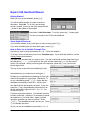
When you turn on the handheld, press /N.
You will be asked whether you want to save the
document. Select No. To do this, use the large
circular “navpad” to move to the right, then press the
xbutton in the middle of the navpad.
Next select 1:Add Calculator. To do this, press the x button again.
You are now ready to use CAS on the handheld.
Some Helpful Shortcuts
If you make a mistake at any point that you want to undo, press /Z.
If you undo something that you want back again, press /Y.
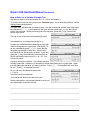
How to Solve for a Variable: Example One
Say that you wish to solve the equation 6x – 2y = 16 for the variable y.
To do this, first be certain that you are on a Calculator page. If you need help with this, see the
Getting Started section above.
First type in the equation that you want to solve. Use the number pad and the green letter keys;
the operations ( ÷ , × , -, + ) are located on the right, and the equals sign ( = ) is in the top-left
corner of the keypad. When you have typed in the equation, press the · key, found in the
bottom-right corner.
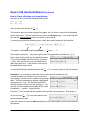
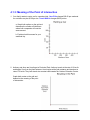
The top of your screen will look something like this:
Now decide how you would start in solving for y.
Perhaps you’ve decided that subtracting 6x from both
sides of the equation is a good start. Wonderful! To
do this, immediately press -6X. Notice that the
handheld automatically inserts Ans . What is this?
Ans stands for the last answer you found. If you now
press the · key, the handheld will subtract 6x from
the left side and the right side of 6x - 2y = 16. You
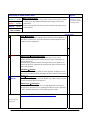
will see this result:
Continue solving the equation. You probably see that
to finally isolate the y variable, it is necessary to divide
the equation by -2 on both sides. Again, just start
typing the operation you want to perform. Press
pv2. The handheld will insert Ans for you. Press
· to calculate the result.
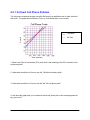
As you can see, the handheld reports that y = 3x - 8 .
TIPS4RM Grade 10 Applied: Unit 4 – Linear Systems (August 2008)
4-3