1
AVG Internet Security 2011
User Manual
Document revision 2011.21 (28.4.2011)
C opyright AVG Technologies C Z, s.r.o. All rights reserved.
All other trademarks are the property of their respective owners.
This product uses RSA Data Security, Inc. MD5 Message-Digest Algorithm, C opyright (C ) 1991-2, RSA Data
Security, Inc. C reated 1991.
This product uses code from C -SaC zech library, C opyright (c) 1996-2001 Jaromir Dolecek
([email protected]).
This product uses compression library zlib, C opyright (c) 1995-2002 Jean-loup Gailly and Mark Adler.
This product uses compression library libbzip2, C opyright (c) 1996-2002 Julian R. Seward.
A V G I nternet Sec urity 2 0 1 1 © 2 0 1 1 C opyright A V G T ec hnologies C Z, s .r.o. A ll rights res erved.
1
Contents
........................................................................................................................ 8
1. Introduction
........................................................................................................................
9
2. AVG
Installation Requirements
9
2.1 Operation..........................................................................................................
Systems Supported
9
2.2 Minimum ..........................................................................................................
& Recommended HW Requirements
........................................................................................................................
10
3. AVG
Installation Options
........................................................................................................................
11
4. AVG
Installation Process
.......................................................................................................... 11
4.1 Welcome
12
4.2 Activate..........................................................................................................
your AVG license
..........................................................................................................
13
4.3 Select type
of installation
14
4.4 Custom..........................................................................................................
options
..........................................................................................................
15
4.5 Install the
AVG Security Toolbar
.......................................................................................................... 16
4.6 Install progress
..........................................................................................................
16
4.7 Installation
was successful
........................................................................................................................
18
5. After
Installation
18
5.1 Product..........................................................................................................
registration
18
5.2 Access ..........................................................................................................
to user interface
..........................................................................................................
18
5.3 Scanning
of the whole computer
.......................................................................................................... 18
5.4 Eicar test
..........................................................................................................
19
5.5 AVG default
configuration
........................................................................................................................
20
6. AVG
User Interface
21
6.1 System..........................................................................................................
Menu
.......................................................................................................... 21
6.1.1 F ile
..........................................................................................................
21
6.1.2 Com
pone nt s
..........................................................................................................
21
6.1.3 Hist
ory
21
6.1.4 T ..........................................................................................................
ools
..........................................................................................................
21
6.1.5 He
lp
23
6.2 Security..........................................................................................................
Status Info
.......................................................................................................... 24
6.3 Quick Links
..........................................................................................................
25
6.4 Components
Overview
.......................................................................................................... 26
6.5 Statistics
27
6.6 System..........................................................................................................
Tray Icon
.......................................................................................................... 28
6.7 AVG gadget
A V G I nternet Sec urity 2 0 1 1 © 2 0 1 1 C opyright A V G T ec hnologies C Z, s .r.o. A ll rights res erved.
2
........................................................................................................................
30
7. AVG
Components
.......................................................................................................... 30
7.1 Anti-Virus
..........................................................................................................
30
7.1.1 Ant
i-V irus Princ iple s
..........................................................................................................
30
7.1.2 Ant
i-V irus Int e rfa c e
.......................................................................................................... 31
7.2 Anti-Spyware
..........................................................................................................
31
7.2.1 Ant
i-Spy w a re Princ iple s
..........................................................................................................
31
7.2.2 Ant
i-Spy w a re Int e rfa c e
.......................................................................................................... 33
7.3 Anti-Spam
..........................................................................................................
33
7.3.1 Ant
i-Spa m Princ iple s
..........................................................................................................
33
7.3.2 Ant
i-Spa m Int e rfa c e
7.4 Firewall .......................................................................................................... 34
..........................................................................................................
34
7.4.1 F ire
w a ll Princ iple s
34
7.4.2 F ..........................................................................................................
ire w a ll Profile s
34
7.4.3 F ..........................................................................................................
ire w a ll Int e rfa c e
.......................................................................................................... 38
7.5 Link Scanner
..........................................................................................................
38
7.5.1 Link
Sc a nne r Princ iple s
..........................................................................................................
38
7.5.2 Link
Sc a nne r Int e rfa c e
..........................................................................................................
38
7.5.3 Se
a rc h-Shie ld
..........................................................................................................
38
7.5.4 Surf-Shie
ld
41
7.6 Resident..........................................................................................................
Shield
..........................................................................................................
41
7.6.1 Re
side nt Shie ld Princ iple s
..........................................................................................................
41
7.6.2 Re
side nt Shie ld Int e rfa c e
..........................................................................................................
41
7.6.3 Re
side nt Shie ld De t e c t ion
.......................................................................................................... 46
7.7 Family Safety
.......................................................................................................... 46
7.8 AVG LiveKive
.......................................................................................................... 46
7.9 E-mail Scanner
..........................................................................................................
46
7.9.1 E-m
a il Sc a nne r Princ iple s
..........................................................................................................
46
7.9.2 E-m
a il Sc a nne r Int e rfa c e
..........................................................................................................
46
7.9.3 E-m
a il Sc a nne r De t e c t ion
50
7.10 Update..........................................................................................................
Manager
50
7.10.1 ..........................................................................................................
Upda t e M a na ge r Princ iple s
50
7.10.2 ..........................................................................................................
Upda t e M a na ge r Int e rfa c e
.......................................................................................................... 52
7.11 License
..........................................................................................................
53
7.12 Remote
Administration
54
7.13 Online ..........................................................................................................
Shield
..........................................................................................................
54
7.13.1 Online
Shie ld Princ iple s
54
7.13.2 ..........................................................................................................
Online Shie ld Int e rfa c e
A V G I nternet Sec urity 2 0 1 1 © 2 0 1 1 C opyright A V G T ec hnologies C Z, s .r.o. A ll rights res erved.
3
..........................................................................................................
54
7.13.3 Online
Shie ld De t e c t ion
.......................................................................................................... 57
7.14 Anti-Rootkit
57
7.14.1 ..........................................................................................................
Ant i-Root kit Princ iple s
57
7.14.2 ..........................................................................................................
Ant i-Root kit Int e rfa c e
..........................................................................................................
58
7.15 System
Tools
58
7.15.1 ..........................................................................................................
Proc e sse s
58
7.15.2 ..........................................................................................................
Ne t w ork Conne c t ions
58
7.15.3 ..........................................................................................................
Aut ost a rt
..........................................................................................................
58
7.15.4 Brow
se r Ext e nsions
..........................................................................................................
58
7.15.5 LSP
V ie w e r
.......................................................................................................... 63
7.16 PC Analyzer
.......................................................................................................... 65
7.17 ID Protection
65
7.17.1 ..........................................................................................................
ID Prot e c t ion Princ iple s
65
7.17.2 ..........................................................................................................
ID Prot e c t ion Int e rfa c e
..........................................................................................................
67
7.18 Security
Toolbar
........................................................................................................................
69
8. AVG
Security Toolbar
..........................................................................................................
69
8.1 AVG Security
Toolbar Interface
..........................................................................................................
69
8.1.1 AV
G logo but t on
..........................................................................................................
69
8.1.2 AV
G Se c ure Se a rc h (pow e re d by Google ) pow e re d se a rc h box
69
8.1.3 Pa..........................................................................................................
ge St a t us
..........................................................................................................
69
8.1.4 AV
G Ne w s
..........................................................................................................
69
8.1.5 Ne
ws
..........................................................................................................
69
8.1.6 De
le t e hist ory
..........................................................................................................
69
8.1.7 E-m
a il Not ifie r
..........................................................................................................
69
8.1.8 We
a t he r Info
69
8.1.9 F ..........................................................................................................
a c e book
..........................................................................................................
76
8.2 AVG Security
Toolbar Options
76
8.2.1 T ..........................................................................................................
a b Ge ne ra l
76
8.2.2 T ..........................................................................................................
a b Use ful But t ons
76
8.2.3 T ..........................................................................................................
a b Se c urit y
76
8.2.4 T ..........................................................................................................
a b Adv a nc e d Opt ions
........................................................................................................................
81
9. AVG
Advanced Settings
.......................................................................................................... 81
9.1 Appearance
9.2 Sounds .......................................................................................................... 83
..........................................................................................................
84
9.3 Ignore Faulty
Conditions
85
9.4 Identity..........................................................................................................
Protection
..........................................................................................................
85
9.4.1 Ide
nt it y Prot e c t ion Se t t ings
A V G I nternet Sec urity 2 0 1 1 © 2 0 1 1 C opyright A V G T ec hnologies C Z, s .r.o. A ll rights res erved.
4
..........................................................................................................
85
9.4.2 Allow
e d List
.......................................................................................................... 89
9.5 Virus Vault
.......................................................................................................... 89
9.6 PUP Exceptions
.......................................................................................................... 91
9.7 Anti-Spam
..........................................................................................................
91
9.7.1 Se
t t ings
91
9.7.2 Pe..........................................................................................................
rform a nc e
.......................................................................................................... 91
9.7.3 RBL
..........................................................................................................
91
9.7.4 Whit
e list
..........................................................................................................
91
9.7.5 Bla
c klist
..........................................................................................................
91
9.7.6 Adv
a nc e d Se t t ings
102
9.8 Online ..........................................................................................................
Shield
102
9.8.1 ..........................................................................................................
We b Prot e c t ion
102
9.8.2 ..........................................................................................................
Inst a nt M e ssa ging
.......................................................................................................... 105
9.9 Link Scanner
9.10 Scans.......................................................................................................... 106
106
9.10.1..........................................................................................................
Sc a n Whole Com put e r
106
9.10.2..........................................................................................................
She ll Ext e nsion Sc a n
106
9.10.3..........................................................................................................
Sc a n Spe c ific F ile s or F olde rs
106
9.10.4..........................................................................................................
Re m ov a ble De v ic e Sc a n
.......................................................................................................... 112
9.11 Schedules
112
9.11.1..........................................................................................................
Sc he dule d Sc a n
112
9.11.2..........................................................................................................
V irus Da t a ba se Upda t e Sc he dule
112
9.11.3..........................................................................................................
Progra m Upda t e Sc he dule
112
9.11.4..........................................................................................................
Ant i-Spa m Upda t e Sc he dule
..........................................................................................................
123
9.12 E-mail
Scanner
123
9.12.1..........................................................................................................
Ce rt ific a t ion
123
9.12.2..........................................................................................................
M a il F ilt e ring
123
9.12.3..........................................................................................................
Se rv e rs
..........................................................................................................
131
9.13 Resident
Shield
131
9.13.1..........................................................................................................
Adv a nc e d Se t t ings
131
9.13.2..........................................................................................................
Exc lude d it e m s
..........................................................................................................
134
9.14 Cache
Server
.......................................................................................................... 136
9.15 Anti-Rootkit
.......................................................................................................... 137
9.16 Update
137
9.16.1..........................................................................................................
Proxy
137
9.16.2..........................................................................................................
Dia l-up
137
9.16.3..........................................................................................................
URL
137
9.16.4..........................................................................................................
M a na ge
A V G I nternet Sec urity 2 0 1 1 © 2 0 1 1 C opyright A V G T ec hnologies C Z, s .r.o. A ll rights res erved.
5
..........................................................................................................
143
9.17 Temporarily
disable AVG protection
..........................................................................................................
143
9.18 Product
Improvement Programme
........................................................................................................................
146
10.
Firewall Settings
.......................................................................................................... 146
10.1 General
.......................................................................................................... 147
10.2 Security
148
10.3 Areas..........................................................................................................
and Adapters Profiles
10.4 IDS .......................................................................................................... 149
10.5 Logs .......................................................................................................... 151
.......................................................................................................... 152
10.6 Profiles
........................................................................................................................
154
11.
AVG Scanning
..........................................................................................................
154
11.1 Scanning
Interface
..........................................................................................................
155
11.2 Predefined
Scans
155
11.2.1..........................................................................................................
Whole Com put e r Sc a n
155
11.2.2..........................................................................................................
Sc a n Spe c ific F ile s or F olde rs
155
11.2.3..........................................................................................................
Ant i-Root kit Sc a n
..........................................................................................................
164
11.3 Scanning
in Windows Explorer
..........................................................................................................
164
11.4 Command
Line Scanning
164
11.4.1..........................................................................................................
CM D Sc a n Pa ra m e t e rs
166
11.5 Scan ..........................................................................................................
Scheduling
166
11.5.1..........................................................................................................
Sc he dule Se t t ings
166
11.5.2..........................................................................................................
How t o Sc a n
166
11.5.3..........................................................................................................
Wha t t o Sc a n
175
11.6 Scan ..........................................................................................................
Results Overview
176
11.7 Scan ..........................................................................................................
Results Details
176
11.7.1..........................................................................................................
Re sult s Ov e rv ie w T a b
176
11.7.2..........................................................................................................
Infe c t ions T a b
176
11.7.3..........................................................................................................
Spy w a re T a b
176
11.7.4..........................................................................................................
Wa rnings T a b
176
11.7.5..........................................................................................................
Root kit s T a b
176
11.7.6..........................................................................................................
Inform a t ion T a b
183
11.8 Virus ..........................................................................................................
Vault
........................................................................................................................
186
12.
AVG Updates
..........................................................................................................
186
12.1 Update
Levels
..........................................................................................................
186
12.2 Update
Types
..........................................................................................................
186
12.3 Update
Process
A V G I nternet Sec urity 2 0 1 1 © 2 0 1 1 C opyright A V G T ec hnologies C Z, s .r.o. A ll rights res erved.
6
........................................................................................................................
188
13.
Event History
........................................................................................................................
190
14.
FAQ and Technical Support
A V G I nternet Sec urity 2 0 1 1 © 2 0 1 1 C opyright A V G T ec hnologies C Z, s .r.o. A ll rights res erved.
7
1. Introduction
This user manual provides comprehensive documentation for AVG Internet Security 2011.
Congratulations on your purchase of AVG Internet Security 2011!
AVG Internet Security 2011 is one of a range of award winning AVG products designed to provide
you with peace of mind and total security for your PC. As with all AVG products AVG Internet
Security 2011 has been completely re-designed, from the ground up, to deliver AVG’s renowned and
accredited security protection in a new, more user friendly and efficient way. Your new AVG
Internet Security 2011 product has a streamlined interface combined with more aggressive and
faster scanning. More security features have been automated for your convenience, and new
‘intelligent’ user options have been included so that you can fit our security features to your way of
life. No more compromising usability over security!
AVG has been designed and developed to protect your computing and networking activity. Enjoy the
experience of full protection from AVG.
All AVG products offer
Protection that’s relevant to the way you use your computer and the Internet: banking and
shopping, surfing and searching, chatting and emailing, or downloading files and social
networking – AVG has a protection product that’s right for you
Hassle-free protection that’s trusted by over 110 million people around the world and fueled
by a global network of highly-experienced researchers
Protection that’s backed by round-the-clock expert support
A V G I nternet Sec urity 2 0 1 1 © 2 0 1 1 C opyright A V G T ec hnologies C Z, s .r.o. A ll rights res erved.
8
2. AVG Installation Requirements
2.1. Operation Systems Supported
AVG Internet Security 2011 is intended to protect workstations with the following operating
systems:
Windows XP Home Edition SP2
Windows XP Professional SP2
Windows XP Professional x64 Edition SP1
Windows Vista (x86 and x64, all editions)
Windows 7 (x86 and x64, all editions)
(and possibly higher service packs for specific operating systems)
Note: The ID Protection component is not supported on Windows XP x64. On this operating system
you can install AVG Internet Security 2011 but only without the IDP component.
2.2. Minimum & Recommended HW Requirements
Minimum hardware requirements for AVG Internet Security 2011:
Intel Pentium CPU 1,5 GHz
512 MB of RAM memory
750 MB of free hard drive space (for installation purposes)
Recommended hardware requirements for AVG Internet Security 2011:
Intel Pentium CPU 1,8 GHz
512 MB of RAM memory
1400 MB of free hard drive space (for installation purposes)
A V G I nternet Sec urity 2 0 1 1 © 2 0 1 1 C opyright A V G T ec hnologies C Z, s .r.o. A ll rights res erved.
9
3. AVG Installation Options
AVG can be installed either from the installation file available on your installation CD, or you can
download the latest installation file from AVG website (http://www.avg.com/).
Before you start installing AVG, we strongly recommend that you visit AVG website (http://
www.avg.com/) to check for a new installation file. This way you can be sure to install the
latest available version of AVG Internet Security 2011.
During the installation process you will be asked for your license/sales number. Please make sure
you have it available before starting the installation. The sales number can be found on the CD
packaging. If you purchased your copy of AVG on-line, your license number will have been delivered
to you via e-mail.
A V G I nternet Sec urity 2 0 1 1 © 2 0 1 1 C opyright A V G T ec hnologies C Z, s .r.o. A ll rights res erved.
10
4. AVG Installation Process
To install AVG Internet Security 2011 on your computer, you need to get the latest installation file.
You can use the installation file from the CD that is a part of your box edition but this file might be
out-of-date. Therefore we recommended getting the latest installation file online. You can download
the file from AVG website (http://www.avg.com/), the Support Center / Download section.
The installation is a sequence of dialog windows with a brief description of what do at each step. In
the following, we offer an explanation for each dialog window:
4.1. Welcome
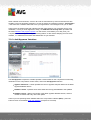
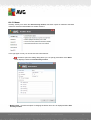
The installation process starts with the Welcome dialog window. Here you select the language used
for the installation process, and the default language of AVG user interface. In the upper section of
the dialog window find the drop-down menu with the list of languages you can chose from:
Attention: Here, you are selecting the language for the installation process. The language you
select will be installed as the default language for AVG user interface, together with English that is
installed automatically. If you want to have installed other additional languages for the user interface,
please define them within one of the following setup dialogs named Custom Options.
Further, the dialog provides the full wording of the AVG license agreement. Please read it carefully.
To confirm that you have read, understood and accept the agreement press the Accept button. If
you do not agree with the license agreement press the Decline button, and the installation process
will be terminated immediately.
A V G I nternet Sec urity 2 0 1 1 © 2 0 1 1 C opyright A V G T ec hnologies C Z, s .r.o. A ll rights res erved.
11
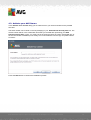
4.2. Activate your AVG license
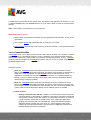
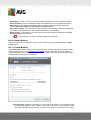
In the Activate Your License dialog you are invited to fill in your license number into the provided
text field.
The sales number can be found on the CD packaging in your AVG Internet Security 2011 box. The
license number will be in the confirmation email that you received after purchasing your AVG
Internet Security 2011 on-line. You must type in the number exactly as shown. If the digital form of
the license number is available (in the email), it is recommended to use the copy and paste method
to insert it.
Press the Next button to continue the installation process.
A V G I nternet Sec urity 2 0 1 1 © 2 0 1 1 C opyright A V G T ec hnologies C Z, s .r.o. A ll rights res erved.
12
4.3. Select type of installation
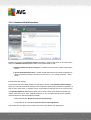
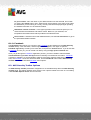
The Select type of installation dialog offers the choice of two installation options: Quick Install and
Custom Install.
For most users, it is highly recommended to keep to the standard Quick Install that installs AVG in
fully automatic mode with settings predefined by the program vendor. This configuration provides
maximum security combined with the optimal use of resources. In the future, if the need arises to
change the configuration, you will always have the possibility to do so directly in the AVG
application. If you have selected the Quick Install option, press the Next button to proceed to the
following Install the AVG Security Toolbar dialog.
Custom Install should only be used by experienced users who have a valid reason to install AVG
with non-standard settings; e.g. to fit specific system requirements. Having selected this option,
press the Next button to proceed to the Custom Options dialog.
In the right-hand section of the dialog you can find the check box related to AVG gadget (supported
in Windows Vista/Windows 7). If you wish to have installed this gadget, mark the respective
checkbox. AVG gadget will then be accessible from the Windows Sidebar providing you an
immediate access to the most important features of your AVG Internet Security 2011, i.e.
scanning and updating.
A V G I nternet Sec urity 2 0 1 1 © 2 0 1 1 C opyright A V G T ec hnologies C Z, s .r.o. A ll rights res erved.
13
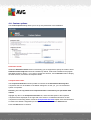
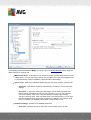
4.4. Custom options
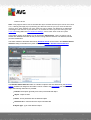
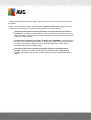
The Custom Options dialog allows you to set up two parameters of the installation:
Destination Folder
Within the Destination Folder section of the dialog you are supposed to specify the location where
AVG Internet Security 2011 should be installed. By default, AVG will be installed to the program
files folder located on drive C:. If you want to change this location, use the Browse button to display
the drive structure, and select the respective folder.
Component Selection
The Component Selection section provides an overview of all AVG Internet Security 2011
components that can be installed. If the default settings do not suit you, you can remove/add
specific components.
However, you can only select from components that are included in your purchased AVG
edition!
Highlight any item in the Component Selection list, and a brief description of the respective
component will be displayed on the right side of this section. For detailed information on each
component's functionality please consult the Components Overview chapter of this documentation.
To revert to the default configuration pre-set by the software vendor use the Default button.
Press the Next button to continue.
A V G I nternet Sec urity 2 0 1 1 © 2 0 1 1 C opyright A V G T ec hnologies C Z, s .r.o. A ll rights res erved.
14
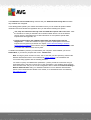
4.5. Install the AVG Security Toolbar
In the Install the AVG Security Toolbar dialog, decide whether you want to install the AVG
Security Toolbar. If you do not change the default settings, this component will be installed
automatically into your Internet browser (currently supported browsers are Microsoft Internet Explorer
v. 6.0 or higher, and Mozilla Firefox v. 3.0 or higher) and to provide you with comprehensive online
protection while surfing the Internet.
Also, you have the option to decide whether you want to choose AVG Secure Search (powered by
Google) as your default search provider. If so, keep the respective check box marked.
A V G I nternet Sec urity 2 0 1 1 © 2 0 1 1 C opyright A V G T ec hnologies C Z, s .r.o. A ll rights res erved.
15
4.6. Install progress
The Install Progress dialog shows the progress of the installation process, and does not require any
intervention:
After the installation process is finished, you will be redirected to the next dialog.
4.7. Installation was successful
A V G I nternet Sec urity 2 0 1 1 © 2 0 1 1 C opyright A V G T ec hnologies C Z, s .r.o. A ll rights res erved.
16
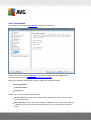
The Installation was successful dialog confirms that your AVG Internet Security 2011 has been
fully installed and configured.
In this dialog please provide your contact information so that you can receive all product related
information and news. Below the registration form you will find the following two options:
Yes, keep me informed of security news and AVG 2011 special offers via e-mail - mark
the checkbox to state you would like to be informed about what is new in the Internet
security sphere, and would like to receive information on AVG product special offers,
improvements and upgrades, etc.
I agree to participate in the AVG 2011 web safety and Product Improvement
Programme ... - mark this checkbox to agree you want to participate in the Product
Improvement Programme (for details see chapter AVG Advanced Settings / Product
Improvement Programme) that collects anonymous information on detected threats in order
to increase the overall Internet security level.
To finalize the installation process you need restart your computer: select whether you want to
Restart Now, or you want to postpone this action - Restart Later.
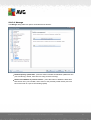
Note: If using any AVG business license, and in case that you have previously selected the
Remote administration item to be installed (see Custom Options), the Installation was
successful dialog appears with the following interface:
You need to specify AVG DataCenter parameters - please provide the connection string to
AVG DataCenter in the form of server:port. If this information is not available at the moment,
leave the field blank and you can set the configuration later in within the Advanced Settings /
Remote Administration dialog. For detailed information on AVG Remote administration
please consult AVG Business Edition user manual; to be downloaded from AVG website (
http://www.avg.com/).
A V G I nternet Sec urity 2 0 1 1 © 2 0 1 1 C opyright A V G T ec hnologies C Z, s .r.o. A ll rights res erved.
17
5. After Installation
5.1. Product registration
Having finished the AVG Internet Security 2011 installation, please register you product online on
AVG website (http://www.avg.com/), Registration page (follow the instruction provided directly in the
page). After the registration you will be able to gain full access to your AVG User account, the AVG
Update newsletter, and other services provided exclusively for registered users.
5.2. Access to user interface
The AVG User Interface is accessible in several ways:
double-click the AVG system tray icon
double-click the AVG icon on the desktop
double click the status line located in the bottom section of the AVG gadget (if installed;
supported on Windows Vista/ Windows 7)
from the menu Start/Programs/AVG 2011/AVG User Interface
from AVG Security Toolbar via option Launch AVG
5.3. Scanning of the whole computer
There is a potential risk that a computer virus has been transmitted to your computer prior to AVG
Internet Security 2011 installation. For this reason you should run a Scan of the whole computer
to make sure there are no infections on your PC.
For instructions on running a Scan of the whole computer please consult the chapter AVG
Scanning.
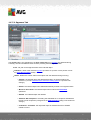
5.4. Eicar test
To confirm that AVG Internet Security 2011 has been installed correctly you can perform the
EICAR test.
The EICAR test is a standard and absolutely safe method used to test antivirus system functioning.
It is safe to pass around, because it is not an actual virus, and does not include any fragments of
viral code. Most products react to it as if it were a virus (though they typically report it with an
obvious name, such as "EICAR-AV-Test"). You can download the EICAR virus from the EICAR
website at www.eicar.com, and you will also find all necessary EICAR test information there.
Try to download the eicar.com file, and save it on your local disk. Immediately after you confirm
downloading of the test file, the Online Shield will react to it with a warning. This notice
demonstrates that AVG is correctly installed on your computer.
A V G I nternet Sec urity 2 0 1 1 © 2 0 1 1 C opyright A V G T ec hnologies C Z, s .r.o. A ll rights res erved.
18
From the http://www.eicar.com website you can also download the compressed version of the
EICAR 'virus' (e.g. in the form of eicar_com.zip). Online Shield allows you to download this file and
save it on your local disk but then the Resident Shield detects the 'virus' as you try to unpack it. If
AVG fails to identify the EICAR test file as a virus, you should check the program
configuration again!
5.5. AVG default configuration
The default configuration (i.e. how the application is set up right after installation) of AVG Internet
Security 2011 is set up by the software vendor so that all components and functions are tuned up
to achieve optimum performance.
Unless you have a real reason to do so, do not change the AVG configuration! Changes to
settings should only be performed by an experienced user.
Some minor editing of AVG components settings is accessible directly from the specific
component user interface. If you feel you need to change the AVG configuration to better suit your
your needs, go to AVG Advanced Settings: select the system menu item Tools/Advanced
settings and edit the AVG configuration in the newly opened AVG Advanced Settings dialog.
A V G I nternet Sec urity 2 0 1 1 © 2 0 1 1 C opyright A V G T ec hnologies C Z, s .r.o. A ll rights res erved.
19
6. AVG User Interface
AVG Internet Security 2011 open with the main window:
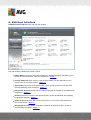
The main window is divided into several sections:
System Menu (top system line in the window) is the standard navigation that allows you to
access all AVG components, services, and features - details >>
Security Status Info (upper section of the window) provides you with information on the
current status of your AVG program - details >>
Quick Links (left section of the window) allow you to quickly access the most important
and most frequently used AVG tasks - details >>
Components Overview (central section of the window) offer an overview of all installed AVG
components - details >>
Statistics (left bottom section of the window) provide you with all statistical data regarding
the programs operation - details >>
System Tray Icon (bottom right corner of the monitor, on the system tray) indicates the
AVG current status - details >>
AVG gadget (Windows sidebar, supported in Windows Vista/7) allows quick access to
AVG scanning and update - details >>
A V G I nternet Sec urity 2 0 1 1 © 2 0 1 1 C opyright A V G T ec hnologies C Z, s .r.o. A ll rights res erved.
20
6.1. System Menu
The System menu is the standard navigation used in all Windows applications. It is located
horizontally in the very top part of the AVG Internet Security 2011 main window. Use the system
menu to access specific AVG components, feature, and services.
The system menu is divided into five main sections:
6.1.1. File
Exit - closes the AVG Internet Security 2011's user interface. However, the AVG
application will continue running in the background and your computer will still be protected!
6.1.2. Components
The Components item of the system menu includes links to all installed AVG components, opening
their default dialog page in the user interface:
System overview - switch to the default user interface dialog with the overview of all
installed components and their status
Anti-Virus ensures that your computer is protected from viruses trying to enter your
computer - details >>
Anti-Spyware ensures that your computer is protected from spyware and adware - details
>>
Anti-Spam checks all incoming e-mail messages and marks unwanted e-mails as SPAM details >>
Firewall controls how your computer exchanges data with other computers on the Internet
or local network - details >>
Link Scanner checks the search results displayed in your internet browser - details >>
E-mail Scanner checks all incoming and outgoing mail for viruses - details >>
Family Safety helps monitor your children online activities, and protect them from
inappropriate websites content - details >>
LiveKive provides automatic back up to your data online - details >>
Resident Shield runs in the background and scans files as they are copied, opened or
saved - details >>
Update Manager controls all AVG updates - details >>
License displays the license number, type and expiration date - details >>
Online Shield scans all data being downloaded by a web browser - details >>
A V G I nternet Sec urity 2 0 1 1 © 2 0 1 1 C opyright A V G T ec hnologies C Z, s .r.o. A ll rights res erved.
21
Anti-Rootkit detects programs and technologies trying to camouflage malware - details >>
System Tools offers a detailed summary of the AVG environment and operating system
information - details >>
PC Analyzer analyzer provides information about your computer status - details >>
Identity Protection - anti-malware component focused on preventing identity thieves from
stealing your personal digital valuables - details >>
Security Toolbar allows you to use selected AVG functionality directly from your Internet
browser - details >>
Remote Administration is only displayed within AVG Business Editions in case you have
specified during the installation process you want to have this component installed
6.1.3. History
Scan results - switches to the AVG testing interface, specifically to the Scan Results
Overview dialog
Resident Shield detection - open a dialog with an overview of threats detected by Resident
Shield
E-mail Scanner detection - open a dialog with an overview of mail messages attachments
detected as dangerous by the E-mail Scanner component
Online Shield findings - open a dialog with an overview of threats detected by Online
Shield
Virus Vault - opens the interface of the quarantine space (Virus Vault) to where AVG
removes all detected infections that cannot be healed automatically for some reason. Inside
this quarantine the infected files are isolated and your computer's security is guaranteed,
and at the same time the infected files are stored for possible future repair
Event history log - opens the history log interface with an overview of all logged AVG
Internet Security 2011 actions
Firewall - opens the Firewall settings interface on the Logs tab with a detailed overview of
all Firewall actions
6.1.4. Tools
Scan computer - switches to the AVG scanning interface and launches a scan of the
whole computer.
Scan selected folder - switches to the AVG scanning interface and allows you to define
within the tree structure of your computer which files and folders should be scanned.
Scan file - allows you to run an on-demand test over a single file selected from the tree
structure of your disk.
A V G I nternet Sec urity 2 0 1 1 © 2 0 1 1 C opyright A V G T ec hnologies C Z, s .r.o. A ll rights res erved.
22
Update - automatically launches the update process of AVG Internet Security 2011.
Update from directory - runs the update process from the update files located in a
specified folder on your local disk. However, this option is only recommended as an
emergency, e.g. in situations where there is no connection to the Internet (for example, your
computer is infected and disconnected from the Internet; your computer is connected to a
network with no access to the Internet, etc.). In the newly opened window select the folder
where you have previously placed the update file, and launch the update process.
Advanced settings - opens the AVG advanced settings dialog where you can edit the
AVG Internet Security 2011 configuration. Generally, it is recommended to keep the
default settings of the application as defined by the software vendor.
Firewall settings - open a standalone dialog for advanced configuration of the Firewall
component.
6.1.5. Help
Contents - opens the AVG help files
Get Help Online - opens AVG website (http://www.avg.com/) at the customer support
center page
Your AVG Web - opens AVG website (http://www.avg.com/)
About Viruses and Threats - opens the online Virus Encyclopedia where you can look up
detailed information on the identified virus
Reactivate - opens the Activate AVG dialog with the data you have entered in the
Personalize AVG dialog of the installation process. Within this dialog you can enter your
license number to either replace the sales number (the number you have installed AVG with
), or to replace the old license number (e.g. when upgrading to a new AVG product).
Register now - connects to the registration page of AVG website (http://www.avg.com/).
Please fill in your registration data; only customers who register their AVG product
can receive free technical support.
Note: If using the trial version of AVG Internet Security 2011, the latter two items appear as
Buy now and Activate, alowing you to buy the full version of the program right away. For
AVG Internet Security 2011 installed with a sales number, the items display as Register
and Activate. For more information please consult the License section of this documentation.
About AVG - opens the Information dialog with five tabs providing data on program name,
program and virus database version, system info, license agreement, and contact
information of AVG Technologies CZ.
6.2. Security Status Info
The Security Status Info section is located in the upper part of the AVG main window. Within this
section you will always find information on the current security status of your AVG Internet
Security 2011. Please see an overview of icons possibly depicted in this section, and their meaning:
A V G I nternet Sec urity 2 0 1 1 © 2 0 1 1 C opyright A V G T ec hnologies C Z, s .r.o. A ll rights res erved.
23
- The green icon indicates that your AVG is fully functional. Your computer is
completely protected, up to date and all installed components are working properly.
- The orange icon warns that one or more components are incorrectly configured and
you should pay attention to their properties/settings. There is no critical problem in AVG and
you have probably decided to switch some component off for some reason. You are still
protected by AVG. However, please pay attention to the problem component's settings! Its
name will be provided in the Security Status Info section.
This icon also appears if for some reason you have decided to ignore a component's error
status (the "Ignore component state" option is available from the context menu opened by a
right-click over the respective component's icon in the component overview of the AVG main
window). You may need to use this option in a specific situation but it is strictly recommended
to switch off the "Ignore component state" option as soon as possible.
- The red icon indicates that AVG is in critical status! One or more components does
not work properly and AVG cannot protect your computer. Please pay immediate attention to
fixing the reported problem. If you are not able to fix the error yourself, contact the AVG
technical support team.
In case AVG is not set to the optimum performance, a new button named Fix (alternatively
Fix all if the problem involves more than one component) appears next to the security
status information. Press the button to launch an automatic process of program checkout
and configuration. This is an easy way to set AVG to the optimum performance and reach
the maximum security level!
It is strongly recommended that you pay attention to Security Status Info and in case the report
indicates any problem, go ahead and try to solve it immediately. Otherwise your computer is at risk!
Note: AVG status information can also be obtained at any moment from the system tray icon.
6.3. Quick Links
Quick links (in the left section of the AVG User Interface) allow you to immediately access the
most important and most frequently used AVG features:
A V G I nternet Sec urity 2 0 1 1 © 2 0 1 1 C opyright A V G T ec hnologies C Z, s .r.o. A ll rights res erved.
24
Overview - use this link to switch from any currently opened AVG interface to the default
one with an overview of all installed components - see chapter Components Overview >>
Scan now - by default, the button provides information (scan type, date of last launch) of
the last scan launched. You can either execute the Scan now command to launch the
same scan again, or follow the Scan options link to open the AVG scanning interface
where you can run scans, schedule scans, or edit their parameters - see chapter AVG
Scanning >>
Update now - the link provides the date of the last launch of the update process. Press the
button to open the updating interface, and run AVG update process immediately - see
chapter AVG Updates >>
These links are accessible from the user interface at all times. Once you use a quick link to run a
specific process, the GUI will switch to a new dialog but the quick links are still available. Moreover,
the running process is further graphically depicted.
6.4. Components Overview
The Components Overview section is located in the central part of the AVG User Interface. The
section is divided into two parts:
Overview of all installed components consisting of a panel with the component's icon and
the information of whether the respective component is active or inactive
Description of a selected component
Within the AVG Internet Security 2011 the Components Overview section contains information
on the following components:
Anti-Virus ensures that your computer is protected from viruses trying to enter your
computer - details >>
Anti-Spyware ensures that your computer is protected from spyware and adware - details
>>
Anti-Spam checks all incoming e-mail messages and marks unwanted e-mails as SPAM details >>
Firewall controls how your computer exchanges data with other computers on the Internet
or local network - details >>
Link Scanner checks the search results displayed in your internet browser - details >>
E-mail Scanner checks all incoming and outgoing mail for viruses - details >>
Resident Shield runs in the background and scans files as they are copied, opened or
saved - details >>
Family Safety helps monitor your children online activities, and protect them from
inappropriate websites content - details >>
A V G I nternet Sec urity 2 0 1 1 © 2 0 1 1 C opyright A V G T ec hnologies C Z, s .r.o. A ll rights res erved.
25
LiveKive provides automatic back up to your data online - details >>
Update Manager controls all AVG updates - details >>
License displays the license number, type and expiration date - details >>
Online Shield scans all data being downloaded by a web browser - details >>
Anti-Rootkit detects programs and technologies trying to camouflage malware - details >>
System Tools offers a detailed summary of the AVG environment and operating system
information - details >>
PC Analyzer provides information about your computer status - details >>
Identity Protection - anti-malware component focused on preventing identity thieves from
stealing your personal digital valuables - details >>
Security Toolbar allows you to use selected AVG functionality directly from your Internet
browser - details >>
Remote Administration is only displayed within AVG Business Editions in case you have
specified during the installation process you want to have this component installed
Single-click any component's icon to highlight it within the components overview. At the same time,
the component's basic functionality description appears in the bottom part of the user interface.
Double-click the icon to open the components own interface with a list of basic statistical data.
Right-click you mouse over a component's icon to expand a context menu: besides opening the
component's graphic interface you can also select to Ignore component state. Select this option to
express you are aware of the component's error state but for some reason you wish to keep your
AVG so and you do not want to be warned by the system tray icon.
6.5. Statistics
The Statistics section is located in the left bottom part of the AVG User Interface. It offers a list of
information regarding the program's operation:
Virus DB - informs you about the currently installed version of the virus database
AVG version - informs you about the AVG version installed (the number is in the form of
10.0.xxxx, where 10.0 is the product line version, and xxxx stands for the number of the
build)
License expires - provides the date of your AVG license expiration
A V G I nternet Sec urity 2 0 1 1 © 2 0 1 1 C opyright A V G T ec hnologies C Z, s .r.o. A ll rights res erved.
26
6.6. System Tray Icon
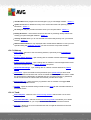
Sy s te m Tra y Ico n (on your Windows task bar) indicates the current status of your AVG
Internet Security 2011. It is visible at all times on your system tray, no matter
whether your AVG main window is opened or closed:
If in full color
, the System Tray Icon indicates that all AVG components are active and fully
functional. Also, AVG system tray icon can be displayed in full color if AVG is in error state but you
are fully aware of this situation and you have deliberately decided to Ignore the component state.
An icon with an exclamation mark
indicates a problem (inactive component, error status, etc.).
Double-click the System Tray Icon to open the main window and edit a component.
The system tray icon further informs on current AVG activities and possible status changes in the
program (e.g. automatic launch of a scheduled scan or update, Firewall profile switch, a
component's status change, error status occurrence, ...) via a pop-up window opened from the AVG
system tray icon:
The System Tray Icon can also be used as a quick link to access the AVG main window at any
time - double click on the icon. By right-click on the System Tray Icon you open a brief context
menu with the following options:
Open AVG User Interface - click to open the AVG User Interface
Scans - click to open the context menu of
Firewall - click to open the context menu of Firewall settings options where you can edit
the major parameters:Firewall status (Firewall enabled/Firewall disabled/Emergency mode),
gaming mode switchingand Firewall profiles
A V G I nternet Sec urity 2 0 1 1 © 2 0 1 1 C opyright A V G T ec hnologies C Z, s .r.o. A ll rights res erved.
27
Run PC Analyzer - click to launch the PC Analyzer component
Running scans - this item is displays only in case a scan is currently running on your
computer. For this scan you can then set its priority, alternatively stop or pause the running
scan. Further, the following actions are accessible: Set priority for all scans, Pause all
scans or Stop all scans.
Update now - launches an immediate update
Help - opens the help file on the start page
6.7. AVG gadget
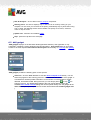
AVG ga dge t displays on the Windows desktop (Windows Sidebar). This application is only
supported in operating systems Windows Vista and Windows 7. AVG gadget offers an immediate
access to the most important AVG Internet Security 2011 functionality, i.e. scanning and updating
:
AVG ga dge t provides the following quick access options:
Scan now - click the Scan now link to start the whole computer scan directly. You can
watch the progress of the scanning process in the alternated user interface of the gadget. A
brief statistics overview provides information on the number of scanned objects, threats
detected, and threats healed. During the scan you can always pause
, or stop
the
scanning process. For detailed data related to the scan results please consult the
standard Scan results overview dialog that can be opened directly from the gadget via the
Show details option (the respective scan results will be listed under Sidebar gadget scan
).
A V G I nternet Sec urity 2 0 1 1 © 2 0 1 1 C opyright A V G T ec hnologies C Z, s .r.o. A ll rights res erved.
28
Update now - click the Update now link to launch the AVG update directly from within the
gadget:
Twitter link
- opens a new AVG gadget interface providing an overview of the latest
AVG feeds posted at the Twitter. Follow the View all the AVG Twitter feeds link to open
your Internet browser in a new window, and you will be redirected directly to the Twitter
website, specifically to the page devoted to AVG related news:
Facebook link
- opens your Internet browser on the Facebook website, specifically on
the AVG community page
LinkedIn
- this option is only available within the network installation (i.e. provided that
you have installed AVG using one of the AVG Business Editions licenses), and it opens
your internet browser on AVG SMB Community website within LinkedIn social network
PC Analyzer
- open the user interface in the PC Analyzer component
Search box - type in a keyword and get the search results immediately in a newly opened
window with your default web browser
A V G I nternet Sec urity 2 0 1 1 © 2 0 1 1 C opyright A V G T ec hnologies C Z, s .r.o. A ll rights res erved.
29
7. AVG Components
7.1. Anti-Virus
7.1.1. Anti-Virus Principles
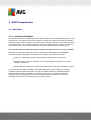
The antivirus software's scanning engine scans all files and file activity (opening/closing files, etc.) for
known viruses. Any detected virus will be blocked from taking any action and will then be cleaned or
quarantined. Most antivirus software also uses heuristic scanning, where files are scanned for typical
virus characteristics, so called viral signatures. This means that the antivirus scanner can detect a
new, unknown virus, if the new virus contains some typical characteristics of existing viruses.
The important feature of antivirus protection is that no known virus can run on the computer!
Where just a single technology might fall short of detecting or identifying a virus, Anti-Virus
combines several technologies to ensure that your computer is protected from viruses:
Scanning - searching for character strings that are characteristic of a given virus
Heuristic analysis - dynamic emulation of the scanned object’s instructions in a virtual
computer environment
Generic detection - detection of instructions characteristic of the given virus/group of viruses
AVG is also able to analyze and detect executable applications or DLL libraries that could be
potentially unwanted within the system. We call such threats Potentially Unwanted Programs
(various kinds of spyware, adware etc.). Furthermore, AVG scans your system registry for
suspicious entries, temporary Internet files and tracking cookies, and allows you to treat all
potentially harmful items in the same way as any other infection.
A V G I nternet Sec urity 2 0 1 1 © 2 0 1 1 C opyright A V G T ec hnologies C Z, s .r.o. A ll rights res erved.
30
7.1.2. Anti-Virus Interface
The Anti-Virus component's interface provides some basic information on the component's
functionality, information on the component's current status (Anti-Virus component is active.), and a
brief overview of Anti-Virus statistics:
Number of definitions - number provides the count of viruses defined in the up-to-date
version of the virus database
Database release - specifies when and at what time the virus database was last updated
Database version - defines the number of the currently installed virus database version; and
this number increases with every virus base update
There is just one operating button available within this component's interface (Back) - press the
button to return to the default AVG user interface (components overview).
7.2. Anti-Spyware
7.2.1. Anti-Spyware Principles
Spyware is usually defined as a type of malware, i.e. software, that gathers information from a user's
computer without the user's knowledge or consent. Some spyware applications may also be
installed on purpose and often contain advertisements, window pop-ups or different types of
unpleasant software.
Currently, the most common source of infection is websites with potentially dangerous content.
A V G I nternet Sec urity 2 0 1 1 © 2 0 1 1 C opyright A V G T ec hnologies C Z, s .r.o. A ll rights res erved.
31
Other methods of transmission, such as via e-mail or transmission by worms and viruses are also
prevalent. The most important protection is to use an always-on background scanner, Anti-Spyware
, that works like a resident shield and scans your applications in the background as you run them.
There is also the potential risk that malware has been transmitted to your computer prior to AVG
installation, or that you have neglected to keep your AVG Internet Security 2011 up-to-date with
the latest database and program updates. For this reason, AVG allows you to fully scan your
computer for malware/spyware using the scanning feature. It also detects sleeping and non-active
malware, i.e. malware that has been downloaded but not yet activated.
7.2.2. Anti-Spyware Interface
The Anti-Spyware component's interface provides a brief overview on the component's functionality,
information on the component's current status, and some Anti-Spyware statistics:
Spyware definitions - number provides the count of spyware samples defined in the latest
spyware database version
Database release - specifies when and at what time the spyware database was updated
Database version - defines the number of the latest spyware database version; and this
number increases with every virus base update
There is just one operating button available within this component's interface (Back) - press the
button to return to the default AVG user interface (components overview).
A V G I nternet Sec urity 2 0 1 1 © 2 0 1 1 C opyright A V G T ec hnologies C Z, s .r.o. A ll rights res erved.
32
7.3. Anti-Spam
Spam refers to unsolicited e-mail, mostly advertising a product or service that is mass mailed to a
huge number of e-mail addresses at a time, filling recipients’ mail boxes. Spam does not refer to
legitimate commercial e-mail for which consumers have given their consent. Spam is not only
annoying, but also can often be a source of scams, viruses or offensive content.
7.3.1. Anti-Spam Principles
AVG Anti-Spam checks all incoming e-mail messages and marks unwanted e-mails as spam.
AVG Anti-Spam can modify the subject of the email (that has been identified as spam) by adding a
special text string. Then you can then easily filter your emails in your email client.
AVG Anti-Spam component uses several analyzing methods to process each e-mail message,
offering maximum possible protection against unwanted e-mail messages. AVG Anti-Spam uses a
regularly updated database for the detection of spam. It is also possible to use RBL servers (public
databases of "k nown spammer" email addresses) and to manually add email addresses to your
Whitelist (never mark as spam) and Blacklist (always mark as spam).
7.3.2. Anti-Spam Interface
In the Anti-Spam component's dialog you will find a brief text describing the component's
functionality, information on its current status, and the following statistics:
Database release - specifies when and at what time the spam database was updated and
published
Spamcatcher version - defines the number of the latest version of the anti-spam engine
Number of processed emails - specifies how many e-mail messages were scanned since
A V G I nternet Sec urity 2 0 1 1 © 2 0 1 1 C opyright A V G T ec hnologies C Z, s .r.o. A ll rights res erved.
33
the last anti-spam engine launch
Number of spam emails - of all scanned e-mails, specifies how many messages were
marked as spam
Number of phishing emails - of all scanned e-mails, specifies how many messages were
assigned as phishing attempts
The Anti-Spam dialog further provides the Tools/Advanced Settings link. Use the link to get
redirected to the environment for advanced configuration of all AVG Internet Security 2011
components.
Please note: The software vendor has set up all AVG components to give optimum performance.
Unless you have a real reason to do so, do not change the AVG configuration. Any changes to
settings should only be performed by an experienced user.
There is just one operating button available within this component's interface (Back) - press the
button to return to the default AVG user interface (components overview).
7.4. Firewall
Firewall is a system that enforces an access control policy between two or more networks by
blocking/permitting traffic. Firewall contains a set of rules that protect the internal network from
attacks originating outside (typically from the Internet) and controls all communication on every
single network port. The communication is evaluated according to the defined rules, and then either
allowed or forbidden. If Firewall recognizes any intrusion attempts, it “blocks” the attempt and does
not allow the intruder access to the computer.
Firewall is configured to allow or deny internal/external communication (both ways, in
or out) through defined ports, and for defined software applications. For example, the
firewall could be configured to only permit web data to flow in and out using Microsoft
Explorer. Any attempt to transmit web data by any other browser would be blocked.
Firewall protects your personally-identifiable information from being sent from your computer without
your permission. It controls how your computer exchanges data with other computers on the Internet
or local network. Within an organization, the firewall also protects the single computer from attacks
initiated by internal users on other computers in the network.
Recommendation: Generally it is not recommended to use more than one firewall on an individual
computer. The security of the computer is not enhanced if you install more firewalls. It is more
probable that some conflicts between these two applications will occur. Therefore we recommend
that you use only one firewall on your computer and deactivate all others, thus eliminating the risk of
possible conflict and any problems related to this.
7.4.1. Firewall Principles
In AVG, the Firewall component controls all traffic on every network port of your computer. Based
on the defined rules, the Firewall evaluates applications that are either running on your computer
(and want to connect to the Internet/local network), or applications that approach your computer from
outside trying to connect to your PC. For each of these applications the Firewall then either allows
A V G I nternet Sec urity 2 0 1 1 © 2 0 1 1 C opyright A V G T ec hnologies C Z, s .r.o. A ll rights res erved.
34
or forbids the communication on the network ports. By default, if the application is unknown (i.e. has
no defined Firewall rules), the Firewall will ask you if you wish to allow or block the communication
attempt.
Note: AVG Firewall is not intended for server platforms!
What AVG Firewall can do:
Allow or block communication attempts of known applications automatically, or ask you for
confirmation
Use complete profiles with predefined rules, according to your needs
Switch profiles automatically when connecting to various networks, or using various network
adapters
7.4.2. Firewall Profiles
The Firewall allows you to define specific security rules based on whether your computer is located
in a domain, or it is a standalone computer, or even a notebook. Each of these options requires a
different level of protection, and the levels are covered by the respective profiles. In short, a Firewall
profile is a specific configuration of Firewall component, and you can use a number of such
predefined configurations.
Available profiles
Allow all - a Firewall system profile that has been pre-set by the manufacturer and is
always present. When this profile is activated, all network communication is allowed and no
safety policy rules are applied, as if the Firewall protection was switched off (i.e. all
applications are allowed but pack ets are still being check ed - to completely disable any
filtering you need to disable Firewall). This system profile cannot be duplicated, deleted,
and its settings cannot be modified.
Block all - a Firewall system profile that has been pre-set by the manufacturer and is
always present. When this profile is activated, all network communication is blocked, and
the computer is neither accessible from outer networks, nor can communicate outside. This
system profile cannot be duplicated, deleted, and its settings cannot be modified.
Custom profiles:
o Directly connected to the Internet – suitable for common desktop home computers
connected directly to the Internet or notebooks connecting to the Internet outside the
safe company network. Select this option if you connecting from home, or you are in
a small company network with no central control. Also, select this option when
traveling and connecting with your notebook from various unknown and possibly
dangerous places (internet café, hotel room etc.). More restrictive rules will be
created, as it is assumed that these computers have no additional protection and
therefore require the maximum protection.
A V G I nternet Sec urity 2 0 1 1 © 2 0 1 1 C opyright A V G T ec hnologies C Z, s .r.o. A ll rights res erved.
35
o Computer in domain – suitable for computers in a local network, e.g. school or
corporate network. It is assumed that the network is protected by some additional
measures so that the security level can be lower than for a standalone computer.
o Small home or office network – suitable for computers in a small network, e.g. at
home or in a small business, typically only several computers connected together,
without a "central" administrator.
Profile switching
The profile switching feature allows the Firewall to switch automatically to the defined profile when
using a certain network adapter, or when connected to a certain type of network. If no profile has
been assigned to a network area yet, then upon next connection to that area, the Firewall will
display a dialog asking you to assign a profile.
You can assign profiles to all local network interfaces or areas and specify further settings in the
Areas and Adapters Profiles dialog, where you can also disable the feature if you do not wish to
use it (then, for any k ind of connection, the default profile will be used).
Typically, users who have a notebook and use various types of connection will find this feature
useful. If you have a desktop computer, and only ever use one type of connection (e.g. cable
connection to the Internet), you do not have to bother with profile switching as most likely you will
never use it.
7.4.3. Firewall Interface
The Firewall's interface provides some basic information on the component's functionality, its
status, and a brief overview of Firewall statistics:
A V G I nternet Sec urity 2 0 1 1 © 2 0 1 1 C opyright A V G T ec hnologies C Z, s .r.o. A ll rights res erved.
36
Firewall has been enabled for - time elapsed since Firewall was last launched
Blocked packets - number of blocked packets from the entire amount of packets checked
Overall packets - number of all packets checked during the Firewall run
Firewall settings
Select Firewall profile - from the roll-down menu select one of the defined profiles - two
profiles are available at all times (the default profiles named Allow all and Block all), other
profiles were added manually by profile editing in the Profiles dialog in Firewall Settings.
Enable gaming mode - Check this option to ensure that when running full-screen
applications (games, presentations, movies, etc.), the Firewall will not display dialogs
asking you whether you want to allow or block communication for unknown applications. In
case an unknown application tries to communicate over the network at that time, the
Firewall will allow or block the attempt automatically according to settings in the current
profile. Note: With the gaming mode on, all scheduled tasks (scans, updates) are
postponed till the application is closed.
Firewall status:
o Firewall enabled - select this option to allow communication to those applications
that are assigned as 'allowed' in the set of rules defined within selected Firewall
profile
o Firewall disabled - this option switches Firewall off completely, all network traffic is
allowed but not checked!
o Emergency mode (block all Internet traffic) - select this option to block all traffic
on every single network port; Firewall is still running but all network traffic is stopped
Please note: The software vendor has set up all AVG components to give optimum performance.
Unless you have a real reason to do so, do not change the AVG configuration. Any changes to
settings should only be performed by an experienced user. If you need to change Firewall
configuration, select the system menu item Tools/Firewall settings and edit the Firewall
configuration in the newly opened Firewall Settings dialog.
Control buttons
Regenerate configuration - press this button to overwrite the current Firewall
configuration, and to revert to the default configuration based on automatic detection.
Save changes - press this button to save and apply any changes made in this dialog
Cancel - press this button to return to the default AVG user interface (components
overview)
A V G I nternet Sec urity 2 0 1 1 © 2 0 1 1 C opyright A V G T ec hnologies C Z, s .r.o. A ll rights res erved.
37
7.5. Link Scanner
7.5.1. Link Scanner Principles
LinkScanner protects you from the increasing number of ‘here today, gone tomorrow’ threats on the
web. These threats can be hidden on any type of website, from governments to big, well-known
brands to small businesses, and they rarely stick around on those sites for more than 24 hours.
LinkScanner protects you by analyzing the web pages behind all the links on any web page you’re
viewing and making sure they’re safe at the only time that matters – when you’re about to click that
link.
The LinkScanner technology consists of two features, Search-Shield and Surf-Shield:
Search-Shield contains list of websites (URL addresses) which are known to be
dangerous. When searching with Google, Yahoo! JP, WebHledani, Yandex, Baidu, Bing,
AOL, AltaVista, EarthLink, Ask, Seznam, eBay, Twitter, Digg, or SlashDot, all results of
the search are checked according to this list and a verdict icon is shown (for Yahoo search
results only "exploited website" verdict icons are shown).
Surf-Shield scans the contents of the websites you are visiting, regardless of the websites
address. Even if some website is not detected by Search-Shield (e.g. when a new
malicious website is created, or when a previously clean website now contains some
malware), it will be detected and blocked by Surf-Shield once you try to visit it.
Note: Link Scanner is not intended for server platforms!
7.5.2. Link Scanner Interface
The LinkScanner component interface provides a brief description of the component's functionality
and information on its current status. Further, you can find the information on the latest
LinkScanner database version number (Link Scanner version).
A V G I nternet Sec urity 2 0 1 1 © 2 0 1 1 C opyright A V G T ec hnologies C Z, s .r.o. A ll rights res erved.
38
LinkScanner Settings
In the bottom part of the dialog you can edit several options:
Enable Search-Shield - (on by default): advisory notifying icons on searches performed
with Google, Yahoo! JP, WebHledani, Yandex, Baidu, Bing, AOL, AltaVista, EarthLink,
Ask, Seznam, eBay, Twitter, Digg, or SlashDot: having checked ahead the content of sites
returned by the search engine.
Enable Surf-Shield - (on by default): active (real-time) protection against exploitive sites as
they are accessed. Known malicious site connections and their exploitive content is
blocked as they are accessed by the user via a web browser (or any other application that
uses HTTP).
7.5.3. Search-Shield
When searching Internet with the Search-Shield on, all search results returned from the most
popular search engines (Google, Yahoo! JP, WebHledani, Yandex, Baidu, Bing, AOL, AltaVista,
EarthLink , Ask , Seznam, eBay, Twitter, Digg, and SlashDot) are evaluated for dangerous or
suspicious links. By checking these links and marking the bad links, the AVG Link Scanner warns
you before you click on dangerous or suspicious links, so you can ensure you only go to safe
websites.
While a link is being evaluated on the search results page, you will see a graphic sign next to the
link informing that the link verification is in progress. When the evaluation is complete, the respective
informative icon will be displayed:
The linked page is safe (this icon will not be displayed for safe Yahoo! JP search results).
A V G I nternet Sec urity 2 0 1 1 © 2 0 1 1 C opyright A V G T ec hnologies C Z, s .r.o. A ll rights res erved.
39
The linked page does not contain threats but is somewhat suspicious (questionable in
origin or motive, therefore not recommended for e-shopping etc.).
The linked page can be either safe itself, but containing further links to positively
dangerous pages; or suspicious in code, though not directly employing any threats at the
moment.
The linked page contains active threats! For your own safety, you will not be allowed to
visit this page.
The linked page is not accessible, and so could not be scanned.
Hovering over an individual rating icon will display details about the particular link in question.
Information include additional details of the threat (if any):
7.5.4. Surf-Shield
This powerful protection will block malicious content of any webpage you try to open, and prevent it
from being downloaded to your computer. With this feature enabled, clicking a link or typing in a
URL to a dangerous site will automatically block you from opening the web page thus protecting you
from inadvertently being infected. It is important to remember that exploited web pages can infect
your computer simply by visiting the affected site, for this reason when you request a dangerous
webpage containing exploits or other serious threats, the AVG Link Scanner will not allow your
browser to display it.
If you do encounter a malicious web site, within your web browser the AVG Link Scanner will warn
you with a screen similar to:
A V G I nternet Sec urity 2 0 1 1 © 2 0 1 1 C opyright A V G T ec hnologies C Z, s .r.o. A ll rights res erved.
40
Entering such web site is highly risky and it cannot be recommended!
7.6. Resident Shield
7.6.1. Resident Shield Principles
The Resident Shield component gives your computer continuous protection. It scans every single
file that is being opened, saved, or copied, and guards the system areas of the computer. When
Resident Shield discovers a virus in a file that is accessed, it stops the operation currently being
performed and does not allow the virus to activate itself. Normally, you do not even notice the
process, as it runs "in the background", and you only get notified when threats are found; at the
same time, Resident Shield blocks activation of the threat and removes it. Resident Shield is
being loaded in the memory of your computer during system startup.
What the Resident Shield can do:
Scan for specific kinds of possible threats
Scan removable media (flash disk etc.)
Scan files with specific extensions or without extensions at all
Allow exceptions from scanning – specific files or folders that should never be scanned
Warning: Resident Shield is loaded in the memory of your computer during startup, and it is
vital that you keep it switched on at all times!
A V G I nternet Sec urity 2 0 1 1 © 2 0 1 1 C opyright A V G T ec hnologies C Z, s .r.o. A ll rights res erved.
41
7.6.2. Resident Shield Interface
Besides an overview of the Resident Shield functionality, and the information on the component's
status, the Resident Shield interface offers some statistic data as well:
Resident Shield has been running for - provides the time since the latest component's
launch
Threats detected and blocked - number of detected infections that were prevented from
being run/opened (if needed, this value can be reset; e.g. for statistic purposes - Reset
value)
Resident Shield settings
In the bottom part of the dialog window you will find the section called Resident Shield settings
where you can edit some basic settings of the component's functionality (detailed configuration, as
with all other components, is available via the Tools/Advanced settings item of the system menu).
The Resident Shield is active option allows you to easily switch on/off resident protection. By
default, the function is on. With resident protection on you can further decide how the possibly
detected infections should be treated (removed):
o either automatically (Remove all threats automatically)
o or only after the user's approval (Ask me before removing threats)
This choice has no impact on the security level, and it only reflects your preferences.
A V G I nternet Sec urity 2 0 1 1 © 2 0 1 1 C opyright A V G T ec hnologies C Z, s .r.o. A ll rights res erved.
42
In both cases, you can still select whether you want to Scan for tracking cookies. In specific
cases you can switch this option on to achieve maximum security levels, however it is switched off
by default. (cook ies = parcels of text sent by a server to a web browser and then sent back
unchanged by the browser each time it accesses that server. HTTP cook ies are used for
authenticating, track ing, and maintaining specific information about users, such as site preferences
or the contents of their electronic shopping carts).
Please note: The software vendor has set up all AVG components to give optimum performance.
Unless you have a real reason to do so, do not change the AVG configuration. Any changes to
settings should only be performed by an experienced user. If you need to change AVG
configuration, select the system menu item Tools / Advanced settings and edit the AVG
configuration in the newly opened AVG Advanced Settings dialog.
Control buttons
The control buttons available within the Resident Shield interface are as follows:
Manage exceptions - opens the Resident Shield - Excluded Items dialog where you can
define folders and files that should be left out from the Resident Shield scanning
Save changes - press this button to save and apply any changes made in this dialog
Cancel - press this button to return to the default AVG user interface (components
overview)
A V G I nternet Sec urity 2 0 1 1 © 2 0 1 1 C opyright A V G T ec hnologies C Z, s .r.o. A ll rights res erved.
43
7.6.3. Resident Shield Detection
Resident Shield scans files as they are copied, opened or saved. When a virus or any kind of threat
is detected, you will be warned immediately via the following dialog:
Within this warning dialog you will find data on the file that was detected and assigned as infected (
File name), the name of the recognized infection (Threat name), and a link to the Virus
encyclopedia where you can find detailed information on the detected infection, if known (More info).
Further, you have to decide what action should be taken now - the following options are available:
Please note that, upon specific conditions (what kind of file is infected, and where it is
located), not all of the options are always available!
Remove threat as Power User - check the box if you suppose that you might not have
sufficient rights to remove the threat as a common user. Power Users have extensive
access rights, and if the threat is located in a certain system folder, you might need to use
this checkbox to successfully remove it.
Heal - this button only appears if the detected infection can be healed. Then, it removes it
from the file, and restores the file to the original state. If the file itself is a virus, use this
function to delete it (i.e. removed to the Virus Vault)
Move to Vault - the virus will be moved to AVG Virus Vault
Go to file - this option redirects you to the exact location of the suspicious object (opens
new Windows Explorer window)
Ignore - we strictly recommend NOT TO use this option unless you have a very good
A V G I nternet Sec urity 2 0 1 1 © 2 0 1 1 C opyright A V G T ec hnologies C Z, s .r.o. A ll rights res erved.
44
reason to do so!
Note: It may happen that the size of the detected object exceeds the free space limit in Virus Vault.
If so, a warning message pops up informing you about the issue as you try to move the infected
object to Virus Vault. However, the Virus Vault size can be edited. It is defined as an adjustable
percentage of the real size of your hard disk . To increase the size of your Virus Vault, go to the
Virus Vault dialog within the AVG Advanced Settings, via the 'Limit Virus Vault size' option.
In the bottom section of the dialog you can find the link Show details - click it to open a pop-up
window with detailed information on the process running while the infection was detected, and the
process' identification.
The entire overview of all threats detected by Resident Shield can be found in the Resident Shield
detection dialog accessible from system menu option History / Resident Shield detection:
The Resident Shield detection offers an overview of objects that were detected by the Resident
Shield, evaluated as dangerous and either cured or moved to the Virus Vault. For each detected
object the following information is provided:
Infection- description (possibly even name) of the detected object
Object - object location
Result - action performed with the detected object
Detection time - date and time the object was detected
Object Type - type of the detected object
A V G I nternet Sec urity 2 0 1 1 © 2 0 1 1 C opyright A V G T ec hnologies C Z, s .r.o. A ll rights res erved.
45
Process - what action was performed to call out the potentially dangerous object so that it
could be detected
In the bottom part of the dialog, under the list, you will find information on total number of detected
objects listed above. Further you can export the entire list of detected objects in a file (Export list to
file) and delete all entries on detected objects (Empty list). The Refresh list button will update the
list of finding detected by Resident Shield. The Back button switches you back to the default AVG
user interface (components overview).
7.7. Family Safety
AVG Family Safety helps you protect your children from inappropriate websites, media content and
online searches, and provides you with reports regarding their online activity. You can set the
appropriate level of protection for each of your children and monitor them separately via unique
logins.
The component is active only when the AVG Family Safety product is installed your machine. If you
do not have the AVG Family Safety product installed, click the respective icon within the AVG
Internet Security 2011 user interface and you will be redirected to the product web site where you
can find all details required.
7.8. AVG LiveKive
AVG LiveKive automatically backs up all your files, photos and music to one safe place, allowing
you to share them with family and friends and access them from any web-enabled device, including
iPhones and Android devices.
The component is active only when the AVG LiveKive product is installed on your machine. If you
do not have the AVG LiveKive product installed, click the respective icon within the AVG Internet
Security 2011 user interface and you will be redirected to the product web site where you can find
all details required.
7.9. E-mail Scanner
One of the most common sources of viruses and trojans is via e-mail. Phishing and spam make email an even greater source of risks. Free e-mail accounts are more likely to receive such malicious
e-mails (as they rarely employ anti-spam technology), and home users rely quite heavily on such email. Also home users, surfing unknown sites and filling in online forms with personal data (such as
their e-mail address) increase exposure to attacks via e-mail. Companies usually use corporate email accounts and employ anti-spam filters etc, to reduce the risk.
7.9.1. E-mail Scanner Principles
Personal E-mail Scanner scans incoming/outgoing e-mails automatically. You can use it with email clients that do not have their own plug-in in AVG (but can be also used to scan e-mail
messages for e-mail clients that AVG supports with a specific plug-in, i.e. Microsoft Outlook , and
The Bat). Primarily, it is to be used with e-mail applications like Outlook Express, Mozilla,
Incredimail, etc.
During AVG installation AVG there are automatic servers created for e-mail control: one for checking
A V G I nternet Sec urity 2 0 1 1 © 2 0 1 1 C opyright A V G T ec hnologies C Z, s .r.o. A ll rights res erved.
46
incoming e-mails and the second one for checking outgoing e-mails. Using these two servers emails are automatically checked on ports 110 and 25 (standard ports for sending/receiving e-mails).
E-mail Scanner works as an interface between e-mail client and e-mail servers on the Internet.
Incoming mail: While receiving a message from the server, the E-mail Scanner
component tests it for viruses, removes infected attachments, and adds certification. When
detected, viruses are quarantined in Virus Vault immediately. Then the message is passed
to the e-mail client.
Outgoing mail: Message is sent from e-mail client to E-mail Scanner; it tests the
message and its attachments for viruses and then sends the message to the SMTP server (
scanning of outgoing e-mails is disabled by default, and can be set up manually).
Note: AVG E-mail Scanner is not intended for server platforms!
7.9.2. E-mail Scanner Interface
In the E-mail Scanner component's dialog you can find a brief text describing the component's
functionality, information on its current status, and the following statistics:
Total e-mails scanned - how many e-mail messages were scanned since the E-mail
Scanner was last launched (if needed, this value can be reset; e.g. for statistic purposes Reset value)
Threats found and blocked - provides the number of infections detected in e-mail
messages since the last E-mail Scanner launch
Installed e-mail protection - information about a specific e-mail protection plug-in referring
to your default installed e-mail client
A V G I nternet Sec urity 2 0 1 1 © 2 0 1 1 C opyright A V G T ec hnologies C Z, s .r.o. A ll rights res erved.
47
E-mail Scanner settings
In the bottom part of the dialog you can find the section named E-mail Scanner settings where you
can edit some elementary features of the component's functionality:
Scan incoming messages - check the item to specify that all e-mails delivered to your
account should be scanned for viruses. By default, this item is on, and it is recommended
not to change this setting!
Scan outgoing messages - check the item to confirm all e-mail sent from your account
should be scanned for viruses. By default, this item is off.
Display notification window while e-mail is being scanned - check the item to confirm
you want to be informed via notification dialog displayed over the AVG icon on the system
tray during the scanning of your mail via E-mail Scanner component. By default, this item
is on, and it is recommended not to change this setting!
The advanced configuration of the E-mail Scanner component is accessible via the Tools/
Advanced settings item of the system menu; however advanced configuration is recommended for
experienced users only!
Please note: The software vendor has set up all AVG components to give optimum performance.
Unless you have a real reason to do so, do not change the AVG configuration. Any changes to
settings should only be performed by an experienced user. If you need to change AVG
configuration, select the system menu item Tools / Advanced settings and edit the AVG
configuration in the newly opened AVG Advanced Settings dialog.
Control buttons
The control buttons available within the E-mail Scanner interface are as follows:
Save changes - press this button to save and apply any changes made in this dialog
Cancel - press this button to return to the default AVG user interface (components
overview)
A V G I nternet Sec urity 2 0 1 1 © 2 0 1 1 C opyright A V G T ec hnologies C Z, s .r.o. A ll rights res erved.
48
7.9.3. E-mail Scanner Detection
In the E-mail Scanner detection dialog (accessible via system menu option History / E-mail
Scanner detection) you will be able to see a list of all findings detected by the E-mail Scanner
component. For each detected object the following information is provided:
Infection- description (possibly even name) of the detected object
Object - object location
Result - action performed with the detected object
Detection time - date and time the suspicious object was detected
Object Type - type of the detected object
In the bottom part of the dialog, under the list, you will find information on total number of detected
objects listed above. Further you can export the entire list of detected objects in a file (Export list to
file) and delete all entries on detected objects (Empty list).
Control buttons
The control buttons available within the E-mail Scanner detection interface are as follows:
Refresh list - updates the list of detected threats
Back - switches you back to the previously displayed dialog
A V G I nternet Sec urity 2 0 1 1 © 2 0 1 1 C opyright A V G T ec hnologies C Z, s .r.o. A ll rights res erved.
49
7.10. Update Manager
7.10.1. Update Manager Principles
No security software can guarantee true protection from various types of threats unless it is regularly
updated! Virus writers are always looking for new flaws that they can exploit in both
software and operating systems. New viruses, new malware, new hacking attacks
appear daily. For this reason, software vendors are continually issuing updates and
security patches, to fix any security holes that are discovered.
It is crucial to update your AVG regularly!
The Update Manager helps you to control regular updating. Within this component you can
schedule automatic downloads of update files either from the Internet, or the local network.
Essential virus definition updates should be daily if possible. Less urgent program
updates can be weekly.
Note: Please pay attention to the AVG Updates chapter for more information on update types and
levels!
7.10.2. Update Manager Interface
The Update Manager's interface displays information about the component's functionality and its
current status, and provides the relevant statistical data:
Latest update - specifies date and time of the last database update
A V G I nternet Sec urity 2 0 1 1 © 2 0 1 1 C opyright A V G T ec hnologies C Z, s .r.o. A ll rights res erved.
50
Virus database version - defines the number of the currently installed virus database
version; and this number increases with every virus base update
Next scheduled update - specifies the date and time of the next database update
Update Manager settings
In the bottom part of the dialog you can find the Update Manager settings section where you can
perform some changes to the rules of the update process launch. You can define whether you wish
the update files to be downloaded automatically (Start automatic updates) or just on demand. By
default, the Start automatic updates option is switched on and we recommend to keep it that way!
Regular download of the latest update files is crucial for proper functionality of any security software!
Further you can define when the update should be launched:
o Periodically - define the time interval
o At a specific time interval - define the exact day time the update should be launched
By default, the update is set for every 4 hours. It is highly recommended to keep this setting unless
you have a true reason to change it!
Please note: The software vendor has set up all AVG components to give optimum performance.
Unless you have a real reason to do so, do not change the AVG configuration. Any changes to
settings should only be performed by an experienced user. If you need to change AVG
configuration, select the system menu item Tools / Advanced settings and edit the AVG
configuration in the newly opened AVG Advanced Settings dialog.
Control buttons
The control buttons available within the Update Manager interface are as follows:
Update now - launches an immediate update on demand
Save changes - press this button to save and apply any changes made in this dialog
Cancel - press this button to return to the default AVG user interface (components
overview)
A V G I nternet Sec urity 2 0 1 1 © 2 0 1 1 C opyright A V G T ec hnologies C Z, s .r.o. A ll rights res erved.
51
7.11. License
In the Licence component interface you will find a brief text describing the component's functionality,
information on its current status, and the following information:
License number - provides the shortened form of your license number (for security reasons
the last four symbols are missing). When entering your license number, you have to be
absolutely precise and type it exactly as shown. Therefore we strongly recommend to
always use "copy & paste" method for any manipulation with the license number.
License type - specifies the product type installed.
License expires - this date determines the period of validity of your license. If you want to
go on using AVG Internet Security 2011 after this date you have to renew your license.
The license renewal can be performed online on AVG website.
Number of seats - how many workstations on which you are entitled to install your AVG
Internet Security 2011.
Control buttons
Register - connects to the registration page of AVG website (http://www.avg.com/). Please
fill in your registration data; only customers who register their AVG product can
receive free technical support.
Re-activate - opens the Activate AVG dialog with the data you have entered in the
Personalize AVG dialog of the installation process. Within this dialog you can enter your
license number to either replace the sales number (the number you have installed AVG with
), or to replace the old license number (e.g. when upgrading to a new AVG product).
A V G I nternet Sec urity 2 0 1 1 © 2 0 1 1 C opyright A V G T ec hnologies C Z, s .r.o. A ll rights res erved.
52
Note: If using the trial version of AVG Internet Security 2011, the buttons appear as Buy
now and Activate, alowing you to buy the full version of the program right away. For AVG
Internet Security 2011 installed with a sales number, the buttons display as Register and
Activate.
Back - press this button to return to the default AVG user interface (components overview
).
7.12. Remote Administration
The Remote Administration component only displays in the user interface of AVG Internet
Security 2011 in case you have installed the Business Edition of your product (see component
License). In the Remote Administration dialog you can find the information on whether the
component is active and connected to server. All settings of the Remote Administration
component is to be done within the Advanced Settings / Remote Administration.
For detailed description of the component's options and functionality within the AVG Remote
Administration system please refer to the specific documentation dedicated to this topic exclusivity.
This documentation is available for download at AVG website (www.avg.com), in the Support center
/ Download / Documentation section.
Control buttons
Back - press this button to return to the default AVG user interface (components overview).
A V G I nternet Sec urity 2 0 1 1 © 2 0 1 1 C opyright A V G T ec hnologies C Z, s .r.o. A ll rights res erved.
53
7.13. Online Shield
7.13.1. Online Shield Principles
Online Shield is a type of a real time resident protection; it scans the content of visited web pages (
and possible files included in them) even before these are displayed in your web browser or
downloaded to your computer.
Online Shield detects that the page you are about to visit includes some dangerous javascript, and
prevents the page from being displayed. Also, it recognizes malware contained in a page and stops
its downloading immediately so that it never gets to your computer.
Note: AVG Online Shield is not intended for server platforms!
7.13.2. Online Shield Interface
The Online Shield component's interface describes the behavior of this type of protection. Further
you can find information on the component's current status. In the bottom part of the dialog you will
then find the elementary editing options of this component's functionality:
Online Shield Settings
First of all, you have the option to immediately switch on/off the Online Shield by checking the
Enable Online Shield item. This option is enabled by default, and the Online Shield component is
active. However, if you do not have a good reason to change this settings, we recommend to keep
the component active. If the item is checked, and the Online Shield is running, two more
A V G I nternet Sec urity 2 0 1 1 © 2 0 1 1 C opyright A V G T ec hnologies C Z, s .r.o. A ll rights res erved.
54
configuration options get activated:
Enable Web protection - this option confirms that the Online Shield should perform
scanning of the website content.
Enable Instant Messaging protection - check this item if you wish the Online Shield to
verify the instant messaging communication (e.g. ICQ, MSN Messenger, ...) is virus free.
Please note: The software vendor has set up all AVG components to give optimum performance.
Unless you have a real reason to do so, do not change the AVG configuration. Any changes to
settings should only be performed by an experienced user. If you need to change AVG
configuration, select the system menu item Tools / Advanced settings and edit the AVG
configuration in the newly opened AVG Advanced Settings dialog.
Control buttons
The control buttons available within the Online Shield interface are as follows:
Save changes - press this button to save and apply any changes made in this dialog
Cancel - press this button to return to the default AVG user interface (components
overview)
7.13.3. Online Shield Detection
Online Shield scans the content of visited web pages and possible files included in them even
before these are displayed in your web browser or downloaded to your computer. If a threat is
detected, you will be warned immediately with the following dialog:
Within this warning dialog you will find data on the file that was detected and assigned as infected (
File name), the name of the recognized infection (Threat name), and a link to the Virus
encyclopedia where you can find detailed information on the detected infection (if k nown). The
dialog provides the following buttons:
Show details - click the Show details button to open a new pop-up window where you can
find information on the process running while the infection was detected, and the process'
identification.
Close - click the button to close the warning dialog.
A V G I nternet Sec urity 2 0 1 1 © 2 0 1 1 C opyright A V G T ec hnologies C Z, s .r.o. A ll rights res erved.
55
The suspect web page will not be opened, and the threat detection will be logged in the list of
Online Shield findings - this overview of detected threats is accessible via system menu History /
Online Shield findings.
For each detected object the following information is provided:
Infection- description (possibly even name) of the detected object
Object - object source (web page)
Result - action performed with the detected object
Detection time - date and time the threat was detected and blocked
Object Type - type of the detected object
Process - what action was performed to call out the potentially dangerous object so that it
could be detected
In the bottom part of the dialog, under the list, you will find information on total number of detected
objects listed above. Further you can export the entire list of detected objects in a file (Export list to
file) and delete all entries on detected objects (Empty list). The Refresh list button will update the
list of finding detected by Online Shield. The Back button switches you back to the default AVG
user interface (components overview).
A V G I nternet Sec urity 2 0 1 1 © 2 0 1 1 C opyright A V G T ec hnologies C Z, s .r.o. A ll rights res erved.
56
7.14. Anti-Rootkit
A rootkit is a program designed to take fundamental control of a computer system, without
authorization by the system's owners and legitimate managers. Access to the hardware is rarely
required as a rootkit is intended to seize control of the operating system running on the hardware.
Typically, rootkits act to obscure their presence on the system through subversion or evasion of
standard operating system security mechanisms. Often, they are also Trojans as well, thus fooling
users into believing they are safe to run on their systems. Techniques used to accomplish this can
include concealing running processes from monitoring programs, or hiding files or system data from
the operating system.
7.14.1. Anti-Rootkit Principles
AVG Anti-Rootkit is a specialized tool detecting and effectively removing dangerous rootkits, i.e.
programs and technologies that can camouflage the presence of malicious software on your
computer. AVG Anti-Rootkit is able to detect rootkits based on a predefined set of rules. Please
note, that all rootkits are detected (not just the infected). In case AVG Anti-Rootkit finds a rootkit,
it does not necessarily mean the rootkit is infected. Sometimes, rootkits are used as drivers or they
are a part of correct applications.
7.14.2. Anti-Rootkit Interface
The Anti-Rootkit user interface provides a brief description of the component's functionality, informs
on the component's current status, and also brings information on the last time the Anti-Rootkit
test was launched (Last rootkit search). The Anti-Rootkit dialog further provides the Tools/
Advanced Settings link. Use the link to get redirected to the environment for advanced configuration
of Anti-Rootkit component.
Please note: The software vendor has set up all AVG components to give optimum performance.
A V G I nternet Sec urity 2 0 1 1 © 2 0 1 1 C opyright A V G T ec hnologies C Z, s .r.o. A ll rights res erved.
57
Unless you have a real reason to do so, do not change the AVG configuration. Any changes to
settings should only be performed by an experienced user.
Anti-Rootkit settings
In the bottom part of the dialog you can find the Anti-Rootkit settings section where you can set up
some elementary functions of the rootkit presence scanning. First, mark up the respective checkboxes to specify objects that should be scanned:
Scan applications
Scan DLL libraries
Scan drivers
Further you can pick the rootkit scanning mode:
Quick rootkit scan - scans all running processes, loaded drivers and the system folder (
typically c:\Windows)
Full rootkit scan - scans all running processes, loaded drivers, the system folder (typically
c:\Windows), plus all local disks (including the flash disk , but excluding floppy disk /CD
drives)
Control buttons
Search for rootkits - since the rootkit scan is not an implicit part of the Scan of the whole
computer, you can run the rootkit scan directly from the Anti-Rootkit interface using this
button
Save changes - press this button to save all changes made in this interface and to return to
the default AVG user interface (components overview)
Cancel - press this button to return to the default AVG user interface (components
overview) without having saved any changes you made
7.15. System Tools
System Tools refer to tools offering a detailed summary of the AVG Internet Security 2011
environment and the operating system. The component displays an overview of:
Processes - list of processes (i.e. running applications) that are currently active on your
computer
Network connections - list of currently active connections
Autostart - list of all applications that are executed during Windows system start-up
A V G I nternet Sec urity 2 0 1 1 © 2 0 1 1 C opyright A V G T ec hnologies C Z, s .r.o. A ll rights res erved.
58
Browser Extensions - list of plug-ins (i.e. applications) that are installed inside your Internet
browser
LSP Viewer - list of Layered Service Providers (LSP)
Specific overviews can also be edited but this is only recommended for highly experienced
users!
7.15.1. Processes
The Processes dialog contains a list of processes (i.e. running applications) that are currently active
on your computer. The list is divided into several columns:
Severity Level – graphical identification of the respective process severity on a four-levels
scale from less important (
) up to critical (
)
Process name - name of the running process
Process path - physical path to the running process
Window - if applicable, indicates application Window name
PID - process identification number is a unique Windows internal process identifier
Control buttons
The control buttons available within the System Tools interface are as follows:
Refresh - updates the list of processes according to the current status
A V G I nternet Sec urity 2 0 1 1 © 2 0 1 1 C opyright A V G T ec hnologies C Z, s .r.o. A ll rights res erved.
59
Terminate Process - you can select one or more applications and then terminate them by
pressing this button. We strongly suggest not to terminate any applications, unless you
are absolutely sure that they represent a real threat!
Back - switches you back to the default AVG user interface (components overview)
7.15.2. Network Connections
The Network Connections dialog contains a list of currently active connections. The list is divided
into the following columns:
Application - name of the application related to the connection (with the exception of
Windows 2000 where the information is not available)
Protocol - transmission protocol type used for the connection:
o TCP - protocol used in conjunction with Internet Protocol (IP) to transmit information
over the Internet
o UDP - alternative to TCP protocol
Local address - IP address of the local computer and the port number used
Remote address - IP address of the remote computer and the port number connected to. If
possible, it will also look up the host name of the remote computer.
State - indicates the most probable current state (Connected, Server should close, Listen,
Active close finished, Passive close, Active close)
A V G I nternet Sec urity 2 0 1 1 © 2 0 1 1 C opyright A V G T ec hnologies C Z, s .r.o. A ll rights res erved.
60
To list only external connections, tick the Hide local connections checkbox in the bottom section
of the dialog under the list.
Control buttons
The control buttons available are:
Terminate Connection - closes one or more connections selected in the list
Terminate Process - closes one or more applications related to connections selected in
the list
Back - switch back to the default AVG user interface (components overview).
Sometimes it is possible to terminate only applications that are currently in the connected
state. We strongly suggest not to terminate any connections, unless you are absolutely sure
that they represent a real threat!
7.15.3. Autostart
The Autostart dialog shows a list of all applications that are executed during Windows system startup. Very often, several malware applications add themselves automatically to the start-up registry
entry.
You can delete one or more entries by selecting them and pressing the Remove selected button.
The Back button switches you back to the default AVG user interface (components overview).
We strongly suggest not to delete any applications from the list, unless you are absolutely
A V G I nternet Sec urity 2 0 1 1 © 2 0 1 1 C opyright A V G T ec hnologies C Z, s .r.o. A ll rights res erved.
61
sure that they represent a real threat!
7.15.4. Browser Extensions
The Browser Extensions dialog contains a list of plug-ins (i.e. applications) that are installed inside
your Internet browser. This list may contain regular application plug-ins as well as potential malware
programs. Click on an object in the list to obtain detailed information on the selected plug-in that will
be displayed in the bottom section of the dialog.
Control buttons
The control buttons available on the Browser Extension tab are:
Remove selected object - removes the plug-in that is currently highlighted in the list. We
strongly suggest not to delete any plug-ins from the list, unless you are absolutely sure that
they represent a real threat!
Back - switches you back to the default AVG user interface (components overview)
A V G I nternet Sec urity 2 0 1 1 © 2 0 1 1 C opyright A V G T ec hnologies C Z, s .r.o. A ll rights res erved.
62
7.15.5. LSP Viewer
The LSP Viewer dialog shows a list of Layered Service Providers (LSP).
A Layered Service Provider (LSP) is a system driver linked into the networking services of the
Windows operating system. It has access to all data entering and leaving the computer, including
the ability to modify this data. Some LSPs are necessary to allow Windows to connect you to other
computers, including the Internet. However, certain malware applications may also install
themselves as an LSP, thus having access to all data your computer transmits. Therefore, this
review may help you to check all possible LSP threats.
Under certain circumstances, it is also possible to repair broken LSPs (for example when the file
has been removed but the registry entries remain untouched). A new button for fixing the issue is
displayed once a repairable LSP is discovered.
To include Windows LSP in the list, uncheck the Hide Windows LSP checkbox. The Back button
switches you back to the default AVG user interface (components overview).
7.16. PC Analyzer
The PC Analyzer component is able to scan your computer for system problems, and give you a
transparent overview of what might be aggravating your computer’s overall performance. In the
component's user interface you can see a chart divided into four lines referring to respective
categories: registry errors, junk files, fragmentation, and broken shortcuts:
A V G I nternet Sec urity 2 0 1 1 © 2 0 1 1 C opyright A V G T ec hnologies C Z, s .r.o. A ll rights res erved.
63
Registry Errors will give you the number of errors in Windows Registry. As fixing the
Registry requires quite advanced knowledge, we do not recommend to try and fix it yourself.
Junk Files will give you the number of files that can be most likely done without. Typically,
these will be many kinds of temporary files, and files in the Recycle Bin.
Fragmentation will calculate the percentage of your harddisk that is fragmented, i.e. used
for a long time so that most files are now scattered on different parts of the physical disk.
You can use some defragmentation tool to fix this.
Broken Shortcuts will notify you of shortcuts that no longer work, lead to non-existing
locations etc.
To start the analysis of your system, press the Analyze now button. You will then be able to watch
the analysis progress and its results directly in the chart:
A V G I nternet Sec urity 2 0 1 1 © 2 0 1 1 C opyright A V G T ec hnologies C Z, s .r.o. A ll rights res erved.
64
The results overview provides the number of detected system problems (Errors) divided according to
the respective categories tested. The analysis results will also be displayed graphically on an axis in
the Severity column.
Control buttons
Analyze now (displayed before the analysis starts) - press this button to launch the
immediate analysis of your computer
Fix now (displayed once the analysis is finished) - press the button to get to the AVG
website (http://www.avg.com/) at page providing detailed and up-to-date information related
to PC Analyzer component
Cancel - press this button to stop the running analysis, or to return to the default AVG user
interface (components overview) once the analysis is completed
7.17. ID Protection
AVG Identity Protection is an anti-malware product that is focused on preventing identity thieves
from stealing your passwords, bank account details, credit card numbers and other personal digital
valuables from all kinds of malicious software (malware) that target your PC. It makes sure that all
programs running on your PC are operating correctly. AVG Identity Protection spots and blocks
suspicious behavior on a continuous basis and protects your computer from all new malware.
A V G I nternet Sec urity 2 0 1 1 © 2 0 1 1 C opyright A V G T ec hnologies C Z, s .r.o. A ll rights res erved.
65
7.17.1. ID Protection Principles
AVG Identity Protection is an anti-malware component that protects you from all kinds of malware (
spyware, bots, identity theft, ...) using behavioral technologies and provide zero day protection for
new viruses. As malware gets sophisticated and comes in a form of normal programs that can open
up your PC to the remote attacker for identity theft, AVG Identity Protection secures you from
these new execution based malware. It is a complimentary protection to AVG Anti-Virus that
protects you from file based and known viruses using signature mechanism and scanning.
We strongly recommend you have the both AVG Anti-Virus and AVG Identity Protection
components installed, in order to have complete protection for your PC.
7.17.2. ID Protection Interface
The Identity Protection component interface provides a brief description of the component's basic
functionality, its status, and some statistical data:
Malware items removed - gives the number of applications detected as malware, and
removed
Processes monitored - number of currently running applications that are being monitored
by IDP
Behaviors monitored - number of specific actions running within the monitored
applications
Below you can find the Display monitored processes and Activity monitor link that will take you
to the user interface of the System tools component where you can find a detailed overview of all
monitored processes.
A V G I nternet Sec urity 2 0 1 1 © 2 0 1 1 C opyright A V G T ec hnologies C Z, s .r.o. A ll rights res erved.
66
Identity Protection settings
In the bottom part of the dialog you will find the Identity Protection settings section where you can
edit some elementary features of the component's functionality:
Activate Identity Protection - (on by default): check to activate the IDP component, and to
open further editing options.
In some cases, Identity Protection may report that some legitimate file is suspicious or
dangerous. Since Identity Protection detects threats based on their behavior, this usually
occurs when some program tries to monitor key presses, install other programs or a new
driver is installed on the computer. Therefore please select one of the following options
specifying Identity Protection component's behavior in case of a suspicious activity
detection:
o Always prompt - if an application is detected as malware, you will be asked whether
it should be blocked (this option is on by default and it is recommended not to
change it unless you have a real reason to do so)
o Automatically quarantine detected threats - all applications detected as malware
will be blocked automatically
o Automatically quarantine known threats - only those applications that are with
absolute certainty detected as malware will be blocked
Control buttons
The control buttons available within the Identity Protection interface are as follows:
Save changes - press this button to save and apply any changes made in this dialog
Cancel - press this button to return to the default AVG user interface (components
overview)
7.18. Security Toolbar
The Security Toolbar is an optional web browser toolbar, offering enhanced AVG protection and
various features and tools at hand while surfing the web. Currently, the Security Toolbar is
supported by Internet Explorer (6.0 or higher), and Mozilla Firefox (3.0 or higher) web browsers:
A V G I nternet Sec urity 2 0 1 1 © 2 0 1 1 C opyright A V G T ec hnologies C Z, s .r.o. A ll rights res erved.
67
All settings of the Security Toolbar component is accessible directly in the Security Toolbar
within your web browser.
A V G I nternet Sec urity 2 0 1 1 © 2 0 1 1 C opyright A V G T ec hnologies C Z, s .r.o. A ll rights res erved.
68
8. AVG Security Toolbar
AVG Security Toolbar is a new tool which works together with the LinkScanner component. AVG
Security Toolbar can be used to control LinkScanner functions and to adjust its behavior.
If you select to install the toolbar during the installation of AVG Internet Security 2011, it will be
added into your web browser (Internet Explorer 6.0 or higher, and Mozilla Firefox 3.0 or higher)
automatically. Other internet browsers are not supported at the moment.
Note: In case you are using some alternative Internet browser (e.g Avant Browser) you can meet
unexpected behavior.
8.1. AVG Security Toolbar Interface
The AVG Security Toolbar is designed to work with MS Internet Explorer (version 6.0 or higher)
and Mozilla Firefox (version 3.0 or higher). Once you have decided you want to install AVG
Security Toolbar (during the AVG installation process you were ask ed to decide whether or not you
wish to install the component), the component will be located in your web browser just under the
address bar:
The AVG Security Toolbar consists of the following:
8.1.1. AVG logo button
This button provides access to general toolbar items. Click the logo button to get redirected to AVG
website. Clicking the pointer next to the AVG icon will open the following:
Toolbar Info - link to the AVG Security Toolbar home page with detailed information on
the toolbar's protection
Launch AVG - opens the AVG Internet Security 2011 user interface
AVG Info - opens a context menu with the following links leading important security
information related to AVG Internet Security 2011:
o About Threats - opens the AVG website at page providing most important data on
top threats, virus removal recommendations, AVG update information, access to
Virus database and more relevant info
o AVG News - opens the web page providing the latest AVG related press release
o Current Threat Level - opens the virus lab web page with a graphical display of the
current threat level on the web
A V G I nternet Sec urity 2 0 1 1 © 2 0 1 1 C opyright A V G T ec hnologies C Z, s .r.o. A ll rights res erved.
69
o AVG Threat Labs - opens the AVG Site Reports website where you can search the
specific threats by name and get detailed information on each one
Options - opens a configuration dialog where you can adjust your AVG Security Toolbar
settings to suit your needs - see the following chapter AVG Security Toolbar Options
Delete History - allows you within AVG Security Toolbar delete complete history, or
separately to delete search history, delete browser history, delete download history and
delete cookies.
Update - checks for new updates for your AVG Security Toolbar
Help - provides options to open the help file, contact AVG technical support, send your
product related feedback, or view the details of the current version of the toolbar
8.1.2. AVG Secure Search (powered by Google) powered search box
AVG Secure Search (powered by Google) box is easy and safe way to search the web using
AVG Secure Search (powered by Google). Enter a word or phrase into the search box press the
Search button, or the Enter key, to start the search on the AVG Secure Search (powered by
Google) server directly, no matter what page is currently displayed. The search box also lists your
search history. Searches done through the search box are analyzed using the Search-Shield
protection.
Alternatively, within the search field you can switch to Wikipedia, or some other specific search
service - see picture:
8.1.3. Page Status
Directly in the toolbar, this button displays the evaluation of the currently displayed web page base
on criteria of the Surf-Shield component:
- The linked page is safe
- Page is somewhat suspicious.
- Page containing links to positively dangerous pages.
- The linked page contains active threats! For your own safety, you will not be allowed
to visit this page.
A V G I nternet Sec urity 2 0 1 1 © 2 0 1 1 C opyright A V G T ec hnologies C Z, s .r.o. A ll rights res erved.
70
- The page is not accessible, and so could not be scanned.
Click the button to open an information panel with detailed data on the specific web page.
8.1.4. AVG News
Directly from within the AVG Security Toolbar, this button opens an overview of the latest Headline
news related to AVG, both news from the press and company press release:
In the right upper corner you can see two red control buttons:
- the button opens the editing dialog where you can specify parameters of the AVG
News button displayed within the AVG Security Toolbar:
A V G I nternet Sec urity 2 0 1 1 © 2 0 1 1 C opyright A V G T ec hnologies C Z, s .r.o. A ll rights res erved.
71
o Show messages - change the desired number of messages that are to be displayed
at a time
o RSS design - select between Advanced/Basic mode of the current display of the
news overview (by default, the Advanced mode is selected - see picture above)
o Hide read messages - mark this item to confirm that each read message should not
be displayed any longer, so that new messages can be supplied
- click this button to close the currently opened news overview
A V G I nternet Sec urity 2 0 1 1 © 2 0 1 1 C opyright A V G T ec hnologies C Z, s .r.o. A ll rights res erved.
72
8.1.5. News
Similarly, directly from within the AVG Security Toolbar, this button opens an overview of the latest
news from selected media divided into several sections:
In the right upper corner you can see two red control buttons:
- the button opens the editing dialog where you can specify parameters of the News
button displayed within the AVG Security Toolbar:
o Button name - you have the option of changing the button name as it is displayed within AVG
Security Toolbar
A V G I nternet Sec urity 2 0 1 1 © 2 0 1 1 C opyright A V G T ec hnologies C Z, s .r.o. A ll rights res erved.
73
o News edition - chose a country from the list to have displayed news from the selected region
o Show messages - specify the desired number of messages that are to be displayed at a time
o RSS design - switch between the Basic/Advanced option to select the design of the news
overview (advanced design is set by default, see picture above)
o Hide read messages - mark this item to confirm that any read message should not be displayed
any longer in the news overview, and should be replaced by a new headline
o Button shows - in this field you can assign what sort of news should be displayed in the AVG
Security Toolbar news overview
- click this button to close the currently opened news overview
8.1.6. Delete history
Using this button you can delete the history of your browser just like via the AVG logo -> Delete
history option.
8.1.7. E-mail Notifier
The E-mail Notifier button allows you to activate the option of being informed about newly arrived email messages directly in the AVG Security Toolbar interface. The button opens the following
editing dialog where you can define parameters of your e-mail account and the e-mail display rules.
Please follow the instructions in the dialog:
Account type - Specify the protocol type your e-mail account uses. You can select among
the following alternatives: Gmail, POP3, or select the server name from the drop down menu
within the Other item (at the moment, you can use this option if your account is on Yahoo!
A V G I nternet Sec urity 2 0 1 1 © 2 0 1 1 C opyright A V G T ec hnologies C Z, s .r.o. A ll rights res erved.
74
JP Mail or Hotmail). If you are not sure what e-mail server type your account uses, try to
find the information from your e-mail provider, or your internet service provider.
Login - In the section below provide the exact form of your e-mail address, and the
respective password. Keep the Auto Login option marked so that you do not have to fill in
the data repeatedly.
Test account - Use this button to test the entered details.
Reset Settings - Quickly removes the above entered e-mail address details.
Check for new e-mails every ... minutes - Define the time interval to be used to check for
new e-mail messages (in the range of 5-120 minutes), and specify whether and how you
want to be informed about the new message arrival.
Allow new e-mail alerts - Uncheck this to disable visual notifications of new e-mail
messages arrival.
o Play a sound when new e-mails arrive - Uncheck this to disable sound
notifications of new e-mail messages arrival.
o Close notification window after 5 seconds - Check this to automatically close the
visual notification window of new e-mail messages arrival after 5 seconds.
8.1.8. Weather Info
The Weather button displays the information on the current temperature (updated every 3-6 hours) in
your selected destination directly within the AVG Security Toolbar interface. Click the button to
open a new info panel with detailed weather overview:
Following find the editing options:
Change location - click the Change location text to display a new dialog called Search
A V G I nternet Sec urity 2 0 1 1 © 2 0 1 1 C opyright A V G T ec hnologies C Z, s .r.o. A ll rights res erved.
75
for your location. Fill in the name of your desired location into the text field, and confirm
by clicking the Search button. Next, within the list of all locations of the same name select
the destination you are looking for. Finally, the info panel will be displayed again providing
the weather information for the selected location.
Fahrenheit / Celsius converter - in the upper right-hand corner of the info panel you can
chose between the Fahrenheit and Celsius scales. Based on your selection, the
temperature information will be further provided in the selected scale.
Full Forecast - if interested in full and detailed forecast, use the Full Forecast link to get to
the specialized weather website.
8.1.9. Facebook
The Facebook button allows you connect to the Facebook social network from the AVG Security
Toolbar directly. Click the button, and the login invitation appears; click again to open the
Facebook login dialog. Provide your access data, and press the Connect button. If you do not have
a Facebook account yet, you can create one directly using the Sign up for Facebook link.
Once you get through the Facebook registration process, you will be invited to allow the AVG
Social Extension application. This application functionality is essential for the toolbar - Facebook
connection, therefore it is recommended to allow its functioning, therefore make sure you allow it.
Then, the Facebook connection will be activated, and the Facebook button within AVG Security
Toolbar now offers the standard Facebook menu options.
8.2. AVG Security Toolbar Options
All AVG Security Toolbar parameters configuration is accessible directly within the AVG Security
Toolbar panel. The editing interface opens via the AVG / Options toolbar menu item in a new dialog
called Toolbar Options divided into four sections:
A V G I nternet Sec urity 2 0 1 1 © 2 0 1 1 C opyright A V G T ec hnologies C Z, s .r.o. A ll rights res erved.
76
8.2.1. Tab General
On this tab you can specify toolbar control buttons that should be displayed or hidden within the
AVG Security Toolbar panel. Mark any option in case you want to have displayed the respective
button. Further find described the functionality of each of the toolbar buttons:
Page Status Button - the button offers the possibility of having displayed the information on
the currently opened page security status within AVG Security Toolbar
AVG News Button - the button opens a web page providing the latest AVG related press
release
News Button - the button provides a structured overview of current news from the daily
press
Delete History Button - this button allows you to Delete complete history, or Delete search
history, Delete browser history, Delete download history, or Delete cookies directly from the
AVG Security Toolbar panel
E-mail Notifier Button - the button allows you to have displayed your newly arrived e-mail
messages within the AVG Security Toolbar interface
Weather Button - the button offers an immediate information on the weather situation in a
selected location
Facebook Button - the button offers a direct connection to the Facebook social network
A V G I nternet Sec urity 2 0 1 1 © 2 0 1 1 C opyright A V G T ec hnologies C Z, s .r.o. A ll rights res erved.
77
8.2.2. Tab Useful Buttons
The Useful Buttons tab allows you to select applications from a list and have their icon displayed in
the toolbar interface. The icon then serves as a quick link enabling to launch the respective
application immediately.
8.2.3. Tab Security
The Security tab is divided into two sections, AVG Browser Security and Ratings, where you can
A V G I nternet Sec urity 2 0 1 1 © 2 0 1 1 C opyright A V G T ec hnologies C Z, s .r.o. A ll rights res erved.
78
mark specific check-boxes to assign AVG Security Toolbar functionality you want to use:
AVG Browser Security - check this item to activate or switch-off the Search-Shield and/
or Surf-Shield service
Ratings - select graphical symbols used for search results ratings by the Search-Shield
component that you want to use:
o
page is safe
o
page is somewhat suspicious
o
page containing links to positively dangerous pages
o
page contains active threats
o
page is not accessible, and so could not be scanned
Mark the respective option to confirm you want to be informed about this specific threat level.
However, display of the red mark assigned to pages containing active and dangerous threats
cannot be switched-off. Again, it is recommended to keep the default configuration set
by the program vendor unless you have a real reason to change it.
8.2.4. Tab Advanced Options
On the Advanced Options tab first select what search engine you want to use as default. You have
the choice of AVG Secure Search (powered by Google), Baidu, WebHledani, Yandex and Yahoo! JP
A V G I nternet Sec urity 2 0 1 1 © 2 0 1 1 C opyright A V G T ec hnologies C Z, s .r.o. A ll rights res erved.
79
. Having changed the default search engine, please restart your internet browser for the change to
take effect.
Further, you can activate or switch-off further specific AVG Security Toolbar settings (the listed
caption refers to the default AVG Secure Search (powered by Google) settings):
Set and keep AVG Secure Search (powered by Google) as the search provider for
Address bar - if marked, this option allows you to type a search keyword directly into the
address bar into your Internet browser and the Google service will be used automatically to
search for relevant websites.
Let AVG make suggestion on browser navigation errors (404/DNS) - if when searching
the web you run into a non-existing page, or a page that cannot be displayed (404 error),
you will be automatically redirected to a web page that allows you to select from an
overview of alternative topic-related pages.
Set and keep AVG Secure Search (powered by Google) as the default search
provider - Google is the default search engine for web search within AVG Security
Toolbar, and activating this option it can also become your web browser default search
engine.
A V G I nternet Sec urity 2 0 1 1 © 2 0 1 1 C opyright A V G T ec hnologies C Z, s .r.o. A ll rights res erved.
80
9. AVG Advanced Settings
The advanced configuration dialog of AVG Internet Security 2011 opens in a new window named
Advanced AVG Settings. The window is divided into two sections: the left part offers a treearranged navigation to the program configuration options. Select the component you want to change
the configuration of (or its specific part) to open the editing dialog in the right-hand section of the
window.
9.1. Appearance
The first item of the navigation tree, Appearance, refers to the general settings of the AVG user
interface and a few elementary options of the application's behavior:
Language selection
In the Language selection section you can chose your desired language from the drop-down menu;
the language will then be used for the entire AVG user interface. The drop-down menu only offers
those languages you have previously selected to be installed during the installation process (see
chapter Custom Option) plus English (that is installed by default). However, to finish switching the
application to another language you have to restart the user interface; follow these steps:
Select the desired language of the application and confirm your selection by pressing the
A V G I nternet Sec urity 2 0 1 1 © 2 0 1 1 C opyright A V G T ec hnologies C Z, s .r.o. A ll rights res erved.
81
Apply button (right-hand bottom corner)
Press the OK button confirm
New dialog window pops-up informing you the language change of AVG user interface
requires the application restart:
Balloon tray notifications
Within this section you can suppress display of system tray balloon notifications on the status of
the application. By default, the balloon notifications are allowed to be displayed, and it is
recommended to keep this configuration! The balloon notifications typically inform on some AVG
component's status change, and you should pay attention to them!
However, if for some reason you decide you do not wish these notifications to be displayed, or you
would like only certain notifications (related to a specific AVG component) to be displayed, you can
define and specify your preferences by checking/unchecking the following options:
Display system tray notifications - by default, this item is checked (switched on), and
notifications are displayed. Uncheck this item to completely turn off the display of all
balloon notifications. When turned on, you can further select what specific notifications
should be displayed:
o Display tray notifications about update - decide whether information regarding
AVG update process launch, progress, and finalization should be displayed;
o Display components state change notifications - decide whether information
regarding component's activity/inactivity or its possible problem should be displayed.
When reporting a component's fault status, this option equals to the informative
function of the system tray icon (color changing) reporting a problem in any AVG
component;
o Display Resident Shield related tray notifications (automatic action) - decide
whether information regarding file saving, copying, and opening processes should be
displayed or suppressed (this configuration only demonstrates if the Resident Shield
Auto-heal option is on);
o Display tray notifications about scanning - decide whether information upon
automatic launch of the scheduled scan, its progress and results should be
displayed;
A V G I nternet Sec urity 2 0 1 1 © 2 0 1 1 C opyright A V G T ec hnologies C Z, s .r.o. A ll rights res erved.
82
o Display Firewall related tray notifications - decide whether information concerning
Firewall status and processes, e.g. component's activation/deactivation warnings,
possible traffic blocking etc. should be displayed;
o Display E-mail Scanner related tray notifications - decide whether information
upon scanning of all incoming and outgoing e-mail messages should be displayed.
o Display statistical notifications - keep the option checked to allow regular statistical
review notification to be displayed in the system tray.
Gaming mode
This AVG function is designed for full-screen applications where possible AVG information balloons (
displayed e.g. when a scheduled scan is started) would be disturbing (they could minimize the
application or corrupt its graphics). To avoid this situation, keep the check box for the Enable
gaming mode when a full-screen application is executed option marked (default setting).
9.2. Sounds
Within the Sounds dialog you can specify whether you want to be informed about specific AVG
actions by a sound notification. If so, check the Enable sound events option (off by default) to
activate the list of AVG actions:
A V G I nternet Sec urity 2 0 1 1 © 2 0 1 1 C opyright A V G T ec hnologies C Z, s .r.o. A ll rights res erved.
83
Then, select the respective event from the list and browse (Browse) your disk for an appropriate
sound you want to assign to this event. To listen to the selected sound, highlight the event in the list
and push the Play button. Use the Delete button to remove the sound assigned to a specific event.
Note: Only *.wav sounds are supported!
9.3. Ignore Faulty Conditions
In the Ignore faulty components conditions dialog you can tick those components that you do not
want to get informed about:
By default, no component is selected in this list. It means that if any component get to an error
status, you will be informed about it immediately via:
system tray icon - while all parts of AVG are working properly, the icon is displayed in four
colors; however, if an error occurs, the icon appears with a yellow exclamation mark,
text description of the existing problem in the Security Status Info section of the AVG
main window
There might be a situation that for some reason you need to switch a component off temporarily (this
is not recommended, you should try to k eep all components permanently on and in default
configuration, but it may be happen). In that case the system tray icon automatically reports the
component's error status. However, in this very case we cannot talk about an actual error since you
A V G I nternet Sec urity 2 0 1 1 © 2 0 1 1 C opyright A V G T ec hnologies C Z, s .r.o. A ll rights res erved.
84
have deliberately induced it yourself, and you are aware of the potential risk. At the same time, once
being displayed in grey color, the icon cannot actually report any possible further error that might
appear.
For this situation, within the above dialog you can select components that may be in an error state (
or switched off) and you do not wish to get informed about it. The same option of Ignoring
component state is also available for specific components directly from the components overview in
the AVG main window.
9.4. Identity Protection
9.4.1. Identity Protection Settings
The Ide ntity Pro te ctio n s e ttings dialog allows you to switch on/off the elementary features of
the Identity Protection component:
Activate Identity Protection (on by default) – uncheck to turn off the Identity Protection
component.
We strongly recommend not to do this unless you have to!
When the Identity Protection is activated, you can specify what to do when a threat is detected:
A V G I nternet Sec urity 2 0 1 1 © 2 0 1 1 C opyright A V G T ec hnologies C Z, s .r.o. A ll rights res erved.
85
Always prompt (on by default) - when a threat is detected, you will be asked whether it
should be moved to quarantine to make sure no applications you want to run are removed.
Automatically quarantine detected threats - mark this check box to define you want have
all possibly detected threats moved to the safe space of AVG Virus Vault immediately.
Keeping the default settings, when a threat is detected, you will be asked whether it should
be moved to quarantine to make sure no applications you want to run are removed.
Automatically quarantine known threats - keep this item marked if you wish all
applications detected as possible malware to be automatically and immediately moved to
AVG Virus Vault.
Further you can assign specific items to optionally activate more Identity Protection functionality:
Prompt to save your work before removal - (on by default) - keep this item checked if
you wish to be warn before the application detected as possible malware gets removed to
quarantine. In case you just work with the application, your project might be lost and you
need to save it first. By default, this item is on and we strongly recommend to keep it so.
Show progress of malware removal - (on by default) - with this item on, once a potential
malware is detected, a new dialog opens to display progress of the malware being removed
to quarantine.
Show final malware removal details - (on by default) - with this item on, Identity
Protection displays detailed information on each object moved to quarantine (severity level,
location, etc.).
9.4.2. Allowed List
If within the Identity Protection settings dialog you decided to keep the Automatically quarantine
detected threats item unchecked, every time a possibly dangerous malware is detected, you will be
asked whether it should be removed. If then you assign the suspicious application (detected based
on its behavior) as safe, and you confirm it should be kept on your computer, the application will be
added to so called Identity Protection Allowed list, and it will not be reported as potentially
dangerous again:
A V G I nternet Sec urity 2 0 1 1 © 2 0 1 1 C opyright A V G T ec hnologies C Z, s .r.o. A ll rights res erved.
86
The Identity Protection Allowed list provides the following information on each application:
Level - graphical identification of the respective process severity on a four-levels scale from
less important (
) up to critical (
)
Process path - path to the application's (process) executable file location
Date allowed - date when you manually assigned the application as safe
Control buttons
The control buttons available within the Identity Protection Allowed list dialog are as follows:
Add - press this button to add a new application to the allowed list. The following dialog
pops-up:
A V G I nternet Sec urity 2 0 1 1 © 2 0 1 1 C opyright A V G T ec hnologies C Z, s .r.o. A ll rights res erved.
87
o File - type the full path to the file (application) that you want to mark as an exception
o Checksum - displays the unique 'signature' of the chosen file. This checksum is an
automatically generated string of characters, which allows AVG to unequivocally
distinguish the chosen file from other files. The checksum is generated and displayed
after successful addition of the file.
o Any location - do not use full path - if you want to define this file as an exception
only for the specific location, then leave this checkbox unchecked
Remove - press to remove the selected application from the list
Remove all - press to remove all listed applications
A V G I nternet Sec urity 2 0 1 1 © 2 0 1 1 C opyright A V G T ec hnologies C Z, s .r.o. A ll rights res erved.
88
9.5. Virus Vault
The Virus Vault maintenance dialog allows you to define several parameters regarding the
administration of objects stored in the Virus Vault:
Limit Virus Vault size - use the slider to set up the maximum size of the Virus Vault. The
size is specified proportionally compared to the size of your local disk.
Automatic file deletion - in this section define the maximum length of time that objects
should be stored in the Virus Vault (Delete files older than ... days), and the maximum
number of files to be stored in the Virus Vault (Maximum number of files to be stored)
9.6. PUP Exceptions
AVG Internet Security 2011 is able to analyze and detect executable applications or DLL
libraries that could be potentially unwanted within the system. In some cases the user
may wish to keep certain unwanted programs on the computer (programs that were
installed on purpose). Some programs, especially free ones, include adware. Such adware
might be detected and reported by AVG as a po te ntia lly unwa nte d pro gra m . If you
wish to keep such a program on your computer, you can define it as a potentially
unwanted program exception:
A V G I nternet Sec urity 2 0 1 1 © 2 0 1 1 C opyright A V G T ec hnologies C Z, s .r.o. A ll rights res erved.
89
The Po te ntia lly Unwa nte d Pro gra m s E xce ptio ns dialog displays a list of already defined
and currently valid exceptions from potentially unwanted programs. You can edit the list,
delete existing items, or add new exceptions. The following information can be found in
the list for every single exception:
File - provides the name of the respective application
File Path - shows the way to the application's location
Checksum - displays the unique 'signature' of the chosen file. This checksum is an
automatically generated string of characters, which allows AVG to unequivocally distinguish
the chosen file from other files. The checksum is generated and displayed after successful
addition of the file.
Control buttons
Edit - opens an editing dialog (identical with the dialog for a new exception definition, see
below) of an already defined exception where you can change the exception's parameters
Remove - deletes the selected item from the list of exceptions
Add exception - open an editing dialog where you can define parameters of the new
exception to be created:
A V G I nternet Sec urity 2 0 1 1 © 2 0 1 1 C opyright A V G T ec hnologies C Z, s .r.o. A ll rights res erved.
90
o File - type the full path to the file that you want to mark as an exception
o Checksum - displays the unique 'signature' of the chosen file. This
checksum is an automatically generated string of characters, which
allows AVG to unequivocally distinguish the chosen file from other files.
The checksum is generated and displayed after successful addition of the
file.
o File Info - displays any additional information available about the file (
license/version information etc.)
o Any location - do not use full path - if you want to define this file as an
exception only for the specific location, then leave this checkbox
unchecked. If the checkbox is marked, the specified file is defined as an
exception no matter where it is located (however, you have to fill in the full
path to the specific file anyway; the file will then be used as a unique example for the
possibility that two files of the same name appear in your system).
9.7. Anti-Spam
A V G I nternet Sec urity 2 0 1 1 © 2 0 1 1 C opyright A V G T ec hnologies C Z, s .r.o. A ll rights res erved.
91
9.7.1. Settings
In the Anti-Spam basic settings dialog you can check/uncheck the Turn on Anti-Spam
protection checkbox to allow/forbid the anti-spam scanning of e-mail communication. This option is
on by default, and as always, it is recommended to keep this configuration unless you have a real
reason to change it.
Next, you can also select more or less aggressive scoring measures. The Anti-Spam filter assigns
each message a score (i.e. how similar the message content is to SPAM) based on several dynamic
scanning techniques. You can adjust the Mark message as spam if score is greater than setting
by either typing the value or by moving the slider left or right (the range of values is limited to 50-90).
Generally we recommended setting the threshold between 50-90, or if you are really unsure, to 90.
Here is a general review of the scoring threshold:
Value 80-90 - E-mail messages likely to be spam will be filtered out. Some non-spam
messages may be incorrectly filtered as well.
Value 60-79 - Considered as a quite aggressive configuration. E-mail messages that are
possibly spam will be filtered out. Non-spam messages are likely to be caught as well.
Value 50-59 - Very aggressive configuration. Non-spam e-mail messages are as likely to be
caught as real spam messages. This threshold range is not recommended for normal use.
A V G I nternet Sec urity 2 0 1 1 © 2 0 1 1 C opyright A V G T ec hnologies C Z, s .r.o. A ll rights res erved.
92
In the Anti-Spam basic settings dialog you can further define how the detected spam e-mail
messages should be treated:
Move message to the junk folder - mark this check box to specify that each detected
spam message should be automatically moved to the specific junk folder within your e-mail
client;
Add recipients of sent e-mails to whitelist - tick this check box to confirm that all
recipients of sent e-mails can be trusted, and all e-mail messages coming from their e-mail
accounts can be delivered;
M o dify s ubje ct fo r m e s s a ge s m a rke d a s SPAM - tick this check box if you
would like all messages detected as spam to be marked with a specific word or
character in the e-mail subject field; the desired text can be typed in the
activated text field.
Ask before reporting wrong detection - provided that during the installation
process you agreed to participate in the Product Improvement Programme. If so,
you allowed reporting of detected threats to AVG. The reporting is taken care of
automatically. However, you may mark this check box to confirm you want to
be asked before any detected spam gets reported to AVG to make sure the
message should really be classified as spam.
Control buttons
Train Anti-Spam button open the Anti-Spam training wizard described in details in the next
chapter.
The first dialog of the Anti-Spam Training Wizard asks you to select the source of e-mail
messages you want to use for training. Usually, you will want to use either e-mails that have been
incorrectly marked as SPAM, or spam messages that have not been recognized.
A V G I nternet Sec urity 2 0 1 1 © 2 0 1 1 C opyright A V G T ec hnologies C Z, s .r.o. A ll rights res erved.
93
There are the following options to choose from:
A specific e-mail client - if you use one of the listed e-mail clients (MS Outlook , Outlook
Express, The Bat!), simply select the respective option
Folder with EML files - if you use any other e-mail program, you should first save the
messages to a specific folder (in .eml format), or make sure that you know the location of
your e-mail client message folders. Then select Folder with EML files, which will enable
you to locate the desired folder in the next step
For faster and easier training process, it is a good idea to sort the e-mails in the folders beforehand,
so that the folder you will use for training contains only the training messages (either wanted, or
unwanted). However, it is not necessary, as you will be able to filter the e-mails later on.
Select the appropriate option and click Next to continue the wizard.
Dialog displayed in this step depends on your previous selection.
Folders with EML files
A V G I nternet Sec urity 2 0 1 1 © 2 0 1 1 C opyright A V G T ec hnologies C Z, s .r.o. A ll rights res erved.
94
In this dialog, please select the folder with the messages you want to use for training. Press the
Add folder button to locate the folder with the .eml files (saved e-mail messages). The selected
folder will then be displayed in the dialog.
In the Folders contain drop-down menu, set one of the two options - whether the selected folder
contains wanted (HAM), or unsolicited (SPAM) messages. Please note that you will be able to filter
the messages in the next step, so the folder does not have to contain only training e-mails. You can
also remove unwanted selected folders from the list by clicking the Remove folder button.
When done, click Next and proceed to Message filtering options.
Specific e-mail client
Once you confirm one of the options, new dialog will appear.
A V G I nternet Sec urity 2 0 1 1 © 2 0 1 1 C opyright A V G T ec hnologies C Z, s .r.o. A ll rights res erved.
95
Note: In case of Microsoft Office Outlook , you will be prompted to select the MS Office Outlook
profile first.
In the Folders contain drop-down menu, set one of the two options - whether the selected folder
contains wanted (HAM), or unsolicited (SPAM) messages. Please note that you will be able to filter
the messages in the next step, so the folder does not have to contain only training e-mails. A
navigation tree of the selected e-mail client is already displayed in the main section of the dialog.
Please locate the desired folder in the tree and highlight it with your mouse.
When done, click Next and proceed to Message filtering options.
In this dialog, you can set filtering of the e-mail messages.
If you are sure that the selected folder contains only messages you want to use for training, select
the All messages (no filtering) option.
If you are unsure about the messages contained in the folder, and you want the wizard to ask you
about every single message (so that you can determine whether to use it for training or not), select
the Ask for each message option.
For more advanced filtering, select the Use filter option. You can fill in a word (name), part of a word,
or phrase to be searched for in the e-mail subject and/or the sender's field. All messages matching
exactly the entered criteria will be used for the training, without further prompting.
Attention!: When you fill in both text fields, addresses that match just one of the two conditions will
be used, too!
When the appropriate option has been selected, click Next. The following dialog will be informative
only, telling you that the wizard is ready to process the messages. To start training, click the Next
button again. Training will then start according to previously selected conditions.
A V G I nternet Sec urity 2 0 1 1 © 2 0 1 1 C opyright A V G T ec hnologies C Z, s .r.o. A ll rights res erved.
96
9.7.2. Performance
The Engine performance settings dialog (link ed to via the Performance item of the left navigation)
offers the Anti-Spam component performance settings. Move the slider left or right to change the
level of scanning performance ranging between Low memory / High performance modes.
Low memory - during the scanning process to identify spam, no rules will be
used. Only training data will be used for identification. This mode is not
recommended for common use, unless the computer hardware is really poor.
High performance - this mode will consume large amount of memory. During the
scanning process to identify spam, the following features will be used: rules
and spam database cache, basic and advanced rules, spammer IP addresses
and spammer databases.
The Enable on-line checking item is on by default. It results in more precise spam detection via
communication with the Mailshell servers, i.e. the scanned data will be compared with Mailshell
databases online.
Generally it is recommended to keep the default settings and only change them if you have a
valid reason to do so. Any changes to this configuration should only be done by expert users!
A V G I nternet Sec urity 2 0 1 1 © 2 0 1 1 C opyright A V G T ec hnologies C Z, s .r.o. A ll rights res erved.
97
9.7.3. RBL
The RBL item open an editing dialog called Realtime Blackhole Lists:
In this dialog you can switch on/off the Query RBL servers function.
The RBL (Realtime Black hole List) server is a DNS server with an extensive database of known
spam senders. When this feature is switched on, all e-mail messages will be verified against the
RBL server database and marked as spam if identical to any of the database entries. The RBL
servers databases contain the latest up-to-the-minute spam fingerprints, to provide the very best and
most accurate spam detection. This feature is especially useful for users who receive large amounts
of spam that is not being normally detected by the Anti-Spam engine.
The RBL servers list allows you to define specific RBL server locations.
Note: Enabling this feature may, on some systems and configurations, slow down the e-mail
receiving process, as every single message must be verified against the RBL server database.
No personal data is sent to the server!
9.7.4. Whitelist
The Whitelist item opens a dialog named Approved e-mail senders list with a global list of
approved sender e-mail addresses and domain names whose messages will never be marked as
spam.
A V G I nternet Sec urity 2 0 1 1 © 2 0 1 1 C opyright A V G T ec hnologies C Z, s .r.o. A ll rights res erved.
98
In the editing interface you can compile a list of senders that you are sure will never send you
unwanted messages (spam). You can also compile a list of full domain names (e.g. avg.com), that
you know do not generate spam messages.
Once you have such a list of senders and/or domain names prepared, you can enter them by either
of the following methods: by direct entry of each e-mail address or by importing the whole list of
addresses at once. The following control buttons are available:
Edit - press this button to open a dialog, where you can manually enter a list of addresses (
you can also use copy and paste). Insert one item (sender, domain name) per line.
Export - if you decide to export the records for some purpose, you can do so by pressing
this button. All records will be saved to a plain text file.
Import - if you already have a text file of email addresses/domain names prepared, you can
simply import it by selecting this button. The content of the file must contain only one item (
address, domain name) per line.
A V G I nternet Sec urity 2 0 1 1 © 2 0 1 1 C opyright A V G T ec hnologies C Z, s .r.o. A ll rights res erved.
99
9.7.5. Blacklist
The Blacklist item opens a dialog with a global list of blocked sender e-mail addresses and domain
names whose messages will always be marked as spam.
In the editing interface you can compile a list of senders that you expect to send you unwanted
messages (spam). You can also compile a list of full domain names (e.g. spammingcompany.com),
that you expect or receive spam messages from. All e-mail from the listed addresses/domains will
be identified as spam.
Once you have such a list of senders and/or domain names prepared, you can enter them by either
of the following methods: by direct entry of each e-mail address or by importing the whole list of
addresses at once. The following control buttons are available:
Edit - press this button to open a dialog, where you can manually enter a list of addresses (
you can also use copy and paste). Insert one item (sender, domain name) per line.
Export - if you decide to export the records for some purpose, you can do so by pressing
this button. All records will be saved to a plain text file.
Import - if you already have a text file of email addresses/domain names prepared, you can
simply import it by selecting this button.
A V G I nternet Sec urity 2 0 1 1 © 2 0 1 1 C opyright A V G T ec hnologies C Z, s .r.o. A ll rights res erved.
100
9.7.6. Advanced Settings
The Advanced Settings branch contains extensive setting options for the Anti-Spam
component. These settings are intended for experienced users, typically network
administrators who need to configure the antispam protection in full detail for the best
protection of e-mail servers. For this reason, there is no extra help available for the individual
dialogs; however, there is a brief description of each respective option directly in the user
interface.
We strongly recommend not changing any settings unless you are fully familiar with
advanced settings of Spamcatcher (MailShell Inc.). Any inappropriate changes may result in
bad performance or incorrect component functionality.
If you still believe you need to change the Anti-Spam configuration at the very advanced level,
please follow the instructions provided directly in the user interface. Generally, in each dialog you
will find one single specific feature and you can edit it - its description is always included in the
dialog itself:
Cache - fingerprint, domain reputation, LegitRepute
Training - maximum word entries, auto training threshold, weight
Filtering - language list, country list, approved IPs, blocked IPs, blocked countries,
blocked charsets, spoofed senders
RBL - RBL servers, multihit, threshold, timeout, maximum IPs
Internet connection - timeout, proxy server, proxy authentication
A V G I nternet Sec urity 2 0 1 1 © 2 0 1 1 C opyright A V G T ec hnologies C Z, s .r.o. A ll rights res erved.
101
9.8. Online Shield
The Online Shield dialog allows you to activate/deactivate the entire Online Shield component via
the Enable Online Shield option (activated by default). For further advanced settings of this
component please continue to the subsequent dialogs as listed in the tree navigation:
Web Protection
Instant Messaging
Threat notification mode
In the bottom section of the dialog, select in which way you wish to be informed about possible
detected threat: via standard pop-up dialog, via tray balloon notification, or via tray icon info.
A V G I nternet Sec urity 2 0 1 1 © 2 0 1 1 C opyright A V G T ec hnologies C Z, s .r.o. A ll rights res erved.
102
9.8.1. Web Protection
In the Web Protection dialog you can edit the component's configuration regarding the scan of the
website content. The editing interface allows you to configure the following elementary options:
Enable Web protection - this option confirms that the Online Shield should perform
scanning of the www pages content. Provided this option is on (by default), you can further
switch on/off these items:
o Check archives - (off by default): scan the content of archives possibly included in
the www page to be displayed.
o Report Potentially Unwanted Programs and Spyware threats - (on by default):
check to activate the Anti-Spyware engine, and scan for spyware as well as for
viruses. Spyware represents a questionable malware category: even though it usually
represents a security risk, some of these programs can be installed intentionally. We
recommend to keep this feature activated as it increases your computer security.
o Report enhanced set of Potentially Unwanted Programs - (off by default): mark to
detect extended package of spyware: programs that are perfectly ok and harmless
when acquired from the manufacturer directly, but can be misused for malicious
purposes later. This is an additional measure that increases your computer security
even more, however it can possibly block legal programs, and is therefore switched
off by default.
A V G I nternet Sec urity 2 0 1 1 © 2 0 1 1 C opyright A V G T ec hnologies C Z, s .r.o. A ll rights res erved.
103
o Use heuristic analysis - (on by default): scan the content of the page to be
displayed using the heuristic analysis method (dynamic emulation of the scanned
object’s instructions in a virtual computer environment).
o Enable thorough scanning (off by default) - in specific situations (suspicious of your computer
being infected) you may check this option to activate the most thorough scanning algorithms that
will scan even those areas of your computer that can hardly get infected, just to be absolutely
sure. Remember though that this method is rather time consuming.
o Maximum part size of a file to be scanned - if included files are present in the displayed page
you can also scan their content even before these are downloaded to your computer. However,
scanning of large files takes quite some time and the web page download might be slowed
significantly. You can use the slide bar to specify the maximum size of a file that is still to be
scanned with Online Shield. Even if the downloaded file is bigger than specified, and therefore will
not be scanned with Online Shield, you are still protected: in case the file is infected, the
Resident Shield will detect it immediately.
o Exclude host/IP/domain - into the text field you can type the exact name of a server (host, IP
address, IP address with mask , or URL) or a domain that should not be scanned by Online
Shield. Therefore exclude only host that you can be absolutely sure would never provide
dangerous website content.
9.8.2. Instant Messaging
In the Instant Messaging Shield dialog you can edit the Online Shield components settings
A V G I nternet Sec urity 2 0 1 1 © 2 0 1 1 C opyright A V G T ec hnologies C Z, s .r.o. A ll rights res erved.
104
referring to instant messaging scanning. Currently the following three instant messaging programs
are supported: ICQ, MSN, and Yahoo - tick the respective item for each of them if you want the
Online Shield to verify the on-line communication is virus free.
For further specification of allowed/blocked users you can see and edit the respective dialog (
Advanced ICQ, Advanced MSN, Advanced Yahoo) and specify the Whitelist (list of users that
will be allowed to communicate with you) and Blacklist (users that should be block ed).
9.9. Link Scanner
The LinkScanner s e ttings dialog allows you to switch on/off the elementary features of the
LinkScanner:
Enable Search-Shield - (on by default): advisory notifying icons on searches performed
with Google, Yahoo! JP, WebHledani, Yandex, Baidu, Bing, AOL, AltaVista, EarthLink,
Ask, Seznam, eBay, Twitter, Digg, or SlashDot having checked ahead the content of sites
returned by the search engine.
Enable Surf-Shield - (on by default): active (real-time) protection against exploitive sites as
they are accessed. Known malicious site connections and their exploitive content is
blocked as they are accessed by the user via a web browser (or any other application that
uses HTTP).
Add 'Secured by LinkScanner' ... - mark this item to confirm you wish to enter the
A V G I nternet Sec urity 2 0 1 1 © 2 0 1 1 C opyright A V G T ec hnologies C Z, s .r.o. A ll rights res erved.
105
certification notice on Link Scanner check into all messages containing active hyperlinks,
that were sent from Facebook and MySpace social networks.
9.10. Scans
The advanced scan settings is divided into four categories referring to specific scan types as defined
by the software vendor:
Whole Computer scan - standard predefined scan of the entire computer
Shell Extension Scan - specific scanning of a selected object directly from the Windows
Explorer environment
Scan Specific Files or Folders - standard predefined scan of selected areas of your
computer
Removable Device Scan - specific scanning of removable devices attached to your
computer
A V G I nternet Sec urity 2 0 1 1 © 2 0 1 1 C opyright A V G T ec hnologies C Z, s .r.o. A ll rights res erved.
106
9.10.1. Scan Whole Computer
The Whole Computer scan option allows you to edit parameters of one of the scans predefined by
the software vendor, Scan of the whole computer:
Scan settings
The Scan settings section offers a list of scanning parameters that can be optionally switched on/
off:
Automatically heal/remove infection (on by default) - if a virus is identified during
scanning it can be healed automatically if a cure is available. If the infected file cannot
be healed automatically, the infected object will be moved to the Virus Vault.
Report Potentially Unwanted Programs and Spyware threats (on by default) - check to
activate the Anti-Spyware engine, and scan for spyware as well as for viruses. Spyware
represents a questionable malware category: even though it usually represents a security
risk, some of these programs can be installed intentionally. We recommend to keep this
feature activated as it increases your computer security.
A V G I nternet Sec urity 2 0 1 1 © 2 0 1 1 C opyright A V G T ec hnologies C Z, s .r.o. A ll rights res erved.
107
Report enhanced set of Potentially Unwanted Programs (off by default) - mark to detect
extended package of spyware: programs that are perfectly ok and harmless when acquired
from the manufacturer directly, but can be misused for malicious purposes later. This is an
additional measure that increases your computer security even more, however it can
possibly block legal programs, and is therefore switched off by default.
Scan for Tracking Cookies (off by default) - this parameter of the Anti-Spyware
component defines that cookies should be detected; (HTTP cook ies are used for
authenticating, track ing, and maintaining specific information about users, such as site
preferences or the contents of their electronic shopping carts)
Scan inside archives (off by default) - this parameters defines that scanning should check
all files stored inside archives, e.g. ZIP, RAR, ...
Use Heuristics (on by default) - heuristic analysis (dynamic emulation of the scanned
object’s instructions in a virtual computer environment) will be one of the methods used for
virus detection during scanning;
Scan system environment (on by default) - scanning will also check the system areas of
your computer.
Enable thorough scanning (off by default) - in specific situations (suspicious of your
computer being infected) you may check this option to activate the most thorough scanning
algorithms that will scan even those areas of your computer that can hardly get infected,
just to be absolutely sure. Remember though that this method is rather time consuming.
Further you should decide whether you want to have scanned
All file types with the possibility of defining exceptions from scanning by providing a list of
comma separated (having been saved, the commas change into semicolons) file
extensions that should not be scanned;
Selected file types - you can specify that you want to scan only files that are possibly
infectable (files that cannot get infected will not be scanned, for instance some plain text
files, or some other non-executable files), including media files (video, audio files - if you
leave this box uncheck ed, it will reduce the scanning time even more, because these files
are often quite large and are not too lik ely to be infected by a virus). Again, you can specify
by extensions which files are those that should always be scanned.
Optionally, you can decide you want to Scan files without extension - this option is on by
default, and it is recommended that you keep it so unless you have a real reason to change
it. Files with no extension are rather suspicious and should be scanned at all times.
Adjust how quickly Scan completes
Within the Adjust how quickly scan completes section you can further specify the desired
scanning speed dependent on system resource usage. By default, this option value is set to user
sensitive level of automatic resource usage. If you want the scanning to run faster, it will take less
time but system resources usage will increase significantly during the scan, and will slow down your
A V G I nternet Sec urity 2 0 1 1 © 2 0 1 1 C opyright A V G T ec hnologies C Z, s .r.o. A ll rights res erved.
108
other activities on the PC (this option can be used when your computer is switched on but nobody
is currently work ing on it). On the other hand, you can decrease system resources usage by
extending the scanning duration.
Set additional scan reports ...
Click the Set additional scan reports ... link to open a standalone dialog window called Scan
reports where you can tick several items to define what scan findings should be reported:
9.10.2. Shell Extension Scan
Similar to the previous Whole Computer scan item, this item named Shell extension scan also
offers several options for editing the scan predefined by the software vendor. This time the
configuration is related to scanning of specific objects launched directly from the Windows Explorer
environment (shell extension), see chapter Scanning in Windows Explorer:
A V G I nternet Sec urity 2 0 1 1 © 2 0 1 1 C opyright A V G T ec hnologies C Z, s .r.o. A ll rights res erved.
109
The list of parameters is identical to those available for the Scan of the whole computer. However,
the default settings differ (for instance, Whole Computer scan by default does not check the
archives but it does scan the system environment, while with the Shell Extension Scan it is the other
way).
Note: For a description of specific parameters please consult the chapter AVG Advanced
Settings / Scans / Whole Computer scan.
Compared to Whole Computer scan dialog, the Shell extension scan dialog also includes the
section named Other settings related to AVG User Interface, where you can specify whether you
want the scan progress and scan results to be accessible from the AVG user interface. Also, you
can define that the scan result should only be displayed in case an infection is detected during
scanning.
9.10.3. Scan Specific Files or Folders
The editing interface for Scan specific files or folders is identical to the Whole Computer scan
editing dialog. All configuration options are the same; however, the default settings are more strict for
the Scan of the whole computer:
A V G I nternet Sec urity 2 0 1 1 © 2 0 1 1 C opyright A V G T ec hnologies C Z, s .r.o. A ll rights res erved.
110
All parameters set up in this configuration dialog apply only to the areas selected for scanning with
the Scan of specific files or folders!
Note: For a description of specific parameters please consult the chapter AVG Advanced
Settings / Scans / Whole Computer scan.
A V G I nternet Sec urity 2 0 1 1 © 2 0 1 1 C opyright A V G T ec hnologies C Z, s .r.o. A ll rights res erved.
111
9.10.4. Removable Device Scan
The editing interface for Removable device scan is also very similar to the Whole Computer scan
editing dialog:
The Removable device scan is launched automatically once you attach any removable device to
your computer. By default, this scanning is switched off. However, it is crucial to scan removable
devices for potential threats since these are a major source of infection. To have this scanning ready
and launched automatically when needed, mark the Enable Removable device scan option.
Note: For a description of specific parameters please consult the chapter AVG Advanced
Settings / Scans / Whole Computer scan.
9.11. Schedules
In the Schedules section you can edit the default settings of:
Scheduled scan
Virus database update schedule
A V G I nternet Sec urity 2 0 1 1 © 2 0 1 1 C opyright A V G T ec hnologies C Z, s .r.o. A ll rights res erved.
112
Program update schedule
Anti-Spam update schedule
9.11.1. Scheduled Scan
Parameters of the scheduled scan can be edited (or a new schedule set up) on three tabs. On each
tab you can first check/uncheck the Enable this task item to simply deactivate the scheduled test
temporarily, and switch it on again as the need arises:
Next, in the text field called Name (deactivated for all default schedules) there is the name assigned
to this very schedule by the program vendor. For newly added schedules (you can add a new
schedule by mouse right-click over the Scheduled scan item in the left navigation tree) you can
specify your own name, and in that case the text field will be open for editing. Try to always use
brief, descriptive and apt names for scans to make it easier to later recognize the scan from others.
Example: It is not appropriate to call the scan by the name of "New scan" or "My scan" since these
names do not refer to what the scan actually check s. On the other hand, an example of a good
descriptive name would be "System areas scan" etc. Also it is not necessary to specify in the
scan's name whether it is the scan of the whole of the computer or just a scan of selected files or
folders - your own scans will always be a specific version of the scan of selected files or folders.
In this dialog you can further define the following parameters of the scan:
A V G I nternet Sec urity 2 0 1 1 © 2 0 1 1 C opyright A V G T ec hnologies C Z, s .r.o. A ll rights res erved.
113
Schedule running
Here, you can specify time intervals for the newly scheduled scan launch. The timing can either be
defined by the repeated scan launch after a certain period of time (Run every ...) or by defining an
exact date and time (Run at specific time interval ...), or possibly by defining an event that the
scan launch should be associated with (Action based on computer startup).
Advanced schedule options
This section allows you to define under which conditions the scan should/should not be launched if
the computer is in low power mode or switched off completely.
Once the scheduled scan is launched in the time you have specified, you will be informed on this
fact via a pop-up window opened over the AVG system tray icon:
A new AVG system tray icon then appears (in full color with a flash light) informing a scheduled
scan is running. Right-click on the running scan AVG icon to open a context menu where you can
decide to pause or even stop the running scan, and also change the priority of the currently running
scan:
A V G I nternet Sec urity 2 0 1 1 © 2 0 1 1 C opyright A V G T ec hnologies C Z, s .r.o. A ll rights res erved.
114
On the How to scan tab you will find a list of scanning parameters that can be optionally switched
on/off. By default, most parameters are switched on and the functionality will be applied during
scanning. Unless you have a valid reason to change these settings we recommend to keep the
predefined configuration:
Automatically heal/remove infection (on by default): if a virus is identified during
scanning it can be healed automatically if a cure is available. If the infected file cannot
be healed automatically, the infected object will be moved to the Virus Vault.
Report Potentially Unwanted Programs and Spyware threats (on by default): check to
activate the Anti-Spyware engine, and scan for spyware as well as for viruses. Spyware
represents a questionable malware category: even though it usually represents a security
risk, some of these programs can be installed intentionally. We recommend to keep this
feature activated as it increases your computer security.
Report enhanced set of Potentially Unwanted Programs (off by default): mark to detect
extended package of spyware: programs that are perfectly ok and harmless when acquired
from the manufacturer directly, but can be misused for malicious purposes later. This is an
additional measure that increases your computer security even more, however it can
possibly block legal programs, and is therefore switched off by default.
Scan for Tracking Cookies (off by default): this parameter of the Anti-Spyware
component defines that cookies should be detected during scanning; (HTTP cook ies are
A V G I nternet Sec urity 2 0 1 1 © 2 0 1 1 C opyright A V G T ec hnologies C Z, s .r.o. A ll rights res erved.
115
used for authenticating, track ing, and maintaining specific information about users, such
as site preferences or the contents of their electronic shopping carts)
Scan inside archives (off by default): this parameter defines the scanning should check all
files even if they are stored inside an archive, e.g. ZIP, RAR, ...
Use Heuristics (on by default): heuristic analysis (dynamic emulation of the scanned
object’s instructions in a virtual computer environment) will be one of the methods used for
virus detection during scanning;
Scan system environment (on by default): scanning will also check the system areas of
your computer;
Enable thorough scanning (off by default) - in specific situations (suspicious of your
computer being infected) you may check this option to activate the most thorough scanning
algorithms that will scan even those areas of your computer that can hardly get infected,
just to be absolutely sure. Remember though that this method is rather time consuming.
Scan for rootkits (off by default): tick this item if you want to include the rootkit detection
into scanning of the entire computer. The rootkit detection is also available on its own within
the Anti-Rootkit component;
Further you should decide whether you want to have scanned
All file types with the possibility of defining exceptions from scanning by providing a list of
comma separated (having been saved, the commas change into semicolons) file
extensions that should not be scanned;
Selected file types - you can specify that you want to scan only files that are possibly
infectable (files that cannot get infected will not be scanned, for instance some plain text
files, or some other non-executable files), including media files (video, audio files - if you
leave this box uncheck ed, it will reduce the scanning time even more, because these files
are often quite large and are not too lik ely to be infected by a virus). Again, you can specify
by extensions which files are those that should always be scanned.
Optionally, you can decide you want to Scan files without extension - this option is on by
default, and it is recommended that you keep it so unless you have a real reason to change
it. Files with no extension are rather suspicious and should be scanned at all times.
Adjust how quickly Scan completes
Within the Adjust how quickly Scan completes section you can further specify the desired
scanning speed dependent on system resource usage. By default, this option value is set to user
sensitive level of automatic resource usage. If you want the scanning to run faster, it will take less
time but the system resources usage will increase significantly during the scan, and will slow down
your other activities on the PC (this option can be used when your computer is switched on but
nobody is currently work ing on it). On the other hand, you can decrease the system resources
usage by extending the scanning duration.
A V G I nternet Sec urity 2 0 1 1 © 2 0 1 1 C opyright A V G T ec hnologies C Z, s .r.o. A ll rights res erved.
116
Set additional scan reports
Click the Set additional scan reports ... link to open a standalone dialog window called Scan
reports where you can tick several items to define what scan findings should be reported:
Additional scan settings
Click the Additional scan settings ... to open a new Computer shutdown options dialog where
you can decide whether the computer should be shut down automatically once the running scanning
process is over. Having confirmed this option (Shutdown computer upon scan completion), a new
option activates that allows the computer to shut down even if it is currently locked (Force
shutdown if computer is locked).
A V G I nternet Sec urity 2 0 1 1 © 2 0 1 1 C opyright A V G T ec hnologies C Z, s .r.o. A ll rights res erved.
117
On the What to scan tab you can define whether you want to schedule scanning of the whole
computer or scanning of specific files or folders. If you select scanning of specific files or folders, in
the bottom part of this dialog the displayed tree structure activates and you can specify the folders
to be scanned.
A V G I nternet Sec urity 2 0 1 1 © 2 0 1 1 C opyright A V G T ec hnologies C Z, s .r.o. A ll rights res erved.
118
9.11.2. Virus Database Update Schedule
If really necessary, you can uncheck the Enable this task item to simply deactivate the scheduled
virus database update temporarily, and switch it on again later:
The basic virus database update scheduling is covered within the Update Manager component.
Within this dialog you can set up some detailed parameters of the virus database update schedule.
In the text field called Name (deactivated for all default schedules) there is the name assigned to
this very schedule by the program vendor.
Schedule running
In this section, specify the time intervals for the newly scheduled virus database update launch. The
timing can either be defined by the repeated update launch after a certain period of time (Run
every ...) or by defining an exact date and time (Run at specific time ...).
Advanced schedule options
This section allows you to define under which conditions the virus database update should/should
not be launched if the computer is in low power mode or switched off completely.
A V G I nternet Sec urity 2 0 1 1 © 2 0 1 1 C opyright A V G T ec hnologies C Z, s .r.o. A ll rights res erved.
119
Other update settings
Finally, check the Run the update again as soon as the Internet connection is available option to
make sure than if the internet connection gets corrupted and the update process fails, it will be
launched again immediately after the internet connection is restored.
Once the scheduled update is launched in the time you have specified, you will be informed on this
fact via a pop-up window opened over the AVG system tray icon (provided that you have k ept the
default configuration of the the Advanced Settings/Appearance dialog).
9.11.3. Program Update Schedule
If really necessary, you can uncheck the Enable this task item to simply deactivate the scheduled
program update temporarily, and switch it on again later:
In the text field called Name (deactivated for all default schedules) there is the name assigned to
this very schedule by the program vendor.
Schedule running
Here, specify the time intervals for the newly scheduled program update launch. The timing can
either be defined by the repeated update launch after a certain period of time (Run every ...) or by
A V G I nternet Sec urity 2 0 1 1 © 2 0 1 1 C opyright A V G T ec hnologies C Z, s .r.o. A ll rights res erved.
120
defining an exact date and time (Run at specific time ...), or possibly by defining an event that the
update launch should be associated with (Action based on computer startup).
Advanced schedule options
This section allows you to define under which conditions the program update should/should not be
launched if the computer is in low power mode or switched off completely.
Other update settings
Check the Run the update again as soon as the Internet connection is available option to make
sure than if the internet connection gets corrupted and the update process fails, it will be launched
again immediately after the internet connection is restored.
Once the scheduled update is launched in the time you have specified, you will be informed on this
fact via a pop-up window opened over the AVG system tray icon (provided that you have k ept the
default configuration of the the Advanced Settings/Appearance dialog).
Note: If a time coincidence of a scheduled program update and scheduled scan occurs, the update
process is of higher priority and the scan will get interrupted.
A V G I nternet Sec urity 2 0 1 1 © 2 0 1 1 C opyright A V G T ec hnologies C Z, s .r.o. A ll rights res erved.
121
9.11.4. Anti-Spam Update Schedule
If really necessary, you can uncheck the Enable this task item to simply deactivate the scheduled
Anti-Spam update temporarily, and switch it on again later:
Basic Anti-Spam update scheduling is covered within the Update Manager component. Within this
dialog you can set up some detailed parameters of the update schedule. In the text field called
Name (deactivated for all default schedules) there is the name assigned to this very schedule by the
program vendor.
Schedule running
Here, specify the time intervals for the newly scheduled Anti-Spam update launch. The timing can
either be defined by the repeated Anti-Spam update launch after a certain period of time (Run every
...) or by defining an exact date and time (Run at specific time ...), or possibly by defining an event
that the update launch should be associated with (Action based on computer startup).
Advanced schedule options
This section allows you to define under which conditions the Anti-Spam update should/should not
be launched if the computer is in low power mode or switched off completely.
A V G I nternet Sec urity 2 0 1 1 © 2 0 1 1 C opyright A V G T ec hnologies C Z, s .r.o. A ll rights res erved.
122
Other update settings
Check the Run the update again as soon as the Internet connection is available option to make
sure than if the internet connection gets corrupted and the Anti-Spam update process fails, it will be
launched again immediately after the internet connection is restored.
Once the scheduled scan is launched in the time you have specified, you will be informed on this
fact via a pop-up window opened over the AVG system tray icon (provided that you have k ept the
default configuration of the the Advanced Settings/Appearance dialog).
9.12. E-mail Scanner
The E-mail Scanner dialog is divided into three sections:
E-mail scanning
In this section, you can set these basics for incoming and/or outgoing e-mail messages:
Check incoming e-mail (on by default) - mark to switch on/off the option of scanning of all
e-mail messages delivered to your e-mail client
Check outgoing e-mail (off by default) - mark to switch on/off the option of scanning of all
A V G I nternet Sec urity 2 0 1 1 © 2 0 1 1 C opyright A V G T ec hnologies C Z, s .r.o. A ll rights res erved.
123
e-mails sent from your account
Modify subject of virus infected messages (off by default) - if you want to be warned the
scanned e-mail message was detected as infectious, mark this item and fill in the desired
text into the text field. This text will then be added to the "Subject" field for each detected email message for easier identification and filtering. The default value is ***VIRUS*** which
we recommend to keep.
Scanning properties
In this section, you can specify how the e-mail messages will be scanned:
Use Heuristics (on by default) - check to use heuristics detection method when scanning email messages. When this option is on, you can filter e-mail attachments not only by
extension but also the actual contents of the attachment will be considered. The filtering
can be set in the Mail Filtering dialog.
Report Potentially Unwanted Programs and Spyware threats (on by default) - check to
activate the Anti-Spyware engine, and scan for spyware as well as for viruses. Spyware
represents a questionable malware category: even though it usually represents a security
risk, some of these programs can be installed intentionally. We recommend to keep this
feature activated as it increases your computer security.
Report enhanced set of Potentially Unwanted Programs (off by default) - mark to detect
extended package of spyware: programs that are perfectly ok and harmless when acquired
from the manufacturer directly, but can be misused for malicious purposes later. This is an
additional measure that increases your computer security even more, however it can
possibly block legal programs, and is therefore switched off by default.
Scan inside archives (on by default) - check to scan contents of archives attached to email messages.
Enable thorough scanning (off by default) - in specific situations (e.g. suspicious of your
computer being infected by an virus or exploit) you may check this option to activate the
most thorough scanning algorithms that will scan even those areas of your computer that
can hardly get infected, just to be absolutely sure. Remember though that this method is
rather time consuming.
E-mail attachments reporting
In this section, you can set additional reports about potentially dangerous or suspicious files. Please
note that no warning dialog will be displayed, only a certification text will be added to the end of the
e-mail message, and all such reports will be listed in the E-mail Scanner detection dialog:
Report password protected archives – archives (ZIP, RAR etc.) that are protected by
password are not possible to scan for viruses; check the box to report these as potentially
dangerous.
Report password protected documents – documents protected by password are not
possible to scan for viruses; check the box to report these as potentially dangerous.
A V G I nternet Sec urity 2 0 1 1 © 2 0 1 1 C opyright A V G T ec hnologies C Z, s .r.o. A ll rights res erved.
124
Report files containing macros – a macro is a predefined sequence of steps aimed to
make certain tasks easier for a user (MS Word macros are widely k nown). As such, a
macro can contain potentially dangerous instructions, and you might like to check the box
to ensure that files with macros will be reported as suspicious.
Report hidden extensions – hidden extension can make e.g. a suspicious executable file
"something.txt.exe" appear as harmless plain text file "something.txt"; check the box to
report these as potentially dangerous.
Move reported attachments to Virus Vault - specify whether you wish to be notified via email about password protected archives, password protected documents, macro containing
files and/or files with hidden extension detected as an attachment of the scanned e-mail
message. If such a message is identified during scanning, define whether the detected
infectious object should be moved to the Virus Vault.
9.12.1. Certification
In the Certification dialog you can specify the text and language of the certification for both
incoming mail and outgoing mail:
The certification text consists of two parts, user part and system part - see the following example:
the first line represents the user part, the rest is generated automatically:
No virus found in this message.
A V G I nternet Sec urity 2 0 1 1 © 2 0 1 1 C opyright A V G T ec hnologies C Z, s .r.o. A ll rights res erved.
125
Check ed by AVG.
Version: x.y.zz / Virus Database: xx.y.z - Release Date: 12/9/2010
If you decide to use certification of either incoming or outgoing e-mail messages, further in this
dialog you can specify the exact wording of the user part of the certification text (E-mail
certification text), and chose what language should be used for the automatically generated system
part of the certification (Language used for the e-mail certification text).
9.12.2. Mail Filtering
The Attachment filter dialog allows you to set up parameters for e-mail messages attachment
scanning. By default, the Remove attachments option is switched off. If you decide to
activate it, all e-mail message attachments detected as infectious or potentially
dangerous will be removed automatically. If you want to define specific types of
attachments that should be removed, select the respective option:
Remove all executable files - all *.exe files will be deleted
Remove all documents - all *.doc, *.docx, *.xls, *.xlsx files will be deleted
Remove files with these comma separated extensions - will remove all files with the
defined extensions
A V G I nternet Sec urity 2 0 1 1 © 2 0 1 1 C opyright A V G T ec hnologies C Z, s .r.o. A ll rights res erved.
126
9.12.3. Servers
In the Servers section you can edit parameters of the E-mail Scanner component servers, or set up
a new server fusing the Add new server button.
In this dialog (opened via Servers / POP3) you can set up a new E-mail Scanner server using the
POP3 protocol for incoming mail:
POP3 Server Name - in this field you can specify the name of newly added servers (to add
a POP3 server, click the right mouse button over the POP3 item of the left navigation
menu). For automatically created "AutoPOP3" server this field is deactivated.
Type of login - defines the method for determining the mail server used for incoming mail:
o Automatic - Login will be carried out automatically, according to your e-mail client
settings.
o Fixed host - In this case, the program will always use the server specified here.
Please specify the address or name of your mail server. The login name remains
unchanged. For a name, you may use a domain name (for example, pop.acme.com)
as well as an IP address (for example, 123.45.67.89). If the mail server uses a nonstandard port, you can specify this port after the server name by using a colon as the
delimiter (for example, pop.acme.com:8200). The standard port for POP3
A V G I nternet Sec urity 2 0 1 1 © 2 0 1 1 C opyright A V G T ec hnologies C Z, s .r.o. A ll rights res erved.
127
communication is 110.
Additional settings - specifies more detailed parameters:
o Local port - specifies the port on which the communication from your mail
application should be expected. You must then specify in your mail application this
port as the port for POP3 communication.
o Connection - in the drop-down menu, you can specify which kind of connection to
use (regular/SSL/SSL default). If you choose SSL connection, the data sent is
encrypted without the risk of being traced or monitored by a third party. This feature
is also only available when the destination mail server supports it.
E-mail client POP3 server activation - check/uncheck this item to activate or deactivate
the specified POP3 server
In this dialog (opened via Servers / SMTP) you can set up a new E-mail Scanner server using the
SMTP protocol for outgoing mail:
SMTP Server Name - in this field you can specify the name of newly added servers (to add
a SMTP server, click the right mouse button over the SMTP item of the left navigation
menu). For automatically created "AutoSMTP" server this field is deactivated.
A V G I nternet Sec urity 2 0 1 1 © 2 0 1 1 C opyright A V G T ec hnologies C Z, s .r.o. A ll rights res erved.
128
Type of login - defines the method for determining the mail server used for outgoing mail:
o Automatic - login will be carried out automatically, according to your e-mail client
settings
o Fixed host - in this case, the program will always use the server specified here.
Please specify the address or name of your mail server. You may use a domain
name (for example, smtp.acme.com) as well as an IP address (for example,
123.45.67.89) for a name. If the mail server uses a non-standard port, you can type
this port behind the server name using a colon as the delimiter (for example, smtp.
acme.com:8200). The standard port for SMTP communication is 25.
Additional settings - specifies more detailed parameters:
o Local port - specifies the port on which the communication from your mail
application should be expected. You must then specify in your mail application this
port as the port for SMTP communication.
o Connection - in this drop-down menu, you can specify which kind of connection to
use (regular/SSL/SSL default). If you choose SSL connection, the data sent is
encrypted without the risk of being traced or monitored by a third party. This feature
is available only when the destination mail server supports it.
E-mail client SMTP server activation - check/uncheck this box to activate/deactivate the
above specified SMTP server
A V G I nternet Sec urity 2 0 1 1 © 2 0 1 1 C opyright A V G T ec hnologies C Z, s .r.o. A ll rights res erved.
129
In this dialog (opened via Servers / IMAP) you can set up a new E-mail Scanner server using the
IMAP protocol for outgoing mail:
IMAP Server Name - in this field you can specify the name of newly added servers (to add
a IMAP server, click the right mouse button over the IMAP item of the left navigation menu
). For automatically created "AutoIMAP" server this field is deactivated.
Type of login - defines the method for determining the mail server used for outgoing mail:
o Automatic - login will be carried out automatically, according to your e-mail client
settings
o Fixed host - in this case, the program will always use the server specified here.
Please specify the address or name of your mail server. You may use a domain
name (for example, smtp.acme.com) as well as an IP address (for example,
123.45.67.89) for a name. If the mail server uses a non-standard port, you can type
this port behind the server name using a colon as the delimiter (for example, imap.
acme.com:8200). The standard port for IMAP communication is 143.
Additional settings - specifies more detailed parameters:
o Local port - specifies the port on which the communication from your mail
A V G I nternet Sec urity 2 0 1 1 © 2 0 1 1 C opyright A V G T ec hnologies C Z, s .r.o. A ll rights res erved.
130
application should be expected. You must then specify in your mail application this
port as the port for IMAP communication.
o Connection - in this drop-down menu, you can specify which kind of connection to
use (regular/SSL/SSL default). If you choose SSL connection, the data sent is
encrypted without the risk of being traced or monitored by a third party. This feature
is available only when the destination mail server supports it.
E-mail client IMAP server activation - check/uncheck this box to activate/deactivate the
above specified IMAP server
9.13. Resident Shield
The Resident Shield component performs live protection of files and folders against viruses,
spyware and other malware.
In the Resident Shield Settings dialog you can activate or deactivate the Resident Shield
protection completely by checking/unchecking the Enable Resident Shield item (this option is
switched on by default). In addition you can select which Resident Shield features should be
activated:
Scan for Tracking cookies (off by default) - this parameter defines that cookies should be
detected during scanning. (HTTP cook ies are used for authenticating, track ing, and
maintaining specific information about users, such as site preferences or the contents of
their electronic shopping carts)
A V G I nternet Sec urity 2 0 1 1 © 2 0 1 1 C opyright A V G T ec hnologies C Z, s .r.o. A ll rights res erved.
131
Report Potentially Unwanted Programs and Spyware threats - (on by default): check to
activate the Anti-Spyware engine, and scan for spyware as well as for viruses. Spyware
represents a questionable malware category: even though it usually represents a security
risk, some of these programs can be installed intentionally. We recommend to keep this
feature activated as it increases your computer security.
Report enhanced set of Potentially Unwanted Programs (off by default) - mark to detect
extended package of spyware: programs that are perfectly ok and harmless when acquired
from the manufacturer directly, but can be misused for malicious purposes later. This is an
additional measure that increases your computer security even more, however it can
possibly block legal programs, and is therefore switched off by default.
Scan files on close (off by default) - on-close scanning ensures that AVG scans active
objects (e.g. applications, documents …) when they are being opened, and also when they
are being closed; this feature helps you protect your computer against some types of
sophisticated virus
Scan boot sector of removable media (on by default)
Use Heuristics - (on by default) heuristic analysis will be used for detection (dynamic
emulation of the scanned object’s instructions in a virtual computer environment)
Remove all threats automatically (off by default) - any detected infection will be healed
automatically if there is a cure available, and all infection that cannot be cured will be
removed.
Scan files referred in registry (on by default) - this parameter defines that AVG will scan
all executable files added to startup registry to avoid a known infection being executed upon
next computer startup.
Enable thorough scanning (off by default) - in specific situations (in a state of extreme
emergency) you may check this option to activate the most thorough algorithms that will
check all possibly threatening objects into the deep. Remember though that this method is
rather time consuming.
A V G I nternet Sec urity 2 0 1 1 © 2 0 1 1 C opyright A V G T ec hnologies C Z, s .r.o. A ll rights res erved.
132
9.13.1. Advanced Settings
In the Files scanned by the Resident Shield dialog it is possible to configure which files will
be scanned (by specific extensions):
Decide whether you want all files to be scanned or just infectable files - if so, you can further specify
a list of extensions defining files that should be excluded from scanning, and also a list of file
extensions defining files that must be scanned under all circumstances.
The below section called The Resident Shield will scan further summarizes the current settings,
displaying a detailed overview of what the Resident Shield will actually scan.
A V G I nternet Sec urity 2 0 1 1 © 2 0 1 1 C opyright A V G T ec hnologies C Z, s .r.o. A ll rights res erved.
133
9.13.2. Excluded items
The Resident Shield - Excluded Items dialog offers the possibility of defining files and/or folders
that should be excluded from the Resident Shield scanning.
If this is not essential, we strongly recommend not excluding any items!
The dialog provides the following control buttons:
Add Path – specify a directory (directories) to be excluded from the scanning by selecting
them one by one from the local disk navigation tree
Add File – specify files to be excluded from the scanning by selecting them one by one
from the local disk navigation tree
Edit Item – allows you to edit the specified path to a selected file or folder
Remove Item – allows you to delete the path to a selected item from the list
9.14. Cache Server
The Cache Server is a process designed to speed up any scan (on-demand scan, scheduled whole
computer scan, Resident Shield scan). It gathers and keeps information of trustworthy files (system
files with digital signature etc.): These files are then considered safe, and during scanning are
A V G I nternet Sec urity 2 0 1 1 © 2 0 1 1 C opyright A V G T ec hnologies C Z, s .r.o. A ll rights res erved.
134
skipped.
The settings dialog offers two options:
Caching enabled (on by default) - uncheck the box to switch off the Cache Server, and
empty the cache memory. Please note that scanning might slow down, and overall
performance of your computer decrease, as every single file in use will be scanned for
viruses and spyware first.
Enable adding new files into cache (on by default) - uncheck the box to stop adding
more files into the cache memory. Any already cached files will be kept and used until
caching is turned off completely, or until the next update of the virus database.
A V G I nternet Sec urity 2 0 1 1 © 2 0 1 1 C opyright A V G T ec hnologies C Z, s .r.o. A ll rights res erved.
135
9.15. Anti-Rootkit
In this dialog you can edit the Anti-Rootkit component's configuration:
Editing of all functions of the Anti-Rootkit component as provided within this dialog is also
accessible directly from the Anti-Rootkit component's interface.
Mark up the respective check-boxes to specify objects that should be scanned:
Scan applications
Scan DLL libraries
Scan drivers
Further you can pick the rootkit scanning mode:
Quick rootkit scan - scans all running processes, loaded drivers and the system folder (
typically c:\Windows)
Full rootkit scan - scans all running processes, loaded drivers, the system folder (typically
c:\Windows), plus all local disks (including the flash disk , but excluding floppy disk /CD
drives)
A V G I nternet Sec urity 2 0 1 1 © 2 0 1 1 C opyright A V G T ec hnologies C Z, s .r.o. A ll rights res erved.
136
9.16. Update
The Update navigation item opens a new dialog where you can specify general parameters regarding
the AVG update:
When to update files
In this section you can select among three alternative options to be used in case the update process
requires your PC restart. The update finalization can be scheduled for the next PC restart, or you
can launch the restart immediately:
Require confirmation from the user (by default) - you will be asked to approve a PC
restart needed to finalize the update process
Restart immediately - the computer will be restarted automatically immediately after the
update process has finished, and your approval will not be required
Complete at next computer restart - the update process finalization will be postponed until
the next computer restart. Please keep in mind that this option is only recommended if you
are sure the computer gets restarted regularly, at least once a day!
A V G I nternet Sec urity 2 0 1 1 © 2 0 1 1 C opyright A V G T ec hnologies C Z, s .r.o. A ll rights res erved.
137
Post update memory scan
Mark this check box to define you want to launch a new memory scan after each successfully
completed update. The latest downloaded update might have contained new virus definitions, and
these could be applied in the scanning immediately.
Additional update options
Build new system restore point during each program update - before each AVG
program update launch, a system restore point is created. In case the update process fails
and your operating system crashes you can always restore your OS in its original
configuration from this point. This option is accessible via Start / All Programs /
Accessories / System tools / System Restore, but any changes can be recommended to
experienced users only! Keep this check-box ticked if you want to make use of this
functionality.
Use DNS update (on by default) - with this item marked, once the update is launched, your AVG
Internet Security 2011 looks up the information about the latest virus database version and the
latest program version on the DNS server. Then only the smallest indispensably required update
files are downloaded, and applied. This way the total amount of data downloaded is minimized,
and the update process runs faster.
Require confirmation to close running applications (switched on by default) will help
you make sure no currently running applications will be closed without your permission - if
required for the update process to be finalized;
Check computer time - mark this option to declare you wish to have notification displayed
in case the computer time differs from the correct time more than specified number of
hours.
A V G I nternet Sec urity 2 0 1 1 © 2 0 1 1 C opyright A V G T ec hnologies C Z, s .r.o. A ll rights res erved.
138
9.16.1. Proxy
The proxy server is a stand-alone server or a service running on a PC that guarantees safer
connection to the Internet. According to the specified network rules you can then access the Internet
either directly or via the proxy server; both possibilities can also be allowed at the same time. Then,
in the first item of the Update settings - Proxy dialog you have to select from the combo box menu
whether you want to:
Use proxy
Do not use proxy server - default settings
Try connection using proxy and if it fails, connect directly
If you select any option using proxy server, you will have to specify some further data. The server
settings can be configured either manually or automatically.
Manual configuration
If you select manual configuration (check the Manual option to activate the respective dialog section
) you have to specify the following items:
Server – specify the server’s IP address or the name of the server
A V G I nternet Sec urity 2 0 1 1 © 2 0 1 1 C opyright A V G T ec hnologies C Z, s .r.o. A ll rights res erved.
139
Port – specify the number of the port that enables Internet access (by default, this number
is set to 3128 but can be set differently – if you are not sure, contact your network
administrator)
The proxy server can also have configured specific rules for each user. If your proxy server is set up
this way, check the Use PROXY authentication option to verify that your user name and password
are valid for connecting to the Internet via the proxy server.
Automatic configuration
If you select automatic configuration (mark the Auto option to activate the respective dialog section)
then please select where the proxy configuration should be taken from:
From browser - the configuration will be read from your default internet browser
From script - the configuration will be read from a downloaded script with the function
returning the proxy address
Autodetect - the configuration will be detected automatically directly from the proxy server
9.16.2. Dial-up
All parameters optionally defined in the Update settings - Dial-Up connection dialog refer to the
A V G I nternet Sec urity 2 0 1 1 © 2 0 1 1 C opyright A V G T ec hnologies C Z, s .r.o. A ll rights res erved.
140
dial-up connection to the Internet. The dialog's fields are inactive until you check the Use dial-up
connections option that activates the fields.
Specify whether you want to connect to the Internet automatically (Automatically open this
connection) or you wish to confirm the connection manually every time (Ask before connection).
For automatic connection you should further select whether the connection should be closed after
the update is finished (Close dial-up connection when finished).
9.16.3. URL
The URL dialog offers a list of Internet addresses from which the update files can be downloaded.
The list and its items can be modified using the following control buttons:
Add – opens a dialog where you can specify a new URL to be added to the list
Edit - opens a dialog where you can edit the selected URL parameters
Delete – deletes the selected URL from the list
Move Up – moves the selected URL one position up in the list
Move Down - moves the selected URL one position down in the list
A V G I nternet Sec urity 2 0 1 1 © 2 0 1 1 C opyright A V G T ec hnologies C Z, s .r.o. A ll rights res erved.
141
9.16.4. Manage
The Manage dialog offers two options accessible via two buttons:
Delete temporary update files - press this button to delete all redundant update files from
your hard disk (by default, these files are being saved for 30 days)
Revert virus database to previous version – press this button to delete the latest virus
base version from your hard disk, and to return to the previously saved version (new virus
base version will be a part of the following update)
A V G I nternet Sec urity 2 0 1 1 © 2 0 1 1 C opyright A V G T ec hnologies C Z, s .r.o. A ll rights res erved.
142
9.17. Temporarily disable AVG protection
In the Temporarily disable AVG protection dialog you have the option of switching off the entire
protection secured by your AVG Internet Security 2011 at once.
Please remember that you should not use this option unless it is absolutely necessary!
In most cases, it is not necessary to disable AVG before installing new software or drivers, not even
if the installer or software wizard suggests that running programs and applications be shut down first
to make sure there are no unwanted interruptions during the installation process. Should you really
experience problem during installation, try to deactivate the Resident Shield component first. If you
do have to temporarily disable AVG, you should re-enable it as soon as you're done. If you are
connected to the Internet or a network during the time your antivirus software is disabled, your
computer is vulnerable to attacks.
9.18. Product Improvement Programme
The AVG Web Safety and Product Improvement Programme dialog invites you to participate in
AVG product improvement, and to help us increase the overall Internet security level. Mark the
Allow reporting option to enable reporting of detected threats to AVG. This helps us to collect upto-date information on the latest threats from all participants worldwide, and in return we can improve
protection for everyone.
A V G I nternet Sec urity 2 0 1 1 © 2 0 1 1 C opyright A V G T ec hnologies C Z, s .r.o. A ll rights res erved.
143
The reporting is taken care of automatically, therefore does not cause you any inconvenience,
and no personal data is included in the reports. Reporting of detected threats is optional,
however, we do ask you to switch this feature on, too, as it helps us improve protection for both you
and other AVG users.
Nowadays, there are far more threats out there than plain viruses. Authors of malicious codes and
dangerous websites are very innovative, and new kinds of threats emerge quite often, the vast
majority of which are on the Internet. Here are some of the most common:
A virus is a malicious code that copies and spreads itself, often unnoticed until the
damage is done. Some viruses are a serious threat, deleting or deliberately changing files
on their way, while some viruses can do something seemingly harmless, like playing a
piece of music. However, all viruses are dangerous due to the basic ability of multiplying –
even a simple virus can take up all the computer memory in an instant, and cause a
breakdown.
A worm is a subcategory of virus which, unlike a normal virus, does not need a "carrier"
object to attach to; it sends itself to other computers self-contained, usually via e-mail, and
as a result often overloads e-mail servers and network systems.
Spyware is usually defined as a malware category (malware = any malicious software,
including viruses) encompassing programs – typically Trojan horses – aimed at stealing
personal information, passwords, credit card numbers, or infiltrating a computer and
allowing the attacker to control it remotely; of course, all without the computer owner's
A V G I nternet Sec urity 2 0 1 1 © 2 0 1 1 C opyright A V G T ec hnologies C Z, s .r.o. A ll rights res erved.
144
knowledge or consent.
Potentially unwanted programs are a type of spyware that can be may but not
necessarily have to be dangerous to your computer. A specific example of a PUP is
adware, software designed to distribute advertisements, usually by displaying ad pop-ups;
annoying, but not really harmful.
Tracking cookies can also be considered a kind of spyware, as these small files, stored in
the web browser and sent automatically to the "parent" website when you visit it again, can
contain data such as your browsing history and other similar information.
Exploit is a malicious code that takes advantage of a flaw or vulnerability in an operating
system, Internet browser, or other essential program.
Phishing is an attempt to acquire sensitive personal data by shamming a trustworthy and
well-known organization. Usually, the potential victims are contacted by a bulk e-mail
asking them to e.g. update their bank account details. In order to do that, they are invited to
follow the link provided which then leads to a fake website of the bank.
Hoax is a bulk e-mail containing dangerous, alarming or just bothering and useless
information. Many of the above threats use hoax e-mail messages to spread.
Malicious websites are ones that deliberately install malicious software on your computer,
and hacked sites do just the same, only these are legitimate websites that have been
compromised into infecting visitors.
To protect you from all of these different kinds of threats, AVG includes these specialized
components:
Anti-Virus to protect your computer from viruses,
Anti-Spyware to protect your computer from spyware,
Online Shield to protect you from both viruses and spyware when surfing the Internet,
LinkScanner to protect you from other online threats mentioned in this chapter.
A V G I nternet Sec urity 2 0 1 1 © 2 0 1 1 C opyright A V G T ec hnologies C Z, s .r.o. A ll rights res erved.
145
10. Firewall Settings
The Firewall configuration opens in a new window where in several dialogs can set up very advanced
parameters of the component. However, the advanced configuration editing is only intended for
experts and experienced users.
10.1. General
The General information dialog is divided into two sections:
Firewall status
In the Firewall status section you can switch the Firewall status as the need arises:
Firewall enabled - select this option to allow communication to those applications that are
assigned as 'allowed' in the set of rules defined within selected Firewall profile
Firewall disabled - this option switches Firewall off completely, all network traffic is
allowed but not checked!
Emergency mode (block all Internet traffic) - select this option to block all traffic on every
single network port; Firewall is still running but all network traffic is stopped
Enable all traffic to VPN – if you use a VPN (Virtual Private Network ) connection, e.g. to
connect to your office from home, we recommend to check the box. AVG Firewall will
A V G I nternet Sec urity 2 0 1 1 © 2 0 1 1 C opyright A V G T ec hnologies C Z, s .r.o. A ll rights res erved.
146
automatically search through your network adapters, find those used for VPN connection,
and allow all applications to connect to the target network (only applies to applications with
no specific Firewall rule assigned). On a standard system with common network adapters,
this simple step should save you from having to set up a detailed rule for each application
that you need to use over VPN.
Note: To enable VPN connection at all, it is necessary to allow communication to the
following system protocols: GRE, ESP, L2TP, PPTP. This can be done in the System
services dialog.
Settings management
In the Setting management section you can Export / Import Firewall configuration; i.e. export the
defined Firewall rules and settings to the back-up files, or on the other hand to import the entire
back up file.
10.2. Security
In the Security settings dialog you can define general rules of Firewall's behavior regardless the
selected profile:
Permit settings modification to - specify who is allowed to change the Firewall's
configuration
Show confirmation dialog for - specify to whom the confirmation dialogs (dialogs ask ing
for decision in situation that is not covered by a defined Firewall rule) should be displayed
A V G I nternet Sec urity 2 0 1 1 © 2 0 1 1 C opyright A V G T ec hnologies C Z, s .r.o. A ll rights res erved.
147
In both cases you can assign the specific right to one of the following user groups:
Administrator – controls the PC completely and has the right of assigning every user into
groups with specifically defined authorities
Administrator and Power User – the administrator can assign any user into a specified
group (Power User) and define authorities of the group members
All Users – other users not assigned into any specific group
10.3. Areas and Adapters Profiles
In the Adapters and network areas settings dialogs you can edit setting related to assigning of
defined profiles to specific adapters and referring and respective networks:
Disable area detection and automatic profile switch - one of the defined profiles can be
assigned to each network interface type, respectively to each area. If you do not wish to
define specific profiles, one common profile will be used. However, if you decide to
distinguish profiles and assign them to specific adapters and areas, and later on - for some
reason - you want to switch this arrangement temporarily, tick the Disable area detection
and automatic profile switch option.
List of adapters, areas and assigned profiles - in this list you can find an overview of
detected adapters and areas. To each of them you can assign a specific profile from the
A V G I nternet Sec urity 2 0 1 1 © 2 0 1 1 C opyright A V G T ec hnologies C Z, s .r.o. A ll rights res erved.
148
menu of defined profiles. To open this menu, click the respective item in the list of adapters,
and select the profile.
Advanced settings
o Always use default profile and do not display new network detection dialog whenever your computer connects to a new network, Firewall will alert you and
display a dialog prompting you to select a type of network connection, and assign it
a Firewall profile. If you do not want the dialog to be displayed, check this box.
o Use AVG heuristic for new networks detection - enables gathering information
about a newly detected network with AVG´s own mechanism (however, this option is
only available on VISTA OS, and higher).
o Use Microsoft heuristics for new networks detection - enables taking information
about a newly detected network from the Windows service (this option is only
available on Windows Vista and higher).
10.4. IDS
The Intrusion Detection System is a special behaviour analysis feature designed to identify and
block suspicious communication attempts over specific ports of your computer. You can configure
the IDS parameters within the following interface:
The Intrusion Detection System (IDS) settings dialog offers these configuration options:
Block attackers for defined time period - here you can specify for how many seconds
A V G I nternet Sec urity 2 0 1 1 © 2 0 1 1 C opyright A V G T ec hnologies C Z, s .r.o. A ll rights res erved.
149
should a port be blocked, whenever a suspicious communication attempt is detected on it.
By default, the time interval is set to 1800 seconds (30 minutes).
Block Port Scan – check the box to block communication attempts over all TCP and UDP
ports coming to the computer from outside. For any such connection, five attempts are
allowed, and the sixth is blocked.
o Black Port Scan – check the box to immediately block any communication
attempts over ports specified in the text field below. Individual ports or port ranges
should be divided by commas. There is a predefined list of recommended ports
should you wish to use this feature.
o Currently blocked attackers - this section lists any communication attempts that
are currently being blocked by the Firewall. Complete history of blocked attempts
can be viewed in the Logs dialog (tab Port scan logs).
Block ARP attacks activates blocking of special kinds of communication attempts inside a
local network detected by IDS as potentially dangerous. The time set in Block attackers
for defined time period applies. We recommend that only advanced users, familiar with
the type and risk level of their local network, use this feature.
Control buttons
Refresh list - press the button to update the list (to include any latest block ed attempts)
Remove - press to cancel a selected blocking
Extend timeout - press to prolong the time period for which a selected attempt is blocked.
A new dialog with extended options will appear, allowing you to set specific time and date,
or unlimited duration.
A V G I nternet Sec urity 2 0 1 1 © 2 0 1 1 C opyright A V G T ec hnologies C Z, s .r.o. A ll rights res erved.
150
10.5. Logs
The Logs dialog allows you to review the list of all logged Firewall actions and events with a detailed
description of relevant parameters (event time, application name, respective log action, user name,
PID, traffic direction, protocol type, numbers of the remote and local ports, etc.) on four tabs:
Traffic Logs - offers information about activity of all application that have tried to connect to
the network.
Trusted Database Logs - Trusted database is AVG internal database collecting information
on certified and trusted applications that can always be allowed to communicate online. The
first time a new application tries to connect to the network (i.e. where there is yet no firewall
rule specified for this application), it is necessary to find out whether the network
communication should be allowed for the respective application. First, AVG searches the
Trusted database, and if the application is listed, it will be automatically granted access to
the network. Only after that, provided there are no information on the application available in
the database, you will be asked in a stand-alone dialog whether you want to allow the
application to access network.
Port scan logs - provides logging of all Intrusion Detection System activity.
ARP logs - logging info on blocking of special kinds of communication attempts inside a
local network (Block ARP attack s option) detected by Intrusion Detection System as
potentialy dangerous.
Control buttons
A V G I nternet Sec urity 2 0 1 1 © 2 0 1 1 C opyright A V G T ec hnologies C Z, s .r.o. A ll rights res erved.
151
Refresh list - all logged parameters can be arranged according to the selected attribute:
chronologically (dates) or alphabetically (other columns) - just click the respective column
header. Use the Refresh list button to update the currently displayed information.
Empty list - delete all entries in the chart.
10.6. Profiles
In the Profiles' settings dialog you can find a list of all profiles available.
All other then system profiles can then be edited right in this dialog using the following control
buttons:
Activate profile - this button sets the selected profile as active, which means the selected
profile configuration will be used by Firewall to control the network traffic
Duplicate profile - creates an identical copy of the selected profile; later you can edit and
rename the copy to create a new profile based on the duplicated original one
Rename profile - allows you to define a new name for a selected profile
Delete profile - deletes the selected profile from the list
Toggle Trusted Database - for the selected profile you can decide to use the Trusted
Database information (Trusted Database is AVG internal database collecting data on
A V G I nternet Sec urity 2 0 1 1 © 2 0 1 1 C opyright A V G T ec hnologies C Z, s .r.o. A ll rights res erved.
152
trusted and certified applications that can always be allowed to communicate online.)
Export profile - records the selected profile's configuration into a file that will be saved for
possible further use
Import profile - configures the selected profile's settings based on the data exported from
the backup configuration file
In the bottom section of the dialog you can find the description of a profile that is currently selected
in the above list.
Based on the number of defined profiles that are mentioned in the list within the Profile dialog, the
left navigation menu structure will change accordingly. Each defined profile creates a specific branch
under the Profile item. Specific profiles can then be edited in the following dialogs (that are identical
for all profiles):
A V G I nternet Sec urity 2 0 1 1 © 2 0 1 1 C opyright A V G T ec hnologies C Z, s .r.o. A ll rights res erved.
153
11. AVG Scanning
Scanning is a crucial part of AVG Internet Security 2011 functionality. You can run on-demand
tests or schedule them to run periodically at convenient times.
11.1. Scanning Interface
The AVG scanning interface is accessible via the Scan options quick link. Click this link to switch
to the Scan for threats dialog. In this dialog you will find the following:
overview of predefined scans - three types of scans defined by the software vendor are ready
to be used immediately on demand or scheduled:
o Whole computer scan
o Scan specific files or folders
o Anti-Rootkit scan
scan scheduling section - where you can define new tests and create new schedules as
needed.
Control buttons
Control buttons available within the testing interface are the following:
Scan history - displays the Scan results overview dialog with the entire history of
scanning
A V G I nternet Sec urity 2 0 1 1 © 2 0 1 1 C opyright A V G T ec hnologies C Z, s .r.o. A ll rights res erved.
154
View Virus Vault - opens a new window with the Virus Vault - a space where detected
infections are quarantined
11.2. Predefined Scans
One of the main features of AVG Internet Security 2011 is on-demand scanning. On-demand tests
are designed to scan various parts of your computer whenever suspicion of possible virus infection
arises. Anyway, it is strongly recommended to carry out such tests regularly even if you think that
no virus can be found on your computer.
In the AVG Internet Security 2011 you will find the following types of scanning predefined by the
software vendor:
11.2.1. Whole Computer Scan
Whole Computer scan - scans your entire computer for possible infections and/or potentially
unwanted programs. This test will scan all hard drives of your computer, will detect and heal any
virus found, or remove the detected infection to the Virus Vault. Scanning of the whole of your
computer should be scheduled on a workstation at least once a week.
Scan launch
The Whole Computer scan can be launched directly from the scanning interface by clicking on the
scan's icon. No further specific settings have to be configured for this type of scan, the scanning will
start immediately within the Scan is running dialog (see screenshot). The scanning can be
temporarily interrupted (Pause) or canceled (Stop) if needed.
A V G I nternet Sec urity 2 0 1 1 © 2 0 1 1 C opyright A V G T ec hnologies C Z, s .r.o. A ll rights res erved.
155
Scan configuration editing
You have the option of editing the predefined default settings of the Whole computer scan. Press
the Change scan settings link to get to the Change scan settings for Whole Computer scan
dialog (accessible from the scanning interface via the Change scan settings link for the Whole
computer scan). It is recommended to keep to the default settings unless you have a valid
reason to change them!
Scanning parameters - in the list of scanning parameters you can switch on/off specific
parameters as needed:
o Automatically heal/remove infection (on by default) - if a virus is identified during
scanning it can be healed automatically if a cure is available. If the infected file
cannot be healed automatically, the infected object will be moved to the Virus Vault.
o Report Potentially Unwanted Programs and Spyware threats (on by default) check to activate the Anti-Spyware engine, and scan for spyware as well as for
viruses. Spyware represents a questionable malware category: even though it usually
represents a security risk, some of these programs can be installed intentionally. We
recommend to keep this feature activated as it increases your computer security.
o Report enhanced set of Potentially Unwanted Programs (off by default) - mark to
detect extended package of spyware: programs that are perfectly ok and harmless
when acquired from the manufacturer directly, but can be misused for malicious
purposes later. This is an additional measure that increases your computer security
even more, however it can possibly block legal programs, and is therefore switched
off by default.
A V G I nternet Sec urity 2 0 1 1 © 2 0 1 1 C opyright A V G T ec hnologies C Z, s .r.o. A ll rights res erved.
156
o Scan for Tracking Cookies (off by default) - this parameter of the Anti-Spyware
component defines that cookies should be detected; (HTTP cook ies are used for
authenticating, track ing, and maintaining specific information about users, such as
site preferences or the contents of their electronic shopping carts).
o Scan inside archives (off by default) - this parameters defines that scanning should
check all files stored inside archives, e.g. ZIP, RAR, ...
o Use Heuristics (on by default) - heuristic analysis (dynamic emulation of the
scanned object’s instructions in a virtual computer environment) will be one of the
methods used for virus detection during scanning.
o Scan system environment (on by default) - scanning will also check the system
areas of your computer.
o Enable thorough scanning (off by default) - in specific situations (suspicious of
your computer being infected) you may check this option to activate the most
thorough scanning algorithms that will scan even those areas of your computer that
can hardly get infected, just to be absolutely sure. Remember though that this
method is rather time consuming.
Additional scan settings - the link opens a new Additional scan settings dialog where
you can specify the following parameters:
o Computer shutdown options - decide whether the computer should be shut down
automatically once the running scanning process is over. Having confirmed this
option (Shutdown computer upon scan completion), a new option activates that
allows the computer to shut down even if it is currently locked (Force shutdown if
computer is locked).
o Define file types for scanning - further you should decide whether you want to have
scanned:
All file types with the possibility of defining exceptions from scanning by
providing a list of comma separated file extensions that should not be scanned;
A V G I nternet Sec urity 2 0 1 1 © 2 0 1 1 C opyright A V G T ec hnologies C Z, s .r.o. A ll rights res erved.
157
Selected file types - you can specify that you want to scan only files that are
possibly infectable (files that cannot get infected will not be scanned, for
instance some plain text files, or some other non-executable files), including
media files (video, audio files - if you leave this box uncheck ed, it will reduce the
scanning time even more, because these files are often quite large and are not
too lik ely to be infected by a virus). Again, you can specify by extensions which
files are those that should always be scanned.
Optionally, you can decide you want to Scan files without extension - this
option is on by default, and it is recommended that you keep it so unless you
have a real reason to change it. Files with no extension are rather suspicious and
should be scanned at all times.
Adjust how quickly Scan completes - you can use the slider to change the scanning
process priority. By default, this option value is set to user sensitive level of automatic
resource usage. Alternatively, you can run the scanning process slower which means the
system resources load will be minimized (useful when you need to work on the computer
but you do not care so much how long the scanning tak es), or faster with increased system
resources requirements (e.g. when the computer is temporarily unattended).
Set additional scan reports - the link opens a new Scan reports dialog where you can
select what types of possible findings should be reported:
Warning: These scan settings are identical to the parameters of a newly defined scan - as
described in the chapter AVG Scanning / Scan scheduling/ How to Scan. Should you decide to
change the default configuration of the Scan the whole computer you can then save your new
setting as the default configuration to be used for all further scans of the whole computer.
11.2.2. Scan Specific Files or Folders
Scan specific files or folders - scans only those areas of your computer that you have selected to
be scanned (selected folders, hard disk s, floppy discs, CDs, etc.). The scanning progress in case of
virus detection and its treatment is the same as with the scan of the whole computer: any virus
found is healed or removed to the Virus Vault. Specific files or folders scanning can be used to set
up your own tests and their scheduling based on your needs.
Scan launch
The Scan of specific files or folders can be launched directly from the scanning interface by
clicking on the scan's icon. A new dialog called Select specific files or folders for scanning
A V G I nternet Sec urity 2 0 1 1 © 2 0 1 1 C opyright A V G T ec hnologies C Z, s .r.o. A ll rights res erved.
158
opens. In the tree structure of your computer select those folders you want to have scanned. The
path to each selected folder will generate automatically and appear in the text box in the upper part
of this dialog.
There is also a possibility of having a specific folder scanned while all its subfolders are excluded
from this scanning; to do that write a minus sign "-" in front of the automatically generated path (see
screenshot). To exclude the entire folder from scanning use the "!" parameter.
Finally, to launch the scanning, press the Start scan button; the scanning process itself is basically
identical to the Whole computer scan.
Scan configuration editing
You have the option of editing the predefined default settings of the Scan of specific files or folders
. Press the Change scan settings link to get to the Change scan settings for Scan of specific
files or folders dialog. It is recommended to keep to the default settings unless you have a
valid reason to change them!
A V G I nternet Sec urity 2 0 1 1 © 2 0 1 1 C opyright A V G T ec hnologies C Z, s .r.o. A ll rights res erved.
159
Scanning parameters - in the list of scanning parameters you can switch on/off specific
parameters as needed:
o Automatically heal/remove infection (on by default) - if a virus is identified during
scanning it can be healed automatically if a cure is available. If the infected file
cannot be healed automatically, the infected object will be moved to the Virus Vault.
o Report Potentially Unwanted Programs and Spyware threats (on by default) check to activate the Anti-Spyware engine, and scan for spyware as well as for
viruses. Spyware represents a questionable malware category: even though it usually
represents a security risk, some of these programs can be installed intentionally. We
recommend to keep this feature activated as it increases your computer security.
o Report enhanced set of Potentially Unwanted Programs (off by default) - mark to
detect extended package of spyware: programs that are perfectly ok and harmless
when acquired from the manufacturer directly, but can be misused for malicious
purposes later. This is an additional measure that increases your computer security
even more, however it can possibly block legal programs, and is therefore switched
off by default.
o Scan for Tracking Cookies (off by default) - this parameter of the Anti-Spyware
component defines that cookies should be detected; (HTTP cook ies are used for
authenticating, track ing, and maintaining specific information about users, such as
site preferences or the contents of their electronic shopping carts).
o Scan inside archives (on by default) - this parameters defines that scanning should
check all files stored inside archives, e.g. ZIP, RAR, ...
o Use Heuristics (off by default) - heuristic analysis (dynamic emulation of the
scanned object’s instructions in a virtual computer environment) will be one of the
A V G I nternet Sec urity 2 0 1 1 © 2 0 1 1 C opyright A V G T ec hnologies C Z, s .r.o. A ll rights res erved.
160
methods used for virus detection during scanning.
o Scan system environment (off by default) - scanning will also check the system
areas of your computer.
o Enable thorough scanning (off by default) - in specific situations (suspicious of
your computer being infected) you may check this option to activate the most
thorough scanning algorithms that will scan even those areas of your computer that
can hardly get infected, just to be absolutely sure. Remember though that this
method is rather time consuming.
Additional scan settings - the link opens a new Additional scan settings dialog where
you can specify the following parameters:
o Computer shutdown options - decide whether the computer should be shut down
automatically once the running scanning process is over. Having confirmed this
option (Shutdown computer upon scan completion), a new option activates that
allows the computer to shut down even if it is currently locked (Force shutdown if
computer is locked).
o Define file types for scanning - further you should decide whether you want to have
scanned:
All file types with the possibility of defining exceptions from scanning by
providing a list of comma separated file extensions that should not be scanned;
Selected file types - you can specify that you want to scan only files that are
possibly infectable (files that cannot get infected will not be scanned, for
instance some plain text files, or some other non-executable files), including
media files (video, audio files - if you leave this box uncheck ed, it will reduce the
scanning time even more, because these files are often quite large and are not
too lik ely to be infected by a virus). Again, you can specify by extensions which
files are those that should always be scanned.
Optionally, you can decide you want to Scan files without extension - this
A V G I nternet Sec urity 2 0 1 1 © 2 0 1 1 C opyright A V G T ec hnologies C Z, s .r.o. A ll rights res erved.
161
option is on by default, and it is recommended that you keep it so unless you
have a real reason to change it. Files with no extension are rather suspicious and
should be scanned at all times.
Scan process priority - you can use the slider to change the scanning process priority. By
default, this option value is set to user sensitive level of automatic resource usage.
Alternatively, you can run the scanning process slower which means the system resources
load will be minimized (useful when you need to work on the computer but you do not care
so much how long the scanning tak es), or faster with increased system resources
requirements (e.g. when the computer is temporarily unattended).
Set additional scan reports - the link opens a new Scan Reports dialog where you can
select what types of possible findings should be reported:
Warning: These scan settings are identical to the parameters of a newly defined scan - as
described in the chapter AVG Scanning / Scan scheduling/ How to Scan. Should you decide to
change the default configuration of the Scan specific files or folders you can then save your new
setting as the default configuration to be used for all further scans of specific files or folders. Also,
this configuration will be used as a template for all of your newly scheduled scans (all customized
scans are based on the current configuration of the Scan of selected files or folders).
11.2.3. Anti-Rootkit Scan
Anti-Rootkit scan searches your computer for possible rootkit (programs and technologies that can
cover malware activity in your computer). If a rootkit is detected, this does not necessarily mean
your computer is infected. In some cases, specific drivers or sections of regular applications may be
misleadingly detected as rootkits.
Scan launch
Anti-Rootkit scan can be launched directly from the scanning interface by clicking on the scan's
icon. No further specific settings have to be configured for this type of scan, the scanning will start
immediately within the Scan is running dialog (see screenshot). The scanning can be temporarily
interrupted (Pause) or canceled (Stop) if needed.
A V G I nternet Sec urity 2 0 1 1 © 2 0 1 1 C opyright A V G T ec hnologies C Z, s .r.o. A ll rights res erved.
162
Scan configuration editing
Anti-Rootkit scan is always launched in the default settings, and editing of the scan parameters is
only accessible within the AVG Advanced Settings / Anti-Rootkit dialog. In the scanning interface,
the following configuration is available but only while the scan is running:
Automatic scan - you can use the slider to change the scanning process priority. By
default, this option value is set to user sensitive level of automatic resource usage.
Alternatively, you can run the scanning process slower which means the system resources
load will be minimized (useful when you need to work on the computer but you do not care
so much how long the scanning tak es), or faster with increased system resources
requirements (e.g. when the computer is temporarily unattended).
Additional scan settings - this link opens a new Additional scan settings dialog where
you can define possible computer shutdown conditions related to the Anti-Rootkit scan (
Shutdown computer upon scan completion, possibly Force shutdown if computer is
locked):
A V G I nternet Sec urity 2 0 1 1 © 2 0 1 1 C opyright A V G T ec hnologies C Z, s .r.o. A ll rights res erved.
163
11.3. Scanning in Windows Explorer
Besides the pre-defined scans launched for the entire computer or its selected areas, AVG Internet
Security 2011 also offers the option of quick scanning of a specific object directly in the Windows
Explorer environment. If you want to open an unknown file and you cannot be sure of its content,
you may want to have it checked on demand. Follow these steps:
Within Windows Explorer highlight the file (or folder) you want to check
Right-click your mouse over the object to open the context menu
Select the Scan with AVG option to have the file scanned with AVG
11.4. Command Line Scanning
Within AVG Internet Security 2011 there is the option of running the scan from the command line.
You can use this option for instance on servers, or when creating a batch script to be launched
automatically after the computer boot. From the command line, you can launch the scanning with
most parameters as offered in AVG graphical user interface.
To launch AVG scan from the command line, run the following command within the folder where
AVG is installed:
avgscanx for 32 bits OS
avgscana for 64 bits OS
Syntax of the command
The syntax of the command follows:
avgscanx /parameter ... e.g. avgscanx /comp for scanning the whole computer
avgscanx /parameter /parameter .. with multiple parameters these should be lined in a
A V G I nternet Sec urity 2 0 1 1 © 2 0 1 1 C opyright A V G T ec hnologies C Z, s .r.o. A ll rights res erved.
164
row and separated by a space and a slash character
if a parameters requires specific value to be provided (e.g. the /scan parameter that requires
information on what are the selected areas of your computer that are to be scanned, and
you have to provide an exact path to the selected section), the values are divided by
semicolons, for instance: avgscanx /scan=C:\;D:\
Scanning parameters
To display a complete overview of available parameters, type the respective command together with
the parameter /? or /HELP (e.g. avgscanx /?). The only obligatory parameter is /SCAN to specify
what areas of the computer should be scanned. For a more detailed explanation of the options, see
the command line parameters overview.
To run the scan press Enter. During scanning you can stop the process by Ctrl+C or Ctrl+Pause.
CMD scanning launched from graphic interface
When you run your computer in Windows Safe Mode, there is also a possibility to launch the
command line scan from the graphic user interface. The scan itself will be launched from the
command line, the Command Line Composer dialog only allows you to specify most scanning
parameters in the comfortable graphic interface.
Since this dialog is only accessible within the Windows Safe Mode, for detailed description of this
dialog please consult the help file opened directly from the dialog.
11.4.1. CMD Scan Parameters
Following please find a list of all parameters available for the command line scanning:
/SCAN
Scan specific files or folders /SCAN=path;path (e.g. /SCAN=C:\;D:\)
/COMP
Whole Computer scan
/HEUR
Use heuristic analyse
/EXCLUDE
Exclude path or files from scan
/@
Command file /file name/
/EXT
Scan these extensions /for example EXT=EXE,DLL/
/NOEXT
Do not scan these extensions /for example NOEXT=JPG/
/ARC
Scan archives
/CLEAN
Clean automatically
/TRASH
Move infected files to the Virus Vault
A V G I nternet Sec urity 2 0 1 1 © 2 0 1 1 C opyright A V G T ec hnologies C Z, s .r.o. A ll rights res erved.
165
/QT
Quick test
/MACROW
/PWDW
Report macros
Report password-protected files
/IGNLOCKED
Ignore locked files
/REPORT
Report to file /file name/
/REPAPPEND
Append to the report file
/REPOK
Report uninfected files as OK
/NOBREAK
Do not allow CTRL-BREAK to abort
/BOOT
Enable MBR/BOOT check
/PROC
Scan active processes
/PUP
Report "Potentially unwanted programs"
/REG
Scan registry
/COO
Scan cookies
/?
Display help on this topic
/HELP
Display help on this topic
/PRIORITY
Set scan priority /Low, Auto, High/ (see Advanced settings / Scans)
/SHUTDOWN
Shutdown computer upon scan completion
/FORCESHUTDOWN Force computer shutdown upon scan completion
/ADS
Scan Alternate Data Streams (NTFS only)
/ARCBOMBSW
Report re-compressed archive files
11.5. Scan Scheduling
With AVG Internet Security 2011 you can run scanning on demand (for instance when you suspect
an infection has been dragged to your computer) or based on a scheduled plan. It is highly
recommended to run the scans based on a schedule: this way you can make sure your computer is
protected from any possibility of getting infected, and you will not have to worry about if and when to
launch the scan.
You should launch the Whole Computer scan regularly, at least once a week. However, if possible,
launch the scan of your entire computer daily - as set up in the scan schedule default configuration.
If the computer is "always on" then you can schedule scans out of working hours. If
A V G I nternet Sec urity 2 0 1 1 © 2 0 1 1 C opyright A V G T ec hnologies C Z, s .r.o. A ll rights res erved.
166
the computer is sometimes switched off, then schedule scans to occur on a computer
start-up when the task has been missed.
To create new scan schedules, see the AVG scanning interface and find the bottom section called
Schedule scans:
Schedule scans
Click the graphical icon within the Schedule scans section to open a new Schedule scans dialog
where you find a list of all currently scheduled scans:
A V G I nternet Sec urity 2 0 1 1 © 2 0 1 1 C opyright A V G T ec hnologies C Z, s .r.o. A ll rights res erved.
167
You can edit / add scans using the following control buttons:
Add scan schedule - the button opens the Settings for scheduled scan dialog, Schedule
settings tab. In this dialog you can specify the parameters of the newly defined test.
Edit scan schedule - this button can only be used if you have already previously selected
an existing test from the list of scheduled tests. In that case the button appears as active
and you can click it to switch to the Settings for scheduled scan dialog, Schedule
settings tab. Parameters of the selected test are already specified in here and can be
edited.
Delete scan schedule - this button is also active if you have already previously selected an
existing test from the list of scheduled tests. This test can then be deleted from the list by
pressing the control button. However, you can only remove your own tests; the Whole
computer scan schedule pre-defined within the default settings can never be deleted.
Back - return to AVG scanning interface
11.5.1. Schedule Settings
If you wish to schedule a new test and its regular launch, enter the Settings for scheduled test
dialog (click the Add scan schedule button within the Schedule scans dialog). The dialog is divided
into three tabs: Schedule settings - see picture below (the default tab that you will be automatically
redirected to), How to scan and What to scan.
A V G I nternet Sec urity 2 0 1 1 © 2 0 1 1 C opyright A V G T ec hnologies C Z, s .r.o. A ll rights res erved.
168
On the Schedule settings tab you can first check/uncheck the Enable this task item to simply
deactivate the scheduled test temporarily, and switch it on again as the need arises.
Next, give a name to the scan you are about to create and schedule. Type the name into the text
field by the Name item. Try to use brief, descriptive and apt names for scans to make it easier to
later recognize the scan from others.
Example: It is not appropriate to call the scan by the name of "New scan" or "My scan" since these
names do not refer to what the scan actually check s. On the other hand, an example of a good
descriptive name would be "System areas scan" etc. Also it is not necessary to specify in the
scan's name whether it is the scan of the whole of the computer or just a scan of selected files or
folders - your own scans will always be a specific version of the scan of selected files or folders.
In this dialog you can further define the following parameters of the scan:
Schedule running - specify the time intervals for the newly scheduled scan launch. The
timing can either be defined by the repeated scan launch after a certain period of time (Run
every ...) or by defining an exact date and time (Run at specific time ...), or possibly by
defining an event that the scan launch should be associated with (Action based on
computer startup).
Advanced schedule options - this section allows you to define under which conditions the
scan should/should not be launched if the computer is in low power mode or switched off
completely.
Control buttons of the Settings for scheduled scan dialog
There are two control buttons available on all three tabs of the Settings for scheduled scan dialog (
A V G I nternet Sec urity 2 0 1 1 © 2 0 1 1 C opyright A V G T ec hnologies C Z, s .r.o. A ll rights res erved.
169
Schedule settings, How to scan and What to scan) and these have the same functionality no
matter on which tab you currently are:
Save - saves all changes you have performed on this tab or on any other tab of this dialog
and switches back to the AVG scanning interface default dialog. Therefore if you wish to
configure the test parameters on all tabs, press the button to save them only after you have
specified all your requirements.
Cancel - cancels any changes you have performed on this tab or on any other tab of this
dialog and switches back to the AVG scanning interface default dialog.
11.5.2. How to Scan
On the How to scan tab you will find a list of scanning parameters that can be optionally switched
on/off. By default, most parameters are switched on and the functionality will be applied during
scanning. Unless you have a valid reason to change these settings we recommend to keep to the
pre-defined configuration:
Automatically heal/remove infection (on by default): if a virus is identified during
scanning it can be healed automatically if a cure is available. In case the infected file
cannot be healed automatically, or if you decide to switch off this option, you
will be notified upon a virus detection and will have to decide what to do with
the detected infection. The recommended action is to remove the infected file
to the Virus Vault.
Report Potentially Unwanted Programs and Spyware threats (on by default): check to
activate the Anti-Spyware engine, and scan for spyware as well as for viruses. Spyware
represents a questionable malware category: even though it usually represents a security
risk, some of these programs can be installed intentionally. We recommend to keep this
feature activated as it increases your computer security.
A V G I nternet Sec urity 2 0 1 1 © 2 0 1 1 C opyright A V G T ec hnologies C Z, s .r.o. A ll rights res erved.
170
Report enhanced set of Potentially Unwanted Programs (off by default): mark to detect
extended package of spyware: programs that are perfectly ok and harmless when acquired
from the manufacturer directly, but can be misused for malicious purposes later. This is an
additional measure that increases your computer security even more, however it can
possibly block legal programs, and is therefore switched off by default.
Scan for Tracking Cookies (off by default): this parameter of the Anti-Spyware
component defines that cookies should be detected during scanning (HTTP cook ies are
used for authenticating, track ing, and maintaining specific information about users, such
as site preferences or the contents of their electronic shopping carts).
Scan inside archives (off by default): this parameters defines that the scanning should
check all files even if these are packed inside some type of archive, e.g. ZIP, RAR, ...
Use Heuristics (on by default): heuristic analysis (dynamic emulation of the scanned
object’s instructions in a virtual computer environment) will be one of the methods used for
virus detection during scanning.
Scan system environment (on by default): scanning will also check the system areas of
your computer.
Enable thorough scanning (off by default) - in specific situations (suspicious of your
computer being infected) you may check this option to activate the most thorough scanning
algorithms that will scan even those areas of your computer that can hardly get infected,
just to be absolutely sure. Remember though that this method is rather time consuming.
Then, you can change the scan configuration as follows:
Additional scan settings - the link opens a new Additional scan settings dialog where
you can specify the following parameters:
o Computer shutdown options - decide whether the computer should be shut down
automatically once the running scanning process is over. Having confirmed this
option (Shutdown computer upon scan completion), a new option activates that
allows the computer to shut down even if it is currently locked (Force shutdown if
A V G I nternet Sec urity 2 0 1 1 © 2 0 1 1 C opyright A V G T ec hnologies C Z, s .r.o. A ll rights res erved.
171
computer is locked).
o Define file types for scanning - further you should decide whether you want to have
scanned:
All file types with the possibility of defining exceptions from scanning by
providing a list of comma separated file extensions that should not be scanned;
Selected file types - you can specify that you want to scan only files that are
possibly infectable (files that cannot get infected will not be scanned, for
instance some plain text files, or some other non-executable files), including
media files (video, audio files - if you leave this box uncheck ed, it will reduce the
scanning time even more, because these files are often quite large and are not
too lik ely to be infected by a virus). Again, you can specify by extensions which
files are those that should always be scanned.
Optionally, you can decide you want to Scan files without extension - this
option is on by default, and it is recommended that you keep it so unless you
have a real reason to change it. Files with no extension are rather suspicious and
should be scanned at all times.
Adjust how quickly Scan completes - you can use the slider to change the scanning
process priority. By default, this option value is set to user sensitive level of automatic
resource usage. Alternatively, you can run the scanning process slower which means the
system resources load will be minimized (useful when you need to work on the computer
but you do not care so much how long the scanning tak es), or faster with increased system
resources requirements (e.g. when the computer is temporarily unattended).
Set additional scan reports - the link opens a new Scan reports dialog where you can
select what types of possible findings should be reported:
Note: By default, the scanning configuration is set up for optimum performance. Unless you have a
valid reason to change the scanning settings it is highly recommended to stick to the predefined
configuration. Any configuration changes should be performed by experienced users only. For further
scanning configuration options see the Advanced settings dialog accessible via the File /
Advanced setting system menu item.
Control buttons
There are two control buttons available on all three tabs of the Settings for scheduled scan dialog (
A V G I nternet Sec urity 2 0 1 1 © 2 0 1 1 C opyright A V G T ec hnologies C Z, s .r.o. A ll rights res erved.
172
Schedule settings, How to scan and What to scan) and these have the same functionality no
matter on which tab you currently are:
Save - saves all changes you have performed on this tab or on any other tab of this dialog
and switches back to the AVG scanning interface default dialog. Therefore if you wish to
configure the test parameters on all tabs, press the button to save them only after you have
specified all your requirements.
Cancel - cancels any changes you have performed on this tab or on any other tab of this
dialog and switches back to the AVG scanning interface default dialog.
11.5.3. What to Scan
On the What to scan tab you can define whether you want to schedule scanning of the whole
computer or scanning of specific files or folders.
In case you select scanning of specific files or folders, in the bottom part of this dialog the displayed
tree structure activates and you can specify folders to be scanned (expand items by click ing the
plus node until you find the folder you wish to scan). You can select multiple folders by checking the
respective boxes. The selected folders will appear in the text field on the top of the dialog, and the
drop-down menu will keep your selected scans history for later use. Alternatively, you can enter full
path to the desired folder manually (if you enter multiple paths, it is necessary to separate with semicolons without extra space).
Within the tree structure you can also see a branch called Special locations. Following find a list of
locations that will be scanned once the respective check box is marked:
Local hard drives - all hard drives of your computer
Program files
A V G I nternet Sec urity 2 0 1 1 © 2 0 1 1 C opyright A V G T ec hnologies C Z, s .r.o. A ll rights res erved.
173
o C:\Program Files\
o in 64-bit version C:\Program Files (x86)
My Documents folder
o for Win XP: C:\Documents and Settings\Default User\My Documents\
o for Windows Vista/7: C:\Users\user\Documents\
Shared Documents
o for Win XP: C:\Documents and Settings\All Users\Documents\
o for Windows Vista/7: C:\Users\Public\Documents\
Windows folder - C:\Windows\
Other
o System drive - the hard drive on which the operating system is installed (usually C:)
o System folder - C:\Windows\System32\
o Temporary Files folder - C:\Documents and Settings\User\Local\ (Windows XP); or
C:\Users\user\AppData\Local\Temp\ (Windows Vista/7)
o Temporary Internet Files - C:\Documents and Settings\User\Local
Settings\Temporary Internet Files\ (Windows XP); or C:
\Users\user\AppData\Local\Microsoft\Windows\Temporary Internet Files (Windows
Vista/7)
Control buttons of the Settings for scheduled scan dialog
There are two control buttons available on all three tabs of the Settings for scheduled scan dialog (
Schedule settings, How to scan and What to scan) and these have the same functionality no
matter on which tab you currently are:
Save - saves all changes you have performed on this tab or on any other tab of this dialog
and switches back to the AVG scanning interface default dialog. Therefore if you wish to
configure the test parameters on all tabs, press the button to save them only after you have
specified all your requirements.
Cancel - cancels any changes you have performed on this tab or on any other tab of this
dialog and switches back to the AVG scanning interface default dialog.
A V G I nternet Sec urity 2 0 1 1 © 2 0 1 1 C opyright A V G T ec hnologies C Z, s .r.o. A ll rights res erved.
174
11.6. Scan Results Overview
The Scan results overview dialog is accessible from the AVG scanning interface via the Scan
history button. The dialog provides a list of of all previously launched scans and information of their
results:
Name - scan designation; it can either be the name of one of the predefined scans, or a
name you have given to your own scheduled scan. Every name includes an icon indicating
the scan result:
- green icon informs there was no infection detected during the scan
- blue icon announces there was an infection detected during the scan but the
infected object was removed automatically
- red icon warns there was an infection detected during the scan and it could not
be removed!
Each icon can either be solid or cut in half - the solid icons stands for a scan that
was completed and finished properly; the cut-in-half icon means the scan was
canceled or interrupted.
Note: For detailed information on each scan please see the Scan Results dialog
accessible via the View details button (in the bottom part of this dialog).
Start time - date and time when the scan was launched
A V G I nternet Sec urity 2 0 1 1 © 2 0 1 1 C opyright A V G T ec hnologies C Z, s .r.o. A ll rights res erved.
175
End time - date and time when the scan ended
Tested objects - number of objects that were checked during scanning
Infections - number of virus infections detected / removed
Spyware - number of spyware detected / removed
Warnings - number of detected suspicious objects
Rootkits - number of detected rootkits
Scan log information - information relating to the scanning course and result (typically on
its finalization or interruption)
Control buttons
The control buttons for the Scan results overview dialog are:
View details - press it to switch to the Scan results dialog to view detailed data on the
selected scan
Delete result - press it to remove the selected item from the scan results overview
Back - switches back to the default dialog of the AVG scanning interface
11.7. Scan Results Details
If in the Scan Results Overview dialog a specific scan is selected, you can then click the View
details button to switch to the Scan Results dialog providing detailed data on the course and result
of the selected scan.
The dialog is further divided into several tabs:
Results Overview - this tab is displayed at all times and provides statistical data describing
the scan progress
Infections - this tab is displayed only if a virus infection was detected during scanning
Spyware - this tab is displayed only if spyware was detected during scanning
Warnings - this tab is displayed for instance if cookies were detected during scanning
Rootkits - this tab is displayed only if rootkits were detected during scanning
Information - this tab is displayed only if some potential threats were detected but these
cannot be classified as any of the above categories; then the tab provides a warning
message on the finding. Also, you will find here information on objects that could not be
scanned (e.g. password protected archives).
A V G I nternet Sec urity 2 0 1 1 © 2 0 1 1 C opyright A V G T ec hnologies C Z, s .r.o. A ll rights res erved.
176
11.7.1. Results Overview Tab
On the Scan results tab you can find detailed statistics with information on:
detected virus infections / spyware
removed virus infections / spyware
the number of virus infections / spyware that cannot be removed or healed
In addition you will find information on the date and exact time of the scan launch, on the total
number of scanned objects, on the scanning duration and the number of errors that have occurred
during scanning.
Control buttons
There is only one control button available in this dialog. The Close results button returns to the Scan
results overview dialog.
A V G I nternet Sec urity 2 0 1 1 © 2 0 1 1 C opyright A V G T ec hnologies C Z, s .r.o. A ll rights res erved.
177
11.7.2. Infections Tab
The Infections tab is only displayed in the Scan results dialog if a virus infection was detected
during scanning. The tab is divided into three sections providing the following information:
File - full path to the original location of the infected object
Infections - name of the detected virus (for details on specific viruses please consult the
Virus Encyclopedia online)
Result - defines the current status of the infected object that was detected during scanning:
o Infected - the infected object was detected and left in its original location (for
instance if you have switched off the automatic healing option in a specific scan
settings)
o Healed - the infected object was healed automatically and left in its original location
o Moved to Virus Vault - the infected object was moved to the Virus Vault
quarantine
o Deleted - the infected object was deleted
o Added to PUP exceptions - the finding was evaluated as an exception and added to
the list of PUP exceptions (configured in the PUP Exceptions dialog of the advanced
settings)
o Locked file - not tested - the respective object is locked and AVG is therefore
unable to scan it
A V G I nternet Sec urity 2 0 1 1 © 2 0 1 1 C opyright A V G T ec hnologies C Z, s .r.o. A ll rights res erved.
178
o Potentially dangerous object - the object was detected as potentially dangerous
but not infected (it can contain macros, for instance); the information should be taken
as a warning only
o Reboot is required to finish the action - the infected object cannot be removed, to
remove it completely you have to restart your computer
Control buttons
There are three control buttons available in this dialog:
View details - the button opens a new dialog window named Detailed object information:
In this dialog you can find detailed information on the detected infectious object (e.g.
infected object name and location, object type, SDK type, detection result and history
of actions related to the detected object). Using the Previous / Next buttons you can
view information on specific findings. Use the Close button to close this dialog.
Remove selected - use the button to move the selected finding to the Virus Vault
Remove all unhealed - this button deletes all findings that cannot be healed or moved to
the Virus Vault
Close results - terminates the detailed information overview and returns to the Scan results
overview dialog
A V G I nternet Sec urity 2 0 1 1 © 2 0 1 1 C opyright A V G T ec hnologies C Z, s .r.o. A ll rights res erved.
179
11.7.3. Spyware Tab
The Spyware tab is only displayed in the Scan results dialog in if spyware was detected during
scanning. The tab is divided into three sections providing the following information:
File - full path to the original location of the infected object
Infections - name of the detected spyware (for details on specific viruses please consult
the Virus Encyclopedia online)
Result - defines the current status of the object that was detected during scanning:
o Infected - the infected object was detected and left in its original location (for
instance if you have switched off the automatic healing option in a specific scan
settings)
o Healed - the infected object was healed automatically and left in its original location
o Moved to Virus Vault - the infected object was moved to the Virus Vault
quarantine
o Deleted - the infected object was deleted
o Added to PUP exceptions - the finding was evaluated as an exception and added to
the list of PUP exceptions (configured in the PUP Exceptions dialog of the advanced
settings)
o Locked file - not tested - the respective object is locked and AVG is therefore
unable to scan it
A V G I nternet Sec urity 2 0 1 1 © 2 0 1 1 C opyright A V G T ec hnologies C Z, s .r.o. A ll rights res erved.
180
o Potentially dangerous object - the object was detected as potentially dangerous
but not infected (it can contain macros, for instance); the information is a warning
only
o Reboot is required to finish the action - the infected object cannot be removed, to
remove it completely you have to restart your computer
Control buttons
There are three control buttons available in this dialog:
View details - the button opens a new dialog window named Detailed object information:
In this dialog you can find detailed information on the detected infectious object (e.g.
infected object name and location, object type, SDK type, detection result and history
of actions related to the detected object). Using the Previous / Next buttons you can
view information on specific findings. Use the Close button to leave this dialog.
Remove selected - use the button to move the selected finding to the Virus Vault
Remove all unhealed - this button deletes all findings that cannot be healed or moved to
the Virus Vault
Close results - terminates the detailed information overview and returns to the Scan results
overview dialog
11.7.4. Warnings Tab
The Warnings tab displays information on "suspected" objects (typically files) detected during
scanning. When detected by the Resident Shield, these files are blocked from being accessed.
Typical examples of this kind of findings are: hidden files, cookies, suspicious registry keys,
password protected documents or archives, etc. Such files do not present any direct threat to your
computer or security. Information about these files is generally useful in case there is an adware or
spyware detected on your computer. If there are only Warnings detected by an AVG test, no action
is necessary.
A V G I nternet Sec urity 2 0 1 1 © 2 0 1 1 C opyright A V G T ec hnologies C Z, s .r.o. A ll rights res erved.
181
This is a brief description of the most common examples of such objects:
Hidden files - The hidden files are by default not visible in Windows, and some viruses or
other threats may try to avoid their detection by storing their files with this attribute. If your
AVG reports a hidden file which you suspect to be malicious, you can move it to your AVG
Virus Vault.
Cookies - Cookies are plain-text files which are used by websites to store user-specific
information, which is later used for loading custom website layout, pre-filling user name,
etc.
Suspicious registry keys - Some malware stores its information into Windows registry, to
ensure it is loaded on startup or to extend its effect on the operating system.
11.7.5. Rootkits Tab
The Rootkits tab displays information on rootkits detected during scanning if you have launched the
Anti-Rootkit scan.
A rootkit is a program designed to take fundamental control of a computer system, without
authorization by the system's owners and legitimate managers. Access to the hardware is rarely
required as a rootkit is intended to seize control of the operating system running on the hardware.
Typically, rootkits act to obscure their presence on the system through subversion or evasion of
standard operating system security mechanisms. Often, they are also Trojans as well, thus fooling
users into believing they are safe to run on their systems. Techniques used to accomplish this can
include concealing running processes from monitoring programs, or hiding files or system data from
the operating system.
The structure of this tab is basically the same as the Infections tab or the Spyware tab.
11.7.6. Information Tab
The Information tab contains data on such "findings" that cannot be categorized as infections,
spyware, etc. They can neither be positively labeled as dangerous but they are still worth your
attention. AVG scan is able to detect files which may not be infected, but are suspicious. These
files are reported either as Warning, or as Information.
The severity Information can be reported for one of the following reasons:
Run-time packed - The file was packed with one of less common run-time packers, which
may indicate an attempt to prevent scanning of such file. However, not every report of such
file indicates a virus.
Run-time packed recursive - Similar to above, however less frequent amongst common
software. Such files are suspicious and their removal or submission for analysis should be
considered.
Password protected archive or document - Password protected files can not be scanned
by AVG (or generally any other anti-malware program).
Document with macros - The reported document contains macros, which may be
malicious.
A V G I nternet Sec urity 2 0 1 1 © 2 0 1 1 C opyright A V G T ec hnologies C Z, s .r.o. A ll rights res erved.
182
Hidden extension - Files with hidden extension may appear to be e.g. pictures, but in fact
they are executable files (e.g. picture.jpg.exe). The second extension is not visible in
Windows by default, and AVG reports such files to prevent their accidental opening.
Improper file path - If some important system file is running from other than default path (
e.g. winlogon.exe running from other than Windows folder), AVG reports this discrepancy.
In some cases, viruses use names of standard system processes to make their presence
less apparent in the system.
Locked file - The reported file is locked, thus cannot be scanned by AVG. This usually
means that some file is constantly being used by the system (e.g. swap file).
11.8. Virus Vault
Virus Vault is a safe environment for the management of suspect/infected objects detected during
AVG tests. Once an infected object is detected during scanning, and AVG is not able to heal it
automatically, you are asked to decide what is to be done with the suspect object. The
recommended solution is to move the object to the Virus Vault for further treatment. The main
purpose of the Virus Vault is to keep any deleted file for a certain period of time, so that you can
make sure you do not need the file any more in its original location. Should you find out the file
absence causes problems, you can send the file in question to analysis, or restore it to the original
location.
The Virus vault interface opens in a separate window and offers an overview of information on
quarantined infected objects:
Severity - in case you decided to install the Identity Protection component within your
AVG Internet Security 2011, a graphical identification of the respective finding severity on
a four-levels scale from unobjectionable (
) up to very dangerous (
) will be
A V G I nternet Sec urity 2 0 1 1 © 2 0 1 1 C opyright A V G T ec hnologies C Z, s .r.o. A ll rights res erved.
183
provided in this section; and the information on the infection type (based on their infective
level - all listed objects can be positively or potentially infected)
Virus Name - specifies the name of the detected infection according to the Virus
Encyclopedia (online)
Path to file - full path to the original location of the detected infectious file
Original object name - all detected objects listed in the chart have been labeled with the
standard name given by AVG during the scanning process. In case the object had a
specific original name that is known (e.g. a name of an e-mail attachment that does not
respond to the actual content of the attachment), it will be provided in this column.
Date of storage - date and time the suspected file was detected and removed to the Virus
Vault
Control buttons
The following control buttons are accessible from the Virus Vault interface:
Restore - removes the infected file back to its original location on your disk
Restore As - moves the infected file to a selected folder
Details - this button only applies to threats detected by Identity Protection. Upon clicking,
it displays synoptic overview of the threat details (what files/processes have been affected,
characteristics of the process etc.). Please note that for all other items than detected by
IDP, this button is greyed out and inactive!
A V G I nternet Sec urity 2 0 1 1 © 2 0 1 1 C opyright A V G T ec hnologies C Z, s .r.o. A ll rights res erved.
184
Delete - removes the infected file from the Virus Vault completely and irreversibly
Empty Vault - removes all Virus Vault content completely. By removing the files from the
Virus Vault, these files are irreversibly removed from the disk (not moved to the recycle bin
).
A V G I nternet Sec urity 2 0 1 1 © 2 0 1 1 C opyright A V G T ec hnologies C Z, s .r.o. A ll rights res erved.
185
12. AVG Updates
Keeping your AVG up-to-date is crucial to ensure that all newly discovered viruses will be
detected as soon as possible.
Since AVG updates are not released according to any fixed schedule but rather in reaction to
amount and severity of new threats, it is recommended to check for new updates at least once a day
or even more often. Only this way you can be sure your AVG Internet Security 2011 is kept up-todate also during the day.
12.1. Update Levels
AVG offers two update levels to select from:
Definitions update contains changes necessary for reliable anti-virus protection. Typically,
it does not include any changes to the code and updates only the definition database. This
update should be applied as soon as it is available.
Program update contains various program changes, fixes and improvements.
When scheduling an update, it is possible to select which priority level should be downloaded and
applied.
Note: If a time coincidence of a scheduled program update and scheduled scan occurs, the update
process is of higher priority and the scan will get interrupted.
12.2. Update Types
You can distinguish between two types of update:
On demand update is an immediate AVG update that can be performed any time the need
arises.
Scheduled update - within AVG it is also possible to pre-set an update plan. The planned
update is then performed periodically according to the setup configuration. Whenever new
update files are present on the specified location, they are downloaded either directly from
the Internet, or from the network directory. When no newer updates are available, nothing
happens.
12.3. Update Process
The update process can be launched immediately as the need arises by the Update now quick link
. This link is available at all times from any AVG user interface dialog. However, it is still highly
recommended to perform updates regularly as stated in the update schedule editable within the
Update manager component.
Once you start the update, AVG will first verify whether there are new update files available. If so,
AVG starts their downloading and launches the update process itself. During the update process
you will get redirected to the Update interface where you can view the process progressing in its
graphical representation as well as in an overview of relevant statistic parameters (update file size,
received data, download speed, elapsed time, ...).
A V G I nternet Sec urity 2 0 1 1 © 2 0 1 1 C opyright A V G T ec hnologies C Z, s .r.o. A ll rights res erved.
186
Note: Before the AVG program update launch a system restore point is created. In case the update
process fails and your operating system crashes you can always restore your OS in its original
configuration from this point. This option is accessible via Start / All Programs / Accessories /
System tools / System Restore. Recommended to experienced users only!
A V G I nternet Sec urity 2 0 1 1 © 2 0 1 1 C opyright A V G T ec hnologies C Z, s .r.o. A ll rights res erved.
187
13. Event History
The History dialog is accessible from the system menu via the History/Event History Log item.
Within this dialog you can find a summary of important events that occurred during AVG Internet
Security 2011 operation. History records the following types of events:
Information about updates of the AVG application
Scanning start, end or stop (including automatically performed tests)
Events connected with virus detection (by the Resident Shield or scanning) including
occurrence location
Other important events
For each event, the following information are listed:
Event date and time gives exact date and time the event occured
User states who initiated the event
Source gives the source component or other part of the AVG system that triggered the
event
A V G I nternet Sec urity 2 0 1 1 © 2 0 1 1 C opyright A V G T ec hnologies C Z, s .r.o. A ll rights res erved.
188
Event description gives brief summary of what actually happened
Control buttons
Empty list - deletes all entries in the list of events
Refresh list - updates all entries in the list of events
A V G I nternet Sec urity 2 0 1 1 © 2 0 1 1 C opyright A V G T ec hnologies C Z, s .r.o. A ll rights res erved.
189
14. FAQ and Technical Support
Should you have any problems with your AVG, either business or technical, please refer to the FAQ
section of AVG website (http://www.avg.com/).
If you do not succeed in finding help this way, contact the technical support department by email.
Please use the contact form accessible from the system menu via Help / Get help online.
A V G I nternet Sec urity 2 0 1 1 © 2 0 1 1 C opyright A V G T ec hnologies C Z, s .r.o. A ll rights res erved.
190