1
5.3
Registering Components
The HEW will automatically attempt to register any new components installed since the last time it was invoked.
However, in some circumstances you may need to register components yourself.
5.3.1
Searching Drives for Components
In some cases it is useful to search a drive for HEW compatible components. This is especially useful if the
HEW installation was deleted or corrupted as it can recreate your tool information instantly.
To search for components:
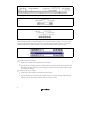
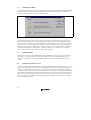
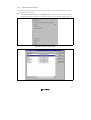
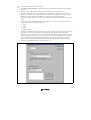
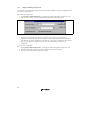
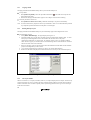
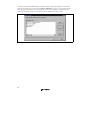
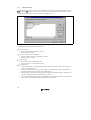
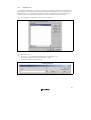
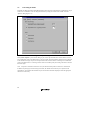
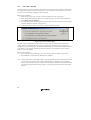
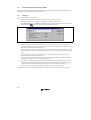
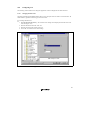
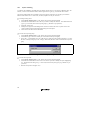
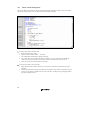
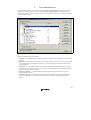
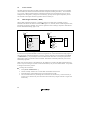
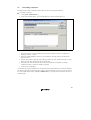
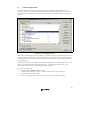
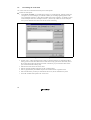
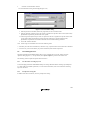
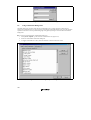
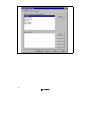
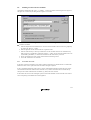
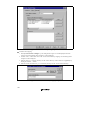
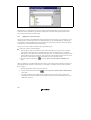
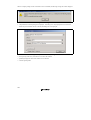
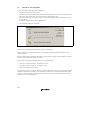
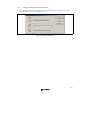
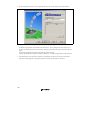
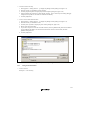
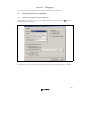
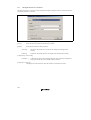
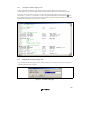
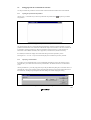
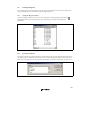
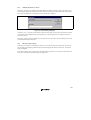
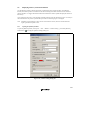
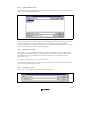
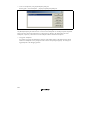
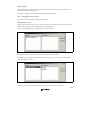
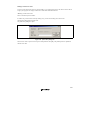
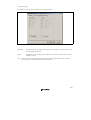
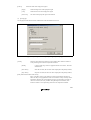
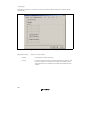
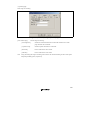
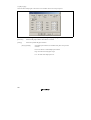
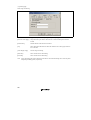
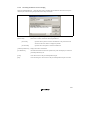
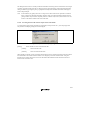
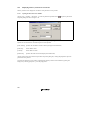
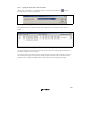
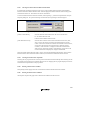
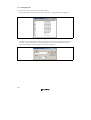
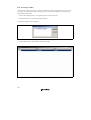
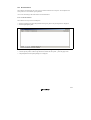
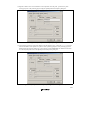
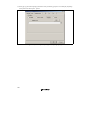
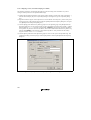
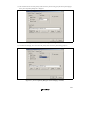
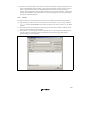
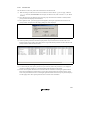
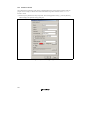
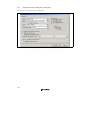
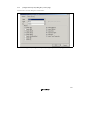
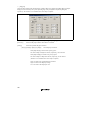
1. Click the “Search Disk…” button on the “Tools Administration” dialog (figure 5.1). The “Search Disk for
Components” dialog will be displayed (figure 5.3).
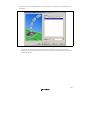
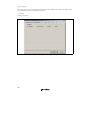
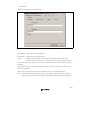
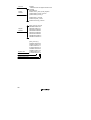
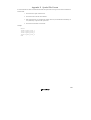
Figure 5.3: Search Disk for Components Dialog
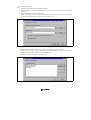
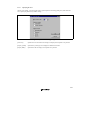
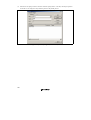
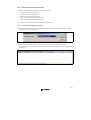
2. Enter the directory in which you would like to search into the top field or browse to it graphically by
clicking the “Browse…” button.
3. Check the “Include subfolders” check box if you would like to search the directory specified and all
directories below it.
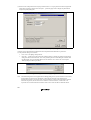
4. Click the “Start” button to begin the search. During the search, the “Start” button will change to a “Stop”
button. Click the “Stop” button to halt the search at any time.
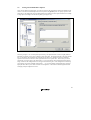
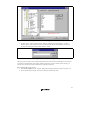
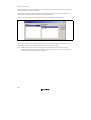
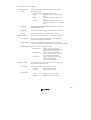
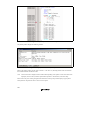
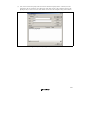
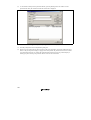
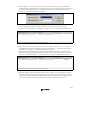
5. The results of the search are shown in the “Located components” list. Select a component and click
“Register” to register an individual component or click “Register All” to register all located components.
6. Click “Close” to exit the dialog.
85