1
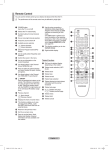
Remote Control You can use the remote control up to a distance of about 23 feet from the TV. N The performance of the remote control may be affected by bright light. 1 POWER Television Standby button. 2 TV Selects the TV mode directly. 3 NUMERIC BUTTONS Number buttons for direct channel access 4 − One or more digit channel selection 5 VOLUME BUTTONS + : Volume increase – : Volume decrease 6 SOURCE Available source selection 7 GUIDE Electronic Programme Guide (EPG) display 8 TOOLS Use to quickly select frequently used functions. 9 INFO Use to see information on the current broadcast 0 COLOURS BUTTONS Use these buttons in the Channel list and WISELINK Pro, etc. @ E.MODE Press to select the optional display and sound modes for sports, cinema and games. # Use these buttons in the DMA, WISELINK Pro and Anynet+. (∏: This remote can be used to control recording on Samsung recorders with the Anynet+ feature) $ SET Sets the remote to control your TV, VCR, DVD, Cable Box or Set-Top Box. % MODE Press to operate your TV, DVD, STB or VCR (See pages 60) ^ Pressing the ON/OFF @ light button toggles between on and off. When the remote control is on, and a key is pressed on the remote control, the remote control buttons will be lit for a moment. & PRE-CH Previous channel * MUTE Temporary sound switch-off ( CHANNEL BUTTONS P < : Next channel P > : Previous channel ) MENU Displays the main on-screen menu a W.LINK This function enables you to view and play photo and music files from an external device. b RETURN Returns to the previous menu c UP▲ / DOWN▼ / LEFT◄ / RIGHT► / ENTERE Press the Up / Down / Left / Right sections of the wheel button and Enter to select on-screen menu items and change menu values. You can navigate up and down the menu, switch channels and adjust the volume by turning the wheel button. 8 9 0 ! % & * ) b 4: Teletext size selection 5Teletext reveal Fastext topic selection /: Alternately select Teletext, Double, or Mix. 1: Teletext sub page 2: Teletext next page 3: Teletext previous page 6: Teletext index 9: Teletext hold 7: Teletext cancel TV VCR DVD STB d EXIT Exit the on-screen menu e DMA Use this when connecting a SAMSUNG DMA (Digital Media Adapter) device through an HDMI interface and switching to DMA mode. (The DMA button is optional.) For more information on the operating procedures, refer to the user manual of the DMA. This button is available when “Anynet+(HDMI-CEC)” is “On” (see page 52) f INFO.L Press to use the News, Stock Market and Weather Forecast information services available over the network. g SUBT. Digital subtitle display h CONTENT This function enables you to view “Content Library”. (see page 48) i RESET When your remote does not work, change the batteries and press the RESET button for 2-3 seconds before use. SET RESET Teletext Functions 2 :: Exit from the teletext display 6 0: Teletext mode selection (LIST / FLOF) 7 8: Teletext store English - BN68-01701D-UK.indb 6 2008-08-12 �� 10:35:24 Plug & Play Feature When the TV is initially powered on, basic settings proceed automatically and subsequently. 1. Press the POWER button on the remote control. The message “The Menu Plug & Play Language, Store Demo, Channels, and Time will be set.” is displayed. The Menu Language, Store Demo, Channels, and Time 2. Press the ENTERE button, then “Select the OSD Language.” menu is will be set. automatically displayed. Press the ENTERE button. OK 3. Select the appropriate language by pressing the ▲ or ▼ button. Press the E Enter ENTERE button to confirm your choice. 4. Press the ◄ or ► button to select “Store Demo” or “Home Use”, then the ENTERE button. N We recommend setting the TV to “Home Use” mode for the best picture in your home environment. N “Store Demo” mode is only intended for use in retail environments. N If the unit is accidentally set to “Store Demo” mode and you want to return to “Home Use” (Standard): Press the Volume button on the TV. When the volume OSD is displayed, press and hold the MENU button on the TV for 5 seconds. 5. Press the ENTERE button. Select the appropriate country by pressing the ▲ or ▼ button. Press the ENTERE button to confirm your choice. 6. Press the ▲ or ▼ button to select the channel source to memorize. Press the ENTERE button to select “Start”. N Digital & Analogue: Digital and Analogue channels. Digital: Digital channels. Analogue: Analogue channels. N The channel search will start and end automatically. N Press the ENTERE button at any time to interrupt the memorization process. N After all the available channels are stored, the message “Set the Clock Mode.” is displayed. 7. Press the ENTERE button. Press the ▲ or ▼ button to select “Auto”, then Press the ENTERE button. N If you select “Manual”, “Set current date and time” is displayed. (See page 25) N If you have received a digital signal, the time will be set automatically. If not, see page 25 to set the clock. 8. The message “Enjoy your viewing” is displayed. When you have finished, press the ENTERE button. If you want to reset this feature... Setup 1. Press the MENU button to display the menu. Press the ▲ or ▼ button to select “Setup”, then press the ENTERE button. 2. Press the ENTERE button again to select “Plug & Play”. 3. Enter your 4 digit PIN number. The default PIN number of a new TV set is ‘0-00-0’. N If you want to change PIN number, refer to 21 page. N The “Plug & Play” feature is only available in the TV mode. Plug & Play Language : English ► Time Network Selection : Cable Wireless Network Setup Cable Network Setup Child Lock : On Change PIN Channel Control Storing Channels and channel ❑ Country Digital Channel: You can change the country for digital channels. N The PIN number input screen appears. Enter your 4 digit PIN number. Channel Analogue Channel: You can change the country for analogue channels. Country ► Auto Store Manual Store Full Guide Mini Guide Default Guide : Mini Guide Channel List Channel Mode : Added Ch. English - 10 BN68-01701D-UK.indb 10 2008-08-12 �� 10:35:25 ❑ Auto Store Channel You can scan for the frequency ranges available to you (and availability depends on your country). Automatically allocated programme numbers may not correspond to actual or desired programme numbers. • Digital & Analogue: Digital and Analogue channels. • Digital: Digital channels. • Analogue: Analogue channels. N Scans for all channels with active broadcast stations and stores them in the TV’s memory. N If you want to stop Auto Store, press the ENTERE button. N The “Stop Auto Store?” message will be displayed. N Select “Yes” by pressing the ◄ or ► button, then press the ENTERE button. N If a channel is locked using the “Child Lock” function, the PIN input window appears. Fine Tune Signal Information LNA : On ► ❑ Manual Store N Scans for a channel manually and stores it in the TV’s memory. N If a channel is locked using the “Child Lock” function, the PIN input window appears. Digital Channel Manual store for digital channels. • Channel: Set the Channel number using the ▲, ▼ or number (0~9) buttons. • Frequency: Set the frequency using the number buttons. • Bandwidth: Set the bandwidth using the ▲, ▼ or number (0~9) buttons. N When it has finished, channels are updated in the channel list. Analogue Channel Manual store for analogue channel. • Programme (Programme number to be assigned to a channel): Sets the programme number using the ▲, ▼ or number (0~9) buttons. • Colour System → Auto / PAL / SECAM / NTSC4.43: Sets the colour system value using the ▲ or ▼ button. • Sound System → BG / DK / I / L: Sets the sound system value using the ▲ or ▼ button. • Channel (When you know the number of the channel to be stored): Press the ▲ or ▼ button to select “C” (Air channel) or “S” (Cable channel). Press the ► button, then press the ▲, ▼ or number (0~9) buttons to select the required number. N You can also select the channel number directly by pressing the number (0~9) buttons. TV VCR DVD STB N If there is abnormal sound or no sound, reselect the sound standard required. • Search (When you do not know the channel numbers): Press the ▲ or ▼ button to start the search. The tuner scans the frequency range until the first channel or the channel that you selected is received on the screen. • Store (When you store the channel and associated programme number): Set to “OK” by pressing the ENTERE button. N Channel mode - P (Programme mode): When completing tuning, the broadcasting stations in your area have been assigned to position numbers from P00 to P99. You can select a channel by entering the position number in this mode. - C (Air channel mode): You can select a channel by entering the assigned number to each air broadcasting station in this mode. - S (Cable channel mode): You can select a channel by entering the assigned number for each cable channel in this mode. ❑ Full Guide / Mini Guide The EPG (Electronic Programme Guide) information is provided by the broadcasters. Programme entries may appear blank or out of date as a result of the information broadcast on a given channel. The display will dynamically update as soon as new information becomes available. N For the detailed procedures on using “Full Guide” and “Mini Guide”, refer to the descriptions on page 12. O You can also display the guide menu simply by pressing the GUIDE button. (To configure the “Default Guide”, refer to the descriptions.) Full Guide: Displays the programme information as time ordered One hour segments. Two hours of programme information is displayed which may be scrolled forwards or backwards in time. Mini Guide: The information of each programme is displayed by each line on the current channel Mini Guide screen from the current programme onwards according to the programme starting time order. English - 11 BN68-01701D-UK.indb 11 2008-08-12 �� 10:35:25