1
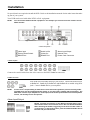
RS485 Port
The DVR can be controlled remotely by an external device or control system, such as a control
keyboard, using RS485 half-duplex serial communications signals. The RS485 connector can also
be used to control PTZ (pan, tilt, zoom) cameras. Connect RX+/TX+ and RX-/TX- of the control
system to the + and – (respectively) of the DVR.
Power Cord Connector
Connect the connector of the adaptor to the DVR, and connect the AC power cord to the adaptor
and then to the wall outlet.
WARNING: ROUTE POWER CORDS SO THAT THEY ARE NOT A TRIPPING HAZARD.
MAKE CERTAIN THE POWER CORD WILL NOT BE PINCHED OR ABRADED BY
FURNITURE. DO NOT INSTALL POWER CORDS UNDER RUGS OR CARPET.
THE POWER CORD HAS A GROUNDING PIN. IF YOUR POWER OUTLET DOES
NOT HAVE A GROUNDING PIN RECEPTACLE, DO NOT MODIFY THE PLUG.
DO NOT OVERLOAD THE CIRCUIT BY PLUGGING TOO MANY DEVICES IN TO
ONE CIRCUIT.
Configuration
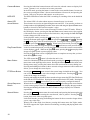
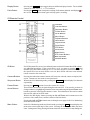
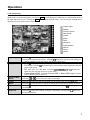
Front Panel Buttons and LEDs
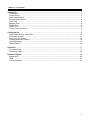
< DVR front panel >
Camera Buttons
Arrow Buttons
PTZ/Zoom Button
Display Button
NOTE:
HDD LED
Play/Pause Button
Group/Sequence Button
Panic Button
Alarm LED
Menu Button
Search Button
USB Connector
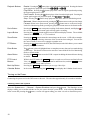
A separate Alarm button on the front panel is not provided. Pressing any button on the front panel
resets alarm output including the internal buzzer when the alarm is activated. However, when you
are in the menu or PTZ mode, you have to exit the menu or PTZ mode first to reset alarm output.
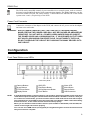
The infrared sensor on the DVR is just to the right of the arrow buttons. Make certain that nothing
blocks the sensor, or the remote control will not function properly.
When you use wireless communication devices (such as Wi-Fi or Bluetooth) near the DVR, the
remote control might not function properly.
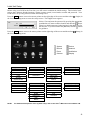
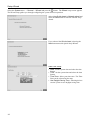
You can also use a USB mouse (not supplied) to navigate through the screens and menus much
like you would on a computer.
9