1
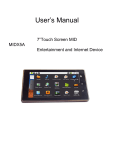
User’s Manual X5A 7”Touch Screen MID Entertainment and Internet Device Dear Users, Many thanks for selecting our product. We sincerely hope you get lasting enjoy and best multimedia experience from our product. All informations on this manual are correct during publishing. However, due to continuous update and improvement on our products, there might be tiny difference on appearance and function between the software of your device and the description on this manual. Notice This manual contains important safety precautions and information of correct use. Please be sure to read this manual carefully before use so as to avoid any accidents. Please do not place the product in hot, wet or dusty environment. Please do not place the product in hot environment. Especially in summer, do not place it in a car with all windows closed. Avoid droping or clashing the product and not shake the TFT screen voilently, or it may cause a damage or adnormal display to the screen. Please select a suitale volume and avoid loud sound while using earphones. Please turn down the volume or stop using if you get a roaring in your ears. For following situations, please charge the product. A. The icon of the battery shows without power B. System automatically shut down, and it turns off soon after restart. C. Operation key shows no reation. D. The device shows on the top right corner. [Notes]: Chargers of other models cannot be used for this device because it may cause an burnout, which we are not responsible for. Please contact with our relevant department if you need original chargers. Please do not disconnect the device while formatting, downloading and uploading, or it may cause application errors. We are not responsible for any memory erase loss caused by damage or maintain the product, or other personal reasons. Please do not disassemble the product personally, and avoid cleaning the product with ethyl alcohol, thinner, or benzene. Do not use this product in the areas which prohibite use of electronic devices, for example, on an airplane. Please do not use this product while driving or walking in the street, or it might cause USER’S MANUAL MIDX5A a car accident. USD can only used for data transmission. ※ We reserve the right to improve the product. Specification and design of the product are subject to change without prior notice! ★ This device do not support waterproof function. [Notes]: All images on this manual are only for reference! Specification and appearance of the products are subject to change without prior notice! 1 USER’S MANUAL MIDX5A 1. MIDX5A Basic Functions 1.1 MIDX5A Hardware Configurations TELECHIPS8902 CPU ARM1176JZ(F)-S up to 800MHz SUPPORT 3D GAME/MAP/DYNAMIC PIC. MEMORY NAND FLASH 256M DDR2 BUILT-IN 4GB/8GB/16GB/32GB SUPPORT SD/SDHC CARD,MAX UP TO 32GB WIFI IEEE802.11b/g WIRELESS USB USB2.0 OTG HIGH SPEED JACK 和 USB1.1 VIDEO HDMI1.3 HIGH CLEAR VEDIO OUT-PUT JACK AV VIDEO JACK 3.5mm HEADSET JACK AUDIO BUILT-IN MIC Headset power 40mW FREQUENCY RANGE:20Hz—20KHz SCREEN OTHERS SIZE 7 INCH RESOLUTION WVGA 800*480 COLOR 1600 MILLION COLORS OPERATION RESISTANT TOUCH PANNEL SIZE 193*115*14.3mm COLOR BLACK/WHITE WEIGHT 411.1g BATTERY TYPE RECHARGEABLE POLYMER BATTERY BATTERY CAPACITY 7.4V 2600mAH ADAPTER(DC 9V/1.5A) ACCESSORY HDMI/OTG/HEADSET CABLE USB CABLE/TOUCH PEN 1.2 MIDX5A Software Configurations 2 USER’S MANUAL OPERATE SYYSTEM ANDROID 2.1 BROWSER GOOGLE BROWSER MIDX5A VIDEO AUDIO MP3,WMA,AAC,FLAC,WAV,OGG,APE PICTURE BMP, JPEG,PNG,GIF up to 4080x4080 2.Knowing about MIDX5A Device 2.1 Power ON • Press power key to turn on the MID device. • OF 3 USER’S MANUAL MIDX5A press power key and hold on for 3 seconds in the main interface. The system will point out MID selection: Quiet Mode Flight Mode and Shutdown. MID will shut down normally after click Shutdown. ﹡ Enter Power Saving Mode Power saving standby: shortpress power key to enter the state of power saving standby. In switch on or power saving standby state, press the power key enter into the interface,can dislock the touch screen. [Notes]:1 System will shut down automatically under the status of low battery. 2 System will scan and repair disc automatically when restarted after illegal shutdown, and the interface will stay in the image of progress bar for a while. 2.2 Menu Key • In normal software process state, relevant menu windows will pop up by short pressing the 2.3 key. Home Key • Short press the key to back to main menu interface. 2.4 USB JACK 2.5 HDMI JACK 2.6 MiniUSB •Mini USB: connect with computer and transmit data or connect with mouse or other external equipments. 2.7 DC • DC socket: connect power supply to charge the device. 2.8 Earjack • 3.5mm standard earjack • MIC voice input. 2.9 SD Card • SD card slot: connect to SD memory card. [Notes]: Definition of press keys Short press: press time is less than 1.2 seconds. 4 USER’S MANUAL MIDX5A Long press: press time is more than 3 seconds. Unless otherwise stated, all press operations in this manual are short press. 3. First-time Use MIDX5A 3.1 Battery Management and Charging For initial use, please make sure to fully charge the battery of MID device. • Just plug in the charger/adaptor into the DC socket to enter the charging state. • Make sure the charging time to be about 10 hours for the first two times to use, and be about 5 hours in future use. [Notes]: An inner setting lithium polymer battery is applied in this device. Please sellect a specialized charger to charge the device. -- Battery icon will scroll while charging. --For the first two times to use, we suggest to charge the device after the power is used up, so as to extend the service life. -- Please make sure to turn off the power switch when not using the device. [Notes]: 1. If do not use for a long time, please make sure to charge and discharge the battery for once within one month to avoid damage caused by overuse of battery. 2. When the device is shut down due to low power, the device will indicate that the power is critically low and it is charging now. Please wait for a while at this moment. It will enter the main interface automatically when the device get enough power. 3. Please make sure to charge the inner setting lithium polymer battery regularly. Damage caused by overuse of lithium polymer battery is not covered by player warranty range. Problems caused by using an unspecialized charger is also not coverd by player warranty range. 3.2 Turn on/off MIDX5A Press and hold on the power key to turn on/off the device. See also the description of device. 3.3 Connect to PC Just use the USB cable provided by random to connect the device and PC to achieve USB power supply or USB data transmission. • Entered USB flash disk mode, one can copy or delete the files of player on the PC. • DRV catalogue is the driver of USB network. [Notes]: 1. System will shut down automatically under the status of low battery. 2. System will scan and repair disc automatically when restarted after 5 USER’S MANUAL MIDX5A illegal shutdown, and the interface will stay in the image of progress bar for a while. 4. MIDX5A Device Operation Interface 4.1 Description of Main Interface Enter into the main interface when MID is turned on . The screen is settled to be locked, press “power” key to unlock. You are allowed to do the following operations • Manage the icon of software in the main interface -- Add a software shortcut: Move the software icon in the menu interface to the main interface , then you can add a shortcut. -- Delete a software shortcut: Press the main interface software icon menu .then it will show the mark of Dustbin , move the software icon to the dustbin until the mark become red , loosen the touch screen, then you can delete the shortcut of software successfully. Long press the touch screen, then it pops up “add into homepage screen window”. -- Shortcuts: 6 USER’S MANUAL MIDX5A - Applications: - Gmail label: -Bookmarks: enter the website -Music Playlist: enter the music playlist -- Widgets: -ES task manager : Add ES task manager into desktop - Weather forecast: Add the current weather forecast into desktop -- Search: Add Google seach engines into desktop - Calendar: Add calendar into desktop - Analog clock: Add analog clock into desktop - Music: Add music play key into desktop -- Folders: - New folder: add a new folder into desktop - Wallpapers: - Pictures - Wallpapers library 4.2 The description of menu interface Through pressing the icon directly , you can enter into menu to choose the options you need.such as APK installer , email , music , settings,alarm clock, browser,and so on. 4.3 Description of Status Bar • The status bar locateS in the top side of screen - The top left side show the information such as Main screen key SD card, the status of USB connector and so on 7 USER’S MANUAL MIDX5A --The top right side show device’s WIFi singal, silent mode, wifi connect status, the battery electricity , the status of battery charging , current time , Volume-key, volume + key, menu key and back key and so on. 4.4 Use of Touch Screen MIDX5A have installed a 7” touch screen , The following description will show the control area of the main touch srceen and introduce how to use the touch screen. •No matter which interface are you in , you can return to the main screen directly by touching the home key lightly which locates in the top left side of screen. Notes: The function of main home key machine. equals to that of the back key in the •In different applications , you can return to the last layer of this interface by touching the back key in the low right side of screen. • In different applications , through touch the menu key in the top right side of screen , then it will pop-up the relative operation and set-up interface. •In the main menu interface , you can run a software by touching the software icon lightly • In different browser ( file, music, video, and picture browser), you can move the scroll bar up and down to scorll the file list up and down . you can scroll the list quickly by touching the scroll bar cursor up and down.r • In the internet browser and PDF reader , you can scroll the page up and down by touching the page and move it up and down. 5. Basic Settings of MIDX5A Devices. 8 USER’S MANUAL setting: Press the setting icon MIDX5A in the menu page to enter into setting interface. 5.1 wireless and networks. Manager wifi setting to connect wireness network. • Wi-Fi: Turn on or Turn off WiFi. -- when WiFi mentions “ Turn on WiFi” , and the icon in the right shows , it means WiFi is in the closed position --Click WiFi , and the status mention that it is turning on … , and the icon in the right 9 USER’S side shows MANUAL MIDX5A , it means that WiFi is in the open position. Note: In the setting of this device , other than the follwing additional description - The right icon shows - The right icon shows , it means that the option is in close position. , it means that the option is in open position. • Wi-Fi Setting: to set up and manage wireless access point -- Network notice that the right icon is , it means that automatic scanning is in the close position. -- Click Network notice, the right icon shows , it means that scanner is in the open position , the deive will seach automaticly and add the nearby WiFi network which can be connected. Click wireless network port , then you can connect network. After connectiong successful , the WiFi setting icon will show have connected to ……, it means that the device have connected to network successfully. --As to the WiFi router which have been connected before, this machine will keep record automaticly, if you need to connect again in the future , you just need to turn on WiFi in the WiFi set-up , or choose this WiFi router then connect it. When the status of WiFi set-up is open ( showing turn off WiFi), the machine will search the WiFi router automaticly and then connect to it when the device is started up each time. Notes: You can enter into Wi-Fi setting directly by pressing the icon network connect manager 5.2 Sound and display You can set up the tone , notice and the brightness of screen. • silent mode: All sound will become silent except for Media and alarm. • Loudspeaker mode: you can use loudspeaker •The volume of ring: you can set up the volume of ring. •The volume of media : Adjust the volume of media by clicking the move point to right and left •Notice Tone :set up the default notice tone. • The choose of operative tone: there are sound when you choose the screen. • SD card notice: the volume of the prohibition of SD card/ Notes: The volume of ring , notice ring, operative sound operation , SD card notice are 10 USER’S MANUAL MIDX5A used to cellphone system , in MIDX5A system , it will show absent. • Direction : it will change the direction automaticly when you rotate the MID •Cartoon: it will show cartoon when you open or close a window. • Brightness: Adjust the brightness of screen by moving the point to left and right. •Standby of screen: before turn off the machine automaticly , it will adjust to delay the turning off. There are 6 kind of time for your choose such as 15 seconds, 30 seconds,1 minute, 2 minutes, 10 minutes. 5.3 Safty and Location – to set up my location and passworld selections. . Use of wireless network: you can check the location of application by using wireless network. • Visible password: it will show your password when you typing them 5.4 Applications: manage application , set up shortcut directly. • Unknown source: you can choose whether it is allowed to install non-market applications. • Quick start-up: set-up the keyboard shortcut in the running applications 11 USER’S MANUAL MIDX5A • Manage applications: Managing and deleting the installed applications • Explore: set up the explore option in the applications. 5.5 SD card and MID Save: remove SD card to see the available memory space. Notes: pls removing the SD card by the opotion delete the SD card safely in case of damaging the device by remove it directly. 5.6 Date and time Set up date , time , time zone and formality 12 USER’S MANUAL MIDX5A •Set up date and time: Enter into the interface of date settings to set up the date. • Select time zone : enter into the interface of choosing time zone to set up the time zone. • Set up time: Enter into the interface of time settings to set up the time. • set up 24 hour formality : set up the formality of displaying time •Select the formality of showing date: you can choose different formality to show date. 5.7 Area and text -Set up the option area ( language and are), text typing and correct automaticly. •Select locale : 14 kinds of language for your choose • Android keyboard: • Android keyboard : Android keyboard settings --make sound when click -- Show capital letters automaticly --Show suggestions: show the suggestive word and type it out -- Auto-complete: comeplete space , point and insert focus words automaticly •. set up the keyboard: built-in keyboard settings -- Auto-replace: correct wrong words 13 USER’S MANUAL MIDX5A Auto-capital: Correct the first word of the sentence to be capital . Punctuate automaticly: press space key two times to insert punctuation • User dictionary : Add or delete words and sentences to the dictionary of user. 5.8 Selection of USB mode : choose the workable mode of USB : 5.9 About device You can look up the relative law information and the status of device and the editon of software. 6. MIDX5A operating Browser 6.1 Click“ ” to open the following web page 14 USER’S MANUAL MIDX5A • Click MENU to bring out Setup menu -- start: enter website by inputting address -- bookmark: add bookmark for the website -- new window: open new web page -- refresh: refresh the current page -- forward/backward: go forward/ backward -- more 6.2 Email Email Click “ ” to enter e-mail settings, after entering the email address and password, simply setingt the limited server, you can login and send or receive email messages 6.3 Calendar Click“ ”to open the calendar 15 USER’S MANUAL 6.4 calculator Click “ 6.5 MIDX5A ” to open calculator clock Click “ ” to enter alarm clock setting -- every day: set the alarm clock repeat rings at the same time every day -- Mon, Tues, Wed, Thu, Fri: set the alarm clock repeat rings at the same time every Mon-Fri -- None: set the alarm ring only once and no repeat -- click clock: choose clock type 6.6 carlibration Click “ ” to enter alarm clock setting 16 USER’S MANUAL MIDX5A —carlibration : carlibrate the touch screen. —After entering into the option of carlibration of touch screen , you can touch the + singal which appeared in the top right corner, top left corner , bottom right corner , bottom right corner and the central . 7. MIDX5A FAQ • Can not open the media player -- check battery -- connect the power adapter and check again -- if it still can’t be opened, pl contact our sales person • Screen is flashing after starting up -- short of power, pl charge • Headphones can not hear sound -- pl check whether the volume has been set to 0 -- pl check whether the music file has been damanged. Try playing other music to determine, if the file has been damaged, it could lead to serious noise or skips. • Can not copy the file -- Confirm whether the computer and the player is properly connected -- confirm whether the storage space is full -- Confirm whether the USB cable is damaged 17