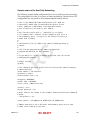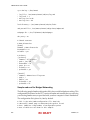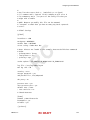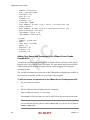
1
VMware Server User’s Guide VMware Server 2.0 VMware Server User’s Guide VMware Server User’s Guide Revision: 20080819 Item: EN-000057-00 You can find the most up-to-date technical documentation on our Web site at: http://www.vmware.com/support/ The VMware Web site also provides the latest product updates. If you have comments about this documentation, submit your feedback to: [email protected] © 2008 VMware, Inc. All rights reserved. Protected by one or more U.S. Patent Nos. 6,397,242, 6,496,847, 6,704,925, 6,711,672, 6,725,289, 6,735,601, 6,785,886, 6,789,156, 6,795,966, 6,880,022, 6,944,699, 6,961,806, 6,961,941, 7,069,413, 7,082,598, 7,089,377, 7,111,086, 7,111,145, 7,117,481, 7,149,843, 7,155,558, 7,222,221, 7,260,815, 7,260,820, 7,269,683, 7,275,136, 7,277,998, 7,277,999, 7,278,030, 7,281,102, 7,290,253, and 7,356,679; patents pending. VMware, the VMware “boxes” logo and design, Virtual SMP and VMotion are registered trademarks or trademarks of VMware, Inc. in the United States and/or other jurisdictions. All other marks and names mentioned herein may be trademarks of their respective companies. VMware, Inc. 3401 Hillview Ave. Palo Alto, CA 94304 www.vmware.com 2 VMware, Inc. Contents About This Book 13 Log Files 16 1 Introduction and System Requirements 19 VMware Server Product Benefits 19 New Features of VMware Server 2.0 20 Web‐Based Interface 20 VMware Remote Console 21 Increased Memory Support 21 Increase in Number of Network Adapters Supported 21 Quiesced Backups of Virtual Machines on Windows 21 Support for High‐Speed USB 2.0 Devices 21 Additional Host Operating System Support 22 Additional Guest Operating System Support 22 Improved 64‐Bit Guest Support 22 64‐Bit Sound Driver 22 Native 64‐Bit Host Support on Linux 22 Updated VIX API 23 VMCI Sockets Interface 23 About the Host and Guest Computers 23 Host System Requirements 23 PC Hardware 23 Memory 24 Disk Drives 24 Local Area Networking 25 Windows Host Operating Systems 25 Linux Host Operating System Requirements 26 VI Web Access and VMware Remote Console Client System Requirements 27 Virtual Machine Specifications 28 Processor 28 Chip Set 28 BIOS 28 Memory 29 Graphics 29 VMware, Inc. 3 VMware Server User’s Guide IDE Drives 29 SCSI Devices 29 PCI Slots 29 Floppy Drives 30 Serial (COM) Ports 30 Parallel (LPT) Ports 30 USB Ports 30 Keyboard 30 Mouse and Drawing Tablets 30 Ethernet Card 30 Virtual Networking 31 Sound 31 Supported Guest Operating Systems 31 Processor Support for 64‐Bit Guest Operating Systems 34 2 Installing VMware Server 35 Installation Prerequisites 35 Preparing to Install VMware Server 35 Sharing a VMware Server Host with Other VMware Products 36 Installing VMware Server on a Windows Host 37 Installing VMware Server Silently 39 Uninstalling VMware Server on a Windows Host 41 Installing VMware Server on a Linux Host 41 Configuring VMware Server on Linux Hosts Using vmware‐config.pl 43 Uninstalling VMware Server on a Linux Host 44 Uninstalling a tar Installation of VMware Server 44 Uninstalling an RPM Installation of VMware Server 44 Upgrading from VMware Server 1 44 Where to Go Next 46 3 Learning VMware Server Basics: Using VI Web Access 47 Logging In to VMware Server Using VI Web Access 47 Overview of VI Web Access 48 Using the VMware Server Host Workspace 49 Using the Virtual Machine Workspace 50 Viewing Virtual Machine Summary Information 50 Installing the VMware Remote Console Add‐On 51 Starting VMware Remote Console from the Console Tab 53 Using VI Web Access Menu Options 53 Application Menu 53 4 VMware, Inc. Contents Virtual Machine Menu 54 Administration Menu 55 Viewing VMware Server and Virtual Machine Tasks 55 Viewing VMware Server and Virtual Machine Events 56 Logging Out 56 4 Creating and Upgrading Virtual Machines 57 Setting Up a New Virtual Machine 57 Before You Begin 57 Using the New Virtual Machine Wizard 62 Installing a Guest Operating System 66 Updating the Guest Operating System 68 Upgrading the Virtual Machine Version 69 5 Installing and Using VMware Tools 71 Components of VMware Tools 71 VMware Tools Service 72 VMware Device Drivers 72 VMware User Process 73 VMware Tools Control Panel 73 Installing VMware Tools 73 Manually Installing VMware Tools in a Windows Guest System 74 Configuring the Video Driver on Older Versions of Windows 75 Installing VMware Tools in a Linux Guest System 78 Installing VMware Tools in a Solaris Guest System 81 Installing VMware Tools in a FreeBSD Guest System 82 Installing VMware Tools in a NetWare Guest System 84 Starting the VMware User Process Manually If You Do Not Use a Session Manager on UNIX 86 Updating VMware Tools 86 Uninstalling VMware Tools 87 Repairing or Changing VMware Tools 88 Using the VMware Tools Control Panel 88 Using the Windows Control Panel to Display the Taskbar Icon 89 Options Tab 89 Devices Tab 90 Scripts Tab 91 Shared Folders Tab 91 Shrink Tab 91 About Tab 92 VMware, Inc. 5 VMware Server User’s Guide Configuring VMware Tools in a NetWare Guest 92 Customizations to VMware Tools 93 How VMware Tools Scripts Affect Power States 93 Executing Commands After You Power Off or Reset a Virtual Machine 96 Passing a String from the Host to the Guest at Startup 97 Passing Information Between the Guest and Another Program 99 Using the VMware Tools Command‐Line Interface 99 6 Managing VMware Server 101 Managing the Virtual Machine Inventory 101 Adding a Virtual Machine to the Inventory 102 Removing a Virtual Machine from the Inventory 102 Performing Power Operations on Virtual Machines 103 Managing Datastores 103 Adding Datastores 104 Renaming Datastores 105 Removing Datastores 106 Refreshing Datastores 106 Editing Host‐Wide Memory and Snapshot Settings 106 Configuring Host Memory 106 Enabling and Disabling Background Snapshots 108 Configuring Virtual Machine Startup and Shutdown Settings 109 Enabling System‐Wide Startup and Shutdown Settings 109 Specifying the Startup and Shutdown Order for Virtual Machines 110 Customizing the Startup and Shutdown Settings for Individual Virtual Machines 110 Enabling Quiesced Backups of Virtual Machines on Windows 111 7 Running Virtual Machines 115 Running VMware Tools 116 Changing the Power State of a Virtual Machine 116 Changing Virtual Machine Name and Guest System Settings Changing Virtual Machine Power Settings 118 Changing Virtual Machine Snapshot Settings 119 Locking the Snapshot 120 Setting Snapshot Power Off Options 120 Changing Virtual Machine Advanced Settings 121 Deleting a Virtual Machine 123 Using VMware Remote Console 124 Interacting with the Guest Operating System 124 6 117 VMware, Inc. Contents Entering and Leaving Full Screen Mode 124 Connecting and Disconnecting Client Devices 125 Resetting and Powering Off 126 Viewing the Message Log 126 Quitting VMware Remote Console 126 Generating and Sharing Virtual Machine Shortcuts 127 Generating a Web Shortcut 127 Generating a VMware Remote Console Desktop Shortcut 128 Editing Notes in the Virtual Machine Summary Tab 128 Editing the Hardware Configuration of a Virtual Machine 129 Adding Hardware to a Virtual Machine 130 Installing New Software in a Virtual Machine 131 Advanced Options for Application Developers 132 8 Configuring Virtual Machine Hardware 135 Configuring Hard Disks 135 Hard Disk Types and Properties 136 Adding a Hard Disk to a Virtual Machine 138 Editing a Virtual Hard Disk 139 Removing a Hard Disk from a Virtual Machine 140 Virtual Disk Maintenance Tasks 140 Configuring CD/DVD Drives 143 CD/DVD Drive Type and Properties 144 Adding a CD/DVD Drive to a Virtual Machine 144 Editing a Virtual CD/DVD Drive 146 Removing a CD/DVD Drive from a Virtual Machine 147 Configuring Floppy Drives 147 Adding a Floppy Drive to a Virtual Machine 147 Editing a Virtual Floppy Drive 149 Removing a Floppy Drive from a Virtual Machine 150 Configuring Passthrough (Generic) SCSI Devices 150 Adding a Passthrough (Generic) SCSI Device 150 Editing Passthrough (Generic) SCSI Devices 151 Removing Passthrough (Generic) SCSI Devices 151 Configuring SCSI Controllers 152 Configuring USB Controllers and Devices 152 Adding a USB Controller to a Virtual Machine 152 Removing a USB Controller from a Virtual Machine 153 Connecting USB Devices 153 Using USB Devices in a Virtual Machine 154 VMware, Inc. 7 VMware Server User’s Guide Disconnecting USB Devices from a Virtual Machine 157 Configuring Sound 157 Adding a Sound Adapter to a Virtual Machine 158 Editing a Virtual Sound Adapter 158 Removing a Sound Adapter from a Virtual Machine 159 Configuring Serial Ports 159 Adding a Serial Port to a Virtual Machine 159 Editing a Virtual Serial Port 162 Removing a Serial Port from a Virtual Machine 163 Serial Port General Usage Examples 163 Serial Port Debugging Usage Examples 166 Configuring Parallel Ports 169 Adding a Parallel Port to a Virtual Machine 170 Editing a Virtual Parallel Port 171 Removing a Parallel Port from a Virtual Machine 171 Using Parallel Ports 171 Configuring a Parallel Port on a Windows Host 172 Configuring a Parallel Port on a Linux Host 172 Notes for Using the Iomega Zip Drive 176 Keyboard Mapping on Linux Hosts 176 9 Preserving the State of a Virtual Machine 185 Suspending and Resuming Virtual Machines 185 Configuring Hard Suspend or Soft Suspend 186 Suspending or Resuming a Virtual Machine 186 Using Snapshots 187 What to Use Snapshots For 187 What Is Captured by a Snapshot 188 Activities That Conflict with Snapshots 188 Enabling and Disabling Background Snapshots for All Virtual Machines 189 Snapshots and a Virtual Machine’s Hard Disks 189 Excluding Virtual Disks from Snapshots 189 Taking a Snapshot 190 Reverting to a Snapshot 190 Removing a Snapshot 191 Locking a Snapshot 191 10 Managing Roles and Permissions 193 Access Elements 193 Managing Users 194 8 VMware, Inc. Contents Managing Groups 195 Managing Roles 195 Creating Roles 196 Editing and Renaming Roles 197 Removing Roles 197 Managing Permissions 198 Creating Permissions 198 Editing Permissions 199 Removing Permissions 200 Access Rules 200 Hierarchical Inheritance 200 Multiple Permission Settings 201 11 Configuring a Virtual Network 203 Network Basics 203 Components of the Virtual Network 204 Virtual Network Switch 205 Internal DHCP Server 205 Virtual Network Adapter 206 Host Virtual Adapter 206 Common Networking Configurations 207 Bridged Networking 207 Network Address Translation (NAT) 208 Host‐Only Networking 210 Custom Networking Configurations 211 Changing the Networking Configuration 215 Refreshing the Network 215 Adding a Virtual Network Adapter 215 Editing a Network Adapter 216 Removing a Network Adapter 217 Configuring Bridged Networking Options on a Windows Host 217 Enabling, Disabling, Adding, and Removing Host Virtual Adapters 219 Advanced Networking Topics 222 Selecting IP Addresses on a Host‐Only Network or NAT Configuration 222 Avoiding IP Packet Leakage in a Host‐Only Network 224 Maintaining and Changing the MAC Address of a Virtual Machine 225 Controlling Routing for a Host‐Only Network on a Linux Host 227 Issues with Host‐Only Networking on a Linux Host 227 Setting Up a Second Bridged Network Interface on a Linux Host 229 Configuring Bridged Networking When Using Teamed Network Interface Cards 229 VMware, Inc. 9 VMware Server User’s Guide Setting Up Two Separate Host‐Only Networks 232 Routing Between Two Host‐Only Networks 235 Using Virtual Network Adapters in Promiscuous Mode on a Linux Host Understanding NAT 239 Using NAT 240 The Host Computer and the NAT Network 240 DHCP on the NAT Network 240 DNS on the NAT Network 241 External Access from the NAT Network 241 Advanced NAT Configuration 242 Custom NAT and DHCP Configuration on a Windows Host 245 Considerations for Using NAT 246 Using NAT with NetLogon 247 Sample Linux vmnetnat.conf File 248 Using Samba for File Sharing on a Linux Host 249 Using the Virtual Network Editor 258 Summary Tab 258 Automatic Bridging Tab 259 Host Virtual Network Mapping Tab 259 Host Virtual Adapters Tab 260 DHCP Tab 261 NAT Tab 261 239 12 Performance Tuning for VMware Server 265 Configuring and Maintaining the Host System 265 Defragmenting Hard Disks 265 Maintaining Adequate Free Disk Space 266 Enabling Disk Write Caching on Windows Hosts 266 Configuring Swap Space on Linux Hosts 266 Increasing NIC Interrupt Coalescing 266 Calculating Memory Requirements to Allow for Virtual Machine Overhead 267 Configuring Host‐Wide Virtual Machine Memory Usage 267 Allocating Memory to a Virtual Machine 268 Editing Virtual Machine Memory 269 Using Two‐Way Virtual Symmetric Multiprocessing 270 Editing Virtual Processors 270 Configuring and Maintaining Guest Operating Systems 271 Monitoring Virtual Machine Performance on Windows Hosts 275 10 VMware, Inc. Contents 13 Configuring Clustering on Windows Hosts 277 Overview of Clustering with VMware Server 277 Clustering Software Requirements 278 Applications That Can Use Clustering 278 Using SCSI Reservation to Share Virtual SCSI Disks 278 SCSI Reservation Prerequisites and Restrictions 279 Enabling SCSI Reservation 279 Creating a Cluster in a Box 281 Configuring Virtual Machines for Cluster in a Box 282 Creating a Two‐Node Cluster with Microsoft Clustering Services 283 A Defined Privileges 289 Alarms 290 Datacenter 291 Datastore 291 Extensions 292 Folders 293 Global 293 Host CIM 295 Host Configuration 296 Host Inventory 298 Host Local Operations 299 Network 300 Performance 300 Permissions 301 Resource 301 Scheduled Task 303 Sessions 303 Tasks 304 Virtual Machine Configuration 304 Virtual Machine Interaction 307 Virtual Machine Inventory 309 Virtual Machine Provisioning 309 Virtual Machine State 311 B Files That Make Up a Virtual Machine 313 Files That Make Up a Virtual Machine 313 VMware, Inc. 11 VMware Server User’s Guide Glossary 317 Index 325 12 VMware, Inc. About This Book The VMware Server User’s Guide provides information about installing and using VMware Server 2. Revision History This manual is revised with each release of the product or when necessary. A revised version can contain minor or major changes. Table 1 summarizes the significant changes in each version of this manual. Table 1. Revision History Revision Description 20080828 First version of the VMware Server 2.0 documentation. To view the most current version of the manual, see the VMware Web site: http://www.vmware.com/support/pubs/server_pubs.html Intended Audience This book is intended for anyone who needs to install, upgrade, configure, or use VMware Server. VMware Server users typically work in small‐ and medium‐sized businesses, doing software development and testing or working with multiple operating systems or computing environments. Users include software developers, QA engineers, trainers, salespeople who run demos, and anyone who wants to create virtual machines. VMware, Inc. RC DRAFT 13 VMware Server User’s Guide Document Feedback VMware welcomes your suggestions for improving our documentation. If you have comments, send your feedback to: [email protected] Technical Support and Education Resources The following sections describe the technical support resources available to you. To access the most current version of this book and other books, go to: http://www.vmware.com/support/pubs Online and Telephone Support Use online support to submit technical support requests, view your product and contract information, and register your products. Go to: http://www.vmware.com/support Customers with appropriate support contracts should use telephone support for the fastest response on priority 1 issues. Go to: http://www.vmware.com/support/phone_support.html Support Offerings Find out how VMware support offerings can help meet your business needs. Go to: http://www.vmware.com/support/services VMware Professional Services VMware Education Services courses offer extensive hands‐on labs, case study examples, and course materials designed to be used as on‐the‐job reference tools. Courses are available onsite, in the classroom, and live online. For onsite pilot programs and implementation best practices, VMware Consulting Services helps you assess, plan, build, and manage your virtual environment. To access information about education classes, certification programs, and consulting services, go to: http://www.vmware.com/services 14 RC DRAFT VMware, Inc. About This Book Reporting Problems If you have problems while running VMware Server, report them to the VMware support team. You must first register your serial number. Then you can report your problems by submitting a support request to: http://www.vmware.com/requestsupport Log files are needed to diagnose and report problems. The required log files depend on the problem you encounter. You can simplify the process of collecting the information by running the support script to collect the log files and system information. Follow the procedure that applies to your host computer. NOTE The support script runs only on the VMware Server host. If you encounter problems on a remote client, you must collect the log files manually. To run the support script on a Linux host 1 Open a terminal window. 2 Run the support script as the root user: vm-support If you do not run the script as root, the script displays messages indicating that it cannot collect some information. This is normal. If the VMware support team needs that information, a support representative might ask you to run the script again, as root. The script creates a compressed.tgz file in the current directory. 3 Include the output file with your support request. If your virtual machines are installed in a non‐standard location, the script might not pick up all the required data. Make sure that the *.log and *.vmx files from your virtual machine folders are included with the files you send. To run the support script on a Windows host 1 Open a command prompt. 2 Change to the VMware Server program directory. The default directory is: C:\Program Files\VMware\VMware Server 3 Run the support script: cscript vm-support.vbs VMware, Inc. RC DRAFT 15 VMware Server User’s Guide After the script runs, it displays the name and location of the zipped output. Log Files The following log files are generated by VMware Server and collected by the support script. Virtual Machine Log File If a virtual machine exits abnormally or crashes, run the support script or save the virtual machine log files before you restart the virtual machine. The virtual machine log files are located in the same directory as the virtual machine configuration (.vmx) file. In the Commands section of the virtual machine’s Summary tab, click Configure VM. The path to the configuration file is shown in the General tab. On Windows and Linux hosts, the files are named vmware-<n>.log. Also save any dump (Windows) or core (Linux) files. VMware Host Agent Log File The VMware Host Agent writes information to log files. On a Windows and Linux hosts, the files are named hostd-<n>.log. On Windows hosts, the files are located in the directory <%ALLUSERSPROFILE%>\VMware\VMware Server. For example: C:\Documents and Settings\All Users\Application Data\VMware\VMware Server On Linux host systems, the files are located in the directory /var/log/vmware. VMware Authorization Service Log File You can manually enable logging for the VMware Authorization Service, named vmware-authd on Linux hosts. To enable logging for the VMware Authorization Service 1 In a text editor, edit the following file: Windows – config.ini, located in the directory <%ALLUSERSPROFILE%>\VMware\VMware Server For example: 16 RC DRAFT VMware, Inc. About This Book C:\Documents and Settings\All Users\Application Data\VMware\VMware Server 2 Linux – /etc/vmware/config Add the following lines to the configuration file: vmauthd.logEnabled = TRUE log.vmauthdFileName = "vmauthd.log" pref.hardLimitDebug = 2 3 To enable logging: On a Windows host, select Start > Administrative Tools > Services, right‐click VMware Authorization Service, and select Restart. On a Linux host, the log file is enabled when you save and close the configuration file. On Windows hosts, the vmauthd.log file is created in C:\Windows\system32 or C:\WINNT\system32. On Linux hosts, the vmauthd.log file is created in /var/log/vmware. VI Web Access Log Files On Windows hosts, Tomcat Web server log files are located in the directory <%ALLUSERSPROFILE%>\VMware\tomcat-logs. For example: C:\Documents and Settings\All Users\Application Data\VMware\tomcat-logs On Linux hosts, log files are located in the directory /var/log/vmware/WebAccess. VMware Remote Console Log Files On Windows clients, the VMware Remote Console log files are named vmware-<username>-<nnnn>.log, located in the directory %TEMP%\vmware-<username>. On Linux clients, the VMware Remote Console log files are named vmrc-<nnnn>.log and <nnnn>.log, located in the directory /tmp/vmware-<username>. VMware, Inc. RC DRAFT 17 VMware Server User’s Guide 18 RC DRAFT VMware, Inc. 1 Introduction and System Requirements 1 This chapter describes the key product features and benefits of using VMware Server. It also describes the system requirements for operating VMware Server. This chapter contains the following topics: “VMware Server Product Benefits” on page 19 “New Features of VMware Server 2.0” on page 20 “Host System Requirements” on page 23 “VI Web Access and VMware Remote Console Client System Requirements” on page 27 “Virtual Machine Specifications” on page 28 “Supported Guest Operating Systems” on page 31 VMware Server Product Benefits VMware Server is a free virtualization product for Microsoft Windows and Linux servers. It enables you to quickly provision new server capacity by partitioning a physical server into multiple virtual machines. You can use VMware Server to provision a wide variety of plug‐and‐play virtual appliances for commonly used infrastructure. VMware Server supports the following hardware and software: Any standard x86‐compatible or x86‐64‐compatible personal computer A wide variety of Windows, Linux, Solaris, and other guest operating systems, including 64‐bit operating systems Two‐way Virtual SMP VMware, Inc. RC DRAFT 19 VMware Server User’s Guide Intel Virtualization Technology (Intel VT) AMD‐Virtualization (AMT‐V) With VMware Server, you can do the following: Provision a new server without purchasing more hardware by locating multiple virtual machines on the same host. Run Windows, Linux, and other operating systems and applications without software conflicts because virtual machines are completely isolated from one another and from the physical host. Move virtual machines from one physical host to another without having to reconfigure them. New Features of VMware Server 2.0 This section provides information about key new features of VMware Server 2.0. Web-Based Interface Use VMware Infrastructure Web Access (VI Web Access) to perform host and virtual machine configuration for VMware Server 2.0. This intuitive web‐based interface provides a simple and flexible tool for virtual machine management. Using VI Web Access, you can do the following: Create, configure, and delete virtual machines Add and remove virtual machines from the inventory Perform power operations (start, stop, reset, suspend, and resume) on virtual machines Monitor the operation of virtual machines Generate a Web shortcut for virtual machine users that allows them to interact directly with the guest operating system from a Web browser, with the option to limit their view to the console or a single virtual machine Generate a VMware Remote Console desktop shortcut that allows virtual machine users to interact directly with the guest operating system outside of a Web browser Configure host‐wide VMware Server settings VI Web Access and VMware Remote Console replace the VMware Management Interface and VMware Server Console. See Chapter 3, “Learning VMware Server Basics: Using VI Web Access,” on page 47. 20 RC DRAFT VMware, Inc. Introduction and System Requirements VMware Remote Console VMware Remote Console enables you to interact with the guest operating system running in a virtual machine. You can run VMware Remote Console on the host or a remote client system. After you install it as a Web browser add‐on from VI Web Access, VMware Remote Console can run independently from VI Web Access. VMware Remote Console also allows you to connect and disconnect client CD/DVD and floppy devices. See “Using VMware Remote Console” on page 124. Increased Memory Support The maximum amount of memory that can be allocated per virtual machine is increased from 3.6GB to 8GB. The amount of memory that can be used by all virtual machines combined is limited only by the amount of memory on the host computer. Increase in Number of Network Adapters Supported You can now have a total of 10 network adapters for a virtual machine. Quiesced Backups of Virtual Machines on Windows On Windows hosts, you can enable the VMware VSS Writer, which uses snapshots to maintain the data integrity of applications running inside the virtual machine when you take backups. See Enabling Quiesced Backups of Virtual Machines on Windows. Support for High-Speed USB 2.0 Devices If the guest operating system has the appropriate USB 2.0 device drivers, you can use peripherals that require high‐speed performance, such as speakers, webcams, next‐generation printers and scanners, fast storage devices, MP3 players, DVD‐RW drives, and high‐capacity CD‐ROM jukeboxes. You can also connect to USB 1.1 devices. See “Connecting USB Devices” on page 153. USB 2.0 support is available only for VMware products that support virtual machine hardware versions 6 and 7, such as VMware Server 2 and Workstation 6. For USB 2.0 support, your host machine must support USB 2.0. VMware, Inc. RC DRAFT 21 VMware Server User’s Guide Additional Host Operating System Support Newly supported host operating systems include the following: Windows Server 2008 Standard Edition and Enterprise Edition Red Hat Enterprise Linux 4.5, 5.0, and 5.1 Ubuntu Linux 6.10 “Edgy,” 7.04 “Fiesty,” 7.10 “Gutsy,” and 8.04 “Hardy” SUSE Linux Enterprise Server 10 and 10 SP1 For a full list of supported 32‐bit and 64‐bit host operating systems, see “Host System Requirements” on page 23. Additional Guest Operating System Support Newly supported guest operating systems include the following: Windows Server 2008 Standard Edition and Enterprise Edition Windows Vista Business Edition and Ultimate Edition Red Hat Enterprise Linux 4.5, 5.0, and 5.1 Ubuntu Linux 6.10 “Edgy,” 7.04 “Fiesty,” 7.10 “Gutsy,” and 8.04 “Hardy” SUSE Linux Enterprise Server 10 and 10 SP1 See “Supported Guest Operating Systems” on page 31. Improved 64-Bit Guest Support 64‐bit guest operating systems that run on Intel EM64T VT‐capable and AMD64 revision D or later processors are supported. See “Processor Support for 64‐Bit Guest Operating Systems” on page 34. 64-Bit Sound Driver VMware Tools installs a sound driver in 64‐bit Windows guest operating systems. Newly created 64‐bit Windows virtual machines are now configured with audio hardware by default. See “Sound” on page 31. Native 64-Bit Host Support on Linux VMware Server now runs natively on 64‐bit Linux host operating systems. 22 RC DRAFT VMware, Inc. Introduction and System Requirements Updated VIX API The VMware VIX API (formerly known as the Programming API) allows you to write scripts and programs to automate virtual machine operations. The VIX API is high level, easy to use, and practical for both script writers and application programmers. This release of the VIX API is available in the C language. API functions allow you to register, power on or off virtual machines, and run programs in the guest operating systems. Additional language bindings for Perl, COM, and shell scripts (vmrun) are available. See the VMware VIX API 1.5 Release Notes. VMCI Sockets Interface Developers who want to write client‐server applications for virtual machines can now use this sockets interface for the Virtual Machine Communication Interface. VMCI provides a faster means of communication among applications running on the host and in virtual machines. See the VMCI Sockets Programming Guide. About the Host and Guest Computers The terms host and guest describe your physical and virtual machines: The physical computer on which you install the VMware Server software is called the host computer, and its operating system is called the host operating system. The operating system running inside a virtual machine is called a guest operating system. Host System Requirements You can install the VMware Server software on a Windows or Linux server. You can store virtual machines on the server host or locate them on a network share. PC Hardware The number of virtual machines you can run concurrently depends on the resources they require. VMware Server supports up to 16‐way multiprocessor servers, with a maximum of four virtual machines running concurrently per processor. VMware Server hosts must meet the following requirements: VMware, Inc. Standard x86‐compatible or x86‐64‐compatible server with up to 16 processors. Hosts with 32‐bit IA‐32 processors and IA‐32 processors with 64‐bit extensions are supported. RC DRAFT 23 VMware Server User’s Guide 733MHz or faster CPU minimum. Compatible processors include: Intel Xeon: Dual‐Core, including 5000‐series (Dempsey), 5100‐series (Woodcrest), 3000‐series (Conroe), 7000‐series (Paxville MP), and 7100‐series (Tulsa) Quad‐Core, including 5300‐series (Clovertown) Intel Core 2, including E6300, E6400, E6600, and E6700 (Conroe), Q6600 andQ6700/E (Kentsfield), and E4300 (Allendale) Series AMD Opteron 1000/2000/8000 series (Santa Ana, Santa Rosa) AMD Opteron 100/200/800 series (Venus, Troy, Athens, Denmark, Italy, Egypt) AMD Athlon 64 (Clawhammer, Newcastle, Winchester, Venice, San Diego, Orleans, Lima) AMD Athlon 64 X2/X2 (Manchester, Toledo, Windsor, Brisbane) Memory You must have a minimum of 512MB of memory (2GB is recommended). The total amount of memory you can assign to all virtual machines running on a single host system is limited only by the amount of memory on the host computer. You must have enough memory to run the host operating system, plus the memory required for each guest operating system and for applications on the host and guest systems. See “Virtual Machine Specifications” on page 28 and your guest operating system and application documentation for additional memory requirements. The maximum amount of memory per virtual machine is 8GB. Disk Drives Guest operating systems typically reside in virtual disk files, although you can also boot from CD‐ROM or from a Preboot Execution Environment (PXE) server. Hard Disk 24 IDE and SCSI hard drives are supported. At least 1.7GB free disk space is required for basic installation. You can delete the installer afterwards to reclaim approximately 600MB disk space. RC DRAFT VMware, Inc. Introduction and System Requirements If you use a default setup, the disk space needs are approximately the same as those for installing and running the guest operating system and applications on a physical computer. Optical CD/DVD Drive IDE and SCSI optical drives are supported. CD‐ROM and DVD‐ROM drives are supported. ISO disk image files are supported. Floppy Drives Virtual machines can connect to the host’s floppy drives. Floppy disk image files are also supported. Local Area Networking Any Ethernet controller supported by the host operating system Static IP address for your host machine (recommended) Windows Host Operating Systems You must use a Windows server operating system. NOTE Operating systems and service packs that are not listed are not supported for use as a host operating system for VMware Server. 64‐bit host computers can run the following operating systems for 64‐bit extended systems: Windows Server 2008 x64 Standard Edition Windows Server 2008 x64 Enterprise Edition NOTE Windows 2008 Server Core installations are not supported. Windows Server 2003 x64 Standard Edition, SP1, SP2, R2 Windows Server 2003 x64 Web Edition, SP1, SP2, R2 Windows Server 2003 x64 Enterprise Edition, SP1, SP2, R2 32‐bit host computers can run the following operating systems: VMware, Inc. Windows Server 2008 Standard Edition Windows Server 2008 Enterprise Edition RC DRAFT 25 VMware Server User’s Guide NOTE Windows 2008 Server Core installations are not supported. Windows Server 2003 Standard Edition, SP1, SP2, R2 Windows Server 2003 Web Edition, SP1, SP2, R2 Windows Server 2003 Enterprise Edition, SP1, SP2, R2 Windows Small Business Server 2003 Standard Edition, R2 Windows Small Business Server 2003 Premium Edition, R2 Windows 2000 Server SP3, SP4 Windows 2000 Advanced Server, SP3, SP4 Linux Host Operating System Requirements Supported distributions and kernels are listed in this section. VMware Server might not run on systems that do not meet these requirements. Platforms that are not listed are not supported. NOTE As new Linux kernels and distributions are released, VMware modifies and tests its products for stability and reliability on those host platforms. VMware makes every effort to add support for new kernels and distributions in a timely manner, but until a kernel or distribution is added to the list, its use is not supported. Look for newer prebuilt modules in the Download section of VMware Web site at http://www.vmware.com/download. 64‐bit host computers can run the following operating systems for 64‐bit extended systems: 26 Mandriva Corporate Server 4 Red Hat Enterprise Linux 5.1 Red Hat Enterprise Linux 5.0 Red Hat Enterprise Linux AS 4.5 Red Hat Enterprise Linux ES 4.5 Red Hat Enterprise Linux WS 4.5 SUSE Linux Enterprise Server 10 SP1 SUSE Linux Enterprise Server 10 SUSE Linux Enterprise Server 9 SP4 Ubuntu Linux 8.04 Ubuntu Linux 7.10 Ubuntu Linux 7.04 Ubuntu Linux 6.10 Ubuntu Linux 6.06 RC DRAFT VMware, Inc. Introduction and System Requirements 32‐bit host computers can run the following operating systems: Mandrake Linux 10.1 Mandriva Corporate Server 4 Red Hat Enterprise Linux 5.1 Red Hat Enterprise Linux 5.0 Red Hat Enterprise Linux AS 4.5 Red Hat Enterprise Linux ES 4.5 Red Hat Enterprise Linux WS 4.5 SUSE Linux Enterprise Server 10 SP1 SUSE Linux Enterprise Server 10 SUSE Linux Enterprise Server 9 SP4 TurboLinux Enterprise Server 10 Ubuntu Linux 8.04 Ubuntu Linux 7.10 Ubuntu Linux 7.04 Ubuntu Linux 6.10 Ubuntu Linux 6.06 VI Web Access and VMware Remote Console Client System Requirements VI Web Access enables you to manage virtual machines from a Web browser on the host or a remote client. VMware Remote Console enables you to interact with the guest operating system on the host or a remote client. It is installed as a Web browser add‐on. To use VI Web Access or install VMware Remote Console, run one of the following Web browsers: Mozilla Firefox 2.0 or 3.0 for Linux Mozilla Firefox 2.0 or 3.0 for Windows Internet Explorer 6.0 or 7.0 (7.0 recommended) NOTE Other browsers are not excluded, but are not certified by VMware. Please refer to your browser vendor’s documentation for additional requirements. For the best experience, make sure that your browser includes all of the security and stability updates recommended by the vendor. VMware, Inc. RC DRAFT 27 VMware Server User’s Guide JavaScript, XMLHttpRequest, and cookies must be enabled in your Web browser settings to use VI Web Access. These features are enabled by default. To avoid performance degradation, disable the Firebug extension to Firefox when using VI Web Access. The VMware Remote Console add‐on might conflict with other Firefox add‐ons. If you experience problems when you attempt to install the VMware Remote Console add‐on, try disabling other add‐ons you have enabled. Specifically, you might have to disable the third‐party Leak Monitor add‐on before you install the VMware Remote Console add‐on. Virtual Machine Specifications The following sections describe the devices supported by VMware Server virtual machines. Processor Same processor as the host computer One virtual processor on a host system with one or more logical processors Two virtual processors (two‐way virtual symmetric multiprocessing or Virtual SMP) on a host system with at least two logical processors The following are all considered to have two logical processors: A multiprocessor host with two or more physical CPUs A single‐processor host with a multicore CPU A single‐processor host with hyperthreading enabled See “Using Two‐Way Virtual Symmetric Multiprocessing” on page 270. Chip Set Intel 440BX‐based motherboard NS338 SIO 82093AA IOAPIC BIOS PhoenixBIOS 4.0 Release 6 with VESA BIOS 28 RC DRAFT VMware, Inc. Introduction and System Requirements Memory Up to 8GB, depending on host memory, virtual machine hardware version, and guest operating system support. Total memory available for all virtual machines is limited only by the amount of memory on the host computer. Graphics VGA SVGA IDE Drives Up to four devices. Any of these devices can be a virtual hard disk or CD/DVD drive. IDE virtual disks up to 950GB. CD/DVD drive can be a physical device on the host or client system, or an ISO image file. SCSI Devices Up to 60 devices. Any of these devices can be a virtual hard disk or CD/DVD drive. SCSI virtual disks up to 950GB. LSI Logic LSI53C10xx Ultra320 SCSI I/O controller. For Windows XP guest systems, this requires an add‐on driver from the LSI Logic Web site. For more information, see the VMware Guest Operating System Installation Guide at http://pubs.vmware.com/guestnotes/. Mylex (BusLogic) BT‐958 compatible host bus adapter. For Windows XP and Windows Server 2003 guest systems, this requires an add‐on driver from the VMware Web site. For more information, see the VMware Guest Operating System Installation Guide at http://pubs.vmware.com/guestnotes/. PCI Slots Six virtual PCI slots can be divided among the virtual SCSI controllers, virtual Ethernet cards, virtual display adapter, and virtual sound adapter. VMware, Inc. RC DRAFT 29 VMware Server User’s Guide Floppy Drives Up to two 1.44MB floppy devices Physical drives or floppy image files Serial (COM) Ports Up to four serial (COM) ports Output to serial ports, host operating system files, or named pipes Parallel (LPT) Ports Up to three bidirectional parallel (LPT) ports Output to parallel ports or host operating system files USB Ports USB 2.0 support is available only for VMware products that support virtual machine hardware versions 6 and 7, such as VMware Server 2 and Workstation 6. For USB 2.0 support, your host machine must support USB 2.0. Supports most devices, including USB printers, scanners, PDAs, hard disk drives, memory card readers and digital cameras, as well as streaming devices such as webcams, speakers, and microphones. Keyboard 104‐key Windows 95/98 enhanced Mouse and Drawing Tablets PS/2 mouse Serial tablets USB tablets Ethernet Card 30 Up to 10 virtual Ethernet cards in hardware version 6 and 7 virtual machines. AMD PCnet‐PCI II compatible. For 64‐bit guests: Intel Pro/1000 MT Server Adapter compatible. RC DRAFT VMware, Inc. Introduction and System Requirements Virtual Networking Support for 10 virtual network switches on Windows host operating systems. Support for 255 virtual network switches on Linux hosts. Three switches are configured by default for bridged, host‐only, and NAT networking. Support for most Ethernet‐based protocols, including TCP/IP, Microsoft Networking, Samba, Novell Netware, and Network File System (NFS). Built‐in NAT supports client software using TCP/IP, FTP, DNS, HTTP, and Telnet, including VPN support for PPTP over NAT. Sound Sound output and input on host system only. Emulates Creative Labs Sound Blaster AudioPCI. MIDI input, game controllers, and joysticks are not supported, except for USB devices. Supported Guest Operating Systems VMware is continually adding support for new guest operating systems and new versions and updates of currently supported operating systems. This section provides a simplified list of supported guest operating systems for VMware Server. For the most current list of supported guest operating systems, including detailed information about the specific operating system versions, service packs, and updates supported, see the VMware Guest Operating System Installation Guide at http://pubs.vmware.com/guestnotes/. This guide also provides notes on installing the most common guest operating systems. Operating systems that are not listed are not supported for use in a VMware Server virtual machine. Windows 64-Bit Operating Systems Windows Server 2008 x64 Standard Edition and Enterprise Edition Windows Vista x64 Business Edition and Ultimate Edition Windows XP x64 Windows Server 2003 x64 Standard Edition, SP1, SP2, R2 Windows Server 2003 x64 Web Edition, SP1, SP2, R2 Windows Server 2003 x64 Enterprise Edition, SP1, SP2, R2 VMware, Inc. RC DRAFT 31 VMware Server User’s Guide Windows 32-Bit Guest Operating Systems Windows Server 2008 Standard Edition and Enterprise Edition Windows Vista Business Edition and Ultimate Edition Windows XP SP2 Windows Server 2003 Standard Edition, SP1, SP2, R2 Windows Server 2003 Web Edition, SP1, SP2, R2 Windows Server 2003 Enterprise Edition, SP1, SP2, R2 Windows Small Business Server 2003 Standard Edition, R2 Windows Small Business Server 2003 Premium Edition, R2 Windows 2000 Server SP3, SP4 Windows 2000 Advanced Server SP3, SP4 Linux 64-Bit Guest Operating Systems 32 Mandriva Linux 2006 Red Hat Enterprise Linux 5.1 Red Hat Enterprise Linux 5.0 Red Hat Enterprise Linux AS 4.5 Red Hat Enterprise Linux ES 4.5 Red Hat Enterprise Linux WS 4.5 SUSE Linux 9.0, SP1, SP2, SP3 SUSE Linux Enterprise Server 10 SP1 SUSE Linux Enterprise Server 10 SUSE Linux Enterprise Server 9.0, SP1, SP2, SP3, SP4 SUSE Linux Enterprise Desktop 10, 10.1, 10.2 openSUSE 10.2 (formerly known as SUSE Linux 10.2) Open Enterprise Server SP1, SP2 Ubuntu Linux 8.04 Ubuntu Linux 7.10 Ubuntu Linux 7.04 Ubuntu Linux 6.10 Ubuntu Linux 6.06 Ubuntu Linux 5.10 Ubuntu Linux 5.04 RC DRAFT VMware, Inc. Introduction and System Requirements Linux 32-Bit Guest Operating Systems Mandriva Linux 2006 Mandrake Linux 10.1 Mandrake Linux 10.0 Mandrake Linux 9.x Red Hat Enterprise Linux 5.1 Red Hat Enterprise Linux 5.0 Red Hat Enterprise Linux AS 4.5 Red Hat Enterprise Linux ES 4.5 Red Hat Enterprise Linux WS 4.5 SUSE Linux 9.0, 9.1, 9.2, 9.3 SUSE Linux Enterprise Server 10 SP1 SUSE Linux Enterprise Server 10 SUSE Linux Enterprise Server 9, SP1, SP2, SP3, SP4 SUSE Linux Enterprise Desktop 10, 10.1, 10.2 openSUSE 10.2 (formerly known as SUSE Linux 10.2) Open Enterprise Server SP1, SP2 Ubuntu Linux 8.04 Ubuntu Linux 7.10 Ubuntu Linux 7.04 Ubuntu Linux 6.10 Ubuntu Linux 6.06 Ubuntu Linux 5.10 Ubuntu Linux 5.04 Sun Solaris 64-Bit Guest Operating Systems Solaris x86 Platform Edition 10, update 3, update 4 Sun Solaris 32-Bit Guest Operating Systems Solaris x86 Platform Edition 10, update 3, update 4 Novell NetWare 32-Bit Guest Operating System VMware, Inc. NetWare 6.x Server 6.5 SP6 RC DRAFT 33 VMware Server User’s Guide Processor Support for 64-Bit Guest Operating Systems VMware Server supports virtual machines with 64‐bit guest operating systems only on host machines that have Intel EM64T VT‐capable or AMD64 revision D or later processors. When you power on a virtual machine with a 64‐bit guest operating system, VMware Server performs an internal check. If the host CPU is not a supported 64‐bit processor, you cannot power on the virtual machine. VMware also provides a standalone utility that you can use without VMware Server to perform the same check and determine whether your CPU is supported for VMware Server virtual machines with 64‐bit guest operating systems. You can download the 64‐bit processor check utility from http://www.vmware.com/download. 34 RC DRAFT VMware, Inc. 2 Installing VMware Server 2 This chapter describes how to install VMware Server on your Linux or Windows host system and covers the following topics: “Installation Prerequisites” on page 35 “Installing VMware Server on a Windows Host” on page 37 “Uninstalling VMware Server on a Windows Host” on page 41 “Installing VMware Server on a Linux Host” on page 41 “Configuring VMware Server on Linux Hosts Using vmware‐config.pl” on page 43 “Uninstalling VMware Server on a Linux Host” on page 44 “Upgrading from VMware Server 1” on page 44 “Where to Go Next” on page 46 Installation Prerequisites Installing VMware Server is usually a simple process of running a standard installation wizard. This section outlines the tasks you need to perform before starting an installation and which VMware products can be installed on the same computer as VMware Server. Preparing to Install VMware Server Before you begin installation, be sure you have: VMware, Inc. Compatible host – Verify that the computer and host operating system meet the system requirements for running VMware Server, as described in “Host System Requirements” on page 23. RC DRAFT 35 VMware Server User’s Guide VMware Server installation software – VMware Server is available for both Windows and Linux host computers. In the packaged distribution of VMware Server, the installation software files for both host platforms are included on the same CD. In the electronic distribution, the installation software is in the file you downloaded. VMware Server serial number – Your serial number is on the registration card in your package. If you obtained VMware Server online, the serial number is sent by email. Your serial number allows you to use VMware Server only on the host operating system for which you licensed the software. For example, if you have a serial number for a Windows host, you cannot run the software on a Linux host. Make sure that you enter the serial number for the correct operating system. Guest operating system – After VMware Server is installed, you need the operating system installation CDs or OS images to set up your guest systems. You can also download a virtual appliance from the Virtual Appliance Marketplace or use a bootable CD or PXE image file. Web browser – To manage VMware Server using VI Web Access, use a supported Web browser, as described in “VI Web Access and VMware Remote Console Client System Requirements” on page 27. Sharing a VMware Server Host with Other VMware Products You cannot have VMware Server installed on the same host machine with another VMware product, such as VMware Workstation, VMware GSX Server, or VMware ESX. You cannot have multiple versions of VMware Server installed on the same host. The only VMware products that can share a host machine with VMware Server are the VMware VirtualCenter client (VMware Infrastructure Client) and server software and VMware Converter. If you plan to install VMware Server on a host machine that already contains another VMware product, you must uninstall that product first. NOTE You cannot currently manage VMware Server 2.0 using VirtualCenter. On a Windows host, uninstall using Add/Remove Programs in the Control Panel. The uninstaller asks whether you want to keep licenses in your registry. Do not remove the licenses. If you reinstall the VMware product that you uninstalled, you do not need to enter the serial number again. 36 RC DRAFT VMware, Inc. Installing VMware Server On a Linux host, see your product manual for the commands needed to uninstall the product. The license remains in place. You do not need to take any special action. After you have completed the prerequisites and determined which computer you want to use for hosting VMware Server, follow the procedure to install VMware Server on your host system. Installing VMware Server on a Windows Host Before you perform the installation procedure, make sure that you have the VMware Server serial number ready. Although you can enter the number after installation, it is recommended that you enter it at installation time. Enter the serial number that is appropriate for your host operating system. The following procedure describes how to run the VMware Server installation wizard. NOTE You receive the serial numbers in an email message from VMware. The message includes one serial number to use on a Windows host and another serial number to use on a Linux host. Enter the serial number that is appropriate for your host operating system. To download the software again or request additional serial numbers, go to http://www.vmware.com/download/server/. If you want to use the command‐line interface to perform a silent installation on many computers, see “Installing VMware Server Silently” on page 39. To install VMware Server on a Windows host 1 Log in as the Administrator user or as a user who is a member of the Windows Administrators group. Log in as a local administrator (that is, do not log in to the domain, unless your domain account is also a local administrator). Although an administrator must install VMware Server, a user without administrative privileges can use VMware Server. 2 VMware, Inc. From the Start menu, select Run, and specify the path to the installer file: If you are installing from a CD, enter D:\setup.exe, where D: is CD/DVD drive. If you are installing from a downloaded file, browse to the directory where you saved the file, and run the installer. (The filename is similar to VMware-server-<xxxx-xxxx>.exe, where <xxxx-xxxx> is a series of numbers representing the version and build numbers.) RC DRAFT 37 VMware Server User’s Guide NOTE If you have an earlier version of VMware Server installed on your system, the installer removes that version before installing the new version. After the uninstallation is complete, you might be prompted to restart your computer before the installer can install the new version. 3 When the wizard finishes computing space requirements, click Next to close the Welcome page. 4 On the License Agreement page, read and accept the license agreement to continue the installation. 5 On the Destination Folder page, if you do not want VMware Server installed in the directory that is shown, click Change and specify an alternate installation directory. Windows and the Microsoft Installer limit the length of a path to a directory on a local drive to 255 characters. For a path to a directory on a mapped or shared drive, the limit is 240 characters. If the path exceeds this limit, an error message appears, and you must select or enter a shorter path. If you specify a directory that does not exist, the installer creates it for you. You cannot install VMware Server on a network drive. 6 Click Next. 7 On the Server Configuration Information page, if you do not want virtual machine files stored in the directory that is shown, click Change and specify an alternate virtual machine directory. If you specify a directory that does not exist, the installer creates it for you. 8 Also on the Server Configuration Information page, accept or change the default values for FQDN, Server HTTP Port, and Server HTTPS Port. The fully qualified domain name (FQDN) includes the host name and the domain name. For example, in the FQDN myserverhost.companydomain.com, myserverhost is the host name, and companydomain.com is the domain. The FQDN is used to create the desktop shortcut that opens VI Web Access. If you do not set Server HTTP Port to 80, you must include the port number you specify here in the VI Web Access connection URL, for example: http://<host name>:8222 When you connect remotely, you are automatically redirected to the secure HTTP (HTTPS) port. 38 RC DRAFT VMware, Inc. Installing VMware Server 9 Also on the Server Configuration Information page, select Allow virtual machines to start and stop automatically with the system if you want to configure virtual machines to start up and shut down automatically when the host operating system starts and shuts down. For more information, see “Configuring Virtual Machine Startup and Shutdown Settings” on page 109. 10 Click Next. 11 On the Configure Shortcuts page, deselect any shortcuts you do not want the installer to create. 12 On the Ready to Install the Program page, click Install or click Back to make changes. 13 (Optional) After you click Install, on the Registration Information page, enter your name, company name, and serial number and click Next. If you skip this step, you must enter your serial number later in VI Web Access, before you can power on a virtual machine. Your serial number is either on the registration card in your package or in an email if you obtained VMware Server online. 14 When the wizard displays the Installation Wizard Completed page, click Finish. Some installations might require that you reboot your computer. When you restart, you don’t need to log in as a user with Administrator privileges. Installing VMware Server Silently If you are installing VMware Server on several Windows host computers, you might want to use the silent installation feature of the Microsoft Windows Installer. This feature can be convenient in a large enterprise. Before installing VMware Server silently, make sure that the host computer has version 2.0 or higher of the MSI runtime engine, which is available in Windows beginning with Windows XP and separately from Microsoft. For additional details on using the Microsoft Windows Installer, see the Microsoft Web site. To install VMware Server silently 1 Extract the administrative installation image from the VMware Server installer: setup.exe /a /s /v TARGETDIR="C:\temp\server" /qn In this example, setup.exe is the name of the installer on the CD distribution. The target directory is the full path to the folder where you want to store the administrative installation image. VMware, Inc. RC DRAFT 39 VMware Server User’s Guide If you are using a downloaded installer, the filename is similar to VMware-server-<xxxxx>.exe, where <xxxxx> is a series of numbers representing the version and build numbers. For a downloaded installer, an example command is: VMware-server-<xxxx>.exe /a /s /v TARGETDIR="C:\temp\server" /qn 2 Run the installation using msiexec and the installation image that you extracted in the previous step. Enter the command on one line. msiexec /i "<InstallTempPath>\VMware Server.msi" [INSTALLDIR="<PathToProgramDirectory>"] ADDLOCAL=ALL [REMOVE=<featurename,featurename>] /qn To install VMware Server in a location other than the default, change the INSTALLDIR path. Use the optional REMOVE setting to skip installation of certain features. The REMOVE setting can take one or more of the values listed in Table 2‐1. Table 2-1. Values for the REMOVE Setting Value Description Network Networking components including the virtual bridge and the host adapters for host‐only and NAT networking. Do not remove this component if you want to use NAT or DHCP. DHCP Virtual DHCP server. NAT Virtual NAT device. If you specify more than one value, use a comma to separate the values, for example, REMOVE=DHCP,NAT. If you specify REMOVE=Network, you do not need to specify DHCP or NAT separately. You can customize the installation further by adding any of the following installation properties to the command using the format <property>="<value>". A value of 1 means true. A value of 0 means false. If you use the serial number property, enter the serial number with hyphens (xxxxx‐xxxxx‐xxxxx‐xxxxx). 40 Table 2-2. PROPERTY Values Property Effect of the Property Default DESKTOP_SHORTCUT Installs a shortcut on the desktop. 1 DISABLE_AUTORUN Disables CD autorun on the host. 1 RC DRAFT VMware, Inc. Installing VMware Server Table 2-2. PROPERTY Values 3 Property Effect of the Property Default REMOVE_LICENSE (Uninstall only) Removes all stored licenses at uninstall. 0 SERIALNUMBER Enters the serial number. Check the installation log file to verify that the installation completed successfully. The log file indicates whether you need to reboot the host system or if any errors occurred. The file is located in the administrator user’s temporary directory, in the format: vminst.log_<date_and_time_stamp>_<Success_or_Failed>.log Uninstalling VMware Server on a Windows Host To uninstall VMware Server, use the Add/Remove Programs control panel. Select VMware Server and click Remove. Follow the onscreen instructions. Installing VMware Server on a Linux Host Before you begin, read the following notes and make adjustments to your host system: The real‐time clock function must be compiled in your Linux kernel. The parallel port PC‐style hardware option (CONFIG_PARPORT_PC) must be built and loaded as a kernel module (that is, it must be set to m when the kernel is compiled). To install VMware Server on a Linux host using a tar installation file 1 Log in with the user name you plan to use when running VMware Server. 2 In a terminal window, use the command to become root, for example: su - On Ubuntu hosts, use the command: sudo -s -H 3 If you have a previous tar installation, delete the vmware-server-distrib directory before installing from a tar file again. The location of this directory is usually /tmp/vmware-server-distrib. VMware, Inc. RC DRAFT 41 VMware Server User’s Guide 4 If you are installing from a CD instead of a downloaded file: a Mount the CD and change to the Linux directory. b Copy the tar archive to a temporary directory on your hard drive: cp VMware-server-<xxxx>.tar.gz /tmp In place of <xxxx> the filename contains numbers that correspond to the version and build. 5 Change to the temporary directory where you copied or saved the installation file: cd /tmp 6 Unpack the archive: tar zxpf VMware-server-<xxxx>.tar.gz 7 Change to the installation directory: cd vmware-server-distrib 8 Run the installation script: ./vmware-install.pl 9 Respond to the prompts for the directory locations for binary files, initialization scripts, daemon files, library files, manual files, and documentation files. In most cases, the default response is appropriate. 10 Enter Yes when prompted to run vmware-config.pl. 11 Respond to the prompts, as described in “Configuring VMware Server on Linux Hosts Using vmware‐config.pl” on page 43. To install on a Linux host using the RPM installation file 1 Log in with the user name you plan to use when running VMware Server. 2 In a terminal window, use the command to become root, for example: su - 3 If you are installing from the installation media instead of a downloaded file, mount the installation media and change to the Linux directory. 4 Run RPM specifying the installation file: rpm -Uhv VMware-server-<xxxx>.rpm In place of <xxxx> the filename contains numbers that correspond to the version and build. 42 RC DRAFT VMware, Inc. Installing VMware Server 5 Run the configuration script: ./vmware-config.pl 6 Respond to the prompts, as described in “Configuring VMware Server on Linux Hosts Using vmware‐config.pl” on page 43. Configuring VMware Server on Linux Hosts Using vmware-config.pl This section describes how to use vmware-config.pl to configure your installation of VMware Server. Configuration with vmware-config.pl is required in the following circumstances: When you install VMware Server the first time. When you upgrade your version of VMware Server. When you upgrade your host operating system kernel. (It is not necessary to reinstall VMware Server after you upgrade your kernel.) To reconfigure the networking options for VMware Server—for example, to add or remove a virtual network. NOTE If you run the RPM installer, you need to run this program separately from the command line. If you install from the tar archive, the installer offers to launch the configuration program for you. Answer Yes when you see the prompt. If you have not already done so, open a terminal window and become root before performing the following procedure. To configure VMware Server using vmware-config.pl 1 If vmware-config.pl is not started by the installation script, enter the following command to run the script: vmware-config.pl vmware-config.pl is located in /usr/bin. If this is not in your default path, enter the following command to run the script: /usr/bin/vmware-config.pl 2 VMware, Inc. Respond to the prompts. In most cases, the default response is appropriate. RC DRAFT 43 VMware Server User’s Guide The following ports are used by default: port 902 for the VMware Authorization Service, port 8222 for http connections, and port 8333 for secure http (https) connections. Change the port number when prompted if you do not want to use the default value. If you do not specify port 80 for http connections, you must enter the port number when you connect to VMware Server using VI Web Access. See “Logging In to VMware Server Using VI Web Access” on page 47. If the configuration program does not display a message saying the configuration completed successfully, run the configuration program again. 3 When done, exit from the root account: exit Uninstalling VMware Server on a Linux Host This section provides instructions for uninstalling a tar installation and an RPM installation. Uninstalling a tar Installation of VMware Server If you used the tar installer to install VMware Server, remove the software from your system using the following command: vmware-uninstall.pl Uninstalling an RPM Installation of VMware Server If you used the RPM installer to install VMware Server, remove the software from your system using the following command: rpm -e VMware-server-<xxxx> In place of <xxxx> the filename contains numbers that correspond to the version and build. If you have VMware Server properly installed, you can find the VMware Server build number by running: rpm -qa | grep VM Upgrading from VMware Server 1 Run the VMware Server 2 installer for your host to upgrade to VMware Server 2 from VMware Server 1. The installer automatically uninstalls the previous version of the software, except for tar installations, which require you to uninstall the previous version of VMware Server manually. 44 RC DRAFT VMware, Inc. Installing VMware Server However, there are some feature differences between these product versions: VI Web Access and VMware Remote Console replace the VMware Management Interface and VMware Server Console. See Chapter 3, “Learning VMware Server Basics: Using VI Web Access,” on page 47. VMware Server 2 does not support physical (raw) disks. VMware Server 2 uses datastores to manage virtual machine locations. A datastore is a storage location for VMware Server virtual machine files. The storage location can be the local file system, a CIFS store (Windows only), or an NFS‐mounted file system (Linux only). Virtual machines that were registered in VMware Server 1 are automatically registered in VMware Server 2. However, the locations for existing virtual machines are not automatically added as datastores. It is recommended that you add them manually. See “Managing Datastores” on page 103. VMware Server 2 creates hardware version 7 virtual machines by default. If you want to use all features of VMware Server 2, it is recommended that you upgrade virtual machines to hardware version 7. You can import hardware version 3 and above virtual machines. However, the only tasks VI Web Access can perform on hardware version 3 virtual machines are power operations and upgrade. To upgrade the hardware version of older virtual machines, see “Upgrading the Virtual Machine Version” on page 69. VMware Server 2 uses a different permissions model from VMware Server 1. After you install VMware Server 2, log in as an administrator user to create and manage permissions for non‐administrator users. See Chapter 10, “Managing Roles and Permissions,” on page 193. VMware Server 2 automatically names both default and custom virtual networks. The Networks section of the VI Web Access host Summary tab shows the name, virtual network (VMnet), and network type of each virtual network. If you customize virtual networking after installation, you must refresh the network, as described in “Changing the Networking Configuration” on page 215. For upgrades from VMware Server 1, if you bridged (mapped) virtual networks to specific physical or virtual adapters, write down the settings you used. Although VMware Server 2 generally preserves network settings during the upgrade, it cannot preserve bridge settings created with VMware Server 1. VMware, Inc. RC DRAFT 45 VMware Server User’s Guide Where to Go Next After you have installed the VMware Server software on the server, typical next steps include: 46 1 Create a virtual machine. See Chapter 4, “Creating and Upgrading Virtual Machines,” on page 57. 2 Install a guest operating system. You need the installation media for your guest operating system. See “Installing a Guest Operating System” on page 66 and the VMware Guest Operating System Installation Guide. 3 Install the VMware Tools package in your guest operating system for enhanced performance and features. See “Installing VMware Tools” on page 73. 4 Create additional datastores and add existing virtual machines to your inventory. See Chapter 6, “Managing VMware Server,” on page 101. 5 Start using the virtual machines. See “Running Virtual Machines” on page 115. RC DRAFT VMware, Inc. 3 Learning VMware Server Basics: Using VI Web Access 3 This chapter describes how to connect to VMware Server and introduces the VI Web Access management interface. VI Web Access provides a simple and flexible tool for virtual machine management. This chapter contains the following sections: “Logging In to VMware Server Using VI Web Access” on page 47 “Overview of VI Web Access” on page 48 “Using the VMware Server Host Workspace” on page 49 “Using the Virtual Machine Workspace” on page 50 “Using VI Web Access Menu Options” on page 53 “Logging Out” on page 56 Typically, your next step after familiarizing yourself with VI Web Access is to create a virtual machine. The information and steps you need to create a virtual machine are described in Chapter 4, “Creating and Upgrading Virtual Machines,” on page 57. Logging In to VMware Server Using VI Web Access Any user that has authorization on the host machine can log in to VI Web Access. To log in to VI Web Access 1 Launch your Web browser. 2 Enter the URL of your VMware Server installation: http://<host_name>/ VMware, Inc. RC DRAFT 47 VMware Server User’s Guide If you are not using port 80 to connect to VMware Server, you must include the port number you specified during installation in the connection URL, for example: http://<host_name>:8222 When you connect remotely, you are automatically redirected to the secure http (https) port. The VI Web Access login page appears. NOTE If the specified URL does not work, use the correct host name, IP address, or localhost, as appropriate, in the connection URL. You can also manually enter the short name and the FQDN, or localhost, in the /etc/hosts file. 3 Enter the user name and password you use to log in to the host, and click Log In. After your user name and password are authorized, the main application page appears. Roles assigned to users determine what users can see and the actions they can perform in VI Web Access. See Chapter 10, “Managing Roles and Permissions,” on page 193. Overview of VI Web Access The VI Web Access page is divided into four main sections: 48 Inventory panel — Appearing on the left, this area displays the virtual machine inventory. Click the host to view summary information about VMware Server in the workspace. Click a virtual machine to view summary information about the virtual machine in the workspace. Workspace — Appearing on the right, this is the main part of the window. When the host is selected in the Inventory panel, the workspace includes the Summary, Virtual Machines, Tasks, Events, and Permissions tabs. These tabs contain detailed information about the VMware Server host and allow you to configure host‐wide settings. See “Using the VMware Server Host Workspace” on page 49. When a virtual machine is selected in the Inventory panel, the workspace includes the Summary, Console, Tasks, Events, and Permissions tabs. These tabs contain detailed information about various aspects of the virtual machine and allow you to configure them. See “Using the Virtual Machine Workspace” on page 50. RC DRAFT VMware, Inc. Learning VMware Server Basics: Using VI Web Access Menu bar — The menus above the Inventory panel provide access to common application and virtual machine operations, including power operations and snapshot and console commands. See “Using VI Web Access Menu Options” on page 53. Toolbar — Appearing along the top of the page, these buttons allow you to act on the selected virtual machine, offering one‐click access to power operations. See “Changing the Power State of a Virtual Machine” on page 116. Task area — Appearing along the bottom of the page, this area displays tasks recently executed by VMware Server, including host‐level configuration changes. You can sort tasks by clicking the column headers. By default, tasks appear in reverse chronological order (most recent tasks first). You can double‐click a task to get more detailed information. Using the VMware Server Host Workspace When the host is selected in the Inventory panel, the workspace displays information about the VMware Server installation, divided into tabs: Summary — The General section displays the host system’s manufacturer, name, model, processor type and utilization, and memory capacity and utilization. The Datastores section shows the name, capacity, free space, and location of each datastore. The Networks section shows the name, virtual network (VMnet), and network type of each virtual network. From this tab, you can manage your virtual machine inventory, add, rename, or remove datastores, create virtual machines, and configure global memory, snapshot, and virtual machine startup and shutdown settings. For information about how to perform these and other host‐wide management tasks, see Chapter 6, “Managing VMware Server,” on page 101. Tasks — Displays tasks that are performed by users in the VMware Server host. See “Viewing VMware Server and Virtual Machine Tasks” on page 55. Events — Displays events that occurred in the VMware Server host. See “Viewing VMware Server and Virtual Machine Events” on page 56. Virtual Machines — Displays high‐level information about the all the virtual machines in the inventory, including processor and memory utilization when the virtual machine is powered on. From this tab, you can create a virtual machine, add a virtual machine to the inventory, and delete or perform power operations on a selected virtual machine. See “Adding a Virtual Machine to the Inventory” on page 102 and “Performing Power Operations on Virtual Machines” on page 103 VMware, Inc. RC DRAFT 49 VMware Server User’s Guide Permissions — Displays and allows you to configure permissions for the host. See Chapter 10, “Managing Roles and Permissions,” on page 193. Using the Virtual Machine Workspace When a virtual machine is selected in the Inventory panel, the workspace displays information about the virtual machine, divided into tabs: Summary — Displays performance and status information. You can view a summary of the virtual machine’s state, including information about virtual devices and configuration options. From this tab, you can modify the selected virtual machine’s hardware and perform other virtual machine management tasks. See Chapter 7, “Running Virtual Machines,” on page 115. Tasks — Displays tasks that users perform in the virtual machine. See “Viewing VMware Server and Virtual Machine Tasks” on page 55. Events — Displays events that occurred in the virtual machine. See “Viewing VMware Server and Virtual Machine Events” on page 56. Console — Allows you to interact directly with the guest operating system. See “Installing the VMware Remote Console Add‐On” on page 51 and “Starting VMware Remote Console from the Console Tab” on page 53. Permissions — Displays and allows you to configure permissions for the virtual machine. See Chapter 10, “Managing Roles and Permissions,” on page 193. Viewing Virtual Machine Summary Information When you click the Summary tab for a virtual machine, VI Web Access displays a summary of the configuration information about that virtual machine in the workspace. The Summary tab includes the following sections: 50 The Performance section displays the virtual machine processor and memory capacity and current utilization. The Notes section displays, and allows you to edit, text to describe the virtual machine. The Hardware section enables you to view, edit, or remove the virtual machineʹs hardware. To change most settings, you must power off the virtual machine. See “Editing the Hardware Configuration of a Virtual Machine” on page 129. The Status section displays the following: RC DRAFT VMware, Inc. Learning VMware Server Basics: Using VI Web Access The current power state of the virtual machine: whether it is powered on, powered off, or suspended. For information, see “Changing Virtual Machine Power Settings” on page 118. The guest operating system installed in the virtual machine. VMware Tools status, indicating whether VMware Tools is installed and running, and whether you need to upgrade to the latest version. See Chapter 5, “Installing and Using VMware Tools,” on page 71. The DNS name and IP address of the virtual machine. The Commands section displays: Power operations commands. A command to start the Add Hardware wizard. See “Adding Hardware to a Virtual Machine” on page 130. Snapshot commands. A command to open the virtual machine configuration dialog box. A command to create a virtual machine shortcut that enables users to interact directly with the guest operating system. See “Generating and Sharing Virtual Machine Shortcuts” on page 127. The Relationships section displays the current relationships of the virtual machine: the hostname, datastores, and networks. Installing the VMware Remote Console Add-On VMware Remote Console allows you to interact directly with the guest operating system. You must install VMware Remote Console as a Web browser add‐on the first time you use it with a Web browser that does not already have the add‐on installed. When a new version of the add‐on is available, you are prompted to install the new version. To install the browser add-on for VMware Remote Console 1 Click the Console tab. If the add‐on is not installed or a new version of the add‐on is available, the text shown in Figure 3‐1 appears. VMware, Inc. RC DRAFT 51 VMware Server User’s Guide Figure 3-1. Console Tab When the Add-On Is Not Installed 2 Click Install plugin. If you are using Internet Explorer, the File Download Security Warning dialog box is displayed. a Close all instances of Internet Explorer before continuing. The add‐on cannot be installed if any Internet Explorer windows are open. b Click Run. c The Internet Explorer Security Warning installation dialog box is displayed. d Click Run. NOTE Depending on your Internet Explorer security settings, you might see a message at the top of the browser: This website wants to run the following add‐on. If you see this message, click it and allow the add‐on to run. The add‐on is installed. Skip the remaining steps of this procedure. If you are using Firefox, a message appears at the top of the browser indicating that Firefox prevented the site from asking you to install the software on your computer. i Click Edit Options next to the Firefox message. The Allowed Sites — Add‐ons Installation page appears. ii Click Allow to allow the add‐on to be installed from the VMware Server host system, and click Close. You are returned to the Console tab as shown in Figure 3‐1. iii Click Install plugin. The Software Installation page appears. iv 52 Click Install Now. RC DRAFT VMware, Inc. Learning VMware Server Basics: Using VI Web Access The add‐on is installed. Firefox requires you to restart your browser. Starting VMware Remote Console from the Console Tab Select the Console tab when you want to interact directly with the guest operating system running in a virtual machine. If the VMware Remote Console add‐on is not installed in the Web browser or a new version of the add‐on is available, you are prompted to install it, as described in “Installing the VMware Remote Console Add‐On” on page 51. When a virtual machine is powered off, suspended, or unavailable, the Console tab displays a message and possible actions. For example, when the virtual machine is powered off, the power on option is available. When the virtual machine is powered on, you can click anywhere in the Console screen to open VMware Remote Console. You see the VMware Remote Console startup screen for a few moments before the guest operating system begins to run. For information about using VMware Remote Console, see “Using VMware Remote Console” on page 124. You can continue to use VMware Remote Console if you close your Web browser. Using VI Web Access Menu Options VI Web Access menus include the following: Application — Options relevant to the VI Web Access application interface. Virtual Machine — Virtual machine commands. Most virtual machine operations are enabled only when a virtual machine is selected in the Inventory panel. The available menu options are described in the following sections. Application Menu The Application menu includes general VI Web Access options for getting version information, browsing the Virtual Appliance Marketplace, viewing online help, and logging out. About — Displays the VI Web Access version number, VMware Server version number, and VMware copyright information. Enter Serial Number — Allows you to enter a new VMware Server serial number if your current serial number is expiring. VMware, Inc. RC DRAFT 53 VMware Server User’s Guide Virtual Appliance Marketplace — Opens the Virtual Appliance Marketplace Web page. Virtual appliances are pre‐built, pre‐configured, ready‐to‐run enterprise applications packaged with an operating system inside a virtual machine. Check for Updates — Opens the VMware Server download page. Help — Displays online help contents. Log Out — Logs you out of VI Web Access. Virtual Machine Menu The Virtual Machine menu includes options for managing the power state of a virtual machine and for viewing the console. The menu includes the following commands, which can also be performed using the buttons and other visual elements of the management interface: Create Virtual Machine — Starts the New Virtual Machine wizard. See Chapter 4, “Creating and Upgrading Virtual Machines,” on page 57. Add Virtual Machine to Inventory — Adds a virtual machine to the host inventory. See “Managing the Virtual Machine Inventory” on page 101. Remove Virtual Machine — Removes a virtual machine from the inventory, and optionally deletes the virtual machine files. This option is enabled if the virtual machine is powered off. See “Managing the Virtual Machine Inventory” on page 101. Power On/Resume — Powers on a powered off virtual machine or resumes a suspended virtual machine. Power Off — Powers off the virtual machine immediately. This is the same as pulling the plug on a physical computer. Suspend — Suspends a powered on virtual machine. Suspend Guest — Suspends the guest operating system. VMware Tools executes the script associated with this power state change, if any. Reset — Resets the virtual machine immediately. This is the same as pressing the reset button on a physical computer. Shut Down Guest — Shuts down the guest operating system. VMware Tools executes the script associated with this power state change, if any. Restart Guest — Restarts the guest operating system and the virtual machine. VMware Tools executes the script associated with this power state change, if any. 54 RC DRAFT VMware, Inc. Learning VMware Server Basics: Using VI Web Access Take Snapshot — Takes a snapshot of the virtual machine. Revert to Snapshot — Reverts to an existing snapshot. Remove Snapshot — Removes an existing snapshot. Manage Snapshots — Opens the snapshot manager to display information about an existing snapshot. Enter Full Screen Mode – Starts VMware Remote Console in full screen mode. Open in a New Window – Opens a new VMware Remote Console instance. For detailed information about using VI Web Access to perform virtual machine tasks, see Chapter 7, “Running Virtual Machines,” on page 115. Administration Menu The Administration menu lists the Manage Roles option for managing VMware Server roles. See Chapter 10, “Managing Roles and Permissions,” on page 193. Viewing VMware Server and Virtual Machine Tasks When you click the Tasks tab for the host or a virtual machine, VI Web Access displays task information for that host or virtual machine in the workspace. The Tasks tab displays a sorted log of the most recent user‐initiated tasks, such as a request to power on a virtual machine or to change a virtual machine or host setting. You can sort tasks by clicking the column headers. By default, tasks appear in reverse chronological order. The Tasks tab fields are described in the following table. Field Description Triggered Date and time the event occurred. Status Indicates tasks success or failure. Object The object on which the task was performed. Name The name of the task, such as Power on this Virtual Machine. Triggered By Entity that triggered the event, such as Administrator. Select a task and click View Details to see additional information. The additional fields are described in the following table. VMware, Inc. RC DRAFT 55 VMware Server User’s Guide Field Description Task ID The identifier for the type of task. Target The host or virtual machine name. Triggered at The time that the task was requested. Completed at The time that the task was completed. Viewing VMware Server and Virtual Machine Events When you click the Events tab for the host or a virtual machine, VI Web Access displays event information for that host or virtual machine in the workspace. The Events tab displays a sorted log of the most recent host or virtual machine transactions, such as adding a new role, and other events like power operations. You can sort events by clicking the column headers. By default, events appear in reverse chronological order. The Events tab fields are described in the following table. Field Description Triggered Date and time the event occurred. Severity Indicates the warning level, such as Information or Alert. Description Text explanation of the event. Select an event and click View Details to see additional information. The additional fields are described in the following table. Field Description Object The object on which the task was performed. Triggered By Entity that triggered the event. Type Type of event that occurred. Message Text explanation of action. Logging Out You can log out of VI Web Access by clicking Log Out in the upper‐right corner of any page. 56 RC DRAFT VMware, Inc. 4 Creating and Upgrading Virtual Machines 4 This chapter describes how to create a new virtual machine and covers the following topics: “Setting Up a New Virtual Machine” on page 57 “Installing a Guest Operating System” on page 66 “Updating the Guest Operating System” on page 68 “Upgrading the Virtual Machine Version” on page 69 Setting Up a New Virtual Machine The New Virtual Machine wizard guides you through the key steps to create a new virtual machine from scratch. You can later make changes to your virtual machine setup from the Hardware and Commands sections of the VI Web Access virtual machine workspace. Before You Begin As you complete the New Virtual Machine wizard, you are prompted to make decisions about many aspects of the virtual machine. This section provides information to help you determine which choices you want to make before running the wizard. Virtual Machine Location The files that make up a virtual machine are created in a datastore. VMware, Inc. RC DRAFT 57 VMware Server User’s Guide A default datastore called standard is created when you install VMware Server, but you can specify any existing datastore. To add a new datastore, see “Adding Datastores” on page 104. The following examples show the default location for virtual machine files in the standard datastore. Windows hosts: The default location of a virtual machine called My Windows XP Professional is: <installdrive>:\Virtual Machines\My Windows XP Professional Linux hosts: The default location of a virtual machine called My Windows XP Professional is: /var/lib/vmware/Virtual Machines/My Windows XP Professional Virtual machine performance might be slower if your datastore is on a network drive. For best performance, use a datastore on a local drive. However, if other users need to access the virtual machine, consider placing the virtual machine files in a location that is accessible to them. Guest Operating System The wizard prompts you to specify which type of operating system you want to install in the virtual machine. Examples include Windows 2000 Professional, Red Hat Enterprise Linux 5 (32‐bit), and Ubuntu Linux (64‐bit). VMware Server uses this information to: Select appropriate default values, such as the amount of memory needed Name files associated with the virtual machine Adjust settings for optimal performance Work around special behaviors and known issues within a guest operating system Do not install a 64‐bit operating system if you select a 32‐bit guest operating system type here. If the operating system you want to use is not listed, select Other and select a 32‐bit or 64‐bit system. NOTE VMware Server supports 64‐bit guest operating systems only on host machines with supported processors. 58 RC DRAFT VMware, Inc. Creating and Upgrading Virtual Machines Product Compatibility (Virtual Machine Hardware Version) In the Product Compatibility section of the Guest Operating System page, virtual machine hardware version 7 is selected by default. A hardware version 7 virtual machine can use new VMware Server 2 features, including: 8GB memory maximum per virtual machine, instead of 3.6GB Ten virtual network adapter maximum, instead of three VMI paravirtualization support on certain Linux guests, configured as described in “Changing Virtual Machine Advanced Settings” on page 121 If you migrate a virtual machine with the new features to Workstation 6.x, all the latest VMware Server 2 features are supported. However, you cannot migrate the virtual machine to most other VMware products. If you select hardware version 4, the virtual machine is compatible with other current VMware products, including Workstation 5 and 6, ESX 3, and VMware Server 1 and 2. For more information, see the Virtual Machine Mobility Planning Guide. Amount of Memory On the Memory and Processors page, the memory size is set to the Recommended Size by default. The recommended value is based on the selected guest operating system and the amount of memory in the host computer. Click Recommended Maximum for best performance. Optimal memory size is determined by a number of factors, described in “Allocating Memory to a Virtual Machine” on page 268. Click Recommended Minimum to minimize the host memory resources allocated to this virtual machine. NOTE Do not enter a value lower than the recommended minimum. This could prevent the guest operating system from running. The maximum amount of memory per virtual machine is 8GB for a hardware version 6 or 7 virtual machine. The total amount of memory you can assign to all virtual machines running on a single host is limited only by the amount of memory on the host system. Number of Processors Setting the virtual machine to have multiple processors is supported only for host machines with at least two logical processors. VMware, Inc. RC DRAFT 59 VMware Server User’s Guide The following are all considered to have multiple logical processors: A single‐processor host with hyperthreading enabled A single‐processor host with a multi‐core CPU A multiprocessor host with two or more CPUs, regardless of whether they are multi‐core or have hyperthreading enabled For information about VMware Server support for virtual Symmetric Multiprocessing (SMP), see “Using Two‐Way Virtual Symmetric Multiprocessing” on page 270. Hard Disk Type and Properties On the Hard Disk page, Create a New Virtual Disk is selected by default. When you create a new virtual disk, the wizard displays the Properties page, from which you can accept or change the default values for disk capacity, datastore location, file allocation options, disk mode, virtual device node, and caching policy settings. A new virtual disk is created and used for the virtual machine based on these settings, described later in this section. If you want to reuse or share an existing virtual disk, click Use an Existing Virtual Disk. The wizard displays the Properties page, from which you can browse to a virtual disk (.vmdk) file you created previously. After you select the existing disk file using the datastore browser, its current properties are displayed. You can modify the disk mode, virtual device node, and caching policy settings. If you do not need to create a virtual disk (for example, if you plan to use a bootable CD or PXE image file), select Don’t Add a Hard Disk. Hard Disk Capacity Setting (New Disk Only) When creating a new virtual disk, specify a maximum disk size in MB or GB. Set the maximum size to a value between 1MB and 950GB. Hard Disk File Options Settings (New Disk Only) When creating a new virtual disk, you can specify whether space for the disk files is allocated as needed (called a growable disk) or allocated all at once when the disk is created (called a preallocated disk). By default, a growable disk is created. The disk files use less disk space initially and grow to their maximum size only as additional space is needed. However, it takes longer to write data to growable disks. If you select Allocate all disk space now, all disk space is preallocated at the time the disk is created. This provides better performance for your virtual machine. However, you cannot shrink the disk later. 60 RC DRAFT VMware, Inc. Creating and Upgrading Virtual Machines NOTE Preallocating disk space is a time‐consuming operation that cannot be canceled and requires as much physical disk space as you specify for the virtual disk. You are also given the option Split disk into 2GB files. Select this option if your virtual disk is stored on a file system that does not support files larger than 2GB. Virtual Device Disk Mode Settings Select whether or not to run the disk in Independent Mode. Disks in Independent Mode are not affected by snapshots. If you select Independent Mode, select one of the following: Persistent — Disks in persistent mode behave like conventional disk drives on your physical computer. All data written to a disk in persistent mode are written out permanently to the disk. Nonpersistent — Changes to disks in nonpersistent mode are saved to the disks, but are lost when the virtual machine is powered off or reset. Nonpersistent mode is for users who want to start with a virtual disk in the previous state. Example uses include providing known environments for software testing, technical support, and demonstrating software. Virtual Device Node Settings When creating a new virtual disk, the default adapter type is based on your selected guest operating system. An available device node is also selected. Virtual disks can be set up as IDE disks for any guest operating system. They can be set up as SCSI disks for any guest operating system that has a driver for the LSI Logic or BusLogic SCSI adapter available in a virtual machine. The correct SCSI adapter is chosen based on your selected guest operating system. NOTE To use SCSI disks in a 32‐bit Windows XP virtual machine, you need a special SCSI driver available from the Download section of the VMware Web site at http://www.vmware.com/download. Follow the instructions on the Web site to use the driver with a fresh installation of Windows XP. A virtual disk of either type can be stored on either type of physical hard disk. That is, the files that make up an IDE virtual disk can be stored on either an IDE hard disk or a SCSI hard disk. So can the files that make up a SCSI virtual disk. They can also be stored on other types of fast‐access storage media. Hard Disk Write Caching Policy Setting The caching policy determines when changes are written to disk: VMware, Inc. RC DRAFT 61 VMware Server User’s Guide Optimize for safety — Saves all changes to the virtual disk immediately. Optimize for performance — Acknowledges changes to the virtual disk immediately, but saves them at a later time. Network Connection Type If you add a network adapter, you can select an existing virtual network. For a default installation with no custom networks, you have the following options: Bridged — Configures your virtual machine as a unique identity on the network, separate from and unrelated to its host. Other computers on the network can then communicate directly with the virtual machine. If your host computer is on a network and you have a separate IP address for your virtual machine (or can get one automatically from a DHCP server), select Bridged. NAT — Configures your virtual machine to share the IP and MAC addresses of the host. The virtual machine shares the host’s public network identity, and has a private identity that is not visible beyond the host. NAT can be useful when you are allowed a single IP address or MAC address by your network administrator. You might also use NAT to configure separate virtual machines for handling HTTP and FTP requests, with both virtual machines running off the same IP address or domain. HostOnly — Configures you virtual machine to communicate only with the host and other virtual machines in the host‐only network. This can be useful when you want a secure virtual machine that is connected to the host network, but available only through the host machine. In this configuration, the virtual machine cannot connect to the Internet. For more details about VMware Server networking options, see Chapter 11, “Configuring a Virtual Network,” on page 203. Using the New Virtual Machine Wizard When you create a new virtual machine, the result is a set of files that represent a new computer. If you are not using a bootable CD or PXE image file, the virtual machine includes a blank, unformatted hard disk—the virtual disk—onto which you install the guest operating system. NOTE Before you create the virtual machine, check the installation notes for the guest operating system you intend to install. You can find this information in the VMware Guest Operating System Installation Guide available from the VMware Web site at http://www.vmware.com/support/guestnotes/doc/index.html. 62 RC DRAFT VMware, Inc. Creating and Upgrading Virtual Machines To create a new virtual machine 1 In your Web browser, enter the URL of your VMware Server installation: http://<host name>/ If you are not using port 80 to connect to VMware Server, you must include the port number you specified during installation in the connection URL, for example: http://<host name>:8222 When you connect remotely, you are automatically redirected to the secure http (https) port. The VI Web Access login page appears. 2 Enter your user name and password, and click Log In. 3 In the Commands section of the host workspace, click Create Virtual Machine. 4 On the Name and Location page, enter the name of the virtual machine. The name you enter here is used in the virtual machine inventory list. A subfolder with this name is also created to store all the files associated with this virtual machine. 5 Also on the Name and Location page, select a datastore from the list of existing datastores. The datastore determines where virtual machine files are stored. After you select a datastore, click OK. For more information, see “Virtual Machine Location” on page 57. 6 Click Next. 7 On the Guest Operating System page, select the type of operating system that you intend to install in the new virtual machine. Then select the operating system version from the drop‐down menu. For more information, see “Guest Operating System” on page 58. 8 Also on the Guest Operating System page, you can expand the Product Compatibility heading to select the virtual machine product compatibility level. If you select hardware version 7 (the default), your virtual machine can use new VMware Server 2 features, such as increased maximum memory per virtual machine. However, the virtual machine cannot be migrated to most other VMware products, with the exception of Workstation 6.x. If you select hardware version 4, the virtual machine can be used with other current VMware products, including Workstation 5 and 6, ESX 3, and VMware Server 1 and 2. VMware, Inc. RC DRAFT 63 VMware Server User’s Guide For more information, see “Product Compatibility (Virtual Machine Hardware Version)” on page 59. 9 Click Next. 10 On the Memory and Processors page, you can adjust the memory settings or accept the recommended size. In most cases, it is best to keep the default memory setting. If you plan to use the virtual machine to run many applications or applications that need large amounts of memory, you might want to use a higher memory setting. For more information, see “Amount of Memory” on page 59. 11 Also on the Memory and Processors page, select the number of processors for the virtual machine. For more information, see “Number of Processors” on page 59. 12 Click Next. 13 On the Hard Disk page, to configure the virtual disk, select one of the following: Create a New Virtual Disk — Click to add a new blank hard disk to your virtual machine. The wizard displays the Properties page for you to enter the disk capacity, datastore, file allocation options, disk mode, virtual device adapter type and node, and caching policy settings. Make any required changes to the default values on the Properties page, and click Next. For detailed information about settings you can configure on the Properties page, see “Hard Disk Type and Properties” on page 60. Use an Existing Virtual Disk — Click if you want to reuse or share a virtual hard disk that has already been created. The wizard displays the Properties page for you to enter the path or browse to the existing virtual disk (.vmdk) file. Select the virtual disk to view the capacity and file allocation options, which cannot be changed. You can modify the disk mode, virtual device node, and caching policy settings. Make any required changes to the default values on the Properties page, and click Next. For detailed information about settings you can configure on the Properties page, see “Hard Disk Type and Properties” on page 60. 14 64 Don’t Add a Virtual Disk — Click only if you can use a bootable CD or PXE image file and do not need a hard disk to install the operating system. On the Network Adapter page, select whether or not to add a network adapter. RC DRAFT VMware, Inc. Creating and Upgrading Virtual Machines Add a Network Adapter — Select to add a network to your virtual machine. The wizard displays the Properties page. Select the virtual network for the virtual machine from the drop‐down menu of existing networks. Optionally, deselect Connect at Power On, if you do not want this network to be connected when the virtual machine is powered on. Click Next. Don’t Add a Network Adapter — You can create a virtual machine without networking, or add a virtual network later. For more information, see “Network Connection Type” on page 62. 15 On the Ready to Complete page: Click Back or navigate using the Pages panel to make changes. Expand More Hardware to add more hardware to the virtual machine before you finish creating it: To add a hard disk, see “Adding a Hard Disk to a Virtual Machine” on page 138. To add a network adapter, see “Adding a Virtual Network Adapter” on page 215. To add a CD/DVD drive, see “Adding a CD/DVD Drive to a Virtual Machine” on page 144. To add a floppy drive, see “Adding a Floppy Drive to a Virtual Machine” on page 147. To add a passthrough (generic) SCSI device, see “Adding a Passthrough (Generic) SCSI Device” on page 150. To add a USB controller (one per virtual machine), see “Adding a USB Controller to a Virtual Machine” on page 152. To add a sound adapter (one per virtual machine), see “Adding a Sound Adapter to a Virtual Machine” on page 158. For information about adding a serial port, see “Adding a Serial Port to a Virtual Machine” on page 159. To add a parallel port, see “Adding a Parallel Port to a Virtual Machine” on page 170. Each time you finish adding a new device, you return to the Ready to Complete page. VMware, Inc. RC DRAFT 65 VMware Server User’s Guide If you want to power on the virtual machine immediately after creating it, select Power on your virtual machine now. Click Finish to create the virtual machine with the listed hardware. The wizard creates the files and hardware for your virtual machine. After the virtual machine is created, continue with “Installing a Guest Operating System” on page 66. Installing a Guest Operating System A new virtual machine is like a physical computer with a blank hard disk. Before you can use it, you need to partition and format the virtual disk and install an operating system. The operating system’s installation program might handle the partitioning and formatting steps for you. NOTE If you plan to use a PXE server to install the guest operating system over a network connection, you do not need the operating system installation media. When you power on the virtual machine, the virtual machine detects the PXE server. Installing a guest operating system inside your virtual machine is essentially the same as installing it on a physical computer. In some host configurations, the virtual machine cannot boot from the installation CD. You can work around that problem by creating an ISO image from the installation CD and installing from the ISO image. This section describes both installation procedures. For information about your specific guest operating system, see the VMware Guest Operating System Installation Guide, available from the VMware Web site. NOTE VMware Server supports 64‐bit guest operating systems only on host machines with supported processors. To install a guest operating system from an installation CD 66 1 Log in to VI Web Access. 2 Select the virtual machine into which you are installing the guest operating system from the Inventory panel. 3 Insert the installation CD for your guest operating system. 4 In the Hardware section of the Summary tab, click the CD/DVD drive’s icon and select Edit. 5 The media source is selected at the top of the dialog box. RC DRAFT VMware, Inc. Creating and Upgrading Virtual Machines NOTE In this release, only Host Media is supported. 6 Select Connect at power on. 7 Select Physical Drive. 8 Enter the location of the drive in the Physical Drive text box. For example, the server’s CD/DVD drive might be d: (Windows) or /dev/cdrom (Linux). 9 Select the SCSI or IDE device node in the Virtual Device Node section. 10 Click OK to save your changes. 11 Click Power On to power on your virtual machine. 12 Click the Console tab to complete the guest operating system installation using VMware Remote Console. Follow the instructions provided by the operating system vendor. NOTE You might need to change the boot order in the virtual machine BIOS so that the virtual machine attempts to boot from the CD/DVD device before trying other boot devices. To do so, press F2 when prompted during virtual machine startup. 13 Install VMware Tools, as described in “Installing VMware Tools” on page 73. To install a guest operating system from an ISO image 1 Log in to VI Web Access. 2 Select the virtual machine into which you are installing the guest operating system from the Inventory panel. 3 In the Hardware section of the Summary tab, click the CD/DVD drive’s icon and select Edit. 4 Select Connect at power on. 5 Select ISO Image. Click Browse to navigate to a file with the .iso extension in an existing datastore. If you enter the path manually, you must use the format: [ datastore_name ] path_and_filename.iso 6 VMware, Inc. Select the SCSI or IDE device node in the Virtual Device Node section. RC DRAFT 67 VMware Server User’s Guide 7 Click OK to save your changes. 8 Click Power On to power on your virtual machine. 9 Click the Console tab to complete the guest operating system installation using VMware Remote Console. Follow the instructions provided by the operating system vendor. NOTE You might need to change the boot order in the virtual machine BIOS so that the virtual machine attempts to boot from the CD/DVD device before trying other boot devices. To do so, press F2 when prompted during virtual machine startup. 10 11 If the ISO image spans multiple files, when you are prompted to insert the next CD: a Click the Summary tab. b In the Hardware section, edit the CD settings by clicking the CD/DVD drive’s icon and choosing Edit. c Browse to the location of the next ISO image file, and keep all other selections as they are. d Click OK. e Click the Console tab to return to VMware Remote Console. f In the guest operating system, click OK or otherwise respond to the prompt so that installation can continue. g Repeat this process for additional files. Install VMware Tools, as described in “Installing VMware Tools” on page 73. Updating the Guest Operating System When you use the New Virtual Machine wizard to create a virtual machine, you specify the guest operating system type and version. VMware Server chooses virtual machine configuration defaults based on the guest type and version you select. When you want to upgrade a guest operating system to a newer version, you must 68 Update the virtual machine information about the guest operating system type and version, as described in this section. Follow the instructions provided by the operating system vendor to update the guest operating system. RC DRAFT VMware, Inc. Creating and Upgrading Virtual Machines To update configuration information about the guest operating system 1 Select the virtual machine. 2 Make sure that the virtual machine is powered off. 3 In the Commands section of the workspace, click Configure VM. 4 In the Guest Operating System section of the General tab, select the new guest operating system type and version. The setting you specify here is written to the virtual machine’s configuration file. NOTE This setting does not change the guest operating system itself. 5 Power on the virtual machine. To update the guest operating system 1 Follow the instructions provided by the operating system vendor to update the guest operating system. 2 After the guest operating system is installed, use the standard tools within the operating system to configure its settings. Upgrading the Virtual Machine Version If you created virtual machines with an earlier version of VMware Server or another VMware product, you can upgrade the virtual machine version so you can take advantage of new VMware Server 2 features, such as increased maximum memory per virtual machine. If a virtual machine with new features is migrated to Workstation 6, all the latest VMware Server 2 features are supported. However, you cannot migrate the virtual machine to most other VMware products. For more information, see “Product Compatibility (Virtual Machine Hardware Version)” on page 59. To upgrade the virtual machine version 1 Select the virtual machine. 2 Make sure that the virtual machine is powered off. 3 Click Upgrade Virtual Machine in the Status section of the workspace. 4 Click OK to confirm that you want to upgrade the virtual machine. VMware, Inc. RC DRAFT 69 VMware Server User’s Guide After the virtual machine version is updated, you can configure it to use the features supported with the new version. 70 RC DRAFT VMware, Inc. 5 Installing and Using VMware Tools 5 This chapter discusses how to install, upgrade, and run VMware Tools. This chapter contains the following sections: “Components of VMware Tools” on page 71 “Installing VMware Tools” on page 73 “Updating VMware Tools” on page 86 “Uninstalling VMware Tools” on page 87 “Repairing or Changing VMware Tools” on page 88 “Using the VMware Tools Control Panel” on page 88 “Customizations to VMware Tools” on page 93 “Using the VMware Tools Command‐Line Interface” on page 99 Components of VMware Tools VMware Tools is a suite of utilities that enhances the performance of the virtual machine’s guest operating system and improves management of the virtual machine. Although the guest operating system can run without VMware Tools, you lose important functionality and convenience. VMware Tools includes the following components: VMware Tools service VMware device drivers VMware user process VMware Tools control panel VMware, Inc. RC DRAFT 71 VMware Server User’s Guide VMware Tools Service The program file is called VMwareService.exe on Windows guest operating systems and vmware-guestd on Linux, FreeBSD, and Solaris guests. This service performs various duties within the guest operating system: Passes messages from the host operating system to the guest operating system. Executes commands in the operating system to cleanly shut down or restart a Linux, FreeBSD, or Solaris system when you select power operations in VMware Server. Sends a heartbeat to VMware Server. On Windows guests, allows the mouse cursor to move freely between the guest and host operating systems. On Windows guests, matches the guest’s screen resolution to the host’s screen resolution and the reverse. Synchronizes the time in the guest operating system with the time in the host operating system. Runs scripts that help automate guest operating system operations. The scripts run when the virtual machine’s power state changes. The service starts when the guest operating system boots. The VMware Tools service is not installed on NetWare operating systems. Instead, the vmwtool program is installed. It synchronizes time and allows you to turn the CPU idler on or off. VMware Device Drivers These device drivers include: 72 SVGA display driver that provides high display resolution and significantly faster overall graphics performance. The vmxnet networking driver for some guest operating systems. BusLogic SCSI driver for some guest operating systems. VMware mouse driver. A kernel module for handling shared folders, called hgfs.sys on Windows and vmhgfs on Linux and Solaris. VMware Server does not support shared folders. However, the module is included for product compatibility. RC DRAFT VMware, Inc. Installing and Using VMware Tools The Virtual Machine Communication Interface (VMCI) driver for creating client‐server applications that are optimized for fast and efficient communication between virtual machines. VMware User Process The program file is called VMwareUser.exe on Windows guests and vmware-user on Linux, Solaris, and FreeBSD guests. This service performs the following tasks within the guest operating system: Enables you to copy and paste up to 64K of plain text between the guest and host operating systems. On Linux and Solaris guests, grabs and releases the mouse cursor when the SVGA driver is not installed. On Linux and Solaris guests, matches the guest’s screen resolution to the host’s. This process starts when you begin an X11 session. To use a different mechanism to start the process, see “Starting the VMware User Process Manually If You Do Not Use a Session Manager on UNIX” on page 86. The VMware Tools user process is not installed on NetWare operating systems. Instead, the vmwtool program is installed. It controls the grabbing and releasing of the mouse cursor. It also allows you copy and paste text. VMware Tools Control Panel The VMware Tools control panel lets you modify settings, shrink virtual disks, and connect and disconnect virtual devices. See “Using the VMware Tools Control Panel” on page 88. Installing VMware Tools The installers for VMware Tools for Windows, Linux, FreeBSD, Solaris, and NetWare guest operating systems are installed with VMware Server as ISO image files. When you click Install VMware Tools or Upgrade VMware Tools in the Status section of the virtual machine Summary tab in VI Web Access, VMware Server temporarily connects the virtual machine’s first virtual CD/DVD drive to the correct ISO image file for the guest operating system. Click the command to install or upgrade VMware Tools. The installation procedure varies depending on the operating system. VMware, Inc. RC DRAFT 73 VMware Server User’s Guide Manually Installing VMware Tools in a Windows Guest System VMware Tools is supported on all Windows guest operating systems. Before you click the Install VMware Tools command to install VMware Tools, perform the following tasks, as necessary: If you are running VMware Server on a Windows host and your virtual machine has only one CD/DVD drive, make sure that the CD/DVD drive is configured as an IDE or SCSI CD/DVD drive. It cannot be configured as a generic SCSI device. If necessary, add an IDE or SCSI CD/DVD drive to the virtual machine. See “Adding a CD/DVD Drive to a Virtual Machine” on page 144. Make sure that the virtual CD/DVD drive is configured to auto‐detect a physical drive. This task is necessary if you connected the virtual machine’s CD/DVD drive to an ISO image file when you installed the operating system. Change the connection from the ISO image to auto‐detect a physical drive. When you install VMware Tools, make sure that the virtual machine is powered on. If the guest operating system is a Windows NT, Windows 2000, Windows XP, Windows Server 2003, or Windows Vista operating system, log in as an administrator. Any user can install VMware Tools in a Windows 95, Windows 98, or Windows Me guest operating system. To install or upgrade VMware Tools in a Windows guest operating system 1 In VI Web Access, click Install VMware Tools in the Status section of the virtual machine Summary tab. If an earlier version of VMware Tools is installed, click Upgrade VMware Tools. 2 Click the Console tab. The remaining steps take place inside the virtual machine. Depending on whether autorun is enabled, one of the following occurs inside the guest operating system: 3 74 If autorun is enabled in the guest operating system, a dialog box appears after a few seconds. It asks whether you want to install VMware Tools. If autorun is not enabled, the dialog box does not appear automatically. Click Start > Run and enter D:\setup\setup.exe where D: is your first virtual CD/DVD drive. Click Yes to launch the InstallShield wizard. RC DRAFT VMware, Inc. Installing and Using VMware Tools 4 Follow the onscreen instructions. On some Windows operating systems, after the SVGA driver is installed, you are prompted to reboot to use this new driver. 5 Reboot the virtual machine if necessary. To change the default configuration options, see “Using the VMware Tools Control Panel” on page 88. Configuring the Video Driver on Older Versions of Windows If you are installing VMware Tools in a virtual machine that has a Windows NT, Windows Me, Windows 98, or Windows 95 operating system, you might need to configure the video driver manually. When you click Finish in the VMware Tools installation wizard, a message appears indicating that VMware Tools failed to install the SVGA driver appears. A Notebook window, the Display Properties/Settings dialog box, and a message box appear, prompting you to reboot the machine. To configure the video driver on older versions of Windows 1 In the message box that prompts you to reboot, click No. 2 Follow the instructions in the Notebook file. The instructions are specific to each operating system. They provide steps for selecting the VMware SVGA driver, usually in the Display Properties/Settings dialog box, and installing it from the VMware Tools ISO image. The English version of the instructions from the Notebook file are reprinted in Knowledge Base article 1001819 at the VMware Web site. Automating the Installation of VMware Tools in a Windows Guest If you are installing VMware Tools in a number of Windows virtual machines, you can automate its installation. This silent installation feature uses the Microsoft Windows Installer runtime engine. Make sure that the Microsoft Windows Installer runtime engine version 2.0 or higher is installed in the guest operating system. Version 2.0 or higher is included with newer versions of Windows. If you are installing VMware Tools in older Windows guest operating systems, check the version of the %WINDIR%\system32\msiexec.exe file. VMware, Inc. RC DRAFT 75 VMware Server User’s Guide If the file version is not 2.0 or higher, upgrade the engine by running instmsiw.exe (instmsia.exe for Windows 95 or Windows 98 guests), which is included with the VMware Tools installer. For more information about using the Microsoft Windows Installer, including command‐line options, go to the Windows Installer page on the MSDN Web site: http://msdn2.microsoft.com/en‐us/library/aa367449.aspx To automate the installation of VMware Tools in a Windows guest 1 2 Make sure that the virtual machine’s CD/DVD drive is connected to the VMware Tools ISO image and that it is configured to connect whenever you power on the virtual machine: a Select the virtual machine. b In the Hardware section of the virtual machine Summary tab, click the CD/DVD drive to modify and select Edit. c In the Device status section, select the Connect at power on check box. d In the Connection section, select ISO Image and browse to the windows.iso file, located in the directory where you installed VMware Server. e Click OK. (Optional) In the guest operating system, suppress prompts about installing unsigned drivers. If you are installing VMware Tools from a beta or RC (release candidate) version of VMware Server, you are asked to confirm the installation of unsigned drivers. Follow these steps to suppress these confirmation prompts. For all Windows systems except Windows Vista: a On the virtual machine’s desktop or Start menu, right‐click My Computer and select Properties. b Click the Hardware tab and click Driver Signing. c In the Driver Signing Options dialog box, click Ignore and click OK. d Click OK in the System Properties dialog box. For Windows Vista: 76 a On the Start menu, right‐click Computer and select Properties. b Click Advanced system settings > Hardware > Windows Update Driver Settings. RC DRAFT VMware, Inc. Installing and Using VMware Tools 3 c Click Never check for drivers when I connect a new device and click OK. d Click OK in the System Properties dialog box. Open a command prompt and use the following command to install some or all of the VMware Tools components: msiexec -i "D:\VMware Tools.msi" ADDLOCAL=ALL [REMOVE=<component>] /qn In this command, you can optionally use REMOVE=<component> if you do not want to install a particular component: Toolbox — VMware Tools control panel and its utilities. Excluding this feature prevents you from using VMware Tools in the guest operating system. VMware does not recommend excluding this feature. Drivers — Includes the SVGA, mouse, BusLogic, and vmxnet drivers. SVGA — VMware SVGA driver. Excluding this feature limits the display capabilities of your virtual machine. Mouse — VMware mouse driver. Excluding this feature decreases mouse performance in your virtual machine. Buslogic — VMware BusLogic driver. If your virtual machine is configured to use the LSI Logic driver, you might want to remove this feature. VMXNet — VMware vmxnet networking driver. MemCtl — VMware memory control driver. Recommended if you plan to use this virtual machine with ESX. Excluding this feature hinders the memory management capabilities of the virtual machine running on an ESX system. Hgfs — VMware shared folders driver. The shared folders feature is not supported in VMware Server. Recommended if you plan to use this virtual machine with VMware Workstation or another product that supports shared folders. For example, to install everything but the shared folders driver, type the following on the command line: msiexec -i "D:\VMware Tools.msi" ADDLOCAL=ALL REMOVE=Hgfs /qn The SVGA, Mouse, BusLogic, VMXnet, and MemCtl features are children of the Drivers feature. This means that the following command skips installation of the SVGA, mouse, BusLogic, vmxnet, and MemCtl drivers: msiexec -i "D:\VMware Tools.msi" ADDLOCAL=ALL REMOVE=Drivers /qn VMware, Inc. RC DRAFT 77 VMware Server User’s Guide To include a feature, use it with the ADDLOCAL option. To exclude a feature, use it with the REMOVE option. Installing VMware Tools in a Linux Guest System On a Linux guest, you can install VMware Tools within X or from the command line. Installing VMware Tools in a Linux Guest Within X Using the RPM Installer You can use a graphical user interface to install VMware Tools in a Linux guest. For information about how to install VMware Tool from the command line, see “Installing VMware Tools from the Command Line with the Tar or RPM Installer” on page 79. Before you begin, make sure that the virtual machine is powered on and the guest operating system is running. To install VMware Tools in a Linux Guest Within X Using the RPM Installer 1 In VI Web Access, click Install VMware Tools in the Status section of the virtual machine Summary tab. If an earlier version of VMware Tools is installed, click Upgrade VMware Tools. 2 Click the Console tab. The remaining steps take place inside the virtual machine. The guest operating system mounts the VMware Tools installation virtual CD. A window manager displaying two files might appear. One file is for the RPM installer and one is for the tar installer. Alternatively, a VMware Tools CD icon might appear on the desktop. 3 Do one of the following: If you see a VMware Tools CD icon on the desktop, double‐click it, and after it opens, double‐click the RPM installer in the root of the CD‐ROM. If you see a file manager window, double‐click the RPM installer file. In some Linux distributions, the VMware Tools CD icon might fail to appear. In this case, install VMware Tools from the command line, as described in “Installing VMware Tools from the Command Line with the Tar or RPM Installer” on page 79. 4 When prompted, enter the root password and click OK. The installer prepares the packages. 5 78 Click Continue when the installer presents a dialog box that shows Completed System Preparation. RC DRAFT VMware, Inc. Installing and Using VMware Tools When the installer is done, no confirmation window or finish button appears, but VMware Tools is installed. 6 In an X terminal, as root (su), run the following file to configure VMware Tools: vmware-config-tools.pl Respond to the questions the command‐line wizard displays on the screen. Press Enter to accept the default value. 7 Exit from the root account. exit 8 In an X terminal, to start the VMware User process, enter the following command: vmware-user 9 (Optional) To start the VMware Tools control panel, enter the following command: vmware-toolbox & To change the default VMware Tools configuration options, see “Using the VMware Tools Control Panel” on page 88. You can run VMware Tools as root or as a normal user. To shrink virtual disks or to change any VMware Tools scripts, you must run VMware Tools as root. Installing VMware Tools from the Command Line with the Tar or RPM Installer You can install VMware Tools from the command line in a Linux guest. For information about how to install VMware Tool from a graphical user interface, see “Installing VMware Tools in a Linux Guest Within X Using the RPM Installer” on page 78. Before you begin, make sure that the virtual machine is powered on and the guest operating system is running. To install VMware Tools from the command line with the tar or RPM installer 1 In VI Web Access, click Install VMware Tools in the Status section of the virtual machine Summary tab. If an earlier version of VMware Tools is installed, click Upgrade VMware Tools. 2 Click the Console tab. The remaining steps take place inside the virtual machine. 3 VMware, Inc. In the guest, log in as root (su). RC DRAFT 79 VMware Server User’s Guide 4 If necessary, mount the VMware Tools virtual CD‐ROM image by entering a command similar to the following: mount /dev/cdrom /mnt/cdrom Some Linux distributions automatically mount CD‐ROMs. If your distribution uses automounting, you can skip this step. Some Linux distributions use different device names or organize the /dev directory differently. If your CD‐ROM drive is not /dev/cdrom or if the mount point for a CD‐ROM is not /mnt/cdrom, modify the command to reflect the conventions used by your distribution. 5 Change to a working directory by entering a command such as the following: cd /tmp 6 If a previous installation exists, delete the previous vmware-tools-distrib directory before installing. The location of this directory depends on where you placed it during the previous installation. Often it is placed in: /tmp/vmware-tools-distrib 7 Run the installer and unmount the CD‐ROM image. Depending on whether you are using the tar installer or the RPM installer, do one of the following: For the tar installer, at the command prompt, enter: tar zxpf /mnt/cdrom/VMwareTools-<xxxx>.tar.gz umount /dev/cdrom Where <xxxx> is the build number of the product release. For the RPM installer, at the command prompt, enter: rpm -Uhv /mnt/cdrom/VMwareTools-<xxxx>.i386.rpm umount /dev/cdrom Where <xxxx> is the build number of the product release. If your Linux distribution automatically mounted the CD‐ROMs, you do not need to use the unmount portion of the command. If you attempt to install an RPM installation over a tar installation or the reverse, the installer detects the previous installation and must convert the installer database format before continuing. 8 80 Configure VMware Tools. RC DRAFT VMware, Inc. Installing and Using VMware Tools Depending on whether you are using the tar installer or the RPM installer, do one of the following: For the tar installer, enter the following commands to run the installer: cd vmware-tools-distrib ./vmware-install.pl Respond to the questions the command‐line wizard displays on the screen. Press Enter to accept the default value. The configuration file, vmware-config-tools.pl, runs after the installer file finishes running. For the RPM installer, enter the following command to run the configuration file: vmware-config-tools.pl Respond to the questions the command‐line wizard displays on the screen. Press Enter to accept the default value. 9 Log out of the root account. exit 10 (Optional) Start your graphical environment. 11 In an X terminal, to start the VMware User process, enter the following command: vmware-user 12 (Optional) To start the VMware Tools control panel, enter the following command: vmware-toolbox & To change the default VMware Tools configuration options, see “Using the VMware Tools Control Panel” on page 88. You can run VMware Tools as root or as a normal user. To shrink virtual disks or to change any VMware Tools scripts, you must run VMware Tools as root. Installing VMware Tools in a Solaris Guest System Before you begin, make sure that the virtual machine is powered on and the guest operating system is running. To install VMware Tools in a Solaris guest operating system 1 In VI Web Access, click Install VMware Tools in the Status section of the virtual machine Summary tab. If an earlier version of VMware Tools is installed, click Upgrade VMware Tools. VMware, Inc. RC DRAFT 81 VMware Server User’s Guide 2 Click the Console tab. The remaining steps take place inside the virtual machine. 3 In the guest, log in as root (su). 4 If necessary, mount the VMware Tools virtual CD‐ROM image. Usually, the Solaris volume manager vold mounts the CD‐ROM under /cdrom/vmwaretools. If the CD‐ROM is not mounted, restart the volume manager using the following commands: /etc/init.d/volmgt stop /etc/init.d/volmgt start 5 After the CD‐ROM is mounted, change to a working directory (for example, /tmp) and extract VMware Tools by entering the following commands: cd /tmp gunzip -c /cdrom/vmwaretools/vmware-solaris-tools.tar.gz | tar xf - 6 Run the VMware Tools tar installer: cd vmware-tools-distrib ./vmware-install.pl Respond to the configuration questions on the screen. Press Enter to accept the default value. 7 Log out of the root account: exit 8 (Optional) Start your graphical environment. 9 In an X terminal, to start the VMware User process, enter the following command: vmware-user 10 (Optional) To start the VMware Tools control panel, enter the following command: vmware-toolbox & To change the default VMware Tools configuration options, see “Using the VMware Tools Control Panel” on page 88. You can run VMware Tools as root or as a normal user. To shrink virtual disks or change VMware Tools scripts, you must run VMware Tools as root. Installing VMware Tools in a FreeBSD Guest System Before you begin, make sure that the virtual machine is powered on and the guest operating system is running. 82 RC DRAFT VMware, Inc. Installing and Using VMware Tools To install VMware Tools in a FreeBSD guest operating system 1 In VI Web Access, click Install VMware Tools in the Status section of the virtual machine Summary tab. If an earlier version of VMware Tools is installed, click Upgrade VMware Tools. 2 Click the Console tab. The remaining steps take place inside the virtual machine. 3 Make sure that the guest operating system is running in text mode. You cannot install VMware Tools while X is running. 4 In the guest, log in as root (su). 5 If necessary, mount the VMware Tools virtual CD‐ROM image by entering a command similar to the following: mount /cdrom Some FreeBSD distributions automatically mount CD‐ROMs. If your distribution uses automounting, skip this step. 6 Change to a working directory by entering a command such as the following: cd /tmp 7 Untar the VMware Tools tar file: tar zxpf /cdrom/vmware-freebsd-tools.tar.gz 8 If necessary, unmount the VMware Tools virtual CD‐ROM image by entering a command similar to the following: umount /cdrom If your distribution uses automounting, skip this step. 9 Run the VMware Tools installer: cd vmware-tools-distrib ./vmware-install.pl 10 Log out of the root account: exit 11 (Optional) Start your graphical environment. 12 In an X terminal, to start the VMware User process, enter the following command: vmware-user 13 VMware, Inc. (Optional) To start the VMware Tools control panel, enter the following command: RC DRAFT 83 VMware Server User’s Guide vmware-toolbox & In minimal installations of the FreeBSD 4.5 guest operating system, sometimes VMware Tools does not start. See “Install the Missing FreeBSD Library” on page 84. To change the default VMware Tools configuration options, see “Using the VMware Tools Control Panel” on page 88. You can run VMware Tools as root or as a normal user. To shrink virtual disks or change VMware Tools scripts, you must run VMware Tools as root. Install the Missing FreeBSD Library If VMware Tools does not start after you install it, you might need to install a library that is missing because you do not have a full installation of FreeBSD 4.5. Before you begin, make sure that you have the FreeBSD 4.5 installation CD or access to the ISO image file. To install the missing FreeBSD library 1 Reboot the guest operating system. 2 In the guest, in an X terminal, enter the following command to start the VMware Tools control panel: vmware-toolbox & If the following error message appears, the required library was not installed: Shared object 'libc.so.3' not found. 3 Insert and mount the FreeBSD 4.5 installation CD or access the ISO image file. 4 Change directories and run the installation script: cd /cdrom/compat3x ./install.sh Installing VMware Tools in a NetWare Guest System Before you begin, make sure that the virtual machine is powered on and the guest operating system is running. To install VMware Tools in a NetWare guest operating system 1 In VI Web Access, click Install VMware Tools in the Status section of the virtual machine Summary tab. If an earlier version of VMware Tools is installed, click Upgrade VMware Tools. 84 RC DRAFT VMware, Inc. Installing and Using VMware Tools 2 Click the Console tab. The remaining steps take place inside the virtual machine. 3 In the guest, load the CD‐ROM driver so the CD‐ROM device mounts the ISO image as a volume by doing one of the following: For a NetWare 6.5 virtual machine in the system console, enter: LOAD CDDVD For a NetWare 6.0 or NetWare 5.1 virtual machine, in the system console, enter: LOAD CD9660.NSS For a NetWare 4.2 virtual machine, in the system console, enter: load cdrom Mount the VMware Tools CD‐ROM image by entering: cd mount vmwtools 4 In the system console, enter one of the following: For NetWare 5.1, 6.0, or 6.5: vmwtools:\setup.ncf For NetWare 4.2: vmwtools:\setup When the installation finishes, the message VMware Tools for NetWare are now running appears in the Logger Screen (NetWare 6.5 and NetWare 6.0 guests) or the Console Screen (NetWare 4.2 and 5.1 guests). 5 If you have a NetWare 4.2 guest, restart the guest operating system, as follows: a To shut down the system, in the system console, enter: down b To restart the guest operating system, in the system console, enter: restart server 6 Make sure that the VMware Tools virtual CD‐ROM image (netware.iso) is not attached to the virtual machine. If it is attached, disconnect it. VMware, Inc. RC DRAFT 85 VMware Server User’s Guide Starting the VMware User Process Manually If You Do Not Use a Session Manager on UNIX One of the executables used by VMware Tools in UNIX guests is vmware-user. This program implements fit‐guest‐to‐window and other features. Normally, vmware-user is started automatically after you configure VMware Tools and then log out of the desktop environment and log back in. However, if you run an X session without a session manager (for example, by using startx and getting a desktop and not using xdm, kdm, or gdm), you must start the VMware User process manually. You must also start vmware-user manually after you update to a new version of VMware Tools. To start the VMware User process manually if you do not use a session manager Do one of the following: To have vmware-user start when you start an X session, add vmware-user to the appropriate X startup script, such as the .xsession or .xinitrc file. The vmware-user program is located in the directory where you selected to install binary programs, which defaults to /usr/bin. The startup script that needs to be modified depends on your particular system. To start vmware-user after a VMware Tools software update or if you notice certain features are not working, open a terminal window and enter the following command: vmware-user Updating VMware Tools Because VMware Tools installers (ISO images) are installed with VMware Server, when you update to a new version of VMware Server, a check is performed to determine if a new version of VMware Tools is available. When you update from an earlier version of VMware Tools, the previous version of VMware Tools might be uninstalled. The guest operating system checks for VMware Tools updates only when you power on a virtual machine. It compares its version of VMware Tools against the version that is installed on the host. For VMware Tools updates on Linux and Windows guests, you can set the guest to update automatically (see “Options Tab” on page 89) or you can perform a manual update. On other guests, you must manually update. 86 RC DRAFT VMware, Inc. Installing and Using VMware Tools When you update VMware Tools, any changes you made to the default scripts are overwritten. Any custom scripts you created remain untouched, but do not benefit from any underlying changes that enhance the default scripts. To update VMware Tools for a virtual machine, do one of the following In the Options tab of the VMware Tools Control Panel click the Update button. In VI Web Access, click Upgrade VMware Tools in the Status section of the virtual machine Summary tab. A dialog box enables you to select automatic or interactive upgrade: If you select Automatic VMware Tools Upgrade and click Upgrade, VMware Tools is upgraded without further user interaction. If you select Interactive VMware Tools Upgrade and click Upgrade, the remaining steps take place inside the virtual machine. Use the same procedure that you used for installing VMware Tools the first time. For platform‐specific installation instructions, see “Installing VMware Tools” on page 73. You are prompted to select the VMware Tools components to upgrade. Uninstalling VMware Tools Occasionally, an update of VMware Tools is incomplete. You can usually solve the problem by uninstalling VMware Tools and then reinstalling. To uninstall VMware Tools Depending on the guest operating system, do one of the following: On a Windows guest, use the guest operating system’s Add/Remove Programs item to remove VMware Tools. On any UNIX guest, log on as root (su) and enter the following command: vmware-uninstall-tools.pl On a Linux guest that has VMware Tools installed using an RPM installer, enter the following command: rpm -e VMwareTools VMware, Inc. RC DRAFT 87 VMware Server User’s Guide Repairing or Changing VMware Tools If features do not work after a VMware Tools update, you might need to uninstall VMware Tools and reinstall. Be sure to follow these steps. Do not use the repair or change option in the guest’s Add/Remove Programs item in the Windows Control Panel. To repair or change installed modules 1 Uninstall the old version of VMware Tools as described in “Uninstalling VMware Tools” on page 87. 2 Install the new version of VMware Tools as described in “Installing VMware Tools” on page 73. Using the VMware Tools Control Panel Use the VMware Tools control panel to modify VMware Tools configuration settings, shrink virtual disks, and connect and disconnect virtual devices. Before you begin, make sure that VMware Tools is installed in the guest operating system. On Windows Vista guests, log in to the operating system as an Administrator user. To open the VMware Tools control panel Do one of the following: In Windows guests, double‐click VMware Tools icon in the notification area of the guest’s Windows taskbar. If you cannot find the VMware Tools icon in the notification area, use the guest’s Windows Control Panel to display it. See “Using the Windows Control Panel to Display the Taskbar Icon” on page 89. In Linux, FreeBSD, and Solaris guests, open a terminal window and enter the command: /usr/bin/vmware-toolbox & 88 In NetWare guests, do one of the following: In a NetWare 5.1 or higher guest, select Novell > Settings > VMware Tools for NetWare. In a NetWare 4.2 guest, use VMware Tools commands in the system console. The VMware Tools program is called vmwtool. RC DRAFT VMware, Inc. Installing and Using VMware Tools Using the Windows Control Panel to Display the Taskbar Icon If VMware Tools is installed in a Windows guest operating system but the VMware Tools icon does not appear in the notification area of the Windows taskbar, you can use the Windows Control Panel to display it. To use the Windows Control Panel to display the taskbar icon 1 Go to Start > Control Panel. 2 Double‐click the VMware Tools icon. 3 On the Options tab, select Show VMware Tools in the taskbar and click Apply. Options Tab The Options tab of the VMware Tools control panel provides the following options: Time synchronization between the virtual machine and the host operating system – Periodically (every minute) checks whether the guest operating system’s time is lagging behind the host’s. If so, the guest’s clock is moved forward to match the host’s clock. If you use this option, disable all other time synchronization mechanisms. For example, some guests might have NTP or CMOS clock synchronization turned on by default. Regardless of whether you enable this setting, time synchronization occurs when the VMware Tools daemon is started (such as during a reboot), when resuming from a suspend operation, and after shrinking a disk. When the operating system starts or reboots, synchronization can be either forward or backward in time. For other events, synchronization is forward in time. To disable time synchronization completely, see “Disable Time Synchronization by Editing the Virtual Machine Configuration File” on page 90. Show VMware Tools in the taskbar – (Windows guests only) Displays the VMware Tools icon in the notification area of the taskbar. The icon indicates whether VMware Tools is running and whether an update is available. Notify if update is available – (Windows guests only) Displays the VMware Tools icon with a yellow caution icon when an update is available. Update button – (Windows guests only) Becomes enabled when an update is available. Clicking this button has the same effect as clicking the Upgrade VMware Tools command in the Status section of the VI Web Access Summary tab. VMware, Inc. RC DRAFT 89 VMware Server User’s Guide Disable Time Synchronization by Editing the Virtual Machine Configuration File A virtual machine occasionally synchronizes time with the host even if you use the VMware Tools control panel (Options tab) to disable periodic time synchronization. You can disable time synchronization completely by editing the virtual machine configuration file. You can follow these steps to keep a fictitious time in your guest, so that the guest is never synchronized with the host. To disable time synchronization by editing the virtual machine configuration file 1 Power off the virtual machine. 2 Edit the virtual machine’s configuration file (see “Changing Virtual Machine Advanced Settings” on page 121) and set the options listed in Table 5‐1 to FALSE. Table 5-1. Time Synchronization Options Option name Relates to time synchronization when time.synchronize.tools.startup Powering on a virtual machine. Controls whether a one‐shot time synchronization occurs the next time the guest operating system is booted. tools.syncTime The virtual machine is running. Controls whether the guest operating system’s clock is checked once a minute and synchronized if it is found to be lagging behind the host’s clock. time.synchronize.restore Reverting to a snapshot. time.synchronize.resume.disk Resuming a suspended virtual machine. time.synchronize.continue Taking a snapshot. time.synchronize.shrink Shrinking a virtual disk. Devices Tab The Devices tab of the VMware Tools control panel provides options for enabling and connecting to certain devices. The controls for connecting and disconnecting certain devices might not be available. To connect and disconnect removable devices using VMware Remote Console, see “Connecting and Disconnecting Client Devices” on page 125. 90 RC DRAFT VMware, Inc. Installing and Using VMware Tools Scripts Tab From the Scripts tab of the VMware Tools control panel, you can edit, disable, or run scripts that help automate guest operating system operations when you change the virtual machine’s power state. From this tab, you can also specify the location of custom scripts for the Suspend, Resume, Power On, Power Off, and Reset buttons. On most guest operating systems, if VMware Tools is installed and if you configure a virtual machine’s power controls to use the guest options, one or more default scripts run on the guest whenever you change the power state of the virtual machine. For example, if you use the virtual machine configuration settings (click Configure VM in the Commands section of the virtual machine workspace, and click the Power tab) and set the Power Off control to use Shut Down Guest, then the poweroff-vm-default script runs when you click the Power Off button in the toolbar. This script causes the guest operating system to shut down gracefully. A description of each script is provided later in this section, in “How VMware Tools Scripts Affect Power States” on page 93. For information about creating a custom script, see “Creating Scripts to Override Default VMware Tools Scripts” on page 94. Shared Folders Tab VMware Server does not support this feature. Shrink Tab The Shrink tab of the VMware Tools control panel provides options for reclaiming unused space in a virtual disk. If your virtual machine cannot be shrunk, this tab displays information explaining why you cannot shrink your virtual disks. Shrinking a disk is a two‐step process: a preparation step and the shrink step. In the first step, VMware Tools reclaims all unused portions of disk partitions (such as deleted files) and prepares them for shrinking. This step takes place in the guest operating system. The shrink process is the second step, and it takes place outside the virtual machine. The VMware application reduces the size of the disk based on the disk space reclaimed during the preparation step. If the disk has empty space, this process reduces the amount of space the virtual disk occupies on the host drive. See “Shrinking Virtual Disks” on page 141. VMware, Inc. RC DRAFT 91 VMware Server User’s Guide On UNIX guests, run VMware Tools as the root user (su) to shrink virtual disks. If you shrink the virtual disk as a nonroot user, you cannot prepare to shrink the parts of the virtual disk that require root‐level permissions. About Tab The About tab displays version (build number) and copyright information. In Windows guests, this tab also shows the status of the VMware Tools service. Configuring VMware Tools in a NetWare Guest In a NetWare virtual machine, using the system console, you can configure certain virtual machine options such as time synchronization, CPU idling, and device configuration with VMware Tools. The VMware Tools command‐line program is called vmwtool. To configure VMware Tools in a NetWare guest operating system 1 Open a terminal window (system console) in the NetWare guest. 2 Enter a command that uses the following format: vmwtool <command> <command> is one of the commands listed in Table 5‐2. Table 5-2. VMware Tools Commands for Netware Guests vmwtool Command Definition help Displays a summary of VMware Tools commands and options in a NetWare guest. partitonlist Displays a list of all disk partitions in the virtual disk and whether or not a partition can be shrunk. shrink [<partition>] Shrinks the listed partitions. If no partitions are specified, all partitions in the virtual disk are shrunk. The status of the shrink process appears at the bottom of the system console. 92 devicelist Lists each removable device in the virtual machine, its device ID, and whether the device is enabled or disabled. Removable devices include the virtual network adapter, CD/DVD drives, and floppy drives. disabledevice [<device name>] Disables the specified device or devices in the virtual machine. If no device is specified, all removable devices in the virtual machine are disabled. RC DRAFT VMware, Inc. Installing and Using VMware Tools Table 5-2. VMware Tools Commands for Netware Guests (Continued) vmwtool Command Definition enabledevice [<device name>] Enables the specified device or devices in the virtual machine. If no device is specified, all removable devices in the virtual machine are enabled. synctime [on|off] Lets you turn on or off synchronization of time in the guest operating system with time on the host operating system. By default, time synchronization is turned off. Use this command without any options to view the current time synchronization status. idle [on|off] Lets you turn the CPU idler on or off. By default, the idler is turned on. The CPU idler program is included in VMware Tools for NetWare guests. The idler program is needed because NetWare servers do not idle the CPU when the operating system is idle. As a result, a virtual machine takes CPU time from the host regardless of whether the NetWare server software is idle or busy. Customizations to VMware Tools Customizations include modifying or writing scripts that run when a virtual machine’s power state changes, executing commands when you shut down or restart a UNIX guest, and passing commands in strings that run in startup scripts. How VMware Tools Scripts Affect Power States When VMware Tools is installed, if you configure a virtual machine’s power controls to use the guest, or soft, power options, one or more default scripts run in the guest whenever you change the power state of the virtual machine. You change the power state by using menu commands or by clicking the Suspend, Resume, Power On, and Power Off buttons. What the default scripts do depends in part on the guest operating system: On most Microsoft Windows guests, but not windows NT and Windows Me, the default script executed when you suspend a virtual machine releases the IP address of the virtual machine. The default script executed when you resume a virtual machine renews the IP address of the virtual machine (this affects only virtual machines configured to use DHCP). Scripts cannot be run on Windows 95 guests. In Windows guests, the default scripts are located in the Program Files\VMware\VMware Tools folder. VMware, Inc. RC DRAFT 93 VMware Server User’s Guide On most UNIX guests, the default script executed when you suspend a virtual machine stops networking for the virtual machine. The default script executed when you resume a virtual machine starts networking for the virtual machine. Scripts cannot be run on NetWare and FreeBSD guests. On UNIX, the default scripts are located in the /etc/vmware-tools directory. You can create your own scripts and use them instead of the default scripts shown in Table 5‐3. Table 5-3. Default VMware Tools Scripts Script Name Description poweroff-vm-default If you configured the power‐off operation to shut down the guest, this script runs when the virtual machine is being powered off. If you configured the reset operation to restart the guest, this script runs when the virtual machine is being reset. This script has no effect on networking for the virtual machine. poweron-vm-default If you configured the power‐on operation to start the guest, this script runs when the virtual machine is being powered on rather than resumed. If you configured the reset operation to restart the guest, this script runs after virtual machine restarts. This script has no effect on networking for the virtual machine. resume-vm-default If you configured the power‐on operation to start the guest, or the reset operation to restart the guest, this script runs when the virtual machine is resumed after it was suspended. On Windows guests, if the virtual machine is configured to use DHCP, this script renews the IP address of the virtual machine. On Linux, FreeBSD, and Solaris guests, this script starts networking for the virtual machine. suspend-vm-default If you configured the suspend operation to suspend the guest, this script runs when the virtual machine is being suspended. On Windows guests, if the virtual machine is configured to use DHCP, this script releases the IP address of the virtual machine. On Linux, FreeBSD, and Solaris guests, this script stops networking for the virtual machine. Creating Scripts to Override Default VMware Tools Scripts You can create your own scripts to override the default VMware Tools scripts that control power state changes. 94 RC DRAFT VMware, Inc. Installing and Using VMware Tools Scripts are run by the VMware Tools daemon (VMwareService.exe on Windows and vmware-guestd on UNIX). Because vmware-guestd is run as root on UNIX and as System on Windows, the scripts are run in a separate session from the logged‐in user’s session. The VMware Tools daemon has no knowledge of desktop sessions, which means that it cannot display graphical applications. Do not attempt to use custom scripts to display graphical applications. Before creating custom scripts, make sure that the following conditions are met in the guest operating system: The virtual machine is using the latest version of VMware Tools. The VMware Tools service is running in the virtual machine. Depending on the operation the script performs, the virtual machine has a virtual network adapter connected. If not, the power operation fails. (UNIX guests only) To edit a script by using the Edit button on the Scripts tab, xterm and vi must be installed in the guest operating system and must be in your PATH. You must be a root user to edit the script. To create scripts to override default VMware Tools scripts 1 Determine whether you want to create your custom script by making changes to the default script and saving it to a new location. In Windows guests, the default scripts are located in the Program Files\VMware\VMware Tools folder. On UNIX, the default scripts are located in the /etc/vmware-tools directory. 2 Modify the default script and save it with a different name or write a different script. On Windows guests, if you write a new script, create the script as a batch file. For UNIX, create the script in any executable format (such as shell or Perl scripts). You can also use the Edit button on the Scripts tab of the VMware Tools control panel to edit a custom script. You can also edit scripts manually using any text editor. 3 VMware, Inc. Associate each custom script with its particular power operation: a On the Scripts tab of the VMware Tools control panel, select the appropriate script event. b Select the Use Script check box, select Custom script, and use the Browse button to point to the script you want to use. c Click OK. RC DRAFT 95 VMware Server User’s Guide When you reinstall VMware Tools after you update the VMware Server software, any changes you made to the default scripts are overwritten. Any custom scripts you created remain untouched, but do not benefit from any underlying changes that enhance the default scripts. Running or Disabling a Script If you are creating a custom script, run the script before associating it with a power operation. To run or disable a script 1 On the Scripts tab of the VMware Tools control panel, select the appropriate script event. 2 Do one of the following: To disable the script, clear the Use Script check box and click OK. Default scripts for suspending and resuming work together. If you disable the script of one of these actions, disable the script for the other action as well. To run a script immediately, click Run Now. You can successfully run a script by clicking the Run Now button in the VMware Tools control panel, but this same script can fail when run as part of a VMware Server power operation. This is because scripts run by clicking Run Now are run as the logged‐in user and have a different working directory than when scripts are run by the VMware Tools daemon during a power operation. Executing Commands After You Power Off or Reset a Virtual Machine In a Linux, Solaris, or FreeBSD guest, you can use the VMware Tools service to execute specific commands when you shut down or restart the guest operating system. This is in addition to any script that you specified to run when you shut down the guest operating system. 1 Use a text editor to open the following file: /etc/vmware-tools/tools.conf 2 Add one or both of the following commands to the file: halt-command = <command> <command> is the command to execute when you shut down the guest operating system. 96 RC DRAFT VMware, Inc. Installing and Using VMware Tools reboot-command = <command> <command> is the command to execute when you restart the guest operating system. Passing a String from the Host to the Guest at Startup To pass a string from the host to the guest at startup, you pass the string from your virtual machine’s configuration file in the host to the guest operating system when you power on the virtual machine. You can pass items like the Windows system ID (SID), a machine name, or an IP address. Inside the guest operating system startup script, you can have the service retrieve this string. The string can then be used in another script to set your virtual machine’s system ID, machine name, or IP address. Use this strategy, for example, to make copies of the same configuration file, add a different string to each (either in the configuration file itself or at the command line), and use these variations of the same configuration file to launch the same virtual disk in nonpersistent mode multiple times in a training or testing environment. Passing a string is also useful when you want to deploy virtual machines on a network using a common configuration file while providing each machine with its own unique identity. You can pass strings to a virtual machine’s guest operating system in one of two ways: placing the string in the virtual machine’s configuration file or passing the string to the guest from the command line. Use this feature only if you have a good understanding of a scripting language (for example, Perl or NetShell) and know how to modify system startup scripts. String in a Configuration File Place a string in the virtual machine’s configuration (.vmx) file by setting the string to the machine.id parameter. For example, you can set this string: machine.id = "Hello World." Following is an example of portions of two configuration files that point to the same virtual disk. Each configuration file contains its own unique string set for the machine.id parameter. config_file_1.vmx contains: ide0:0.present = TRUE ide0:0.fileName = "my_common_virtual_hard_drive.vmdk" machine.id = "the_string_for_my_first_vm" VMware, Inc. RC DRAFT 97 VMware Server User’s Guide config_file_2.vmx contains: ide0:0.present = TRUE ide0:0.fileName = "my_common_virtual_hard_drive.vmdk" machine.id = "the_string_for_my_second_vm" To prevent a string from being passed from the host to the guest through the service, set the following line in your virtual machine’s configuration file: isolation.tools.getMachineID.disable = "TRUE" String in a Startup Command Rather than setting the machine.id parameter in the configuration file, you can pass the string to the guest operating system from the command line when you power on the virtual machine. Following is an example of such a startup command (entered on one line): “C:\Program Files\VMware\VMware Server\vmware -s 'machine.id=Hello World' C:\Virtual Machines\win2000\win2000.vmx” Use this method to deploy virtual machines on a network using a common configuration file while providing each machine with its own unique identity. Launch each virtual machine with the vmware -s command. Each virtual machine disk file must be copied into its own directory if it shares its filename with another virtual machine disk file. On a Linux host, the machine ID passed on the command line takes precedence and is passed to the guest operating system if the following conditions are met: A virtual machine ID is specified in the virtual machine’s configuration (.vmx) file which is used to open the virtual machine. You specify a machine ID on the command line. Using a String in a Startup Script to Set a Name and IP Address The following example uses a Windows host to illustrate how you can use the service to retrieve a string containing what becomes the virtual machine’s machine name and IP address. In this example, W2K‐VM is the machine name and 148.30.16.24 is the IP address. To use a string in a startup script to set a name and IP address 1 Define the string by using one of the following methods: 98 On the host machine, add the following line to your virtual machine’s configuration (.vmx) file: RC DRAFT VMware, Inc. Installing and Using VMware Tools machine.id = "W2K-VM 148.30.16.24" Open the virtual machine using this configuration file. Open the virtual machine from the command line by entering the following on one line: “C:\Program Files\VMware\VMware Server\vmware -s 'machine.id=W2K-VM 148.30.16.24' C:\Virtual Machines\win2000\win2000.vmx” 2 Do one of the following to retrieve the string in the virtual machine: In a Windows guest, enter the following command to retrieve the string: VMwareService --cmd machine.id.get In a Linux guest, in the operating system’s startup script, add the following command before the network startup section. For example: /usr/sbin/vmware-guestd --cmd 'machine.id.get' The location of vmware-guestd depends on the directory you specify at the time of installation. 3 Further customize this startup script so that it uses the string the service retrieved during startup to set the virtual machine’s network name to W2K‐VM and its IP address to 148.30.16.24. 4 Place this string in the script before the command to start the network services. If you are using a Windows 2000 guest operating system, for example, you can call the NetShell utility (netsh) and pass it the contents of the string, which uses the string accordingly. That is, it can set a new IP address for the virtual machine, if that is what was passed in the string originally. Passing Information Between the Guest and Another Program The VMware Tools service allows you to use VMware programmatic interfaces to manage virtual machines from your own independent programs and from existing frameworks developed by partners and third parties. For more information about the VMware Infrastructure SDK, go to the VMware APIs and SDKs Documentation page of the VMware Web site. Using the VMware Tools Command-Line Interface The VMware Tools command‐line interface enables you to do the following: VMware, Inc. Configure time synchronization in your Linux guest operating system without running X. RC DRAFT 99 VMware Server User’s Guide Install and uninstall VMware Tools, determine the version, and so on. To use the VMware Tools command-line interface 1 In the guest operating system, change directories to the directory that contains the VMware Tools daemon. Depending on the operating system, the name and default location of the daemon are as follows: On Microsoft Windows systems, the daemon is called VMwareService.exe and the location is: C:\Program Files\VMware\VMware Tools\VMwareService.exe On UNIX systems, the daemon is called vmware-guestd. The location of vmware-guestd depends on the directory you specify at the time of installation. The default location is: /usr/sbin/vmware-guestd 2 To configure periodic time synchronization, use the vmx.set_option command. Use the following syntax: <daemon> --cmd "vmx.set_option synctime <old_val> <new_val>" <daemon> is vmware-guestd on UNIX systems or VMwareService.exe on Windows systems. <old_val> and <new_val> are the old and new values, respectively. Use 0 to mean FALSE and 1 to mean TRUE. Following is an example of setting time synchronization to TRUE on a Linux guest: ./vmware-guestd --cmd "vmx.set_option synctime 0 1" The new setting is written to the tools.syncTime property in the virtual machine’s configuration (.vmx) file. Using this option is equivalent to using the time synchronization option on the Options tab of the VMware Tools control panel. To use commands other than --cmd, use the --help command‐line command. 100 RC DRAFT VMware, Inc. 6 Managing VMware Server 6 This chapter describes how to perform host‐wide configuration tasks, including managing your virtual machine inventory and datastores, and configuring global memory, snapshot, and virtual machine startup and shutdown settings. It also describes Windows host features for backing up virtual machines using the Volume Shadow Copy Service (VSS) and logging VMware Server events in the Event Viewer. To perform host management operations, you must have the required permissions. For information about managing individual virtual machines, see Chapter 7, “Running Virtual Machines,” on page 115. For information about configuring VMware Server networking, see Chapter 11, “Configuring a Virtual Network,” on page 203. This chapter covers the following topics: “Managing the Virtual Machine Inventory” on page 101 “Managing Datastores” on page 103 “Editing Host‐Wide Memory and Snapshot Settings” on page 106 “Configuring Virtual Machine Startup and Shutdown Settings” on page 109 “Enabling Quiesced Backups of Virtual Machines on Windows” on page 111 Managing the Virtual Machine Inventory After you have installed VMware Server, you can create new virtual machines, as described in Chapter 4, “Creating and Upgrading Virtual Machines,” on page 57. These virtual machines are automatically added to your inventory. You can also add existing virtual machines to your inventory so you can manage them using VI Web Access. VMware, Inc. RC DRAFT 101 VMware Server User’s Guide This section describes how to add and remove virtual machines in the inventory. Adding a Virtual Machine to the Inventory When you create a virtual machine using VI Web Access, it is automatically added to the inventory. This section describes how to add a virtual machine to the inventory if it is on a networked file system or copied from another host. Before you can add a virtual machine to the inventory, the files that make up the virtual machine must be located in a datastore. See “Managing Datastores” on page 103. To add a virtual machine to the inventory 1 Select the host in the Inventory panel. 2 In the Commands section of the host Summary tab, click Add Virtual Machine to Inventory. 3 Click Browse to locate the configuration file (.vmx file extension) for the virtual machine you want to add to the inventory. Use the Inventory column to navigate the file system. The Contents column lists the contents of the current directory. The Information column shows detailed information about the selected directory or file. 4 When you find the virtual machine configuration file that you want, select it from the Contents column and click OK. The virtual machine is added to the inventory. Removing a Virtual Machine from the Inventory VMware Server includes options to remove a virtual machine from the inventory or to completely delete the virtual machine. You do not need to manipulate files on the host file system to delete a virtual machine. Before you can delete a virtual machine or remove it from the inventory, it must be powered off or suspended. To delete a virtual machine or remove it from the inventory 102 1 Select the host in the Inventory panel. 2 Click the Virtual Machines tab. 3 Select the virtual machine to delete. RC DRAFT VMware, Inc. Managing VMware Server When the virtual machine is powered off, the Remove Virtual Machine command appears in the Commands section of the workspace. 4 Click Remove Virtual Machine. A confirmation dialog box appears. 5 (Optional) To delete all the virtual machine files from disk, select Delete this virtual machine’s files from the disk. If you do not select Delete this virtual machine’s files from the disk, the virtual machine is removed from the inventory, but all the virtual machine files remain intact on the datastore. 6 Click OK. The virtual machine is deleted or removed from the inventory. You can also delete a virtual machine or remove it from the inventory from the Virtual Machine menu. See “Deleting a Virtual Machine” on page 123. Performing Power Operations on Virtual Machines You can perform power operations on any virtual machines in your inventory from the Virtual Machines tab of the host workspace. This is more efficient than performing power operations on each virtual machine from its own workspace. To change the power state of a virtual machine from the host workspace 1 Select the host in the Inventory panel. 2 Click the Virtual Machines tab. 3 In the list of virtual machines, select the virtual machine for which you want to change the power state. 4 Click the appropriate power button in the toolbar. You can also change the power state of a virtual machine from its own workspace. For a detailed description of how power operations affect virtual machines, see “Changing the Power State of a Virtual Machine” on page 116. Managing Datastores This section describes how to add, rename, and remove datastores. VMware, Inc. RC DRAFT 103 VMware Server User’s Guide Adding Datastores A datastore is a storage location for VMware Server virtual machine files. The storage location can be the local file system, a CIFS store (Windows only), or an NFS‐mounted file system (Linux only). Prerequisites for Samba CIFS Datastores Samba CIFS stores require additional configuration. You must add the setting create mask = 766 to the configuration (smb.conf) file for each Samba CIFS store. The user that connects to the Samba server must also have write privileges for the operating system and the Samba server. Prerequisites for NFS Datastores Before you can add an NFS datastore, you must mount the NFS volume on the host. In some cases, to protect NFS volumes from unauthorized access, NFS administrators might export volumes with the root squash option turned on. When root squash is on, the NFS server treats access by root as access by any unprivileged users and might refuse the VMware Server host access to the NFS volume. To make sure that you can create and manage datastores from your host, the NFS administrator must turn off the root squash feature or add the VMware Server host’s physical network adapter to the list of trusted hosts. To add a datastore 1 Select the host in the Inventory panel. 2 In the Commands section of the Summary tab, click Add Datastore. 3 Enter a name for the datastore in the Name text box. 4 Enter the information for the local (host system) or remote directory. 104 To add a local datastore: i Select Local Datastore. ii Enter the path in the Directory Path text box. iii Click OK to add the datastore. To add a CIFS datastore (Windows host only): i Select CIFS. ii Enter a valid server name or IP address. iii Enter the location of the shared folder. RC DRAFT VMware, Inc. Managing VMware Server iv Enter a valid username. Include the domain or server name, for example: <domain_name>\<username> or <server_name>\<username> v Enter the corresponding password. vi Click OK to add the datastore. . NOTE VMware Server uses the Windows credential manager for user authentication. Because this credential manager feature is not supported on Windows 2000 Server, you cannot add a CIFS datastore if VMware Server is installed on a Windows 2000 Server host. To add an NFS datastore (Linux host only): i Select Network File System. ii Enter a valid NFS server name or IP address. iii Enter the location of the shared folder. iv Click OK to add the datastore. The datastore appears in the list of datastores. Renaming Datastores You can rename an existing datastore. To rename a datastore 1 Select the host in the Inventory panel. 2 In the Datastores section of the Summary tab, click the datastore to rename. 3 In the Commands section of the Summary tab, click Rename Datastore. 4 Enter a new name for the datastore in the Name text box. 5 Click OK. The renamed datastore appears in the list of datastores. VMware, Inc. RC DRAFT 105 VMware Server User’s Guide Removing Datastores If you no longer want to access a datastore, you can remove it from VMware Server. Before you can remove a datastore, you must remove all virtual machines in the datastore. To remove a datastore 1 Select the host in the Inventory panel. 2 In the Datastores section of the Summary tab, click the datastore to remove. 3 In the Commands section of the Summary tab, click Remove Datastore. A confirmation dialog box appears. 4 Click OK to remove the datastore. The datastore no longer appears in the list of datastores. Refreshing Datastores When you refresh a datastore, VMware Server updates the capacity and free space available for that datastore. The refresh command allows you to see changes in disk capacity and free space caused by operations performed directly on the host system. These values are automatically updated when you perform VMware Server operations such as creating or deleting a virtual machine. To refresh a datastore 1 Select the host in the Inventory panel. 2 In the Datastores section of the Summary tab, click the datastore to refresh. 3 In the Commands section of the Summary tab, click Refresh Datastore. The values for capacity and free space are updated for that datastore. Editing Host-Wide Memory and Snapshot Settings This section describes how to configure host memory settings and whether or not snapshots are taken in the background. Configuring Host Memory In addition to configuring the memory limit for each virtual machine, VMware Server allows you to specify the following: 106 RC DRAFT VMware, Inc. Managing VMware Server How much of the host system’s memory can be used for all running virtual machines The extent to which the host operating system’s memory manager can swap virtual machines out of physical RAM These settings affect both virtual machine and overall system performance. See “Configuring Host‐Wide Virtual Machine Memory Usage” on page 267. Reserving Host Memory for All Virtual Machines You can set the amount of host RAM that VMware Server is allowed to reserve for all running virtual machines. To configure the amount of reserved memory for all virtual machines 1 Select the host in the Inventory panel. 2 In the Commands section of the host Summary tab, click Edit Host Settings. 3 In the Reserved Memory section, enter a value for the Size. The minimum and maximum settings are displayed. If you enter too high a value, the host might perform poorly when other applications are running on the host. If you enter too low a value, virtual machines might perform poorly and you cannot run as many virtual machines at once. For more information, see “Reserving Host Memory for Virtual Machine Use” on page 267. 4 Click OK or continue to the next section to configure additional host memory settings. Configuring Additional Memory for Swapping VMware Server limits the number of virtual machines that can run at the same time based on the amount of memory reserved for all running virtual machines. To adjust the number of virtual machines that can be run or their total memory usage, specify the amount of virtual machine memory that the host operating system can swap to disk. To configure the amount of additional virtual machine memory that can be swapped 1 Select the host in the Inventory panel. 2 In the Commands section of the host Summary tab, click Edit Host Settings. 3 In the Additional Memory section, select one of the following options: VMware, Inc. RC DRAFT 107 VMware Server User’s Guide 4 Fit all virtual machine memory into reserved host RAM — Strictly applies the reserved memory limit. This setting imposes the tightest restrictions on the number and memory size of virtual machines that can run at a given time. Because the virtual machines are running entirely in RAM, they have the best possible performance. Allow some virtual machine memory to be swapped — Allows the host operating system to swap a moderate amount of virtual machine memory to disk if necessary. This setting allows you to increase the number or memory size of virtual machines that can run on the host system at a given time. It might also result in reduced performance if virtual machine memory must be swapped between RAM and disk. Allow most virtual machine memory to be swapped — Allows the host operating system to swap the maximum amount of virtual machine memory to disk. This setting allows you to run more virtual machines and use more memory than the moderate setting does. Performance might be further decreased if virtual machine memory must be swapped between RAM and disk. Click OK. If you try to power on a virtual machine when insufficient memory is available, VMware Server displays a warning dialog box. The message shows how much memory the virtual machine is configured to use and how much memory is available. To attempt to power on the virtual machine using the available memory, click OK. Otherwise, click Cancel. Enabling and Disabling Background Snapshots Taking snapshots in the background allows you to continue working while VMware Server preserves the state of the virtual machine. However, enabling background snapshots for a host with slow hard disks can adversely affect performance. If you experience significant performance problems when taking or restoring snapshots, disable background snapshots. For additional information on managing snapshots, see “Using Snapshots” on page 187. To enable or disable background snapshots 108 1 Select the host in the Inventory panel. 2 In the Commands section of the host Summary tab, click Edit Host Settings. 3 In the Snapshots section, do one of the following: RC DRAFT VMware, Inc. Managing VMware Server 4 To enable background snapshots, select the check box. To disable background snapshots, deselect the check box. Click OK. The setting takes effect after the virtual machines are restarted. Configuring Virtual Machine Startup and Shutdown Settings You can configure virtual machines to start up and shut down automatically when the host operating system starts and shuts down, or allow them to be started and shut down manually. You can also specify the order in which virtual machines are automatically started and shut down. You can also configure system‐wide settings that specify a delay between each virtual machine’s startup and shutdown, and what kind of action is performed at shutdown (suspend, power off, or shut down guest). You can optionally override the system‐wide settings for individual virtual machines. Enabling System-Wide Startup and Shutdown Settings You can enable virtual machines to be started and shut down automatically and configure how and when virtual machines are started and shut down. To enable system-wide startup and shutdown settings 1 Select the host in the Inventory panel. 2 In the Commands section of the host Summary tab, click Edit Virtual Machine Startup/Shutdown Settings. 3 Select Allow virtual machines to start and stop automatically with the system. If this option is disabled, you cannot configure startup and shutdown settings for any of the virtual machines on the host. NOTE To allow virtual machines to be started and shut down on a Windows host system, you must also select Allow virtual machines to start and stop automatically with the system during the installation of VMware Server. 4 (Optional) Configure one or more of the following settings: VMware, Inc. Default Startup Delay — Enter the amount of time in seconds to wait after a virtual machine is started before starting the next virtual machine in the list. RC DRAFT 109 VMware Server User’s Guide This delay prevents placing an excessive burden on the host resources. Start next VM immediately if the VMware Tools start — Select to start the next virtual machine in the startup list immediately after VMware Tools starts in the current virtual machine. Default Shutdown Delay— Enter the amount of time in seconds to wait after shutting down a virtual machine before shutting down the next virtual machine in the list. This delay prevents placing an excessive burden on the host resources. Shutdown Action — Select Power Off, Suspend, or Shut down guest. Specifying the Startup and Shutdown Order for Virtual Machines After virtual machines are configured to start and shut down automatically, you can set the order in which the virtual machines are started and shut down. To configure the startup and shutdown order for virtual machines 1 Make sure that system‐wide settings are enabled. See “Enabling System‐Wide Startup and Shutdown Settings” on page 109. 2 3 Move virtual machines between, and within, the following lists by selecting one or more virtual machines and clicking Move Up or Move Down: Specified Order — These virtual machines are listed in the order in which they are configured to start up. The virtual machines are shut down in the reverse order from which they are started. Any Order — These virtual machines are started and shut down automatically, but not in a specific order. The virtual machines in this category do not start or shut down until all the virtual machines listed in the Specified Order list are started or shut down. Manual Startup — These virtual machines are not started automatically when the host is brought up. When the host is shut down, these virtual machines are shut down according to the shutdown action indicated. Click OK to save your settings. Customizing the Startup and Shutdown Settings for Individual Virtual Machines You can override the system‐wide settings for the delay between each virtual machine’s startup and shutdown for individual virtual machines. 110 RC DRAFT VMware, Inc. Managing VMware Server You can change the startup settings for virtual machines that are started automatically, but not for virtual machines that are started manually. You can change the shutdown settings for any virtual machine. To override system-wide settings for individual virtual machines 1 Make sure that system‐wide settings are enabled. See “Enabling System‐Wide Startup and Shutdown Settings” on page 109. 2 Select the virtual machine for which you want to override the system settings and click Edit. 3 (Optional) To override the default system setting for startup, select Use specified settings and change one or both of the following: 4 5 Startup Delay — Enter the amount of time in seconds to wait after a virtual machine is started before starting the next virtual machine in the startup list. Continue immediately if the VMware Tools start — Select to start the next virtual machine in the startup list immediately after VMware Tools starts in the current virtual machine. (Optional) To override the default system setting for shutdown, select Use specified settings and change one or both of the following: Shutdown Delay— Enter the amount of time in seconds to wait after shutting down a virtual machine before shutting down the next virtual machine in the shutdown list. Perform Shutdown Action — Select System Default, Power Off, Suspend, or Shut Down Guest. Click OK. Enabling Quiesced Backups of Virtual Machines on Windows The Volume Shadow Copy Service (VSS) provides a backup infrastructure for applications running on Windows operating systems. The VMware VSS Writer interacts with VMware Tools running in virtual machines, and enables backup applications that use VSS to perform quiesced backups of virtual machines. When the VSS‐enabled application requests a backup, the VMware VSS Writer automatically quiesces the virtual machine disk files and creates a snapshot of the virtual machine for the backup application. VMware, Inc. RC DRAFT 111 VMware Server User’s Guide NOTE VMware has tested quiesced backups using Windows Backup (NTBackup). For information about support for third party backup applications, contact your backup application vendor. You can perform quiesced backups on host operating systems running Windows Server 2003 and Windows Server 2008. Only 32‐bit Windows Server 2008 hosts are supported. The guest operating system must be running Windows Server 2003 or Windows Server 2008. An up‐to‐date version of VMware Tools must be installed in the guest operating system. For Windows Server 2003 guest systems, the VSS Writer uses application VSS writers so that the VSS snapshot is application‐consistent. The snapshot represents the entire state of the VSS‐aware applications regardless of their backup history and does not modify the backup history. For Windows Server 2008 guest systems, the VSS Writer does not use application writers and, as a result, the snapshot is file‐system consistent. NOTE VMware Server allows one snapshot for each virtual machine. If a snapshot exists, the VSS writer does not quiesce the virtual machines, unless you override this default behavior. To enable and disable quiesced backups for virtual machines 1 (Optional) To allow the VSS Writer to overwrite an existing snapshot: a Create the file vmvsswriter.cfg in the VMware Server installation directory, typically C:\Program Files\VMware\VMware Server. b Add the following parameter to the vmvsswriter.cfg file to specify that an existing snapshot can be overwritten so virtual machines can be quiesced before backup: vmwriter.overwriteSnapshots = "TRUE" If set to TRUE, any existing snapshots are overwritten without warning, and the virtual machines are backed up using quiesced snapshots. If not set, or set to FALSE, the virtual machines are not quiesced if a snapshot exists when the backup is taken. 2 112 Start the VMware VSS Writer Service using the Windows Services control panel. RC DRAFT VMware, Inc. Managing VMware Server The user running the VSS Writer Service must have permission to perform administrative tasks on virtual machines, such as creating snapshots. The user must also be able to write to the virtual machine disk file directory. You can verify or change the username and password in the Log On tab of the Properties dialog box for the VSS Writer Service. You must restart the VSS Writer Service any time you make changes to the vmvsswriter.cfg file. To restore a virtual machine from a quiesced backup 1 Make sure that any virtual machines you want to restore are powered off. 2 Do one of the following: VMware, Inc. Use the backup software to restore the virtual machines. Restore an individual virtual machine by reverting to the snapshot. For information about reverting to a snapshot, see “Reverting to a Snapshot” on page 190. RC DRAFT 113 VMware Server User’s Guide 114 RC DRAFT VMware, Inc. 7 Running Virtual Machines 7 After you have installed VMware Server, created a virtual machine, and installed a guest operating system and VMware Tools, you are ready to run your virtual machine. To perform virtual machine operations, you must have the required permissions. Many configuration modifications are disabled when the virtual machine is powered on. NOTE The only tasks VI Web Access can perform on hardware version 3 virtual machines are power operations and upgrade. This chapter describes the most common tasks to manage and use virtual machines and covers the following topics: “Running VMware Tools” on page 116 “Changing the Power State of a Virtual Machine” on page 116 “Changing Virtual Machine Power Settings” on page 118 “Changing Virtual Machine Name and Guest System Settings” on page 117 “Changing Virtual Machine Snapshot Settings” on page 119 “Changing Virtual Machine Advanced Settings” on page 121 “Deleting a Virtual Machine” on page 123 “Using VMware Remote Console” on page 124 “Generating and Sharing Virtual Machine Shortcuts” on page 127 “Editing Notes in the Virtual Machine Summary Tab” on page 128 “Editing the Hardware Configuration of a Virtual Machine” on page 129 VMware, Inc. RC DRAFT 115 VMware Server User’s Guide “Adding Hardware to a Virtual Machine” on page 130 “Installing New Software in a Virtual Machine” on page 131 “Advanced Options for Application Developers” on page 132 Running VMware Tools For improved guest operating system performance and virtual machine management, make sure VMware Tools is installed and running in your virtual machine. See Chapter 5, “Installing and Using VMware Tools,” on page 71. After VMware Tools is installed in a Windows virtual machine, the VMware Tools services start when you start the guest operating system. The VMware Tools icon appears in the guest’s notification area unless you disable the icon. VMware Tools icon On Windows guests, if the VMware Tools icon includes a yellow caution icon, it means that an update is available. To perform the update, double‐click the icon, and on the Options tab that appears, click the Update button. If the VMware Tools icon appears with a red circle and slash over it, this means that the VMware Tools service is not running. To start the service, select Run from the Windows Start menu, and enter services.msc. In the window that appears, start the service called VMware Tools Service. If the VMware Tools icon does not appear in the notification area of the Windows guest’s taskbar, use the VMware Tools control panel in the guest to display it. See “Using the Windows Control Panel to Display the Taskbar Icon” on page 89. To change other VMware Tools properties, see “Using the VMware Tools Control Panel” on page 88. For more information about the properties, click Help. Changing the Power State of a Virtual Machine You can use VI Web Access to change the power state of the virtual machine. To change a virtual machine’s power state, do one of the following: 116 Select the virtual machine from the Inventory panel, and click the button in the toolbar that indicates the desired power state. RC DRAFT VMware, Inc. Running Virtual Machines From the host workspace Virtual Machines tab, select the virtual machine, and click the button in the toolbar that indicates the desired power state. Table 7‐1 describes what happens when you change the power state of a virtual machine. Table 7-1. Toolbar Power Operations Button Description Powers off the virtual machine. Depending on how you have configured the power options for this virtual machine, VMware Server might shut down the guest operating system and execute any scripts associated with this power state change. When this icon is depressed, the virtual machine is powered off. Suspends a running virtual machine. Depending on how you have configured the power options for this virtual machine, VMware Server might put the guest operating system on standby and execute any scripts associated with this power state change. When this icon is depressed, the virtual machine is suspended. Powers on a stopped virtual machine or resumes a suspended virtual machine. Depending on how you have configured the power options for this virtual machine, VMware Server might restart or resume the guest operating system and execute any scripts associated with this power state change. When this icon is depressed, the virtual machine is running. Resets the virtual machine. Depending on how you have configured the power options for this virtual machine, VMware Server might shut down and restart the guest operating system and execute any scripts associated with this power state change. NOTE Shutting down or restarting a guest operating system works only when VMware Tools is installed. Otherwise, the power is turned off or the virtual machine is reset exactly as if you had pushed the power or reset button on a physical machine. For information about installing VMware Tools, see Chapter 5, “Installing and Using VMware Tools,” on page 71. For information about how to use VMware Tools scripts to affect power state behavior, see “Changing Virtual Machine Power Settings” on page 118 and “How VMware Tools Scripts Affect Power States” on page 93. Changing Virtual Machine Name and Guest System Settings You can change the name and the guest operating system setting of the selected virtual machine. VMware, Inc. RC DRAFT 117 VMware Server User’s Guide To change virtual machine name or guest operating system settings 1 In the Commands section of the virtual machine’s Summary tab, click Configure VM. 2 In the General tab, change the name or guest operating system setting: (Optional) To change the display name, type a new name in the Virtual Machine Name text box. (Optional) To change the guest operating system setting (for example, if you are upgrading the guest operating system version), select the type of operating system and then select the operating system version from the drop‐down menu. When you change the operating system version here, the setting for the guest operating system is changed in the virtual machine’s configuration file. The guest operating system itself is not changed. For information about updating the guest operating system, see “Updating the Guest Operating System” on page 68. 3 Click OK to save your changes and return to the Summary tab. The General tab also displays the location of the virtual machine working directory and the virtual machine configuration file. Do not edit the virtual machine configuration file directly. Instead, use the Advanced tab of the Configure VM dialog box. See “Changing Virtual Machine Advanced Settings” on page 121. Changing Virtual Machine Power Settings Power control options allow you to define actions that occur when you change the power state of a virtual machine. To change power state options 1 In the Commands section of the virtual machine’s Summary tab, click Configure VM. 2 Click the Power tab. 3 (Optional) Select the default power off option for the virtual machine. Settings for powering off virtual machines include Power Off and Shut Down Guest. When VMware Tools is not installed, the default action is to power off the virtual machine without shutting down the guest. When VMware Tools is installed, the default action is to shut down the guest before powering off the virtual machine. 118 RC DRAFT VMware, Inc. Running Virtual Machines 4 (Optional) Select the default suspend option for the virtual machine. Settings for suspending virtual machines include Suspend and Suspend Guest. When VMware Tools is not installed, the default action is to suspend the virtual machine without suspending the guest. When VMware Tools is installed, the default action is to suspend the guest before suspending the virtual machine. 5 (Optional) Select the default reboot option for the virtual machine. Settings for rebooting virtual machines include Reset and Restart Guest. When VMware Tools is not installed, the default action is to reset the virtual machine without shutting down the guest. When VMware Tools is installed, the default action is to shut down the guest before resetting the virtual machine. 6 (Optional) In the VMware Tools Scripts section, select one or more check boxes to run a VMware Tools script After powering on, After resuming, Before suspending, and Before powering off. See “How VMware Tools Scripts Affect Power States” on page 93. 7 (Optional) In the BIOS Setup section, select Enter the BIOS setup screen the next time the virtual machine boots if you want to go directly to the BIOS setup screen the next time the virtual machine is powered on. After the next power on, this setting is deselected. 8 9 (Optional) In the Advanced section, select one or both of the VMware Tools options: Select Check and Upgrade VMware Tools before powering on if you want to automatically upgrade VMware Tools whenever a new version is available. Select Synchronize guest time with host to synchronize the time in the guest operating system with the time in the host operating system. See “Options Tab” on page 89. Click OK to save your changes and return to the Summary tab. Changing Virtual Machine Snapshot Settings This section describes how to change snapshot settings for the virtual machine. With these settings, you can do the following: Lock the current snapshot so it cannot be updated Revert to the current snapshot when powering off For detailed information about using snapshots to preserve the state of the virtual machine, see “Using Snapshots” on page 187. VMware, Inc. RC DRAFT 119 VMware Server User’s Guide Locking the Snapshot Locking the current snapshot prevents it from being overwritten. The snapshot must already exist. To lock the current snapshot 1 In the Commands section of the virtual machine’s Summary tab, click Configure VM. 2 Click the Snapshot tab. 3 In the Current Snapshot section, select Lock this snapshot. If this check box cannot be selected, it means that no snapshot exists. 4 Click OK to save your changes and return to the Summary tab. Setting Snapshot Power Off Options You can set a virtual machine to automatically revert to the snapshot, or to ask you whether you want to revert to the snapshot, whenever you power off the virtual machine. To set a snapshot power off option 1 In the Commands section of the virtual machine’s Summary tab, click Configure VM. 2 Click the Snapshot tab. 3 Select one of the following options in the When powering off section: Just power off — Powers off without making any changes to the snapshot. Revert to snapshot — Reverts to the current snapshot, so the virtual machine always starts in the state it was in when the current snapshot was taken. Reverting to the snapshot discards changes. For example, an instructor might need to discard student answers for a computer lesson when a virtual machine is powered off at the end of class. 4 120 Ask me — Every time you power off a virtual machine, you are prompted to specify whether you want to just power off or revert to the current snapshot. Click OK to save your changes and return to the Summary tab. RC DRAFT VMware, Inc. Running Virtual Machines Changing Virtual Machine Advanced Settings This section describes how to configure advanced virtual machine settings, including the following: What kind of information is collected while VMware Server is running. Enabling and disabling logging. Disabling acceleration if a program cannot be run in your virtual machine. Enabling Virtual Machine Interface (VMI) paravirtualization to increase performance on hosts that support paravirtualization. Specifying whether and how virtualized MMU support is used Modifying virtual machine configuration file parameters. NOTE Do not change any configuration file parameters unless you are instructed to do so in the documentation or by VMware technical support. To change virtual machine runtime settings 1 In the Commands section of the virtual machine’s Summary tab, click Configure VM. 2 Click Advanced. 3 In the Settings section, select an option: Record runtime information — When selected, you can select one of the following: Debugging information — Collects debugging information. You can then provide this information to VMware support to troubleshoot any problems you are experiencing. Statistics information — Collects performance statistics. You can then provide this information to VMware support to troubleshoot performance problems. On Windows hosts, the files are stored in the directory <%ALLUSERSPROFILE%>\VMware\VMware Server\hostd\stats. On Linux host systems, the files are stored in the directory /var/log/vmware. VMware, Inc. RC DRAFT 121 VMware Server User’s Guide Enable logging — Enables logging for the virtual machine. You can then provide this to VMware support to troubleshoot any problems you are experiencing. VMware recommends that you keep logging enabled. There is minimal overhead for this logging. Disable acceleration — Disables acceleration in the virtual machine. You might want to temporarily disable acceleration in a virtual machine if you try to install or start a program in a virtual machine and the program seems to hang or crash or reports that it is running under a debugger. In many cases, you can get past the problem by temporarily disabling acceleration. This setting degrades virtual machine performance, so use it only to get past a problem running the program. After you get past the problem, return to the Advanced tab and deselect Disable acceleration. You might then be able to run the program with acceleration. Support VMI Paravirtualization — If you have a VMware VMI 3.0 enabled kernel in a Linux guest operating system, you can enable VMI paravirtualization support to improve performance in the virtual machine. For more information about paravirtualization in general, see the following VMware Web site: http://www.vmware.com/interfaces/paravirtualization.html Available VMI‐enabled kernels include Ubuntu 7.04 (Feisty) or later. Use the standard image for 32‐bit Intel x86 systems. VMI currently supports only 32‐bit guests. 4 Configure Virtualized MMU Settings — Recent CPUs are capable of virtualizing the Memory Management Unit (MMU). The use of this capability almost always improves virtual machine performance. However, there might be cases where it is preferable not to virtualize the MMU. You can select one of the following choices: Allow the host to determine automatically (the default) Force use of these features when available Do not use these features Click OK to save your changes and return to the Summary tab. To add a parameter to the virtual machine configuration file 122 1 In the Commands section of the virtual machine’s Summary tab, click Configure VM. 2 Click Advanced. RC DRAFT VMware, Inc. Running Virtual Machines 3 In the Configuration Parameters section, click Add New Entry. 4 Enter the name of the parameter in the Name text box. 5 Enter the value for the parameter in the Value text box. 6 Click OK. 7 Click OK to save your changes and return to the Summary tab. To edit a parameter in the virtual machine configuration file 1 In the Commands section of the virtual machine’s Summary tab, click Configure VM. 2 Click Advanced. 3 In the Configuration Parameters section, select the parameter and click Edit. 4 Enter the new value for the parameter in the Value text box. 5 Click OK. 6 Click OK to save your changes and return to the Summary tab. Deleting a Virtual Machine VMware Server includes options to remove a virtual machine from the inventory or to completely delete the virtual machine. You do not need to manipulate files on the host file system to delete a virtual machine. Before you can delete a virtual machine or remove it from the inventory, it must be powered off or suspended. To delete a virtual machine or remove it from the inventory 1 Select the virtual machine you want to delete in the Inventory panel. 2 Select Virtual Machine > Remove Virtual Machine. You can only select this menu option if the virtual machine is powered off. 3 (Optional) To delete all the virtual machine files from disk, select Delete this virtual machine’s files from the disk. If you do not select Delete this virtual machine’s files from the disk, the virtual machine is removed from the inventory, but all virtual machine files remain intact on the datastore. 4 VMware, Inc. Click OK. RC DRAFT 123 VMware Server User’s Guide The virtual machine is deleted or removed from the inventory. You can also delete a virtual machine or remove it from the inventory from the host workspace. See “Removing a Virtual Machine from the Inventory” on page 102. Using VMware Remote Console VMware Remote Console allows you to interact directly with the guest operating system. VMware Remote Console is installed as a Web browser add‐on and executed from the add‐on directory. You must install the VMware Remote Console add‐on the first time you use it with a Web browser that does not already have the add‐on installed, and when a new version of the add‐on is available. For more information, see “Installing the VMware Remote Console Add‐On” on page 51 and “Starting VMware Remote Console from the Console Tab” on page 53. You can continue to use VMware Remote Console if you close your Web browser. Interacting with the Guest Operating System In general, you can use the guest operating system and applications as you would if they were running directly on a physical computer. To interact with the guest operating system using your mouse or keyboard Click inside the VMware Remote Console window. To transfer control of your mouse and keyboard back to your computer Press Ctrl+Alt. If VMware Tools is installed in the virtual machine, you can move the cursor in and out of the virtual machine to quickly switch mouse and keyboard control between the virtual machine and your computer. To press Ctrl+Alt+Delete (Windows clients) Press Ctrl+Alt+Insert instead Ctrl+Alt+Delete in the virtual machine on Windows client systems. You can also select VMware Remote Console > Troubleshooting > Send Ctrl+Alt+Delete. Entering and Leaving Full Screen Mode VMware Remote Console allows you to enter and leave full screen mode and control the visibility of the toolbar in full screen mode. 124 RC DRAFT VMware, Inc. Running Virtual Machines To run your virtual machine in full screen mode Click the maximize button on the VMware Remote Console window. The desktop expands to fill the screen, leaving a toolbar visible at the top of the screen. To pin the toolbar so it is always visible Click the pushpin on the toolbar so that it is in a diagonal position. To release the toolbar so only a very thin horizontal area is visible Click the pushpin on the toolbar so that it is in a horizontal position. After a few seconds with no use, most of the toolbar disappears. To make the toolbar fully visible Move the mouse pointer to the top middle of the screen where the thin horizontal area is visible. To reduce the VMware Remote Console display so it is running in a window Click the restore button on the toolbar. To return to a window if the mouse pointer is not available Press Ctrl+Alt. Connecting and Disconnecting Client Devices Use VI Web Access to configure virtual machines to use physical CD/DVD and floppy drives and ISO and floppy images on the host system. See Chapter 8, “Configuring Virtual Machine Hardware,” on page 135. You can connect and disconnect host devices from VMware Remote Console. Devices that are connected to the host system include on Server after the name in the Devices menu. You can also use VMware Remote Console to connect virtual machines to CD/DVD and floppy drives attached to the client system. You can also connect to CD/DVD (.iso) and floppy (.flp) image files on the client system. Select from the options in the Devices menu and submenus to connect and disconnect physical drives, or to browse to an image file. A check mark next to the name of a device indicates that it is connected. If there is no check mark, the device is not connected. VMware, Inc. RC DRAFT 125 VMware Server User’s Guide Only one machine — the client computer, the host computer, or the virtual machine — can use CD/DVD and floppy drives at any one time. If your virtual machine is configured to use the device, and if you want to use that device directly on your client or host computer, make sure it is disconnected from the virtual machine. Resetting and Powering Off You can select these power operations from the VMware Remote Console > Troubleshoot menu. Reset — The reset command affects your virtual machine the same way a reset button affects a physical computer. Sending the reset command is like turning the power off, then immediately turning it on again. Suspend and Exit — If selected, VMware Remote Console suspends the virtual machine and closes. Power Off and Exit— If selected, VMware Remote Console powers off the virtual machine and closes. The power off command affects your virtual machine in the same way that turning off the power affects a physical computer. Giving the power off command is like turning the power off and leaving it off. Viewing the Message Log The Message Log dialog box allows you to open and view VMware Server virtual machine messages and to remove any or all messages from the log. Select VMware Remote Console > Troubleshoot > Message Log. Quitting VMware Remote Console Quit VMware Remote Console before you shut down the computer where VMware Remote Console is running. To quit VMware Remote Console, do one of the following: Select VMware Remote Console > Disconnect and Exit (on Windows) or VMware Remote Console > Disconnect and Quit (on Linux). Click the X in the upper‐right corner of the toolbar. When you quit VMware Remote Console using either of these methods, the virtual machine is not powered off or suspended. Quitting VMware Remote Console disconnects any connected client devices. If you have active client device connections, you are prompted to confirm that you want to quit. 126 RC DRAFT VMware, Inc. Running Virtual Machines VMware Remote Console closes automatically when the virtual machine is suspended or powered off. Generating and Sharing Virtual Machine Shortcuts You can generate a shortcut to enable virtual machine users to interact directly with the guest operating system from a Web browser or VMware Remote Console. Generating a Web Shortcut Administrators can generate a Web shortcut to customize the VI Web Access user interface for users. You can generate a Web shortcut that displays only the Console tab, enables or disables access to the workspace, or enables or disables access to the virtual machine inventory. The Web shortcut is like any Web browser URL, so you can do any of the following: Add it to a list of Web pages Share it with one or more users in an email message NOTE To test a Web shortcut, use a different browser or computer. If you use your active VI Web Access browser session to test the Web shortcut, all instances of that browser must be closed before you can log back in to VI Web Access with full user interface capabilities. To create a virtual machine Web shortcut 1 Select the virtual machine from which to generate a Web shortcut in the Inventory panel. 2 In the Status section of the Summary tab, click Generate Virtual Machine Shortcut. 3 In the Web Shortcut section, a sample URL is displayed. 4 (Optional) Expand Customize Web Shortcut to select the user interface features: 5 VMware, Inc. Select Limit workspace view to the console to provide access to virtual machineʹs Console tab while hiding other details like event logs. Select Limit view to a single virtual machine to disable inventory navigation. Select Obfuscate this URL to generate a URL that obscures the connection information. Copy the Web shortcut for future use. RC DRAFT 127 VMware Server User’s Guide 6 Click OK to return to the Summary tab. Generating a VMware Remote Console Desktop Shortcut VMware Remote Console allows you to interact directly with the guest operating system outside of a Web browser. After you have installed the VMware Remote Console add‐on, you can create a desktop shortcut that starts VMware Remote Console and connects to the virtual machine. NOTE When using Internet Explorer, you must restart the Web browser after installing the VMware Remote Console add‐on and before creating the VMware Remote Console desktop shortcut. If you do not restart Internet Explorer, shortcut creation will fail with a JavaScript error. To create a VMware Remote Console desktop shortcut 1 Select the virtual machine from which to generate a desktop shortcut in the Inventory panel. 2 In the Status section of the Summary tab, click Generate Virtual Machine Shortcut. 3 In the Desktop Shortcut section, click Install Desktop Shortcut to <Virtual Machine>. 4 Confirm that you want to create the shortcut when prompted. The shortcut is created on the desktop. 5 Click OK to return to the Summary tab. Editing Notes in the Virtual Machine Summary Tab The Notes section of the virtual machine Summary tab is an editable text field in which you can enter text (up to 1000 characters) to describe the virtual machine. Saved notes can be viewed by other users of the virtual machine, so you can use this section to communicate information about the current state of the virtual machine. To enter text that appears in the Notes section 1 Select the virtual machine you want to enter notes for in the Inventory panel. 2 In the Notes section of the Summary tab, click Edit. 3 To save your text, click Save. If you do not want to save your changes, click Cancel. 128 RC DRAFT VMware, Inc. Running Virtual Machines Any saved text appears in the Notes section of the Summary tab. Editing the Hardware Configuration of a Virtual Machine The Hardware section of the virtual machine Summary tab lists the virtual hardware in the virtual machine, such as processors, memory, hard disks, CD/DVD drives, and network adapters. The virtual machine must be powered off to modify most hardware settings. You can edit existing hardware including: Processors — For information about editing the processor count, see “Editing Virtual Processors” on page 270 and “Using Two‐Way Virtual Symmetric Multiprocessing” on page 270. Memory — For information about optimal virtual machine memory allocation, see “Allocating Memory to a Virtual Machine” on page 268. For information about how to edit memory allocation for a virtual machine, see “Editing Virtual Machine Memory” on page 269. Hard Disks — For information about changing the settings for an existing hard disk, see “Editing a Virtual Hard Disk” on page 139. For information about removing a hard disk, see “Removing a Hard Disk from a Virtual Machine” on page 140. Network Adapters — For information about changing the settings for an existing virtual network adapter, see “Editing a Network Adapter” on page 216. CD/DVD Drives — For information about changing the settings for an existing CD/DVD drive, see “Editing a Virtual CD/DVD Drive” on page 146. For information about removing a CD/DVD drive, see “Removing a CD/DVD Drive from a Virtual Machine” on page 147. Floppy Drives — For information about changing the settings for an existing CD/DVD drive, see “Editing a Virtual Floppy Drive” on page 149. For information about removing a floppy drive, see “Removing a Floppy Drive from a Virtual Machine” on page 150. Passthrough (Generic) SCSI Devices — For information about changing the settings for an existing passthrough SCSI device, see “Editing Passthrough (Generic) SCSI Devices” on page 151. For information about removing a passthrough SCSI device, see “Removing Passthrough (Generic) SCSI Devices” on page 151. VMware, Inc. RC DRAFT 129 VMware Server User’s Guide USB Controller — For information about configuring USB devices, see “Configuring USB Controllers and Devices” on page 152. For information about removing a USB controller, see “Removing a USB Controller from a Virtual Machine” on page 153. Sound Adapter — For information about changing the settings for a sound adapter, see “Editing a Virtual Sound Adapter” on page 158. For information about removing a sound adapter, see “Removing a Sound Adapter from a Virtual Machine” on page 159. Serial Ports — For information about changing the settings for serial ports, see “Editing a Virtual Serial Port” on page 162. For information about removing a serial port, see “Removing a Serial Port from a Virtual Machine” on page 163. Parallel Ports — For information about changing the settings for parallel ports, see “Editing a Virtual Parallel Port” on page 171. For information about removing a parallel port, see “Removing a Parallel Port from a Virtual Machine” on page 171. Adding Hardware to a Virtual Machine Use the Add Hardware wizard to add new hardware to a virtual machine. The virtual machine must be powered off to add most types of hardware. You can add a SCSI virtual disk to a hardware version 7 virtual machine when the virtual machine is powered on. In some circumstances, you can also “hot add” a virtual machine with an earlier hardware version. See “Adding a Hard Disk to a Virtual Machine” on page 138. To start the Add Hardware wizard 1 Select the virtual machine to modify from the Inventory panel. 2 Make sure the virtual machine is powered off, unless you are adding a SCSI virtual hard disk. If the virtual machine is not already powered off, shut down the guest operating system, and click Power Off on the VI Web Access toolbar. 3 In the Commands section of the Summary tab, click Add Hardware. The Add Hardware wizard opens. 4 130 Add hardware to an existing virtual machine: Hard Disks — See “Adding a Hard Disk to a Virtual Machine” on page 138. Network Adapters — See “Adding a Virtual Network Adapter” on page 215. RC DRAFT VMware, Inc. Running Virtual Machines 5 CD/DVD Drives — See “Adding a CD/DVD Drive to a Virtual Machine” on page 144. Floppy Drives — See “Adding a Floppy Drive to a Virtual Machine” on page 147. Passthrough (Generic) SCSI Devices — See “Adding a Passthrough (Generic) SCSI Device” on page 150. USB Controller — See “Adding a USB Controller to a Virtual Machine” on page 152. Sound Adapter — See “Adding a Sound Adapter to a Virtual Machine” on page 158. Serial Ports — See “Adding a Serial Port to a Virtual Machine” on page 159. Parallel Ports — See “Adding a Parallel Port to a Virtual Machine” on page 170. On the Ready to Complete page, do one of the following: Click Back or navigate using the Pages panel to make changes. If you want to power on the virtual machine immediately after adding the new hardware, select Power on your virtual machine now. Expand More Hardware to add more virtual hardware to the virtual machine before you finish. Each time you finish adding a new device, you return to the Ready to Complete page. Click Finish to create the virtual machine with the listed hardware. The wizard adds the hardware to your virtual machine. Installing New Software in a Virtual Machine Installing new software in a virtual machine is like installing it on a physical computer, except that you must take these additional steps: Make sure that VMware Server can access the media to use for installing the software. Verify that the virtual machine has access to the CD‐ROM drive, ISO image file, or floppy drive, as needed. See Chapter 8, “Configuring Virtual Machine Hardware,” on page 135. Set the final memory size for your virtual machine and install VMware Tools before you activate the software. VMware, Inc. RC DRAFT 131 VMware Server User’s Guide Some applications use a product activation feature that creates a key based on the virtual hardware in the virtual machine where it is installed. Changes in the configuration of the virtual machine might require you to reactivate the software. To minimize the number of significant changes, set the memory size and install VMware Tools. In the rare instance that VMware Server appears to hang when you install or run software inside a virtual machine, consider temporarily disabling acceleration in the virtual machine, as described in “Changing Virtual Machine Advanced Settings” on page 121. Generally, the problem occurs early in the program’s execution. This setting slows down virtual machine performance, so it is recommended only for getting past the problem with running the program. After you pass the point where the program was encountering problems, try returning to the Advanced Settings tab and deselecting Disable acceleration. Advanced Options for Application Developers Application developers can use the following APIs, SDKs, and IDEs when writing and debugging applications that run in virtual machines: VIX API for writing programs to automate virtual machine operations – The API is high‐level, easy to use, and practical for both script writers and application programmers. API functions allow you to register, power on or off virtual machines, and run programs in the guest operating systems. Additional language bindings are available for Perl, COM, and shell scripts (vmrun). For more information, see the VMware VIX API Release Notes. To launch the vmrun application, from the command prompt, enter: vmrun COMMAND [OPTION] On Linux, vmrun is in the directory for VIX API binary files, typically /usr/bin. Before using the vmrun command on a Windows host, you must do one of the following: Change your working directory to the VMware Server directory. The default location is: c:\Program Files\VMware\VMware Server 132 Add the VMware VIX directory to the system path. On Windows 2000 Server, you can change this setting from the Windows control panel: RC DRAFT VMware, Inc. Running Virtual Machines Control Panel > System > Advanced > Environment Variables > System variables > Path VMCI Sockets interface – This feature is a sockets interface for the Virtual Machine Communication Interface, which provides a faster means of communication among applications running on the host and in virtual machines. This feature is well‐suited for developers who want to write client‐server applications. For more information, see the VMCI Sockets Programming Guide. To allow a virtual machine to communicate with other virtual machines and applications on the host, you must add the vmci0.unrestricted configuration file parameter and set it to TRUE, as described in “Changing Virtual Machine Advanced Settings” on page 121. If vmci0.unrestricted is not set or set to FALSE, the virtual machine cannot communicate with other virtual machines or applications on the host. VMware, Inc. RC DRAFT 133 VMware Server User’s Guide 134 RC DRAFT VMware, Inc. 8 Configuring Virtual Machine Hardware 8 This chapter describes how to use various devices with a virtual machine and covers the following topics: “Configuring Hard Disks” on page 135 “Configuring CD/DVD Drives” on page 143 “Configuring Floppy Drives” on page 147 “Configuring Passthrough (Generic) SCSI Devices” on page 150 “Configuring SCSI Controllers” on page 152 “Configuring USB Controllers and Devices” on page 152 “Configuring Sound” on page 157 “Configuring Serial Ports” on page 159 “Configuring Parallel Ports” on page 169 “Keyboard Mapping on Linux Hosts” on page 176 Configuring Hard Disks Like a physical computer, a virtual machine stores its operating system, applications, and data files on one or more virtual hard disks. You can add and remove hard disks in your virtual machine, and modify certain settings for existing hard disks. You can install a new operating system on a virtual disk without repartitioning a physical disk or rebooting the host system. This section describes how to add, edit, and remove virtual hard disks, and how to configure disk settings. VMware, Inc. RC DRAFT 135 VMware Server User’s Guide Hard Disk Types and Properties Most virtual machines are configured with one or more virtual hard disks. A virtual disk is a file or set of files that appears as a physical disk to the guest operating system. These files are created in the datastore location that you specify. See “Managing Datastores” on page 103. This section describes the settings you can configure when you add or edit a virtual disk. Disk Capacity Setting When you create a new virtual disk, specify a maximum disk size in MB or GB. Set the maximum size to a value between 1MB and 950GB. If the virtual machine does not have a snapshot, you can increase the maximum disk size when you edit a SCSI virtual disk. Disk File Options Settings (New Disk Only) When creating a new virtual disk, you can specify whether space for the disk files is allocated as needed (called a growable disk) or allocated all at once when the disk is created (called a preallocated disk). A growable disk is created by default. Growable disk files use less disk space initially and grow to their maximum size only as additional space is needed. However, it takes longer to write data to growable disks. If you select Allocate all disk space now, all disk space is preallocated at the time the disk is created. This provides better virtual machine performance. However, you cannot shrink the disk later. NOTE Preallocating disk space is a time‐consuming operation that cannot be canceled and requires as much physical disk space as the amount you specify for virtual disk capacity. You are also given the option Split disk into 2GB files. Select this option if your virtual disk is stored on a file system (such as FAT16) that does not support files larger than 2GB. Disk Mode Settings Select whether or not to run the disk in Independent Mode. Independent disks add a layer of control and complexity to your virtual disks. Disks in Independent Mode are not affected by snapshots. 136 RC DRAFT VMware, Inc. Configuring Virtual Machine Hardware If you have a snapshot, you must remove it before you can change the disk mode when you edit a virtual disk. See “Removing a Snapshot” on page 191. If you select Independent Mode, also select one of the following: Persistent — Disks in persistent mode behave like conventional disks on your physical computer. All data written to a disk in persistent mode are written permanently to the disk. Nonpersistent — Changes to disks in nonpersistent mode are discarded when you power off or reset the virtual machine. Nonpersistent mode enables you to restart the virtual machine with a virtual disk in the same state every time. Changes to the disk are actually written to and read from a redo log file that is deleted when you power off or reset. Device Type and Node Settings When creating a new virtual disk, the default adapter type is based on your selected guest operating system. Virtual disks can be configured as IDE disks for any guest operating system. They can be set up as SCSI disks for any guest operating system that has a driver for the LSI Logic (parallel), BusLogic (parallel), or LSI Logic SAS adapter. The correct SCSI adapter is automatically chosen based on your guest operating system. If you need to change the adapter type, follow the procedure in “Configuring SCSI Controllers” on page 152. NOTE For Windows XP guest systems, the LSI Logic adapter requires an add‐on driver from the LSI Logic Web site. For Windows XP and Windows Server 2003 guest systems, the BusLogic adapter requires an add‐on driver from the VMware Web site. See the VMware Guest Operating System Installation Guide, at http://pubs.vmware.com/guestnotes/. The files that make up an IDE virtual disk can be stored on either an IDE physical hard disk or a SCSI physical hard disk. So can the files that make up a SCSI virtual disk. They can also be stored on other types of fast‐access storage media. An available device node is selected by default. Disk Write Caching Policy Setting The following options determine when changes are written to disk: Optimize for safety — Saves all changes to the virtual disk immediately. Optimize for performance — Acknowledges changes to the virtual disk immediately, but saves them at a later time. VMware, Inc. RC DRAFT 137 VMware Server User’s Guide Adding a Hard Disk to a Virtual Machine Virtual disks are stored as files in a datastore. The datastore location can be the local file system, a CIFS store (Windows only), or an NFS‐mounted file system (Linux only). See “Managing Datastores” on page 103. It does not matter whether the datastore location is on an IDE or SCSI physical disk. An IDE virtual disk can be stored on either an IDE physical hard disk or on a SCSI physical hard disk. So can a SCSI virtual disk. You can add a SCSI virtual disk to a hardware version 7 virtual machine when the virtual machine is powered on. For earlier virtual machine hardware versions, it is possible to add a SCSI virtual disk when the virtual machine is powered on only if a SCSI controller with an available slot already exists. SCSI controllers are created as needed, but cannot be created when the virtual machine is powered on for virtual machines with hardware versions earlier than 7. It is not possible to add an IDE virtual disk when the virtual machine is powered on. NOTE If you have a Windows NT 4.0 guest with a SCSI virtual disk, you cannot add both an additional SCSI disk and an IDE disk to the configuration. To add a new or existing virtual disk 1 From the Add Hardware or New Virtual Machine wizard, click Hard Disk. For information about how to start the Add Hardware wizard, see “Adding Hardware to a Virtual Machine” on page 130. 2 3 138 On the Hard Disk page, click one of the following: Create a New Virtual Disk — Click to add a new blank hard disk to your virtual machine. The wizard displays the Properties page, from which you can accept or change the default values for disk capacity, datastore location, file allocation options, disk mode, virtual device node, and caching policy settings. Use an Existing Virtual Disk — Click if you want to reuse or share a virtual hard disk that has already been created. The wizard displays the Properties page, from which you can browse to a virtual disk (.vmdk) file you created previously. After you select the existing disk file using the datastore browser, its current properties are displayed. You can modify the disk mode, virtual device node, and caching policy settings. Make any required changes to the default values on the Properties page, and click Next. RC DRAFT VMware, Inc. Configuring Virtual Machine Hardware For detailed information about settings you can configure on the Properties page, see “Hard Disk Types and Properties” on page 136. The Ready to Complete page displays the hardware settings. 4 Review the configuration summary, and click Finish to complete the wizard. The wizard creates the new virtual disk. The virtual disk appears to your guest operating system as a new blank hard disk. Use the guest operating system’s utilities to partition and format the new disk. Editing a Virtual Hard Disk This section describes how to change the settings for an existing hard disk. The file allocation options are displayed and cannot be changed. When the virtual machine is powered off, you can modify the virtual device node. If the virtual machine does not have a snapshot, you can also do the following: Increase the disk capacity for a SCSI virtual disk. The virtual machine must be powered off. Change the disk mode. To edit an existing hard disk 1 Select the virtual machine to modify from the Inventory panel. 2 Make sure that the virtual machine is powered off. 3 In the Hardware section of the Summary tab, click the hard disk to modify and select Edit. The Hard Disk dialog box displays information about the disk, including the datastore it is in, the location of the first file associated with the disk, the disk capacity, whether the disk is growable or preallocated, and whether the disk spans multiple files. 4 (Optional) For virtual disks with settings that allow you to increase the disk capacity, click Increase Capacity and enter a new value in the Increase By or New Capacity field. The other field is automatically adjusted to reflect the change. If you have a snapshot, you must remove it before you can change the disk capacity. You can only change the disk capacity for SCSI virtual disks. The virtual machine must be powered off. See “Disk Capacity Setting” on page 136. VMware, Inc. RC DRAFT 139 VMware Server User’s Guide 5 (Optional) In the Virtual Device Node section, select an adapter and device node from the drop‐down menus. See “Device Type and Node Settings” on page 137. 6 (Optional) In the Disk Mode section, select whether or not to run the disk in Independent Mode. An independent disk can be persistent or nonpersistent. Disks in Independent Mode are not affected by snapshots. If you have a snapshot, you must remove it to change the disk mode. See “Removing a Snapshot” on page 191. See “Disk Mode Settings” on page 136. 7 (Optional) In the Policies section, select the write caching policy for the disk. See “Disk Write Caching Policy Setting” on page 137. 8 Click OK to save your changes. Removing a Hard Disk from a Virtual Machine When you remove a hard disk from a virtual machine, you can choose whether or not the disk files are removed from the host system. To remove an existing hard disk 1 Select the virtual machine to modify from the Inventory panel. 2 Make sure that the virtual machine is powered off. 3 In the Hardware section of the Summary tab, click the hard disk to remove and select one of the following: 4 Remove — Removes the hard disk from the virtual machine. Delete from Disk — Removes the hard disk from the virtual machine and deletes the associated disk files from the host system. A dialog box asks you to confirm that you want to remove the disk. If you want to remove it, click Yes. The virtual disk is removed. Virtual Disk Maintenance Tasks Defragmenting virtual disks can improve performance. Shrinking virtual disks reclaims unused space. 140 RC DRAFT VMware, Inc. Configuring Virtual Machine Hardware Defragmenting Virtual Disks Like physical disks, virtual disks can become fragmented. Defragmentation rearranges data, applications, and unused space on the virtual disk so that programs run faster and files open more quickly. Before you begin, make sure that you have adequate free working space on the host system. If your virtual disk is contained in a single file, for example, you need free space equal to the size of the virtual disk. Other virtual disk configurations require less free space. Defragmentation does not reclaim unused space on a virtual disk. For information about how to reclaim unused space, see “Shrinking Virtual Disks” on page 141. To defragment a virtual disk 1 Run a disk defragmentation utility inside the guest operating system. For example, in a Windows XP guest operating system, use the Windows XP Disk Defragmenter utility. 2 Run a disk defragmentation utility on the host system. Defragmenting disks can take considerable time. Shrinking Virtual Disks Shrinking a virtual disk reclaims unused space in the virtual disk. If a disk has empty space, this process reduces the amount of space the virtual disk occupies on the physical hard disk. Only shrink virtual disks when the amount of used space on the virtual hard disk is significantly lower than the size of the .vmdk files associated with the virtual disk. Before you perform the procedure in this topic, make sure that the following prerequisites are met: VMware Tools is installed in the guest operating system. The host system has free disk space equal to the size of the virtual disk you plan to shrink. The disk space is not preallocated for the virtual disk. If the disk space is preallocated, you cannot shrink the disk. (Click the hard disk and select Edit to determine how disk space is allocated.) The virtual machine does not have a snapshot. For information about how to remove an existing snapshot, see “Removing a Snapshot” on page 191. VMware, Inc. RC DRAFT 141 VMware Server User’s Guide If the virtual disk is an independent disk, it must be persistent. See “Disk Mode Settings” on page 136. NOTE The shrink process applies to all virtual disks even if you do not prepare all the virtual disks in a virtual machine for shrinking. To shrink a virtual disk 1 Launch the VMware Tools control panel: For a Windows guest, double‐click the VMware Tools icon in the notification area of the taskbar. If the icon is not available, select Start > Settings > Control Panel, and double‐click VMware Tools. For a Linux, Solaris, or FreeBSD guest, open a terminal window, become root, and run vmware-toolbox. If you shrink disks as a nonroot user, you cannot wipe the parts of the virtual disk that require root‐level permissions. 2 In the VMware Tools control panel, click the Shrink tab. If the virtual machine does not allow shrinking, the Shrink tab shows the reason. 3 Select the virtual disks to shrink and click Prepare to Shrink. If you deselect some partitions, the whole disk is still shrunk. However, those partitions are not wiped for shrinking, and the shrink process does not reduce the size of the virtual disk as much as it would with all partitions selected. VMware Tools reclaims all unused portions of disk partitions (such as deleted files) and prepares them for shrinking. During this phase, you can still interact with the virtual machine. When VMware Tools finishes wiping the selected disk partitions, a prompt to shrink the disks appears. 4 Click Yes. Shrinking disks can take considerable time. 5 Click OK. Using VMware Virtual Disk Manager VMware Virtual Disk Manager is a utility that allows you to create, manage, and modify virtual disk files from the command line or in scripts. 142 RC DRAFT VMware, Inc. Configuring Virtual Machine Hardware Unlike a physical disk, you can enlarge a virtual disk so that the maximum capacity is larger than it was when you created it. This is useful if you need more disk space in a given virtual machine, but do not want to add another virtual disk or if you use ghosting software to transfer the data on a virtual disk to a larger virtual disk. You can also change disk types. When you create a virtual machine, you specify how disk space is allocated, as follows: All space for the virtual disk is allocated in advance. This corresponds to the preallocated disk type for Virtual Disk Manager. Space allocated for the virtual disk grows as needed. This corresponds to the growable disk type for Virtual Disk Manager. If you allocate all the disk space for a virtual disk but later need to reclaim some hard disk space on the host, you can convert the preallocated virtual disk into a growable disk. The new virtual disk is still large enough to contain all the data in the original virtual disk. You can also change whether the virtual disk is stored in a single file or split into 2GB files. See the VMware technical note about using Virtual Disk Manager. Moving Virtual Disks A key advantage of virtual disks is their portability. Because the virtual disks are stored as files in a datastore on a local or networked file system, you can move them easily to a new location on the same computer or to a different computer. You can also create virtual disks on a Windows host to and move them to a Linux computer — or the reverse. Configuring CD/DVD Drives You can use VI Web Access to configure virtual machines to use physical CD/DVD drives and ISO images on the host system. You can use VMware Remote Console to connect to CD/DVD drives and ISO images on your client system, as described in “Connecting and Disconnecting Client Devices” on page 125. This section describes how to add, edit, and remove CD/DVD drives on the host, and how to configure drive settings. VMware, Inc. RC DRAFT 143 VMware Server User’s Guide CD/DVD Drive Type and Properties This section describes the settings you can specify for a virtual CD/DVD drive. You can configure the device adapter type and node. For a physical drive, you can choose to use ATAPI emulation mode or access the drive directly. CD/DVD drives can be used to read data DVD‐ROM discs. DVD video is not supported. Choosing a Device Type for the CD/DVD Drive Like a virtual disk, a virtual CD/DVD drive is associated with a specific SCSI or IDE device node. The type of device does not have to match the type of device on the host. An IDE CD/DVD drive on the host can be configured as a SCSI virtual CD/DVD drive, and a SCSI CD/DVD drive on the host can be configured as an IDE virtual CD/DVD drive. However, if you want to do more than read data from the drive, such as burn discs, match the bus types so they are both IDE or both SCSI. You can configure up to four bootable virtual CD‐ROMs. Using ATAPI Emulation for CD/DVD Drives In some cases, the CD/DVD drive might not work correctly when the guest operating system is communicating directly with the drive. If you encounter problems using your CD/DVD drive, try editing the CD/DVD drive and selecting ATAPI emulation to work around these problems. In emulation mode, you can only read from data discs. If you run more than one virtual machine at a time, and if their CD/DVD drives are in emulation mode, start the virtual machines with their CD/DVD drives disconnected. This ensures that you do not have multiple virtual machines connected to the CD/DVD drive at the same time. Accessing the CD/DVD Drive Directly Select Access the drive directly to have the guest operating system communicate directly with the CD/DVD drive. Direct communication with a CD/DVD drive enables you to read multisession CDs, perform digital audio extraction, view video, and burn discs. Adding a CD/DVD Drive to a Virtual Machine You can add one or more CD/DVD drives to your virtual machine. You can connect a virtual drive to a physical drive or ISO image file on the host system. 144 RC DRAFT VMware, Inc. Configuring Virtual Machine Hardware It does not matter whether the CD/DVD drive is IDE or SCSI. An IDE virtual CD/DVD drive can use a physical IDE drive or a physical SCSI drive. So can a SCSI virtual CD/DVD drive. To add a CD/DVD drive to a virtual machine 1 From the Add Hardware or New Virtual Machine wizard, click CD/DVD Drive. For information about how to start the Add Hardware wizard, see “Adding Hardware to a Virtual Machine” on page 130. 2 Select an option under Host Media to connect to a drive or ISO image on the VMware Server host. Click Use a Physical Drive to connect the virtual machineʹs drive to a physical drive on the host system. Click Use an ISO Image to connect the virtual machineʹs drive to an ISO image file on the host system. 3 Click Next. 4 Do one of the following on the Properties page: If you selected Use a Physical Drive, specify the drive to use. If you selected Use an ISO Image, click Browse to navigate to a file with the .iso extension in an existing datastore. To enter the path manually, you must use the format: [ datastore_name ] path_and_filename.iso 5 (Optional) To have the drive connect to the virtual machine when you power on, select Connect at power on (the default). 6 (Optional) In the Virtual Device Node section, select an adapter and device node from the drop‐down menus. For more information, see “Choosing a Device Type for the CD/DVD Drive” on page 144. 7 Click Next. The Ready to Complete page displays the hardware settings. 8 VMware, Inc. Review the configuration summary, and click Finish to complete the wizard. RC DRAFT 145 VMware Server User’s Guide Editing a Virtual CD/DVD Drive When you edit a CD/DVD drive, you can modify the connection status and which physical drive or ISO image file to connect to. When the virtual machine is powered off, you can also modify the virtual device node. To edit an existing CD/DVD drive 1 Select the virtual machine to modify from the Inventory panel. 2 In the Hardware section of the Summary tab, click the CD/DVD drive to modify and select Edit. 3 Select Host Media to configure a physical drive or ISO image file on the host system. If you want to use a CD/DVD drive on a client system, select Client Media. Using VI Web Access, you can only change the device node for client devices, as described in Step 6. Use VMware Remote Console to select and connect or disconnect the client device. See “Connecting and Disconnecting Client Devices” on page 125. 4 (Optional) In the Device Status section, select Connect at power on to have the drive connect to the virtual machine when you power on. 5 In the Connection section, select Physical Drive or ISO Image. If you select Physical Drive, select the drive to use and select one of the following: ATAPI Emulation — Select if the guest operating system does not work correctly when communicating directly with the CD/DVD drive. For more information, see “Using ATAPI Emulation for CD/DVD Drives” on page 144. Access the drive directly — Select to have the guest operating system communicate directly with the CD/DVD drive. For more information, see “Accessing the CD/DVD Drive Directly” on page 144. If you select ISO Image, click Browse to navigate to a file with the .iso extension in an existing datastore. To enter the ISO path manually, you must use the format: [ datastore_name ] path_and_filename.iso 6 146 (Optional) In the Virtual Device Node section, select an adapter and device node from the drop‐down menus. RC DRAFT VMware, Inc. Configuring Virtual Machine Hardware For more information, see “Choosing a Device Type for the CD/DVD Drive” on page 144. 7 Click OK to save your changes. Removing a CD/DVD Drive from a Virtual Machine You can remove a CD/DVD drive from a virtual machine if you no longer want to use that device in the virtual machine. To remove an existing CD/DVD drive 1 Select the virtual machine to modify from the Inventory panel. 2 Make sure that the virtual machine is powered off. 3 In the Hardware section of the Summary tab, click the CD/DVD drive to remove and select Remove. 4 A dialog box asks you to confirm that you want to remove the device. If you want to remove it, click Yes. The device is removed. Configuring Floppy Drives You can use VI Web Access to configure virtual machines to use physical floppy drives and floppy images on the host system. You can use VMware Remote Console to connect to floppy drives and floppy images on your client system, as described in “Connecting and Disconnecting Client Devices” on page 125. This section describes how to add, edit, and remove floppy drives on the host, and how to configure drive settings. Adding a Floppy Drive to a Virtual Machine You can connect a virtual floppy drive to a physical floppy drive or a floppy image file on the host system. You can add up to two floppy drives to your virtual machine. A virtual floppy drive can connect to a physical floppy drive on the host system, an existing floppy image file, or a new blank floppy image file. VMware, Inc. RC DRAFT 147 VMware Server User’s Guide To add a new virtual floppy drive to a virtual machine 1 From the Add Hardware or New Virtual Machine wizard, click Floppy Drive. For information about how to start the Add Hardware wizard, see “Adding Hardware to a Virtual Machine” on page 130. 2 Select an option under Host Media to connect to a floppy drive or floppy image on the VMware Server host. Click Use a Physical Drive to connect the virtual floppy drive to a physical drive on the host system. Click Use a Floppy Image to connect the virtual floppy drive to a floppy image file on the host system. 3 Click Next. 4 Do one of the following on the Properties page: If you selected Use a Physical Drive, select the drive to use. If you selected Use an existing floppy image or Create a blank floppy image, click Browse to navigate to a file with the .flp extension in an existing datastore. To enter the path manually, you must use the format: [ datastore_name ] path_and_filename.flp 5 (Optional) To have the drive connect to the virtual machine when you power on, select Connect at power on (the default). 6 Click Next. The Ready to Complete page displays the hardware settings. 7 Review the configuration summary, and click Finish to complete the wizard. NOTE By default, only one floppy drive is enabled in the virtual machine’s BIOS. If you are adding a second floppy drive to the virtual machine, configure the virtual machine to enter the BIOS setup utility when it boots, as described in “Changing Virtual Machine Power Settings” on page 118. On the main screen, select Legacy Diskette B: and use the plus (+) and minus (‐) keys on the numerical keypad to select the type of floppy drive you want to use. Press F10 to save your changes and close the BIOS setup utility. 148 RC DRAFT VMware, Inc. Configuring Virtual Machine Hardware Editing a Virtual Floppy Drive When you edit a virtual floppy drive, you can modify the connection status and which physical drive or floppy image file to connect to. When the virtual machine is powered off, you can also change the virtual device node. You can connect only one virtual floppy drive to each physical drive on the host system. The physical device can be connected to only one virtual machine at a time. To edit an existing floppy drive 1 Select the virtual machine to modify from the Inventory panel. 2 In the Hardware section of the Summary tab, click the floppy drive to modify and select Edit. 3 Select Host Media to configure a physical drive or floppy image file on the host system. If you want to use a floppy drive on a client system, select Client Media. Use VMware Remote Console to select and connect or disconnect the client device. See “Connecting and Disconnecting Client Devices” on page 125. 4 (Optional) In the Device Status section, select Connect at power on to have the drive connect to the virtual machine when you power on. 5 In the Connection section, specify whether to connect to a physical drive or to a floppy image. Select Physical Drive, Floppy Image, or New Floppy Image. If you select Physical Drive, select a physical drive on the host system from the drop‐down menu. If you select Floppy Image, click Browse to navigate to a file with the .flp extension in an existing datastore. To enter the path manually, you must use the format: [ datastore_name ] path_and_filename.flp If you select New Floppy Image, click Browse to navigate to a new blank floppy image file with the .flp extension in an existing datastore. To enter the path manually, you must use the format: [ datastore_name ] path_and_filename.flp 6 VMware, Inc. Click OK to save your changes. RC DRAFT 149 VMware Server User’s Guide Removing a Floppy Drive from a Virtual Machine You can remove a floppy drive from a virtual machine if you no longer want to use that device in the virtual machine. To remove an existing floppy drive 1 Select the virtual machine to modify from the Inventory panel. 2 Make sure that the virtual machine is powered off. 3 In the Hardware section of the Summary tab, click the floppy drive and select Remove. 4 A dialog box asks you to confirm that you want to remove the device. If you want to remove it, click Yes. The device is removed. Configuring Passthrough (Generic) SCSI Devices Passthrough SCSI devices in the guest operating system have direct access to SCSI devices connected to the host, such as scanners, tape drives and other data storage devices. Using the generic SCSI driver, VMware Server allows a virtual machine to access any SCSI device that is supported by the guest operating system. In theory, generic SCSI is completely device independent, but VMware has discovered that it is sensitive to the guest operating system, device class, and specific SCSI hardware. Try any SCSI hardware and report problems to VMware technical support. You can add, edit, and remove generic SCSI devices. Adding a Passthrough (Generic) SCSI Device Add a passthrough SCSI device to a virtual machine to map the SCSI virtual device to a physical passthrough SCSI device on the host. Before you begin, make sure that you have the following required permissions: 150 On Windows hosts, you must run VMware Server as a user with administrator access. On Linux hosts, you must be logged on as a user who has read and write permissions to use the device. RC DRAFT VMware, Inc. Configuring Virtual Machine Hardware To add a passthrough SCSI device to a virtual machine 1 From the Add Hardware or New Virtual Machine wizard, click Passthrough SCSI Device. For information about how to start the Add Hardware wizard, see “Adding Hardware to a Virtual Machine” on page 130. 2 Select a SCSI device to use. A physical SCSI device must be attached to the device, and it must be connected to the virtual machine. 3 (Optional) In the Virtual Device Node section, select a SCSI adapter and device node from the drop‐down menus. 4 Click OK. Editing Passthrough (Generic) SCSI Devices When you edit a passthrough SCSI device, you can change the physical device. When the virtual machine is powered off, you can also change the virtual device node. To edit an existing generic SCSI device 1 Select the virtual machine to modify from the Inventory panel. 2 In the Hardware section of the Summary tab, click the SCSI device to modify and select Edit. 3 (Optional) Under Connection, select the physical device to use. 4 (Optional) Under Virtual Device Node, select a SCSI device adapter and an available node from the drop‐down menus. 5 Click OK to save your changes. Removing Passthrough (Generic) SCSI Devices You can remove a generic SCSI device from a virtual machine if you no longer want to use that device in the virtual machine. To remove an SCSI device 1 Select the virtual machine to modify from the Inventory panel. 2 Make sure that the virtual machine is powered off. 3 In the Hardware section of the Summary tab, click the SCSI device and select Remove. VMware, Inc. RC DRAFT 151 VMware Server User’s Guide 4 A dialog box asks you to confirm that you want to remove the device. If you want to remove it, click Yes. The device is removed. Configuring SCSI Controllers SCSI controllers are added and removed automatically as needed. VMware Server supports up to four SCSI controllers. You can edit the SCSI controller device type. CAUTION Changing the device type before you install the corresponding driver in the guest operating system might prevent the virtual machine from booting. See “Device Type and Node Settings” on page 137. To edit an existing SCSI controller 1 Select the virtual machine to modify from the Inventory panel. 2 In the Hardware section of the Summary tab, click the SCSI controller and select Edit. 3 Click Modify device type to change the SCSI controller device type. The choices are BusLogic or LSI Logic parallel interfaces. For hardware version 7 virtual machines, you can also select LSI SAS serial interface. 4 Click OK. Configuring USB Controllers and Devices This section describes how to add and remove a USB controller, and how to configure USB devices for virtual machines. Adding a USB Controller to a Virtual Machine You can add only one controller per virtual machine, but the controller supports multiple USB devices. 152 RC DRAFT VMware, Inc. Configuring Virtual Machine Hardware To add a USB controller to a virtual machine 1 From the Add Hardware or New Virtual Machine wizard, click USB Controller. For information about how to start the Add Hardware wizard, see “Adding Hardware to a Virtual Machine” on page 130. The Ready to Complete page displays the hardware setting. 2 Review the configuration summary, and click Finish to complete the wizard. When the virtual machine is powered on, a USB controller menu appears in the toolbar. Use it to connect to USB devices, as described in “Connecting USB Devices” on page 153. Removing a USB Controller from a Virtual Machine You can remove the USB controller from a virtual machine if you no longer want to use USB devices in the virtual machine. To remove the USB controller 1 Select the virtual machine to modify from the Inventory panel. 2 Make sure that the virtual machine is powered off. 3 In the Hardware section of the Summary tab, click the USB controller and select Remove. 4 A dialog box asks you to confirm that you want to remove the controller. If you want to remove it, click Yes. The USB controller is removed. Connecting USB Devices Before you can use USB devices in a virtual machine, you must add a USB controller. See “Adding a USB Controller to a Virtual Machine” on page 152. When you physically plug a new USB device into the host system, the device is initially connected to the host. The device name is also added to the Plugged into Host list in the USB controller toolbar menu so that you can connect it to the virtual machine, as described in this section. If the physical USB device is connected to the host system through a hub, the virtual machine sees only the USB device, not the hub. VMware, Inc. RC DRAFT 153 VMware Server User’s Guide To connect a USB device to a virtual machine 1 Select the virtual machine to modify from the Inventory panel. 2 From the USB controller menu in the toolbar, select the device you want to connect to in the Plugged into Host list. When the USB device is connected to the virtual machine, it appears as selected in the toolbar menu. To release a connected USB device 1 Select the virtual machine to modify from the Inventory panel. 2 From the USB controller menu in the toolbar, deselect the device you want to disconnect. The USB device returns to the deselected state in the toolbar menu. Using USB Devices in a Virtual Machine VMware Server provides a two‐port USB controller, so that you can connect to both USB 1.1 and USB 2.0 devices: USB 1.1 UHCI controller, with a (transparent) virtual hub. USB 2.0 EHCI controller. USB 2.0 support is available only for VMware products that support virtual machine hardware version 6 or 7, such as VMware Server 2 and Workstation 6. Your host machine must also support USB 2.0. On the host system, when a USB 2.0 device connects to a port, the device connects to the EHCI controller and operates in USB 2.0 mode. A USB 1.1 device is automatically connected to a UHCI controller and operates in USB 1.1 mode. This enables you to connect to high‐speed or isochronous USB devices such as webcams, speakers, and microphones. Although your host operating system must support USB, you do not need to install device‐specific drivers for your USB devices in the host operating system to use those devices only in the virtual machine. NOTE Windows NT and Linux kernels older than 2.2.17 do not support USB. On Windows XP guests, be sure to install the latest service pack if you want to use USB 2.0. If you use Windows XP with no service packs, the driver for the EHCI controller cannot be loaded. 154 RC DRAFT VMware, Inc. Configuring Virtual Machine Hardware VMware has tested a variety of USB devices with this release. With the appropriate guest operating system drivers, you can use PDAs, printers, storage (disk) devices, scanners, MP3 players, digital cameras, and memory card readers. Using USB with a Windows Host When a particular USB device is connected to a virtual machine for the first time, the host detects it as a new device named VMware USB Device and installs the appropriate VMware driver. On some Windows host systems, confirmation is required in the Found New Hardware wizard. Select the default action, Install the software automatically. After the software is installed, the guest operating system detects the USB device and searches for a suitable driver. When you are synchronizing a PDA, such as a Palm handheld or Handspring Visor, to a virtual machine for the first time, the total time required to load the VMware USB device driver in the host and the PDA driver in the guest might exceed the device’s connection timeout value. This causes the device to disconnect itself from the computer before the guest can synchronize with it. If this occurs, let the guest finish installing the PDA driver, dismiss any connection error warnings, and try synchronizing the PDA again. The second attempt usually succeeds. Replacing USB 2.0 Drivers on a Windows 2000 Host To use VMware Server on a Windows 2000 host that has USB 2.0 ports, you must use the Microsoft USB 2.0 drivers for the USB controller in the host operating system. If your host operating system is using a third‐party driver — a driver supplied by your motherboard vendor, for example — you must replace it. To check the provider of your driver 1 Open the Device Manager, as follows: a Right‐click My Computer and select Properties. b Click the Hardware tab and click Device Manager. 2 Expand the listing for Universal Serial Bus controllers. 3 Right‐click the listing for the controller and select Properties. 4 Click the Driver tab. If the driver provider shown on that page is Microsoft, you have the correct driver already. VMware, Inc. RC DRAFT 155 VMware Server User’s Guide If the driver provider is not Microsoft, download the latest USB driver for your host operating system from the Microsoft Web site and follow the Microsoft instructions to install it. Details are available in Microsoft knowledge base article 319973. Using USB with a Linux Host On Linux hosts, VMware Server uses the USB device file system to connect to USB devices. In Linux systems that support USB, the USB device file system is usually /proc/bus/usb. If your host operating system uses a different path to the USB device file system, run the following command as root to mount the file system to the expected location: mount -t usbfs none /proc/bus/usb Do not attempt to add a USB drive’s device node (for example, /dev/sda) directory to the virtual machine as a hard disk. How Device Control Is Shared Between Host and Guest Only the host or the guest can have control of a USB device at any one time. Device control operates differently, depending on whether the host is a Linux or a Windows computer. Device Control on a Windows Host When you connect a device to a virtual machine, it is “unplugged” from the host or from the virtual machine that previously had control of the device. When you disconnect a device from a virtual machine, it is “plugged in” to the host. CAUTION On Windows 2000 and Windows Server 2003 hosts, you need to take a special step to disconnect USB network and storage devices from the host before connecting them to a virtual machine. Use the appropriate system tray icon to disconnect the device from the host. On Windows 2000, the icon is called Eject Hardware, and on Windows Server 2003, it is called Safely Remove Hardware. On Windows hosts, when you connect a USB network or storage device to a virtual machine, you might see a message on your host that says the device can be removed safely. This is normal behavior, and you can dismiss the dialog box. However, do not remove the device from your physical computer. Under some circumstances, if a USB storage device is in use on the host (for example, one or more files stored on the device are open on the host), an error appears in the virtual machine when you try to connect to the device. You must let the host complete its operation or close any application connected to the device on the host, and then connect to the device in the virtual machine again. 156 RC DRAFT VMware, Inc. Configuring Virtual Machine Hardware Device Control on a Linux Host On Linux hosts, guest operating systems can use devices that are not already in use by the host (devices that are not claimed by a host operating system driver). If your device is in use by the host, you can unload the device driver manually as root (su -) by using the rmmod command. Or, if the driver was automatically loaded by hotplug, you can disable it in the hotplug configuration files in the /etc/hotplug directory. See your Linux distribution’s documentation for details on editing these configuration files. Sometimes devices that rely on automatic connection (as PDAs often do) experience connection problems. If you have successfully used autoconnection to connect the device to your virtual machine but later experience problems with the connection to the device, try the following procedure. To correct autoconnection problems 1 Disconnect and reconnect the device by unplugging it physically and plugging it back in. 2 If you see a dialog box warning that the device is in use, disable it in the hotplug configuration files in the /etc/hotplug directory. Disconnecting USB Devices from a Virtual Machine Before unplugging a USB device, be sure it is in a safe state. Follow the procedures the device manufacturer specifies for unplugging the device from a physical computer. This is required whether you are physically unplugging it, moving it from host to virtual machine, moving it between virtual machines, or moving it from virtual machine to host. This is especially important with data storage devices (such as a Zip drive). If you move a data storage device too soon after saving a file, and the operating system has not actually written the data to the disk, you can lose data. Configuring Sound VMware Server provides a sound device compatible with the Creative Labs Sound Blaster AudioPCI adapter and supports sound in a variety of Windows and Linux guest operating systems. Sound support includes PCM (pulse code modulation) output and input. For example, you can play .wav files, MP3 audio, and Real Media audio. MIDI output from Windows guests is supported through the Windows software synthesizer. MIDI input is not supported, and no MIDI support is available for Linux guests. VMware, Inc. RC DRAFT 157 VMware Server User’s Guide Windows 2000, Windows XP, and most recent Linux distributions automatically detect the sound device and install appropriate drivers for it. When you install VMware Tools in a 64‐bit Windows Vista guest operating system, a sound driver is installed. For 32‐bit Windows Vista guests and Windows 2003 Server guests, use Windows Update to install a 32‐bit driver. Windows 95, Windows 98, Windows 98SE, and Windows NT 4.0 do not have drivers for the Sound Blaster AudioPCI adapter. To use sound in these guest operating systems, download the driver from the Creative Labs Web site (www.creative.com) and install it in the guest operating system. Creative Labs has a number of Web sites serving various regions of the world. The adapter name varies, depending on the region, but usually includes PCI 128. Adding a Sound Adapter to a Virtual Machine You can add only one sound adapter per virtual machine. To add a sound adapter to the virtual machine 1 From the Add Hardware or New Virtual Machine wizard, click Sound Adapter. For information about how to start the Add Hardware wizard, see “Adding Hardware to a Virtual Machine” on page 130. 2 On the Properties page, select the physical sound adapter on the host machine, or select Auto Detect (the default) to detect the sound adapter automatically. 3 (Optional) To connect this virtual machine to the sound adapter when the virtual machine is powered on, select Connect at power on (the default). 4 Click Next. The Ready to Complete page displays the hardware settings. 5 Review the configuration summary, and click Finish to complete the wizard. Editing a Virtual Sound Adapter You can edit the sound adapter to change the connection type and whether it is connected at power on. To edit an existing sound adapter 158 1 Select the virtual machine to modify from the Inventory panel. 2 In the Hardware section of the Summary tab, click the sound adapter to modify and select Edit. RC DRAFT VMware, Inc. Configuring Virtual Machine Hardware 3 (Optional) To connect this virtual machine to the network when the virtual machine is powered on, select Connect at power on. 4 Select the physical sound adapter on the host machine, or select Auto Detect to detect the sound adapter automatically. 5 Click OK to save your changes. Removing a Sound Adapter from a Virtual Machine You can remove the sound adapter from a virtual machine if you no longer want to use the host system’s sound device. To remove an existing sound adapter 1 Select the virtual machine to modify from the Inventory panel. 2 Make sure that the virtual machine is powered off. 3 On the Summary tab, click the sound adapter and select Remove. 4 A dialog box asks you to confirm that you want to remove the device. If you want to remove it, click Yes. The device is removed. Configuring Serial Ports You can configure a serial port in a virtual machine to use a physical serial port on the host system. A virtual serial port enables you to use an external modem or a hand‐held device in your virtual machine. You can also configure a virtual serial port to send its output to a file on the host system. The output file enables you to capture the data from an application running in the virtual machine or to quickly transfer a file from the guest system to the host system. Adding a Serial Port to a Virtual Machine This section describes how to configure a virtual serial port in a virtual machine to use any of the following: A physical serial port on the host system An output file on the host system A named pipe VMware, Inc. RC DRAFT 159 VMware Server User’s Guide To add a physical serial port to the virtual machine 1 From the Add Hardware or New Virtual Machine wizard, click Serial Port. For information about how to start the Add Hardware wizard, see “Adding Hardware to a Virtual Machine” on page 130. 2 Click Use Physical Serial Port to connect to a physical port on the host machine. 3 On the Properties page, select a physical port from the drop‐down menu. 4 (Optional) To connect to the host’s serial port when the virtual machine is powered on, select Connect at power on (the default). 5 (Optional, on Windows hosts only) Expand I/O Mode to select Yield CPU on poll, which is deselected by default. The kernel in the target virtual machine uses the virtual serial port in polled mode, not interrupt mode. For more information, see “Yielding CPU on Poll to Improve Performance When Debugging (Windows Hosts Only)” on page 168. 6 Click Next. The Ready to Complete page displays the hardware settings. 7 Review the configuration summary, and click Finish to complete the wizard. To add an output file serial port to the virtual machine 1 From the Add Hardware or New Virtual Machine wizard, click Serial Port. For information about how to start the Add Hardware wizard, see “Adding Hardware to a Virtual Machine” on page 130. 2 Click Use Output File to send the output of an application running in the guest system to a file on the host system. 3 On the Properties page, enter the path and filename for the output file or click Browse to navigate to a file in an existing datastore. To enter the path manually, you must use the format: [ datastore_name ] path_and_filename 4 (Optional) To connect to the host’s output file when the virtual machine is powered on, select Connect at power on (the default). 5 (Optional, on Windows hosts only) Expand I/O Mode to select Yield CPU on poll, which is deselected by default. The kernel in the target virtual machine uses the virtual serial port in polled mode, not interrupt mode. For more information, see “Yielding CPU on Poll to Improve Performance When Debugging (Windows Hosts Only)” on page 168. 160 RC DRAFT VMware, Inc. Configuring Virtual Machine Hardware 6 Click Next. The Ready to Complete page displays the hardware settings. 7 Review the configuration summary, and click Finish to complete the wizard. To add a named pipe serial port to the virtual machine 1 From the Add Hardware or New Virtual Machine wizard, click Serial Port. For information about how to start the Add Hardware wizard, see “Adding Hardware to a Virtual Machine” on page 130. 2 Click Use Named Pipe to connect this virtual machine to an application or another virtual machine running on the host machine. 3 On the Properties page, enter the path and filename for the pipe. Depending on the host system, enter one of the following: 4 5 On Windows hosts: The pipe name must be in the format \\.\pipe\<namedpipe>. The name must begin with \\.\pipe\. On Linux hosts: The pipe name must be /tmp/<socket> or another UNIX socket name of your choice. For Near End, select whether the application running in the guest operating system will function as a server or a client. Select Is a server to start this end of the connection first. Select Is a client to start the far end of the connection first. For Far End, specify where the application that the virtual machine will connect to is located. Select Is a virtual machine if the application that the virtual machine will connect to is located on another virtual machine on the host system. Select Is an application if the application that the virtual machine will connect to is running directly on the host system. 6 (Optional) To connect to the named pipe when the virtual machine is powered on, select Connect at power on (the default). 7 (Optional, on Windows hosts only) Expand I/O Mode to select Yield CPU on poll, which is deselected by default. The kernel in the target virtual machine uses the virtual serial port in polled mode, not interrupt mode. For more information, see “Yielding CPU on Poll to Improve Performance When Debugging (Windows Hosts Only)” on page 168. VMware, Inc. RC DRAFT 161 VMware Server User’s Guide 8 Click Next. The Ready to Complete page displays the hardware settings. 9 Review the configuration summary, and click Finish to complete the wizard. Editing a Virtual Serial Port You can edit an existing virtual serial port to change its configuration settings. To edit an existing serial port 1 Select the virtual machine to modify from the Inventory panel. 2 Make sure that the virtual machine is powered off. 3 In the Hardware section of the Summary tab, click the serial port to modify. 4 (Optional) To connect to the serial port when the virtual machine is powered on, select Connect at power on. 5 Select the connection type and configure it as follows: Physical — Select the host serial port from the drop‐down menu. File — Enter the path and filename for the output file or click Browse to navigate to a file in an existing datastore. To enter the path manually, you must use the format: [ datastore_name ] path_and_filename Named Pipe — Enter the path and filename for the pipe. Under Near End, specify whether the application running in the guest operating system will function as a server or a client. Select Is a server to start this end of the connection first. Select Is a client to start the far end of the connection first. Under Far End, specify where the application that the virtual machine will connect to is located. 6 162 Select Is a virtual machine if the application that the virtual machine will connect to is located on another virtual machine on the host. Select Is an application if the application that the virtual machine will connect to is running directly on the host machine. (Optional) Select Yield CPU on poll. RC DRAFT VMware, Inc. Configuring Virtual Machine Hardware The kernel in the target virtual machine uses the virtual serial port in polled mode, not interrupt mode. For more information, see “Yielding CPU on Poll to Improve Performance When Debugging (Windows Hosts Only)” on page 168. 7 Click OK to save your changes. Removing a Serial Port from a Virtual Machine You can remove a serial port from a virtual machine if you no longer want to use it. To remove an existing serial port 1 Select the virtual machine to modify from the Inventory panel. 2 Make sure that the virtual machine is powered off. 3 In the Hardware section of the Summary tab, click the serial port and select Remove. 4 A dialog box asks you to confirm that you want to remove the device. If you want to remove it, click Yes. The device is removed. Serial Port General Usage Examples A VMware Server virtual machine can use up to four virtual serial ports. You can configure virtual serial ports in the following ways: Connect a virtual serial port to a physical serial port on the host system Connect a virtual serial port to a file on the host system Connect a virtual machine with an application running on the host system Connect two virtual machines on the same host system This section provides specific examples of the latter two configurations. Connecting a Virtual Machine with an Application on the Host System You can configure a virtual serial port to connect to an application on the host system. For example, you can capture debugging information sent from the virtual machine’s serial port to an application on the host. VMware, Inc. RC DRAFT 163 VMware Server User’s Guide To connect a virtual serial port and an application on the host 1 From the Add Hardware or New Virtual Machine wizard, click Serial Port. For information about how to start the Add Hardware wizard, see “Adding Hardware to a Virtual Machine” on page 130. 2 Click Use Named Pipe. 3 On the Properties page, enter the path and filename for the pipe. Depending on the host system, enter one of the following: 4 On Windows hosts: The pipe name must be in the format \\.\pipe\<namedpipe>. The name must begin with \\.\pipe\. On Linux hosts: The pipe name must be /tmp/<socket> or another UNIX socket name of your choice. For the Near End, select Is a server or Is a client. Select Is a server if you plan to start this end of the connection first. 5 For the Far End, select Is an application. 6 (Optional) To connect to the named pipe when the virtual machine is powered on, select Connect at power on (the default). 7 (Optional, on Windows hosts only) Expand I/O Mode to select Yield CPU on poll, which is deselected by default. The kernel in the target virtual machine uses the virtual serial port in polled mode, not interrupt mode. For more information, see “Yielding CPU on Poll to Improve Performance When Debugging (Windows Hosts Only)” on page 168. 8 Click Next. The Ready to Complete page displays the hardware settings. 9 Review the configuration summary, and click Finish to complete the wizard. 10 On your host system, configure the application that communicates with the virtual machine to use the same pipe name (for a Windows host) or the UNIX socket name (for a Linux host). 11 Power on the virtual machine. Connecting Two Virtual Machines You can set up the virtual serial ports in two virtual machines to connect to each other. For example, an application in one virtual machine (the client) can capture debugging information sent from the other (the server) virtual machine’s serial port. 164 RC DRAFT VMware, Inc. Configuring Virtual Machine Hardware The following procedures describe how to set up the server and the client to connect to each other using virtual serial ports. To set up the server side of the connection 1 From the Add Hardware or New Virtual Machine wizard, click Serial Port. For information about how to start the Add Hardware wizard, see “Adding Hardware to a Virtual Machine” on page 130. 2 Click Use Named Pipe. 3 On the Properties page, enter the path and filename for the pipe. Depending on the host system, enter one of the following: On Windows hosts: The pipe name must be in the format \\.\pipe\<namedpipe>. The name must begin with \\.\pipe\. On Linux hosts: The pipe name must be /tmp/<socket> or another UNIX socket name of your choice. 4 Select This end is the server. 5 Select The other end is a virtual machine. 6 (Optional) To connect to the named pipe when the virtual machine is powered on, select Connect at power on (the default). 7 (Optional, on Windows hosts only) Expand I/O Mode to select Yield CPU on poll, which is deselected by default. The kernel in the target virtual machine uses the virtual serial port in polled mode, not interrupt mode. For more information, see “Yielding CPU on Poll to Improve Performance When Debugging (Windows Hosts Only)” on page 168. 8 Click Next. The Ready to Complete page displays the hardware settings. 9 Review the configuration summary, and click Finish to complete the wizard. 10 Power on the virtual machine. To set up the client side of the connection 1 From the Add Hardware or New Virtual Machine wizard, click Serial Port. For information about how to start the Add Hardware wizard, see “Adding Hardware to a Virtual Machine” on page 130. 2 VMware, Inc. Click Use Named Pipe. RC DRAFT 165 VMware Server User’s Guide 3 On the Properties page, enter the path and filename for the pipe. Depending on the host system, enter one of the following: On Windows hosts: The pipe name must be in the format \\.\pipe\<namedpipe>. The name must begin with \\.\pipe\. On Linux hosts: The pipe name must be /tmp/<socket> or another UNIX socket name of your choice. 4 Select This end is the client. 5 Select The other end is a virtual machine. 6 (Optional) To connect to the named pipe when the virtual machine is powered on, select Connect at power on (the default). 7 (Optional, on Windows hosts only) Expand I/O Mode to select Yield CPU on poll, which is deselected by default. The kernel in the target virtual machine uses the virtual serial port in polled mode, not interrupt mode. For more information, see “Yielding CPU on Poll to Improve Performance When Debugging (Windows Hosts Only)” on page 168. 8 Click Next. The Ready to Complete page displays the hardware settings. 9 Review the configuration summary, and click Finish to complete the wizard. 10 Power on the virtual machine. Serial Port Debugging Usage Examples You can use Debugging Tools for Windows (WinDbg) or the command line Kernel Debugger (KD) to debug kernel code in a virtual machine over a virtual serial port. You can download Debugging Tools for Windows from the Windows DDK Web site at http://www.microsoft.com/whdc/devtools/debugging/default.mspx. The following examples illustrate how to use a virtual serial port to debug kernel code: With the debugging application on the VMware Server host (Windows host only) With the debugging application in another virtual machine on the same VMware Server host (Linux or Windows) Either of these methods enables you to debug kernel code on a single system, instead of requiring two physical computers, a modem, or a serial cable. 166 RC DRAFT VMware, Inc. Configuring Virtual Machine Hardware Debugging an Application in a Virtual Machine from the Windows or Linux Host In this example, you have kernel code to debug in a virtual machine (called the target virtual machine) and are running WinDbg or KD on your Windows host. To prepare the target virtual machine 1 Follow the steps in “Connecting a Virtual Machine with an Application on the Host System” on page 163, and configure the virtual machine’s virtual serial port as follows: For the Near End, select Is a server. Select Yield CPU on poll. The kernel in the target virtual machine uses the virtual serial port in polled mode, not interrupt mode. To prepare the host Before you begin, make sure that you have a version of Debugging Tools for Windows that supports debugging over a pipe. You must have version 4.0.18.0 or higher. To debug an application using WinDbg or KD 1 Power on the virtual machine. 2 Edit the serial port. 3 Make sure that the serial port is connected. 4 Confirm the path and filename for the pipe. Depending on the host system, enter one of the following: 5 On Windows hosts: The pipe name must be in the format \\.\pipe\<namedpipe>. The name must begin with \\.\pipe\. On Linux hosts: The pipe name must be /tmp/<socket> or another UNIX socket name of your choice. At the command prompt on the host system, do one of the following: If you are using WinDbg, enter the following: windbg -k com:port=\\.\pipe\<namedpipe>,pipe If you are using KD, enter the following: kd -k com:port=\\.\pipe\<namedpipe>,pipe 6 VMware, Inc. Press Enter to start debugging. RC DRAFT 167 VMware Server User’s Guide Debugging an Application in a Virtual Machine from Another Virtual Machine In this example, you have kernel code to debug in a virtual machine (the target virtual machine) and are running Debugging Tools for Windows (WinDbg) or Kernel Debugger (KD) in another virtual machine (the debugger virtual machine) on the same host. This setup is useful if you are running VMware Server on a Linux host. The debugger virtual machine must be running Debugging Tools for Windows (WinDbg) or Kernel Debugger (KD) in a Windows guest operating system. To prepare the target virtual machine 1 Follow the steps for the server virtual machine in “Connecting Two Virtual Machines” on page 164. 2 When you configure the target virtual machine’s virtual serial port, you must select Yield CPU on poll. The kernel in the target virtual machine uses the virtual serial port in polled mode, not interrupt mode. To prepare the debugger virtual machine 1 Make sure that you have downloaded Debugging Tools for Windows. 2 Follow the steps for the client virtual machine in “Connecting Two Virtual Machines” on page 164. When you are ready to continue, complete the following steps: 1 Power on both virtual machines. 2 Make sure that the serial port is connected. 3 In the debugger virtual machine, start debugging with WinDbg or KD. Advanced Options for Debugging Applications Certain configuration options are available for serial connections between a virtual machine and the host or between two virtual machines. These options are primarily of interest to developers who are using debugging tools that communicate over a serial connection. Yielding CPU on Poll to Improve Performance When Debugging (Windows Hosts Only) When you select Yield CPU on Poll, you force the affected virtual machine to yield processor time if the only task it is trying to perform is to poll the virtual serial port. 168 RC DRAFT VMware, Inc. Configuring Virtual Machine Hardware This option is useful when the serial port is being used by the guest operating system in polled mode as opposed to interrupt mode. Polled mode causes the virtual machine to consume a disproportionate share of CPU time, which can cause the host and other guests run sluggishly. Changing the Input Speed of the Serial Connection This option increases the speed of your serial connection over a pipe to the virtual machine. In principle, there is no limit on the output speed, which is the speed at which the virtual machine sends data through the virtual serial port. In practice, the output speed depends on how fast the application at the other end of the pipe reads data being sent to it. To change the input speed of the serial connection 1 Use the guest operating system to configure the serial port for the highest setting supported by the application you are running in the virtual machine. 2 Power off the virtual machine. 3 Add the serial<n>.pipe.charTimePercent parameter to your virtual machine’s configuration (.vmx) file as described in “Changing Virtual Machine Advanced Settings” on page 121, and set it to a positive integer value, as follows: n is the number of the serial port, starting from 0. So the first serial port is serial0. The value is a positive integer that specifies the time taken to transmit a character, expressed as a percentage of the default speed set for the serial port in the guest operating system. For example, a setting of 200 forces the port to take twice as long per character, or send data at half the default speed. A setting of 50 forces the port to take half as long per character, or send data at twice the default speed. To set the serial port speed appropriately in the guest operating system, experiment with this setting. Start with a value of 100 and gradually decrease it until you find the highest speed at which your connection works reliably. 4 Power on the virtual machine. Configuring Parallel Ports Parallel ports are used by a variety of devices, including printers, scanners, dongles, and disk drives. A virtual parallel port can connect to a parallel port or a file on the host system. VMware, Inc. RC DRAFT 169 VMware Server User’s Guide Adding a Parallel Port to a Virtual Machine You can add a virtual parallel port that connects to a physical parallel port or an output file. To add a physical parallel port to the virtual machine 1 From the Add Hardware or New Virtual Machine wizard, click Parallel Port. For information about how to start the Add Hardware wizard, see “Adding Hardware to a Virtual Machine” on page 130. 2 Click Use a physical parallel port to connect to a physical port on the host machine. 3 On the Properties page, select a physical port from the drop‐down menu. 4 (Optional) To connect to the host’s serial port when the virtual machine is powered on, select Connect at power on (the default). 5 Click Next. The Ready to Complete page displays the hardware settings. 6 Review the configuration summary, and click Finish to complete the wizard. To add an output file parallel port to the virtual machine 1 Select the virtual machine to modify from the Inventory panel. 1 From the Add Hardware or New Virtual Machine wizard, click Parallel Port. For information about how to start the Add Hardware wizard, see “Adding Hardware to a Virtual Machine” on page 130. 2 Click Output file. 3 On the Properties page, type the path and filename for the output file or click Browse to navigate to a file in an existing datastore. To enter the path manually, you must use the format: [ datastore_name ] path_and_filename 4 (Optional) To connect to the host’s serial port when the virtual machine is powered on, select Connect at power on (the default). 5 Click Next. The Ready to Complete page displays the hardware settings. 6 170 Review the configuration summary, and click Finish to complete the wizard. RC DRAFT VMware, Inc. Configuring Virtual Machine Hardware Editing a Virtual Parallel Port You can edit a virtual parallel port to change its configuration settings. To edit an existing parallel port 1 Select the virtual machine to modify from the Inventory panel. 2 Make sure that the virtual machine is powered off. 3 In the Hardware section of the Summary tab, click the parallel port to modify. 4 To connect to the parallel port when the virtual machine is powered on, select Connect at power on. 5 Select the connection type and configure it as follows: 6 Physical — Select the host parallel port from the drop‐down menu. File — Enter the path and filename for the output file or click Browse to navigate to a file in an existing datastore. To enter the path manually, you must use the format: [ datastore_name ] path_and_filename Click OK to save your changes. Removing a Parallel Port from a Virtual Machine You can remove a virtual parallel port from a virtual machine if you no longer want to use it. To remove an existing parallel port 1 Select the virtual machine to modify from the Inventory panel. 2 Make sure that the virtual machine is powered off. 3 In the Hardware section of the Summary tab, click the parallel port to remove and select Remove. 4 A dialog box asks you to confirm that you want to remove the device. If you want to remove it, click Yes. The device is removed. Using Parallel Ports Parallel ports are used by a variety of devices, including printers, scanners, dongles, and disk drives. VMware, Inc. RC DRAFT 171 VMware Server User’s Guide Currently, VMware Server provides only partial emulation of PS/2 hardware. Interrupts requested by a device connected to the physical port are not passed to the virtual machine. Also, the guest operating system cannot use DMA (direct memory access) to move data to or from the port. For this reason, not all devices that attach to the parallel port are guaranteed to work correctly. You can attach up to three parallel ports to a virtual machine. The virtual parallel port can connect to a parallel port or a file on the host operating system. Configuring a Parallel Port on a Windows Host If a virtual machine is configured with a parallel port, most guest operating systems detect it at installation time and install the required drivers. Some operating systems, including Windows NT, and Windows 2000, automatically detect the ports at boot time. Others, like Windows 95 and Windows 98, do not. In a Windows 95 or Windows 98 guest, after you add the port, run the guest operating system’s Add New Hardware wizard (Start > Settings > Control Panel > Add New Hardware) so Windows can detect the new device. Configuring a Parallel Port on a Linux Host For the parallel port to work properly in a guest operating system, it must first be configured properly on the host system. This section discusses issues with parallel port functionality that are a result of the incorrect configuration of the following host settings: The Linux kernel version Device access permissions Required modules Parallel Ports and Linux 2.2.x Kernels The 2.2.x kernels that support parallel ports use the parport, parport_pc, and vmppuser modules. Make sure that PC Style Hardware (CONFIG_PARPORT_PC) is loaded as a module. On Linux hosts, VMware Server requires that the parallel port “PC‐style hardware” option (CONFIG_PARPORT_PC) be built and loaded as a kernel module (set to m). VMware Server cannot use parallel port devices if CONFIG_PARPORT_PC is built directly (compiled) into the kernel. This limitation exists because CONFIG_PARPORT_PC does not correctly export its symbols. The vmppuser module is supplied by VMware Server to allow virtual machines user‐level access to the parallel port. 172 RC DRAFT VMware, Inc. Configuring Virtual Machine Hardware To check the module configuration 1 Determine whether the parport, parport_pc, and vmppuser modules are installed and running on your system by running the lsmod command as the root user. All three modules must be included in the listing of running modules. You can also look at the /proc/modules file for the same list. 2 To load the proper modules, run this command: insmod <modulename> 3 If none of the listed parallel port modules is loaded, enter this command: insmod parport_pc This command inserts the three modules needed for a parallel port. If you continue to have problems, it is possible that the lp module is running. If it is, the virtual machine cannot use the parallel port correctly. 4 If the lp module is loaded, run the following command as the root user to remove it: rmmod lp 5 Verify that the line referring to the lp module in the /etc/modules.conf or /etc/conf.modules file is removed or commented out by inserting a hash character (#) at the beginning of the line. The name of the configuration file depends on the Linux distribution you are using. When you reboot the host after removing this line, the configuration file no longer starts the lp module. 6 To ensure that the proper modules for the parallel port are loaded at boot time, add the following line to the /etc/modules.conf or /etc/conf.modules file: alias parport_lowlevel parport_pc Parallel Ports and Linux 2.4.x Kernels Make sure that PC Style Hardware (CONFIG_PARPORT_PC) is loaded as a module (set to m). If you are using a 2.4.x kernel, the modules that provide parallel port functionality are parport, parport_pc, and ppdev. Also make sure that you enable support for user‐space parallel device drivers (CONFIG_PPDEV). VMware, Inc. RC DRAFT 173 VMware Server User’s Guide To check the module configuration 1 Determine whether the parport, parport_pc, and ppdev modules are installed and loaded on your system by running the lsmod command as the root user. All three modules must be included in the listing of loaded modules. You can also look at the /proc/modules file for the same list. 2 To load the proper modules, run this command: insmod <modulename> 3 If none of the listed parallel port modules is loaded, use this command: insmod parport_pc This command inserts the parport and parport_pcmodules needed for a parallel port. 4 Use this command to load the ppdev module: insmod ppdev If you continue to have problems, it is possible that the lp module is loaded. If it is, the virtual machine cannot use the parallel port correctly. 5 If the lp module is loaded, run this command as the root user to remove it: rmmod lp 6 Verify that the line referring to the lp module in the /etc/modules.conf or /etc/conf.modules file is removed or commented out by inserting a hash character (#) at the beginning of the line. The name of the configuration file depends on the Linux distribution you are using. When you reboot the host after removing this line, the configuration file no longer starts the lp module. 7 To ensure that the proper modules for the parallel port are loaded at boot time, add this line to the /etc/modules.conf or /etc/conf.modules file: alias parport_lowlevel parport_pc Linux kernels in the 2.4.x series also use a special arbitrator that allows access to the parallel port hardware. If the parallel port is in use by the host, the guest cannot use it. If a virtual machine is using the parallel port, the host and any users accessing the host are not given access to the device. VMware Server puts a lock on the device, and this lock restricts access so that only the virtual machine can use the port. 174 RC DRAFT VMware, Inc. Configuring Virtual Machine Hardware Parallel Ports and Linux 2.6.x Kernels Make sure that PC Style Hardware (CONFIG_PARPORT_PC) is loaded as a module (set to m). If you are using a 2.6.x kernel, the modules that provide parallel port functionality are modprobe <modulename> and modprobe parport_pc. To check the configuration 1 Determine whether the modprobe <modulename> and modprobe parport_pc modules are installed and loaded on your system by running the lsmod command as the root user. You can also look at the /proc/modules file for the same list. In 2.6.x kernels, loading parport_pc does not load all modules. 2 If none of the listed parallel port modules is loaded, use this command: modprobe parport_pc && modprobe ppdev This command inserts the modules needed for a parallel port. If you continue to have problems, it is possible that the lp module is loaded. If it is, the virtual machine cannot use the parallel port correctly. 3 If the lp module is loaded, run this command as the root user to remove it: rmmod lp 4 Verify that the line referring to the lp module in the /etc/modules.conf or /etc/conf.modules file is removed or commented out by inserting a hash character (#) at the beginning of the line. The name of the configuration file depends on the Linux distribution you are using. When you reboot the host after removing this line, the configuration file no longer starts the lp module. 5 To ensure that the proper modules for the parallel port are loaded at boot time, add this line to the /etc/modules.conf or /etc/conf.modules file: alias parport_lowlevel parport_pc Linux kernels in the 2.6.x series also use a special arbitrator that allows access to the parallel port hardware. If the parallel port is in use by the host, the guest cannot use it. If a virtual machine is using the parallel port, the host and any users accessing the host are not given access to the device. VMware Server puts a lock on the device, and this lock restricts access so that only the virtual machine can use the port. VMware, Inc. RC DRAFT 175 VMware Server User’s Guide Device Permissions Some Linux distributions do not grant the virtual machine access to the lp and parport devices by default. In most of these cases, the owner of the device is root and the associated group is lp. To allow the VMware user to access the device, add the user to the associated group. To view the owner and group of the device, run this command: ls –la /dev/parport0 The third and fourth columns of the output show the owner and group, respectively. To add the user to the device group, edit the /etc/group file. On the line beginning with lp, which defines the lp group, add the VMware Server user’s user name. You must make this change as the root user. The following line provides an example for a user whose user name is userj. lp::7:daemon,lp,userj The next time the user logs on to the host, the changes take effect. Notes for Using the Iomega Zip Drive On Windows 95 or Windows 98 guest operating systems, using older drivers for the Iomega Zip drive might cause the guest to lock up intermittently at boot time or during installation of the guest operating system. The newest Iomega drivers work reliably in VMware tests. They are available from the Iomega web site. On the Iomega web site www.iomega.com, click Support & Downloads. Keyboard Mapping on Linux Hosts This section addresses the following issues and provides additional details on keyboard mapping in Linux: Some language‐specific keyboards do not appear to be supported by VMware Server. Some of the keys on the keyboard don’t work correctly in the virtual machine. The keyboard works fine when you run a virtual machine locally, but not when you run the same virtual machine with a remote X server. If your keyboard works correctly with a local X server, and you want the same behavior with a remote X server (which is also an XFree86 server running on a PC), first, power off the virtual machine and close the VMware Server window. Add the following setting to the virtual machine configuration (.vmx) file or to ~/.vmware/config: xkeymap.usekeycodeMapIfXFree86 = "TRUE" 176 RC DRAFT VMware, Inc. Configuring Virtual Machine Hardware Make this change on the host machine, where you run the virtual machine, not on the machine with the remote X server. If you are using an XFree86‐based server that VMware Server does not recognize as an XFree86 server, use this setting instead: xkeymap.usekeycodeMap = "TRUE" If you are using an XFree86 server running locally, and the keyboard does not work correctly, report the problem to VMware technical support. X Key Codes Compared to Keysyms Pressing a key on the PC keyboard generates a scan code based roughly on the position of the key. For example, the Z key on a German keyboard generates the same code as the Y key on an English keyboard, because they are in the same position on the keyboard. Most keys have one‐byte scan codes, but some keys have two‐byte scan codes with prefix 0xe0. Internally, VMware Server uses a simplified version of the PC scan code that is a single nine‐bit numeric value, called a v‐scan code. A v‐scan code is written as a three‐digit hexadecimal number. The first digit is 0 or 1. For example, the left‐hand Ctrl key has a one‐byte scan code (0x1d); its v‐scan code is 0x01d. The right‐hand Ctrl key scan code is two bytes (0xe0, 0x1d); its v‐scan code is 0x11d. An X server uses a two‐level encoding of keys. An X key code is a one‐byte value. The assignment of key codes to keys depends on the X server implementation and the physical keyboard. As a result, an X application cannot use key codes directly. Instead, the key codes are mapped into keysyms that have names like space, escape, x and 2. The mapping can be controlled by an X application using the XChangeKeyboardMapping function or the xmodmap program. You can use xev to view the key codes and keysyms for keys typed into its window. A key code corresponds roughly to a physical key, while a keysym corresponds to the symbol on the key top. For example, with an XFree86 server running on a PC, the Z key on the German keyboard has the same key code as the Y key on an English keyboard. The German Z keysym, however, is the same as the English Z keysym, and different from the English Y keysym. For an XFree86 server on a PC, there is a one‐to‐one mapping from X key codes to PC scan codes (or v‐scan codes, which is what VMware Server really uses). VMware Server takes advantage of this fact. When it is using an XFree86 server on the local host, it uses the built‐in mapping from X key codes to v‐scan codes. This mapping is keyboard independent and is correct for most, if not all, languages. When you are not using an XFree86 server or a local server, VMware Server must map keysyms to v‐scan codes by using a set of keyboard‐specific tables. VMware, Inc. RC DRAFT 177 VMware Server User’s Guide Configuring How Key Codes Are Mapped Key code mapping is simple, automatic, and foolproof. (Keysym mapping is more complex and is described later.) However, because the program cannot tell whether a remote server is running on a PC or on some other kind of computer, it uses key code mapping only with local X servers. This approach might have undesirable effects. This and other behavior related to key code mapping can be controlled by powering off the virtual machine, closing the VMware Server window, and using a text editor to add configuration settings to the virtual machine’s configuration (.vmx) file. You might want to use some of the following configuration settings: xkeymap.usekeycodeMapIfXFree86 = "TRUE" Use key code mapping if you are using an XFree86 server, even if it is remote. xkeymap.usekeycodeMap = "TRUE" Always use key code mapping regardless of server type. xkeymap.nokeycodeMap = "TRUE" Never use key code mapping. xkeymap.keycode.<code> = "<v-scan code>" If you are using key code mapping, map key code <code> to <v-scan code>. In this example, <code> must be a decimal number and <v-scan code> is a C‐syntax hexadecimal number (for example, 0x001). The easiest way to find the X key code for a key is to run xev or xmodmap -pk. Most of the v‐scan codes are covered in “V‐Scan Code Table” on page 180. The keysym mapping tables described in this section are also helpful. Use this feature to make small modifications to the mapping. For example, to swap left Ctrl and Caps Lock, use the following settings: xkeymap.keycode.64 = "0x01d # X Caps_Lock -> VM left ctrl" xkeymap.keycode.37 = "0x03a # X Control_L -> VM caps lock" These configuration lines can be added to your personal VMware Server configuration (~/.vmware/config), or even to the host‐wide (/etc/vmware/config) or installation‐wide (usually /usr/lib/vmware/config) configuration. Configuring How Keysyms Are Mapped When key code mapping cannot be used (or is disabled), VMware Server maps keysyms to v‐scan codes. It does this using one of the tables in the xkeymap directory in the VMware Server installation (usually /usr//lib/vmware). 178 RC DRAFT VMware, Inc. Configuring Virtual Machine Hardware Which table you use depends on the keyboard layout. The normal distribution includes tables for PC keyboards for the United States and a number of European countries and languages. And for most of these, there are both the 101‐key (or 102‐key) and the 104‐key (or 105‐key) variants. VMware Server automatically determines which table to use by examining the current X keymap. However, its mapping might not be correct. In addition, each mapping is fixed and might not be completely correct for a given keyboard and X key code‐to‐keysym mapping. For example, a user might have swapped Ctrl and Caps Lock using xmodmap. This means the keys are swapped in the virtual machine when using a remote server (keysym mapping) but are not swapped when using a local server (key code mapping). Therefore, keysym mapping is necessarily inexact. To make up for this, you can control most of the behavior using configuration settings: xkeymap.language = "<keyboard-type>" Use this setting if VMware Server has a table in xkeymap for your keyboard but cannot detect it. <keyboard-type> must be one of the tables in the xkeymap directory. (See above for location.) However, the failure to detect the keyboard probably means the table is not completely correct for you. xkeymap.keysym.<sym> = "<v-scan code>" If you use keysym mapping, map keysym <sym> to <v-scan code>. When you do, <sym> must be an X keysym name and <v-scan code> is a C‐syntax hexadecimal number (for example, 0x001). The easiest way to find the keysym name for a key is to run xev or xmodmap -pk. The X header file /usr/include/X11/keysymdef.h has a complete list of keysyms. (The name of a keysym is the same as its C constant without the XK_ prefix.) Most v‐scan codes are in “V‐Scan Code Table” on page 180. The xkeymap tables themselves are also helpful. Use them to fix small errors in an existing mapping. xkeymap.fileName = "<file-path>" Use the keysym mapping table in <file-path>. A table is a sequence of configuration lines using the following format: <sym> = "<v-scan code>" where <sym> is an X keysym name, and <v-scan code> is a C‐syntax hexadecimal number (for example, 0x001). (See the explanation of xkeymap.keysym above for tips on finding the keysyms and v‐scan codes for your keyboard.) VMware, Inc. RC DRAFT 179 VMware Server User’s Guide Compiling a complete keysym mapping is difficult. It is best to start with an existing table and make small changes. V-Scan Code Table Table 8‐1 shows the v‐scan codes for the 104‐key U.S. keyboard. Table 8-1. V-Scan Codes for the 104-Key U.S. Keyboard Symbol Shifted Symbol Location Esc 180 V-Scan Code 0x001 1 ! 0x002 2 @ 0x003 3 # 0x004 4 $ 0x005 5 % 0x006 6 ^ 0x007 7 & 0x008 8 * 0x009 9 ( 0x00a 0 ) 0x00b ‐ _ 0x00c = + 0x00d Backspace 0x00e Tab 0x00f Q 0x010 W 0x011 E 0x012 R 0x013 T 0x014 Y 0x015 U 0x016 I 0x017 O 0x018 P 0x019 RC DRAFT VMware, Inc. Configuring Virtual Machine Hardware Table 8-1. V-Scan Codes for the 104-Key U.S. Keyboard (Continued) Symbol Shifted Symbol Location [ { 0x01a ] } 0x01b Enter V-Scan Code 0x01c Ctrl left 0x01d A 0x01e S 0x01f D 0x020 F 0x021 G 0x022 H 0x023 J 0x024 K 0x025 L 0x026 ; 0x027 ʹ 0x028 ` 0x029 Shift \ left | 0x02a 0x02b Z 0x02c X 0x02d C 0x02e V 0x02f B 0x030 N 0x031 M 0x032 , < 0x033 . > 0x034 / ? 0x035 Shift VMware, Inc. right RC DRAFT 0x036 181 VMware Server User’s Guide Table 8-1. V-Scan Codes for the 104-Key U.S. Keyboard (Continued) Symbol Shifted Symbol Location V-Scan Code * numeric pad 0x037 Alt left 0x038 Space bar 0x039 Caps Lock 0x03a F1 0x03b F2 0x03c F3 0x03d F4 0x03e F5 0x03f F6 0x040 F7 0x041 F8 0x042 F9 0x043 F10 0x044 Num Lock numeric pad Scroll Lock 0x046 Home 7 numeric pad 0x047 Up arrow 8 numeric pad 0x048 PgUp 9 numeric pad 0x049 numeric pad 0x04a numeric pad 0x04b numeric pad 0x04c numeric pad 0x04d numeric pad 0x04e ‐ Left arrow 4 5 Right arrow 6 + End 1 numeric pad 0x04f Down arrow 2 numeric pad 0x050 PgDn 3 numeric pad 0x051 Ins 0 numeric pad 0x052 numeric pad 0x053 Del 182 0x045 RC DRAFT VMware, Inc. Configuring Virtual Machine Hardware Table 8-1. V-Scan Codes for the 104-Key U.S. Keyboard (Continued) Symbol Shifted Symbol Location V-Scan Code F11 0x057 F12 0x058 Break Pause 0x100 Enter numeric pad 0x11c Ctrl right 0x11d / numeric pad 0x135 SysRq Print Scrn 0x137 Alt right 0x138 Home function pad 0x147 Up arrow function pad 0x148 Page Up function pad 0x149 Left arrow function pad 0x14b Right arrow function pad 0x14d End function pad 0x14f Down arrow function pad 0x150 Page Down function pad 0x151 Insert function pad 0x152 Delete function pad 0x153 Windows left 0x15b Windows right 0x15c Menu 0x15d The 84‐key keyboard has a Sys Req key on the numeric pad. Its v‐scan code is 0x054. Keyboards outside the U.S. usually have an extra key (often < > or < > | ) next to the left shift key. The v‐scan code for this key is 0x056. VMware, Inc. RC DRAFT 183 VMware Server User’s Guide 184 RC DRAFT VMware, Inc. 9 Preserving the State of a Virtual Machine 9 Suspending a virtual machine allows you to save the current state so that you can continue work later from the same state. Taking a snapshot allows you to preserve the state of a virtual machine so that you can return to the same state repeatedly. To perform suspend or snapshot operations, you must have the required permissions. This chapter includes the following topics: “Suspending and Resuming Virtual Machines” on page 185 “Using Snapshots” on page 187 Suspending and Resuming Virtual Machines The suspend operation saves the current state of the virtual machine. When you resume a suspended virtual machine, any applications that were running when you suspended the virtual machine are resumed in their running state, and the application data is the same as when you suspended the virtual machine. The speed of the suspend and resume operations depends on how much data has changed during the time that the virtual machine was running. The first suspend operation typically takes longer than later suspend operations. When you resume and do additional work in the virtual machine, you cannot return to the state that the virtual machine was in at the time it was suspended. To preserve the state of the virtual machine so you can return to the same state repeatedly, take a snapshot, as described in “Using Snapshots” on page 187. VMware, Inc. RC DRAFT 185 VMware Server User’s Guide Configuring Hard Suspend or Soft Suspend You can configure VMware Server to run a VMware Tools script in the guest operating system before suspending the virtual machine. This configuration is called a soft suspend. Before you begin, make sure that VMware Tools is installed in the guest operating system. See Chapter 5, “Installing and Using VMware Tools,” on page 71. On Windows guests, when you do a soft suspend, a script releases the IP address if the guest operating system is using DHCP. On Linux, FreeBSD, and Solaris guests, the script stops networking for the virtual machine. When you resume a Windows guest, a script gets a new IP address from DHCP. On Linux, FreeBSD, and Solaris guests, networking restarts. To configure hard suspend or soft suspend 1 In the Commands section of the virtual machine’s Summary tab, click Configure VM. 2 Click the Power tab. 3 In the Power Controls section, specify a hard suspend (Suspend), soft suspend (Suspend Guest), or default (System Default) operation. When VMware Tools is not installed, the System Default action is to suspend the virtual machine without suspending the guest. When VMware Tools is installed, the System Default action is to suspend the guest before suspending the virtual machine. 4 In the VMware Tools Scripts section, select one or more check boxes to run a VMware Tools script before suspending or after resuming the guest. See “Scripts Tab” on page 91. 5 Click OK. For information on additional hard and soft power operations and other power control settings, see “Changing Virtual Machine Power Settings” on page 118. Suspending or Resuming a Virtual Machine The suspend and resume operations allow you save the current state of your virtual machine and continue work later from the same state. Before suspending a virtual machine, configure the hard suspend or soft suspend settings. See “Configuring Hard Suspend or Soft Suspend” on page 186. 186 RC DRAFT VMware, Inc. Preserving the State of a Virtual Machine To suspend a virtual machine 1 Select the virtual machine that is powered on in the Inventory panel. 2 Click the Suspend button on the toolbar. When you suspend a virtual machine, a file with a .vmss extension is created in the working directory. This file contains the entire state of the virtual machine. To resume a virtual machine that is suspended 1 Select the suspended virtual machine in the Inventory panel. 2 Click the Play button on the toolbar. When you resume the virtual machine, its state is restored from the .vmss file. Using Snapshots Snapshots allow you to preserve the state of the virtual machine so you can return to the same state repeatedly. For example, you might use snapshots to test software. You can take a snapshot before installing different versions of an application to ensure that each test installation begins from the identical baseline. To save the current state of your virtual machine temporarily, see “Suspending and Resuming Virtual Machines” on page 185. What to Use Snapshots For The topics in this section describe strategies for using snapshots. Use Snapshots as Protection from Risky Changes If you plan to make risky changes in a virtual machine (for example, testing new software or examining a virus), take a snapshot before you begin. If you encounter a problem, you can restore the virtual machine to the state preserved in that snapshot. Snapshots can minimize lost work if something goes wrong. If your risky actions cause no problems, you can take a new snapshot of the virtual machine in its new state. Start a Virtual Machine Repeatedly in the Same State You can configure a virtual machine to revert to a snapshot any time it is powered off, as described in “Setting Snapshot Power Off Options” on page 120. For example, you might use this feature when setting up student virtual machines to start each new class at the beginning of the lesson, discarding the previous student’s work. VMware, Inc. RC DRAFT 187 VMware Server User’s Guide What Is Captured by a Snapshot A snapshot captures the entire state of the virtual machine at the time you take the snapshot. This includes: Memory state — Contents of the virtual machine’s memory. Configuration state — Virtual machine settings. Disk state — State of the virtual machine’s virtual disks. NOTE The state of independent disks is not preserved when you take a snapshot. See “Excluding Virtual Disks from Snapshots” on page 189. When you revert to a snapshot, you return the virtual machine’s memory, settings, and disks to the state they were in when you took the snapshot. If you want the virtual machine to be suspended, powered on, or powered off when you launch it, be sure it is in the state you want when you take the snapshot. Activities That Conflict with Snapshots When you take a snapshot, be aware of other activity going on in the virtual machine and the likely impact of reverting to that snapshot. In general, it is best to take a snapshot when no applications in the virtual machine are communicating with other computers. The potential for problems is greatest if the virtual machine is communicating with another computer, especially in a production environment. Consider a case in which you take a snapshot while the virtual machine is downloading a file from a server on the network. After you take the snapshot, the virtual machine continues downloading the file, communicating its progress to the server. If you revert to the snapshot, communications between the virtual machine and the server are lost and the file transfer fails. Or consider a case in which you take a snapshot while an application in the virtual machine is sending a transaction to a database on a separate machine. If you revert to that snapshot after the transaction starts but before it has been committed, the database could be inconsistent. 188 RC DRAFT VMware, Inc. Preserving the State of a Virtual Machine Enabling and Disabling Background Snapshots for All Virtual Machines Taking a snapshot is not instantaneous. You can edit a host‐wide setting to take snapshots as a background activity. This allows you to continue working while VMware Server preserves the state of the virtual machine. However, enabling background snapshots for a host with slow hard disks can adversely affect performance. If you experience significant performance problems when taking or restoring snapshots, disable background snapshots. The procedure to configure the host‐wide setting to enable and disable background snapshots is described in “Enabling and Disabling Background Snapshots” on page 108. Snapshots and a Virtual Machine’s Hard Disks When the virtual machine writes new data to disk after a snapshot is created, that data is written to redo log files. These files can grow quite large as newly saved data continues to accumulate in them, until you take an action that affects the snapshot. Be aware of how much disk space these files consume. Remove a snapshot — When you remove the snapshot, the changes accumulated in the redo log files are written permanently to the base virtual disk files. Revert to a snapshot — When you revert to the snapshot, the contents of the redo log files are discarded. Take a snapshot — If you take a snapshot when the virtual machine already has a snapshot, the changes accumulated in the redo log files are written permanently to the base virtual disk files. Any subsequent changes accumulate in new redo logs. Excluding Virtual Disks from Snapshots In certain virtual machine configurations, you might want to revert some disks to a snapshot while other disks retain all changes. For example, you might want a snapshot to preserve a disk with your operating system and applications, while always keeping the changes to a disk with your documents and data. When you add a new virtual disk, set the Disk Mode to Independent Mode if you do not want it to be affected by snapshots, as described in “Adding a Hard Disk to a Virtual Machine” on page 138. You can exclude existing virtual disks from a snapshot by changing the disk mode. If you have a snapshot, you must remove it before you can change the disk mode. See “Editing a Virtual Hard Disk” on page 139. VMware, Inc. RC DRAFT 189 VMware Server User’s Guide Taking a Snapshot You can take a snapshot while a virtual machine is powered on, powered off, or suspended. If you are suspending a virtual machine, wait until the suspend operation has finished before taking a snapshot. As described in “Activities That Conflict with Snapshots” on page 188, do not take a snapshot when the virtual machine is communicating with another computer. NOTE If your use of virtual machines is strongly performance‐oriented, consider defragmenting the guest operating system’s drives before taking a snapshot. Use the guest operating system’s defragmentation utility. See “Virtual Disk Maintenance Tasks” on page 140. To take a snapshot 1 In the Commands section of the virtual machine’s Summary tab, expand the Snapshot command (if not already expanded) and click Take Snapshot. 2 If a snapshot already exists, a dialog box asks you if you want to overwrite the existing snapshot. If you want to overwrite it, click Yes. A new snapshot is created. Reverting to a Snapshot You can restore the virtual machine to the point in time that a snapshot was taken. The current disk, settings, and memory states are discarded, and the virtual machine reverts to the disk, settings, and memory states of the snapshot. See “What Is Captured by a Snapshot” on page 188. To revert to a snapshot 1 In the Commands section of the virtual machine’s Summary tab, expand the Snapshot command (if not already expanded) and click Revert to Snapshot. 2 A dialog box asks you to confirm that you want to revert to the snapshot. If you want to revert to the snapshot, click Yes. You can also configure a virtual machine to automatically revert to the snapshot, or to ask you whether you want to revert to the snapshot, whenever you power off the virtual machine. See “Setting Snapshot Power Off Options” on page 120. 190 RC DRAFT VMware, Inc. Preserving the State of a Virtual Machine Removing a Snapshot Removing the snapshot writes the contents of the snapshot to the virtual disk. This action does not destroy any data in the virtual machine. Moving forward, any changes you make as you run the virtual machine are written to the virtual disk. You cannot revert to a previous state because the snapshot no longer exists. Removing a snapshot when the virtual machine is powered off can take a long time, depending on the size of the snapshot file. To remove the snapshot 1 Power off the virtual machine. 2 In the Commands section of the virtual machine’s Summary tab, expand the Snapshot command (if not already expanded) and click Remove Snapshot. 3 A dialog box asks you to confirm that you want to remove the snapshot. If you want to remove it, click Yes. The snapshot is removed. Locking a Snapshot Locking the current snapshot prevents it from being overwritten. You can lock a snapshot after it has been taken. See “Locking the Snapshot” on page 120. VMware, Inc. RC DRAFT 191 VMware Server User’s Guide 192 RC DRAFT VMware, Inc. 10 Managing Roles and Permissions 10 This chapter describes how to manage access to VMware Server using roles and permissions. VMware Server authenticates users based on the login user name and password combination. Roles assigned to users on VMware Server objects determine what actions users can perform on those objects. This chapter contains the following topics: “Access Elements” on page 193 “Managing Users” on page 194 “Managing Groups” on page 195 “Managing Roles” on page 195 “Managing Permissions” on page 198 “Access Rules” on page 200 Access Elements Access to VMware Server objects and operations is determined based on the following: Login information — User name and password. Users are created and managed using the mechanisms provided by the host operating system. VMware, Inc. Group Membership — A group is collection of users. A user can be a member of one or more groups. RC DRAFT 193 VMware Server User’s Guide Groups provide a convenient way to manage a collection of users. Groups are created and managed using the mechanisms provided by the host operating system. Privileges — A privilege is a right to perform an individual action on an object or category of objects. For example, the ability to power on a virtual machine is a privilege, in the category of interactions with the virtual machine object. This privilege is typically grouped in a role with other power operations on virtual machines. For a complete list of available privileges, grouped for convenience by category, see Appendix A, “Defined Privileges,” on page 289. Privileges cannot be modified. Roles — A role is a named collection of privileges that can be assigned to users and groups. A role is a collection of pre‐defined privileges that controls user or group access to particular VMware Server objects. VMware Server provides system roles, listed in Table 10‐1, “System Roles,” on page 196. You can also create and manage user‐defined roles. Permissions — A permission is a rule that determines access control. It specifies which role (set of privileges) is granted to a user or group. The role and a user or group name make a pair. This pair is assigned to a VMware Server object. You can choose whether or not the permission is propagated to the child objects in the inventory hierarchy. Figure 10-1. Permission user group role inventory object Managing Users A user is an individual authorized to log in to VMware Server. Users can access VMware Server using VI Web Access, the vmrun command, the VIX API, or a third‐party client. 194 RC DRAFT VMware, Inc. Managing Roles and Permissions To create, remove, or modify users on a VMware Server system, use the mechanisms provided by the host operating system. Users removed from a VMware Server host lose access to all VMware Server objects and will not be able to log on again. Users that are logged in when they are removed from the host retain their VMware Server permissions only until the next validation period (the default is every 24 hours). VI Web Access displays a list of existing users that you can select from when you configure permissions. Managing Groups A group is a set of users that you want to manage through a common set of rules. You can efficiently manage users that require the same privileges by creating groups. Using groups can significantly reduce the time it takes to set up your permissions model. To create, remove, or modify groups on a VMware Server system, use the mechanisms provided by the host operating system. Group membership is checked each time a user logs in. The groups are retrieved either from the Windows domain (for VMware Server running on Windows) or from the Linux operating system group list (for VMware Server running on Linux). When you grant privileges on an object to a group, they apply to all the users in the group. VI Web Access displays a list of existing groups that you can select from when you assign permissions. Managing Roles Roles are a named collection of privileges. VMware Server grants access to objects only to users that have permissions for the object. By pairing a user or group with a role, you grant the user or group access rights to the object. VMware Server provides built‐in system roles. The privileges associated with system roles cannot be changed. You can also create user‐defined roles. These roles can be modified, renamed, or removed. Table 10‐1 lists the predefined system roles. VMware, Inc. RC DRAFT 195 VMware Server User’s Guide Table 10-1. System Roles Role Description of User Capabilities No Access User Cannot view or change the associated object. Tabs associated with the object display without content. This is the default role for all users except those users in the Administrators group. Read Only User View the state and details about the object. View all the tabs except the console tab. Cannot perform any actions through the menus and toolbars. Administrator All privileges for all objects. Add, remove, and set access rights and privileges for all objects in the VMware Server environment. This is the default role for all members of the Administrators group. All roles permit the user to schedule tasks by default. Users can schedule only tasks they have permission to perform at the time the tasks are created. You can modify roles to create privilege sets that match your user needs. All changes take effect immediately. Users do not need to log out and log in for changes to roles to take effect. Creating Roles You can create user‐defined roles if you have situations that require a combination of access privileges other than those defined in the system roles. You can also modify existing user‐defined roles to suit your needs. See “Editing and Renaming Roles” on page 197. To create a role 1 From the VI Web Access menu bar, select Administration > Manage Roles. 2 Enter a name for the role in the Name text box. A description for the role is automatically created, but it is identical to the role name. Enter a descriptive name for each role you create to help identify it. 3 In the Privileges tree, select the privileges to include in the role. Expand the tree as necessary to see the privileges in each category. 4 Click OK. The role is created. 196 RC DRAFT VMware, Inc. Managing Roles and Permissions Editing and Renaming Roles When you edit a user‐defined role, you can change any or all of the privileges selected for that role. When completed, these modified privileges are immediately applied to any user or group assigned the role. You can also rename existing roles. System roles cannot be edited or renamed. To edit a role 1 From the VI Web Access menu bar, select Administration > Manage Roles. 2 In the Roles list, select the role you want to modify. 3 Click Modify. 4 If you want to rename the role, enter the new role name in the Name text box. There is no way to enter a description for the role, so the description in the Roles list is changed to match the new role name. Enter a descriptive name for each role you create to help identify it. 5 If you want to change the privileges included in the role, select or deselect the appropriate privileges in the Privileges tree. Expand the tree as necessary to see the privileges in each category. 6 Click OK. The changes to the role are made. Removing Roles When you remove a user‐defined role, if it is not assigned to any users or groups, the definition is removed from the list of roles. When you remove a role that is assigned to any users or groups, you can remove all assignments or replace them with an assignment to another role. CAUTION Be sure that you understand how users will be affected before removing role assignments or replacing them. System roles cannot be removed. To remove an existing role 1 From the VI Web Access menu bar, select Administration > Manage Roles. 2 In the Roles list, select the role you want to remove. 3 Click Remove. VMware, Inc. RC DRAFT 197 VMware Server User’s Guide 4 To confirm that you want to delete the selected role, click OK. 5 If the role is assigned to one or more users or groups, a warning dialog box appears, and you must select one of the radio button options: 6 Remove role — Removes the role and all associated permissions. Users and groups that have no other permissions assigned will no longer have any privileges. Convert role — Reassigns any associated permissions to the role you select from the drop‐down list. Click OK. The role is removed from the list and is no longer available to assign to users or groups. Managing Permissions In VMware Server, a permission consists of a user or group’s assigned role for a VMware Server object, such as a virtual machine. A new permission is created by pairing a user and a role and assigning this pair to an inventory object. Permissions grant users the right to perform specific activities on specific objects. For example, to configure memory for VMware Server, you must have host configuration permissions. All changes take effect immediately. Users do not need to log out and log in for changes to permissions to take effect. NOTE By default, all users who are members of the Administrators group on a VMware Server host running on Windows are granted the same access rights as any user assigned to the Administrator role. Users who are members of the Administrators group can log in as individuals and have full access. Creating Permissions You can assign system or user‐defined roles to users or groups on VMware Server inventory objects. In VMware Server, the only inventory objects are the host and individual virtual machines. To create a permission 198 1 Log in to VI Web Access as a user with Administrator privileges. 2 With the host or a virtual machine inventory object selected, click the Permissions tab. RC DRAFT VMware, Inc. Managing Roles and Permissions 3 Click New Permission in the Commands section of the tab. 4 Select a user or group to which you want to grant a role on this object. When you have a large number of users and groups, only some of them are displayed. Enter a search value in the Quick Find text box to retrieve users and groups with names or descriptions that contain that value. 5 Select a role you want to grant from the drop‐down list. When a role is selected, the privileges associated with the role are listed in the tree below for your reference. 6 (Optional) Select the Grant this set of permissions to child objects check box. If this check box is selected, the role is also applied to all child objects of the selected inventory object. 7 Click OK. The permission is added to the list of permissions for the object. The list of permissions includes all users and groups that have roles assigned to the object, and indicates the level at which the permission is defined. Editing Permissions When you edit a permission, you can change the role to pair with the user or group and whether the permission is propagated to child objects. The privilege tree is also displayed so you can see the privileges associated with the role you select. To edit the permission role for a user or group 1 Click the host’s or virtual machine’s Permissions tab. 2 In the Permissions list, select the permission you want to modify. 3 Click Edit Permission in the Commands section of the tab. 4 Select a user or group to which you want to assign a role on this object. 5 Select a role to assign from the drop‐down list. When a role is selected, the privileges granted with the role are listed in the tree below for your reference. 6 (Optional) Select the Grant this set of permissions to child objects check box. If this check box is selected, the role is also applied to all child objects of the selected inventory object. 7 VMware, Inc. Click OK. RC DRAFT 199 VMware Server User’s Guide The permission is modified. Removing Permissions Removing a permission for a user or group does not remove the user or group from the list of those available. It also does not remove the role from the list of available items. It removes the user or group + role pair from the selected inventory object. To remove a permission role for a user or group 1 Click the host’s or virtual machine’s Permissions tab. 2 In the Permissions list, select the permission you want to remove. 3 Click Remove Permission in the Commands section of the tab. 4 Click OK to confirm that you want to remove the permission. The permission is removed. Users removed from a VMware Server host lose access to all VMware Server objects and will not be able to log on again. Users that are logged in when they are removed from the host retain their VMware Server permissions only until the next validation period (the default is every 24 hours). Removing a group does not affect the permissions granted individually to the users in that group, or those granted as part of inclusion in another group. Access Rules The following is a list of general rules to consider when configuring permissions. Hierarchical Inheritance Propagation is set per permission, not universally applied. Permissions defined for a sub‐object always override those propagated from parent objects. With respect to permissions, there are different types of elements in the hierarchy. They are: 200 Managed entity — These can have permissions defined on them. Virtual machines Hosts Global entity — These always get their permissions from the root node. Examples include: RC DRAFT VMware, Inc. Managing Roles and Permissions Roles Multiple Permission Settings Objects might have multiple permissions, but at most one for each user or group. If you apply permissions, they override each other down the hierarchy. If permissions are defined on the same entity, a couple of situations are possible: If a user is a member of multiple groups with different permissions. For each object the group has permissions on, the same permissions apply as if granted to the user directly. If multiple group permissions are defined on the same object and the user belongs to two or more of those groups: If there is no permission defined explicitly for the user on that object, the user is assigned the union of privileges assigned to the groups for that object. If there is a permission defined explicitly for the user on that object, that permission takes precedence over all group permissions. Example 1: Expanding a user’s permissions Role 1 can power on virtual machines. Role 2 can take snapshots of virtual machines. Group A is granted Role 1 on virtual machine VM. Group B is granted Role 2 on virtual machine VM. User 1 belongs to groups A and B. User 1 is not assigned individual permissions. User 1 logs on. User 1 can both power on and take snapshots of virtual machine. Example 2: Limiting a user’s permissions by overriding group permissions Roles and groups are defined as in Example 1. User 1 Read Only permission is removed on virtual machine. (Read Only permission is required to power on a virtual machine.) User 1 can still take snapshots but can no longer power on virtual machine. When setting permissions, verify that all the object types are set with appropriate privileges for each particular action. VMware, Inc. RC DRAFT 201 VMware Server User’s Guide 202 RC DRAFT VMware, Inc. 11 Configuring a Virtual Network 11 The first topics in this chapter introduce the virtual networking components that VMware Server provides and describe how you can use them with your virtual machine. The rest of the chapter provides more detail on networking capabilities and specialized configurations. This chapter includes the following topics: “Network Basics” on page 203 “Components of the Virtual Network” on page 204 “Common Networking Configurations” on page 207 “Custom Networking Configurations” on page 211 “Changing the Networking Configuration” on page 215 “Advanced Networking Topics” on page 222 “Understanding NAT” on page 239 “Using Samba for File Sharing on a Linux Host” on page 249 “Using the Virtual Network Editor” on page 258 Network Basics VMware Server provides multiple ways you can configure a virtual machine for virtual networking: VMware, Inc. RC DRAFT 203 VMware Server User’s Guide Bridged networking — Configures your virtual machine as a unique identity on the network, separate from and unrelated to its host. Other computers on the network can communicate directly with the virtual machine. Bridged networking works with Ethernet, DSL, cable, wireless, and legacy phone modems. See “Bridged Networking” on page 207. Network address translation (NAT) — Configures your virtual machine to share the IP and MAC addresses of the host. The virtual machine shares the host’s public network identity, and has a private identity that is not visible beyond the host. NAT can be useful when you are allowed a single IP address or MAC address by your network administrator. You might also use NAT to configure separate virtual machines for handling HTTP and FTP requests, with both virtual machines running off the same IP address or domain. NAT works with Ethernet, DSL, and legacy phone modems. See “Network Address Translation (NAT)” on page 208. Host‐only networking — Configures your virtual machine to allow network access only to a private network on the host. With host‐only networking, the virtual machine can communicate only with the host and other virtual machines in the host‐only network. This can be useful when you want a secure virtual machine that is connected to the host network, but available only through the host machine. In this configuration, the virtual machine cannot connect to the Internet. See “Host‐Only Networking” on page 210. You can set up specialized configurations using the virtual network editor on Windows hosts and vmware-config.pl on Linux hosts. See “Custom Networking Configurations” on page 211. On a Windows host, the software needed for bridged, NAT, and host‐only networking configurations is installed when you install VMware Server. The New Virtual Machine wizard connects the virtual machine to the virtual network you select: the bridged VMnet0 virtual network (named Bridged) is the default selection. You can later set up more specialized configurations by configuring the appropriate settings in the virtual network editor and on your host computer. On a Linux host, when you install and configure VMware Server, you can choose to have bridged, host‐only, and NAT networking available to your virtual machines by configuring each option when you run vmware-config.pl. You can later reconfigure networking to add, delete, or modify virtual networks by rerunning vmware-config.pl. Components of the Virtual Network The following sections describe the devices that make up a virtual network. 204 RC DRAFT VMware, Inc. Configuring a Virtual Network Virtual Network Switch The virtual switch works like a physical switch, but it is used by virtual machines. Like a physical switch, a virtual switch lets you connect other networking components together. Virtual switches are created as needed by VMware Server, up to a total of 10 virtual switches on Windows and 255 on Linux. Virtual switches can be used in bridged, host‐only, and NAT network configurations. You can connect one or more virtual machines to a switch. On a Windows host, you can connect an unlimited number of ports to a virtual switch. On a Linux host, you can connect up to 32 ports. A few networks have default names and switches associated with them: The Bridged network uses VMnet0, as described in “Bridged Networking” on page 207. The HostOnly network uses VMnet1, as described in “Host‐Only Networking” on page 210. The NAT network uses VMnet8, as described in “Network Address Translation (NAT)” on page 208. The other available switches are VMnet2, VMnet3, VMnet4, and so on. To find out what networks are configured on the VMware Server host, select the host in VI Web Access. The Networks section of the host’s Summary tab lists the name, VMnet number, and network type for each virtual network. To find out which networks a virtual machine is using, select the virtual machine.The network name and type are displayed in the Hardware section of the Summary tab. To view or modify network properties, click the Network Adapter you want to modify and select Edit. For additional information, see “Editing a Network Adapter” on page 216. To add another adapter, see “Adding a Virtual Network Adapter” on page 215. Internal DHCP Server The VMware internal DHCP (dynamic host configuration protocol) server provides IP network addresses to virtual machines in configurations that are not bridged to an external network. Host‐only and NAT network configurations use the DHCP server (bridged configurations do not). VMware, Inc. RC DRAFT 205 VMware Server User’s Guide Virtual Network Adapter One virtual network adapter (also known as a virtual NIC) is set up for your virtual machine when you create it with the New Virtual Machine wizard. The virtual network adapter uses the Bridged virtual network unless you change the default selection. The network adapter appears to the guest operating system as an AMD PCNet Adapter adapter for 32‐bit guests or as an Intel Pro/1000 MT Server Adapter for 64‐bit and Windows Vista guests. VMware Server automatically selects the network driver based on the configuration on your virtual machine. For 32‐bit guest systems, VMware Server supports network adapter morphing to dynamically select the driver. The vlance driver is automatically installed when you install a guest operating system. The vmxnet driver is automatically installed when you reboot the guest after installing VMware Tools. When you edit the network adapter, the device type is displayed as Flexible. For 64‐bit and Windows Vista guest systems, the network adapter uses the e1000 device driver. You can create and configure up to 10 virtual network adapters in VMware Server 2 and Workstation 6 virtual machines. The limit is four adapters for VMware Server 1 and other older virtual machine versions. For more information, see “Adding a Virtual Network Adapter” on page 215. Host Virtual Adapter Host virtual adapters allow communication between the host computer and the virtual machines on the host computer. A host virtual adapter is used in host‐only and NAT configurations. When you install VMware Server, two network adapters are added to the configuration of your host operating system — one that allows the host to connect to the host‐only virtual network and one that allows the host to connect to the NAT virtual network. The host virtual adapter is not connected to any external network unless you set up special software on the host computer — such as a proxy server — to connect the host‐only adapter to the physical network adapter. On a Windows host, the software that creates the host virtual adapter is installed when you install VMware Server. On a Linux host, you must select host‐only networking when you run vmware-config.pl to install the host virtual adapter. 206 RC DRAFT VMware, Inc. Configuring a Virtual Network Common Networking Configurations The following sections illustrate the networking configurations that are set up when you select one of the standard networking options in the New Virtual Machine wizard or when you add or edit a virtual network adapter. Bridged Networking Bridged networking connects a virtual machine to a network by using the host computer’s network adapter. If your host computer is on an Ethernet network, this is often the easiest way to give your virtual machine access to that network. The virtual network adapter in the virtual machine connects to the physical network adapter in your host computer, allowing it to connect to the LAN used by the host computer. Bridged networking makes the virtual machine visible to other computers on the network, and they can communicate directly with the virtual machine. “Network Basics” on page 203 Figure 11-1. Bridged Networking Setup virtual network adapter virtual machine virtual network switch (VMnet0) virtual bridge host network adapter How to Set Up Bridged Networking Bridged networking is set up automatically if you select Bridged in the New Virtual Machine wizard. On Linux hosts, this selection is available only if you enable the bridged networking option when you run vmware-config.pl. You can set up additional virtual bridges for custom configurations that require connections to more than one physical network adapter on the host computer. Linux and Windows hosts can use bridged networking to connect to both wired and wireless networks. VMware, Inc. RC DRAFT 207 VMware Server User’s Guide Requirements for IP Addresses If you use bridged networking, your virtual machine must have its own identity on the network. For example, on a TCP/IP network, the virtual machine needs its own IP address. Your network administrator can tell you whether IP addresses are available for your virtual machine and which networking settings to use in the guest operating system. Generally, your guest operating system can acquire an IP address and other network details automatically from a DHCP server, or you might need to set the IP address and other details manually in the guest operating system. If you use bridged networking, the virtual machine is a full participant in the network. It has access to other machines on the network and can be contacted by other machines on the network as if it were a physical computer on the network. Be aware that if the host computer is set up to boot multiple operating systems and you run one or more of them in virtual machines, you need to configure each operating system with a unique network address. People who boot multiple operating systems often assign all systems the same address, because they assume only one operating system will be running at a time. If you use one or more of the operating systems in a virtual machine, this assumption is no longer true. How to Edit the Setting Later If you make another selection in the New Virtual Machine wizard and later decide you want to use bridged networking, make that change as described in “Changing the Networking Configuration” on page 215. Network Address Translation (NAT) NAT gives a virtual machine access to network resources by using the host computer’s IP address. If you are not able to give your virtual machine an IP address on the external network, you might find that NAT is the easiest way to give your virtual machine access to the Internet or other TCP/IP network. NAT uses the host computer’s dial‐up networking or broadband connection. 208 RC DRAFT VMware, Inc. Configuring a Virtual Network Figure 11-2. Network Address Translation Setup virtual network adapter virtual machine virtual network switch (VMnet8) NAT device DHCP server network If you select NAT, the virtual machine can use many standard TCP/IP protocols to connect to other machines on the external network. For example, you can use HTTP to browse Web sites, FTP to transfer files, and Telnet to log on to other computers. NAT also allows you to connect to a TCP/IP network using a Token Ring adapter on the host computer. “Network Basics” on page 203 In the NAT configuration, computers on the external network cannot initiate connections to the virtual machine. That means, for example, that the default configuration does not let you use the virtual machine as a Web server to send Web pages to computers on the external network. This configuration has the advantage of protecting the guest operating system from being compromised before you have a chance to install security software. For example, it is often recommended that for Windows guest operating systems, you use NAT until you install antivirus software. How to Set Up NAT A network address translation connection is set up automatically if you select NAT in the New Virtual Machine wizard. On Linux hosts, this selection is available only if you enable the NAT option when you run vmware-config.pl. Requirements for IP Addresses If you use NAT, your virtual machine does not have its own IP address on the external network. Instead, a separate private network is set up on the host computer. Your virtual machine gets an address on that network from the VMware internal DHCP server. The VMware NAT device passes network data between one or more virtual machines and the external network, using a host network adapter that is visible to the host operating system. It identifies incoming data packets intended for each virtual machine and sends them to the correct destination. VMware, Inc. RC DRAFT 209 VMware Server User’s Guide How to Edit the Setting Later If you make some other selection in the New Virtual Machine wizard and later decide you want to use NAT, you can make that change as described in “Changing the Networking Configuration” on page 215. For a more thorough discussion of NAT, see “Understanding NAT” on page 239. Host-Only Networking Host‐only networking creates a network that is completely contained within the host computer. Host‐only networking provides a network connection between the virtual machine and the host computer, using a host network adapter that is visible to the host operating system. This approach can be useful if you need to set up an isolated virtual network. Figure 11-3. Host-Only Networking Setup virtual network adapter virtual machine virtual network switch (VMnet1) host network adapter DHCP server A host‐only network is set up automatically if you select HostOnly in the New Virtual Machine wizard. On Linux hosts, this selection is available only if you enable the host‐only networking option when you run vmware-config.pl. Requirements for IP Addresses If you use host‐only networking, your virtual machine and the host network adapter are connected to a private Ethernet network. Addresses on this network are provided by the VMware internal DHCP server. How to Edit the Setting Later If you make another selection in the New Virtual Machine wizard and later want to use host‐only networking, you can make that change as described in “Changing the Networking Configuration” on page 215. 210 RC DRAFT VMware, Inc. Configuring a Virtual Network Routing and Connection Sharing If you install the proper routing or proxy software on your host computer, you can establish a connection between the virtual network adapter and a physical network adapter on the host computer. This allows you, for example, to connect the virtual machine to a Token Ring or other non‐Ethernet network. On a Windows host computer, you can use host‐only networking in combination with the Internet connection sharing feature in Windows to allow a virtual machine to use the host’s dial‐up networking adapter or other connection to the Internet. See your Windows documentation for details on configuring Internet connection sharing. Custom Networking Configurations The virtual networking components provided by VMware Server make it possible for you to create sophisticated virtual networks. The virtual networks can be connected to one or more external networks, or they can run entirely on the host computer. Before attempting to set up complex virtual networks, you must have a good understanding of how to configure network devices in your host and guest operating systems. The example described in this section illustrates many of the ways you can combine devices on a virtual network. Other custom configurations are described in “Advanced Networking Topics” on page 222 and “Understanding NAT” on page 239. In this configuration, a Web server connects through a firewall to an external network. An administrator’s computer connects to the Web server through a second firewall. VMware, Inc. RC DRAFT 211 VMware Server User’s Guide Figure 11-4. Custom Configuration That Uses Two Firewalls host network adapter virtual bridge virtual network switch (VMnet0) virtual network adapter virtual machine 2 Web server virtual network adapter virtual network adapter virtual network switch (VMnet2) virtual network adapter virtual network adapter virtual machine 1 firewall virtual network switch (VMnet3) virtual network adapter virtual machine 4 “internal” PC virtual machine 3 firewall In addition to using the default bridged network, VMnet0, this configuration requires you to configure VMnet2 and VMnet3 host‐only virtual networks. You will also create four virtual machines and install the appropriate guest operating systems and application software in each virtual machine and make the appropriate networking settings changes in each virtual machine. To set up a virtual network that connects to an external network 1 Configure VMnet2 and VMnet3 host‐only networks. On Windows, use the virtual network editor (from the Windows Start menu, select Programs > VMware Server > Manage Virtual Networks) to add host virtual adapters for VMnet2 and VMnet3. After you make changes using the virtual network editor, you must restart your network using the Refresh Network System command in the Host Summary tab of VI Web Access. Then you can add these networks to virtual machines. 212 RC DRAFT VMware, Inc. Configuring a Virtual Network 2 On Linux, run vmware-config.pl to configure VMnet2 and VMnet3 networks. The script automatically refreshes the network when it completes the configuration changes. Set up four virtual machines using the New Virtual Machine wizard as described in Chapter 4, “Creating and Upgrading Virtual Machines,” on page 57: a Create the first virtual machine using the default bridged network (VMnet0), so it can connect to an external network with the host computer’s network adapter. This virtual machine acts as the outside firewall for the DMZ, and is named FW‐1 in this procedure. b Create the other three virtual machines without networking. The virtual machine with the Web Server is named WS in this procedure. The virtual machine that acts as an internal firewall is named FW‐2 in this procedure. You will set up their virtual network adapters in later steps. You will not install the operating systems until Step 8. 3 Configure network settings for the first virtual machine, FW‐1: a Select virtual machine FW‐1 in VI Web Access, but do not power it on. b Use the Add Hardware wizard to add the VMnet2 network (HostOnly‐1) to the virtual machine. See “Adding a Virtual Network Adapter” on page 215. 4 Configure network settings for the Web Server virtual machine, as follows: a Select WS in VI Web Access, but do not power it on. b Use the Add Hardware wizard to add the VMnet2 (HostOnly‐1) network adapter to the virtual machine. See “Adding a Virtual Network Adapter” on page 215. 5 Configure network settings for the inside firewall virtual machine, as follows: a Select FW‐2 in VI Web Access, but do not power it on. b Use the Add Hardware wizard to add the VMnet2 (HostOnly‐1) network adapter to the virtual machine. See “Adding a Virtual Network Adapter” on page 215. c VMware, Inc. Use the Add Hardware wizard to add the VMnet3 (HostOnly‐2) connection to the virtual machine. RC DRAFT 213 VMware Server User’s Guide 6 Configure network settings for the fourth virtual machine, as follows: a Use the Add Hardware wizard to add the VMnet3 connection to the virtual machine. See “Adding a Virtual Network Adapter” on page 215. 7 Determine the network addresses used for VMnet2 and VMnet3: On Windows hosts, open a command prompt and run: ipconfig /all Note the network addresses used by each virtual adapter. On Linux hosts, open a terminal and run: ifconfig Note the network addresses used by each virtual switch. 8 Power on each virtual machine in turn and install the appropriate guest operating system. NOTE On a Windows host, for Step 9, you are not required to configure network addresses manually. You can instead use VMware Server’s DHCP server. In the virtual network editor’s DHCP tab, add VMnet2 and VMnet3 to the list of virtual networks served by the VMware internal DHCP server. 9 Configure the networking in each guest operating system: Machine 1 — For the bridged network adapter in virtual machine 1, use the networking settings needed for a connection to the external network. If the virtual machine gets its IP address from a DHCP server on the external network, the default settings will work. For the second network adapter in virtual machine 1, manually assign an IP address in the range you are using with VMnet2. 10 214 Machine 2 — Assign an IP address in the range you are using with VMnet2. Machine3 — Network adapters are connected to VMnet2 and VMnet3. Assign each adapter an IP address in the range you are using with the virtual network to which it is connected. Machine 4 — Assign an IP address in the range you are using with VMnet3. Install the necessary application software in each virtual machine. RC DRAFT VMware, Inc. Configuring a Virtual Network Changing the Networking Configuration This section describes how you can add virtual network adapters to your virtual machine and change the configuration of existing adapters. Refreshing the Network On Windows, to configure custom virtual networks you must use the virtual network editor (from the Windows Start menu, select Programs > VMware Server > Manage Virtual Networks). After you make changes using the virtual network editor, you must update the network list in VI Web Access using the Refresh Network List command. After refreshing the network, the changes made using the virtual network editor appear in the Networks section of the host’s Summary tab, and you can add these networks to virtual machines. To restart the virtual network system 1 Select the host in the Inventory panel. 2 In the Commands section of the host Summary tab, click Refresh Network List. Adding a Virtual Network Adapter Virtual network adapters can be connected to a labeled network in much the same way that physical network adapters are connected by cables to wall jacks. By choosing a labeled network for an adapter, you enable the guest operating system to reach the resources of the specified network. To add a virtual network adapter 1 Select the virtual machine to modify from the Inventory panel. 2 Make sure that the virtual machine is powered off. 3 In the Commands section of the Summary tab, click Add Hardware. The Add Hardware wizard opens. 4 Click Network Adapter, and click Next. 5 Select the name of the virtual network adapter. Select Bridged, NAT, HostOnly, or a custom network you have configured in the virtual network editor (Windows) or vmware-config.pl (Linux). If you select a custom network you configured in the virtual network editor, select name that corresponds to the VMnet virtual network to use from the drop‐down list. VMware, Inc. RC DRAFT 215 VMware Server User’s Guide NOTE VMnet0, VMnet1, and VMnet8 are normally used for bridged, host‐only, and NAT configurations, respectively. Special steps are required to make them available for use in custom configurations. Select one of the other switches. 6 (Optional) To have the network adapter connected to the virtual machine when you power it on, select Connect at power on (the default). 7 Click Next. The Ready to Complete page appears and displays the hardware settings. 8 Review the configuration summary, and click Finish to complete the wizard. Editing a Network Adapter Virtual network adapters can be connected to a labeled network in much the same way that physical network adapters are connected by cables to wall jacks. By choosing a labeled network for an adapter, you enable the guest operating system to reach the resources of the specified network. To edit an existing network adapter 1 Select the virtual machine to modify from the Inventory panel. 2 In the Hardware section of the Summary tab, click the network adapter to modify and select Edit. 3 (Optional) To connect the virtual machine to this network when the virtual machine is powered on, select Connect at power on. 4 In the Network Connection list, select the virtual network name. Select Bridged, NAT, HostOnly, or the name of your custom VMnet virtual network from the drop‐down list. 5 (Optional) In the MAC Address section, the current MAC address is displayed in a text box. Initially, the MAC address is generated by the host. You might want to change the MAC address manually if, for example: Virtual network adapters on different physical servers share the same subnet and are assigned the same MAC address, causing a conflict. You want to ensure that a virtual network adapter always has the same MAC address. If you select Manual, you can edit the value of the MAC address in the text box. The value you enter must be between 00:50:56:00:00:00 and 00:50:56:3F:FF:FF. 216 RC DRAFT VMware, Inc. Configuring a Virtual Network See “Maintaining and Changing the MAC Address of a Virtual Machine” on page 225. 6 Click OK to save your changes. 7 Be sure the guest operating system is configured to use an appropriate IP address on the new network. If the guest is using DHCP, release and renew the lease. If the IP address is set statically, be sure the guest has an address on the correct virtual network. Removing a Network Adapter If you no longer want to use a network adapter in a virtual machine, you can remove it. To remove an existing network adapter 1 Select the virtual machine to modify from the Inventory panel. 2 On the Summary tab, click the network adapter to remove and select Remove. 3 A dialog box asks you to confirm that you want to remove the adapter. If you want to remove it, click Yes. The network adapter is deleted. Configuring Bridged Networking Options on a Windows Host You can view and change the settings for bridged networking on your host. These changes affect all virtual machines using bridged networking on the host. You can decide which network adapters on your host to use for bridged networking. You can map specific network adapters to specific virtual networks (VMnets). To configure bridged networking options on a Windows host 1 Launch the virtual network editor (from the Windows Start menu, select Programs > VMware Server > Manage Virtual Networks). The virtual network editor appears, with the Summary tab active. 2 By default, the VMnet0 virtual network is set up in bridged mode and bridges to one of the active network adapters on the host computer. The choice of which adapter it uses is arbitrary. VMware recommends that you let VMware Server select an available physical network adapter for bridging, as it provides fault tolerance. If a network adapter becomes unavailable (for example, if it is unplugged or removed from the host), the network bridge automatically switches to another network adapter on the host. VMware, Inc. RC DRAFT 217 VMware Server User’s Guide You can restrict the range of choices by using options on the Automatic Bridging tab. (Also shown are VMnet1, the default virtual network for host‐only networking, and VMnet8, the default virtual network for NAT, if they are enabled in VMware Server.) 3 To exclude one or more physical network adapters from the list to which VMnet0 can be bridged, click the Automatic Bridging tab. To exclude a network adapter, click Add to add it to the list of excluded devices. In the Choose Network Adapters dialog box, select the listing for the adapter you want to exclude, then click OK. To remove an adapter from the list of excluded adapters, select its name in the list, and click Remove. If you are using teamed network adapters on your host, you can exclude the physical network adapters from bridged networking. For information about teamed network adapters, see “Configuring Bridged Networking When Using Teamed Network Interface Cards” on page 229. 4 To designate a physical network adapter to be used for bridged networking on virtual switches named VMnet2–VMnet7, click the Host Virtual Network Mapping tab. Select an adapter from the drop‐down list beside the name of the virtual switch you want to use. If you are using teamed network adapters on your host, you can select the teamed network adapter for VMnet0. CAUTION Be careful when you change the bridged adapter mappings. If you re‐assign a physical network adapter to a different virtual network, any virtual machine using the original network loses its network connectivity through that network. You must then change the setting for each affected virtual machine’s network adapter individually. This can be especially troublesome if your host has only one physical network adapter and you reassign it to a VMnet other than VMnet0. Even though the VMnet still appears to be bridged to an automatically chosen adapter, the only adapter it can use has been assigned to another VMnet. 5 To make changes to the subnet or the DHCP settings for a virtual network, click the button on the right that corresponds to the virtual network you want to configure, then select Subnet or DHCP. Changing the Subnet 218 RC DRAFT VMware, Inc. Configuring a Virtual Network In the Subnet dialog box, you can change the subnet’s IP address and the subnet mask. The address must be a valid network address that is suitable for use with the subnet mask. The default subnet mask is 255.255.255.0 (a class‐C network). Typically, this means you should modify only the third number in the IP address — for example, x in 192.168.x.0 or 172.16.x.0. In general, you should not change the subnet mask. Certain virtual network services might not work as well with a customized subnet mask. When you modify the network address or subnet mask, VMware Server automatically updates the IP address settings for other components—such as DHCP, NAT, and host virtual adapter—on that virtual network to reflect the new settings. The specific settings that are automatically updated include DHCP lease range, DHCP server address, NAT gateway address, and host virtual adapter IP address. However, if you have changed any of these settings from its default value—even if you have later changed the setting back to the default—VMware Server does not update that setting automatically. It presumes that custom settings are not to be modified. Changing DHCP Settings In the DHCP settings dialog box, you can change the range of IP addresses provided by the DHCP server on a particular virtual network. You can also set the duration of leases provided to clients on the virtual network. 6 When you have made all the changes you want to make on all tabs of the VMware Network Editor, click OK. Enabling, Disabling, Adding, and Removing Host Virtual Adapters When you install VMware Server, two network adapters are added to the configuration of your host operating system — one that allows the host to connect to the host‐only network and one that allows the host to connect to the NAT network. If you are not using these adapters, you can remove them (users on Windows hosts can disable the adapters instead of removing them). The presence of these adapters has a slight performance cost, because broadcast packets must go to the extra adapters. On Windows networks, browsing your network can be slower than usual. And in some cases, these adapters interact with the host computer’s networking configuration in undesirable ways. VMware, Inc. RC DRAFT 219 VMware Server User’s Guide To disable a host virtual adapter on a Windows host 1 Use the virtual network editor to disable any unwanted adapters (from the Windows Start menu, select Programs > VMware Server > Manage Virtual Networks). 2 Select the Host Virtual Adapters tab. 3 Select the adapter you want to disable. 4 Click Disable adapter. 5 Click OK. To enable a disabled host virtual adapter on a Windows host 1 From the Windows Start menu, select Programs > VMware Server > Manage Virtual Networks 1 Click Host Virtual Adapters. 2 Select the disabled adapter you want to enable. 3 Click Enable adapter. 4 Click OK. To add a host virtual adapter on a Windows host 1 From the Windows Start menu, select Programs > VMware Server > Manage Virtual Networks 1 Click Host Virtual Adapters. 2 Click Add new adapter. 3 Select the virtual network on which you want to use the adapter and click OK. 4 Click Apply. 5 Click OK to close the virtual network editor. To remove a host virtual adapter on a Windows host 220 1 From the Windows Start menu, select Programs > VMware Server > Manage Virtual Networks 1 Click Host Virtual Adapters. 2 Select the adapter you want to remove, then click Remove adapter. 3 Click OK. RC DRAFT VMware, Inc. Configuring a Virtual Network Removing a Host Virtual Adapter from a Linux Host Follow these steps to remove a host virtual adapter from a Linux host. 1 Become root and run the VMware Server configuration program. su vmware-config.pl CAUTION To configure VMware Server correctly, the vmware-config.pl configuration program requires all virtual machines to be shut down. The program shuts down any running virtual machines automatically. 2 If you still want to use any networking in your virtual machines, respond yes to the following question: Do you want networking for your Virtual Machines? (yes/no/help) [yes] Otherwise, answer no to remove all networking. 3 If you answer yes to use networking, the script prompts you to select the wizard or editor to edit your network configuration. Select editor. This is the only way to delete virtual network adapters without removing all of them. Would you prefer to modify your existing networking configuration using the wizard or the editor? (wizard/editor/help) [wizard] editor 4 You see a list of virtual networks that have been configured. Select the network corresponding to the adapter you wish to disable. The following virtual networks have been defined: . vmnet0 is bridged to eth0 . vmnet1 is a host-only network on subnet 172.16.155.0. . vmnet8 is NAT network on a private subnet 172.16.107.0. Which virtual network do you wish to configure? (0-99) 1 5 You might be prompted to keep this virtual network. If you are sure you want to remove it, answer yes to the question. The network vmnet1 has been reserved for a host-only network. You may change it, but it is highly recommended that you use it as a host-only network. Are you sure you want to modify it? (yes/no) [no] yes 6 When prompted about the type of virtual network, select none to remove the virtual network. What type of virtual network do you wish to set vmnet1? (bridged,hostonly,nat,none) [hostonly] none VMware, Inc. RC DRAFT 221 VMware Server User’s Guide Advanced Networking Topics The following sections describe advanced networking topics. Selecting IP Addresses on a Host-Only Network or NAT Configuration A host‐only network uses a private virtual network. The host and all virtual machines configured for host‐only networking are connected to the network through a virtual switch. Typically all the parties on this private network use the TCP/IP protocol suite, although other communication protocols can be used. A network address translation (NAT) configuration also sets up a private network, which must be a TCP/IP network. The virtual machines configured for NAT are connected to that network through a virtual switch. The host computer is also connected to the private network used for NAT through a host virtual adapter. Each virtual machine and the host must be assigned addresses on the private network. This is typically done using the DHCP server that comes with VMware Server. This server does not service virtual (or physical) machines residing on bridged networks. Addresses can also be assigned statically from a pool of addresses that are not assigned by the DHCP server. If host‐only networking is enabled when VMware Server is installed, the network number to use for the virtual network is automatically selected as an unused private IP network number. To find out which network is used on a Windows host, select Programs > VMware Server > Manage Virtual Networks and check the subnet number associated with the virtual network. On a Linux host, run ifconfig in a terminal. A NAT configuration also uses an unused private network automatically selected when you install VMware Server. To find out which network is used on a Windows host, select Programs > VMware Server > Manage Virtual Networks and check the subnet number associated with the virtual network. On a Linux host, run ifconfig in a terminal. Using DHCP to assign IP addresses is simpler than statically assigning them. Most Windows operating systems, for example, come preconfigured to use DHCP at boot time, so Windows virtual machines can connect to the network the first time they are booted, without additional configuration. If you want your virtual machines to communicate with each other using names instead of IP addresses, however, you must set up a naming convention, a name server on the private network, or both. In that case it might be simpler to use static IP addresses. 222 RC DRAFT VMware, Inc. Configuring a Virtual Network In general, if you have virtual machines you intend to use frequently or for extended periods of time, it is probably most convenient to assign them static IP addresses or to configure the VMware DHCP server to always assign the same IP address to each of these virtual machines. To configure the DHCP server on a Linux host 1 On a Linux host, configure the host‐only DHCP server by editing the DHCP configuration file for VMnet1 (/etc/vmware/vmnet1/dhcp/dhcp.conf). 2 To configure the DHCP server for the NAT network, edit the configuration file for VMnet8 (/etc/vmware/vmnet8/dhcp/dhcp.conf). Editing the DHCP server configuration file requires information that is best obtained directly from the DHCP server documentation. 3 Consult the manual pages dhcpd(8) and dhcpd.conf(8). To configure the DHCP server on a Windows host 1 On a Windows host, you configure the DHCP server using the virtual network editor. 2 From the Windows Start menu, select Programs > VMware Server > Manage Virtual Networks. 3 Click DHCP. 4 Select the virtual network for which you want to change settings and click Properties. 5 Make the desired changes, then click OK. Choosing the Method for Assigning IP Addresses For virtual machines that you do not expect to keep for long, use DHCP and let it allocate an IP address. For each host‐only or NAT network, the available IP addresses are split up using the conventions shown in the tables below, where <net> is the network number assigned to your host‐only or NAT network. VMware Server always uses a Class C address for host‐only and NAT networks. Table 11-1. Address Use on a Host-Only Network Range Address use Example <net>.1 Host machine 192.168.0.1 <net>.2–<net>.127 Static addresses 192.168.0.2–192.168.0.127 VMware, Inc. RC DRAFT 223 VMware Server User’s Guide Table 11-1. Address Use on a Host-Only Network (Continued) Range Address use Example <net>.128–<net>.253 DHCP‐assigned 192.168.0.128–192.168.0.253 <net>.254 DHCP server 192.168.0.254 <net>.255 Broadcasting 192.168.0.255 Table 11-2. Address Use on a NAT Network Range Address use Example <net>.1 Host machine 192.168.0.1 <net>.2 NAT device 192.168.0.2 <net>.3–<net>.127 Static addresses 192.168.0.3–192.168.0.127 <net>.128–<net>.253 DHCP‐assigned 192.168.0.128–192.168.0.253 <net>.254 DHCP server 192.168.0.254 <net>.255 Broadcasting 192.168.0.255 Avoiding IP Packet Leakage in a Host-Only Network By design, each host‐only network should be confined to the host machine on which it is set up. That is, no packets sent by virtual machines on this network should leak out to a physical network attached to the host. Packet leakage can occur only if a machine actively forwards packets. It is possible for the host machine or any virtual machine running on the host‐only network to be configured in a way that permits packet leakage. Windows Hosts Systems using server versions of Windows 2000 are capable of forwarding IP packets that are not addressed to them. By default, however, these systems come with IP packet forwarding disabled. If you find packets leaking out of a host‐only network on a Windows 2000 host computer, check to see whether forwarding has been enabled on the host machine. If it is enabled, disable it. Select Start > Programs > Administrative Tools > Routing and Remote Access. An icon on the left is labeled with the host name. If a green dot appears over the icon, IP forwarding is turned on. To turn it off, right‐click the icon and disable Routing and Remote Access. A red dot appears, indicating that IP forwarding is disabled. 224 RC DRAFT VMware, Inc. Configuring a Virtual Network Linux Hosts If you find packets leaking out of a host‐only network on a Linux host computer, check to see whether forwarding has mistakenly been enabled on the host machine. If it is enabled, disable it. For many Linux systems, disable forwarding by writing a 0 (zero) to the special file /proc/sys/net/ipv4/ip_forward. As root, enter this command: echo 0>/proc/sys/net/ipv4/ip_forward Other Linux systems have a system configuration option that you can set. The method depends on your Linux distribution. You can use a control panel, specify a setting at the time you compile your kernel, or possibly enter a specification when you boot your system. Consult your operating system documentation for details on the method to use with your particular distribution. Using Filtering If the host computer has multiple network adapters, it might be intentionally configured to do IP forwarding. In this case, you do not want to disable forwarding. To avoid packet leakage, you must enable a packet filtering facility and specify that packets from the host‐only network should not be sent outside the host computer. Consult your operating system documentation for details on how to configure packet filtering. Leaks from a Virtual Machine Virtual machines might leak packets, as well. For example, if you use dial‐up networking support in a virtual machine and packet forwarding is enabled, host‐only network traffic might leak out through the dial‐up connection. To prevent the leakage, be sure packet forwarding is disabled in your guest operating system. Maintaining and Changing the MAC Address of a Virtual Machine When a virtual machine is powered on, VMware Server assigns each of its virtual network adapters an Ethernet media access control (MAC) address. A MAC address is the unique address assigned to each Ethernet network device. The software guarantees that virtual machines are assigned unique MAC addresses within a given host system. The virtual machine is assigned the same MAC address every time it is powered on if both of the following conditions are true: VMware, Inc. RC DRAFT 225 VMware Server User’s Guide The virtual machine is not moved. That is, the path and filename for the virtual machine’s configuration (.vmx) file remain the same. No changes are made to certain settings in the configuration file. However, VMware Server cannot guarantee that it will automatically assign unique MAC addresses for virtual machines that run on multiple host systems. Avoiding MAC Address Changes To avoid changes in the MAC address automatically assigned to a virtual machine, do not move the virtual machine’s configuration file. Moving it to a different host computer or even moving it to a different location on the same host computer changes the MAC address. Also do not change certain settings in the virtual machine’s configuration file. If you never edit the configuration file by hand and do not remove the virtual network adapter, these settings remain untouched. If you do edit the configuration file by hand, do not remove or change the following options: ethernet[n].generatedAddress ethernet[n].addressType ethernet[n].generatedAddressOffset uuid.location uuid.bios ethernet[n].present In these options, ethernet[n] is the number of the virtual network adapter, for example ethernet0. NOTE To preserve a virtual network adapter’s MAC address, you also must be careful not to remove the adapter. If you remove the adapter but later re‐create it, the adapter might receive a different MAC address. Assigning a Specific MAC Address Manually Assign a specific MAC address using the procedure described in “Editing a Network Adapter” on page 216. This guarantees the following: The same MAC address is assigned to a given virtual machine every time you power it on, even if the virtual machine is moved. A unique MAC address for each virtual machine within a networked environment. The address must be in the format: 00:50:56:XX:YY:ZZ 226 RC DRAFT VMware, Inc. Configuring a Virtual Network XX must be a valid hexadecimal number between 00h and 3Fh, and YY and ZZ must be valid hexadecimal numbers between 00h and FFh. You must use this format because VMware Server virtual machines do not support arbitrary MAC addresses. A value for XX:YY:ZZ that is unique among your hard‐coded addresses avoids conflicts between the automatically assigned MAC addresses and the manually assigned addresses. Controlling Routing for a Host-Only Network on a Linux Host A host‐only network is a full‐fledged network. It has a network interface associated with it (VMnet1) that is marked “up” at the time the host operating system is booted. Consequently, routing server processes that operate on the host operating system, such as routed and gated, automatically discover the network and propagate information about how to reach it unless you explicitly configure them not to do so. If either of these processes is being run only to receive routing information, the easiest solution is to run the process with a -q option so that it does not supply routing information, only receives it. If, however, the processes are running because they supply routing information, you need to configure them so they do not advertise routes to the host‐only network. The version of routed that comes with many distributions of Linux has no support for specifying that an interface should not be advertised. Consult the routed(8) manual page for your system in case you have a more contemporary version of the software. The gated process requires some configuration. You need to explicitly exclude the VMnet1 interface from any protocol activity. If you need to run virtual machines on a host‐only network on a multihomed system where gated is used and have problems doing so, contact VMware technical support by submitting a support request at www.vmware.com/requestsupport. Issues with Host-Only Networking on a Linux Host The following are common issues you might encounter when you are configuring a host‐only network. VMware, Inc. RC DRAFT 227 VMware Server User’s Guide DHCPD on the Linux Host Does Not Work After VMware Server Installation If you were running the DHCP server program dhcpd on your machine before installing VMware Server, it probably was configured to respond to DHCP requests from clients on any network interface present on the machine. When host‐only networking is configured, an additional network interface, VMnet1, is marked “up” and available for use, and dhcpd might notice this. In such cases, some dhcpd implementations abort if their configuration files do not include a subnet specification for the interface — even if dhcpd is not supposed to respond to messages that arrive through the interface. The best solution to this problem is to add a line in the following format to the dhcpd configuration file: subnet <net>.0 netmask 255.255.255.0 {} <net> is the network number assigned to your host‐only network — for example, 192.168.0. This configuration file entry informs dhcpd about the host‐only network and tells it explicitly not to respond to any DHCP requests it sees coming from it. An alternative solution is to explicitly state the set of network interfaces that you want dhcpd to listen to each time you start the program. For example, if your machine has one Ethernet interface, eth0, then each time you start dhcpd, list it on the command line: dhcpd eth0 This keeps dhcpd from probing for all available network interfaces. If the above solutions do not work for your DHCP server program, then it likely is old. You can try upgrading to a more current version such as the DHCP software available from the ISC Web site at www.isc.org. DHCP and Dynamic Domain Name Service (DDNS) DHCP can be used to hand out IP addresses as well as other information, such as the identity of a host running a name server and the nearest router or gateway. The DHCP server in VMware Server does not provide a means to dynamically establish a relationship between the IP address it assigns and a client’s name (that is, to update a DNS server using DDNS). If you want to use names to communicate with other virtual machines, you must either edit the DHCP configuration file for VMnet1 (/etc/vmware/vmnet1.conf) or use IP addresses that are statically bound to a host name. Editing the DHCP server configuration file requires information that is best obtained directly from the DHCP server documentation. Consult the manual pages dhcpd(8) and dhcpd.conf(8). 228 RC DRAFT VMware, Inc. Configuring a Virtual Network Setting Up a Second Bridged Network Interface on a Linux Host If your host computer has two network adapters connected to two different networks, you can configure your virtual machines on that host computer to bridge to both network adapters. That way, the virtual machines can access either or both physical networks. When you install VMware Server on a host computer with multiple network adapters, you have the option of configuring more than one bridged network. You can also configure additional bridged networks at any time by rerunning vmware-config.pl. To set up another Bridged network interface on a Linux host 1 On the host computer, become root (su -) and run the VMware Server configuration program. vmware-config.pl CAUTION To configure VMware Server correctly, the vmware-config.pl configuration program requires all virtual machines to be shut down. The program shuts down any running virtual machines automatically. 2 If you have more than one physical network adapter, one of the prompts you see is similar to this: The following bridged networks have been defined: . vmnet0 is bridged to eth0 Do you wish to configure another bridged network? (yes/no) [no] Answer yes. 3 If you have additional physical network adapters not yet connected to a bridged network, the prompt is repeated, showing information about all currently configured bridged networks. 4 When you have set up all the bridged networks you want, type no. Configuring Bridged Networking When Using Teamed Network Interface Cards Network adapter teaming (where two or more network interface cards work as one and appear as a single, separate device) provides a VMware Server host and the virtual machines running on it with a level of network hardware fault tolerance. If one physical network adapter fails, then network traffic for the host and virtual machines can continue using the remaining network adapters in the team. VMware, Inc. RC DRAFT 229 VMware Server User’s Guide Another method for providing fault tolerance is by making sure that automatic bridging is enabled. This feature is available on Windows hosts only and is enabled by default. For more information, see “Configuring Bridged Networking Options on a Windows Host” on page 217. This method is more limited than using network adapter teaming, as it does not allow for load balancing, switch fault tolerance, fault tolerance to any necessary services running on the host, or the ability to specify an adapter as the primary or secondary adapter. Certain network adapter teaming modes provide load balancing and are discussed below. If your VMware Server host is configured to use teamed network interface cards, and you use bridged networking with your virtual machines, you need to adjust your network settings. You do this by binding the VMware Bridge Protocol to the teamed network adapter and unbinding it from each individual, physical network adapter on the host. See “Setting Up the Windows Host” on page 231. Before you start using teamed NICs to network your virtual machines, you must have a good understanding of how network teaming works in your host environment. Support for Network Adapter Teaming VMware supports teamed NICs on Windows hosts with enterprise class network adapters that can be configured for network adapter teaming. If there is a specific teamed networking mode (such as 802.3ad Dynamic or 802.3ad‐Draft Static mode) you want to use, you must use adapters that support that mode. NOTE You might be unable to use Host Teamed Broadcom NICs for a bridged virtual network if you are using teamed Broadcom network adapters set to Smart Load Balance and Fail Over using Broadcom team networking software, or if you are not running the latest virtual adapter driver. To bridge to a teamed Broadcom device, make sure that you have installed the latest driver, then recreate the team with Generic Trunking as the Team Type. VMware has not tested and does not support network adapter teams with VMware Server on Linux hosts. VMware Server supports teamed Broadcom‐based network adapters when used with Broadcom teaming software in the following modes: 230 Generic Trunking (FEC/GEC/802.3ad‐Draft Static) Link Aggregation (802.3ad) Smart Load Balance and Fail Over RC DRAFT VMware, Inc. Configuring a Virtual Network VMware Server supports teamed Intel‐based network adapters when used with Intel PROSet version 6.4 or higher (32‐bit hosts) or PROSet version 10.0 or higher (64‐bit hosts) in the following modes: Adapter Fault Tolerance Adaptive Load Balancing Static Link Aggregation (64‐bit hosts) FEC/802.3ad Static Link Aggregation (32‐bit hosts) GEC/802.3ad Static Link Aggregation (32‐bit hosts) IEEE 802.3ad Dynamic Link Aggregation NOTE Express Teaming mode is not supported when you are teaming Intel‐based network adapters. Setting Up the Windows Host When using VMware Server on a Windows host with teamed network adapters and bridged networking, the VMware Bridge Protocol must be bound to the teamed network adapter and unbound from the individual physical network adapters. To set up bridged networking on a Windows host 1 Open the Windows Control Panel, and open Network Connections (on a Windows Server 2003 host) or open Network and Dial‐up Connections (on a Windows 2000 host). 2 Right‐click the teamed network adapter device, and select Properties to bind the VMware Bridge Protocol to the teamed network adapter. 3 Check VMware Bridge Protocol. 4 Click OK to close the property sheet. 5 Right‐click the network adapter, and select Properties to unbind the VMware Bridge Protocol from each physical network adapter that is being used for bridged networking. 6 Clear the VMware Bridge Protocol check box. 7 Click OK to close the property sheet. Alternately, you can use the virtual network editor to either map the teamed network adapter to VMnet0 or exclude the physical adapters from any automatic bridging by VMware Server. For information, see “Configuring Bridged Networking Options on a Windows Host” on page 217. VMware, Inc. RC DRAFT 231 VMware Server User’s Guide Changing the Teamed Networking Mode If you change the teamed networking mode, you must delete the original network adapter team on the host and create a new team. Do not modify a virtual machine’s network adapter teaming settings. CAUTION Before you delete the original team, power off or suspend all virtual machines on the host to prevent the teaming software from locking up. Setting Up Two Separate Host-Only Networks For some configurations, you might need to set up more than one host‐only network on the same host computer. You might, for example, want to have two virtual machines connected to one host‐only network, and at the same time have other virtual machines connected to another host‐only network. This setup isolates network traffic on each network. Or you might want to test routing between two virtual networks. Or test a virtual machine with multiple network interface cards — without using any physical network adapters. On Windows hosts, the first host‐only network is set up automatically when you install VMware Server. On Linux hosts, the first host‐only network is set up when you run the vmware-config.pl program after you install VMware Server (provided you agree to install host‐only networking). If you did not agree to use host‐only networking, you need to run the script again to set up host‐only networking. To set up the second host‐only network, follow the steps outlined below for your host operating system. To set up the second host-only interface on a Windows host 232 1 From the Windows Start menu, select Programs > VMware Server > Manage Virtual Networks. 2 Click Host Virtual Adapters. 3 Click Add new adapter. 4 Select the virtual network on which to use the adapter and click OK. 5 Click Apply. 6 Click OK to close the virtual network editor. RC DRAFT VMware, Inc. Configuring a Virtual Network To set up the second host-only interface on a Linux host 1 As root (su -), run the VMware Server configuration program. vmware-config.pl CAUTION To configure VMware Server correctly, the vmware-config.pl configuration program requires all virtual machines to be shut down. The program shuts down any running virtual machines automatically. After asking about a NAT network, the program asks: Do you want to be able to use host-only networking in your virtual machines? 2 Select yes. The wizard reports on host‐only networks that you have already set up on the host or, if no host‐only network is present, configures the first one. The wizard asks: Do you wish to configure another host-only network? 3 Select yes. Repeat this step until you have as many host‐only networks as you want. Then answer no. 4 Complete the remaining steps in the wizard. When the wizard is finished, it restarts all services used by VMware Server. 5 Run ifconfig. You should see at least four network interfaces — eth0, lo, vmnet1, and vmnet2. If the VMnet interfaces do not display immediately, wait for a minute, and run the command again. These four interfaces should have different IP address on separate subnets. Configuring the Virtual Machines Now you have two host‐only interfaces (VMnet1 and VMnet2). You are ready to set up your virtual machines for one of the following configurations: The virtual machine is configured with one virtual network adapter, and that virtual adapter is connected to the default host‐only interface (VMnet 1). The virtual machine is configured with one virtual network adapter, and that virtual adapter is connected to the newly created host‐only interface (VMnet2). VMware, Inc. RC DRAFT 233 VMware Server User’s Guide The virtual machine is configured with two virtual network adapters. One virtual adapter is connected to the default host‐only interface (VMnet1) and the other virtual adapter is connected to the newly created host‐only interface (VMnet2). Configuration 1 — Connect to the Default Host-Only Interface 1 Create the virtual machine or use an existing virtual machine. 2 Launch VI Web Access and select the virtual machine. 3 Launch the virtual network editor. 4 Select NIC, select Custom, and select VMnet1 (Host‐only) (on a Windows host) or /dev/vmnet1 (on a Linux host) from the drop‐down list on the right. If no network adapter is shown in the list of devices, click Add, and use the Add Hardware wizard to add an adapter. Configuration 2 — Connect to the Newly Created Host-Only Interface 1 Create the virtual machine or use an existing virtual machine. 2 Launch VI Web Access and select the virtual machine. 3 Edit the configuration using the virtual network editor. Select NIC, select Custom, and select VMnet 2 (Host‐only) (on a Windows host) or /dev/vmnet2 (on a Linux host) from the drop‐down list on the right. If no network adapter is shown in the list of devices, click Add, and use the Add Hardware wizard to add an adapter. Configuration 3 — Connect to Two Host-Only Interfaces 1 Create the virtual machine or use an existing virtual machine. 2 Launch VI Web Access and select the virtual machine. 3 Edit the configuration using the virtual network editor. Select the first network adapter in the list of devices, select Custom, and select VMnet1 (Host‐only) (on a Windows host) or /dev/vmnet1 (on a Linux host) from the drop‐down list on the right. Select the second network adapter in the list of devices, select Custom, then select VMnet 2 (Host‐only) (on a Windows host) or /dev/vmnet2 (on a Linux host) from the drop‐down list on the right. If you need to add one or more network adapters, click Add, and use the Add Hardware wizard to add an adapter. 234 RC DRAFT VMware, Inc. Configuring a Virtual Network At this point you can power on the virtual machine and install your guest operating system. In configurations 1 and 2 you see one AMD PCNet Adapter. In configuration 3 you see two AMD PCNet Adapters within the guest. Configure the network adapters as you would physical adapters on a physical computer, giving each adapter an IP address on the appropriate VMnet subnet. On Windows hosts, you can open a command prompt and run ipconfig /all to see what IP addresses each host‐only network is using. On Linux hosts, you can open a terminal and run ifconfig to see what IP addresses each host‐only network is using. Routing Between Two Host-Only Networks If you are setting up a complex test network using virtual machines, you might want to have two independent host‐only networks with a router between them. There are two basic approaches. In one, the router software runs on the host computer. In the other, the router software runs in its own virtual machine. In both cases, you need two host‐only interfaces. The examples described here outline the simplest case, with one virtual machine on each of the host‐only networks. For more complex configurations, you can add more virtual machines and host‐only networks as appropriate. Setting Up the First Host-Only Interface On Windows hosts, the first host‐only network is set up when you install VMware Server. On Linux hosts, the first host‐only network is set up when you run the vmware-config.pl program after you install VMware Server, provided you agree to install host‐only networking. If you did not agree to use host‐only networking, you need to run the script again to set up host‐only networking. To set up the second host-only interface on a Windows host 1 From the Windows Start menu, select Programs > VMware Server > Manage Virtual Networks. 2 Click Host Virtual Adapters. 3 Click Add new adapter. 4 Select the virtual network on which you want to use the adapter and click OK. 5 Click Apply. VMware, Inc. RC DRAFT 235 VMware Server User’s Guide 6 Click OK to close the virtual network editor. To set up the second host-only interface on a Linux host 1 As root (su -), run the VMware Server configuration program. vmware-config.pl CAUTION To configure VMware Server correctly, the vmware-config.pl configuration program requires all virtual machines to be shut down. The program shuts down any running virtual machines automatically. 2 Use the wizard to modify your configuration. After asking about a NAT network, the program asks: Do you want to be able to use host-only networking in your virtual machines? Answer yes. The wizard reports on host‐only networks that you have already set up on the host or, if none is present, configures the first host‐only network. 3 The wizard asks: Do you wish to configure another host-only network? Answer yes. Repeat this step until you have as many host‐only networks as you want. Then answer no. 4 Complete the wizard. When it is finished, it restarts all services used by VMware Server. 5 Run ifconfig. You should see at least four network interfaces — eth0, lo, vmnet1, and vmnet2. If the VMnet interfaces do not show up immediately, wait for a minute, then run the command again. These four interfaces should have different IP address on separate subnets. Setting Up the Virtual Machines Now you have two host‐only network adapters on the host computer. Each is connected to its own virtual switch (VMnet1 and VMnet2). You are ready to create and configure your virtual machines and connect them to the appropriate virtual switches. 236 RC DRAFT VMware, Inc. Configuring a Virtual Network Virtual Machine 1 — Connected to the Default Host-Only Interface 1 Create the virtual machine or use an existing virtual machine. 2 Launch a VMware Server Console and open the virtual machine. 3 Edit the configuration using the virtual network editor. Select NIC, select Custom, and select VMnet1 (Host‐only) (on a Windows host) or /dev/vmnet1 (on a Linux host) from the drop‐down list on the right. If no network adapter is shown in the list of devices, click Add, and use the Add Hardware wizard to add an adapter. Virtual Machine 2 — Connected to the Newly Created Host-Only Interface 1 Create the virtual machine or use an existing virtual machine. 2 Launch a VMware Server Console and open the virtual machine. 3 Edit the configuration using the virtual network editor. Select NIC, select Custom, and select VMnet2 (Host‐only) (on a Windows host) or /dev/vmnet2 (on a Linux host) from the drop‐down list on the right. If no network adapter is shown in the list of devices, click Add, and use the Add Hardware wizard to add an adapter. If you plan to run the router software on your host computer, you can skip the next section. Virtual Machine 3 — Connected to Both Host-Only Interfaces If you plan to run the router software on a virtual machine, set up a third virtual machine for that purpose. 1 Create the virtual machine or use an existing virtual machine. 2 Launch a VMware Server Console and open the virtual machine. 3 Edit the configuration using the virtual network editor. Select the first network adapter in the list of devices, select Custom, and select VMnet1 (Host‐only) (on a Windows host) or /dev/vmnet1 (on a Linux host) from the drop‐down list on the right. Select the second network adapter in the list of devices, then select Custom, select VMnet 2 (Host‐only) (on a Windows host) or /dev/vmnet2 (on a Linux host) from the drop‐down list on the right. If you need to add one or more network adapters, click Add, and use the Add Hardware wizard to add an adapter. VMware, Inc. RC DRAFT 237 VMware Server User’s Guide Now you need to configure the networking components on the host and in the virtual machines. The recommended approach uses static IP addresses for all the virtual machines. To configure the host and virtual machine networking components 1 Stop the VMnet DHCP server service. Windows host: From the virtual network editor, select DHCP and click Stop service. Linux host: Stop the vmnet-dhcpd service. killall -TERM vmnet-dhcpd 2 Install guest operating systems in each of the virtual machines. 3 Install the router software — on the host computer or in the third virtual machine, depending on the approach you are using. 4 Configure networking in the first two virtual machines to use addresses on the appropriate host‐only network. On Windows hosts, you can open a command prompt and run ipconfig /all to see what IP addresses each host‐only network is using. On Linux hosts, you can open a terminal and run ifconfig to see what IP addresses each host‐only network is using. 5 If you are running the router on the host computer, assign default router addresses based on the addresses of the host‐only adapters on the host computer. In the first virtual machine’s networking configuration, the default router address should be the IP address for the host‐only adapter connected to VMnet1. In the second virtual machine’s networking configuration, the default router address should be the IP address for the host‐only adapter connected to VMnet2. If you are running the router software on the third virtual machine, set the default router addresses in the first two virtual machines based on those used by the third virtual machine. In the first virtual machine’s networking configuration, the default router address should be the IP address for the third virtual machine’s network adapter connected to VMnet1. In the second virtual machine’s networking configuration, the default router address should be the IP address for the third virtual machine’s network adapter connected to VMnet2. At this point you should be able to ping the router machine from virtual machines one and two. And if the router software is set up correctly, you should be able to communicate between the first and second virtual machines. 238 RC DRAFT VMware, Inc. Configuring a Virtual Network Using Virtual Network Adapters in Promiscuous Mode on a Linux Host VMware Server does not allow the virtual network adapter to go into promiscuous mode unless the user running VMware Server has permission to make that setting. This follows the standard Linux practice that only root can put a network interface into promiscuous mode. When you install and configure VMware Server, you must run the installation as root. VMware Server creates the VMnet devices with root ownership and root group ownership, which means that only root has read and write permissions to the devices. To set the virtual machine’s network adapter to promiscuous mode, you must launch VMware Server as root because you must have read and write access to the VMnet device. For example, if you are using bridged networking, you must have access to /dev/vmnet0. To grant selected other users read and write access to the VMnet device, you can create a new group, add the appropriate users to the group and grant that group read and write access to the appropriate device. You must make these changes on the host operating system as root (su -). For example, you can enter the following commands: chgrp <newgroup> /dev/vmnet0 chmod g+rw /dev/vmnet0 <newgroup> is the group that should have the ability to set vmnet0 to promiscuous mode. If you want all users to be able to set the virtual network Adapter (/dev/vmnet0 in our example) to promiscuous mode, you can simply run the following command on the host operating system as root: chmod a+rw /dev/vmnet0 Understanding NAT Network address translation, or NAT, provides a simple way for virtual machines to use most client applications over almost any type of network connection available to the host. The only requirement for NAT is that the network connection must support TCP/IP. NAT is useful when you have a limited supply of IP addresses or are connected to the network through a non‐Ethernet network adapter. NAT works by translating addresses of virtual machines in a private VMnet network to that of the host machine. When a virtual machine sends a request to access a network resource, it appears to the network resource as if the request came from the host machine. VMware, Inc. RC DRAFT 239 VMware Server User’s Guide NAT uses the host’s own network resources to connect to the external network. Thus, any TCP/IP network resource to which the host has access should be available through the NAT connection. The chief advantage of NAT is that it provides a transparent, easy to configure way for virtual machines to gain access to network resources. The following sections provide more information about NAT. Using NAT The NAT device is connected to the VMnet8 virtual switch. Virtual machines connected to the NAT network also use the VMnet8 virtual switch. The NAT device waits for packets coming from virtual machines on the VMnet8 virtual network. When a packet arrives, the NAT device translates the address of the virtual machine to that of the host before forwarding the packet to the external network. When data arrives from the external network for the virtual machine on the private network, the NAT device receives the data, replaces the network address with that of the virtual machine and forwards the data to the virtual machine on the virtual network. This translation occurs automatically and requires minimal configuration on the guest and the host. The Host Computer and the NAT Network The host computer has a host virtual adapter on the NAT network (identical to the host virtual adapter on the host‐only network). This adapter allows the host and the virtual machines to communicate with each other for such purposes as file sharing. The NAT never forwards traffic from the host virtual adapter. DHCP on the NAT Network To make networking configuration easy, a DHCP server is automatically installed when you install VMware Server. Virtual machines running on the network with the NAT device can dynamically obtain their IP addresses by sending out DHCP requests. The DHCP server on the NAT network, which is also used in host‐only networking configurations, dynamically allocates IP addresses in the range of <net>.128 through <net>.254, where <net> is the network number assigned to your NAT network. VMware Server always uses a Class C address for NAT networks. IP addresses <net>.3 through <net>.127 can be used for static IP addresses. IP address <net>.1 is reserved for the host adapter and <net>.2 is reserved for the NAT device. 240 RC DRAFT VMware, Inc. Configuring a Virtual Network In addition to the IP address, the DHCP server on the NAT network also sends out additional configuration information that enables the virtual machine to operate automatically. This information includes the default gateway and the DNS server. In the DHCP response, the NAT device instructs the virtual machine to use the IP address <net>.2 as the default gateway and DNS server. This causes all IP packets destined for the external network and DNS requests to be forwarded to the NAT device. DNS on the NAT Network The NAT device acts as a DNS server for the virtual machines on the NAT network. Actually, the NAT device is a DNS proxy and merely forwards DNS requests from the virtual machines to a DNS server that is known by the host. Responses come back to the NAT device, which then forwards them to the virtual machines. If they get their configuration information from DHCP, the virtual machines on the NAT network automatically use the NAT device as the DNS server. However, the virtual machines can be statically configured to use another DNS server. The virtual machines in the private NAT network are not, themselves, accessible using DNS. If you want the virtual machines running on the NAT network to access each other by DNS names, you must set up a private DNS server connected to the NAT network. External Access from the NAT Network In general, any protocol using TCP or UDP can be used automatically by a virtual machine on the NAT network so long as the virtual machine initiates the network connection. This is true for most client applications such as Web browsing, Telnet, passive‐mode FTP, and downloading streaming video. Additional protocol support has been built into the NAT device to allow FTP and ICMP echo (ping) to work completely transparently through the NAT. On the external network to which the host is connected, any virtual machine on the NAT network appears to be the host itself, because its network traffic uses the host’s IP address. It is able to send and receive data using TCP/IP to any machine that is accessible from the host. Before any such communication can occur, the NAT device must set up a mapping between the virtual machine’s address on the private NAT network and the host’s network address on the external network. When a virtual machine initiates a network connection with another network resource, this mapping is created automatically. The operation is perfectly transparent to the user of the virtual machine on the NAT network. No additional work needs to be done to let the virtual machine access the external network. VMware, Inc. RC DRAFT 241 VMware Server User’s Guide The same cannot be said for network connections that are initiated from the external network to a virtual machine on the NAT network. When a machine on the external network attempts to initiate a connection with a virtual machine on the NAT network, it cannot reach the virtual machine because the NAT device does not forward the request. Network connections that are initiated from outside the NAT network are not transparent. However, it is possible to configure port forwarding manually on the NAT device so network traffic destined for a certain port can still be forwarded automatically to a virtual machine on the NAT network. For details, see “Advanced NAT Configuration” on page 242. File sharing of the type used by Windows operating systems and Samba is possible among computers on the NAT network — including virtual machines and the host computer. If you are using WINS servers on your network, a virtual machine using NAT networking can access shared files and folders on the host that are known by the WINS server so long as those shared files and folders are in the same workgroup or domain. Advanced NAT Configuration Read the section that corresponds to your host operating system for information about configuring NAT for your virtual machines. Windows Hosts Configure the NAT device using the virtual network editor (from the Windows Start menu, select Programs > VMware Server > Manage Virtual Networks, then select NAT). You can stop, restart, and start the virtual NAT device by clicking the appropriate button. The VMnet host setting lets you select which virtual network uses the NAT device. You can select Disable if you do not want to use NAT on any virtual network. To edit NAT settings for a virtual network, select it from the drop‐down menu, then click Edit. The NAT Settings dialog box appears. You can change any of the following NAT settings: 242 Port forwarding lets you send incoming TCP or UDP requests to a specific virtual machine on the virtual network served by the NAT device. To set up and configure forwarded ports, click Port forwarding. A dialog box appears. RC DRAFT VMware, Inc. Configuring a Virtual Network To add a new port for either TCP or UDP, click Add. If a port is already listed, you can change its settings. Select its name in the list, and click Properties. Or click Remove to remove the selected port. When you click Add, another dialog box appears. In the Host port field, type the number of the incoming TCP or UDP port. For example, incoming HTTP requests are usually on port 80. In the first Forwarding IP address field, type the IP address of the virtual machine to which you want to forward the incoming requests. In the second field on that line, type the port number you want to use for those requests on that virtual machine. You can enter the standard port, such as 80 for HTTP, or a nonstandard port if software running in the virtual machine is configured to accept requests on a nonstandard port. The Description field is optional. You might use it to identify the service being forwarded (for example, HTTP). When you have made these settings, click OK. You can specify DNS servers to be used by the virtual NAT device. To do so, click DNS. A dialog box appears. You can change the Policy for using multiple DNS servers if you prefer to use Rotate or Burst instead of the default setting of Order. To add a DNS server to the list, click Add. Another dialog box appears. Enter the DNS serverʹs IP address in the IP address field. The Description field is optional. When you have made the desired settings, click OK.To change the settings for a server already in the list, select its entry in the DNS dialog box, and click Properties. To delete an entry, select the entry, and click Remove. When you have made the desired changes, click OK. You can change the IP address for the NAT device in the Gateway IP address field. To change the Netmask, click the … button on the Host Virtual Network Mapping tab of the virtual network editor and select Subnet. To allow only passive mode FTP over the NAT device, deselect the Active FTP check box. You can change the number of minutes to keep the UDP mapping for the NAT in the UDP timeout field. If you change the OUI (Organizationally Unique Identifier) portion of the MAC address for the virtual machine and subsequently cannot use NAT with the virtual machine, you should check the Allow Any OUI check box. In the Config port field, you can specify a port that can be used to access status information about the NAT. This option is used for troubleshooting purposes with VMware technical support only. You can change NetBIOS timeout and retry settings. When you have made all the networking changes you want, click OK. VMware, Inc. RC DRAFT 243 VMware Server User’s Guide Linux Hosts Use the NAT configuration file on the host to configure the NAT device. This file is /etc/vmware/vmnet8/nat/nat.conf. The configuration file is divided into sections. Each section configures a part of the NAT device. Text surrounded by square brackets — such as [host] — marks the beginning of a section. In each section is a configuration parameter that can be set. The configuration parameters take the form ip = 192.168.27.1/24. For an example of a NAT configuration file, see “Sample Linux vmnetnat.conf File” on page 248. The configuration file variables are described below. The [host] Section ip The IP address that the NAT device should use. It can optionally be followed by a slash and the number of bits in the subnet. netmask The subnet mask to use for the NAT. DHCP addresses are allocated from this range of addresses. configport A port that can be used to access status information about the NAT. device The VMnet device to use. Linux devices are of the format /dev/vmnet<x>. VMnet8 is the default NAT device. activeFTP A flag that indicates if active FTP is to be allowed. Active FTP allows incoming connections to be opened by the remote FTP server. Turning this off means that only passive mode FTP works. Set the flag to 0 to turn active FTP off. The [udp] Section timeout The number of minutes to keep the UDP mapping for the NAT. The [incomingtcp] Section Use this section to configure TCP port forwarding for NAT. You can assign a port number to an IP address and port number on a virtual machine. The following line shows the format used in this section. 8887 = 192.168.27.128:21 244 RC DRAFT VMware, Inc. Configuring a Virtual Network This example creates a mapping from port 8887 on the host to the IP address 192.168.27.128 and port 21. When this mapping is set and an external machine connects to the host at port 8887, the network packets are automatically forwarded to port 21 (the standard port for FTP) on the virtual machine with IP address 192.168.27.128. The [incomingudp] Section Use this section to configure UDP port forwarding for NAT. You can assign a port number to an IP address and port number on a virtual machine. The following line shows the format used in this section. It illustrates a way to forward X server traffic from the host port 6000 to the virtual machine’s port 6001. 6000 = 192.168.27.128:6001 This example creates a mapping from port 6000 on the host to the IP address 192.168.27.128 and port 6001. When this mapping is set and an external machine connects to the host at port 6000, the network packets are automatically forwarded to port 6001 on the virtual machine with IP address 192.168.27.128. Custom NAT and DHCP Configuration on a Windows Host If you are an advanced user on a Windows host computer, you can make custom configuration settings by editing the NAT and DHCP configuration files. If your host operating system is installed on the C drive, the configuration files for NAT and DHCP are in the following locations: NAT: C:\Documents and Settings\All Users\Application Data\VMware\vmnetnat.conf DHCP: C:\Documents and Settings\All Users\Application Data\VMware\vmnetdhcp.conf NOTE You can change many key NAT and DCHP settings using the virtual network editor (from the Windows Start menu, select Programs > VMware Server > Manage Virtual Networks). However, if you have made manual changes to the configuration files, some or all of those changes might be lost when you use the virtual network editor. If you have made manual changes, make backup copies of the files before changing any settings in the virtual network editor. After making changes in the virtual network editor, you can copy your manual changes back into the appropriate configuration files. VMware, Inc. RC DRAFT 245 VMware Server User’s Guide Specifying Connections from Ports Below 1024 When a client machine makes a TCP or UDP connection to a server, the connection comes from a particular port on the client (the source port) and connects to a particular port on the server (the destination port). For security reasons, some servers accept connections only from source ports below 1024. If a virtual machine using NAT attempts to connect to a server that requires the client to use a source port below 1024, it is important that the NAT device forward the request from a port below 1024. You can specify this behavior in the vmnetnat.conf file. This behavior is controlled by entries in sections headed [privilegedUDP] and [privilegedTCP]. You might have to add settings to or modify settings in either or both of these sections, depending on the kind of connection you need to make. You can set two parameters, each of which appears on a separate line. autodetect = <n> The autodetect setting determines whether the VMware NAT device automatically attempts to map virtual machine source ports below 1024 to NAT source ports below 1024. A setting of 1 means true. A setting of 0 means false. On a Windows host, the default is 1 (true). On a Linux host, the default is 0 (false). port = <n> The port setting specifies a destination port (<n> is the port on the server that accepts the connection from the client). Whenever a virtual machine connects to the specified port on any server, the NAT device attempts to make the connection from a source port below 1024. You can include one or more port settings in the [privilegedUDP] or [privilegedTCP] section or in both sections, as required for the connections you need to make. Each port setting must be entered on a separate line. Considerations for Using NAT Because NAT requires that every packet sent and received from virtual machines be in the NAT network, there is an unavoidable performance penalty. Our testing shows that the penalty is minor for dial‐up and DSL connections, and performance is adequate for most VMware Server uses. NAT is not perfectly transparent. It does not normally allow connections to be initiated from outside the network, although you can set up server connections by manually configuring the NAT device. The practical result is that some TCP and UDP protocols that require a connection be initiated from the server machine — some peer to peer applications, for example — do not work automatically, and some might not work at all. 246 RC DRAFT VMware, Inc. Configuring a Virtual Network A standard NAT configuration provides basic‐level firewall protection because the NAT device can initiate connections from the private NAT network, but devices on the external network cannot normally initiate connections to the private NAT network. Using NAT with NetLogon When using NAT networking in a virtual machine with a Windows guest operating system running on a Windows host, you can use NetLogon to log on to a Windows domain from the virtual machine. You can then access file shares known by the WINS server in the domain. To use NetLogon, you need to know how WINS servers and Windows domain controllers work. This section explains how to set up the virtual machine to use NetLogon. The setup process is similar to the way you set up a physical computer on one LAN that is using a domain controller on another LAN. To log on to a Windows domain outside the virtual NAT network, the virtual machine needs access to a WINS server for that domain. There are two ways you can connect the virtual machine to a WINS server. You can connect to the WINS server provided by the DHCP server used on the NAT network, provided that the WINS server is already set up on the host. If you want to connect from the virtual machine to a WINS server not set up on the host, you can manually enter the IP address of the WINS server. Using NAT to Connect to an Existing WINS Server Already Set Up on the Host To use this method, a WINS server in the same workgroup or domain must be set up on the host. These steps use Windows 2000, Windows XP, or Windows Server 2003 as a guide. The process is similar for Windows NT, Windows Me, and Windows 9x guests. To use NAT to connect to an existing WINS Server 1 In the virtual machine, right‐click on My Network Places and select Properties. 2 In the Network Connections window, right‐click the virtual network adapter and select Properties. 3 In the Properties dialog box, select Internet Protocol (TCP/IP), and click Properties. 4 In the TCP/IP Properties dialog box, click Advanced. 5 Click the WINS tab, then under NetBIOS setting, select Use NetBIOS setting from DHCP Server. 6 Click OK twice, and click Close. VMware, Inc. RC DRAFT 247 VMware Server User’s Guide Manually Entering the IP Address of a WINS Server Use this method to connect to a WINS server in the same workgroup or domain that is not already set up on the host. To manually enter the IP address of a WINS server 1 In the virtual machine, right‐click on My Network Places and select Properties. 2 In the Network Connections window, right‐click the virtual network adapter and select Properties. 3 In the Properties dialog box, select Internet Protocol (TCP/IP), and click Properties. 4 In the TCP/IP Properties dialog box, click Advanced. 5 Click the WINS tab, and click Add. 6 In the TCP/IP WINS Server dialog box, enter the IP address for the WINS server in the WINS server field, and click OK. The IP address of the WINS server appears in the WINS addresses list on the WINS tab. Repeat steps 5 and 6 for each WINS server to which you want to connect from this virtual machine. 7 Click OK twice, and click Close. Now that the virtual machine has an IP address for a WINS server, you use NetLogon in the virtual machine to log on to a domain and access shares in that domain. For example, if the WINS server covers a domain with a domain controller, it is possible to access that domain controller from the virtual machine and add the virtual machine to the domain. You need to know the user ID and password of the Administrator on the domain controller. NOTE Your access is limited to shares of virtual machines that are on the same NAT network or are bridged on the same domain. Sample Linux vmnetnat.conf File The following is a sample Linux vmnetnat.conf file. # Linux NAT configuration file [host] # NAT gateway address ip = 192.168.237.2/24 hostMAC = 00:50:56:C0:00:08 248 RC DRAFT VMware, Inc. Configuring a Virtual Network # enable configuration; disabled by default for security reasons #configport = 33445 # VMnet device if not specified on command line device = VMnet8 # Allow PORT/EPRT FTP commands (they need incoming TCP stream...) activeFTP = 1 # Allows the source to have any OUI. Enable this if you change the OUI # in the MAC address of your virtual machines. #allowAnyOUI = 1 [udp] # Timeout in seconds, 0 = no timeout, default = 60; real value might # be up to 100% longer timeout = 30 [incomingtcp] # Use these with care - anyone can enter into your virtual machine through # these... # FTP (both active and passive FTP is always enabled) # ftp localhost 8887 #8887 = 192.168.27.128:21 # WEB (make sure that if you are using named webhosting, names point to # your host, not to guest... And if you are forwarding port other # than 80 make sure that your server copes with mismatched port # number in Host: header) # lynx http://localhost:8888 #8888 = 192.168.27.128:80 # SSH # ssh -p 8889 root@localhost #8889 = 192.168.27.128:22 [incomingudp] # UDP port forwarding example #6000 = 192.168.27.128:6001 Using Samba for File Sharing on a Linux Host On a Linux host computer, VMware Server can automatically install and configure a Samba server to act as a file server for Microsoft Windows guest operating systems. VMware, Inc. RC DRAFT 249 VMware Server User’s Guide You can then use Windows Explorer in the virtual machine to move and copy files between virtual machine and host — or between virtual machines on the same network — just as you would with files on physical computers that share a network connection. The lightly modified Samba server installed by VMware Server runs over the VMware Server virtual Ethernet, and the Samba traffic between different operating systems is isolated from actual local area networks. The source code differences for the changes (in diff format and based on Samba 2.0.6) are available from VMware. For more information, see www.vmware.com/download/open_sources.html. If you already have Samba configured on your Linux host, the recommended approach is to modify that configuration so it includes the IP subnet used by the VMware Server virtual network adapter, VMnet1. You can configure your existing Samba server to work with a host‐only network. All the shares you set up in Samba and in the guest operating system normally appear on the bridged network as well. If you need to be sure the shares set up in the guest operating system are seen only on the host‐only network, you might find it easiest to install and use the Samba server provided with VMware Server. If you do not need any shares to appear on your bridged network, you can use your existing Samba server and set up the configuration file so it works only on the host‐only network. Samba configurations can be quite complex. This section provides several sample configuration files. If you need to go beyond the issues covered here, see the man page for the smb.conf file. To view this man page, type one of the following commands in a terminal window: man smb.conf or man 5 smb.conf Pay particular attention to the section on encrypted passwords. If you have enabled clear‐text passwords in the guest operating system, be sure that smb.conf is set up to use clear‐text passwords. Similarly, if you are using encrypted passwords, you must have the same setting in the guest operating system and in smb.conf. NOTE Using Samba printer sharing with virtual machines is not supported. Consult the man pages for guidance on configuring Samba for printing. 250 RC DRAFT VMware, Inc. Configuring a Virtual Network Sample smb.conf for Host-Only Networking The following sample Samba configuration file is for use with host‐only networking. This configuration is for the 2.0.6 version of Samba installed by VMware Server. The configuration files are placed in /etc/vmware/vmnet1/smb by default. # # # # # # # # # # # # # # # # # # # This is the VMware(TM) Samba configuration file. Read the smb.conf(5) manual page to understand the options listed here. Samba has a huge number of configurable options most of which are not shown in this example Any line that starts with a ; (semicolon) or a # (hash) is a comment and is ignored. In this example we will use a # for commentary and a ; for parts of the config file that you might wish to enable Configuration file for Samba 2.0.6 vmware-[sn]mbd operating on vmnet1. This file was generated by the VMware configuration program and modified for this document. If you modify it, it will be backed up the next time you run the configuration program. # Global settings [global] # This should be polled at install time from the private subnet created by # vmware-config.pl socket address = 192.168.183.1 interfaces = vmnet1 bind interfaces only = yes workgroup = WORKGROUP netbios name = HOSTNAME server string = VMware host-only security = user encrypt passwords = yes # Note: Printers not loaded in this example. Resource definitions commented # below. ; load printers = yes socket options = TCP_NODELAY SO_RCVBUF=8192 SO_SNDBUF=8192 # VMware extension to use a different shared memory access key on each # Samba server running on this host VMware, Inc. RC DRAFT 251 VMware Server User’s Guide sysv shm key = /dev/vmnet1 ; ; ; ; log log max max file = /etc/vmware/vmnet1/smb/var/log.smb level = 1 log size in KB log size = 50 lock directory = /etc/vmware/vmnet1/smb/var/locks smb passwd file = /etc/vmware/vmnet1/smb/private/smbpasswd codepage dir = /usr/lib/vmware/smb/codepages dns proxy = no # Shared resources # Home directories [homes] comment = Home directories browseable = no writable = yes # Printers ;[printers] ; comment = All printers ; path = /var/lpd ; browseable = no ; guest ok = no ; writable = no ; printable = yes ;[HostFS] ; comment = VMware host filesystem ; path = / ; public = no ; writeable = yes ; printable = no Sample smb.conf for Bridged Networking The following sample Samba configuration file is for use with bridged networking. This configuration file is based on the 2.0.7 version of Samba and assumes that you are using your existing Samba server, as provided with your host computer’s Linux distribution. The configuration file is placed in /etc by default. # # # # 252 This is the main Samba configuration file. Read the smb.conf(5) manual page to understand the options listed here. Samba has a huge number of configurable options most of which are not shown in this example RC DRAFT VMware, Inc. Configuring a Virtual Network # # # # # # # # # Any line that starts with a ; (semicolon) or a # (hash) is a comment and is ignored. In this example we will use a # for commentary and a ; for parts of the config file that you might wish to enable NOTE: Whenever you modify this file run the command "testparm" to check that you have not many any basic syntactic errors. # Global Settings [global] interfaces = eth0 workgroup = WORKGROUP netbios name = HOSTNAME server string = Samba Host Box # # ; ; ; Note: Printers not loaded in this example. Resource definitions commented below. printcap name = lpstat load printers = yes printing = cups socket options = TCP_NODELAY SO_RCVBUF=8192 SO_SNDBUF=8192 log file = /var/log/samba/log.%m max log size = 50 security = user encrypt passwords = yes smb passwd file = /etc/smbpasswd dns proxy = no preserve case = yes short preserve case = yes default case = lower ; case sensitive = no # Shared Resources [homes] comment = Home Directories browseable = yes writable = yes ;[printers] VMware, Inc. RC DRAFT 253 VMware Server User’s Guide ; ; ; ; ; ; ; ; ; ; ; ; ; comment = All Printers path = /var/spool/samba browseable = yes guest ok = yes writable = no printable = yes create mode = 0700 print command = lpr-cups -P %p -o raw %s -r # using client side printer drivers. print command = lpr-cups -P %p %s # using cups own drivers (use generic PostScript on clients). lpq command = lpstat -o %p lprm command = cancel %p-%j ;[system] ; comment = System share ; path = / ; valid users = username ; public = no ; browsable = yes ; writable = yes ; printable = no Adding User Names and Passwords to the VMware Server Samba Password File You must be sure the Samba password file includes entries for all users of the virtual machine who will access the host’s file system. The user names and passwords in the Samba password file must be the same as those used for logging on to the guest operating system. You can add user names and passwords to the VMware Server Samba password file at any time from a terminal window on your Linux host computer. To add user names and passwords to the VMware Server Samba password file 1 Log on to the root account. su - 2 Run the VMware Server Samba password command. vmware-smbpasswd vmnet1 -a <username> <username> is the user name you want to add. Follow the onscreen instructions. NOTE vmware-smbpasswd is based on the standard Samba password program. If you are familiar with the options used in smbpasswd, you can use any of them in vmware-smbpasswd. 254 RC DRAFT VMware, Inc. Configuring a Virtual Network 3 Log out of the root account. exit You might receive an error message that says Unknown virtual interface "vmnet1" This indicates your machine is not using the VMware Server Samba server. If your installation of VMware Server does not include the VMware Server Samba server and you want to set it up, log on to the root account on your host computer (su ‐), then run vmware-config.pl from a terminal on the host. The configuration program asks Do you want this script to automatically configure your system to allow your virtual machines to access the host file system? Answer yes. CAUTION To configure VMware Server correctly, the vmware-config.pl configuration program requires all virtual machines to be shut down. The program shuts down any running virtual machines automatically. If You Are Already Running Samba If you already have Samba running on your Linux host, do not install the VMware Server Samba server when you are installing VMware Server on your host. The configuration program prompts you Do you want this script to automatically configure your system to allow your virtual machines to access the host file system? Answer no. Be sure to modify your Samba configuration so it includes the IP subnet used by the VMware Server virtual network adapter, VMnet1. To determine what subnet is being used by VMnet1, run /sbin/ifconfig vmnet1 You must be sure the Samba password file includes entries for all users of the virtual machine who will access the host’s file system. The user names and passwords in the Samba password file must be the same as those used for logging on to the guest operating system. You can add user names and passwords to the Samba password file at any time from a terminal window on your Linux host computer. VMware, Inc. RC DRAFT 255 VMware Server User’s Guide To add user names and passwords to the Samba password file from a Linux host 1 Log on to the root account. su - 2 Run the Samba password command. smbpasswd -a <username> <username> is the user name you want to add. Follow the onscreen instructions. 3 Log out of the root account. exit Using a Samba Server for Both Bridged and Host-Only Networks You can use the Samba server of your choice — either the existing Samba server from your host operating system’s distribution or the one provided with VMware Server — for both host‐only and bridged networking. To do so, you must modify one parameter in the smb.conf file. You can define the interface parameter so your Samba server serves multiple interfaces. An example of this is: interface = eth0 vmnet1 This example tells the Samba server that it is to listen to and use both the eth0 and vmnet1 interfaces — the interfaces used by bridged and host‐only networking, respectively. Using VMware Server’s Samba with an Existing Installation You can also run both your existing Samba server and the VMware Server Samba server at the same time.To do this, your current Samba server must be version 2.0.6 or higher and must be configured correctly. However, this approach is not recommended. To determine the version of your Samba server, run smbd -V If you want to try running both Samba servers at the same time, use this sample smb.conf file as a basis for configuring the regular Samba server on your host computer. Sample smb.conf for Running Two Samba Servers at the Same Time ; ; ; ; ; 256 This file is the recommended smb.conf file for your normal Samba server if you want to run it concurrently (which we don't advise) with the VMware Samba server. Your normal samba server should be at least v 2.0.6 RC DRAFT VMware, Inc. Configuring a Virtual Network ; ; You will need to insert specific information ; for your system at several points indicated in the file ; by <text in angle brackets>. ; ; -------------; ; Larmor samba server configuration ; ; Global settings [global] ; ; Identity ; ; Allow several Samba servers on the same machine interfaces = <your real subnet>/<your real netmask> bind interfaces only = yes ; Workgroup the host belongs to workgroup = VMware ; SMB name of the host (the hostname by default) netbios name = <your Windows name> ; Description of the host server string = Linux running Samba 2.0.6 ; ; Access ; ; Allow connections from ; hosts allow = <your real subnet>/<your real netmask> ; Authentication scheme security = user encrypt passwords = yes ; ; Options ; ; Automatically load the printer list (from /etc/printcap ; by default) load printers = yes ; Gives better performance socket options = TCP_NODELAY SO_RCVBUF=8192 SO_SNDBUF=8192 ; ; Files and directories ; ; Max log size in KB max log size = 1024 ; Locks lock directory = /var/samba ; SMB passwords smb passwd file = /etc/samba/smbpasswd ; ; Name browsing VMware, Inc. RC DRAFT 257 VMware Server User’s Guide ; ; Allow the host to participate in master browser ; elections local master = yes ; Force a local browser election upon startup ; We need that otherwise it takes a long time before the ; windows network is browsable preferred master = yes ; Do not try to resolve SMB names using DNS dns proxy = no ; Shared resources ; ; Home directories [homes] comment = Home directories browseable = no writable = yes ; Printers ;[printers] ; comment = All printers ; path = /var/lpd ; browseable = no ; guest ok = no ; writable = no ; printable = yes [Slash] comment = Whole filesystem path = / public = no writeable = yes printable = no Using the Virtual Network Editor Using the Virtual Network Editor, you can view and change many key settings for networking in your virtual machines and create custom virtual networking configurations. These changes affect all virtual machines on the host computer. Although any user can view network settings, only Administrator users can change them. Summary Tab The Summary tab displays a list of the virtual networks currently active on the host. 258 RC DRAFT VMware, Inc. Configuring a Virtual Network By default, the VMnet0 virtual network is set up in bridged mode and bridges to an active network adapter on the host computer. If there are multiple active network adapters on the host, the choice of which adapter it uses is arbitrary. To restrict the range of choices, click the Automatic Bridging tab and specify any adapters you want to exclude. For more information, see “Automatic Bridging Tab”. Click the Host Virtual Network Mapping tab to specify the network adapter used for VMnet0 and for any other virtual networks you want to use for bridged networking. Controls on this panel also allow you to specify the subnet to be used by any virtual network. For more information, see “Host Virtual Network Mapping Tab”. Click the Host Virtual Adapters tab to specify which virtual networks have host virtual adapters — virtual network adapters that allow the host computer to connect to the network. For more information, see “Host Virtual Adapters Tab”. Click the DHCP tab to specify which virtual networks use the virtual DHCP server or to configure DHCP settings for any of those networks. For more information, see “DHCP Tab”. Click the NAT tab to configure settings for the virtual network address translation (NAT) device. For more information, see “NAT Tab”. Automatic Bridging Tab By default, VMware Server automatically bridges VMnet0 to the first available physical network adapter on the host. To disable automatic bridging, clear the check box called Automatically choose an available physical network adapter to bridge to VMnet0. After you deselect this option, you can see which physical adapter is bridged to VMnet0 on the Summary tab and on the Host Virtual Network Mapping tab. To prevent a specific adapter from automatically bridging to VMnet0, leave the check box selected, and in the Excluded adapters section, click Add to specify which physical network adapter you want to prevent from being bridged to VMnet0. See also “Host Virtual Network Mapping Tab”. Host Virtual Network Mapping Tab From this tab, you can: Add new virtual network adapters (switches). Designate physical network adapters to be used for bridged networking. Remove an adapter. VMware, Inc. RC DRAFT 259 VMware Server User’s Guide Change subnet and netmask settings for a virtual adapter (see “Changing Subnet and Netmask Settings”). Change DHCP settings (see “Changing DHCP Settings”). Be careful when you change the bridged adapter mappings. If you reassign a physical network adapter to a different virtual network, any virtual machine that used the original network is no longer bridged to the external network via that virtual network. You must then change the setting for each affected virtual machine’s network adapter individually. This can be especially troublesome if your host has only one physical network adapter and you reassign it to a VMnet other than VMnet0. Even though the VMnet still appears to bridge to an automatically chosen adapter, the only adapter it can use has been assigned to a different VMnet. Changing Subnet and Netmask Settings To view or change the subnet settings for a virtual network, click the > button for that virtual network. A context menu appears, from which you can select Subnet. Make any changes you wish, and click OK. Changing DHCP Settings To view or change DHCP settings for a virtual network, click the > button for that virtual network. A context menu appears, from which you can select DHCP. Make any changes you wish, and click OK. You can change DHCP settings only if the virtual network adapter is bridged. For example, if the setting for VMnet3 is Not bridged, the context menu displays only Subnet, and there is no option for changing DHCP settings. See also “DHCP Tab”. Host Virtual Adapters Tab The list on this panel shows which virtual networks have host virtual adapters — virtual network adapters that allow the host computer to connect to the network. If you install the proper routing or proxy software on your host computer, you can establish a connection between the host virtual network adapter and a physical network adapter on the host computer. This allows you, for example, to connect the virtual machine to a Token Ring or other non‐Ethernet network. Use this tab to enable, disable, add, and remove a host virtual adapter. You can enable and disable adapters while a virtual machine is running. 260 RC DRAFT VMware, Inc. Configuring a Virtual Network The presence of virtual network adapters has a slight performance cost, because broadcast packets must go to the extra adapters. On Windows networks, browsing your network might be slower than usual. And in some cases, these adapters interact with the host computer’s networking configuration in undesirable ways. If you are not using a virtual network adapter, you can remove or disable it. DHCP Tab You need to configure the virtual DHCP server if you want to assign IP addresses to each virtual machine and the host on the private network (that is, if you want to use host‐only or NAT networking). Using DHCP to assign IP addresses is simpler and more automatic than statically assigning them. To add a new virtual network to the list, click Add. In the dialog box that appears, select the network you want to add from the drop‐down list, and click OK. (At this point, you cannot change any of the other settings in the DHCP Settings dialog box.) On the DHCP tab, click Apply to activate the new network. You can now select the newly added network and change the settings, as follows. To change DHCP settings for a virtual network, select it in the list, and click Properties. In the DHCP Settings dialog box that appears, you can change the range of IP addresses provided by the VMware Server DHCP server on a particular virtual network. You can also change the duration of DHCP leases provided to clients on the virtual network. (If you want to change the subnet settings, you need to use the Host Virtual network Mapping tab.) You can completely stop the DHCP service for all virtual networks by clicking Stop, and then clicking Apply. If the service is stopped, you can start it by clicking Start and then Apply. (You can also modify DHCP settings by choosing Edit > Virtual Network Settings > Host Virtual Network Mapping, selecting a specific bridged adapter, then clicking the > button for that virtual network.) NAT Tab Options on the NAT tab let you determine which virtual network is using the virtual NAT device, stop and start the NAT service, and configure a variety of settings for the NAT device. You can stop, restart, and start the virtual NAT device by clicking the appropriate button. The VMnet host setting lets you select which virtual network uses the NAT device. You can select Disable if you do not want to use NAT on any virtual network. You can change any of the following NAT settings when you click Edit: VMware, Inc. RC DRAFT 261 VMware Server User’s Guide Gateway IP address — Use this field to change the IP address for the NAT device. If you need to change the netmask, click the < button on the Host Virtual Network Mapping tab of the Virtual Network Editor and select Subnet. UDP timeout — Use this field to change the number of minutes to keep the UDP mapping for the NA. Config port field — Use this field for troubleshooting purposes with VMware technical support only. You will be directed to specify a port that can be used to access status information about the NAT. Port forwarding — Port forwarding lets you send incoming TCP or UDP requests to a specific virtual machine on the virtual network served by the NAT device. To set up and configure forwarded ports, click Port Forwarding, and complete the dialog box that appears, as follows: Host port — Specify the number of the incoming TCP or UDP port. For example, incoming HTTP requests are usually on port 80. Virtual Machine IP address field — Specify the IP address of the virtual machine to which you want to forward the incoming requests. Port field on that line — Specify the port number you want to use for those requests on that virtual machine. This may be the standard port, such as 80 for HTTP, or a nonstandard port if software running in the virtual machine is configured to accept requests on a nonstandard port. Description (optional) — Specify You might use this field to identify the service being forwarded, for example, HTTP. To change settings for a port already listed, select its name in the list, and click Properties. DNS — This button lets you specify servers to be used by the virtual NAT device. You can change the following settings: 262 To add a new port for either TCP or UDP, click Add in the appropriate section, and complete the dialog box that appears, as follows: Policy — If you use multiple DNS servers, specify the strategy to use for choosing which server to send a request to: Order — Send one DNS request at a time in order of the name servers. Rotate — Send one DNS request at a time and rotate through the DNS servers. Burst — Send to three servers and wait for the first one to respond. RC DRAFT VMware, Inc. Configuring a Virtual Network Autodetect — Select this check box to have VMware Server automatically detect available DNS servers. Timeout — Specify the number of minutes to keep trying, if the NAT is unable to connect to the DNS server. Retries — Specify the number of times the NAT should try to connect to the DNS server. To add a DNS server to the list, click Add and enter the DNS server’s IP address in the IP address field. The Description field is optional. To change settings for a server already listed, select its name in the list, and click Properties. Active FTP — Clear this check box if you want to allow only passive mode FTP over the NAT device. Allow any OUI — If you change the OUI (organizationally unique identifier) portion of the MAC address for the virtual machine and subsequently cannot use NAT with the virtual machine, you should select this check box. NetBIOS section — Use this section to specify NBNS (NetBIOS Name Service) and (NetBIOS Datagram Service) timeouts and retry settings. VMware, Inc. RC DRAFT 263 VMware Server User’s Guide 264 RC DRAFT VMware, Inc. 12 Performance Tuning for VMware Server 12 This chapter describes how to optimize VMware Server performance by correctly configuring VMware Server host systems, host‐wide VMware Server settings, and virtual machines. This chapter covers the following topics: “Configuring and Maintaining the Host System” on page 265 “Allocating Memory to a Virtual Machine” on page 268 “Editing Virtual Machine Memory” on page 269 “Editing Virtual Processors” on page 270 “Using Two‐Way Virtual Symmetric Multiprocessing” on page 270 “Configuring and Maintaining Guest Operating Systems” on page 271 Configuring and Maintaining the Host System This section describes how to configure and maintain host systems to optimize VMware Server performance. It also describes host‐wide VMware Server settings that impact VMware Server performance. Defragmenting Hard Disks Disk access performance is degraded when the physical disk that stores the virtual machine disk files and working directory is fragmented. Fragmentation of the host hard disk can degrade the access performance of any or all of the following: The files that make up a virtual disk The files that store newly saved data when you take a snapshot VMware, Inc. RC DRAFT 265 VMware Server User’s Guide The files that hold information used when suspending and resuming a virtual machine If you are experiencing slow disk performance in the virtual machine, or if you want to improve the speed of suspend and resume operations, make sure that the host physical disk that stores the virtual machine disk files and working directory is not fragmented. If the host disk is fragmented, you can improve performance by running a defragmentation utility on that host disk. Maintaining Adequate Free Disk Space For optimal performance, keep adequate free disk space on the host physical disk. Performance can degrade considerably when VMware Server is using a host disk with little free space to write growable virtual disk, snapshot, and redo files. Enabling Disk Write Caching on Windows Hosts On Windows hosts, you can enable and disable write caching for each hard disk from the Policies tab of the disk’s Hardware Properties dialog box. In some cases, you can also enable advanced performance for the disk. Enabling one or both of these settings can improve host disk performance in general. Enabling these settings on the host disk that contains the virtual machine disk files can improve virtual disk performance, especially when VMware Server is making heavy use of the disk. Configuring Swap Space on Linux Hosts On Linux hosts, the amount of swap space and the size of the /tmp directory affect performance. Make sure that size of the /tmp directory is at least 1.5 times the amount of memory on the host. For example, if the host system has 1GB of memory, make sure that the host’s /tmp directory is at least 1.5GB in size. For more information about configuring swap space and the /tmp directory, see VMware knowledge base article 844: http://www.vmware.com/support/kb/enduser/std_adp.php?p_faqid=844. Increasing NIC Interrupt Coalescing Interrupt coalescing is a configurable feature in high‐performance NICs. Interrupt coalescing provides notification of the reception of a group of network frames to the operating system kernel through hardware interrupts. Increasing interrupt coalescing on host NICs can improve performance for workloads involving heavy network traffic to the guest system. 266 RC DRAFT VMware, Inc. Performance Tuning for VMware Server Calculating Memory Requirements to Allow for Virtual Machine Overhead Virtual machines require relatively large amounts of memory to perform well. Each virtual machine can use memory up to its allocation limit, plus some overhead. The amount of overhead needed depends on the size of the virtual disks, the amount of memory allocated to the virtual machine, and guest system behavior. Table 12‐1 lists the additional amount of memory needed for overhead, based on the amount of memory allocated to the virtual machine. Table 12-1. Virtual Machine Allocated Memory and Additional Memory Overhead Virtual Machine Memory Allocated Additional Memory Overhead Needed Up to 512MB Up to 54MB Up to 1000MB Up to 62MB Up to 2000MB Up to 79MB Up to 3600MB Up to 105MB Do not allow total memory allocated for all running virtual machines plus the overhead for VMware Server processes to exceed the amount of physical memory on the host. Also keep some memory available for other applications on the host. Configuring Host-Wide Virtual Machine Memory Usage In addition to configuring the memory capacity for each virtual machine (see “Allocating Memory to a Virtual Machine” on page 268), you can specify the following host‐wide VMware Server memory settings: How much of the host system’s memory can be used for all running virtual machines The extent to which the host system’s memory manager can swap virtual machines out of physical RAM These settings affect both virtual machine and overall system performance. Reserving Host Memory for Virtual Machine Use You can limit the amount of host memory that VMware Server is allowed to consume for all running virtual machines. This is the reserved memory limit, configured as described in “Reserving Host Memory for All Virtual Machines” on page 107. VMware, Inc. RC DRAFT 267 VMware Server User’s Guide If you set this value too high, the host might perform poorly when other applications are running on the host. If you set this value too low, virtual machines might perform poorly and fewer virtual machines can run simultaneously. Reserved memory is allocated as needed, and the amount in use varies while virtual machines are running. If multiple virtual machines are running simultaneously, they manage the memory between each other. Even when multiple virtual machines are running simultaneously, VMware Server might be using only a fraction of the reserved memory limit. Unused host memory is available for use by other applications. However, if all the reserved host memory is in use by one or more virtual machines, the host and other host applications cannot operate properly. The amount of memory that must remain allocated to the host and other host applications depends on the host operating system and the total host memory size. Configuring Host Memory for Swapping To prevent virtual machines from affecting each other’s performance, VMware Server limits the number of virtual machines that can run simultaneously based on the amount of memory reserved for all running virtual machines. To adjust the number of virtual machines that can run simultaneously or their total memory usage, specify the amount of virtual machine memory that the host operating system can swap to disk. You can allow virtual machine memory to be swapped in and out of host RAM, or you can require that all virtual machine memory fit in reserved RAM. The setting that determines how much memory can be swapped is configured as described in “Configuring Additional Memory for Swapping” on page 107. If you try to power on a virtual machine when insufficient memory is available, VMware Server displays a warning dialog box. The message indicates how much memory the virtual machine is configured to use and how much memory is available. To attempt to power on the virtual machine using the available memory, click OK. Otherwise, click Cancel. Allocating Memory to a Virtual Machine You specify the memory capacity for each virtual machine when you create it. The New Virtual Machine wizard displays a reasonable default value based on the guest operating system type and the total amount of host memory. However, you might be able to improve performance by adjusting the setting when you create the virtual machine, or by later editing the memory setting. See “Editing Virtual Machine Memory” on page 269. 268 RC DRAFT VMware, Inc. Performance Tuning for VMware Server Most modern operating systems use significant amounts of memory, so allowing a generous virtual machine memory capacity is beneficial for optimal performance. The optimal setting depends on the following considerations: The recommendations of the operating system vendor. The types of applications that are run in the virtual machine. Whether multiple virtual machines are contending for memory resources. If you plan to run one virtual machine at a time most of the time, a good starting point is to give the virtual machine half of the available host memory. What applications are run on the host at the same time as the virtual machine. The total amount of host memory that all running virtual machines can use. See “Reserving Host Memory for Virtual Machine Use” on page 267. The file system where the virtual machine is stored. You cannot allocate more than 2GB of memory to a virtual machine if it is stored on a file system that does not support files larger than 2GB, such as FAT16. If you do, the virtual machine will not boot. For information about host‐wide memory settings, see “Configuring Host‐Wide Virtual Machine Memory Usage” on page 267. Editing Virtual Machine Memory You can change the amount of memory allocated to a virtual machine. To edit memory allocation 1 Select the virtual machine to modify from the Inventory panel. 2 Make sure that the virtual machine is powered off. 3 In the Hardware section of the Summary tab, click the Memory icon and select Edit. 4 Enter the amount of memory in MB or GB, in multiples of four. NOTE To make sure that the virtual machine can boot, allocate at least the Recommended Minimum amount of memory. 5 VMware, Inc. Click OK to save your changes. RC DRAFT 269 VMware Server User’s Guide Using Two-Way Virtual Symmetric Multiprocessing For all supported configurations of 32‐bit and 64‐bit host and guest operating systems running on multiprocessor host machines, VMware Server provides support for two‐way Virtual SMP. Virtual SMP enables you to assign two virtual processors to a virtual machine on any host machine that has at least two logical processors. The following are all considered to have two or more logical processors: A multiprocessor host with two or more physical CPUs A single‐processor host with a multicore CPU A single‐processor host with hyperthreading enabled NOTE On hyperthreaded uniprocessor hosts, performance of virtual machines with Virtual SMP might be subpar. Guests with more than two virtual processors are not supported in VMware Server. However, you can power on and run multiple dual‐processor virtual machines concurrently. NOTE Performance might degrade significantly in an overcommitted Virtual SMP environment, if the total number of virtual CPUs in all running virtual machines exceeds the number of physical CPUs or additional applications on the host are competing with VMware Server for CPU resources. For information about how to set the number of processors for the virtual machine, see “Editing Virtual Processors” on page 270. The virtual machine Summary tab also displays the number of virtual processors currently configured for the virtual machine. If the host is a uniprocessor machine and is not hyperthreaded, assigning two processors is neither supported nor recommended. A warning message appears when you create the virtual machine. You can disregard the warning and assign two processors to the virtual machine, but after you finish creating the virtual machine, you will not be able to power it on unless you move it to a host machine with at least two logical processors. Editing Virtual Processors You can change the number of virtual processors used in a virtual machine. Configuring the virtual machine to have two processors is supported only for host machines with at least two logical processors. For information about VMware Server support for virtual Symmetric Multiprocessing (Virtual SMP), see “Using Two‐Way Virtual Symmetric Multiprocessing” on page 270. 270 RC DRAFT VMware, Inc. Performance Tuning for VMware Server To change the number of processors in a virtual machine 1 Select the virtual machine to modify from the Inventory panel. 2 Make sure that the virtual machine is powered off. 3 In the Hardware section of the Summary tab, click the Processors icon and select Edit. 4 Select the number of processors from the Processor Count drop‐down menu. 5 Click OK to save your changes. Configuring and Maintaining Guest Operating Systems This section includes recommendations for guest operating system configuration and maintenance to optimize VMware Server performance. Installing Linux Guest Operating Systems in Text Mode When you are installing a Linux guest operating system, use the text‐mode installer instead of the graphical installer if possible. This makes the installation process faster. Selecting the Correct Guest Operating System Make sure that you select the correct guest operating system for each of your virtual machines. For information about how to verify or change the guest operating system type, see “Changing Virtual Machine Name and Guest System Settings” on page 117. VMware Server optimizes certain internal configurations based on this setting. These optimizations can greatly aid the operating system they target, but they can cause significant performance degradation if there is a mismatch between the setting and the operating system actually running in the virtual machine. (Although selecting the wrong guest operating system might degrade the virtual machine’s performance, it is not likely to cause a virtual machine to run incorrectly.) Installing VMware Tools Always install VMware Tools in any guest operating system for which a VMware Tools package exists. VMware Tools sets up the VMware Tools service to run automatically when the system starts. VMware Tools provides improved video and mouse performance and greatly improves the usability of the virtual machine. VMware Tools also allows you to synchronize the virtual machine’s clock with the host computer’s clock, which can improve performance for some functions. For more information, see “Running VMware Tools” on page 116. VMware, Inc. RC DRAFT 271 VMware Server User’s Guide Installing or Running Applications in a Guest Operating System It is sometimes necessary to temporarily disable acceleration in a virtual machine to resolve problems with a guest operating system application that crashes or seems to hang or reports that it is running under a debugger. Usually it is possible to re‐enable acceleration after installing or starting the application. Disabling acceleration degrades virtual machine performance. If the problem occurs only during application installation or startup, you can improve performance by resuming accelerated operation after the application that was encountering problems is installed or running. For information about how to enable and disable acceleration, see “Changing Virtual Machine Advanced Settings” on page 121. Avoiding Remote Disk Access Avoid configuring virtual disks that are accessed over the network unless you have a very fast network. Managing Snapshots and Virtual Disks If you do not need snapshots, run your virtual machine without them for best performance. For information about how to remove an existing snapshot, see “Removing a Snapshot” on page 191. When no snapshot exists, access performance to the flat files that make up a preallocated virtual disk is comparable to the sequential and random access performance of the underlying physical disk. When a snapshot exists and you have made changes to a preallocated virtual disk, access performance for the changed disk files is somewhat slower, and comparable to that of a growable virtual disk (which does not have space allocated in advance). If you remove the snapshot, performance again reflects that of the underlying disk. When a snapshot exists, virtual disks often have very good performance for random or nonsequential access. But they can potentially become so fragmented that performance is affected. You can improve performance for these disks by defragmenting them, as described in “Defragmenting Virtual Disks” on page 141. Before you defragment the disk, you must first remove the snapshot. NOTE After a snapshot is taken, you can no longer defragment the original disk. If you run a defragmentation utility in the guest system when a snapshot exists, VMware Server makes all its changes to the redo log rather than the original disk. Every sector that changes is copied to the virtual machine redo log. The redo log becomes extremely large when the disk is heavily fragmented and you attempt to defragment the disk after taking a snapshot. 272 RC DRAFT VMware, Inc. Performance Tuning for VMware Server Disabling Debugging Mode You can configure virtual machines to record debugging or statistics information. However, recording debugging information degrades performance significantly. During normal use, make sure that the virtual machine is not recording debugging information. For information about how to enable and disable the recording of runtime information, see “Changing Virtual Machine Advanced Settings” on page 121. Disabling CD/DVD Drive Polling Many Windows operating systems poll the CD/DVD drive approximately every second to see whether a disc is present, allowing them to run autorun programs. When this polling occurs, the virtual machine might to appear to pause while VMware Server connects to the host CD/DVD drive and the host drive spins up. If you have a CD/DVD drive that takes a long time to spin up, you can eliminate these pauses using either of the following methods: Disable polling in your guest operating system. Specific instructions depend on the operating system. Configure your virtual CD/DVD drive so that it is not connected when the virtual machine powers on. Only connect to the virtual drive when you want to use it in the virtual machine. Disabling Fade Effects in Windows 2000, Windows XP, and Windows Server 2003 The fade effects used by Windows 2000, Windows XP, and Windows Server 2003 to display menus can make the virtual machine seem less responsive. To disable fade effects 1 Right‐click the guest operating system desktop and select Properties > Appearance > Effects (on Windows XP or Windows Server 2003) or Properties > Effects (on Windows 2000). 2 Deselect the Use transition effects for menus and tool tips check box. Disabling Visual Effects in Windows 98 Windows 98 visual effects place unnecessary demands on graphics emulation in VMware Server. You might see performance improvements if you turn off these effects. VMware, Inc. RC DRAFT 273 VMware Server User’s Guide To disable visual effects 1 Right‐click the guest operating system desktop, and select Properties. 2 Click the Effects tab. 3 Deselect the Animate windows, menus, and lists check box. 4 (Optional) If Show window contents while dragging is selected, deselect it. Configuring Swap File Usage in Windows 95 and Windows 98 You can configure Windows 95 and Windows 98 systems not to use swap files until there is no more available RAM. In your system.ini file, in the [386enh] section, add the following line: ConservativeSwapFileUsage=1 Enabling Hardware Acceleration in Windows Server 2003 Windows Server 2003 disables hardware acceleration by default. This slows down graphics performance and mouse responsiveness in the guest operating system. When you install VMware Tools in a Windows Server 2003 guest, you are prompted to enable the hardware acceleration setting. VMware recommends that you enable hardware acceleration fully. To enable hardware acceleration after installing VMware Tools 1 From the Windows control panel, select Display. 2 Click the Settings tab, and click Advanced. 3 Click the Troubleshoot tab, and drag the Hardware acceleration slider all the way to Full. Configuring Direct Memory Access (DMA) Disk Settings SCSCI physical disks are usually faster than IDE disks that use DMA. However, in certain situations, such as single threaded disk access, an IDE disk that uses DMA is as fast as a SCSI disk. In a virtual machine, SCSI disks and IDE disks that use DMA have similar performance. IDE disks might be very slow in a guest operating system that is not configured to use DMA. If supported, also enable DMA in SCSI disks. The easiest way to configure a Linux guest to use DMA for virtual IDE drives is to install VMware Tools. During VMware Tools installation, IDE virtual drives are automatically configured to use DMA. 274 RC DRAFT VMware, Inc. Performance Tuning for VMware Server In Windows Server 2003, Windows XP, and Windows 2000, DMA is enabled by default. Windows 95 OSR2 and Windows 98 can use DMA for faster IDE hard disk access, but DMA might not be enabled by default. To enable DMA access using the Device Manager in Windows 95 and Windows 98 1 Right‐click My Computer and select Properties. 2 Click the plus (+) sign next to Disk Drives to display the virtual machine’s individual drives. 3 Right‐click the entry for each IDE drive to open its Properties dialog box. 4 Under Settings, select DMA and accept any warnings that Windows displays. 5 Restart the Windows guest system. The method for changing the setting varies for other Windows operating systems. Using DMA in Windows NT Guests on Multiprocessor Host Systems You might experience slower than expected disk I/O performance in Windows NT guest operating systems when using IDE virtual disks on multiprocessor host computers. The I/O limitation is especially noticeable when the virtual machine is booting. You can increase performance by enabling DMA on the virtual disk’s IDE channel. If you have a virtual disk and a CD/DVD attached as master and slave to the primary IDE controller (channel 0) and you want to enable DMA, power off the virtual machine and edit the CD/DVD drive to move it to the secondary IDE controller (channel 1) at IDE 1:0. You can enable DMA after installing Windows NT Service Pack 3 or higher. In the Windows NT guest, insert an SP3 or SP4 CD in the drive and run DMACHECK.EXE from the \SUPPORT\UTILS\I386 folder on the CD. Alternatively, download DMACHECK.EXE from the Microsoft Web site: http://support.microsoft.com/kb/q191774/ Click the Enabled option for the IDE controller and channel configured for the virtual disk. Typically, this is channel 0 only, unless you have the virtual machine configured with multiple virtual disks and no virtual CD/DVD drive. Do not enable DMA on an IDE channel with a virtual CD/DVD drive attached. Monitoring Virtual Machine Performance on Windows Hosts VMware Server provides a set of counters that the Microsoft Performance console can use to collect performance data from running virtual machines. VMware, Inc. RC DRAFT 275 VMware Server User’s Guide The Performance console is available only on Windows hosts. However, you can monitor the performance of any type of guest operating system, including Linux guests. The VMware Server performance counters can monitor the following data from a running virtual machine: Reads and writes to virtual disks Memory usage Virtual network traffic You can track virtual machine performance only when a virtual machine is running. The performance counters reflect the state of the virtual machine, not the guest operating system. For example, the counters can determine how often the guest reads from a virtual disk, but cannot determine how many processes are running in the guest. To add counters to track virtual machine performance using the Windows Performance console 1 Select Start > Programs > Administrative Tools > Performance or enter perfmon.msc at the Windows command prompt. 2 In the Performance console, select System Monitor, and click the plus (+) sign on the toolbar. The Add Counters dialog box is displayed. 3 In the Performance object list, select VMware. 4 Select which counters to monitor: All Counters — Monitor all counters Select counters from list — Monitor the counters you select from the list To display the description of a counter, select the counter and click Explain. 5 6 Select which virtual machines to monitor: All instances — Monitor all running virtual machines Select instances from list — Monitor the virtual machines you select from the list Click Add to add the counters to the Performance console. For more information about using the Performance console, use the console in‐product help or visit the Microsoft Web site. 276 RC DRAFT VMware, Inc. 13 Configuring Clustering on Windows Hosts 13 This chapter describes how to create cluster configurations using VMware Server on Windows hosts. This chapter covers the following topics: “Overview of Clustering with VMware Server” on page 277 “Using SCSI Reservation to Share Virtual SCSI Disks” on page 278 “Creating a Cluster in a Box” on page 281 Overview of Clustering with VMware Server Clustering enables a group of computers to achieve high availability, scalability, or both. To users, the cluster appears to be a single system. For example, to provide high availability, a cluster could have a single node serving as a database during normal operation, while the other nodes run other applications. If the database node crashes, the database application can recover by restarting the database on another node. VMware Server clustering capabilities are ideally suited for development, testing, and training applications. In a typical virtual machine cluster: Each virtual machine is one node in the cluster. Disks are shared between nodes. Shared disks are required when the application uses dynamic data, such as mail servers and database servers. Shared virtual disks must be preallocated, not growable. VMware, Inc. 277 VMware Server User’s Guide Extra network connections between nodes can monitor heartbeat status. A method for redirecting incoming requests is available. NOTE Always rigorously test and review your cluster before deploying it in a production environment. Clustering Software Requirements The only supported clustering software is Microsoft Clustering Service. In Windows 2000, Microsoft Clustering Service provides failover support for two‐ to four‐node clusters for applications such as databases, file servers, and mail servers. In Windows Server 2003, Microsoft Clustering Service provides failover support for two‐ to eight‐node clusters. NOTE VMware does not support clustering in Windows Server 2008 guest systems. Applications That Can Use Clustering To take advantage of clustering services, applications must be cluster‐aware. Such applications can be stateless, such as Web servers and VPN servers. Cluster‐aware applications typically include built‐in recovery features, like those in database servers, mail servers, file servers, and print servers. Using SCSI Reservation to Share Virtual SCSI Disks You can share preallocated virtual SCSI disks among multiple virtual machines running on the same host. When a virtual disk is shared, all virtual machines using the disk must use the SCSI reservation protocol so they can write to the disk concurrently. NOTE Only use SCSI reservation if you are familiar with SCSI in general and the SCSI reservation protocol in particular. You must install clustering software on each virtual machine that shares a SCSI disk. Enabling SCSI reservation does not automatically make the virtual machine a participant in the SCSI reservation protocol. The following sections describe how to use SCSI reservation to share virtual disks among multiple virtual machines. 278 VMware, Inc. Configuring Clustering on Windows Hosts SCSI Reservation Prerequisites and Restrictions The use of SCSI reservation is restricted as follows: You can enable SCSI reservation only for virtual SCSI disks. You cannot enable SCSI reservation for a disk that is configured as a passthrough (generic) SCSI device. VMware Server supports SCSI reservation only with preallocated virtual disks. When you create a new virtual machine, or add a new virtual disk to an existing virtual machine, configure a preallocated virtual disk when using SCSI reservation. Support for SCSI reservation with growable virtual disks is not supported. Disks using SCSI reservation can be shared only among virtual machines running on the same VMware Server host. If you try to share a disk among virtual machines located on different hosts, data loss or corruption is likely. The shared disk or disks can be located in any valid datastore. Do not share a disk on the boot disk, typically SCSI bus 0. Instead, use SCSI reservation on a data disk located on a different bus. If you share the boot disk, you run the risk of corrupting it, because the boot program is not aware that the disk is being shared and can write to the disk regardless of whether or not it is being shared. A virtual SCSI disk can be stored on any type of physical hard disk, including IDE, SCSI, and SATA physical disks. If one virtual machine does not have SCSI reservation enabled for its virtual disk, but another virtual machine does have SCSI reservation enabled for the same virtual disk, VMware Server still allows the disk to be shared. However, the virtual machine that is not configured for SCSI reservation can access the shared disk concurrently, potentially causing data loss or corruption. VMware Server virtual machines currently support only the SCSI‐2 disk reservation protocol, and not applications using SCSI‐3 disk reservations. Enabling SCSI Reservation SCSI reservation must be enabled in each virtual machine before you can share virtual disks. VMware recommends that you configure shared virtual disks on the same SCSI bus, which must be a different bus from the one that the guest operating system uses. For example, if your guest operating system is on the scsi0 bus, configure the shared disks on the next available bus, typically the scsi1 bus. VMware, Inc. 279 VMware Server User’s Guide To enable SCSI reservation in a virtual machine 1 Make sure that the virtual machine is powered off. 2 Set the scsi<x>.sharedBus parameter (where <x> is the number of the SCSI bus being shared) to virtual in the virtual machine configuration file, as described in “Changing Virtual Machine Advanced Settings” on page 121. For example, to enable SCSI reservation for devices on the scsi1 bus, set scsi1.sharedBus to virtual. This allows the whole bus to be shared. If you do not want to share the whole bus, you can selectively allow SCSI reservation for a specific SCSI disk on the shared bus. For example, if you want to share a SCSI disk located at scsi1:1, set scsi1:1.shared to true. You must specify the same SCSI target (in this example, scsi1:1) in the configuration file for each virtual machine that shares the disk. If SCSI reservation is enabled for the whole bus (that is, scsi1.sharedBus is set to virtual), this setting is ignored. NOTE Do not share resources using two separate buses (for example, data on SCSI1:0 and quorum on SCSI2:0). This causes the configuration file to become invalid. If the configuration file is not valid, you cannot boot the virtual machine. 3 Set the disk.locking parameter to false in the virtual machine configuration file. NOTE This setting applies to all disks in the virtual machine. Because disk locking is disabled, multiple virtual machines can access the shared disk concurrently. CAUTION If any virtual machine that is not configured for SCSI reservation attempts to access the disk concurrently, the shared disk is vulnerable to data loss or corruption. Naming Reservation Lock Files When SCSI reservation is enabled, VMware Server creates a reservation lock file that contains the shared state of the reservation for the given disk. The name of this file consists of the SCSI disk filename appended with the .RESLCK extension. For example, if the disk scsi1:0.filename is defined in the configuration file as /<path_to_config>/vmSCSI.vmdk, the reservation lock file for this disk has the default name /<path_to_config>/vmSCSI.vmdk.RESLCK. You can provide your own lock filename by setting scsi1:0.reslckname in the configuration file. For example, if you set scsi1:0.reslckname to 280 VMware, Inc. Configuring Clustering on Windows Hosts /tmp/scsi1-0.reslock in the configuration file, this name overrides the default lock filename. CAUTION You must use the same lock filename (for example, /tmp/scsi1-0.reslock) for each virtual machine in the cluster. You must also use the same SCSI target for each virtual machine when you define scsi1:0.reslckname. However, the SCSI bus (scsi1 in this case) does not need to be the same. After SCSI reservation is enabled for a disk, you must configure each virtual machine to use this disk. See “Configuring Hard Disks” on page 135. Event Logging When Virtual Disks Are Shared Some disk errors are recorded in the Windows event log in the normal operation of a Windows virtual machine. An example error message is: The driver detected a controller error on \Device\Scsi\BusLogic3 The errors might appear in the log periodically on the passive node of the cluster, and when the passive node is taking over during a failover. The errors are logged because the active node of the cluster has reserved the shared virtual disk. The passive node periodically probes the shared disk and receives a SCSI reservation conflict error. Creating a Cluster in a Box With VMware Server, you can create a simple cluster in a box to provide high availability. NOTE The ability to take snapshots is disabled in a clustering configuration. The cluster in a box configuration has the following features: Consists of multiple virtual machines (nodes) on a single physical machine. Supports shared disks without shared SCSI hardware. Supports a heartbeat network without an extra physical network adapter. VMware, Inc. 281 VMware Server User’s Guide Figure 13-1. Two-Node Cluster on a Single Physical Machine The following sections describe how to configure a cluster in a box. Configuring Virtual Machines for Cluster in a Box To create a set of clustered virtual machines (a cluster in a box), configure each of them with the following: A primary virtual SCSI host adapter with one virtual SCSI disk. Two virtual network adapters: A public network adapter bridged to a physical adapter either using VMnet0 or VMnet2 through VMnet8. A private network adapter connected to VMnet1 (host‐only) or another physical adapter (VMnet2 through VMnet8). This is the network adapter that the clustering service uses to monitor the heartbeat between nodes. The network selection must match in all virtual machines in a cluster. Any other required virtual machine hardware. In addition to the preceding settings, the following are required to share disks: 282 VMware, Inc. Configuring Clustering on Windows Hosts A secondary virtual SCSI host adapter. One or more preallocated virtual disks that are shared and are attached to the secondary SCSI host adapter. Note the following about virtual PCI slots in the virtual machines: Each virtual machine by default has six PCI slots available. This configuration (two network adapters and two SCSI host bus adapters) uses four of these slots. One more PCI slot is available for a third network adapter if needed. (The sixth slot is used by the virtual display adapter.) If the virtual machine’s boot partition is on an IDE virtual disk, the partition occupies one of the PCI slots. Creating a Two-Node Cluster with Microsoft Clustering Services This section describes how to create a two‐node cluster using Microsoft Clustering Services on a single VMware Server host using the following: SQL1 = host name of node 1 of the cluster SQL2 = host name of node 2 of the cluster SQLCLUSTER = public host name of the cluster The procedures to create a two‐node cluster includes the following high‐level steps: Create the base virtual machine with two virtual disks that are shared between the virtual machines in the cluster. This virtual machine serves as a template for the second node. Clone the base node and use it create the second node. Install clustering software on both nodes. NOTE The virtual disks used to store the operating system and clustering software for the virtual machines (nodes) in the cluster do not have to be preallocated virtual disks. To create the base virtual machine that serves as the first node in the cluster 1 Log in to your VMware Server host as an Administrator user. 2 Create a new virtual machine as described in Chapter 4, “Creating and Upgrading Virtual Machines,” on page 57. Choose the settings you want, such as the size of the virtual disk and the virtual memory limit, but make sure that you specify: VMware, Inc. 283 VMware Server User’s Guide 3 Windows 2000 Advanced Server or Windows Server 2003 Enterprise Edition as the guest operating system. SQL1 as the virtual machine name. The correct datastore. Bridged networking for the virtual machine. Add a new network adapter that uses either another external adapter or the VMnet1 host‐only adapter. (For complete isolation from the host, you can also use any unused virtual Ethernet switch, typically VMnet2 through VMnet7.) For information, see “Adding a Virtual Network Adapter” on page 215. This adapter is used as the virtual private Ethernet connection for heartbeat monitoring. 4 Add the two shared virtual disks: A shared data disk, for example, data.vmdk A shared quorum disk to store transactions before they are committed to the data disk, for example, quorum.vmdk For information, see “Adding a Hard Disk to a Virtual Machine” on page 138. 5 Add the following parameters to the virtual machine configuration file (SQL1.vmx) as described in “Changing Virtual Machine Advanced Settings” on page 121: Set scsi1.sharedBus to virtual Set disk.locking to false This enables SCSI reservation, which is described in more detail in the section “Using SCSI Reservation to Share Virtual SCSI Disks” on page 278. You are finished creating the virtual machine for the first node in your cluster. The next step is to install a guest operating system in the virtual machine. 6 Install the Windows 2000 Advanced Server or Windows Server 2003 Enterprise Edition guest operating system as described in “Installing a Guest Operating System” on page 66. NOTE Do not install the clustering services during the installation of the guest operating system. For information about your guest operating system, see the VMware Guest Operating System Installation Guide, available from the VMware Web site. 284 VMware, Inc. Configuring Clustering on Windows Hosts 7 Install VMware Tools in the guest operating system. See “Installing VMware Tools” on page 73. To clone the first virtual machine node 1 Run sysprep.exe, which is available on the Windows CD in the file \support\tools\deploy.cab or from the Microsoft Web site. The sysprep.exe utility removes the security ID assigned to the guest operating system, resets the machine information, and resets the TCP/IP network configuration. 2 Shut down the guest operating system and power off the virtual machine. 3 Create a virtual machine directory named SQL2 in the same datastore as SQL1. 4 Copy the SQL1*.vmdk files to this directory. 5 Use the VMware Virtual Disk Manager to change the name of the virtual disk to SQL2*.vmdk. At a command prompt, type: vmware-vdiskmanager -n SQL1.vmdk SQL2.vmdk For more information about the virtual disk manager, see “Using VMware Virtual Disk Manager” on page 142. You are finished cloning the first node. Next, create the second node in the cluster using the clone. To create the second node in the cluster from the clone of the first node 1 Log in to your VMware Server host as an Administrator user. 2 Create a new virtual machine as described in Chapter 4, “Creating and Upgrading Virtual Machines,” on page 57. Choose the settings you want, such as the size of the virtual disk and the virtual memory limit, but make sure that you specify: Windows 2000 Advanced Server or Windows Server 2003 Enterprise Edition as the guest operating system. SQL2 as the virtual machine name. The correct datastore. To use the existing virtual disk, click Browse and select SQL2.vmdk. Bridged networking for the virtual machine. 3 Add a new network adapter that uses either another external adapter or the VMnet1 host‐only adapter. See “Adding a Virtual Network Adapter” on page 215. VMware, Inc. 285 VMware Server User’s Guide 4 Add the two virtual disks (quorum.vmdk and data.vmdk) you previously created. See “Adding a Hard Disk to a Virtual Machine” on page 138. You must select Use an Existing Virtual Disk and browse to quorum.vmdk and data.vmdk. 5 Add the following parameters to the virtual machine configuration file (SQL2.vmx) as described in “Changing Virtual Machine Advanced Settings” on page 121: Set scsi1.sharedBus to virtual Set disk.locking to false This enables SCSI reservation, which is described in more detail in “Using SCSI Reservation to Share Virtual SCSI Disks” on page 278. You are finished creating the second node. Now that you have virtual machines for both nodes in your two‐node cluster, you can install the clustering services software. To install Microsoft Clustering Services on the first node 1 Power on the node 1 virtual machine. 2 At the Windows setup prompts, enter the following: The Windows serial number The host name (SQL1) The IP addresses of the public and private network adapters NOTE For the public network adapter, enter an IP address that belongs to the physical network. For the private IP address, you can use an address like 192.168.x.x with a class C subnet mask (255.255.255.0). At the end of the process, Windows reboots. 3 Start the Disk Management utility and change both shared disks to Basic disks. 4 Format both shared virtual disks with NTFS if they are not already formatted. 5 Assign the first shared disk to Q: (quorum) and the second disk to R: (data). If you have joined this virtual machine to an existing Active Directory domain, skip to Step 10. 6 286 Run dcpromo.exe from the command prompt to start the Active Directory wizard. VMware, Inc. Configuring Clustering on Windows Hosts 7 Set up the current machine as a domain controller. For the domain name, use something similar to <vmcluster>.<domain.com> where <domain.com> is your DNS domain and <vmcluster> is your Active Directory domain. You can set up this node as a new domain tree or a new domain forest, or join it to an existing domain tree or forest. 8 Make sure that the DNS server is installed. 9 Set the domain permissions as mixed mode unless you have other requirements. 10 To add a cluster services account in the domain, choose Programs > Administrative Tools > Active Directory Users and Computers. 11 Add a cluster service account named cluster, and specify the following: The user’s password. Select the User cannot change password check box. Select the Password never expires check box. 12 Insert the Windows CD in the CD‐ROM drive. 13 Choose Control Panel > Add/Remove Programs. 14 Select Add/Remove Windows Components. 15 Select the Cluster Service component. 16 Click Next and follow the prompts to install the service. 17 To configure the cluster service, choose Form a New Cluster and specify the following: 18 SQLCLUSTER as the cluster name. The cluster service account created in Step 11. Both shared disks are managed by the cluster service. The shared disk (Q:) is the quorum disk. Indicate which network adapter is public and which is private. The cluster IP address. This is the address that represents the cluster. It must be on the same network as the physical Ethernet device. To stop the cluster service on the local node (node 1) so that the second virtual machine (node 2) can access the shared disks, right‐click the node name from Cluster Manager, and select Stop Cluster Service. You are finished installing Microsoft Clustering Services on the first node. VMware, Inc. 287 VMware Server User’s Guide To install Microsoft Clustering Services on the second node 1 Start the node 2 virtual machine. 2 Repeat Step 2 and Step 3 in the procedure for the first node. 3 Start the Disk Management tool and assign the first shared disk to Q: (quorum) and the second disk to R: (data). 4 Start dcpromo.exe and add this virtual machine as a domain controller in the same domain created in Step 7 for the first node, or add it to an existing domain. NOTE The setup in node 2 must match the setup in node 1, which you specified in Step 7 for node 1. 5 To start the cluster service in the node 1 virtual machine, right‐click the node name from Cluster Manager, and select Start Cluster Service. 6 In the node 2 virtual machine, repeat Step 13 through Step 17 in “To install Microsoft Clustering Services on the first node” on page 286, with one exception: in Step 17, select Join a Cluster. You are now finished configuring the cluster. 288 VMware, Inc. A Defined Privileges A The following tables list the default privileges that, when selected for a role, can be paired with a user and assigned to an object. The following tables use VC to indicate VirtualCenter Server and HC to indicate host client, a standalone ESX/ESXi or VMware Server host. When setting permissions, verify all the object types are set with appropriate privileges for each particular action. Some operations require access permission at the root folder or parent folder in addition to access to the object being manipulated. Some operations require access or performance permission at a parent folder and a related object. See Chapter 10, “Managing Roles and Permissions,” on page 193 for information about applying roles to inventory objects. See Table 10‐1, “System Roles,” on page 196 for a list of predefined grouped privileges. This appendix contains the following topics: “Alarms” on page 290 “Datacenter” on page 291 “Datastore” on page 291 “Extensions” on page 292 “Folders” on page 293 “Global” on page 293 “Host CIM” on page 295 “Host Configuration” on page 296 “Host Inventory” on page 298 VMware, Inc. RC DRAFT 289 VMware Server User’s Guide “Host Local Operations” on page 299 “Network” on page 300 “Performance” on page 300 “Permissions” on page 301 “Resource” on page 301 “Scheduled Task” on page 303 “Sessions” on page 303 “Tasks” on page 304 “Virtual Machine Configuration” on page 304 “Virtual Machine Interaction” on page 307 “Virtual Machine Inventory” on page 309 “Virtual Machine Provisioning” on page 309 “Virtual Machine State” on page 311 Alarms Table A-1. Alarms Privileges Privilege Name Description Used Pair with Object Effective on Object Create Alarm1 Creates a new alarm. VC only Alarm object parent All inventory objects VC only Alarm object parent All inventory objects VC only Alarm object parent All inventory objects User interface element – Alarms tab context menu, File > New > Alarm Delete Alarm Deletes an existing alarm. User interface element – Alarms tab context menu Modify Alarm Changes the properties of an existing alarm. User interface element – Alarms tab context menu 1. When creating alarms with a custom action, privilege to perform the action is verified when the use creates the alarm. 290 RC DRAFT VMware, Inc. Defined Privileges Datacenter Table A-2. Datacenter Privileges Privilege Name Create Datacenter Delete Datacenter Move Datacenter Description Affects Pair with Object Effective on Object Creates a new datacenter. VC only Datacenter Datacenter folders VC only Datacenter plus parent object Datacenters VC only Datacenter, source and destination Datacenters, Datacenter folders VC only Datacenter Datacenters Description Affects Pair with Object Effective on Object Browses files on a datastore. HC and VC Datastores Datastores, Datastore folders HC and VC Datastores Datastores, Datastore folders HC and VC Datastores Datastores User interface element – Inventory context menu, toolbar button, and File > New Datacenter Removes a datacenter. User interface element – Inventory context menu, Inventory > Datacenter > Remove, Edit > Remove Moves a datacenter. Privilege must be present at both the source and destination. User interface element – Inventory drag‐and‐drop Rename Datacenter Changes the name of a datacenter. User interface element – Inventory object, Inventory context menu, Edit > Rename, Inventory > Datacenter > Rename Datastore Table A-3. Datastore Privileges Privilege Name Browse Datastore Delete Datastore Delete Datastore File VMware, Inc. User interface element – Add existing disk, browse for CD‐ROM or Floppy media, serial or parallel port files Removes a datastore. User interface element – Inventory datastore context menu, Inventory > Datastore > Remove Deletes a file in the datastore. User interface element – Datastore Browser toolbar button and Datastore context menu RC DRAFT 291 VMware Server User’s Guide Table A-3. Datastore Privileges (Continued) Privilege Name Move Datastore Pair with Object Effective on Object VC only Datastore, source and destination Datastores, Datastore folders HC and VC Datastores Datastores Description Affects Moves a datastore between folders. Privileges must be present at both the source and destination. User interface element – Inventory drag‐and‐drop Rename Datastore Renames a datastore. User interface element – Datastore Properties dialog Change button, host Summary tab context menu File Management Carries out file operations in the datastore browser. HC and VC Datastores Datastores Allocate Space Allocates space on a datastore for a virtual machine, snapshot, or clone. HC and VC Datastores Datastores Description Affects Pair with Object Effective on Object Register Extension Registers an extension (plugin) VC only Root Folder Root Folder Unregister Extension Unregisters an extension (plugin) VC only Root Folder Root Folder Update Extension Updates an extension (plugin) VC only Root Folder Root Folder Extensions Table A-4. Privilege Name 292 RC DRAFT VMware, Inc. Defined Privileges Folders Table A-5. Folder Privileges Privilege Name Create Folder Description Affects Pair with Object Effective on Object Creates a new folder. VC only Folders Folders VC only Folders plus parent object Folders VC only Folders, source and destination Folders VC only Folders Folders User interface element – Taskbar button, File menu, context menu Delete Folder Deletes a folder. User interface element – File menu, context menu Move Folder Moves a folder. Privilege must be present at both the source and destination. User interface element – Inventory drag‐and‐drop Rename Folder Changes the name of a folder. User interface element – Inventory pane object text field, context menu, File menu Global Table A-6. Global Privileges Privilege Name Description Affects Pair with Object Effective on Object Cancel Task Cancels a running or queued task. HC and VC Any object Inventory object related to the task VC only Any object Root folder VC only Any object Root folder User interface element – Recent tasks pane context menu, Tasks & Events context menu. Can currently cancel clone and clone to template. Capacity Planning Enables the use of capacity planning for planning consolidation of physical machines to virtual machines. User interface element ‐ Consolidation button in toolbar. Diagnostics Gets list of diagnostic files, log header, binary files, or diagnostic bundle. User interface element – File > Export > Export Diagnostic Data, Admin System Logs tab VMware, Inc. RC DRAFT 293 VMware Server User’s Guide Table A-6. Global Privileges (Continued) Privilege Name Disable Methods Description Affects Pair with Object Effective on Object Allows servers for VirtualCenter extensions to disable certain operations on objects managed by VirtualCenter. VC only Any object Root folder VC only Any object Root folder HC and VC Any object Root folder HC and VC All objects All inventory objects VC only All objects Root folder VC only All objects Root folder VC only All inventory objects All inventory objects HC and VC Hosts Hosts No user VI Client interface elements are associated with this privilege. Enable Methods Allows servers for VirtualCenter extensions to enable certain operations on objects managed by VirtualCenter. No user VI Client interface elements are associated with this privilege. Licenses Sees what licenses are installed and adds or removes licenses. User interface element – Licenses tab, Configuration > Licensed Features Log Event Logs a user‐defined event against a particular managed entity. User interface element – Should ask for a reason when shutting down or rebooting a host. Manage Custom Attributes Proxy Adds, removes, renames custom attributes for a managed entity. User interface element – Administration > Custom Attributes Allows access to an internal interface for adding or removing endpoints to or from the proxy. No user VI Client interface elements are associated with this privilege. Script Action Schedules a scripted action in conjunction with an alarm. User interface element – Alarm Settings dialog box Service Managers Allows use of the resxtop command in the Remote CLI. No user VI Client interface elements are associated with this privilege. 294 RC DRAFT VMware, Inc. Defined Privileges Table A-6. Global Privileges (Continued) Privilege Name Description Affects Pair with Object Effective on Object Set Custom Attributes Views, creates, and removes custom attribute fields. VC only All objects All inventory objects VC only All objects Root folder VC only All objects Root folder User interface element – Any list view shows the fields defined and allows setting them Settings Reads and modifies runtime VC configuration settings. User interface element – Administration > VirtualCenter Management Server Configuration VC Server Prepares or initiates a VMotion send operation or a VMotion receive operation. No user VI Client interface elements are associated with this privilege. Host CIM Table A-7. Host CIM Privileges Privilege Name Description Affects Pair with Object Effective on Object CIM Interaction Allows a client to obtain a ticket to use for CIM services. HC and VC Hosts Hosts VMware, Inc. RC DRAFT 295 VMware Server User’s Guide Host Configuration Table A-8. Host Configuration Privileges Privilege Name Description Affects Pair with Object Effective on Object Advanced Configuration Sets advanced options in host configuration. HC and VC Hosts Hosts HC and VC Hosts Hosts HC and VC Hosts Hosts HC and VC Hosts Hosts VC only Hosts Hosts HC and VC Hosts Hosts (ESXi only) HC and VC Hosts Hosts HC and VC Hosts Hosts User interface element – Host Configuration tab > Advanced Settings, Inventory hierarchy context menu Change Date Time Settings Change Settings Sets time and date settings on the host. User interface element – Host Configuration tab> Time Configuration Allows enabling and disabling of background snapshots and setting of lockdown mode. User interface element – Host Configuration tab > Security Profile > Lockdown Mode > Edit Change SNMP Settings Connection Edits, restarts, and stops SNMP agent. No user VI Client interface elements are associated with this privilege. Changes the connection status of a host (connected or disconnected). User interface element – Right‐click Host Firmware Allows updates to the host firmware on ESXi hosts. No user VI Client interface elements are associated with this privilege. Hyper Threading Enables and disables hyperthreading in the host CPU scheduler. User interface element – Host Configuration tab> Processors Maintenance Puts the host in and out of maintenance mode, shuts down and restarts the host. User interface element – Host context menu, Inventory > Host > Enter Maintenance Mode 296 RC DRAFT VMware, Inc. Defined Privileges Table A-8. Host Configuration Privileges (Continued) Privilege Name Memory Configuration Description Affects Pair with Object Effective on Object Sets configured service console memory reservation. This setting is applicable only on ESX hosts. HC and VC Hosts Hosts HC and VC Hosts Hosts User interface element – Host Configuration tab > Memory Network Configuration Configures network, firewall, and VMotion network. User interface element – Host Configuration tab> Networking, Network Adapter, DNS and Routing Query Patch Allows querying for installable patches and installation of patches on the host. HC and VC Hosts Hosts Security Profile and Firewall Configures internet services, such as SSH, Telnet, SNMP, and host firewall. HC and VC Hosts Hosts HC and VC Hosts Hosts HC and VC Hosts Hosts HC and VC Hosts Hosts HC and VC Hosts Hosts System Management User interface element – Host Configuration tab> Security Profile Allows extensions to manipulate the file system on the host. No user VI Client interface elements are associated with this privilege. System Resource Settings Storage Partition Configuration Updates the configuration of the system resource hierarchy. User interface element – Host Configuration tab > System Resource Allocation Manages VMFS datastore and diagnostic partitions. Scans for new storage devices. Manages iSCSI. User interface element – Host Configuration tab> Storage, Storage Adapters, Host Configuration tab datastore context menu Virtual Machine Auto‐start Configuration VMware, Inc. Changes auto‐start and auto‐stop order of virtual machines on a single host. User interface element – Host Configuration tab > Virtual Machine Startup or Shutdown RC DRAFT 297 VMware Server User’s Guide Host Inventory Table A-9. Host Inventory Privileges Privilege Name Add Host To Cluster Add Stand‐alone Host Create Cluster Description Affects Pair with Object Effective on Object Adds a host to an existing cluster. VC only Hosts Clusters VC only Hosts Datacenters, Host folders VC only Clusters Datacenters, Host folders VC only Clusters Clusters VC only Clusters, source and destination Clusters, Host folders VC only Hosts, source and destination Clusters, Host folders VC only Clusters plus parent object Clusters, Hosts User interface element – Inventory context menu, File > New > Add Host Adds a standalone host. User interface element – Toolbar button, Inventory context menu, Inventory > Datacenter > Add Host, File > New > Add Host, Hosts tab context menu Creates a new cluster. User interface elements – Toolbar button, inventory context menu, Inventory > Datacenter > New Cluster, File > New > Cluster Modify Cluster Move Cluster/Standa lone Host Changes the properties of a cluster. User interface element – Inventory context menu, Inventory > Cluster > Edit Settings, Summary tab Moves a cluster or standalone host between folders. Privilege must be present at both the source and destination. User interface element – Inventory hierarchy Move Host Moves a set of existing hosts into a cluster. Privilege must be present at both the source and destination. User interface element – Inventory hierarchy drag‐and‐drop Remove Cluster 298 Deletes a cluster or standalone host. User interface element – Inventory context menu, Edit > Remove, Inventory > Cluster > Remove RC DRAFT VMware, Inc. Defined Privileges Table A-9. Host Inventory Privileges (Continued) Privilege Name Description Affects Pair with Object Effective on Object Remove Host From Cluster Removes a host in a cluster or standalone host. VC only Clusters plus parent object Clusters, Host folders VC only Clusters Clusters User interface element – Inventory drag‐and‐drop out of cluster, context menu, Inventory > Host > Remove Rename Cluster Renames a cluster. User interface element – Inventory single click, inventory hierarchy context menu, Inventory > Cluster > Rename Host Local Operations Table A-10. Host Local Operations Privileges Privilege Name Description Affects Pair with Object Effective on Object Add Host to VirtualCenter Installs and uninstalls various agents on a host, for example, vpxa and aam. HC only Root folder Root folder HC only Root folder Root folder HC only Root folder Root folder HC only Root folder Root folder No user VI Client interface elements are associated with this privilege. Create Virtual Machine Creates a new virtual machine from scratch on a disk without registering it on the host. No user VI Client interface elements are associated with this privilege. Delete Virtual Machine Deletes a virtual machine on disk, whether registered or not. No user VI Client interface elements are associated with this privilege. Manage User Groups VMware, Inc. Manages local accounts on a host. User interface element – Users & Groups tab (only present if the VI Client logs on to the host directly) RC DRAFT 299 VMware Server User’s Guide Network Table A-11. Network Privileges Privilege Name Pair with Object Effective on Object VC only Virtual Machine Networks, Virtual Machines HC and VC Network, source and destination Networks HC and VC Datacenter Datacenters Description Affects Assign Network Assigns a network to a virtual machine. Move Network Moves a network between folders. Privilege must be present at both the source and destination. User interface element – Inventory drag‐and‐drop Delete Network Removes a network. User interface element – Inventory network context menu, Edit > Remove, Inventory > Network > Remove Performance Table A-12. Performance Privileges Privilege Name Description Affects Pair with Object Effective on Object Modify Intervals Creates, removes, and updates performance data collection intervals. VC only Root folder Root folder User interface element – Administration > VirtualCenter Management Server Configuration > Statistics 300 RC DRAFT VMware, Inc. Defined Privileges Permissions Table A-13. Permissions Privileges Privilege Name Modify Permission Pair with Object Effective on Object HC and VC Any object plus parent object All inventory items HC and VC Any object Root folder HC and VC Any object Root folder Description Affects Pair with Object Effective on Object Asks the server to go ahead with a suggested VMotion. VC only Clusters Clusters HC and VC Resource pools Resource pools HC and VC Resource pools, clusters Resource pools, clusters Description Used Defines one or more permission rules on an entity, or updates rules if already present for the given user or group on the entity. User interface element – Permissions tab context menu, Inventory > Permissions menu Modify Role Updates a roleʹs name and the privileges. User interface element – Roles tab context menu, toolbar button, File menu Reassign Role Permissions Reassigns all permissions of a role to another role. User interface element – Delete Role dialog box radio button and associated menu Resource Table A-14. Resource Privileges Privilege Name Apply Recommenda‐ tion Assign Virtual Machine To Pool Create Pool User interface element – Cluster DRS tab Assigns virtual machines to a resource pool. User interface element – New Virtual Machine wizard Creates a new resource pool. User interface element – File menu, context menu, Summary tab, Resources tab VMware, Inc. RC DRAFT 301 VMware Server User’s Guide Table A-14. Resource Privileges (Continued) Privilege Name Migrate Pair with Object Effective on Object VC only Virtual machines Virtual machines HC and VC Resource pools plus parent object Resource pools HC and VC Resource pools, source and destination Resource pools VC only Root folder Root folder VC only Virtual machines Virtual machines HC and VC Resource pools plus parent object Resource pools HC and VC Resource pools Resource pools Description Affects Migrates a virtual machineʹs execution to a specific resource pool or host. User interface element – Inventory context menu, Virtual Machine Summary tab, Inventory > Virtual Machine > Migrate, drag‐and‐ drop Modify Pool Changes the allocations of a resource pool. User interface element – Inventory > Resource Pool > Remove, Resources tab Move Pool Moves a resource pool. Privilege must be present at both the source and destination. User interface element – Drag‐and‐drop Query VMotion Investigates the general VMotion compatibility of a virtual machine with a set of hosts. User interface element – Required when displaying the migration wizard for a powered‐on VM, to check compatibility Relocate Cold migrates a virtual machineʹs execution to a specific resource pool or host. User interface element – Inventory context menu, Virtual Machine Summary tab, Inventory > Virtual Machine > Migrate, drag‐and‐ drop Remove Pool Deletes a resource pool. User interface element – Edit > Remove, Inventory > Resource Pool > Remove, inventory context menu, Resources tab Rename Pool Renames a resource pool. User interface element – Edit > Rename, Inventory > Resource Pool > Rename, context menu 302 RC DRAFT VMware, Inc. Defined Privileges Scheduled Task Table A-15. Scheduled Task Privileges Privilege Name Create Tasks1 Pair with Object Effective on Object VC only All inventory objects All inventory objects VC only All inventory objects All inventory objects VC only All inventory objects All inventory objects VC only All inventory objects All inventory objects Description Affects Schedules a task. Requires the privileges to perform the scheduled action at the time of scheduling. User interface element – Scheduled Tasks toolbar button and context menu Modify Task Reconfigures the scheduled task properties. User interface element – Inventory > Scheduled Tasks > Edit, Scheduled Tasks tab context menu Remove Task Removes a scheduled task from the queue. User interface element – Scheduled Tasks context menu, Inventory > Scheduled Task > Remove, Edit > Remove Run Task Runs the scheduled task immediately. User interface element – Scheduled Tasks context menu, Inventory > Scheduled Task > Run 1. Creating and running a task (on‐demand) requires permission to invoke the associated action. Sessions Table A-16. Session Privileges Privilege Name Global Message Impersonate User VMware, Inc. Description Affects Pair with Object Effective on Object Sets the global log in message. VC only Root folder Root folder VC only Root folder Root folder User interface element – Sessions tab, Administration > Edit Message of the Day Impersonates another user. This capability is used by extensions. RC DRAFT 303 VMware Server User’s Guide Table A-16. Session Privileges (Continued) Privilege Name Description Affects Pair with Object Effective on Object Validate Session Verifies session validity. VC only Root folder Root folder View and Terminate Sessions Allows viewing of session. Forces log out of one or more logged‐on users. VC only Root folder Root folder Description Affects Pair with Object Effective on Object Create Allows an extension to create a user‐defined task. VC only Root folder Root folder Update Allows an extension to updates a user‐defined task. VC only Root folder Root folder Pair with Object Effective on Object User interface element – Sessions tab Tasks Table A-17. Tasks Privileges Privilege Name Virtual Machine Configuration Table A-18. Virtual Machine Privileges Privilege Name Description Affects Add Existing Disk Adds a virtual disk that refers to an existing virtual disk. HC and VC Virtual machines Virtual machines HC and VC Virtual machines Virtual machines HC and VC Virtual machines Virtual machines User interface element – Virtual Machine Properties dialog box Add New Disk Adds a virtual disk that creates a new virtual disk. User interface element – Virtual Machine Properties dialog box Add or Remove Device 304 Adds or removes any non‐disk device. User interface element – Virtual Machine Properties dialog box RC DRAFT VMware, Inc. Defined Privileges Table A-18. Virtual Machine Privileges (Continued) Privilege Name Advanced Pair with Object Effective on Object HC and VC Virtual machines Virtual machines HC and VC Virtual machines Virtual machines Description Affects Changes values in extraConfig. User interface element – Virtual Machine Properties dialog box > Options tab > Advanced ‐ General option > Configuration Parameters button Change CPU Count Changes the number of virtual CPUs. User interface element – Virtual Machine Properties dialog box Change Resource Changes resource configuration of a set of VM nodes in a given resource pool. HC and VC Virtual machines Virtual machines DiskExtend Expands the size of a virtual disk. HC and VC Virtual machines Virtual machines Disk Lease Leases disks for VMware Consolidated Backup. HC and VC Virtual machines Virtual machines HC and VC Virtual machines Virtual machines HC and VC Virtual machines Virtual machines HC and VC Virtual machines Virtual machines HC and VC Virtual machines Virtual machines No user VI Client interface elements are associated with this privilege. Host USB Device Attaches a host‐based USB device to a virtual machine. User interface element > Virtual Machine Properties dialog box Memory Changes the amount of memory allocated to the VM. User interface element – Virtual Machine Properties dialog box > Memory Modify Device Settings Changes the properties of an existing device. User interface element – Virtual Machine Properties dialog box > SCSI/IDE node selection Raw Device1 Adds or removes a raw disk mapping or SCSI pass through device. User interface element – Virtual Machine Properties > Add/Remove raw disk mapping VMware, Inc. RC DRAFT 305 VMware Server User’s Guide Table A-18. Virtual Machine Privileges (Continued) Privilege Name Remove Disk Pair with Object Effective on Object HC and VC Virtual machines Virtual machines HC and VC Virtual machines Virtual machines HC and VC Virtual machines Virtual machines HC and VC Virtual machines Virtual machines Description Affects Removes a virtual disk device. User interface element – Virtual Machine Properties dialog box > Hard Disk (but not a raw disk mapping) Rename Renames a virtual machine or modifies the associated notes of a virtual machine. User interface element – Virtual Machine Properties dialog box, inventory, inventory context menu, File menu, Inventory menu Reset Guest Information Settings Clears guestinfo variables. No user VI Client interface elements are associated with this privilege. Changes general VM settings. User interface element – Virtual Machine Properties dialog box > Options tab Swap Placement Changes the swapfile placement policy for a virtual machine. HC and VC Virtual machines Virtual machines Upgrade Virtual Hardware Upgrades the virtual machine’s virtual hardware version from a previous version of VMware. HC and VC Virtual machines Virtual machines User interface element – context menu, File menu (appears only if vmx file shows a lower configuration number) 1. Setting this parameter overrides any other privilege for modifying raw devices, including connection states. 306 RC DRAFT VMware, Inc. Defined Privileges Virtual Machine Interaction Table A-19. Virtual Machine Interaction Privilege Name Description Affects Pair with Object Effective on Object Answer Question Resolves issues with VM state transitions or runtime errors. HC and VC Virtual machines Virtual machines HC and VC Virtual machines Virtual machines HC and VC Virtual machines Virtual machines HC and VC Virtual machines Virtual machines User interface element – Summary tab, Inventory menu, context menu Configure CD Media Changes the backing of a CD‐ROM device. User interface element – Virtual Machine Properties dialog box > DVD/CD‐ROM Configure Floppy Media Changes the backing of a floppy device. Console Interaction Interacts with the virtual machine’s virtual mouse, keyboard, and screen; gets screenshot information. User interface element – Virtual Machine Properties dialog box, Summary tab Edit Settings User interface element – Console tab, toolbar button, Inventory > Virtual Machine > Open Console, inventory context menu Defragment All Disks Defragments all disks on the virtual machine. HC and VC. Virtual machines Virtual machines Device Connection Changes the connected state of a virtual machine’s disconnectable virtual devices. HC and VC Virtual machines Virtual machines HC and VC Virtual machines Virtual machines User interface element – Virtual Machine Properties dialog box, Summary tab Edit Settings Power Off Powers off a powered‐on virtual machine, shuts down guest. User interface element – Inventory > Virtual Machine > Power > Power Off, Summary tab, toolbar button, virtual machine context menu VMware, Inc. RC DRAFT 307 VMware Server User’s Guide Table A-19. Virtual Machine Interaction (Continued) Privilege Name Power On Pair with Object Effective on Object HC and VC Virtual machines Virtual machines HC and VC Virtual machines Virtual machines HC and VC Virtual machines Virtual machines HC and VC Virtual machines Virtual machines Description Affects Powers on a powered‐off virtual machine, resumes a suspended virtual machine. User interface element – Inventory > Virtual Machine > Power > Power On, Summary tab, toolbar button, virtual machine context menu Reset Resets virtual machine and reboots the guest operating system. User interface element – Inventory > Virtual Machine > Power > Reset, Summary tab, toolbar button, virtual machine context menu Suspend Suspends a powered‐on virtual machine, puts guest in standby mode. User interface element – Inventory > Virtual Machine > Power > Suspend, Summary tab, toolbar button, virtual machine context menu Tools Install Mounts and unmounts the VMware Tools CD installer as a CD‐ROM for the guest operating system. User interface element – Inventory > Virtual Machine > Guest > Install/Upgrade VMware Tools, virtual machine context menu 308 RC DRAFT VMware, Inc. Defined Privileges Virtual Machine Inventory Table A-20. Virtual Machine Inventory Privileges Privilege Name Create Pair with Object Effective on Object HC and VC Parent folders Virtual machine folders VC only Virtual machines, parent folders Virtual machines, virtual machine folders HC and VC Virtual machines plus parent folders Virtual machines Description Affects Creates a new virtual machine and allocates resources for its execution. User interface element – File menu, context menu, Summary tab ‐ New Virtual Machine links Move Relocates a virtual machine in the hierarchy. Privilege must be present at both the source and destination. User interface element – Inventory hierarchy drag‐and‐drop in Virtual Machines & Templates view Remove Deletes a virtual machine, optionally removes underlying files from disk. User interface element – File menu, context menu, Summary tab Virtual Machine Provisioning Table A-21. Virtual Machine Provisioning Privileges Pair with Object Effective on Object n/a Virtual machines Virtual machines n/a Virtual machines Virtual machines HC and VC Virtual machines Root folders Privilege Name Description Affects Allow Disk Access Opens a disk on a virtual machine for random read and write access. Used mostly for remote disk mounting. No user VI Client interface elements are associated with this privilege. Allow ReadOnly Disk Access Opens a disk on a virtual machine for random read access. Used mostly for remote disk mounting. No user VI Client interface elements are associated with this privilege. Allow Virtual Machine Download Reads files associated with a virtual machine, including vmx, disks, logs, and nvram. No user VI Client interface elements are associated with this privilege. VMware, Inc. RC DRAFT 309 VMware Server User’s Guide Table A-21. Virtual Machine Provisioning Privileges (Continued) Privilege Name Description Affects Pair with Object Effective on Object Allow Virtual Machine Files Upload Writes files associated with a virtual machine, including vmx, disks, logs, and nvram. HC and VC Virtual machines Root folders VC only Virtual machines Virtual machines VC only Virtual machines Virtual machines VC only Virtual machines Virtual machines VC only Virtual machines Virtual machines VC only Virtual machines Virtual machines VC only Virtual machines Virtual machines VC only Virtual machines Virtual machines No user VI Client interface elements are associated with this privilege. Clone Clones an existing virtual machine and allocates resources. User interface element – Inventory > Virtual Machine > Clone, context menu, Summary tab Clone Template Clones a template. User interface element – Inventory > Virtual Machine > Template > Clone, context menu, Virtual Machines tab Create Template From Virtual Machine Creates a new template from a virtual machine. Customize Customizes a virtual machine’s guest operating system without moving the virtual machine. User interface element – Inventory > Virtual Machine > Template > Clone to Template, context menu, Summary tab items User interface element – Clone Virtual Machine wizard: Guest Customization Deploy Template Creates a new virtual machine from a template. User interface element – “Deploy to template” File menu, context menu items, Virtual Machines tab Mark As Template Marks an existing, powered off virtual machine as a template. User interface element – Inventory > Virtual Machine > Template > Convert to Template, context menu items, Virtual Machines tab, Summary tab Mark As Virtual Machine 310 Marks an existing template as a VM. User interface element – “Convert to Virtual Machine...” context menu items, Virtual Machines tab RC DRAFT VMware, Inc. Defined Privileges Table A-21. Virtual Machine Provisioning Privileges (Continued) Privilege Name Description Affects Pair with Object Effective on Object Modify Customization Specs Creates, modifies, or deletes customization specifications. VC only Root folder Root folder Read Customization Specs Views the customization specifications defined on the system. VC only Root folder Root folder Pair with Object Effective on Object User interface element – Customization Specifications Manager User interface element – Edit > Customization Specifications Virtual Machine State Table A-22. Virtual Machine State Privileges Privilege Name Take Snapshot Description Affects Creates a new snapshot from the virtual machine’s current state. HC and VC Virtual machines Virtual machines HC and VC Virtual machines Virtual machines HC and VC Virtual machines Virtual machines HC and VC Virtual machines Virtual machines User interface element – virtual machine context menu, toolbar button, Inventory > Virtual Machine > Snapshot > Take Snapshot Remove Snapshot Removes a snapshot from the snapshot history. User interface element – virtual machine context menu, toolbar button, Inventory menu Rename Snapshot Renames this snapshot with either a new name or a new description or both. No user VI Client interface elements are associated with this privilege. Revert To Snapshot Sets the VM to the state it was in at a given snapshot. User interface element – virtual machine context menu, toolbar button, Inventory > Virtual Machine > Snapshot > Revert to Snapshot, Virtual Machines tab VMware, Inc. RC DRAFT 311 VMware Server User’s Guide 312 RC DRAFT VMware, Inc. B Files That Make Up a Virtual Machine B This appendix contains reference information about virtual machine file management, and is not required to use VMware Server. Because virtual machine file management is performed automatically by VMware Server, you might never need to know the names or locations of your virtual machine files.This appendix contains the following topic: “Files That Make Up a Virtual Machine” on page 313 Files That Make Up a Virtual Machine A virtual machine is typically stored on the host computer in a set of files, in the working directory created by VMware Server for that specific virtual machine. The General tab of the Configure VM dialog box in the virtual machine Summary tab displays the location of the virtual machine working directory and the virtual machine configuration file. Table B‐1 lists virtual machine file types, by file extension. In these examples, <vm_name> is the name of the virtual machine. Table B-1. Virtual Machine Files Extension .log File Name Description vmware.log Log files contain detailed information about actions performed in the virtual machine. Log files are useful for troubleshooting. vmware-<#>.log .nvram VMware, Inc. <vm_name>.nvram The NVRAM file stores the virtual machine’s BIOS settings. RC DRAFT 313 VMware Server User’s Guide Table B-1. Virtual Machine Files (Continued) Extension File Name Description Virtual disk files store the information written to a virtual machine’s hard disk, including the operating system, program files, and data files. A virtual disk is made up of one or more .vmdk files. .vmdk If you create more than one virtual disk, the corresponding disk files include a number in the filename following the virtual machine name. <vm_name>.vmdk Growable disks increase in size as data is added. <vm_name>_<#>.vmdk Growable disk files use a small amount of space at the beginning of the file for virtual machine overhead. Preallocated disks are created at their maximum size and do not grow. <vm_name>.vmdk <vm_name>-flat.vmdk <vm_name>_<#>.vmdk <vm_name>_<#>-flat.vmdk Two files are created for each preallocated virtual disk. The file without flat in the name contains metadata about the corresponding disk file. Preallocated virtual disk files split into 2GB chunks. The number of files depends on the total size of the virtual disk. As data is added to a virtual disk, the .vmdk files grow, to a maximum of 2GB each. <vm_name>.vmdk <vm_name>-f<###>.vmdk <vm_name>_<#>.vmdk <vm_name>_<#>-f<###>.vmdk Growable virtual disk files split into 2GB chunks. The number of files depends on the total size of the virtual disk. As data is added to a virtual disk, the .vmdk files grow, to a maximum of 2GB each. <vm_name>.vmdk <vm_name>-s<###>.vmdk <vm_name>_<#>.vmdk <vm_name>_<#>-s<###>.vmdk <vm_name>-<######>.vmdk <vm_name>_<#>-<######>.vmdk Redo‐log files store changes to disks that are included in snapshots. These redo files are saved when the virtual machine is powered off or reset. When you revert to the snapshot, the contents of the redo log are discarded. Any additional changes are, once again, accumulated in a new redo log. Redo‐log files that store changes to nonpersistent disks are present while the virtual machine is running, and are discarded when the virtual machine is powered off or reset. 314 RC DRAFT VMware, Inc. Files That Make Up a Virtual Machine Table B-1. Virtual Machine Files (Continued) Extension File Name Description .vmem <vm_name>.vmem The virtual memory paging file backs up the guest main memory on the host file system. (The virtual machine uses the physical memory on the host.) The paging file is present while a virtual machine is running, and is deleted when a virtual machine is powered off normally. <vm_name>-Snapshot<#>.vmem The snapshot memory file stores the state of the virtual machine’s memory for a snapshot taken when a virtual machine is powered on. .vmsd <vm_name>.vmsd Stores metadata and information about snapshots. .vmsn <vm_name>-Snapshot<#>.vmsn Stores the state of a virtual machine at the time you take the snapshot. .vmss <vm_name>.vmss Stores the state of a suspended virtual machine. .vmx <vm_name>.vmx The primary virtual machine configuration file stores settings chosen in the New Virtual Machine wizard and the Configure VM dialog box. Do not edit the virtual machine configuration file directly. Instead, use the Advanced tab of the Configure VM dialog box. See “Changing Virtual Machine Advanced Settings” on page 121. .vmxf .lck <vm_name>.vmxf Supplementary virtual machine configuration file. <paging_file>.vmem.lck Lock files prevent data consistency problems on virtual disks. Lock files are present while a virtual machine is running, and are deleted when a virtual machine is powered off normally. <redo_file>.vmdk.lck <disk_file>.vmdk.lck If the host system crashes while a virtual machine is running, a stale lock often remains. When the virtual machine is started again, it attempts to remove the stale lock. To verify that the lock file is stale, VMware Server confirms that: The lock was created on the same host where the virtual machine is running. The process that created the lock is not running. If either of those conditions is not true, a warning message appears, indicating that the virtual machine cannot be powered on. If you are sure it is safe to do so, you can delete the lock files manually. VMware, Inc. RC DRAFT 315 VMware Server User’s Guide 316 RC DRAFT VMware, Inc. Glossary A alarm An entity that monitors one or more properties of a virtual machine, such as CPU load. Alarms issue notifications as directed by the configurable alarm definition. authorization role A set of privileges grouped for convenient identification under names such as “Administrator.” B BIOS (basic input/output system) Firmware that controls machine startup and manages communication between the CPU and other devices, such as the keyboard, monitor, printers, and disk drives. bridged networking In hosted products, a type of network connection between a virtual machine and the host’s physical network. With bridged networking, a virtual machine appears to be an additional computer on the same physical Ethernet network as the host. See also custom networking, host‐only networking, NAT (network address translation). C child A managed entity grouped by a folder object or another managed entity. See also folder. cluster A server group in the virtual environment. Clusters enable a high availability solution. VMware, Inc. 317 Workstation User’s Manual console See VI Web Access (VMware Infrastructure Web Access), VMware Remote Console. custom networking Any type of network connection between virtual machines and the host that does not use the default bridged, host‐only, or network address translation (NAT) configurations. For instance, different virtual machines can be connected to the host by separate networks or connected to each other and not to the host. Any network topology is possible. See also bridged networking, host‐only networking, NAT (network address translation). D–E datastore Virtual representations of combinations of underlying physical storage resources. A datastore is the storage location for virtual machine files. The storage location can be the local file system, a CIFS store (Windows only), or an NFS‐mounted file system (Linux only). disk mode A property of a virtual disk that defines its external behavior (how the virtualization layer treats its data) but is completely invisible to the guest operating system. Available modes vary by product and include persistent mode (changes to the disk are always preserved across sessions) and nonpersistent mode (changes are never preserved). F folder A managed entity used to group other managed entities. Folder types are determined by the kinds of child entities they contain. See also child. FQDN (fully qualified domain name) The name of a host, including both the host name and the domain name. For example, the FQDN of a host named esx1 in the domain vmware.com is esx1.vmware.com. full screen mode A display mode in which the virtual machine’s display fills the entire screen. G 318 group A set of users assigned a common set of privileges. A group may contain other groups. VMware, Inc. Glossary growable disk A type of virtual disk in which the disk space is not preallocated to its full size. Its files start out small in size and grow as data is written to the disk. See also preallocated disk. guest operating system An operating system that runs inside a virtual machine. See also host operating system. H host The physical computer on which the VMware Server software is installed. host agent Software that, when installed on a virtual machine host, performs actions on behalf of a remote client. hosted products VMware products (including Workstation, VMware Player, VMware Server, VMware ACE, and Lab Manager) that run as applications on physical machines with operating systems such as Microsoft Windows or Linux. By comparison, ESX Server is a “bare‐metal” product, which provides a thin software layer (the hypervisor) that enables it to run directly on the physical machine. host‐only networking A type of network connection between a virtual machine and the host. With host‐only networking, a virtual machine is connected to the host on a private network, which normally is not visible outside the host. Multiple virtual machines configured with host‐only networking on the same host are on the same network. See also bridged networking, custom networking, NAT (network address translation). host operating system An operating system that runs on the host machine. See also guest operating system. I-L IDE Acronym for integrated drive electronics, a standard electronic interface used to connect mass storage devices to a computer. The ANSI name for IDE is Advanced Technology Attachment (ATA). VMware, Inc. 319 Workstation User’s Manual independent disk A type of virtual disk that is not affected by snapshots. You can configure independent disks in persistent and nonpersistent modes. See also nonpersistent mode, persistent mode, snapshot. inventory A hierarchical structure used by VMware Server to organize managed entities. This hierarchy is presented as a list that provides a view of all the monitored objects. M–N managed entity A managed object that is present in the inventory. See also inventory. MKS (mouse, keyboard, screen) A set of basic input‐output services for user interaction with a virtual machine. MSCS (Microsoft Cluster Service) Software that distributes data among the nodes of the cluster. If one node fails, other nodes provide failover support for applications such as databases, file servers, and mail servers. N NAT (network address translation) In hosted networking, a type of network connection that enables you to connect your virtual machines to an external network when you have only one IP network address and that address is used by the host computer. If you use NAT, your virtual machine does not have its own IP address on the external network. Instead, a separate private network is set up on the host computer. Your virtual machine gets an address on that network from the VMware virtual DHCP server. The VMware NAT device passes network data between one or more virtual machines and the external network. It identifies incoming data packets intended for each virtual machine and sends them to the correct destination. See also bridged networking, custom networking, host‐only networking. NetBIOS (network basic input/output system) An API that enables applications on different computers to communicate across a LAN. NetBIOS provides the name service and offers two communication modes: session service for connection‐oriented communication and datagram distribution service for connectionless communication. NIC (network interface card) An expansion board that provides a dedicated connection between a computer and a network. Also called a “network adapter.” 320 VMware, Inc. Glossary nonpersistent mode A disk mode in which all disk writes issued by software running inside a virtual machine appear to be written to the independent disk but are in fact discarded after the virtual machine is powered off. As a result, a virtual disk or physical disk in independent‐nonpersistent mode is not modified by activity in the virtual machine. See also disk mode, persistent mode. O-P permission A data object consisting of an authorization role, a user or group name, and a managed entity reference. A permission allows a specified user to access the entity (such as a virtual machine) with any of the privileges pertaining to the role. persistent mode A disk mode in which all disk writes issued by software running inside a virtual machine are immediately and permanently written to a virtual disk that has been configured as an independent disk. As a result, a virtual disk or physical disk in independent‐persistent mode behaves like a conventional disk drive on a physical computer. See also disk mode, nonpersistent mode. preallocated disk A type of virtual disk where all disk space for the virtual machine is allocated at the time the disk is created. See also growable disk. privilege Authorization to perform a specific action or set of actions on a managed object or group of managed objects. Q-R read‐only user A role in which the user is allowed to view the inventory but not allowed to perform any tasks. remote console An interface to a virtual machine that provides nonexclusive access to a virtual machine from the server on which the virtual machine is running and from workstations connected to that server. See also VMware Remote Console. resume To return a virtual machine to operation from its suspended state. When you resume a suspended virtual machine, all applications are in the same state they were when the virtual machine was suspended. See also suspend. VMware, Inc. 321 Workstation User’s Manual role A defined set of privileges that can be assigned to users and groups to control access to VMware Server objects. S shrink To reclaim unused space in a virtual disk. If a disk has empty space, shrinking reduces the amount of space the virtual disk occupies on the host drive. You cannot shrink preallocated virtual disks. snapshot A reproduction of the virtual machine just as it was when you took the snapshot, including the virtual machine’s power state (on, off, or suspended). If the virtual hard disks are not set to independent mode, a snapshot also includes the state of the data on all the virtual machine’s disks. You can take a snapshot when a virtual machine is powered on, powered off, or suspended. See also independent disk. suspend To save the current state of a running virtual machine. To return a suspended virtual machine to operation, use the resume feature. See also resume. T–U user A user is a principal known to the system. V–X virtual disk A file or set of files that appears as a physical disk drive to a guest operating system. These files can be on the host machine or on a remote file system. See also growable disk, preallocated disk. virtual hardware The devices that make up a virtual machine. The virtual hardware includes the virtual disk, removable devices such as the CD/DVD and floppy drives, and the virtual Ethernet adapter. virtual machine A virtualized x86 PC environment in which a guest operating system and associated application software can run. Multiple virtual machines can operate on the same host machine concurrently. virtual machine administrator A role in which the user is allowed to perform all the virtual machine management functions. 322 VMware, Inc. Glossary virtual machine configuration The specification of which virtual devices, such as disks and memory, are present in a virtual machine and how they are mapped to host files and devices. virtual machine configuration file A file containing a virtual machine configuration. This .vmx file is created when you create the virtual machine. It is used to identify and run a specific virtual machine. virtual machine user A role in which the user is allowed to perform power operations on virtual machines. virtual network A network connecting virtual machines that does not depend on physical hardware connections. For example, you can create a virtual network between a virtual machine and a host that has no external network connections. virtual network editor An editor that runs on the host and is used to view and modify the networking settings for the virtual networks created by VMware Server. Virtual SMP The technology that enables a virtual machine to do symmetric multiprocessing. Virtual SMP enables you to assign two virtual processors to a virtual machine on any host machine that has at least two logical processors. VI Web Access (VMware Infrastructure Web Access) A user interface that runs in a Web browser and provides a simple and flexible tool to perform all VMware Server management tasks. VI Web Access and VMware Remote Console replace the VMware Management Interface and VMware Server Console. See also VMware Remote Console. VMware authorization service The service that VMware Server employs to authenticate users. The process is called vmware‐authd on Linux hosts. VMware Player Free software that enables PC users to easily run any virtual machine on a Windows or Linux PC. VMware Player runs virtual machines created by VMware Workstation, VMware Server, or ESX Server and also supports Microsoft virtual machines and Symantec Backup Exec System Recovery disk formats. VMware, Inc. 323 Workstation User’s Manual VMware Remote Console VMware Remote Console enables you to interact with the guest operating system running in a virtual machine from the host or a remote client system. VMware Remote Console also allows you to connect and disconnect client CD/DVD and floppy devices. See also VI Web Access (VMware Infrastructure Web Access). VMware Tools A suite of utilities and drivers that enhances the performance and functionality of your guest operating system. Key features of VMware Tools include some or all of the following, depending on your guest operating system: an SVGA driver, a mouse driver, the VMware Tools control panel and support for such features as shrinking virtual disks, time synchronization with the host, VMware Tools scripts, and connecting and disconnecting devices while the virtual machine is running. 324 VMware, Inc. Index A About menu option VI Web Access 53 About tab VMware Tools 92 acceleration enabling and disabling in guest 121, 272 hardware in Windows Server 2003 274 access inventory objects 193 permissions 198 privileges 289 rules for inheritance 200 rules for propagation 200 Add Hardware wizard adding CD/DVD drives 144 adding floppy drives 147 adding generic SCSI devices 150 adding hard disks 138 adding network adapters 215 adding parallel ports 170 adding passthrough SCSI devices 150 adding serial ports 159 adding sound adapters 158 adding USB controllers 152 using the wizard 130 virtual machine power state 130 adding CD/DVD drives 144 VMware, Inc. datastores 104 floppy drives 147 generic SCSI devices 150 hard disks 138 host virtual adapters 219 network adapters 215 parallel ports 170 passthrough SCSI devices 150 permissions 198 roles 196 serial ports 159 sound adapters 158 USB controllers 152 virtual machine to inventory 102 add-on VMware Remote Console 51 addresses assigning IP 223 assigning MAC 225 assigning MAC manually 226 IP on virtual network 222 network address translation 239 using DHCP to assign on virtual network 222 Advanced tab VI Web Access 121 alarms privileges 290 assigning IP addresses 222 MAC addresses 225 ATAPI emulation 144 RC DRAFT 325 VMware Server User’s Guide audio in virtual machines 31, 158 AudioPCI sound adapter 158 automatic bridging 218, 259 B background snapshots enabling and disabling 108 backups restoring from snapshot 113 restoring quiesced 113 taking quiesced 111 taking using VSS 111 BIOS NVRAM file in virtual machine 313 provided in virtual machine 28 setup when virtual machine boots 119 bridged networking configuring 217 explained 204 Bridging tab in virtual network editor 259 BusLogic SCSI driver 29, 61, 152 C CD/DVD drives accessing directly 144 adding 144 autorun polling in virtual machines 273 connecting and disconnecting 125 editing 146 IDE system requirements 29 removing 147 SCSI system requirements 29 using ATAPI emulation 144 CIFS datastores 104 client devices connecting and disconnecting 125 326 clock real-time on Linux host 41 synchronize guest and host 89, 119 clustering applications 278 cluster in a box 281 configuring virtual machines 282 overview 277 software requirements 278 two-node cluster 283 command-line interface for VIX API 132 for VMware Tools 99 configuring advanced virtual machine options 121 automatic bridging 218, 259 bridged networking 217 CD/DVD drives 143 custom virtual networks 211 DHCP on Linux host 223 DHCP on Windows host 223 DHCP settings 218, 261 floppy drives 147 groups 195 hard disks 135 host virtual network mapping 218 memory size in virtual machines 269 NAT 242 NAT on Linux host 248 NAT settings 261 network adapters 215 parallel ports 169 processors in virtual machines 270 SCSI controllers 152 SCSI devices 150 second bridged network on a Linux host 229 RC DRAFT VMware, Inc. Index serial ports 159 sound adapters 157 USB controllers 152 users 194 virtual machine file settings 122 virtual network subnet settings 218 virtual networking settings 258 virtual networks 203, 207, 215 VMware Tools scripts 119 connecting CD/DVD drives 125 floppy drives 125 floppy image files 125 ISO image files 125 USB devices 153 Console tab VI Web Access 51 console, virtual machine 51, 53 core files 16 CPU host requirement 24 provided in virtual machines 28 See also processors 270 creating CD/DVD drives 144 datastores 104 floppy drives 147 generic SCSI devices 150 hard disks 138 network adapters 215 parallel ports 170 passthrough SCSI devices 150 permissions 198 roles 196 serial ports 159 sound adapters 158 USB controllers 152 virtual machines 57 VMware Remote Console VMware, Inc. shortcuts 128 Web shortcuts for virtual machines 127 Creative Labs 31, 158 D datacenters privileges 291 datastores adding 104 managing 103 removing 106 renaming 105 DDNS 228 debugging effect on performance 273 enabling and disabling virtual machine 121 default scripts for VMware Tools 93 defragmenting physical host disks 265 virtual disks 140, 272 deleting CD/DVD drives 147 datastores 106 floppy drives 150 hard disks 140 network adapters 217 parallel ports 171 permissions 200 roles 197 serial ports 163 sound adapters 159 USB controllers 153 virtual machines 102, 123 desktop shortcut for VMware Server 39 device drivers BusLogic SCSI 61 LSI Logic SCSI 61 RC DRAFT 327 VMware Server User’s Guide VMware Tools 72 devices configuring SCSI in virtual machines 150 connecting and disconnecting in VMware Remote Console 125 connecting and disconnecting in VMware Tools 90 disconnecting USB 157 using USB in virtual machines 154 Devices menu VMware Remote Console 125 Devices tab VMware Tools 90 DHCP assigning IP addresses on a virtual network 222 changing settings 218 configuring in virtual network editor 261 configuring on a Linux host 223 configuring on a Windows host 223 on a virtual network with NAT 240 server on virtual network 209, 210 servers 205 troubleshooting on a Linux host 228 DHCP tab in virtual network editor 261 dhcpd 228 dial-up connections 225 direct memory access See DMA disconnecting CD/DVD drives 125 floppy drives 125 floppy image files 125 ISO image files 125 USB devices 157 disk space 328 required on host computer 24 disks defragmenting 140 DMA and performance 274 growable 60, 136 IDE drives in virtual machines 29 IDE drives supported in host 24 preallocated 60, 136 SCSI drives in virtual machines 29 SCSI drives supported in host 24 shrinking 140 types supported in host 24 DMA and disk performance 274, 275 DNS 241 drivers BusLogic SCSI 61 LSI Logic SCSI 61 video, in older versions of Windows 75 DVD drives optical drives supported in host 25 supported in virtual machines 144 See also CD/DVD drives dynamic domain name service 228 E editing CD/DVD drives 146 floppy drives 149 generic SCSI devices 151 hard disks 139 network adapters 216 parallel ports 171 passthrough SCSI devices 151 permissions 199 roles 197 SCSI controllers 152 serial ports 162 sound adapters 158 RC DRAFT VMware, Inc. Index EHCI controller 154 Ethernet adapters See network adapters events virtual machine 56 VMware Server 56 Events tab VI Web Access 56 exiting VMware Remote Console 126 extensions privileges 292 F fault tolerance in networks 217 files BIOS in virtual machines 313 redo log 314 sharing on a Linux host using Samba 249 snapshot 315 suspended state 315 used by a virtual machine 313 virtual disk 314 virtual machine configuration 315 virtual machine locking 315 virtual machine log 313 Firefox requirements for VI Web Access 27 requirements for VMware Remote Console 27 using VMware Remote Console 51 firewall 247 floppy drives adding 147 connecting and disconnecting 125 editing 149 removing 150 supported in virtual machines 30 floppy images VMware, Inc. adding 147 connecting and disconnecting 125 editing 149 removing 150 supported in virtual machines 30 folders privileges 293 FreeBSD VMware Tools for 82 FTP 241 full screen mode entering 124 leaving 124 G gated server processes 227 General tab VI Web Access 118 generating VMware Remote Console shortcuts 128 Web shortcuts for virtual machines 127 generic SCSI devices 150 adding 150 editing 151 removing 151 global privileges 293 graphics support in virtual machine 29 groups 193 managing 195 growable virtual disks 60, 136 guest operating system defined 23 installing 66 interacting with 124 pressing Ctrl+Alt+Del 124 supported 31 RC DRAFT 329 VMware Server User’s Guide I upgrading 68 H hard disks adding 138 editing 139 removing 140 hardware version of virtual machines 59, 69 heartbeat and clustering virtual machines 282 host computer disk space required 24 system requirements 23 host operating system defined 23 supported Linux 26 supported Windows 25 host virtual adapters adding 219 disabling 219 enabling 219 removing 219 Host Virtual Adapters tab in virtual network editor 260 Host Virtual Mapping tab in virtual network editor 259 host virtual network mapping 218, 259 host-only networking basic configuration 210 selecting IP addresses 222 hosts CIM privileges 295 configuration privileges 296 inventory privileges 298 local operations privileges 299 host-wide settings 106, 109 330 ICMP 241 IDE drives in virtual machines 29 drives supported in host 24 importing virtual machines 102 independent virtual disks 61 installing disk space requirements 24 guest operating system 66 Linux guests in text mode 271 on Linux host 41 on Windows host 37 software in a virtual machine 131 VMware Remote Console addon 51 VMware Server 35 VMware Server silently on Windows hosts 39 VMware Tools 73 VMware Tools silently on Windows guests 75 Internet Explorer requirements for VI Web Access 27 requirements for VMware Remote Console 27 using VMware Remote Console 51 inventory access to objects 193 inventory panel VI Web Access 48 Iomega zip drives and parallel ports 176 IP address assigning 223 IP forwarding 224, 225 ISO images connecting and disconnecting 125 RC DRAFT VMware, Inc. Index K kernel upgrades and VMware Server 43 key code mappings 178 keyboards mapping on a Linux host 176 keysym defined 177 mapping 179 enabling and disabling 121 logging in access permissions 193 to VI Web Access 47 logging out VI Web Access 56 LSI Logic SCSI devices 29 LSI Logic SCSI driver 61, 152 L M leaking IP packets in host-only network 224 IP packets in virtual machine 225 licensing, serial number and 39 Linux guests performance 271 VMware Tools for 78, 79 Linux hosts installing VMware Server 41 performance 266 supported operating systems 26 uninstalling VMware Server on 44 location virtual machine configuration file 118, 313 working directory 118, 313 .lck file 315 locking snapshots 120 .log file 313 log files authorization service 16 host agent 16 VI Web Access 17 virtual machine 16 VMware Authorization Service 16 VMware host agent 16 VMware Remote Console 17 logging MAC addresses 225, 226 managing datastores 103 groups 195 users 194 mappings key code 178 keyboard 176 keysym 179 memory amount required on host 24 available in virtual machine 29 choosing for best performance 268 configuring 269 editing 269 host-wide settings 106, 267 reserving for virtual machines 107 setting when creating virtual machine 59 swapping in host 107 virtual machine memory size 268 menu options VI Web Access 53 virtual machine 53 message log viewing VMware Remote Console 126 MIDI 157 MMU 122 VMware, Inc. RC DRAFT 331 VMware Server User’s Guide modifying CD/DVD drives 146 floppy drives 149 hard disks 139 network adapters 216 parallel ports 171 permissions 199 SCSI controllers 152 serial ports 162 sound adapters 158 mouse driver installed by VMware Tools 72 MP3 157 Mylex SCSI adapter 29 N named pipe 161, 164, 165, 167 NAT advanced configuration 242 and DHCP 240 and DNS 241 and the host computer 240 configuring 261 external access from a NAT network 241 on virtual networks 208, 239 sample configuration file for Linux host 248 selecting IP addresses 222 NAT tab in virtual network editor 261 nat.conf 244, 248 NetWare, Novell 92 network adapters adding virtual 215 editing virtual 216 removing virtual 217 teaming 218, 229 networks 332 RC DRAFT automatic bridging 218 changing DHCP settings 218 changing subnet settings 218 changing the configuration 215 common configurations 207 components 204 configuring 203 configuring automatic bridging 259 configuring bridged 217 configuring DHCP 261 configuring NAT 261 configuring options 258 custom configurations 211 DHCP 222 DHCP server 205 dial-up connections 225 dynamic domain name service 228 fault tolerance 217 hardware addresses 225 host virtual network mapping 218 host-only 210 host-only subnet 222 IP forwarding 224, 225 IP packet leaks 224, 225 MAC addresses 225 managing host virtual adapters 260 mapping bridged adapters 259 NAT 208, 239 NAT as firewall 247 NAT subnet 222 overview of virtual network options 203 packet filtering 225 privileges 300 promiscuous mode on a Linux host 239 refreshing virtual 215 routing between two host-only networks 235 VMware, Inc. Index routing on a Linux host 227 Samba 249 second bridged network on a Linux host 229 switches 205 teamed NICs 218, 229 token ring 209 troubleshooting DHCP on a Linux host 228 two host-only networks 232 virtual adapters 206 virtual DHCP server 209, 210 Virtual Network Editor 217, 220, 223 virtual switches 205 NFS datastores 104 NFS root squash option 104 NICS See network adapters nonpersistent virtual disks 61 NTBackup 112 NVRAM file for BIOS settings 313 O operating system installing guest 66 supported guest 31 supported Linux host 26 supported Windows host 25 Options tab VMware Tools 89 overview VI Web Access 48 P packets filtering 225 leaks in host-only network 224 leaks in virtual machine 225 parallel ports VMware, Inc. adding 170 and Iomega zip drives 176 and the Linux kernel 172 configuring on a Linux host 172 editing 171 in a virtual machine 171 removing 171 paravirtualization 122 passthrough SCSI devices 150 adding 150 editing 151 removing 151 passwords in Samba password file 254 PCI slots in virtual machine 29 limits 29 performance CD/DVD drive autorun polling 273 debugging mode 273 disk options 274 DMA and disks 274 eliminating snapshots 272 installing applications in a guest 272 Linux guests 271 memory settings 268 memory usage 267, 268 privileges 300 remote disk access 272 Windows 2000 guest 273 Windows 95 and Windows 98 guests 275 permissions 193, 198 access 198 creating 198 editing 199 hierarchy of 201 privileges 301 removing 200 settings, multiple 201 RC DRAFT 333 VMware Server User’s Guide persistent virtual disks 61 physical disks storing virtual disks on 61, 137 ping 241 pipe, named 161, 164, 165, 167 plug-in VMware Remote Console 51 power off snapshot options 120, 190 power state changing virtual machine 116 current virtual machine 50 Power tab VI Web Access 118 preallocated virtual disks 60, 136 privileges 193, 289 alarms 290 configuration 296 datacenter 291 extension 292 folders 293 global 293 host CIM 295 host inventory 298 host local operations 299 network 300 performance 300 permission 301 resource 301 scheduled tasks 303 sessions 303 tasks 304 virtual machine 309 virtual machine configuration 304 virtual machine interaction 307 virtual machine provisioning 309 virtual machine state 311 processor count configuring 270 334 maximum in virtual machine 270 setting when creating virtual machine 59 processors host requirement 24 provided in virtual machines 28 product compatibility 59 product registration 15 promiscuous mode 239 PXE image file 36, 60 Q quiesced backups 111 quiet mode, install VMware Tools 75 quitting VMware Remote Console 126 R RAM amount required on host 24 available in virtual machine 29 Real Media 157 real-time clock requirement on Linux host 41 redo-log files 314 refreshing virtual network 215 registration 15 Remote Console See VMware Remote Console removing CD/DVD drives 147 datastores 106 floppy drives 150 generic SCSI devices 151 hard disks 140 host virtual adapters 219 network adapters 217 parallel ports 171 passthrough SCSI devices 151 RC DRAFT VMware, Inc. Index permissions 200 roles 197 serial ports 163 sound adapters 159 USB controllers 153 USB devices 157 virtual machines from inventory 102, 123 renaming datastores 105 roles 197 repairing VMware Tools installations 88 reporting problems 15 resources privileges 301 resuming virtual machines 185 roles 193 configuring 195 creating 196 default 196 editing 197 managing 195 privileges, lists of 289 removing 197 renaming 197 routed server processes 227 routing between two host-only networks 235 for a host-only network on a Linux host 227 RPM installer for VMware Server 42 for VMware Tools 78, 79 running suspended virtual machines 185 VMware, Inc. S Samba already running on a Linux host 255 and file sharing on a Linux host 249 and printer sharing 250 CIFS datastores 104 on both bridged and host-only networks 256 password file 254 running two Samba servers 256 sample configuration file 251, 252, 256 saving virtual machine state 185, 187 scan code 177 scheduled tasks privileges 303 scripts creating custom VMware Tools 94 enabling, disabling, and running 91 running and disabling 96 running during power state changes 93 VMware Tools 119 Scripts tab VMware Tools 91 SCSI controller 152 SCSI devices adding 150 editing 151 generic 150 host requirement 24 in virtual machine 29 passthrough 150 removing 151 SCSI reservation and clustering 278 enabling 279 issues to consider 281 preallocated virtual disks 278 RC DRAFT 335 VMware Server User’s Guide sharing SCSI disks 278 support 279 serial connections between host application and virtual machine 163 between two virtual machines 164 changing input speed 169 to a serial port on the host 163 yielding CPU on poll 168 serial number 15, 36, 39, 53 serial ports adding 159 configuring 163 editing 162 example usage 163 removing 163 using 163 servers DHCP 205, 219, 223, 228, 240, 247 DNS 228, 241, 243, 262 Samba 249 WINS 242, 247 service VSS Writer 111 sessions privileges 303 Shared Folders tab VMware Tools 91 sharing files on a Linux host with Samba 249 shortcut, desktop, for VMware Server 39 Shrink tab VMware Tools 91 shrinking virtual disks 91, 140 virtual disks in Netware 92 shutting down host-wide virtual machine 336 settings 109 order of virtual machines 110 smb.conf file 251, 252, 256 Snapshot tab VI Web Access 119 snapshots as background activity 108, 189 eliminating for performance 272 excluding virtual disks from 189 files for storing 315 host-wide settings 108 locking 120 power-off options 120, 190 removing 191 reverting to 190 taking 190 using with VSS backups 112 virtual machine 187 Solaris VMware Tools for 81 sound configuring in virtual machines 157 Sound Blaster 158 support in guest 31 sound adapters adding 158 device compatibility 157 drivers for Windows guests 158 editing 158 removing 159 sound drivers 158 specifications for virtual machines 28 starting suspended virtual machines 185 virtual machines automatically 109 startup host-wide virtual machine settings 109 order of virtual machines 110 RC DRAFT VMware, Inc. Index startup commands used by VMware Tools 98 startup scripts using VMware Tools 97 statistics enabling and disabling 121 stopping order of virtual machines 110 subnet changing settings 218 in NAT configuration 222 on host-only networks 222 Summary tab 50 in virtual network editor 258 VI Web Access 50 supported guest operating systems 31 supported host operating systems Linux 26 Windows 25 suspending virtual machine files storing state 315 virtual machines 185 SVGA drivers installing in Windows guests 75 SVGA graphics support 29 swap space on a Linux host 266 switches virtual networks 205 system requirements 23 memory 24 processors 24 remote client 27 VI Web Access 27 VMware Remote Console 27 T tabs in VI Web Access 48 VMware, Inc. in VMware Tools control panel 88 tar installer for VMware Server 41 for VMware Tools 79 tasks privileges 304 virtual machine 55 VMware Server 55 Tasks tab VI Web Access 55 teamed network interface cards 218, 229 telnet 241 time synchronization, between guest and host 89, 119 time.synchronize options for VMware Tools 90 token ring networks 209 toolbar power operations 116 USB controller 153 tools See VMware Tools U UHCI controller 154 uninstalling host virtual adapters 219 VMware Server on Linux host 44 VMware Server on Windows host 41 VMware Tools 87 unplugging USB devices 157 updating guest operating system 68 virtual machine hardware version 69 upgrading guest operating system 68 Linux kernel, reconfiguring VMware RC DRAFT 337 VMware Server User’s Guide Server after 43 virtual machine hardware version 69 USB connecting devices 153 control of devices by host and guest 156 devices in a virtual machine 154 disconnecting devices 157 enabling and disabling the controller 152 on a Linux host 156 on a Windows host 155 port specifications 30 supported device types 155 USB 1.1 154 USB 2.0 154 USB controllers adding 152 removing 153 users configuring 194 managing 194 V VGA graphics support 29 VI Web Access changing guest operating system 118 changing virtual machine name 118 changing virtual machine power settings 103, 118 configuring VMware Tools scripts 119 Events tab 56 General tab 118 inventory panel 48 log files 17 logging in 47 logging out 56 338 managing virtual machine inventory 101 menu options 53 overview 48 Power tab 118 setting guest operating system 118 setting snapshot options 119 setting virtual machine name 118 setting virtual machine power options 118 Snapshot tab 119 Summary tab 50 Tasks tab 55 Virtual Machines tab 103 workspace 48 Virtual Appliance Marketplace 36, 54 Virtual Disk Manager 142 virtual disks adding 138 allocating space 136 caching 61 constituent files 314 defragmenting 140, 272 editing 139 growable 60, 136 independent mode 61 nonpersistent 61 persistent 61 preallocated 60, 136 removing 140 SCSI drivers 61 setting maximum size 136 shrinking 91, 140 shrinking in Netware 92 size 29 storing on physical disks 61, 137 Virtual Disk Manager 142 Virtual Machine Communication Interface (VMCI) 72 RC DRAFT VMware, Inc. Index virtual machines adding CD/DVD drives 144 adding floppy drives 147 adding hard disks 138 adding parallel ports 170 adding serial ports 159 adding sound adapters 158 adding to inventory 102 adding USB controllers 152 and SMP 270 changing guest operating system 117 changing power settings 103, 118 changing snapshot settings 119 changing the name of 117 choosing datastore location 57 configuration file 315 configuration file location 118, 313 configuration file parameters 122 configuration privileges 304 configuring memory 269 configuring processor count 270 configuring SCSI controllers 152 configuring sound 158 configuring sound adapters 157 console to interact with guest 51, 53 constituent files 313 creating 57 creating virtual disks 60 creating VMware Remote Console shortcuts 128 creating Web shortcuts 127 default location 57 deleting 102, 123 deleting floppy drives 150 editing CD/DVD drives 146 editing floppy drives 149 editing hard disks 139 editing parallel ports 171 VMware, Inc. RC DRAFT editing serial ports 162 editing sound adapters 158 entering BIOS setup at boot 119 events 56 generating VMware Remote Console shortcuts 128 generating Web shortcuts 127 hardware specifications 28 hardware version 59, 69 host-wide settings 109 IDE drives in 29 importing 102 installing software in 131 interaction privileges 307 inventory of 101 inventory privileges 309 location 57 log files 313 managing inventory 101 memory settings 59 menu options 53 performing disk maintenance 140 platform specifications 28 power operations 116 processor settings 59 product compatibility 59 provisioning privileges 309 removing CD/DVD drives 147 removing floppy drives 150 removing from inventory 102, 123 removing hard disks 140 removing parallel ports 171 removing serial ports 163 removing sound adapters 159 removing USB controllers 153 resuming 185 setting guest operating system 117 setting power options 118 setting shutdown order 110 339 VMware Server User’s Guide setting snapshot options 119 setting startup order 110 setting the name of 117 starting automatically 109 state privileges 311 status information 50 summary information 50 summary view 50 suspending 185 tasks 55 working directory location 118, 313 Virtual Machines tab VI Web Access 103 virtual network adapters 206 Virtual Network Editor 258 virtual networks adding adapters 215 changing the configuration 215 components 204 configuring 203 configuring in virtual network editor 258 DHCP server 210 editing adapters 216 refreshing 215 removing adapters 217 teamed NICs 218 Virtual SMP 270 virtual switches 205 VIX API 23, 132 VMCI Sockets interface 132 .vmdk file 314 .vmem file 315 VMI (Virtual Machine Interface) 122 vmnet1.conf 228 VMnet8 240 vmrun 132 .vmsd file 315 .vmsn file 315 340 .vmss file 315 vmvsswriter.cfg file 112 VMware Authorization Service default port 44 log 16 vmware-config.pl 43 VMware host agent log 16 VMware Remote Console 17 desktop shortcuts 128 full screen mode 124 installing Web browser add-on 51 interacting with guest 124 powering off 126 quitting 126 resetting 126 shortcuts 128 starting 53 viewing message log 126 VMware Remote Console shortcuts 128 VMware Server host-wide settings 106 logging in 47 logging out 56 serial number for 39 VMware Tools 119 About tab 92 automated install 75 command-line interface 99 configuring 88 configuring in a Netware virtual machine 92 control panel 88 device drivers 72 Devices tab 90 for FreeBSD guests 82 for Linux guests 78, 79 for Solaris guests 81 installing 73 RC DRAFT VMware, Inc. Index installing from the command line with the RPM installer 79 installing from the command line with the tar installer 79 installing in Windows guests 74 interacting with VSS 111 modifying installation 88 Options tab 89 repairing installation 88 running 116 running scripts during power state changes 93 Scripts tab 91 Shared Folders tab 91 Shrink tab 91 silent install 75 taskbar icon, displaying 89 uninstalling 87 using from command line 92 VMware user process 73 vmwtool commands 92 VMware Tools scripts 119 VMware Tools service executing commands on halt or reboot 96 overview of 72 passing strings from the host 97 VMware user process, in VMware Tools 73 vmware-user, starting manually 86 vmware-config.pl file 43 vmwtool program 92 .vmx file 315 .vmxf file 315 Volume Shadow Copy Service 111 v-scan code defined 177 table of codes 180 VSS 111 VMware, Inc. W .wav file 157 Web shortcuts creating 127 generating 127 Windows Backup 112 Windows credential manager 105 Windows hosts installing VMware Server 37 uninstalling VMware Server 41 working directory 118, 313 workspace in VI Web Access 48 X X server and keyboard mapping 177 xFree86 and keyboard mapping 177 Z zip drives on a parallel port 176 RC DRAFT 341 VMware Server User’s Guide 342 RC DRAFT VMware, Inc.