1
TX531
CPU Auto-Voltage Detection
Design
User’s Manual
451-053100000
REVISION: D
01-Oct-1997
Printed in Taiwan
DECLARATION
CONFORMITY
OF
APPLICATION OF COUNCIL DIRECTIVE(S):
89/336/EEC
STANDARD TO WHICH CONFORMITY IS DECLARED:
EN 55022:1994/A1:1995 CLASS B
EN 50082-1 (IEC 801-2:1984, IEC 801-3:1984, IEC 801-4:1988)
MANUFACTURER :
DataExpert Corporation
ADDRESS :
BREGUETLAAN 1, 1438 BA OUDE MEER, THE NETHERLANDS
TELEPHONE :
FAX: +31 (20)-653-2265
+31 (20)-653-2243
TYPE OF PRODUCT :
Motherboard
MODEL NO. :
TX531
I, the undersigned, hereby declare that the equipment specified above conforms to the
above Directive and Standards.
JULY, 4, 1997
DATE OF
ISSUE
V ICE P R E S I D E N T
SIGNATURE
POSITION
TITLE
2
USER’S NOTICE
No part of this product, including the hardware and software may be reproduced,
transmitted, transcribed, stored in a retrieval system, or translated into any
language in any form by any means without the express written permission of
DataExpert Corporation. (hereinafter referred to as DataExpert) except
documentation kept by the purchaser for backup purposed.
Specifications are subject to changes without notice, DataExpert provides this
manual “as is” without warranty of any kind, either express or implied, including
but not limited to the implied warranties or conditions of merchantability or
fitness for a particular purpose. In no event shall DataExpert be liable for any
loss or profits, loss of business, loss of use or data, interruption of business, or
for indirect, special , incidental, or consequential damages of any kind, even if
DataExpert has been advised of the possibility of such damages arising form any
defect or error in this manual or product. DataExpert may revise this manual
from time to time without notice.
Products mentioned in this manual are mentioned for identification purposes
only. Product names appearing in this manual may or may not be registered
trademarks or copyrights of their respective companies.
• Intel and Pentium are registered trademarks of Intel Corporation.
• Windows and MS-DOS are registered trademarks of Microsoft Corporation.
The product name and revision number are both printed on the board itself.
Manual revisions are released for each board design represented by the digit
before and after the period of the manual revision number. Manual updates are
represented by the revision letter shown on the back of this manual. For
previous or updated BIOS, drivers, or product release information you may visit
our home page at: http://www.dataexpert.com.tw/.
INSTALLATION GUIDE
CPU - It is recommended for installation of AMD K6 MMX 233 and Cyrix M1
PR200 CPU to be installed with certified CPU Cooler (Big Cooler) from the
approved suppliers. Insufficient Cooling for the CPU may render the system
unstable. Our BIOS will check for the ID code of the CPU and if the CPU ID
code do not match your CPU marking, then return them as it is re-marked from
the original marking. Check that the CPU is firmly installed on the CPU socket
and CPU Cooler secured before powering up the system.
Memory - Best Recommended for 60ns EDO DRAM on SIMMs memory. Do
not mixed SDRAM (3.3V) with EDO 5V type of memory. Please check for remarked 60ns EDO DRAM by visual inspection of the surface on the
components. Most re-marked memory will shows polished surface. We do not
guarantee reliability for re-marked memory. For BIOS setting for DRAM
configuration, it is advisable to set the default setting for initial checking of the
system. Good Performance needs all installed configuration device installed to
be of excellent quality including memory, hard disk, VGA and others.
Hard Disk - For best Performance, it is best recommended to install Ultra
DMA/33 mode hard disk. It works in conjunction with Ultra DMA 33 drivers on
our utility disk attached.
VGA - For best compatibility, TX531 has been tested with famous VGA brand
like ExpertColor VGA, Diamond, ATI, Matrox series. The VGA should be 4
layers PCB type for good display reliability with certified EMI test like CE or
DOC (FCC).
BIOS - Setup the system as “Optimal default Setting”.
Cables - The TX531 has prevention of reverse connection with connector
bracket. Check each of the cable has been connected to their respective devices
before power-up.
Trademarks and/or registered trademarks are the
properties of their respective owners:
The information in this publication has been carefully for reliability; however, no
responsibility is assumed for inaccuracies. Specifications are subject to change
without notice.
IBM, PC/AT, and PC/XT are trademarks of International Business Machines
Corporation.
Pentium is a trademark of Intel Corporation
MS-DOS and WINDOWS NT are register trademarks of Microsoft Corporation.
Cyrix is a trademark of Cyrix Corporation
AMD is a trademark of Advanced Micro Devices, Inc.
Static Electricity Precautions
Static electricity can easily damage your mainboard. Observing a few basic
precautions can help you safeguard against damage that could result in expensive
repairs. Follow the measures below to protect your equipment from static
discharge:
•
Keep the mainboard and other system computers in their
antistatic packaging until you are ready to install
them.
•
Touch a grounded surface before you remove any system
component from its protective anti-static packaging.
A grounded surface within easy reach is the expansion
slot covers at the rear of the system case.
Or any
other unpainted portion of the system chassis.
•
During
configuration
and
installation,
touch
a
grounded surface frequently to discharge any static
electric charge that may build up in your body.
Another option is to wear a grounding wrist strap.
•
When handing a mainboard or an adapter card, avoid
touching its components.
Handle the mainboard and
adapter cards either by the edges or by the mounting
bracket that attaches to the slot opening in the case.
2
Unpacking the Mainboard
The mainboard comes packed in a sturdy cardboard shipping carton. The carton
contains:
•
The Mainboard
•
This User’s Manual
Note: Do not remove the mainboard from its original packing until you are
ready to install it.
The mainboard is easily damaged by static electricity. Observe the following
precautions while unpacking and installing the mainboard.
1. Touch an unpainted area of system chassis before
handling the mainboard or any component. Doing so
discharge the static charge your body may have
built.
2. Remove the mainboard for appearance checking.
Shipping may have lossened integrated circuits from
their sockets.
If any integrated circuit appears
loose, press carefully to seat it firmly in its
socket.
Do not apply power if the mainboard appears damaged. If there is damage to the
board, or items are missing, contact your dealer immediately.
Power Precautions
Before you begin configuration, make sure you are working with an unplugged
mainboard. Many components are powered by low-voltage current, but there
still may be a dangerous electric current coming from the leads and power
supply. You should take the following precautions:
•
Turn off the power supply, and unplug the power cord
before you begin.
• Unplug all canles that connect the mainboard to any
external devices.
TX531 User’s Manaul
Note: Before making connections to the board, make sure that power to the
system is turned off.
2
TABLE OF CONTENTS
CHAPTER
1
1.1
1.2
1.3
1.4
CHAPTER 2
2.1
2.2
2.3
2.4
2.5
2.6
CHAPTER
3
3.1
3.2
3.3
3.4
3.5
3.6
INTRODUCTION .................... 1
Overview ............................... 1
System Features ........................ 2
System Specification ................... 3
System Performance ..................... 5
INSTALLATION .................... 6
Installing DRAM ........................ 6
TX531 Board Layout ..................... 9
Setting Other Jumpers & Connectors ..... 10
Configuring CPU ........................ 14
Installing Flash ROM ................... 19
Installing Flash ROM Utility ........... 20
SYSTEM BIOS SETUP ............... 21
Standard CMOS Setup .................... 22
Advanced CMOS Setup .................... 24
Advanced Chipset Seup .................. 29
Power Management Setup ................. 32
PCI/PnP Setup .......................... 34
Peripheral Setup ....................... 35
CHAPTER
1.1
1
INTRODUCTION
Overview
The TX531 motherboard optimized for MMX CPUs for INTEL, AMD K6-Write
Allocation feature and Cyrix M2-Linear Wrap Mode incorporates the Auto-Voltage
detection and DIP switches for CPU fast and easy installation. With on-board 512K
L2-write-back cache, it provides workstation level computing performance at PC
system level.
The TX531 provides highly efficient bus transaction, highly concurrent architecture
and highly integrated design with MESI tag memory built-in, USB, PS/2 KBC, 2
channel dedicated Ultra DMA/33 IDE Master, with the best power management and
ACPI. Also built-in is Super I/O that supports Win95 plug-and-play function.
The TX531 also supports all Pentium class CPU family and supports host frequency
up to 75MHz and 83.3MHz. Its design provides Auto-banking for memory
expansion with 4x SIMMs or 2x DIMMs sockets up to 256MB of DRAM.
The TX531 motherboard provides outstanding I/O capabilities with 4x PCI 2.1 bus
mastering slots for a high bandwidth data path for data-movement intensive
functions such as graphics acceleration and all its advanced features for a cost
effective, high performance, and highly expandable platform which delivers the
latest CPU and I/O technologies.
1
1.2
System Features
The TX531 has many performance and system features integrated into the
motherboard, including the following:
• AT
Form-Factor ACER PC’97 compliance (Intel 430TX
compatible) chipset Pentium-based Motherboard with 512K
Pipeline Burst SRAM Cache.
• Supports Intel Pentium Family CPU running at 90MHz~200MHz
(P54C), Intel Pentium with MMX 166/200/233MHz (P55C), AMD
K5 Pentium-level CPU 100/133/166, AMD K6 166/200/233 MMX
CPU and Cyrix 6x86 133/150/166/200 & 6x86MX.
• Integrated
Programmable 2 fast serials (16550) / 1
Parallel (Standard/ECP/EPP) / FDC controller / PS/2 Mouse
Port, 2 x PCI Bus Master (Ultra DMA/33 Mode) IDE
controllers.
• Provides 3 x 16-bit ISA slot & 4 x Concurrent PCI 2.1
expansion slot.
• Supports Auto-banking 8MB~256MB Memory utilizing 4 x 72
pin EDO/FPM SIMMs or 2 x 3.3V or 5V 168-pin DIMMs for
SDRAM expansion.
• Support Flash BIOS for Plug & Play/DMI/Anti-virus/LS120
technology (120MB Capacity) features to provide an easeof-use add-on cards configuration for users.
• Supports optional Universal Serial Bus Port and Infrared
IR port (115.2 Kbps/Sec) pin header ready.
• Provides CPU Auto Voltage detection for fast and easy CPU
installation and upgrade. Low Thermal switching voltage
design for reliability.
2
Chapter 1: Introduction
1.3
System Specification
Multi-Processor Support: Intel Pentium 90~200 MHz, Intel Pentium with MMX
166~233 MHz
AMD-K5 (90-166 MHz), AMD-K6 (166~233 MHz)
Cyrix 6x86 (120+~200+ MHz) & Cyrix 6x86MX
CPU Clock Speed:
50/55/60/66/75 MHz
DRAM:
8MB to 256MB (Auto Banking)
SRAM:
512K L2 Cache
BIOS type:
AMI BIOS with built-in CPU Auto-voltage detection
capabilities
Slot types:
Three 16-bit ISA slots + four 32-bit PCI 2.1 slots
Dimension:
22x25 cm (AT form factor)
Utilities Disk:
DMI for LAN management, Ultra DMA/33 Drivers,
Acer Chipset ID setup
Additional Features
Miscellaneous Button:
Board Design:
Reset button, Turbo LED, HDD LED
4-layer Implementation for low noise operation
Utility Drivers
The utility disk contains drivers for the TX531 motherboard, including DOS,
Windows 3.x, Windows 95, Windows NT3.5x, NT4.0, Novell Netware, and IBM
OS/2.
To install DOS/Windows 3.x drivers, just run the batch file named
“INSTALL.BAT”. To install drivers for other OSes, please refer to the readme file
in certain directory.
3
Windows 95 Drivers Installation
1. Popup ‘Control Panel’ and open ‘Add New Hardware’.
2. Click on “Next”.
3. Click “No” - don’t let Windows to search for your new hardware, then click
“Next”.
4. Select “Hard disk controller” and click “Next”.
5. Click the button “Have Disk” (or press Alt+H).
6. Make sure the install disk is in drive A (or drive B), and then click “OK”.
7. The “Select Device” dialog box will appear.
8. Select the device that you wish to install and click “Next”.
9. After this install procedure is complete, you may need to restart the computer.
Attention:
1. If you have any DOS Real-mode driver on your system. It will be conflict
between ACER Bus Master IDE Driver and a Real-mode ATAPI CD-ROM or
IDE device driver. ALL REFERENCES TO REAL-MODE DRIVERS (IDE or
ATAPI) in the AUTOEXEC.BAT and CONFIG.SYS should be removed.
2.
Sometimes, the ACER IDE controller has already been installed with the
standard driver provided by Microsoft. In order to use ACER IDE controller
with the driver we provided, it is necessary to remove the standard driver from
“Control Panel/System/Device Manager”.
Ultra DMA/33 Hard Disk Protocol:
Ultra DMA is a new protocol for the ATA/IDE hard disk drive interface that doubles
the current burst data transfer rate to 33 megabytes (MB) per second. The protocol
is a Quantum Corporation patented technology that will be implemented in industry
standard hard drive products. The TX531 provides a utility disk to install the Ultra
DMA/33 capability onto the system to support hard disk with Ultra DMA/33 mode.
4
Chapter 1: Introduction
1.4
System Performance
The following CPU benchmark programs provide a wide range of performance
indexes, which do not reveal the true speed that the motherboard can provide.
This test is performed on most types of CPUs which are installed on the TX531
motherboard.
SOFTWARE
CPU TYPE
LANDMARK
V2.0
POWER
METER V1.8
MIPS
NORTON
V8.0
CPU SPEED
PENTIUM 133
771.33 MHz
67.7 MIPS
423.5
PENTIUM 150
878.06 MHz
74.8 MIPS
482.1
PENTIUM 166
964.19 MHz
83.6 MIPS
529.3
PENTIUM 200
1157.04 MHz
98.1 MIPS
635.2
PENTIUM MMX 166
1093.16 MHz
83.6 MIPS
567.2
PENTIUM MMX 200
1311.8 MHz
101.6 MIPS
680.6
PENTIUM MMX 233
1530.42 MHz
113.8 MIPS
784.0
CYRIX 6x86-133
+
1353.98 MHz
74.8 MIPS
761.2
CYRIX 6x86-150
+
1469.25 MHz
81.3 MIPS
826
CYRIX 6x86-166
+
1613.31 MHz
88.9 MIPS
907
CYRIX 6x86-200
+
1089 MHz
101.6 MIPS
1018.1
AMD K5-133
892.59 MHz
66.1 MIPS
430.5
AMD K5-166
1041.38 MHz
76.9 MIPS
502.3
AMD K6-166
1687.6 MHz
123.6 MIPS
991.9
AMD K6-200
2025.15 MHz
148.7 MIPS
1190.3
AMD K6-233
2362.67 MHz
177.7 MIPS
1388.7
5
6
CHAPTER
2.1
2
INSTALLATION
Installing DRAM
The hardware must be set up for a variety of functions before the system is ready to
operate. It is easy to set up the TX531 motherboard. The user only has to adjust a
few jumpers, connectors, and sockets.
The TX531 motherboard can support extended memory of 8MB to 256MB.
! The layout of the DRAM memory banks on board is
shown below:
BANK1
BANK1
SIMM4
SIMM1+SIMM
SIMM3
SIMM3+SIMM
=
AND/OR
6
Chapter 2: Installation
DIMM1
DIMM2
AND/OR
=
7
Chapter 2: Installation
System Memory (SIMM & DIMM)
This motherboard supports four 72-pin, 32-bit SIMMs (Single Inline Memory
Modules) of 4, 8, 16, 32, or 64 MB to form a memory size from 8MB to 256MB.
The SIMMs can be either 60ns or 70ns Fast Page Mode (FPM) (Asymmetric or
Symmetric), or Enhanced Data Out (EDO) (BEDO & Parity are not supported).
SIMMs must be installed in pairs so that each Row (see Map of Motherboard for
Row locations) contains 64-bits of the same size and type of memory chips. One
side (with memory chips) of the SIMM module takes up half a Row on the
motherboard.
Dual Inline Memory Modules (DIMMs) can be used when the SIMM sockets are
not used. Two sockets are available for 3.3 Volt (power level) Unbuffered
Synchronous DRAMs (SDRAM) or EDO DRAM of either 8, 16, 32, 64, or
128MB to form a memory size between 8MB to 256MB. One side (with
memory chips) of the DIMM module takes up one Row on the motherboard.
7
TX531 User’s Manual
!
Table 1 (SIMM)
BANK 0
!
BANK 1
SIMM1
SIMM2
SIMM3
SIMM4
Total
Memory
4MB
4MB
8MB
4MB
8MB
8MB
16MB
4MB
16MB
8MB
16MB
16MB
32MB
4MB
32MB
8MB
32MB
16MB
32MB
32MB
4MB
4MB
8MB
4MB
8MB
8MB
16MB
4MB
16MB
8MB
16MB
16MB
32MB
4MB
32MB
8MB
32MB
16MB
32MB
32MB
None
4MB
None
8MB
4MB
8MB
None
16MB
4MB
16MB
8MB
16MB
None
32MB
4MB
32MB
8MB
32MB
16MB
32MB
None
4MB
None
8MB
4MB
8MB
None
16MB
4MB
16MB
8MB
16MB
None
32MB
4MB
32MB
8MB
32MB
16MB
32MB
8MB
16MB
16MB
24MB
24MB
32MB
32MB
40MB
40MB
48MB
48MB
64MB
64MB
72MB
72MB
80MB
80MB
96MB
96MB
128MB
Table 2
(DIMM)
DIMM1 (BANK0)
DIMM2 (BANK1)
Total
Memory
8MB
--8MB
16MB
32MB
--8MB
8MB
16MB
32MB
8MB
8MB
16MB
32MB
64MB
8
Chapter 2: Installation
64MB
64MB
128MB
Note: DIMM and SIMM can’t be installed at
the same time.
2.2
TX531 Board Layout
The general layout of the TX531 motherboard is shown in the following diagram:
1
1
KB
CN
JP1
USB
5
9
8
9
J
SL
SL
SL
U3
CN2
JP
1
1
U4
1
JP3
1
FD
13
33
1
IDE
PCI
PCI
PCI
1
IDE
PCI
39
39
SL
SL
J8
PWBTN
DIMM DIMM1
BT
PR
U5
SL
−
+
SW
Acer
M1543
AO
J9
CPUFA
JP8
JP5
SIMM4 SIMM3 SIMM
SIMM1
1
U9
32Kx32/
CPU SOCKET
Acer
M1543
B1
U11
U14
JP6
32Kx32/
J14
1
J12
J13
1
J11
1
U15
32Kx8
2
J10
KEYLO SPEAKE
9
TX531 User’s Manual
2.3 Setting Other Jumpers & Connectors
Connector Description
Connector
Pin Out
Signal Name
JP1
USB
CONNECTOR
1
2
3
4
+5V DC ( RED WIRE)
DATA OUT
DATA OUT
GROUND
1
2
1
2
3
4
5
1
2
3
4
GROUND
RESET IN
+5V DC
NC
GROUND
KEYBOARD INHIBITOR
GROUND
DATA LINE
NC
GROUND
+5V DC
J12
RESET
J14
KEYLOCK
CONNECTOR
J13
SPEAKER
CONNECTOR
J11
1
HDD_LED
J9
CPU FAN
HEADER
2
JP2
CLEAR CMOS
1
2
J10
SPEED LED
J8
SMI
1
2
1
2
HARD DISK LED
+12V
GROUND
1
2
"
NORMAL
#
CLEAR
CMOS
#
TURBO LED
SUSPEND SWITCH
10
Chapter 2: Installation
DIMMs memory voltage selection
5V EDO type
♣ 3V SDRAM
(Default)
1
JP6
7
"
"
#
#
1
JP6
7
#
#
"
"
♣ Default Setting
11
TX531 User’s Manual
1. LED Lead (TB LED)
This indicates whether a message has been received from a fax/modem. The
LED will remain lit when there is no signal and blink when there is data
transfer or waiting in the inbox.
2. Reset Switch Lead (RESET)
This 2-pin connector connects to the case-mounted reset switch for rebooting
your computer without having to turn off your power switch. This is a
preferred method of rebooting in order to prolong the life of the system’s
power supply.
3. Keyboard Lock Switch Led & System Power LED (KEYLOCK)
This 5-pin connector connects to the case-mounted keyboard lock switch for
locking the keyboard and also to connect the system power LED. The
system power LED lights when the system is powered on and blinks in sleep
mode.
4. Speaker Connector (SPEAKER)
This 4-pin connector connects to the case-mounted speaker.
5. PS/2 Mouse, USB, Infrared Connector
If you are using a PS/2 mouse, USB, or Infrared devices, you must purchase
an optional external connector set. The external connector set connects to
the 18 pin block and mounts to an open slot on your computer’s chassis.
The system will direct IRQ12 to the PS/2 mouse if one is detected. If not
12
Chapter 2: Installation
detected, expansion cards can use IRQ12. See ”PS/2 Mouse Control” in
BIOS Features Setup and “USB Function” in PnP and PCI Setup of the
BIOS SOFTWARE. See “Second Infrared” connector for details on the
infrared connector.
6. Second Infrared (IrDA) & Fast IR-Compliant Infrared Connector (IR)
This is a second connector that supports the optional wireless transmitting
and receiving infrared module. This module mounts to a small opening on
system cases that support this feature. You must also configure the setting
through “UART2 Use Infrared” in Chipset Features Setup to select whether
UART2 is directed for use with COM2 or IrDA. Use the five pins as shown
on the Back View and connect a ribbon cable from the module to the
motherboard according to the pin definitions.
7. SMI Suspend Switch Lead (SMI function)
This allows the user to manually place the system into a suspend mode or
“Green” mode where system activity will be instantly decreased to save
electricity and expand the life of certain components when the system is not
in use. This 2-pin connector (see the figure below) connects to the casemounted suspend switch. If you do not have a switch for the connector, you
may use the “Turbo Switch” since it does not have a function. SMI is
activated when it detects a Short to open moment and therefore leaving it
shorted will not cause any problems. May require one or two pushes
depending on the position of the switch . Wake-up can be controlled by
settings in the BIOS but the keyboard will always allow wake-up (the SMI
lead cannot wake-up the system). If you want to use this connector,
“Suspend Switch” in the Power Management Setup of the BIOS
SOFTWARE section should be on the default setting of Enable.
13
TX531 User’s Manual
2.4 Setting CPU Configuration
Definition of DIP Switch SW 1
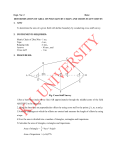
SW 1,2,3 - CPU Ratio (1.5x, 2.0x, 2.5x, 3.0x, 3.5x same as 1.5x setting ).
SW 4,5,6 - CPU Frequency (50/55/60/66/75 MHz clock).
For JP8: CPU Mode type:
“OFF” Position: Interleave Burst (Intel/AMD CPUs including MMX).
“ON” Position: Linear Burst (Cyrix CPU including 6x86MX Processor).
•
TX531 CPU Auto-Voltage Detection Feature
The TX531 provides Auto-detection voltage for all series of Pentium-based
Processor. No setting is required to prevent wrong CPU voltage setting. All
Pentium-based processor use two power supplies; one supply is for the CPU core,
and the other is for the I/O interface. Some CPU vendor provide the same voltage
for the core and I/O, it is called “SINGLE VOLTAGE CPU”. If the core and I/O use
different voltages, it is called “DUAL VOLTAGES CPU”. Instead of setting the
CPU as “single” or “dual” voltage by jumper, TX531 Pentium-based series will
automatic detect the CPU is “single” or “dual” voltage when system power-on.
14
Chapter 2: Installation
Processors Configuration
CPU Type
Jumper Setting
PENTIUM 90MHz/AMD K5-PR90/
AMD K5-PR120
SW1
PENTIUM 100MHz/AMD K5PR100/
AMD K5-PR133
SW1
PENTIUM 120MHz
SW1
PENTIUM 133MHz
SW1
15
TX531 User’s Manual
PENTIUM 150MHz
SW1
PENTIUM 166MHz/PENTIUM
MMX-166/
AMD K5-PR166/AMD K6-PR166
SW1
(Continued)
Processors Configuration
CPU Type
Jumper Setting
PENTIUM 166MHz/PENTIUM
MMX-166/
AMD K5-PR166/AMD K6-PR166
SW1
PENTIUM 200MHz/PENTIUM
MMX-200/
AMD K6-PR200
SW1
PENTIUM MMX-233MHz/
AMD K6-PR233
SW1
16
Chapter 2: Installation
JP
CYRIX 6x86-133+
SW1
CYRIX 6x86-150+
SW1
CYRIX 6x86-166+
SW1
•
JP
•
JP
•
(Continued)
Processors Configuration
CPU Type
Jumper Setting
CYRIX 6x86-200+
SW1
CYRIX 6x86MX-PR166
SW1
17
JP
•
JP
•
TX531 User’s Manual
JP
CYRIX 6x6MX-PR200
SW1
•
CYRIX 6x86MX-PR233
SW1
•
JP
Manual Configuration for Switch CPU speed bus & CPU ratio relationships of
the CPUs:
Definition of DIP Switch
DIP: 1,2,3 - CPU Ratio (1.5x,2.0x,2.5x,3.0x,3.5x same as 1.5x setting).
DIP: 4,5,6 - CPU Frequency (50/55/60/66/75 Mhz clock).
DIP1
DIP2
DIP3
Multiplier
ON
ON
OFF
2.5x
OFF
ON
OFF
3.0x
ON
OFF
OFF
2.0x
OFF
OFF
OFF
1.5/3.5x
18
Chapter 2: Installation
DIP4
DIP5
DIP6
CPU Clock
(MHz)
ON
ON
ON
50
ON
ON
OFF
55
ON
OFF
OFF
60
OFF
OFF
OFF
66
OFF
ON
ON
75
2.5 Installing FLASH ROM
1
1
KB
CN
JP1
USB
5
9
8
9
J
U3
1
1
CN2
JP
1
JP3
1
FD
−
+
BT
U4
PR
13
1
IDE
PCI
PCI
PCI
1
33
IDE
PCI
39
39
19
TX531 User’s Manual
♣
5V FLASH ROM
12V FLASH ROM
JP3
"
1
2
JP3
" "
1 # 2
#
♣ Default Setting
2.6 Installing Flash ROM Utility
Please check the utility software included with your motherboard. This is the Flash
Memory writer utility that updates the BIOS by uploading a new BIOS file to the
programmable Flash ROM chip on the motherboard.
Flash ROM Writer Utility AMIFLASH.COM
AMIFLASH Version 5.30 - Flash EPROM Programming Utility
Copyright (C) 1992-1996 American Megatrends Inc.
Release Date : 05/12/96
Help/Error
20
Chapter 2: Installation
Enter BIOS Filename:
Enter the BIOS Filename from which Flash EPROM will be
programmed.
The Format:- [Drv:\Pathname\Filename.Ext]
The Filename must end with
a <ESC>
<ENTER>.
Press
You cannot run this utility from the Windows 95 MS-DOS box. Please run it in real
mode. The method is :
1. Restart your computer.
2. Press F8 to show the multiboot menu as soon as the
“ Starting Windows 95...” message appears on the
screen.
3. Choose 6 (Command prompt only).
4. Run “ AMIFLASH” to write the updated content to
your BIOS if necessary.
Another method is: Create a bootable system floppy diskette by typing “FORMAT A:/S”
from the DOS environment without creating AUTOEXEC.BAT and CONFIG.SYS, then
save the AMIFLASH utility and the BIOS file to the diskette. Note that you should have
a BIOS file ready to update your BIOS chip if you really want to change the original
content of your BIOS.
Notice : If the flashing of the BIOS content fails to
boot-up, we recommend you to refer to your nearest
Technical support site for replacement or have a
qualified technician to do the updates for your system.
21
CHAPTER
3
SYSTEM BIOS SETUP
This chapter discusses AMIBIOS Setup program built into the ROM BIOS. The
Setup program allows users to modify the basic system configuration. This special
information is then stored into battery-backed RAM so that it contains the Setup
program when the power is turned off.
The AMIBIOS has been customized by adding important, but non-standard features
such as virus and password protection as will as special support for detailed finetuning of the chipset controlling the entire system.
The Setup utility provided by AMIBIOS is accessed by pressing <Del> at the
appropriate time during system boot. Setup configures data in CMOS RAM.
The following screen shows the types of AMIBIOS Setup:
(C)1996
AMIBIOS HIFLEX SETUP UTILITY
American Megatrends, Inc.
All Rights
Reserved
Standard CMOS
Setup
Advanced CMOS Setup
Advanced Chipset Setup
Power Management Setup
PCI / Plug and Play Setup
Peripheral Setup
Auto-Detect Hard Disks
Change User Password
Change Supervisor Password
Change Language Setting
Auto Configuration with Optimal Settings
Auto Configuration with Fail Safe Settings
Save Settings and Exit
Exit Without Saving
Standard
CMOS
setup
for
changeing time,
etc.
ESC: Exit
date,
hard
$%: Sel
disk
type,
F2/F3: Color
F10: Save & Exit
21
TX531 User’s Manual
22
TX531 User’s Manual
3.1 Standard CMOS Setup
The AMIBIOS Setup options described in this section are displayed by choosing the
Standard Setup icon from the Setup section on the AMIBIOS Setup main menu. All
Standard Setup options are described in this section.
•
Date/Time
Select the Date/Time option to change the date or time. The current date and time
are displayed. Enter new values through the displayed window.
•
Floppy Drive A, B
Choose the Floppy Drive A or B icon to specify the floppy drive type. The settings
are 360 KB 5¼”, 1.2 MB 5¼”, 720 KB 3½”, 1.44 MB 3½”, or 2.88 MB 3½”.
•
IDE Device Auto-detection for Primary/Secondary Hard Disk/CDROM Drives/LS-120 device.
•
Configuring IDE Drives
If the hard disk drive to be configured is an IDE drive, select the appropriate drive
icon (Pri Master, Pri Slave, Sec Master, or Sec Slave). Choose the Type parameter
and select Auto.
TX531 User’s Manual
AMIBIOS automatically detects the IDE drive parameters and displays them. Click
on the OK button to accept these parameters.
Click on LBA/Large Mode and choose On to enable support for IDE drives with
capacities greater than 528 MB. Note that hard disk with LBA mode formatted on
other system may not bootup and you needs to do a “sys c:” for system bootup.
Click on Block Mode and choose On to support IDE drives that use Block Mode.
Click on 32Bit Mode and choose On to support IDE drives that permit 32-bit
accesses.
•
Configuring a CD-ROM Drive
Select the appropriate drive icon (Pri Master, Pri Slave, Sec Master, or Sec Slave).
Choose the Type parameter and select CD ROM. You can boot the computer from a
CD-ROM drive.
• Configuring a LS-120 device
The LS-120 device will be auto-detected by BIOS. To create LS-120 device boot
able Disc, format the LS-120 disk under Windows 95 or for data storage. Do not
format LS-120 disk under DOS environment.
•
Anti-Virus Option
Do not enable this option during operating system installation like OS/2 and
Windows 95. This may render your system unable to install.
24
Chapter 3: System BIOS Setting
3.2 Advanced CMOS Setup
The AMIBIOS Setup options described in this section are displayed by choosing the
Advanced Setup icon from the Setup section on the AMIBIOS Setup main menu.
All Advanced Setup options are described in this section.
(C)1996
AMIBIOS SETUP — – ADVANCED CMOS SETUP
American Megatrends, Inc.
All Rights
1st Boot Device
2nd Boot Device
3rd Boot Device
4th Boot Device
S.M.A.R.T. for Hard Disks
Quick Boot
BootUp Num-Lock
Floppy Driver Swap
Floppy Driver Seek
PS/2 Mouse Support
System Keyboard
Primary Display
Password Check
Parity Check
Boot To OS/2
Wait For “ F1” If Error
Hit “ DEL” Message Display
External Cache
System BIOS Cacheable
•
FLOPPY
IDE-0
CDROM
Disabled
Disabled
Disabled
Off
Disabled
Disabled
Disabled
Absent
Absent
Setup
Disabled
No
Disabled
Disabled
Disabled
Enabled
Reserved
Available Options:
Disabled
FLOPTICAL
ESC: Exit
$% : Sel
PgUp/PgDn : Modify
F2/F3 : Color
xxx Boot Device
Piority of Device pre-defined in-sequence for Booting.
•
S.M.A.R.T. Feature
S.M.A.R.T. (Self-Monitoring, Analysis and Reporting Technology) is a technology
developed to manage the reliability of the hard disks by predicting some (but NOT
ALL) of the future device failures. This feature helps BIOS warn the user of the
possible device failure thereby giving user a chance to back up the device and
replace the device before actual failure happens. S.M.A.R.T. capable devices should
predict an impending failure and return that information through the Return
S.M.A.R.T. Status command. Note that S.M.A.R.T. can not predict all future device
failures and it should be used as an warning tool, not as a tool to predict the device
reliability.
25
TX531 User’s Manual
•
Quick Boot
Set this option to Enabled to permit AMIBIOS to boot within 5 seconds. This
option replaces the old Above 1 MB Memory Test option. The Optimal and FailSafe default settings are Disabled.
•
Setting
Description
Disable
d
AMIBIOS tests all system memory.
AMIBIOS wait
up to 40 seconds for a READY signal from the IDE
drive.
AMIBIOS waits up to .5 seconds after
sending a RESET signal to the IDE drive to
permit the IDE drive to send a READY signal.
AMIBIOS checks if the <Del> key was pressed.
AMIBIOS Setup is executed if <Del> was pressed.
Enabled
AMIBIOS does not test any system memory above 1
MB.
AMIBIOS does not wait for a READY signal
from the IDE drive.
If a READY signal is not
received immediately, AMIBIOS does not configure
the drive.
AMIBIOS does not wait .5 seconds
after sending a RESET signal to the IDE drive.
AMIBIOS does not check if the <Del> key was
pressed. You cannot run AMIBIOS Setup at system
boot if this setting is selected.
Boot Up Sequence
This option sets the sequence of boot drives (floppy drive A:, hard disk drive C:, or a
CD-ROM drive) that AMIBIOS attempts to boot from after AMIBIOS POST
completes. The settings are C:,A:, CDROM, A:,C:, CDROM, or CDROM, C:,A:.
The Optimal and Fail-Safe default settings are C:,A:,CDROM.
•
Boot Up CPU Speed
This option sets the CPU speed when the computer boots. The settings are Low or
High. The Optimal and Fail-Safe default settings are High.
•
Boot Up Num Lock
When this option is set to On, AMIBIOS turns off the Num Lock key when the
system is powered on so the end user can use the arrow keys on both the numeric
26
Chapter 3: System BIOS Setting
keypad and the keyboard. The settings are On or Off. The Optimal default and FailSafe default settings are On.
•
Floppy Drive Swap
Set this option to Enabled to specify that floppy drives A: and B: are swapped. The
settings are Enabled or Disabled. The Optimal and Fail-Safe default settings are
Disabled.
•
Floppy Drive Seek
When this option is set to Enabled, AMIBIOS performs a Seek command on floppy
drive A: before booting the system. The settings are Enabled or Disabled. The
Optimal default setting is Disabled. The Fail-Safe default setting is Enabled.
•
PS/2 Mouse Support
When this option is set to Enabled, AMIBIOS supports a PS/2-type mouse. The
settings are Enabled or Disabled. The Optimal and Fail-Safe default settings are
Disabled.
•
System Keyboard
This option configures the keyboard. The settings are Present or Absent. If you
select Absent, AMIBIOS does not report keyboard errors. The Optimal and Fail-Safe
default settings are Present.
•
Primary Display
This option configures the primary display subsystem in the computer. The settings
are Absent, Mono (monochrome), 40CGA, 80CGA, or VGA/EGA. The Optimal and
Fail-Safe default settings are VGA/EGA.
•
Password Check
This option specifies the type of AMIBIOS password protection that is implemented.
The Optimal and Fail-Safe default settings are Setup. The settings are:
Setting
Description
Setup
The password prompt appears only when an end user
attempts to run AMIBIOS Setup.
Always
A password prompt appears every time the
27
TX531 User’s Manual
computer is powered on or rebooted.
The AMIBIOS password does not have to be enabled. The end user sets the
password by choosing the Password icon on the AMIBIOS Setup screen.
•
Boot to OS/2
Set this option to Yes to permit AMIBIOS to run properly if OS/2 or any other
operating system that does not support Plug and Play is to be run on this computer.
If running OS/2 in a computer with 64 MB or more of system memory, set this
option to Yes. The settings are Yes or No. The Optimal and Fail-Safe default
settings are No.
Wait for "F1" If Error
AMIBIOS POST runs system diagnostic tests that can generate a message followed
by:
Press <F1> to continue
If this option is set to Enabled, AMIBIOS waits for the end user to press <F1>
before continuing. If this option is set to Disabled, AMIBIOS continues the boot
process without waiting for <F1> to be pressed. The settings are Enabled or
Disabled. The Optimal default and Fail-Safe default settings are Enabled.
Hit "DEL" Message Display
Disabling this option prevents
Hit <DEL> if you want to run Setup
from appearing when the system boots. The settings are Enabled or Disabled. The
Optimal and Fail-Safe default settings are Enabled.
•
External Cache
This option selects the type of caching algorithm used by AMIBIOS and the CPU to
access L2 secondary (external) cache memory. The settings are:
Setting
Description
WriteBac
k
A write-back algorithm is used.
WriteThr
u
A write-through algorithm is used.
28
Chapter 3: System BIOS Setting
Disabled
AMIBIOS does not specify the type of caching
algorithm.
The Optimal default setting is WriteBack. The Fail-Safe default setting is
Disabled.
•
System BIOS Cacheable
AMIBIOS always copies the system BIOS from ROM to RAM for faster execution.
Set this option to Enabled to permit the contents of the F0000h RAM memory
segment to be written to and read from cache memory. The settings are Enabled or
Disabled. The Optimal default setting is Enabled. The Fail-Safe default setting is
Disabled.
C000,16K Shadow
C400,16K Shadow
These options specify how the contents of the video ROM at C0000h are handled.
The settings are:
Setting
Disabled
Description
The Video ROM is not copied to RAM.
Cached
The contents of the video ROM area from
C0000h - C7FFFh are not only copied from ROM
to RAM, the contents of the C0000h - C7FFFh
RAM area can be written to or read from
cache memory.
Enabled
The contents of the video ROM area from
C0000h - C7FFFh are copied (shadowed) from
ROM to RAM for faster execution.
The Optimal and Fail-Safe default settings are Cached.
C800,16K
CC00,16K
D000,16K
D400,16K
D800,16K
DC00,16K
Shadow
Shadow
Shadow
Shadow
Shadow
Shadow
29
TX531 User’s Manual
These options specify how the contents of the adapter ROM named in the option title
are handled. The ROM area that is not used by ISA adapter cards will be allocated to
PCI adapter cards. The settings are:
Settin
g
Description
Disabl
ed
The specified ROM is not copied to RAM.
Cached
The contents of the ROM area are not only copied
from ROM to RAM for faster execution, the contents
of the RAM area can be written to or read from
cache memory.
Enable
d
The contents of the ROM area are copied from ROM
to RAM for faster execution.
The Optimal and Fail-Safe default settings are Cached.
3.3
Advanced Chipset Setup
Choose the Chipset Setup icon from the Setup section on the AMIBIOS Setup main
menu. All Chipset Setup options are then displayed and are described in this
chapter.
(C)1996
AMIBIOS SETUP — – ADVANCED CHIPSET SETUP
American Megatrends, Inc.
All Rights
USB Function
USB Keyboard/Mouse Legacy
Support
DRAM Write Timing
Page Mode DRAM Read Timing
EDO DRAM Read Timing
DRAM Data Integrity Mode
AT Bus Clock
Cyrix Burst Mode
Disabled
Enabled
4-3-3-3
X-4-4-4
X-3-3-3
Parity
Auto
Linear
30
Reserved
Available Options:
Disabled
Enabled
Chapter 3: System BIOS Setting
Memory Hole
Disabled
ESC: Exit
$%: Sel
PgUp/PgDn: Modify
F2/F3: Color
•
USB Function
Set this option to Enabled to enable the system BIOS USB (Universal Serial Bus)
functions. The settings are Enabled or Disabled. The Optimal and Fail-Safe default
settings are Disabled.
•
USB Keyboard/Mouse Legacy Support
Set this option to Enabled to provide support for older non-USB keyboard and
mouses. The settings are Enabled or Disabled. The Optimal and Fail-Safe default
settings are Disabled.
•
DRAM Write Timing
This option specifies the access timings for DRAM system memory write operations.
The Optimal and Fail-Safe default settings are x4-4-4 or x-3-3-3. Default setting as
x-4-4-4.
•
Page Mode DRAM Read Timing
This option specifies the access timings for Page Mode DRAM system memory read
operations. The settings are x-4-4-4 or x-3-3-3. The Optimal default setting as x-4-44. It is recommend that for CPU Frequency 233 MHz or CPU clock above 66MHz
speed, it should be set as x-4-4-4.
•
EDO DRAM Read Timing
This option specifies the access timing for Page Mode DRAM system memory read
operations. The settings are x-4-4-4-4, or x-3-3-3. The Optimal default settings are
x-3-3-3.
31
TX531 User’s Manual
•
DRAM Data Integrity Mode
This option sets the Error Check and Correction feature (ECC) (SIMMs with Parity
RAM) to provides single-error correction, double-error correction and detection of
all errors confined to a single nibble for the DRAM data integrity. The settings are
Parity/ECC. The Optimal and Fail-Safe default settings are Parity. If you do not
install SIMMs with Parity Check RAM, then don’t care or “Parity”. Do not set it as
“ECC” option if your SIMMs do not have parity check RAM as wrong setting may
cause system unstable.
•
AT Bus Clock
This option set the AT Bus Clock for system I.O. Default setting set as “Auto”.
•
Cyrix Burst Mode
This option enable the Cyrix CPU to take advantage of the Burst mode incorporated
in the CPU to increase performance.
•
Memory Hole
This option allows the end user to specify the location of a memory hole for ISA
card with firm ware ROM. The settings are Disabled, 512-640K, 14-16 MB, or 1516M (from 15MB to 16 MB). The Optimal and Fail-Safe default settings re
Disabled.
Memory Specification Notice
The problem with EDO RAM when looking in the future is that it hardly works with
any bus speed higher than 66 MHz, which is already reached. As CPUs demand
higher bus speeds and the Cyrix 6x86 already needing 75 MHz, it is not
recommended to use EDO Memory on the TX531 for system clock frequency of
above 66 MHz or install SDRAM DIMMs memory which supports up to 83.3 MHz
bandwidth depending on the type of the SDRAM DIMMs installed. Current Intel
and AMD CPUs (100~233 MHz) require 66 MHz system clock.
32
Chapter 3: System BIOS Setting
3.4 Power Management Setup
The AMIBIOS Setup options described in this section are selected by choosing the
Power Mgmt Setup icon from the Setup section on the AMIBIOS Setup main menu.
(C)1996
AMIBIOS SETUP — – POWER MANAGEMENT SETUP
American Megatrends, Inc.
All Rights Reserved
Power Management/APM
Green PC Monitor Power
State
Video Power Down Mode
Hard Disk Power Down Mode
Standby Time out
Suspend Time Out
Disabled
Stand By
Disabled
Disabled
Disabled
Disabled
Available Options:
Disabled
Enabled
33
TX531 User’s Manual
Monitor Parallel Port
Monitor Serial Port
Monitor Floppy
Monitor VGA
Monitor Pri-HDD
Monitor Sec-HDD
Power Button Function
Yes
Yes
Yes
No
No
No
Green
ESC : Exit
$% : Sel
PgUp/PgDn: Modify
F2/F3: Color
•
Power Management/APM
Set this option to Enabled to enable the Intel 430TX power management features
and APM (Advanced Power Management). The settings are Enabled or Disabled.
The Optimal and Fail-Safe default settings are Enabled.
•
Green PC Monitor Power State
This option specifies the power state that the green PC-compliant video monitor
enters when AMIBIOS places it in a power savings state after the specified period of
display inactivity has expired. The settings are Off, Standby, Suspend, or Disabled.
The Optimal and Fail-Safe default settings are Standby.
•
Video Power Down Mode
This option specifies the power conserving state that the VESA VGA video
subsystem enters after the specified period of display inactivity has expired. The
settings are Disabled, Standby, or Suspend. The Optimal and Fail-Safe default
settings are Disabled.
•
Hard Disk Power Down Mode
This option specifies the power conserving state that the hard disk drive enters after
the specified period of hard drive inactivity has expired. The settings are Disabled,
Standby, or Suspend. The Optimal and Fail-Safe default settings are Disabled.
•
Standby Time out
This option specifies the length of a period of system inactivity while in Full power
on state. When this length of time expires, the computer enters Standby power state.
The settings are Disabled, 1 min, 2 min, 3 min, 4 min, 5 min, 6 min, 7 min, 8 min, 9
34
Chapter 3: System BIOS Setting
min, 10 min, 11 min, 12 min, 13 min, 14 min, or 15 min. The Optimal and Fail-Safe
default settings are Disabled.
•
Suspend Time out
This option specifies the length of a period of system inactivity while in Standby
state. When this length of time expires, the computer enters Suspend power state.
The settings are Disabled, 1 min, 2 min, 3 min, 4 min, 5 min, 6 min, 7 min, 8 min, 9
min, 10 min, 11 min, 12 min, 13 min, 14 min, or 15 min. The Optimal and Fail-Safe
default settings are Disabled.
•
Power Button Function (SMI switch)
This option specifies the length of a period of system inactivity while in Standby.
3.5 PCI/PnP Setup
Choose the PCI/PnP Setup icon from the AMIBIOS Setup screen to display the PCI
and Plug and Play Setup options, described below.
(C)1996
AMIBIOS SETUP — – PCI / PLUG PLAY SETUP
American Megatrends, Inc.
All Rights
OnChip USB
Plug and Play Aware O/S
PCI IDE BusMaster
Assign IRQ To PCI VGA Cars
IRQ3
IRQ4
Disabled
No
Disabled
No
PCI/PnP
PCI/PnP
Reserved
Available Options:
Disabled
Enabled
35
TX531 User’s Manual
IRQ5
IRQ7
IRQ9
IRQ10
IRQ11
IRQ12
IRQ14
IRQ15
Reserved Memory Size
Reserved Memory Address
PCI/PnP
PCI/PnP
PCI/PnP
PCI/PnP
PCI/PnP
PCI/PnP
PCI/PnP
PCI/PnP
Disabled
C8000
ESC : Exit
$% : Sel
PgUp/PgDn: Modify
F2/F3 : Color
• OnChip USB:
Set this option to Enabled if any USB device is installed.
Disabled.
Default setting as
• Plug and Play-Aware O/S
Set this option to Yes if the operating system in this computer is aware of and
follows the Plug and Play specification. Currently, only Windows 95 is PnP-aware.
The settings are Yes or No. The Optimal and Fail-Safe default settings No.
• Reserved Memory Size
This option specifies the size of the memory area reserved for legacy ISA adapter
cards. The settings are Disabled, 16K, 32K, or 64K. The Optimal and Fail-Safe
default settings are Disabled.
• Reserved Memory Address
This option specifies the beginning address (in hex) of the reserved memory area.
The specified ROM memory area is reserved for use by legacy ISA adapter cards.
The settings are C0000, C4000, C8000, CC000, D0000, D4000, D8000, or DC000.
The Optimal and Fail-Safe default settings are C8000.
3.6 Peripheral Setup
Choose the Peripheral Setup icon from the AMIBIOS Setup screen to display the
Peripheral Setup options, described below.
(C)1996
AMIBIOS SETUP — – PERIPHERAL SETUP
American Megatrends, Inc.
All Rights
OnBoard FDC
OnBoard Serial Port1
Serial Port1 Mode
Auto
3F8h
Normal
36
Reserved
Available Options:
Auto
Disabled
Chapter 3: System BIOS Setting
Serial Port1 IRQ
IR Transmitter Polarity
IR Receiver Polarity
IR Half-Duplex Time-Out
OnBoard Serial Port2
Serial Port2 Mode
Serial Port2 IRQ
IR Transmitter Polarity
IR Receiver Polarity
IR Half-Duplex Time-Out
OnBoard Parallel Port
Parallel Port Mode
EPP Version
Parallel Port IRQ
Parallel Port DMA Channel
Onboard IDE
4
N/A
N/A
N/A
2F8h
Normal
3
N/A
N/A
N/A
378
Normal
N/A
7
N/A
Both
Enabled
ESC : Exit
$% :
Sel
PgUp/PgDn : Modify
F2/F3 : Color
• Onboard FDC
This option enables the FDC (Floppy Drive Controller) on the motherboard. The
settings are Auto (AMIBIOS automatically determines if the floppy controller should
be enabled), Enabled, or Disabled. The Optimal and Fail-Safe default settings are
Auto.
• Onboard Serial Port1
This option specifies the base I/O port address of serial port 1. The settings are Auto
(AMIBIOS automatically determines the correct base I/O port address), Disabled,
3F8h, 2F8h, 2E8h, or 3E8h. The Optimal and Fail-Safe defaults are 3F8H.
• Onboard Serial Port2
This option specifies the base I/O port address of serial port 2. The settings are Auto
(AMIBIOS automatically determines the correct base I/O port address), Disabled,
3F8h, 2F8h, 2E8h, or 3E8h. The Optimal and Fail-Safe defaults are 2F8H.
This option works in conjunction with the Infared (IR) device option. If you can
installing IR device, you needs to set this option as “Auto” for IRQ sharing for COM
2 device and IR device.
•
Serial Port2 Mode
37
TX531 User’s Manual
This option is not available if the setting of the Onboard Serial Port2 option is
Disabled. This option specifies the serial port 2 mode. The settings are Standard,
IrDA, or ASK IR (the ASK Computer infrared specification). The Optimal and FailSafe default settings are Standard.
•
IR Transmission Mode
This option specifies the type of duplex transmission used by serial port 2. This
option is only valid if the Serial Port2 Mode option is not set to Normal. The
settings are Half Duplex or Full Duplex. The Optimal and Fail-Safe default settings
are N/A.
•
Receiver Polarity
This option specifies the manner in which the infrared receive transmission signal is
active. The settings are Active High or Active Low. The Optimal and Fail-Safe
default settings are N/A.
•
Transmitter Polarity
This option specifies the manner in which the infrared send transmission signal is
active. The settings are Active High or Active Low. The Optimal and Fail-Safe
default settings are N/A.
•
Onboard Parallel Port
This option specifies the base I/O port address of the parallel port on the
motherboard. The settings are Auto (AMIBIOS automatically determines the correct
base I/O port address), Disabled, 378h, 278h, or 3BCh. The Optimal and Fail-Safe
default settings are 378H.
•
Parallel Port Mode
This option specifies the parallel port mode. The Optimal and Fail-Safe default
settings are Normal. The settings are:
Setting
Normal
EPP
Description
Specify this option to use the standard 8-bit
IBM PC/AT-compatible Centronics parallel port.
The parallel port can be used with devices that
38
Chapter 3: System BIOS Setting
adhere to the Enhanced Parallel Port (EPP)
specification. EPP uses the existing parallel
port signals to provide asymmetric bidirectional
data transfer driven by the host device.
ECP
The parallel port can be used with devices that
adhere to the Extended Capabilities Port (ECP)
specification. ECP uses the DMA protocol to
achieve data transfer rates up to 2.5 Megabits
per second. ECP provides symmetric bidirectional
communication.
The Optimal and Fail-Safe default settings are Normal.
•
EPP Version
This option is only valid if the Parallel Port Mode option is set to EPP. This option
specifies the version of the Enhanced Parallel Port specification that will be used by
AMIBIOS. The settings are 1.7 or 1.9. The Optimal and Fail-Safe default settings
are N/A.
•
Parallel Port IRQ
This option is only valid if the Onboard Parallel Port option is not set to Disabled.
This option sets the IRQ used by the parallel port. The settings are 5, 7, or Auto
(AMIBIOS automatically sets the correct parallel port IRQ). The Optimal and FailSafe default settings are Auto.
•
Parallel Port DMA Channel
This option is only available if the setting of the Parallel Port Mode option is ECP.
This option sets the DMA channel used by the ECP-capable parallel port. The
settings are None, 0 (DMA Channel 0), 1 (DMA Channel 1), or 3 (DMA Channel 3).
The Optimal and Fail-Safe default settings are 3
•
Onboard IDE
This option specifies the channel used by the IDE controller on the motherboard.
The settings are Disabled, Primary, Secondary, or Both. The Optimal and Fail-Safe
default settings are Primary.
39
TX531 User’s Manual
For Fast Configuration
•
Optimal Defaults (Default setting)
The Optimal default values provide optimum performance settings for all devices
and system features.
•
Fail-Safe Defaults
The Fail-Safe default settings consist of the safest set of parameters. Use them if the
system is behaving erratically. They should always work but do not provide optimal
system performance characteristics.
40
LIMITED WARRANTY
Congratulations on your purchase of an the Motherboard . This product is
engineered to give many years of trouble free performance. This limited
warranty is provided for your protection.
The warrants this product to be in good working order for a period of one year
from date of purchase as a new product. In the event of failure of any part(s) due
to defects in material or workmanship occurring within that one year period,
DataExpert will, at its option, either repair or replace the defective product or
part thereof at no charge for the parts or labor.
The limited warranty described above is in addition to whatever implied
warranties may be granted to purchaser by law. To the extent permitted by
applicable law, ALL IMPLIED WARRANTIES INCLUDING THE
WARRANTIES OF MERCHANTABILITY AND FITNESS FOR USE ARE
LIMITED TO THE PERIOD FROM THE DATE OF PURCHASE FOR ONE
YEAR. Some states do not allow limitations on how long an implied warranty
lasts, so the above limitations may not apply to you.
The limited warranty is non-transferable and does not apply if the product has
been damaged by abuse, misuse, modification, accident, misapplication, or
shipment to DataExpert. Service by anyone other than an authorized
DataExpert service agent will also render this limited warranty void. It is the
purchaser's responsibility to determine the suitability of this product for your
purposes. DataExpert does not warrant that this product will meet your
requirements.
LIABILITY DISCLAIMER
The product described in this manual is warranted in accordance with the terms
of the applicable DataExpert product specifications. Product performance is
affected by system configuration, software, application, customer data, operator
control, and other factors.
RMA FORM
When the motherboard can not work well, please fill up
this form to describe related situations.
If the
space is not enough to use, you can attach separate
paper.
MODEL:
MODEL NO:
HARDWARE
CPU: Brand
, Model
, Speed
MHz
CD-PROCESSOR: Brand
, Model
MHz
SIMM: Brand
ns, Q’ty
pcs, Total
CACHE: Brand
ns, Total
K
, Speed
, Speed
MB
, Speed
TAG RAM: Brand
ns
, Speed
BIOS DATA CODE:
MHz
SYSTEM SPEED RUNNING
VIDEO CARD: Chip
, VGA Mode
, RAM
Bus
(ISA, VESA or PCI)
OTHER ADD-ON CARDS:
SOFTWARE
OPERATING SYSTEM
VERSION
SOFTWARE PROGRAM
TX531 User’s Manual
BIOS SETUP: DRAM Wait State
CACHE Wait State
If you change BIOS SETUP, please describe the changes:
<A>ERROR
&HANG UP
&NO SCREEN
ERROR
&HARD DISK R/W ERROR
ERROR
&OTHER
&FLOPPY R/W
&PARITY MEMORY
<B>ERROR MESSAGES ON YOUR SCREEN (PLEASE SHOW US THE
WHOLE SENTENCE)
<C>PROBLEM DESCRIPTION
2