1
User Guide
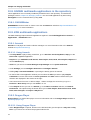
7.8. Network Manager in a CLI .......................................................................................... 32
7.8.1. nmcli ............................................................................................................... 32
7.8.2. nm-tools .......................................................................................................... 32
8. Accessing the Web
8.1. Browsing web pages ..................................................................................................
8.1.1. Using Firefox ...................................................................................................
8.1.2. Using Konqueror ..............................................................................................
8.2. Transferring files .........................................................................................................
8.2.1. Using FileZilla ..................................................................................................
8.2.2. FTP on the command line ................................................................................
35
35
35
36
37
37
38
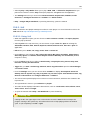
9. Communications
9.1. Evolution ....................................................................................................................
9.1.1. Configuring Evolution .......................................................................................
9.1.2. Using Evolution ...............................................................................................
9.2. Thunderbird ................................................................................................................
9.2.1. Configuring Thunderbird ...................................................................................
9.2.2. Moving your Thunderbird profile data from Windows to Fedora ...........................
9.2.3. Using Thunderbird ...........................................................................................
9.3. Claws Mail .................................................................................................................
9.3.1. Configuring Claws Mail ....................................................................................
9.3.2. Using Claws Mail .............................................................................................
9.4. Kmail .........................................................................................................................
9.4.1. Configuring Kmail ............................................................................................
9.4.2. Using Kmail .....................................................................................................
9.5. Empathy ....................................................................................................................
9.5.1. Configuring Empathy ........................................................................................
9.5.2. Using Empathy ................................................................................................
9.6. Pidgin ........................................................................................................................
9.6.1. Configuring Pidgin ...........................................................................................
9.6.2. Using Pidgin ....................................................................................................
9.7. Kopete .......................................................................................................................
9.7.1. Configuring Kopete ..........................................................................................
9.8. XChat ........................................................................................................................
9.8.1. Configuring XChat ...........................................................................................
9.8.2. Using XChat ....................................................................................................
9.9. Konversation ..............................................................................................................
9.9.1. Configuring Konversation .................................................................................
9.9.2. Using Konversation ..........................................................................................
9.10. ChatZilla ..................................................................................................................
9.10.1. Installing ChatZilla ..........................................................................................
9.10.2. Configuring ChatZilla ......................................................................................
9.10.3. Using ChatZilla ..............................................................................................
41
41
41
42
42
42
43
45
45
46
46
47
47
47
47
48
48
48
49
49
49
50
50
50
51
51
51
51
51
52
52
52
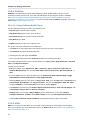
10. Printing
10.1. Adding a Single Printer .............................................................................................
10.1.1. Adding a USB printer .....................................................................................
10.1.2. Adding a network printer ................................................................................
10.2. Connecting to a print server ......................................................................................
10.2.1. Connecting to a print server in Gnome ............................................................
10.2.2. Connecting to a print server in KDE ................................................................
10.2.3. Connecting to a print server from the CUPS configuration files ..........................
10.3. Send a Print Job ......................................................................................................
53
53
53
53
54
54
54
55
55
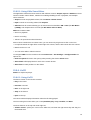
11. Office Applications
57
iv