1
138 Experiencing Multimedia
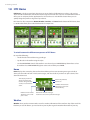
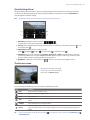
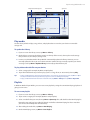
To launch Audio Manager
Tap Start > Programs > Audio Manager.
Notes
• Audio Manager searches for all music files stored on your device memory and memory card that have the following audio formats: MP3 (.mp3), WMA (.wma), and AAC/AAC+ (.aac). It will search in the following locations:
Device:
My Music (including all subfolders)
\My Documents (including all subfolders)
Storage card:\Storage Card (including all subfolders)
• Music files are categorized under Artists, Album, Genre, or others if such metadata is found in the files.
Library
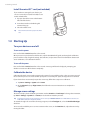
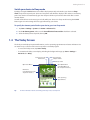
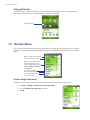
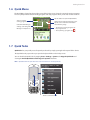
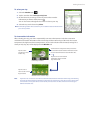
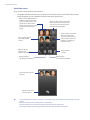
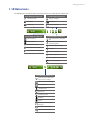
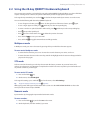
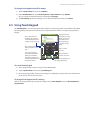
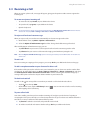
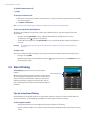
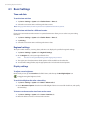
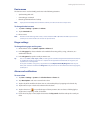
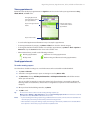
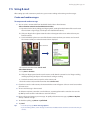
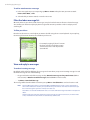
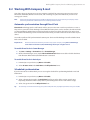
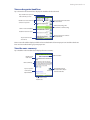
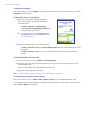
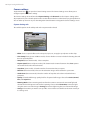
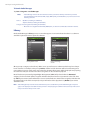
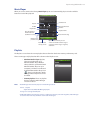
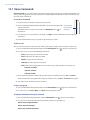
On the Audio Manager’s Library screen, an arrow that appears in an item indicates that there is a submenu
available. Tap the item name to open the submenu.
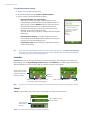
Library: Main screen
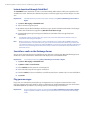
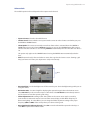
Library: All Songs
screen
When you tap a category on the Library’s Main screen, you will see more submenus which may have deeper
levels of menus. For example, when you tap Artists, another level of submenus will be listed showing artist
names. When you tap an artist name, more submenus showing album names will be displayed. Keep opening
the submenus until you reach the level where song titles can be selected for playback.
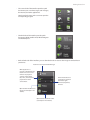
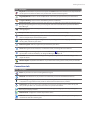
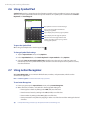
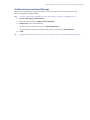
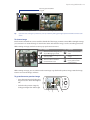
Music files that are protected by Digital Rights Management (DRM) will be listed under the Protected
category. A lock icon shown before song titles indicates that the music files are protected. Select a file, then
tap Info if you want to view file information. A cross-marked lock icon shown before song titles indicates that
the rights for the music files have expired, and you will not be able to play them. Tap Delete if you want to
delete these files.
Note Audio Manager keeps track of the last submenu that you accessed. When you exit Audio Manager and open it
again, it will display the last submenu that you were in. Keep tapping the submenu name at the top of the screen
until you reach the Library's main screen.