1
Scroll Instruction Manual
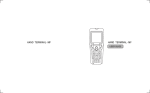
GETTING TO KNOW YOUR SCROLL
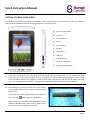
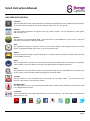
Storage Options Scroll has very few physical buttons. Most control is done via the touchscreen, but you should be
aware of what the hard buttons do, and what the various connectivity is for.
A
Power on / off (hold)
B
Volume + / -
C
Context Menu
D
Home
E
Back / Return
F
Speaker
G
DC 5V input
H
USB port
I
Mini HDMI port
J
Micro SD card reader
K
3.5mm headphone jack
B
F
G
H
A
E
D
C
I
J
K
1
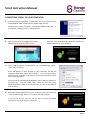
Press and hold the power on / off button for a few seconds until the screen turns on. The Android operating
system can take up to a minute to boot. Once it has loaded, you will be presented with a desktop screen similar
to the one below (please note, images are used for illustrative purposes only and may not be exactly the same
as on your Storage Options miScroll). You may need to unlock miScroll before use – please see page 4.
2
The desktop has a menu bar (at the top of the screen)
which displays system time, wireless connection and
battery level.
To the right (or bottom, depending on orientation) of
the screen, the
button opens the Apps Menu.
Some of the most commonly used applications can be
placed on the desktop for quick access – simply touch
and hold an icon, then drag to a free space.
Page 2