1
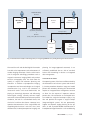
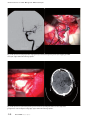
MultiVision allows the surgeon to easily and quickly display navigation, image and video data in his microscope eyepiece.
injection) or the transparent visualization of the image information which is overlaid on the object
display through the microscope (superimposing).
After mode switchover, the current operating mode
is displayed as text information for a few seconds in
the eyepieces. Please remember the following tips
when working with MultiVision:
• Have the point of interest in autofocus injected
into the image center in the form of crosshairs in
the eyepiece. This is of particular benefit in mouth
switch control ensuring perfect video image definition. If a navigation system is connected, systemspecific crosshairs should be injected.
• If in OPMI® Pentero® you inject the complete
graphic touchscreen interface into the eyepieces,
you can change settings and system configurations
with the joystick of the right handgrip without
compromising sterility.
• Prior to the procedure, set the configuration
menu for the INFRARED 800 application in OPMI
Pentero so that the content of the touchscreen
monitor is also projected into the eyepieces. This
way, you can be guided through the procedure
without having to take your eyes from the surgical
field.
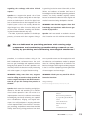
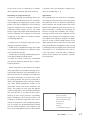
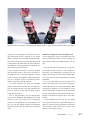
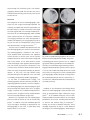
MultiVision configuration menu of OPMI Pentero
In the configuration menu of the MultiVision function for OPMI Pentero there are various settings for
data injection which can be performed in the display.
• Save your personal settings for key assignment
for the MultiVision function on the handgrip or
footswitch, for the brightness and contrast of the
display. These functions will then be available again
at any time with the same user profile for the next
procedure.
• Prior to the procedure, choose the type of display for the MultiVision key function: Navigation,
endoscope camera or touchscreen display. With
simultaneous operation of the navigation system
and the endoscope, the injection of the endoscope
image has precedence when the MultiVision key is
pressed. Transparent navigation data is then deactivated.
• In the configuration menu you can also define
what system information, either individually or together, is to be constantly projected into the MultiVision display: current zoom value, current focus
position, current light intensity.
INFORMED 4th Issue · May 2009
37