1
Overview of Machine Functions
Set Up the Machine to Suit Your Purposes
Set Up the Machine
Make Fax Settings (D1180/D1170/D1150 Only)
Set Up Network Connection
Set Up Computers and Software
Appendix
Please read this guide before operating this product.
After you finish reading this guide, store it in a safe place for future reference.
Contents
Overview of Machine Functions..................................................................................................................... 1
Available Features............................................................................................................................................................. 1
1 Set Up the Machine to Suit Your Purposes................................................................................................... 2
2 Set Up the Machine........................................................................................................................................... 3
Items Included with the Machine................................................................................................................................ 3
Optional Items......................................................................................................................................................................... 3
Installation Space.................................................................................................................................................................... 3
Manuals for the Machine..................................................................................................................................................... 4
Set Up Paper Cassette and Load Paper...................................................................................................................... 4
Connect Power Cord and Turn On the Machine..................................................................................................... 7
3 Make Fax Settings (D1180/D1170/D1150 Only).......................................................................................... 8
Connect Telephone Cables............................................................................................................................................ 8
Register User Telephone Number and Unit Name................................................................................................ 9
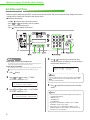
Information About the Keys................................................................................................................................................ 9
About Sender Information................................................................................................................................................11
Set Date and Time...........................................................................................................................................................12
Select the Receive Mode that Suits Your Needs...................................................................................................13
About the Receive Modes..................................................................................................................................................13
If You Need to Use Pulse Dialing......................................................................................................................................15
4 Set Up Network Connection.......................................................................................................................... 16
Connect the LAN Cable.................................................................................................................................................16
Compatible LAN Cables......................................................................................................................................................16
Connect the Machine to Network.............................................................................................................................17
Specify the IP Address Settings..................................................................................................................................17
Automatic Setting.................................................................................................................................................................17
Check IP Address Setting...................................................................................................................................................17
Manual Setting......................................................................................................................................................................18
5 Set Up Computers and Software.................................................................................................................. 19
Types of Connection between Computers and the Machine..........................................................................19
Network Connection...........................................................................................................................................................19
USB Connection....................................................................................................................................................................19
About User Software CD-ROM....................................................................................................................................20
Network Connection......................................................................................................................................................22
MF Drivers Installation........................................................................................................................................................22
Check Installation.................................................................................................................................................................24
USB Connection...............................................................................................................................................................25
MF Drivers & MF Toolbox Installation............................................................................................................................25
Check Installation.................................................................................................................................................................28
6 Appendix........................................................................................................................................................... 29
User Manual CD-ROM (e-Manual).............................................................................................................................29
System Requirements.........................................................................................................................................................29
Using the User Manual CD-ROM (e-Manual)..............................................................................................................30
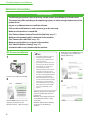
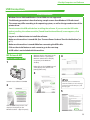
Overview of Machine Functions
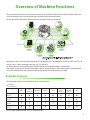
This manual describes how to set the required settings to set up the machine and install the software. After you
set up the machine, you can use the functions described in the illustration below.
For the details of each function, refer to the Basic Operation Guide and e-Manual.
Illustrations used in this manual are the model D1180. When there is any difference among D1180, D1170, D1150
and D1120, it is clearly indicated in the text, e.g., “D1180 Only.”
For information on the standard features for each model, see “Available Features,” shown below.
The displays shown in this manual are the factory preset display for the D1180 in default setting. Depending on
the system configuration and product purchased, the appearance of the display may differ.
Available Features
The table below shows the available features on a product basis.
: available
—: not available
COPY
imageCLASS
D1180
imageCLASS
D1170
imageCLASS
D1150
imageCLASS
D1120
Print
(UFRII LT)
Print (PCL)
SCAN
FAX
E-Mail/SMB/
I-Fax
(Receive)
Remote UI
(Network
Board)
ADF
—
—
—
—
—
—
The Cassette Feeding Module-U1 is an available option.
1
Set Up the Machine to Suit Your Purposes
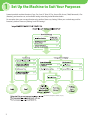
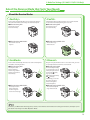
Determine which machine functions (Copy, Fax, Scan, PC Print, PC Fax, Scan to File Server, E-Mail, Remote UI, I-Fax
(Receive)) you intend to use, and make the settings according to the flowchart below.
For example, when you use copy function only, perform “Necessary Settings.” When you use both copy and fax
functions, perform “Necessary Settings” and “Fax Settings.”
p. 4
p. 7
p. 8
p. 9
p. 17
p. 25
p. 12
p. 17
p. 26
p. 13
p. 22
(See “Connect Telephone Cables,” on p. 8.)
2
Set Up the Machine
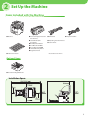
Items Included with the Machine
● Machine
● Toner Cartridge (enclosed in
● Power Cord
● Telephone Cable*
the machine)
● Destination Labels*
● Starter Guide (This
● Unpacking Instruction Sheet
Document)
● Basic Operation Guide
● User Manual CD-ROM
● User Software CD-ROM
● Limited Warranty Notice
● Registration Card
● e-Store Sheet
* Not available for the D1120
Optional Items
● Cassette Feeding Module-U1
Installation Space
2 Set Up the Machine
Manuals for the Machine
Read this manual
first.
Read this manual
next.
Read the sections
of this manual
that correspond
to your intended
use.
Starter Guide (This Document):
The Starter Guide contains the machine setup and software
installation. Read this guide before operating this product.
Basic Operation Guide:
The Basic Operation Guide contains the basic operation
features.
e-Manual (located on the User Manual CD-ROM):
The e-Manual is a web browser-based manual that you can see
on your computer. This manual contains total operation
features. (Also includes the Starter Guide contents and the
Basic Operation Guide contents.)
Set Up Paper Cassette and Load Paper
This section describes how to set the paper size for the paper cassette and how to load the paper.
1 Pull out the paper cassette.
2 Hold the paper cassette with both hands and
remove it from the machine.
Make sure to take the paper cassette out of the machine
before loading paper. If paper is loaded while the paper
cassette is partially pulled out, the paper cassette may fall,
resulting in damage to the machine or personal injury.
2 Set Up the Machine
3 Hold the lock release lever of the side paper
guides (A) and slide the guides to the mark for
the size of the paper to be loaded. The side
paper guides move together.
5 Fan the paper stack and even the edges.
6 Load the paper stack of the appropriate size
with the print side facing up. Align the rear edge
of the paper stack with the rear paper guide.
– Make sure to set the guides to the mark for the size of the
–
paper to be loaded correctly. If the guides are positioned
incorrectly, it may cause paper jams, dirty prints, etc.
A6 size paper cannot be loaded.
4 Hold the lock release lever of the rear paper
guide (A) and slide the guide to the mark for the
size of the paper to be loaded.
– When loading paper, be careful not to cut your fingers on
the edges of the paper.
– Make sure the paper stack does not exceed the load limit
mark (A) and (B).
– Make sure to set the guide to the mark for the size of the
–
paper to be loaded correctly. If the guide is positioned
incorrectly, it may cause paper jams, dirty prints, etc.
A6 size paper cannot be loaded.
– The paper cassette holds approximately 500 sheets of
paper (21 lb (80 g/m2)).
7 Hold the paper cassette with both hands and
set it back into the machine.
2 Set Up the Machine
8 Push the paper cassette as far as it will go.
– Be careful not to get your fingers caught.
– The default paper size/type is set to <LTR> and <PLAIN
–
–
PAPER> in the setting menu. When you load other size
and/or type of paper, change the paper size/type setting
by pressing [Paper Settings]. For details, see
“Introduction of the Machine,” in the e-Manual.
For details on loading paper in the multi-purpose tray, see
“Introduction of the Machine,” in the e-Manual.
In the same manner, load the paper into the optional
paper cassette. For attaching the optional paper cassette,
see the instruction sheet that comes with the optional
paper cassette.
2 Set Up the Machine
Connect Power Cord and Turn On the Machine
1 Connect the power cord into the rear socket on
the back side of the machine and the wall
outlet, and press the [I] side of the main power
switch (A) to turn ON.
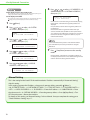
3 <COUNTRY/REGION> appears, press
to select the country, and press [OK].
or
COUNTRY/REGION
UNITED STATE
– Make sure that the country/region is selected correctly. If
not, sending/receiving faxes may not work properly.
– For imageCLASS D1180/D1170/D1150, it is possible to
change the country/region at a later time. To change the
country/region, press [Menu] → <10. SYSTEM
SETTINGS> → <6. COMMUNICATIONS> → <1. COUNTRY/
REGION>, then select the country/region.
4 The machine enters the standby mode.
100%
– Do not connect the machine and the computer with a
–
USB cable at this time. Connect the machine and the
computer with a USB cable only during the software
installation procedure. (A USB cable is not used when the
machine is used via a network connection.)
If you want to use the optional paper cassette, attach the
Cassette Feeding Module-U1 to the machine before
turning ON the machine. (For instructions on how to
attach the Cassette Feeding Module-U1, see the
instruction sheet that comes with the Cassette Feeding
Module-U1.)
2 <DISPLAY LANGUAGE> appears, press
to select the language, and press [OK].
DISPLAY
ENGLISH
or
LANGUAGE
LTR
TEXT/PHOTO
01
5 Turn OFF the main power on the right side of
the machine, then turn ON the power to restart
the machine.
●
The display returns to the standby mode:
●
The display turned OFF:
●
<SET TONER AGAIN> is displayed:
The machine may enter the standby mode (Auto Clear function) while you are
setting it up. Make the setting again from the main menu.
The machine may enter the Sleep mode while you are performing setup. Press
[Energy Saver] to turn the display back ON and continue the setup.
Check the installation of the toner cartridge and the placement of the paper.
(See Unpacking Instruction Sheet and “Set Up Paper Cassette and Load Paper,”
on p. 4.)
●
<TONER COVER OPEN/CLOSE COVER> is displayed:
Make sure that the front cover and scanning platform are closed properly. (See
Unpacking Instruction Sheet.)
If you want to change the display language at a later time,
press [Menu] → <2. COMMON SETTINGS> → <6. DISPLAY
LANGUAGE>, then select the language.
3
Make Fax Settings (D1180/D1170/
D1150 Only)
This section describes the fax settings.
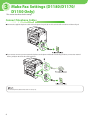
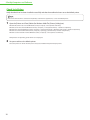
Connect Telephone Cables
● Connect the supplied telephone cable to the telephone line jack (A) on the back side of the machine and the wall jack.
● If you want to connect your own external telephone or telephone with built-in answering machine, connect it to external
device jack (B) on the back side of the machine.
Use the telephone cable shorter than 118 1/8" (3 m).
3 Make Fax Settings (D1180/D1170/D1150 Only)
Register User Telephone Number and Unit Name
Before sending documents, you MUST register your fax or telephone number, unit name, and the current date and
time in the machine.
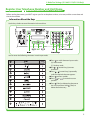
Information About the Keys
Use the keys below to enter information in the machine.
You can enter the following characters in each input mode:
● Press
to switch between input modes:
[a]: Letter mode
[1]: Number mode
● Use – [numeric keys] to enter
characters.
● Press – [numeric keys] repeatedly
until the required character appears.
● Press
to enter symbols.
● Press
or
to move the cursor
position.
● Press [Clear] to delete the character at
the cursor position. Hold [Clear] to
delete the entire entry.
3 Make Fax Settings (D1180/D1170/D1150 Only)
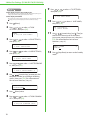
9 Press
●
The display returns to the standby mode:
●
The display turned OFF:
or
to select <1. TX SETTINGS>,
then press [OK].
The machine may enter the standby mode (Auto Clear function) while you are
setting it up. Make the setting again from the main menu.
The machine may enter the Sleep mode while you are performing setup. Press
[Energy Saver] to turn the display back ON and continue the setup.
1 Press
2 Press
TX/RX
1.TX
10 Press
or
to select <1. UNIT NAME>,
then press [OK].
[Menu].
TX SETTINGS
1.UNIT NAME
or
to select <4. TX/RX
SETTINGS>, then press [OK].
MENU
4.TX/RX
11 Use
SETTINGS
3 Press
or
to select <3. FAX SETTINGS>,
then press [OK].
UNIT NAME
CANON
4 Press
or
to select <2. USER SETTINGS>,
then press [OK].
FAX SETTINGS
2.USER SETTINGS
5 Press
or
to select <1. UNIT TELEPHONE
#>, then press [OK].
USER SETTINGS
1.UNIT TELEPHONE
#
6 Use
– , [numeric keys] to enter your fax/
telephone number (up to 20 digits including
spaces), then press [OK]. (For information on
how to enter characters, see p. 9.)
Ex.
UNIT TELEPHONE
123XXXXXXX
#
[Menu] twice.
or
to select <2. TX/RX COMMON
SET.>, then press [OK].
TX/RX SETTINGS
2.TX/RX COMMON
10
– , [numeric keys] and [Tone] to
enter the unit name (up to 24 characters)
(your name, company name, etc.), then press
[OK]. (For information on how to enter
characters, see p. 9.)
Ex.
TX/RX SETTINGS
3.FAX SETTINGS
7 Press
8 Press
COMMON SET.
SETTINGS
SET.
12 Press
mode.
:a
[Stop/Reset] to return to the Standby
3 Make Fax Settings (D1180/D1170/D1150 Only)
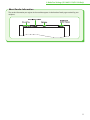
About Sender Information
The sender information you register in the machine appears in the header of each page received by your
recipient.
11
3 Make Fax Settings (D1180/D1170/D1150 Only)
Set Date and Time
Before using the machine, you MUST set the current date and time. The current date and time settings are used as
standard timer settings for functions that require them.
● Entering Information
‒ Use – [numeric keys] to enter numbers.
or
to move the cursor position.
‒ Press
‒ Press [OK] to confirm the entry.
‒ Press [Clear] to delete entire entry.
4 Use
●
The display returns to the standby mode:
●
The display turned OFF:
– [numeric keys] to enter the date
(month/day/year) and time (in 24-hour/military
time format), then press [OK].
The machine may enter the standby mode (Auto Clear function) while you are
setting it up. Make the setting again from the main menu.
Ex.
The machine may enter the Sleep mode while you are performing setup. Press
[Energy Saver] to turn the display back ON and continue the setup.
1 Press
2 Press
DATE&TIME
12/31/’08
[Menu].
or
to select <7. TIMER
SETTINGS>, then press [OK].
MENU
7.TIMER
SETTINGS
3 Press
If you accidentally enter an incorrect number, press
to move the cursor to the number that needs
correction and overwrite it.
5 Press
mode.
or
to select <1. DATE&TIME
SETTING>, then press [OK].
TIMER SETTINGS
1.DATE&TIME SETTING
or
[Stop/Reset] to return to the standby
– You can select one of the following three date formats in
–
–
12
SETTING
15:50
<3. DATE TYPE SELECT>.
<MM/DD/YYYY>
<DD/MM YYYY>
<YYYY MM/DD>
By default, <6. DAYLIGHT SV. TIME> in the <7. TIMER
SETTINGS> menu is set to <OFF>.
If you want to set <6. DAYLIGHT SV. TIME> in the <7.
TIMER SETTINGS> menu to <ON>, see “Introduction of
the Machine,” in the e-Manual.
3 Make Fax Settings (D1180/D1170/D1150 Only)
Select the Receive Mode that Suits Your Needs
About the Receive Modes
<FaxOnly>
<FaxTel>
Receives faxes automatically. When you use only the fax function,
select this mode without connecting to the external telephone.
Automatically switches between fax and a voice call. The machine
receives faxes automatically and rings for voice calls.
● When Receiving FAX
The machine receives
faxes automatically.
● When Receiving FAX
The machine receives
faxes automatically.
● When Receiving VOICE CALL
The machine does not
respond.
● When Receiving VOICE CALL
The machine rings.
Answer the call.
<AnsMode>
<Manual>
Receives faxes automatically and routes voice calls to the telephone
with built-in answering machine.
Rings for every call, whether it is fax or a voice call. For fax, you need
to manually activate the machine to receive the fax.
● When Receiving FAX
The telephone with
built‑in answering
machine rings and the
machine receives faxes
automatically.
● When Receiving FAX
The external telephone rings.
To receive the fax, you can
either pick up the receiver
and press the [Start]
key, or press the
[Hook] key followed by
the [Start] key.
Alternatively, you can use
the remote reception
function through the
external telephone.
● When Receiving VOICE CALL
The telephone with
built-in answering
machine rings and
records voice messages.
● When Receiving VOICE CALL
The external telephone
rings. Answer the call.
For details, see “Methods for Receiving Faxes,” of “Fax,” in the e-Manual and “Introduction to Using Fax Functions,” of Chapter 6, “Fax
(D1180/D1170/D1150),” in the Basic Operation Guide.
13
3 Make Fax Settings (D1180/D1170/D1150 Only)
The receive mode determines how the machine responds to incoming faxes and voice calls. Select the mode that
most suits your needs from the chart below. For details about the receive modes, see “About the Receive Modes,”
on p. 13.
– The remote reception function is useful when the receive mode is set to <Manual> and your machine is connected to an external
–
–
–
–
–
–
telephone. You can receive faxes by picking up the external telephone and pressing a two-digit remote reception ID (the default
setting is 25). For details, see “Fax,” in the e-Manual and Chapter 6, “Fax (D1180/D1170/D1150),” in the Basic Operation Guide.
Your telephone with built-in answering machine or answering machine must be connected directly to the machine to use
<AnsMode>. Make sure that the auto answering function of the telephone with built-in answering machine or answering machine is
activated. (See “Connect Telephone Cables,” on p. 8.)
The external telephone must be connected to the machine to use <FaxTel> or <Manual>. (See “Connect Telephone Cables,” on p. 8.)
By default, <FaxOnly> is selected in <1. RX MODE>. If an external telephone is connected to the machine and receives a fax or voice
call, the external telephone rings. You can answer voice calls while the external telephone is ringing.
To disable the incoming ring, press [Menu] → <4. TX/RX SETTINGS> → <3. FAX SETTINGS> → <4. RX SETTINGS> →
<4. INCOMING RING>, then select <OFF>.
Voice mail is not supported with <AnsMode>.
DRPD (Distinctive Ring Pattern Detection) service assigns two or more telephone numbers with distinctive ring patterns to a single
telephone line, allowing you to have both a fax number(s) and a telephone number(s), using only one telephone line. Your machine
automatically monitors incoming calls and the ring pattern, to let you know if the call is a fax or voice call. Set the ring patterns
assigned by your telephone company for a fax or voice call. Contact your telephone company for information on availability.
4 Press
●
The display returns to the standby mode:
●
The display turned OFF:
The machine may enter the standby mode (Auto Clear function) while you are
setting it up. Make the setting again from the main menu.
The machine may enter the Sleep mode while you are performing setup. Press
[Energy Saver] to turn the display back ON and continue the setup.
1 Press
2 Press
or
to select <4. TX/RX
SETTINGS>, then press [OK].
SETTINGS
3 Press
or
to select <3. FAX SETTINGS>,
then press [OK].
TX/RX SETTINGS
3.FAX SETTINGS
14
to select <1. RX MODE>, then
FAX SETTINGS
1.RX MODE
5 Press
or
to select the receive mode,
then press [OK].
[Menu].
MENU
4.TX/RX
or
press [OK].
RX
MODE
FaxOnly
6 Press
mode.
[Stop/Reset] to return to the standby
3 Make Fax Settings (D1180/D1170/D1150 Only)
If You Need to Use Pulse Dialing
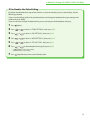
By default, the telephone line type on the machine is set to tone dialing. If you use tone dialing, skip the
following procedure.
If you use pulse dialing, perform the procedure below and change the telephone line type setting on the
machine to pulse dialing.
If you do not know the type of telephone line you use, contact your local telephone company.
1 Press
2 Press
3 Press
4 Press
5 Press
6 Press
[Menu].
or
to select <4. TX/RX SETTINGS>, then press [OK].
or
to select <3. FAX SETTINGS>, then press [OK].
or
to select <2. USER SETTINGS>, then press [OK].
or
to select <2. TEL LINE TYPE>, then press [OK].
or
to select telephone line type, then press [OK].
− <TOUCH TONE>: Tone dialing (Default)
− <ROTARY PULSE>: Pulse dialing
7 Press
[Stop/Reset] to return to the Standby mode.
15
4
Set Up Network Connection
This section describes the network settings.
Connect the LAN Cable
Connect a LAN cable that is compatible with the LAN connector of this machine.
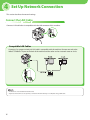
Compatible LAN Cables
A category 5 or greater twisted pair LAN cable is compatible with the machine. Connect one end to the
10Base-T/100Base-TX port on the back of the machine and the other end to a network router or a hub.
– A LAN cable is not included with the machine.
– If you use the machine as a local printer, connect the machine directly to a computer using a USB cable.
16
4 Set Up Network Connection
Connect the Machine to Network
To use the machine by connecting to the network, you must set up the IP address.
An IP (Internet Protocol) address is an identification number assigned to each individual computer connected to
the Internet.
To use the following functions, you must set up the IP address in advance.
• Remote UI:
Access and change the machine settings from a web browser on the computer by using the Remote UI software.
• Scan to File Server :
Send a scanned document to a file server from the computer.
• E-Mail:
Send the scanned documents attached to an e-mail message through a network.
• PC print:
Print the documents from the computer.
• PC fax:
Fax the document on the computer.
• I-Fax (Receive):
Receive documents from the machine that is compatible with I-fax.
The following flow chart indicates the settings needed for each function.
Specify the IP Address Settings
Automatic Setting
By default, the IP address is assigned to the machine automatically by the DHCP server. Therefore, all you need to
do when using DHCP is just to connect the network cable. After connecting the LAN cable, wait until the machine
gets the IP address.
Check IP Address Setting
To make sure this machine is communicating to the network properly, perform the procedure on p. 18.
– It is recommended that the network administrator performs the procedure on p. 18.
– Before performing the procedure on p. 18, make sure that the machine is turned ON and connected to a network.
17
4 Set Up Network Connection
6 Press
●
●
The display returns to the standby mode:
The machine may enter the standby mode (Auto Clear function) while you are
setting it up. Make the setting again from the main menu.
The display turned OFF:
The machine may enter the Sleep mode while you are performing setup. Press
[Energy Saver] to turn the display back ON and continue the setup.
1 Press
2 Press
[Menu].
or
to select <10. SYSTEM
SETTINGS>, then press [OK].
MENU
10.SYSTEM
SETTINGS
3 Press
or
to select <5. NETWORK
SETTINGS>, then press [OK].
SYSTEM SETTINGS
5.NETWORK SETTINGS
4 Press
or
to select <1. TCP/IP
SETTINGS>, then press [OK].
NETWORK SETTINGS
1.TCP/IP SETTINGS
or
to select <1. IP ADDRESS>, <2.
SUBNET MASK>, or <3. GATEWAY ADDRESS>,
then press [OK].
VIEW IP ADDRESS
1.IP ADDRESS
If the machine is communicating to the network properly,
the IP address, subnet mask and gateway address are
displayed.
If not, IP address, subnet mask and gateway address are
not displayed.
If the machine does not get the IP address after you
connect the LAN cable, turn OFF the main power switch
once, and then turn it ON again and wait for 90 seconds. If
the machine still does not get the IP address, ask your
network administrator.
It is recommended that you take a note of the IP address
you confirmed here, because you need it for using the
Remote UI.
7 Press
mode.
[Stop/Reset] to return to the standby
If the IP address, subnet mask, and gateway address are
not displayed, the machine is not communicating with the
network. Check the setting of the IP address.
5 Press
or
to select <3. VIEW IP
ADDRESS>, then press [OK].
TCP/IP SETTINGS
3.VIEW IP ADDRESS
Manual Setting
This is the setting for the Static IP. If the machine obtains IP address automatically in “Automatic Setting,”
skip this setting.
In this setting, you enter the IP address, subnet mask, gateway address manually. [Menu] →
<10. SYSTEM SETTINGS> → <5. NETWORK SETTINGS> → <1. TCP/IP SETTINGS> → <1. IP ADDRESS AUTO> →
<OFF> → <2. REG. IP ADDRESS> → <1. IP ADDRESS> → Enter the IP address → <2. SUBNET MASK> → Enter
the subnet mask → <3. GATEWAY ADDRESS> → Enter the gateway address → Press [Stop/Reset] → Turn
OFF the main power → Restart the machine.
For details on this setting, see “Network Settings,” in the e-Manual. Once you complete the setting, go to
“Check IP Address Setting,” on p. 17.
18
5
Set Up Computers and Software
Types of Connection between Computers and
the Machine
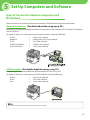
There are two ways to connect the machine and computers: USB connection and network connection
Network Connection (For details about the set up, see p. 22.)
The following functions are available with Network Connection: PC Print, Remote UI, PC Fax, E-Mail/I-Fax (Receive),
Scan to File Server
For details on how to use each function with network connection, refer to the following:
→
“Print,” in the e-Manual
PC Print
Remote UI
→
“Settings from a PC,” in the e-Manual
PC Fax
→
“Fax,” in the e-Manual
E-Mail/I-Fax (Receive)
→
“E-Mail,” in the e-Manual
Scan to File Server
→
“Scan,” in the e-Manual
USB Connection (For details about the set up, see p. 25.)
The following functions are available with USB Connection: PC Print, PC Fax, Scan
For details on how to use each function with USB Connection, refer to the following:
PC Print
→
“Print,” in the e-Manual
PC Fax
→
“Fax,” in the e-Manual
Scan
→
“Scan,” in the e-Manual
Print / Scan / PC Fax
You can use the USB connection and the network connection together.
19
5 Set Up Computers and Software
System Requirement
Microsoft Windows 2000
CPU: Intel Pentium 133 MHz or faster
Memory: 128 MB or more
Microsoft Windows Vista
CPU: Intel Pentium 800 MHz or faster
Memory: 512 MB or more
Microsoft Windows XP
CPU: Intel Pentium/Celeron series
300 MHz or faster
Memory: 128 MB or more
Microsoft Windows Server 2008*
CPU: Intel processor 1 GHz (×86 processor), 1.4 GHz (×64 processor) or
faster
Memory: 512 MB or more
* Network only
Microsoft Windows Server 2003*
CPU: Intel Pentium/Celeron series
133 MHz or faster
Memory: 128 MB or more
* Network only
Microsoft Windows 7
CPU: 1 GHz (×86 processor, ×64 processor) or faster
Memory: 1 GB (×86 processor), 2 GB (×64 processor) or more
About User Software CD-ROM
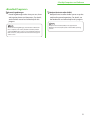
<Drivers & Toolbox>
UFRII LT Driver
Using the UFRII LT Driver, the various data
processing tasks conventionally executed within
the printer are appropriately divided between the
host computer and the printer to greatly reduce
the overall printing time. The workload can be
delegated to match the output data, thus realizing
a significant increase in speed through
optimization.
FAX Driver
The FAX Driver is conceptually akin to a printer
driver. A user selects [Print] from any Windows
application software, selects the Canon fax driver
as the printer, and specifies its destination(s) and
options. The FAX Driver would then converts this
into an image that conforms to standard fax
protocols, to be printed or stored on the recipient
fax machine(s).
PCL Printer Driver (D1180 Only)
The PCL5c, PCL5e, and PCL6 printer drivers can be
used with most kinds of business application
software. The PCL5c printer driver is for color
printers, the PCL5e printer driver is for black-andwhite printers, and the PCL6 printer driver is for
both color and black-and-white printers. PCL6 is
an advanced version of PCL5c and PCL5e, and
offers superior printing quality and speed. The
PCL5e printer driver is provided as standard with
black-and-white printers.
20
USB Scanner Driver (ScanGear MF)
ScanGear MF enables computer to use the
machine as a scanner.
ScanGear MF is not supported on Windows Server 2003 and
Windows Server 2008.
MF Toolbox
MF Toolbox is a program that enables you to easily
import images scanned with a scanner into an
application, attach them to e-mail messages, save
them to hard disks, etc.
MF Toolbox is not supported on Windows Server 2003 and
Windows Server 2008.
5 Set Up Computers and Software
<Bundled Programs>
Presto! PageManager
Presto! PageManager makes it easy to scan, share
and organize photos and documents. For details,
see the online manual and online help for this
program.
To install Presto! PageManager, load the User Software CD
into a computer, click on the [Custom Installation] button
on the CD-ROM Setup screen, click on the [Next] button for
USB connection, then perform the instructions that appear
on the screen.
NetSpot Device Installer (NSDI)
NetSpot Device Installer enables you to set up the
machine for network operations. For details, see
the Readme file and online help for this program.
NetSpot Device Installer (NSDI) is not supported on
Windows Server 2008 (32bit) and all of the 64bit operating
systems.
21
5 Set Up Computers and Software
Network Connection
Before Installation
• The following procedure is described using sample screens from Windows XP Professional.
• The screen may differ according to the operating system, as well as the type and version of the
printer driver.
• Log on as an Administrator to install the software.
• Click on the circled button on each screen to go to the next step.
• Make sure the machine is turned ON.
(See “Connect Power Cord and Turn On the Machine,” on p. 7.)
• Make sure the network cable is connected to the machine.
(See “Connect the LAN Cable,” on p. 16.)
• Make sure an IP address is assigned to the machine.
(See “Check IP Address Setting,” on p. 17.)
• A network cable is not included with the machine.
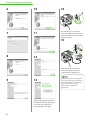
MF Drivers Installation
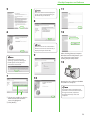
1
– To install the software programs
–
Insert the User Software CD-ROM.
2
If the CD-ROM Setup screen is not
displayed, click [start] on the
Windows task bar → [My Computer].
22
individually, select [Custom
Installation], then follow the onscreen instructions.
If you want to share the printer in
the Print Server (Point and Print)
environment, it is necessary to
install the Canon Driver
Information Assist Service on the
server PC to set up the printer
configuration automatically or use
the Job Accounting feature. When
you want to install the Canon
Driver Information Assist Service,
start the installation from [Custom
Installation], and check [Canon
Driver Information Assist Service]
when [Select Driver] on the [MF
Driver - Setup Wizard] screen
appears.
Windows Vista/7/Server 2008: click
[Start] on the Windows task bar →
[Computer].
Windows Server 2003: click [Start]
on the Windows task bar → [My
Computer].
Windows 2000: double-click [My
Computer] on the Windows
desktop.
Right-click on the CD-ROM icon and
select [Open], then double-click
[MInst] ([MInst.exe]).
3
4
5 Set Up Computers and Software
5
11
The name of the machine displayed
on this screen varies depending on
the model of your machine.
8
12
6
[Printer Canon D1100 Series PCL5e/
Driver Canon D1100 Series PCL5e] is
displayed only for the D1180.
9
If the firewall is applied to the
operating system, the dialog box
below appears. Click [Yes] and
continue the installation.
7
After checking [Restart Computer
Now (Recommended)] button, you
can restart your computer by
clicking the [Restart] button.
13
10
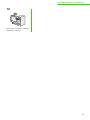
Remove the User Software CD-ROM.
Installation is complete.
① Select your machine on the list.
Make sure that the machine
name is highlighted.
② Click [Next>].
If you have several computers that
you want to connect to the machine
through a network, repeat the
procedure from step 1 for each
computer.
23
5 Set Up Computers and Software
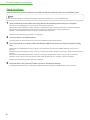
Check Installation
Verify that the driver has been installed successfully and that the machine has been set as the default printer.
If the name of the machine is selected on the [Printer] screen from an application, it is set as the default printer.
1 Open the [Printers and Faxes] folder (for Windows 2000: The [Printers] dialog box).
Windows XP/Server 2003: From the Windows task bar, click [start] → select [Printers and Faxes].
Windows Server 2008: From the Windows task bar, click [Start] → select [Control Panel] → double-click [Printers].
Windows Vista: From the Windows task bar, click [Start] → select [Control Panel] → [Hardware and Sound] → double-click [Printers].
Windows 2000: From the Windows task bar, click [Start] → [Settings] → [Control Panel] → double-click [Printers].
Windows 7/Server 2008 R2: From the Windows task bar, click [Start] → select [Devices and Printers].
Verify that the corresponding printer driver icon is displayed.
2 Set your machine as the default printer.
Select the printer icon for this machine, then select [Set as Default Printer] from the [File] menu.
24
5 Set Up Computers and Software
USB Connection
Before Installation
• Windows Server 2003 and Windows Server 2008 are not supported.
• The following procedure is described using sample screens from Windows XP Professional.
• The screen may differ according to the operating system, as well as the type and version of the
printer driver.
• Do not connect the USB cable before installing the software. If you connect the USB cable
before installing the software and the [Found New Hardware Wizard] screen appears, click
[Cancel].
• Log on as an Administrator to install the software.
• Make sure the machine is turned ON. (See “Connect Power Cord and Turn On the Machine,” on
p. 7.)
• Make sure the machine is turned ON before connecting the USB cable.
• Click on the circled button on each screen to go to the next step.
• A USB cable is not included with the machine.
MF Drivers & MF
Toolbox Installation
1
Windows Vista/7: click [Start] on the
Windows task bar → [Computer].
Windows 2000: double-click [My
Computer] on the Windows
desktop.
4
Right-click on the CD-ROM icon and
select [Open], then double-click
[MInst] ([MInst.exe]).
3
Insert the User Software CD-ROM.
2
If the disk space is insufficient to
install the software, an error message
is displayed. Free the disk space, and
then try again.
5
If the CD-ROM Setup screen is not
displayed, click [start] on the
Windows task bar → [My Computer].
25
5 Set Up Computers and Software
6
10
14
7
11
The machine has a cap (A) that
covers the USB port on the back of
the machine. Remove the cap (A) by
pulling the string.
15
8
12
After restarting your computer,
connect the machine and your
computer with a USB cable (A).
9
13
After checking [Restart Computer
Now (Recommended)] button, you
can restart your computer by
clicking the [Restart] button.
26
Depending on the operating system
you use, the dialog box to inform you
that new hardware is detected may
appear. Follow the on-screen
instruction to complete the
installation.
5 Set Up Computers and Software
16
Remove the User Software CD-ROM.
Installation is complete.
27
5 Set Up Computers and Software
Check Installation
Verify that the driver has been installed successfully and that the machine has been set as the default printer.
If the name of the machine is selected on the [Printer] screen from an application, it is set as the default printer.
1 Open the folder for printers folder, then verify that the corresponding printer driver icon is displayed.
Windows XP: From the Windows task bar, click [start] → select [Printers and Faxes].
Windows Vista: From the Windows task bar, click [Start] → select [Control Panel] → [Hardware and Sound] → double-click [Printers].
Windows 2000: From the Windows task bar, click [Start] → [Settings] → [Control Panel] → double-click [Printers].
Windows 7: From the Windows task bar, click [Start] → select [Devices and Printers].
Verify that the corresponding printer driver icon is displayed.
2 Set your machine as the default printer.
Select the printer icon for this machine, then select [Set as Default Printer] from the [File] menu.
3 Open the [Scanners and Cameras] folder (for Windows 2000: The [Scanners and Cameras Properties] dialog
box).
Windows XP: From the Windows task bar, click [start] → select [Control Panel] → [Printers and Other Hardware] → [Scanners and
Cameras].
Windows Vista: From the Windows task bar, click [Start] → select [Control Panel] → [Hardware and Sound] → double-click [Scanners and
Cameras].
Windows 2000: From the Windows task bar, click [Start] → [Settings] → [Control Panel] → double-click [Scanners and Cameras].
Windows 7: Enter “scanner” in [Search programs and files] under the [Start] menu → click [View scanners and cameras].
Verify that the corresponding scanner driver icon is displayed.
4 Verify that there is the [Canon MF Toolbox 4.9] icon on the Windows desktop.
If the [Canon MF Toolbox 4.9] icon is displayed on the Windows desktop, installation of the MF Toolbox 4.9 was successful.
28
6
Appendix
User Manual CD-ROM (e-Manual)
The User Manual CD-ROM (e-Manual) is a software that enables you to select and view the HTML Manuals
included on the CD-ROM on your computer screen. The manual describes all of the functions and troubleshooting
for the machine. Perform the instructions below to use the User Manual CD-ROM (e-Manual).
System Requirements
The User Manual CD-ROM (e-Manual) can be used in the following system environments.
● OS (Operating System)
• Windows 2000 SP4, Windows XP, Windows Vista, Windows 7
(Internet Explorer 6 is required if you are using Windows 2000 SP4.)
• Mac OS X v10.4.x, v10.5.x
● Web Browser
• Windows: Internet Explorer 6, 7, 8
• Mac: Safari 2, 3, 4
● Flash Player
• Flash Player 8 or later
NOTE
– The memory and CPU required to run each operating system are also required.
– A display with the resolution of 1024 x 768 pixels or higher is required.
– The User Manual CD-ROM (e-Manual) may not operate correctly if Flash Player is not installed or a version of Flash Player earlier
than Flash Player 8.0 is installed on your computer.
29
6 Appendix
Using the User Manual CD-ROM (e-Manual)
● When using the e-Manual with Windows, perform the procedure below.
Install the e-Manual on your computer.
1.Insert the User Manual CD-ROM on your computer.
2.Select the language.
3.Click [Install] button.
4.The installation starts automatically.
5.When the installation finished, press [OK].
6.To display the e-Manual, double-click the shortcut icon [D1100_Manual_us] on the desktop.
Display the e-Manual directly from the CD-ROM.
1.Insert the User Manual CD-ROM on your computer.
2.Select the language.
3.To display the e-Manual, click [Display manual].
● When using the e-Manual with Macintosh, perform the procedure below.
1.Insert the User Manual CD-ROM in your computer.
2.Drag-and-drop the [D1100_Manual_us] folder into the location you want to save it.
3.Open the [D1100_Manual_us] folder.
4.Double click index.html, and the e-Manual is displayed.
NOTE
– If the menu is not displayed automatically after you insert the CD-ROM, perform the procedure below.
–
30
Windows XP: click [Start] on the Windows task bar → [My Computer].
Windows Vista/7: click [Start] on the Windows task bar → [Computer].
Windows 2000: double-click [My Computer] on the Windows desktop.
Right-click the CD-ROM icon and select [Open], then double-click start.exe.
Depending on the operating system you are using, a security protection message may be displayed. In this case, allow the contents to
be displayed.
6 Appendix
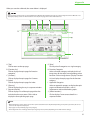
When you start the e-Manual, the screen below is displayed.
If you are using a browser such as Internet Explorer for Windows XP, ActiveX blocks pop-ups in the background. If the e-Manual is not
displayed properly, look for an information bar at the top of the page and click the information bar.
A [Top]
Click to return to the top page.
B [Function List]
Click to display the topic pages for function
categories.
C [Contents]
Click to display the topic pages for Contents.
D [Index]
Click to display the topic pages for Index.
E [Glossary]
Click to display the glossary in a separate window.
F [Keyword Search]
Click to display a list of the topic page titles that
include the phrase you enter. Click a title to
display the corresponding topic page.
G [Print]
Click to print all categories or a single category.
H Function Categories
Select a function category to display the list of
image icons for the topics corresponding to that
function. Click an image icon or [Display Function
List] to display the topic pages for the function
category.
I Appendix Categories
Select an appendix category to display the topic
pages not related to functions, such as
maintenance and troubleshooting topics.
J [Office Locations]
Click to display Canon contact details in a
separate window.
NOTE
– When performing a search, make sure to enter a phrase that will match a keyword. Depending on the phrase you enter, the correct
search results may not be displayed.
– Topic pages can be printed by page or by category.
– The background color and images of the Topic Page may not be printed, depending on the web browser settings.
31
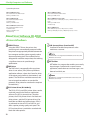
Contacting Service Center
When you have a problem with your machine and you cannot solve it even if you refer to the manuals or online
help, please contact our Canon Authorized Service Facilities or the Canon Customer Care Center at 1-800-OKCANON between the hours of 8:00 A.M. to 8:00 P.M. EST for U.S.A. and 9:00 A.M. to 8:00 P.M. EST for Canada
Monday through Friday.
Canadian customer support is available on-line at www.canon.ca or by calling 1-800-652-2666 Monday through
Friday from 9:00 A.M. to 8:00 P.M. EST
Trademarks
Canon, the Canon logo, imageCLASS, and NetSpot are trademarks of Canon Inc.
Microsoft, Windows, Windows Server, and Windows Vista are trademarks or registered trademarks of Microsoft
Corporation in the U.S. and/or other countries.
All other product and brand names are registered trademarks, trademarks or service marks of their respective
owners.
Copyright
Copyright © 2009 by Canon Inc. All rights reserved. No part of this publication may be reproduced, transmitted,
transcribed, stored in a retrieval system, or translated into any language or computer language in any form or by
any means, electronic, mechanical, magnetic, optical, chemical, manual, or otherwise, without the prior written
permission of Canon Inc.
UFST: Copyright © 1989-2003 Monotype Imaging, Inc.
Disclaimers
The information in this document is subject to change without notice.
CANON INC. MAKES NO WARRANTY OF ANY KIND WITH REGARD TO THIS MATERIAL, EITHER EXPRESS OR IMPLIED,
EXCEPT AS PROVIDED HEREIN, INCLUDING WITHOUT LIMITATION, THEREOF, WARRANTIES AS TO MARKETABILITY,
MERCHANTABILITY, FITNESS FOR A PARTICULAR PURPOSE OF USE OR NON-INFRINGEMENT. CANON INC. SHALL
NOT BE LIABLE FOR ANY DIRECT, INCIDENTAL, OR CONSEQUENTIAL DAMAGES OF ANY NATURE, OR LOSSES OR
EXPENSES RESULTING FROM THE USE OF THIS MATERIAL.
CANON INC.
30-2, Shimomaruko 3-chome, Ohta-ku, Tokyo 146-8501, Japan
CANON MARKETING JAPAN INC.
16-6, Konan 2-chome, Minato-ku, Tokyo 108-8011, Japan
CANON U.S.A., INC.
One Canon Plaza, Lake Success, NY 11042, U.S.A.
CANON EUROPA N.V.
Bovenkerkerweg, 59-61, 1185 XB Amstelveen, The Netherlands
CANON CHINA CO. LTD.
15F Jinbao Building No.89, Jinbao Street, Dongcheng District, Beijing 100005, PRC
CANON SINGAPORE PTE LTD
1 HarbourFront Avenue, #04-01 Keppel Bay Tower, Singapore 098632
CANON AUSTRALIA PTY LTD
1 Thomas Holt Drive, North Ryde, Sydney NSW 2113, Australia
CANON GLOBAL WORLDWIDE SITES
http://www.canon.com/
FT5-3028 (000)
xxxxxxxxxx © CANON INC. 2009 PRINTED IN CHINA