Transcript
Introduction
This demonstrates how to use the Drum Kit. Load the Drum Kit software provided and use these instructions to maximize your playing capability.
Note: Please be sure to plug your Drum Kit into a USB port in your PC prior to playing with the unit.
USB DRUM KIT
Function Overview
USER MANUAL
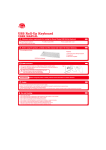
Minimum system requirements for running the Dream Cheeky USB Drum Kit:
Microsoft Windows 2000, XP & Vista
256 MB of system RAM
One available USB 1.1 port
PC with Pentium 3 or compatible processor
that operates at 1.5 GHz or faster
200 MB available hard disk space
Display adapter capable of 800 x 600 in 16 bit color
CD-ROM Drive
6 playing pads
Tempo 40-208 beats
8 Special Drum Pad effects
Record Playback and programming
6 Drum Samples (sets)
48 Rhythm Patterns
8 Bass Drum Loops
Learning Feature
Interface
Tempo
Before using the product, carefully read this manual and retain it for future reference.
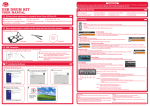
This packaging contains:
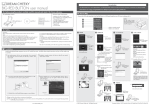
1. Press on of the tempo buttons, the current tempo value will appear on the status display.
2. You can use the tempo Up and Down buttons to increase or decrease the tempo of Orchestrated Accompaniment Patterns and other Recorded
features.
3. The Tempo value range is from 40 to 208 bpm (beats per minute).
Drum Samples
DRUM SAMPLES
1. There are 6 preset drum samples.
2. Click on the arrow to bring down the different sets, their name will appear in the box below the Sample screen.
3. Use your cursor to select your desired Sample.
Rhythm Patterns
Drum Pad
Drum Sticks
CD Drum Kit
1. There are a total of 48 Rhythm Patterns.
2. Click on the arrow to bring down the different Rhythm Patterns, their name will appear in the box below the
Rhythm Pattern screen.
3. Use your cursor to select your desired Rhythm Pattern then press play.
S.DRUM PAD EFFECT
USB Connection
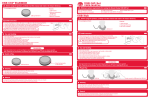
1. Connect the USB cable attached to the Drum Kit to a USB port located
on your PC prior to playing with your USB Drum Kit.
Note: Install the software before connecting your Drum Kit!
If you have already plugged the Drum Kit into the computer,
please unplug it before installing the software.
2. Double click on the Drum Kit program on your desktop.
Bass Drum Loop
RHYTHM PATTERNS
Special Drum Pad Effect
1. There are 8 Special Drum Pad Effects to choose from. (The special pad is not preset in the Drum Samples so you will need to
choose from the selection otherwise it will remain as the default.)
2. Click on the arrow to bring down the different Effects, their name will appear in the box below the Special Drum Pad Effect screen.
3. Use your cursor to select your desired Effect.
1. There are 8 Bass Drum Loops you can choose from.
2. Click on the arrow to bring down the different Loops, their name will appear in the box below the Bass Drum Loop screen.
3. Use your cursor to select your desired Loop then press play.
Please note you cannot have a Rhythm Pattern and Bass Drum Loop playing at the same time.
BASS DRUM LOOP
Status Display
Note: Using a USB HUB or docking station may result in the loss of
power to the Drum Kit. This could create the unit to not
work properly.
1. The Status Display is located in the top center of the Drum Kit Interface.
2. The purpose is to inform you of the selecting and engaging of various features and functions.
Learning Mode
Installing the Software
Installing the Drum Kit program into your PC couldn't be easier. Just follow these simple instructions and you will be ready to go in no time!
Put the Drum Kit CD into your PC.
1. Press MODE SELECT button to switch from Free Play Mode to Learning Mode.
2. Select your desired song from the Music Library, and then press the PLAY button to begin Learning Mode.
3. Follow signals provided and hit the corresponding drum pads.
RECORD/PLAYBACK PANEL
Play: 1. Press the Play Button to hear previously recorded tracks in the music library.
2. Click on this button after you have selected the song or rhythm you wish to play.
Stop: Press the stop button to stop the recording or playback.
Record: 1. This will allow the user to record their music performances.
The install program will show
upautomatically. (If not
manually click "setup.exe" on
the CD drive). On the Set up
window, click "Start Install".
Record Stop Play
Program
Open
Save
2. It can record all upper voice (not layer voice or lower voice) note events exactly as they are performed.
3. When the Record button is pressed it puts the selected Music Record track into a standby mode.
4. It will only store one at a time, so if you hit the Record button again you will lose your previously recorded track unless you have saved it.
5. Recording begins as soon as you start to play on any section of the Drum Kit.
Program: 1.This will allow the user to program their own Rhythm.
2. It can record all events exactly as they are performed.
3. When the program button is pressed it puts the selected Rhythm into the Program standby mode.
4. It will only store one at a time so if you hit the Program button again, you will loose your previously recorded Rhythm unless you have
saved it.
5. Recording begins as soon as you start to play on any selection of the Drum Kit.
Open: 1. Press the Open button to open previously recorded tracks.
2. When you click on the Open button a browser screen will pop up.
3. Select the song that you wish to open and then click ok.
Save: 1. Press the Save button to save your newly recorded track as a file.
Installation complete window
will show up after file are
copied. Click "Close" to finish.
2. When you click on the Save button, a browser screen will pop up.
3. Select the location you wish to place your saved file and the desired name then click OK.
Precautions:
Before using this product, carefully read this manual and retain it for future reference.
Cleaning:
1. For safety reasons, unplug the USB cord from your PC before cleaning.
2. Wipe gently with a damp cloth, and then dry the surface.
3. Do not use solvents or other chemicals to clean the exterior of the USB Drum Kit .
Safety:
This product has been designed with the highest concern for safety.However, any electrical
device, if used improperly, has the potential of causing fire, electrical shock or personal injury. General:
1. Should the USB Drum Kit perform unexpected function, unplug the USB Drum and restart the
To help ensure accident-free operation, follow these guidelines:
program.
Stop use, unplug the USB cord, immediately if the device functions in an abnormal manner,
produces unusual sounds or smells or becomes too hot to touch.
Note: See www.dreamcheeky.com for full online support link and trouble shooting