1
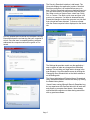
The Security Essentials interface is tab based. The
Home tab displays the application’s status. Note that
Real-time protection is on and definitions are up to
date. Security Essentials performs scheduled scans but
you can select and run a manual scan from the Home
tab. When running a System Scan, select from Quick,
Full, or Custom. I ran both a quick scan and then a full
scan on my computer. If a threat is detected Security
Essentials changes to show the computer is at risk and
that a threat has been detected. To remove a threat
click the Clean computer button displayed on the Home
tab.
Until the updates and initial scan are computer Security
Essentials shows the red warning that your computer is
at risk. Once the scan is complete and any problems
addressed the computer status will be green or Protected.
The Settings tab provides control over the application. I
saw no reason to make any changes from the default
settings. The one thing you might want to change is the
scan schedule. You can schedule a scan by clicking the
Change My Scan Schedule link on the Home window or
on the Settings tab.
The History tab displays all Detected Items, Quarantined
Items, and Allowed Items. Remove the history by clicking
the Delete History button.
I haven’t been running Microsoft Security Essentials long
but my experience with OneCare tells me it will work well
and protect my computer from threats. I have already
noticed that the computer runs faster during scans than
with my previous software.
Page 7