1
[MENU] + [MENU] + "ROUTE" + [ENTER] + "REPORT" + [ENTER] + [REVERSE]
The Route is then followed in reverse order, with Waypoints renumbered accordingly. If the destination is placed on the Route, that Route cannot be reversed.
Selecting Route Report page
To give information on Waypoints belonging to the selected Route:
[MENU] + [MENU] + "ROUTE" + [ENTER] + "REPORT" + [ENTER]
In this page it is possible to modify the Speed and Fuel consumption values:
[MENU] + [MENU] + "ROUTE" + [ENTER] + "REPORT" + [ENTER] + [SPEED]/
[FUEL] + use the cursor to insert values + [ENTER]
Sending Route
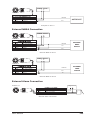
To transmit the Active Route information onto the NMEA output port.
[MENU] + [MENU] + "ROUTE" + [ENTER] + "SEND" + [ENTER]
The NMEA WPL & RTE messages are sent to the output port.
Receiving Route
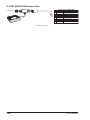
To save Route information received from the NMEA input port.
[MENU] + [MENU] + "ROUTE" + [ENTER] + "RECEIVE" + [ENTER]
The received route is saved on the Active route, overwriting it. The NMEA WPL &
RTE messages are sent to the input port.
2.3
GOTO FUNCTION
This functions allows you to place the destination point and immediately start
navigating to it.
Navigation to Waypoint
Place the cursor on the desired Waypoint + [ENTER] + "GOTO" + [ENTER]
or simply:
Place the cursor on the desired Waypoint + [GOTO]
COLOR MAX 15/COLOR MAX PRO:
Place the cursor on the desired Waypoint + [GOTO]
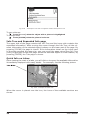
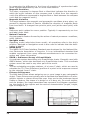
A circle surrounds the Waypoint symbol. A dotted line is shown, connecting the
destination with the ship's position. When the destination is placed, all navigation
data are referred to it.
Deleting destination
If the destination has been placed, to stop the navigation to the Waypoint:
Place the cursor on destination icon + [STOP]
NOTE
If you press [NEXT]/[PREV] the destination icon is moved on the next/previous
Waypoint in the Route.
Otherwise when the cursor is placed on a generic position on the chart:
[ENTER] + "GOTO" + [ENTER] + [STOP]
NOTE
If you press [START], the destination icon is moved on the new cursor position.
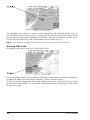
The symbol that identifies the destination disappears from the screen, but the
Waypoint remains.
2.4
USING TRACK
A very useful feature of the chart plotter, is the ability to store and display exactly
26
User Manual