1
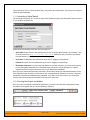
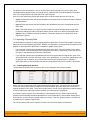
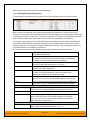
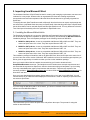
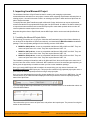
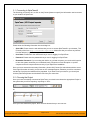
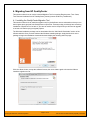
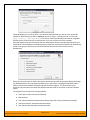
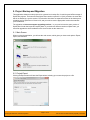
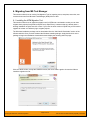
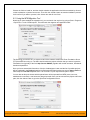
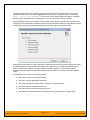
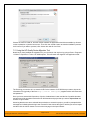
1. Importing from Microsoft Excel 1B The web-based interface of SpiraTeam® is ideal for creating and managing requirements, test cases and incidents for a new project. However when migrating requirements, test cases, test steps and incidents for an existing project from another system or Microsoft Office document (e.g. Excel), it is useful to be able to load in a batch of artifacts, rather than having to manually enter them one at a time. To simplify this task, SpiraTeam® comes with a Microsoft Excel Add-In that can export requirements, test cases, test steps and incidents from a populated Excel sheet into SpiraTeam®. In addition, the Add-In allows you to import those same artifacts back into the Excel sheet to make batch updates which can then be used to update the master copies on the server. Note that this guide refers to SpiraTeam®, but the Excel Add-In can be used with SpiraTest® and SpiraPlan® as well. The only difference is that some of the artifact types may not be available in SpiraPlan/Test. 1.1. Installing the Microsoft Excel Add-In 6B The first thing you need to do is to go to the “Add-Ons and Downloads” page of the Inflectra Website (it can be found in the SpiraTest, SpiraPlan or SpiraTeam sections), and download the MS-Office Add-Ins installation package. There are separate packages for the following versions of MS Office: MS-Office 2003 Add-Ins – these are compatible with Microsoft Office 2003 and 2007. They can connect to SpiraTeam v2.3 or later. They also require Microsoft .NET 3.5. MS-Office 2007 Add-Ins – these are compatible with Microsoft Office 2007 and 2010. They can connect to SpiraTeam v3.0 or later. They also require Microsoft .NET 4.0. MS-Office 2010 Add-Ins – these are compatible with Microsoft Office 2010 and 2013. They can connect to SpiraTeam v4.0 or later. They also require Microsoft .NET 4.0. This installation package will install the add-ins for Microsoft Excel, Word and Project at the same time. If you don’t have the correct version of Microsoft .NET installed or some of the necessary prerequisites, you will be given the opportunity to install them when you first run the installation package. Once you have the Excel Add-In installed, the second thing you’ll need to download is the SpiraImportTemplate Excel Sheet. This spreadsheet contains the necessary pre-formatted columns that are needed for the Add-In to easily recognize the data and know how to handle it. There are three versions of the template available - SpiraImportTemplate.xls for the Excel 2003 Add-In, SpiraImportTemplate.xlsx for the Excel 2007 Add-In and SpiraImportTemplate2010.xslx for the Excel 2010 Add-In. Once you have downloaded the template, please double-click on it to open it up in MS-Excel. You will notice that there is an additional toolbar displayed in Excel which is used for importing/exporting data to/from SpiraTeam: If you are using the MS-Excel 2007 or 2010 Add-In, you will see a modified version of the toolbar that makes use of the MS-Office Ribbon: © Copyright 2006-2014, Inflectra Corporation Page 2 of 46 This document contains Inflectra proprietary information