1
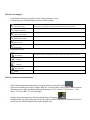
What else can I do with Nil? o Toolbar ! Use the top toolbar to select all available commands. The toolbar can be “flinged” left or right with a touch or mouse gesture to see commands that may not be visible. Same effect can be achieved using the arrows Viewports and series positioning ! Use the “Study Layout” button to display multiple series on the screen ! Use the “View layout” button to select the way a particular series is displayed, for example stacked 2x2, MPR, etc. Side panel ! Access series, presets and activate other functions such as collaboration ! If the series list is visible, click on a series to load that series into the active viewport. You can also drag and drop the series into any viewport Timeline ! The timeline is an area where prior exams and reports are displayed, ordered by date. ! By default the last 2 years are shown. Use the side filter button for additional filtering options ! The timeline can be “flinged” left or right with a touch or mouse gesture to see priors that are not be visible. Same effect can be achieved using the arrows or the mouse wheel. ! Click/tap on a thumbnail to load a previous exam or see a report. ! Drag and drop a study thumbnail over a viewport to load its series into that particular viewport. Compare studies ! Split the screen in a 2x1 Study Layout ! Drag and drop from the timeline the study you want to compare ! A warning will appear on the screen, indicating that multiple studies are loaded ! The timeline will indicate with a blue color which study is currently loaded ! Each viewport will indicate what study is currently being displayed ! o o o o Need help? o Fling the toolbar all the way to the right and click on the Help icon to access a Nil’s user manual o Contact Nina Caterinichio @ 907-‐830-‐5311 Or Sterling Grover @ 907-‐841-‐9741